How to Prepare Images for a Website: Format, Size and Quality
Choose the right image size and format for a website, then make smaller JPG, WebP or AVIF copies without losing the original.

A good website image is only as large as it needs to be, looks sharp in the actual layout and uses a format browsers can display. You do not need a complicated image pipeline to get the basics right.
Start with the best original, crop it for the space it will fill, resize it near the largest size the page shows, then make a WebP or JPG copy. Test the result on the page before converting the rest.
Choose the format before you start
Use JPG, WebP or AVIF for photographs. WebP is a practical modern default. AVIF can be smaller, although it may take longer to convert and some older software is less comfortable with it. Use PNG for graphics that need transparency or perfectly sharp small text.
The browser can resize a large image visually, but the visitor still has to download the large file. That is why exporting sensible dimensions matters just as much as choosing a modern format.
How to make a web-ready image
Prepare the crop
Crop around the important subject for the place the image will appear. A wide header and a square card usually need different crops.
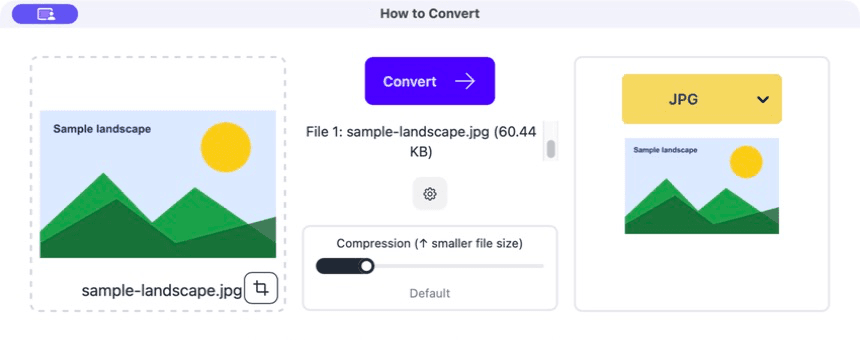
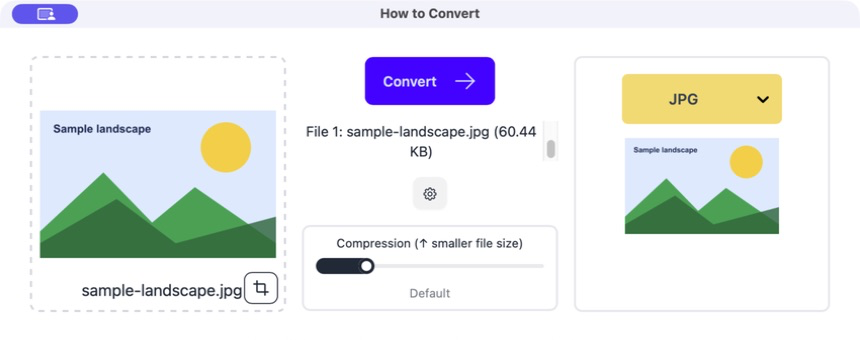
Drag the image into How to Convert
The source file appears on the left. The format control is on the right.
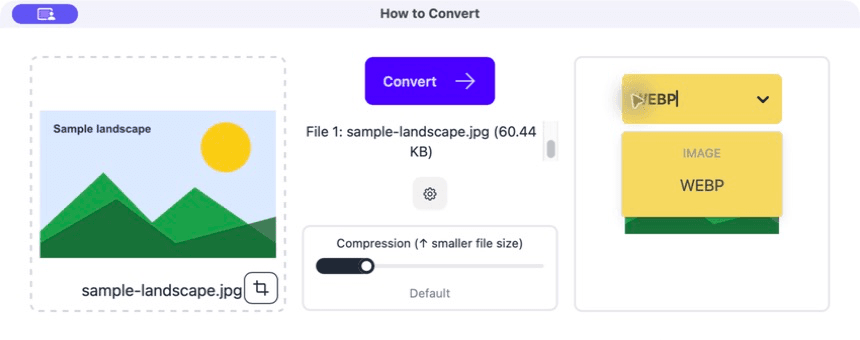
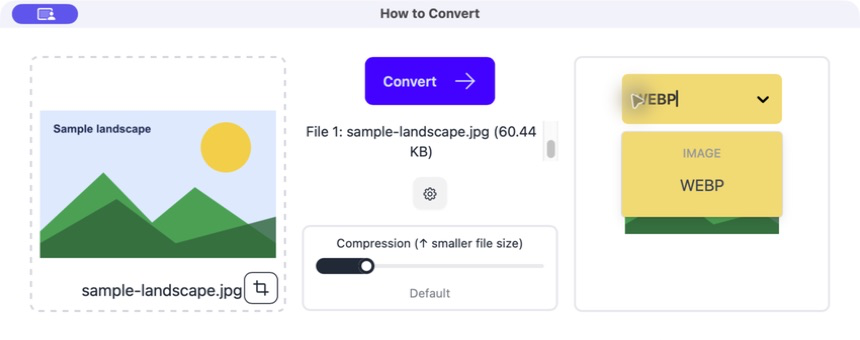
Choose WebP
Select WebP for a normal website photo. If your publishing system asks for JPG instead, use JPG; the right format is one the destination actually accepts.
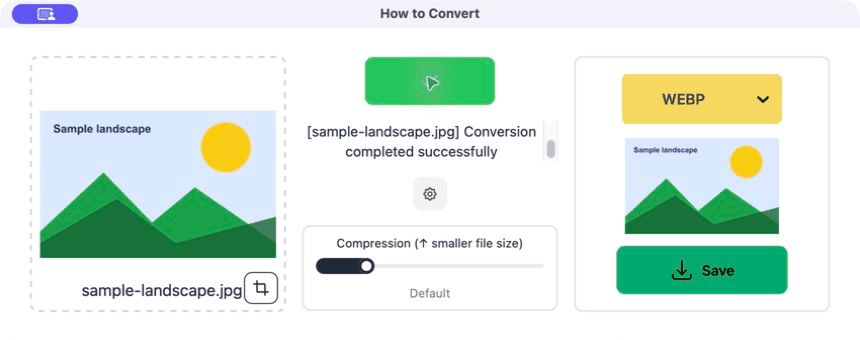
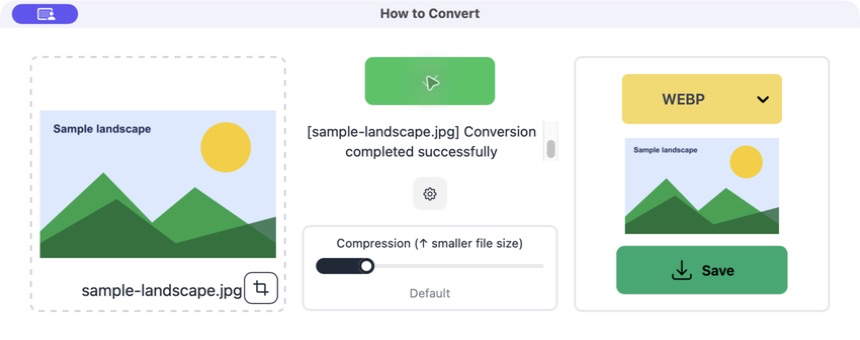
Convert and test the real page
Click Convert, save the new file and put it on the page. Check it on a narrow phone-sized view as well as a desktop screen.
Common problems
The image looks soft
It was exported smaller than the size at which the page displays it.
Create a larger version from the original and test again.
A logo has a solid box behind it
It was converted to JPG, which cannot keep transparency.
Use PNG or WebP for that logo.
The page is still slow
The image dimensions are much larger than the rendered space or the page loads one huge file for every screen.
Export a more sensible width and add smaller versions if your site supports them.
Frequently asked questions
Is WebP better than JPG?
For many website photos it gives a smaller file at similar visible quality. JPG is still a safe fallback when a system specifically asks for it.
Should every website image be AVIF?
No. It is useful, not compulsory. Use it when your site and image tools handle it well.
What width should I use?
Use the largest width the image actually reaches in the layout, with a little extra for high-density screens if your site does not create variants for you.
Can I convert several images at once?
Yes. Test one image in the page first, then batch the rest with the same setting.
Extra: Responsive images without the headache
If your site can provide several image sizes, make a small, medium and large version from the same original. The page can then give a phone the small file and a large screen the larger one.
Keep the crop consistent between sizes unless the design deliberately changes it. The useful test is simple: does the right subject remain visible, does the text stay readable and does the page load quickly on a phone?
