5 Best AIFF to WAV Converters in 2026

Your editor or upload form wants WAV, but your recording is AIFF. Here are five options I found for making a WAV copy, with screenshots to show where to click.
1. How to Convert
Mac, Windows, Linux · $29 once
This is the one I made. It handles almost any file, so you can convert a recording here and use the same app for photos, video and documents. It finds and runs the conversion tools for you.
1. Add your files. Drag your AIFF files into How to Convert.
2. Choose the output and convert. Choose WAV from the output menu and click Convert.
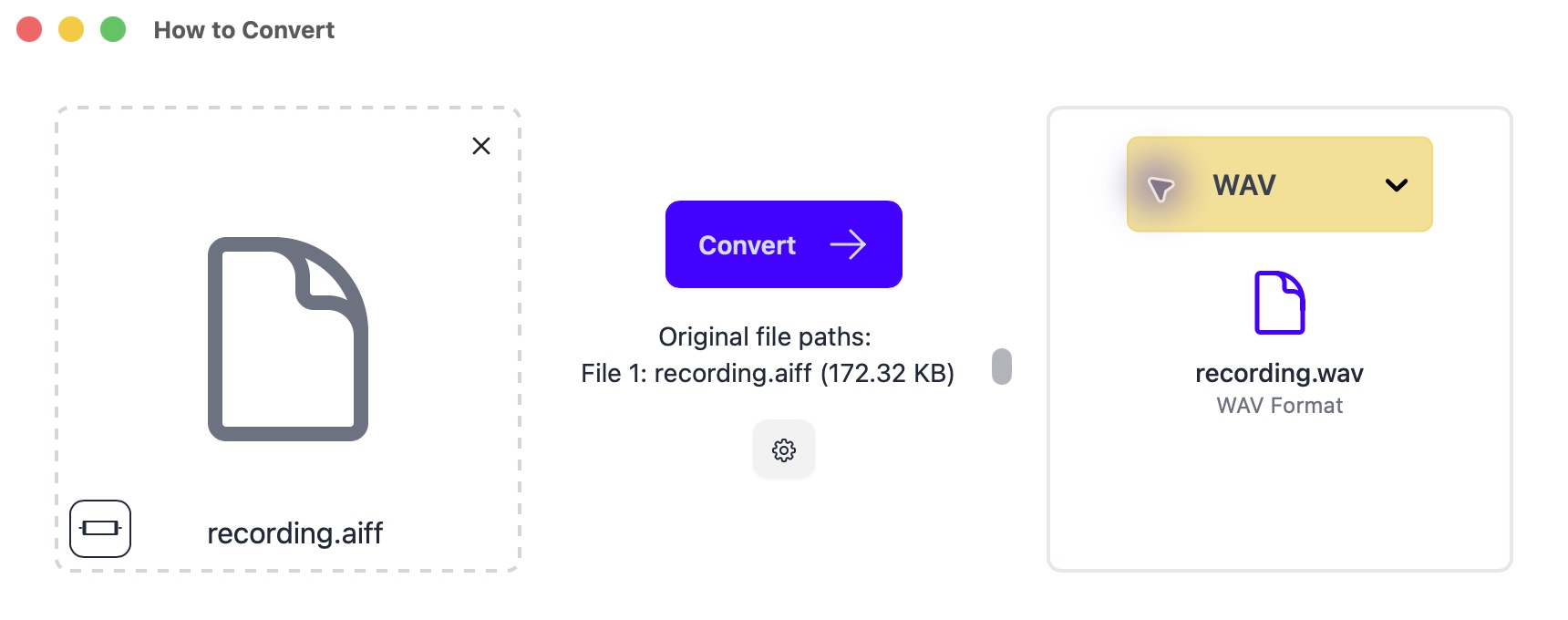
Drop in your file on the left; choose WAV on the right. Mac app shown.
WAV defaults to 16-bit. For a 24-bit recording, select 24-bit in the conversion settings.
Other options
2. MediaHuman Audio Converter
Mac, Windows, Linux · Free
A free, focused audio converter with a format menu and batch queue. A good fit when you do not need editing tools.
- Download MediaHuman Audio Converter using its link above, open it and drag in your AIFF files.
- Click the format menu in the toolbar and select WAV. Use the matching 24-bit option for a 24-bit recording, and keep the original sample rate.
- Choose an output folder and click the start-conversion button. Open one finished file in the app you need it for before converting the rest.
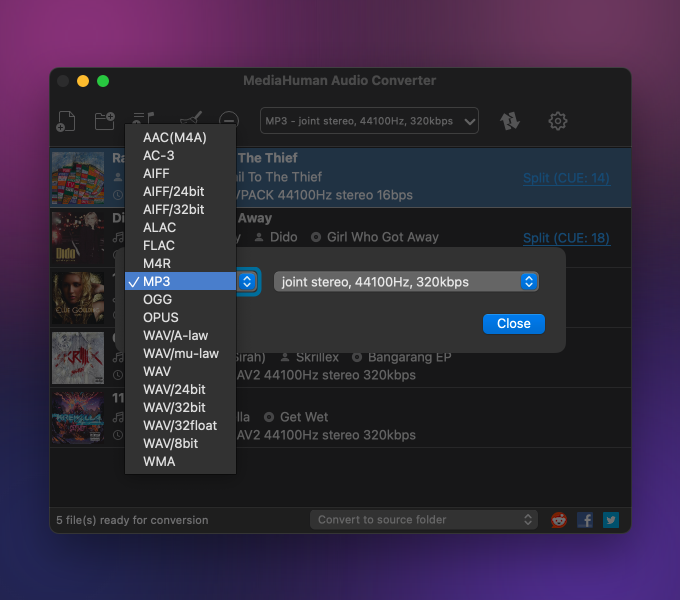
For a 24-bit original, choose WAV/24bit. Keep its sample rate unchanged unless the receiving app asks for a different one.
3. XLD
Mac · Free
A free Mac option for lossless music libraries.
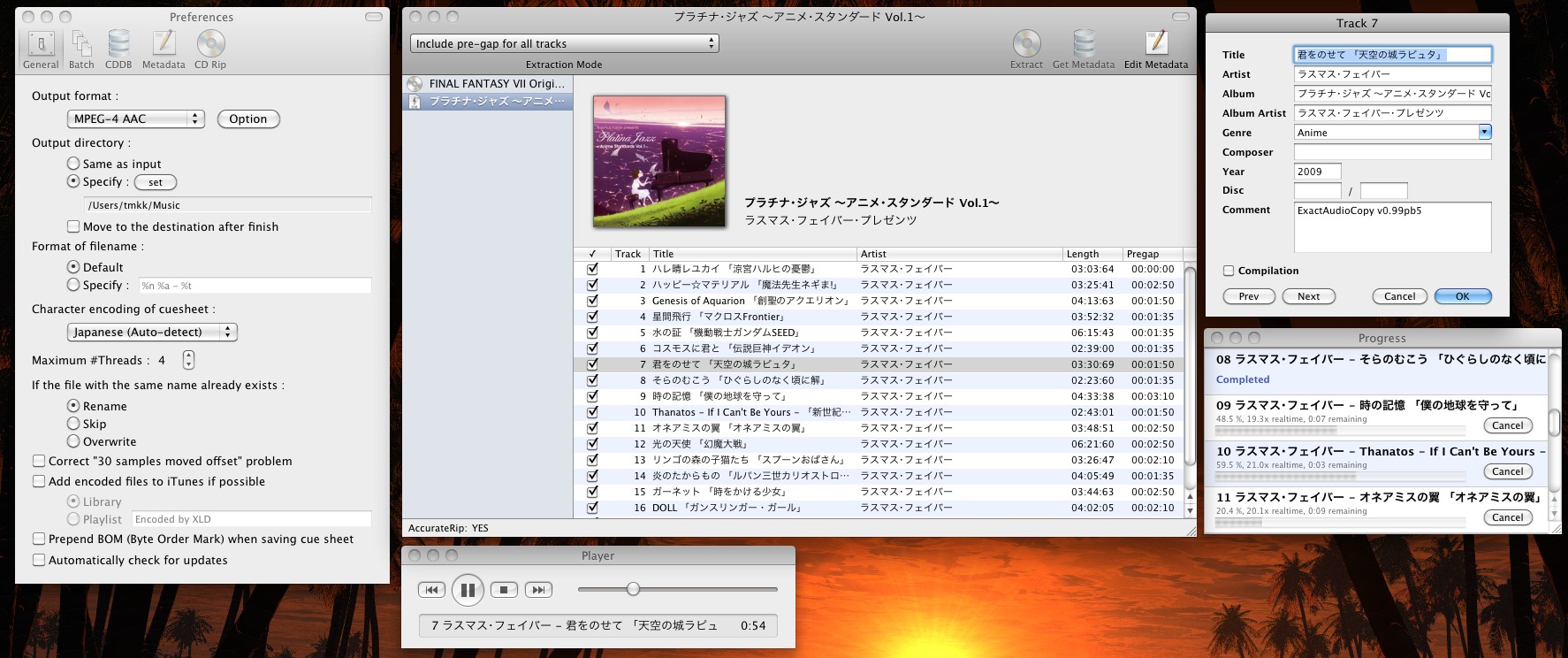
- In XLD → Preferences, choose WAV as the output format.
- Open your audio files in XLD, choose a destination if prompted, and let the batch finish.
4. dBpoweramp
Mac, Windows · Paid; free trial
Useful for large music libraries and keeping track information with your files.
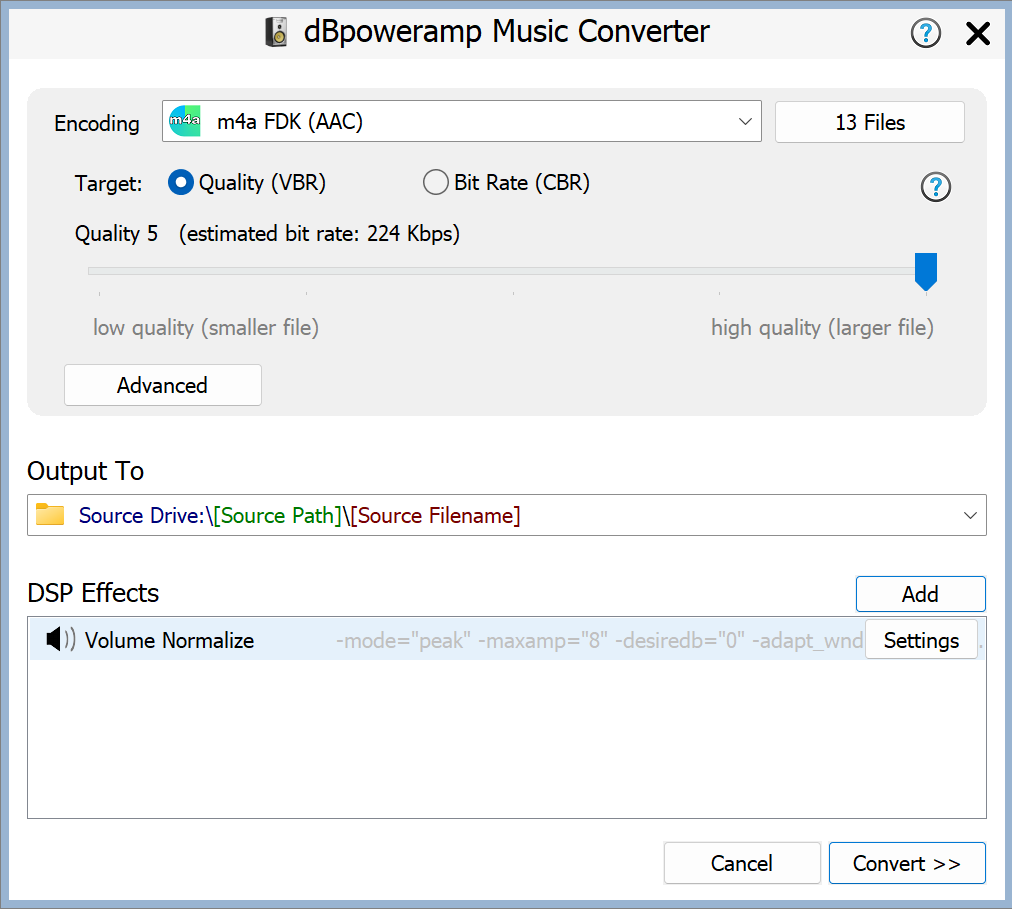
- Open Music Converter and select your recordings; use Batch Converter for folders.
- Choose WAV, keep the original sample rate and bit depth, select a destination and click Convert.
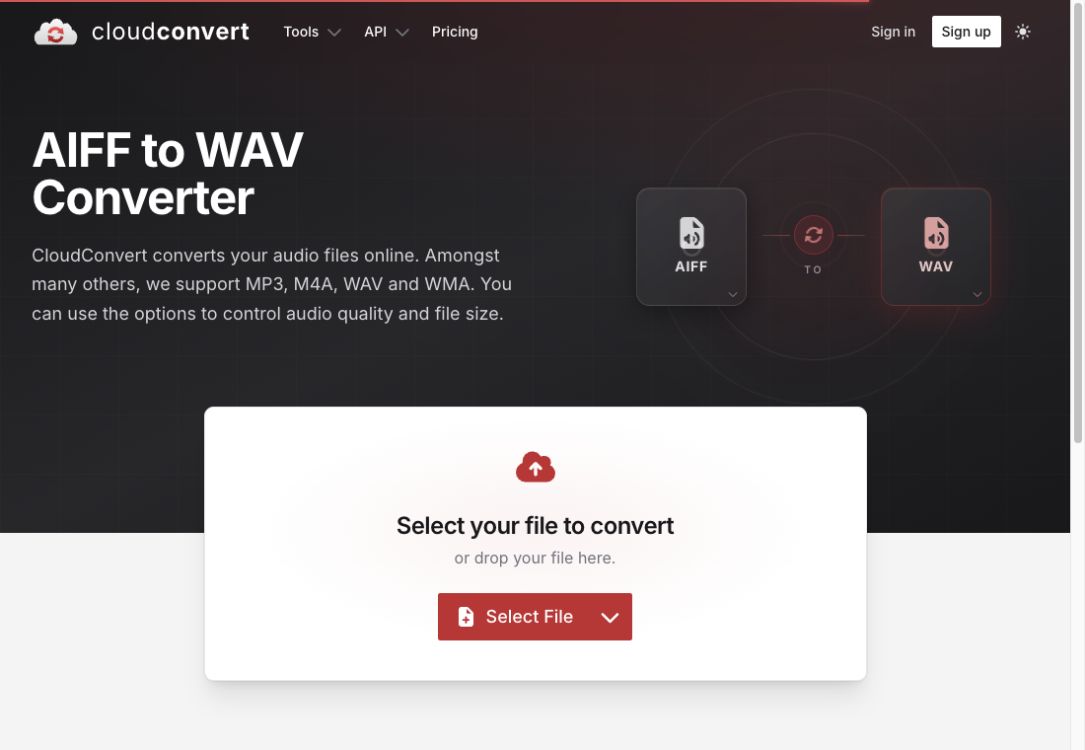
5. CloudConvert
Browser · Limited free tier; paid plans
An occasional conversion without installing an app. Files upload to its servers; free limits apply.
- Click Select File and choose your AIFF file.
- Set the output to WAV, click Convert, then download the result.