6 Best Audio Converters for Windows in 2026

Need a WAV for your editor or an MP3 to share? Here are six Windows audio converters I found, including free apps and the one I made. Below are the steps for each.
1. How to Convert
Mac, Windows, Linux · $29 once
This is the one I made. It handles almost any file, so you can convert a recording here and use the same app for photos, video and documents. It finds and runs the conversion tools for you.
1. Add your files. Drag your recordings into How to Convert.
2. Choose the output and convert. Choose the output you need, such as WAV or MP3, and click Convert.
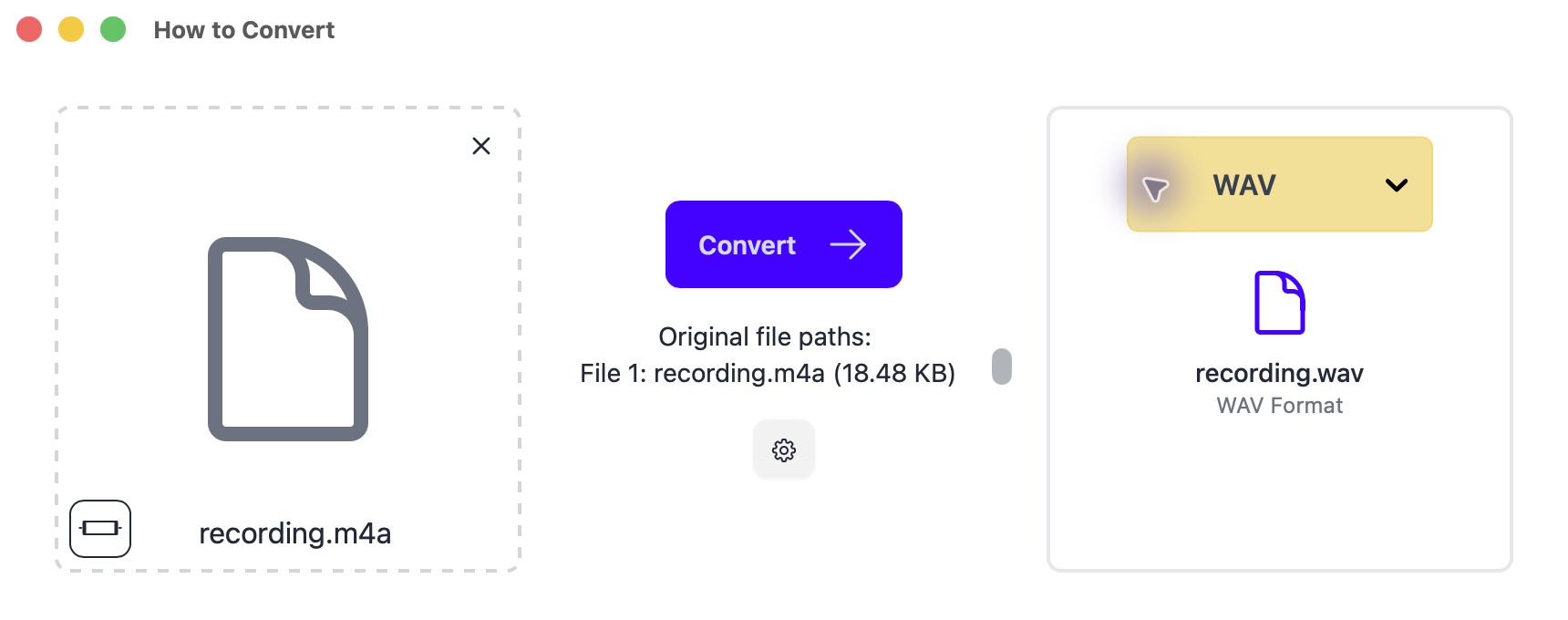
M4A to WAV shown here. Choose your output format in the menu on the right.
WAV defaults to 16-bit. For a 24-bit recording, select 24-bit in the conversion settings.
Other options
2. MediaHuman Audio Converter
Mac, Windows, Linux · Free
A free, focused audio converter with a format menu and batch queue. A good fit when you do not need editing tools.
- Open MediaHuman Audio Converter and drag in your recording.
- Open the format menu and choose WAV. Keep the source sample rate, unless the editor asks for a specific value such as 48 kHz.
- Choose a destination folder and start conversion. Import the WAV into your editor to check it works.
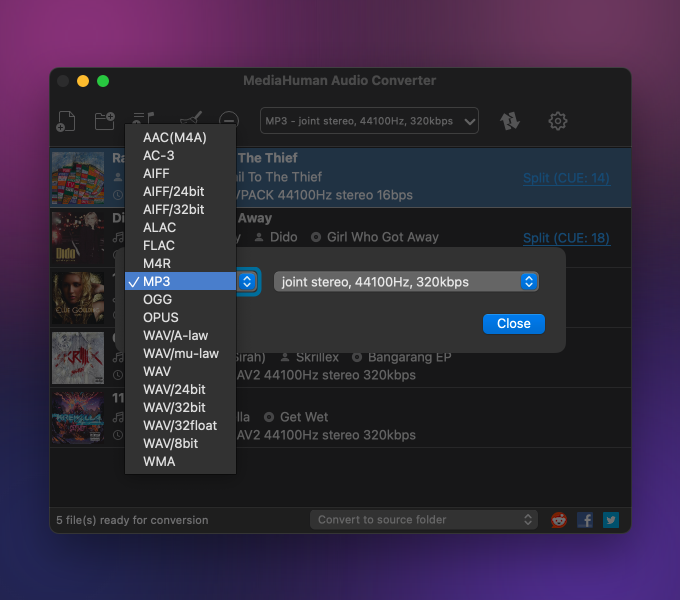
WAV files are often much larger than M4As. The extra size helps some editing workflows; it does not restore lost audio detail.
3. dBpoweramp
Mac, Windows · Paid; free trial
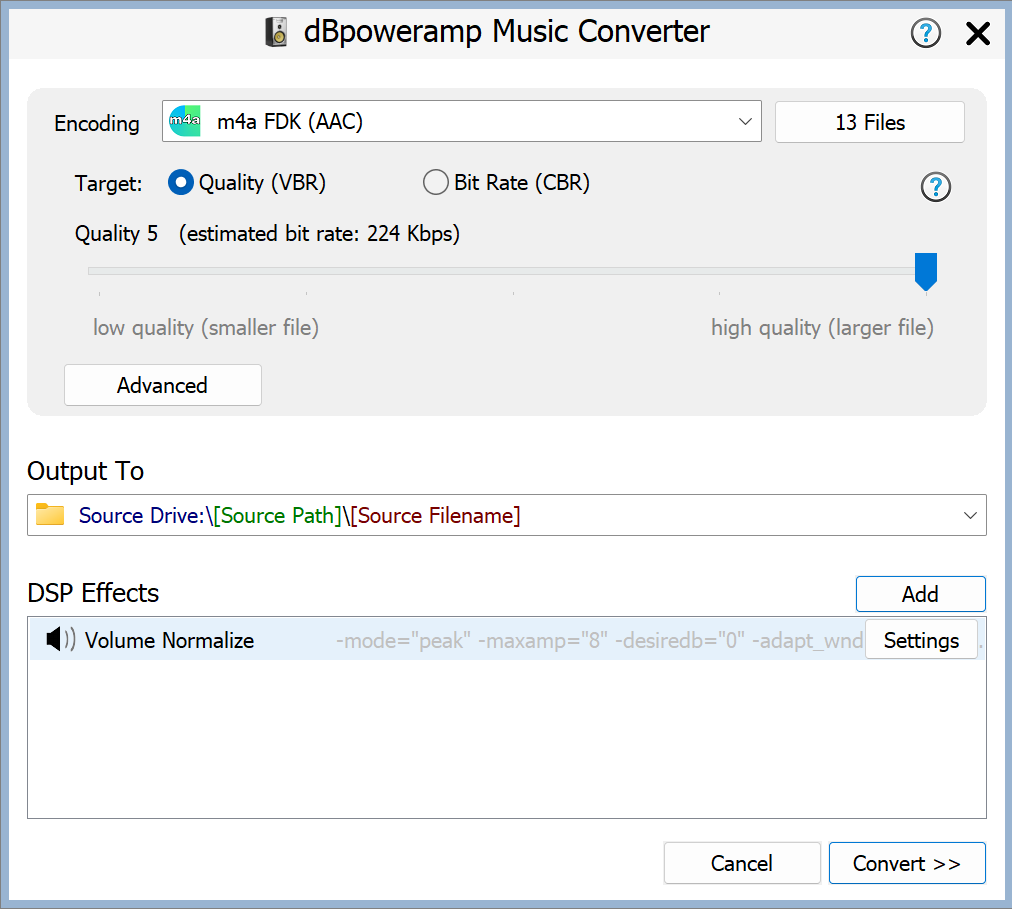
Useful for large music libraries and keeping track information with your files.
- Open Music Converter and select your recordings; use Batch Converter for folders.
- Choose WAV, keep the original sample rate and bit depth, select a destination and click Convert.
4. fre:ac
Mac, Windows, Linux · Free
Free batch conversion with more audio settings to explore.
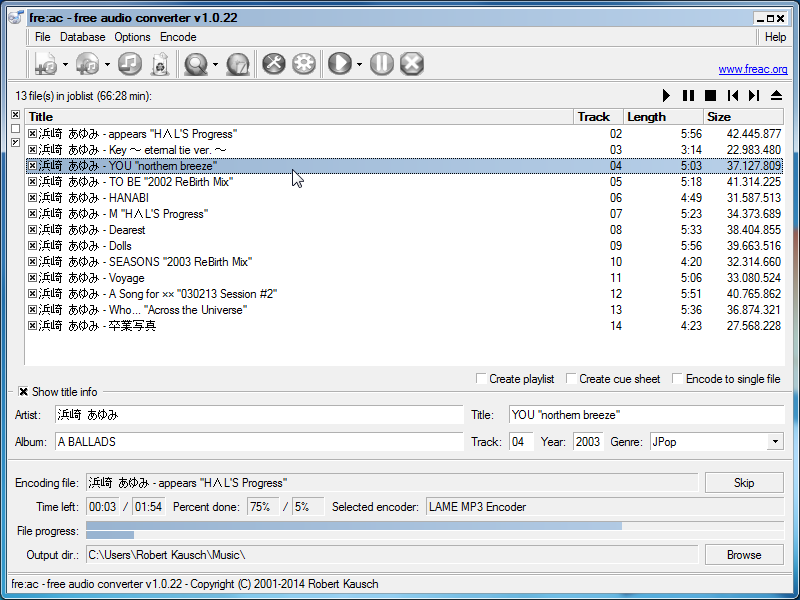
- Add your recordings to fre:ac’s file list and choose an output folder.
- Select the Windows Wave File Output encoder for WAV, then start encoding.
5. foobar2000
Windows · Free
A useful shortcut if you already keep your music here.
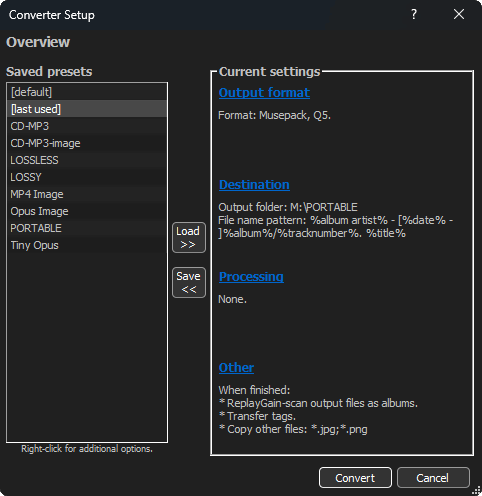
- Select tracks, right-click and choose Convert → … to open the converter settings.
- Choose the output format and destination, then Convert. Some formats need an extra encoder.
6. Audacity
Mac, Windows, Linux · Free
Use this when a recording also needs trimming or editing.
- Open the recording in Audacity and make any edits.
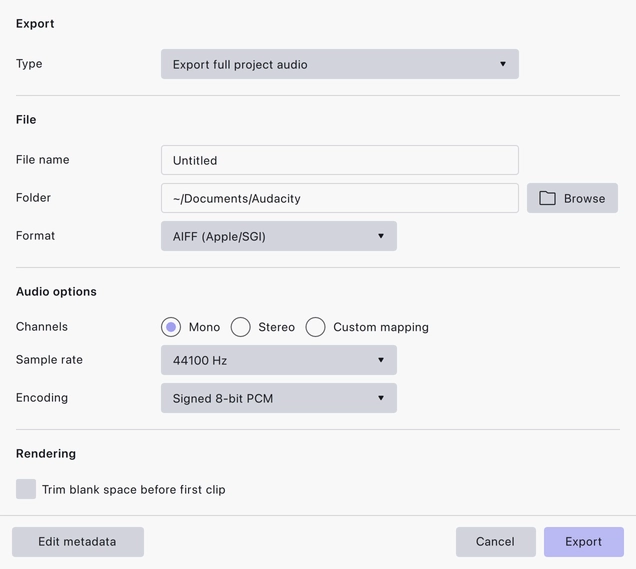
- Choose File → Export Audio, select WAV or MP3, then export.