18 Best Document Converter Apps in 2026 (Free and Paid)
The best document converter apps for 2026. Convert Word, PDF, HTML, Markdown, and more with these free and paid tools.
Posted by
 Jake Manger
Documents come in dozens of formats, and getting them into the right one is a daily headache for anyone who works with files. Your client sends a DOCX but your system needs PDF. A colleague shares an ODT that your editor cannot open. Your CMS exports HTML but you need Markdown. Legal sends a scanned PDF that you need as editable text. Without a reliable document converter, you are copying and pasting between apps, losing formatting, and wasting hours.
We tested document converters across Mac, Windows, and Linux to find the 18 best options in 2026. This list includes free open-source tools, premium PDF editors, command-line utilities for developers, and online converters for quick jobs. Whether you are converting a single contract or batch-processing thousands of files, one of these tools will handle it.
1. How to Convert - Best All-in-One Desktop Document Converter
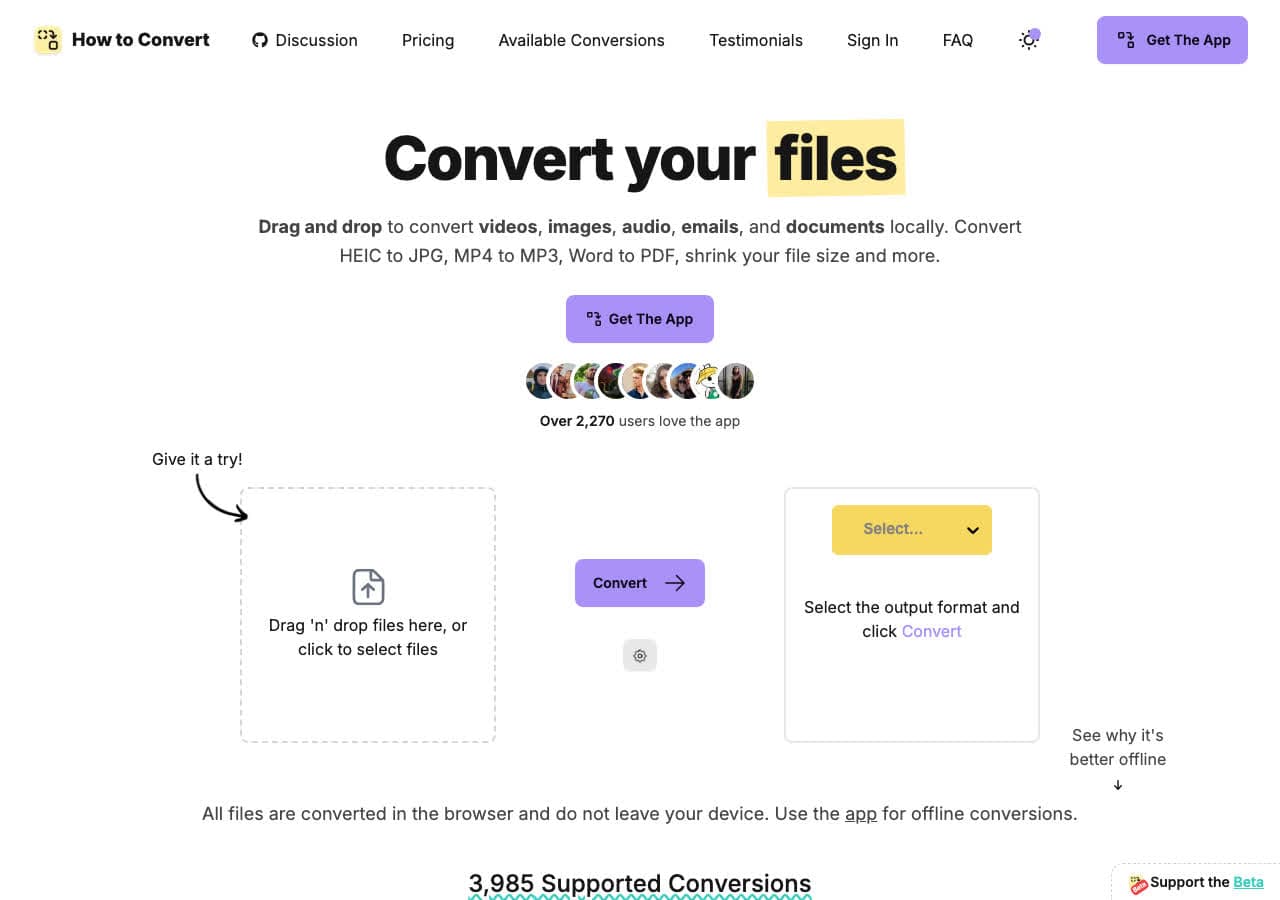
How to Convert is a privacy-first file converter that processes documents entirely on your machine. Drop any document in, pick your output format, and the conversion happens without uploading anything to the cloud. It supports a wide range of document formats including PDF, DOCX, ODT, HTML, Markdown, EPUB, and more, alongside video, audio, and image conversion in the same app.
For document conversion, the privacy angle is particularly important. Contracts, financial reports, legal documents, and personal files should not be uploaded to third-party servers. How to Convert processes files locally. The paid desktop app works on Mac, Windows, and Linux, while the free web demo processes one file at a time locally in the browser for supported formats.
Pros
- All conversions happen locally. Sensitive documents never leave your device.
- Handles documents alongside video, audio, images, and ebooks.
- One-time purchase. No subscription fees.
- Free web demo for single-file conversions.
- Works on Mac, Windows, and Linux.
Cons
- One-time purchase; the free web demo handles one file at a time.
- No OCR for scanned documents.
Pricing
- Free: Browser converter for common formats.
- Desktop app: One-time purchase, all platforms.
 How to Convert
The offline file converter for Mac, Windows and Linux.
- Converts video, audio, images, documents, ebooks and more
- Everything runs locally. Your files never leave your device
- Pay once. Access forever
Get the app on Mac, Windows and Linux
2. LibreOffice - Best Free Office Suite With Document Conversion
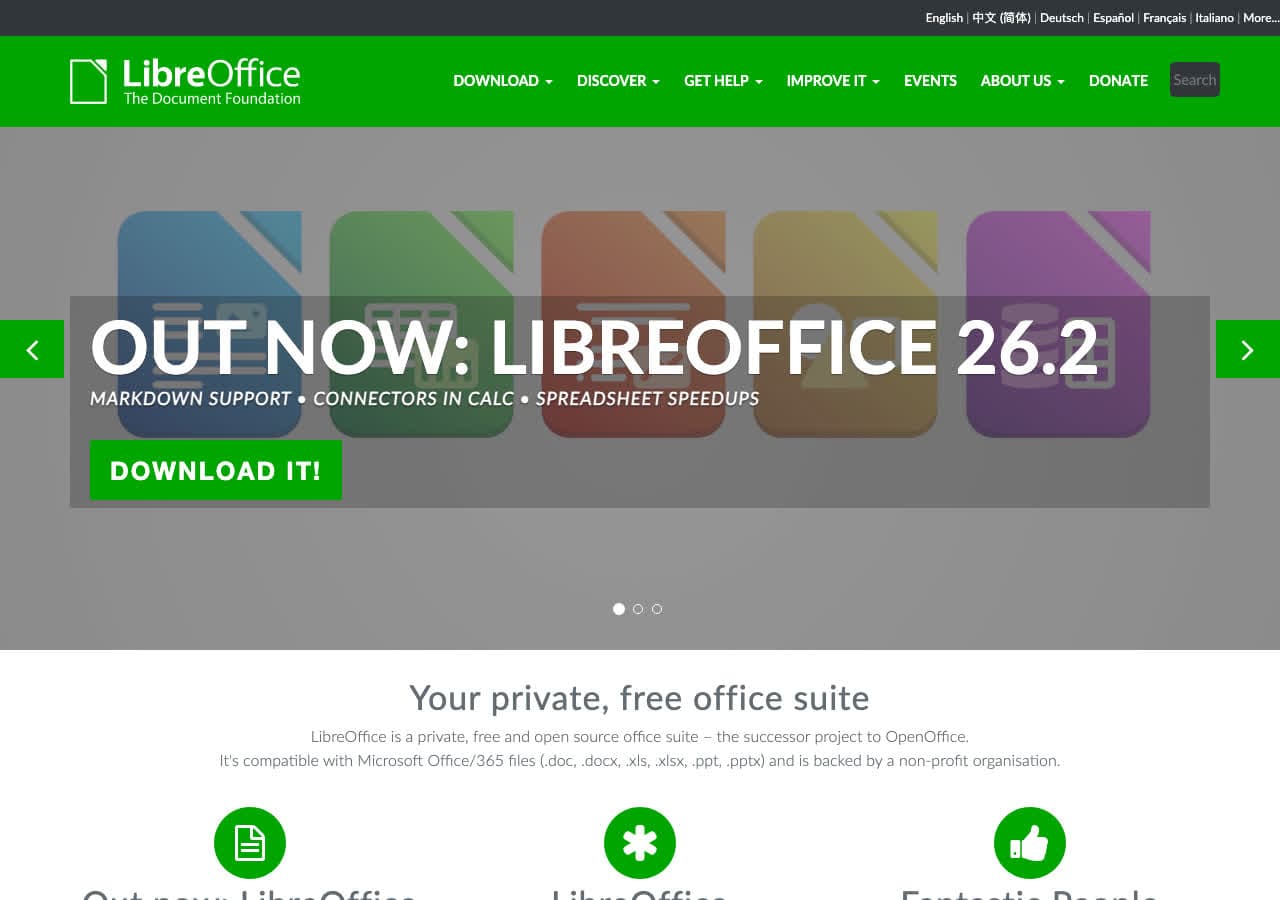
LibreOffice is the most capable free document converter available. It opens and saves documents in dozens of formats including DOCX, DOC, ODT, RTF, PDF, HTML, EPUB, and plain text. The conversion fidelity between Microsoft Office formats and LibreOffice's native ODF format is excellent, handling complex formatting, tables, and embedded images reliably.
LibreOffice also includes a powerful command-line mode. The command libreoffice --headless --convert-to pdf *.docx batch-converts an entire folder of Word documents to PDF without opening the GUI. This makes it invaluable for automated workflows and server-side document processing. It runs on Mac, Windows, and Linux.
Pros
- Free and open source.
- Excellent Microsoft Office format compatibility.
- Command-line batch conversion.
- Cross-platform (Mac, Windows, Linux).
Cons
- Complex DOCX formatting may not convert perfectly.
- Slower to launch than lightweight converters.
Pricing
- Free (open source, MPL licensed).
3. Pandoc - Best Universal Document Converter for Developers
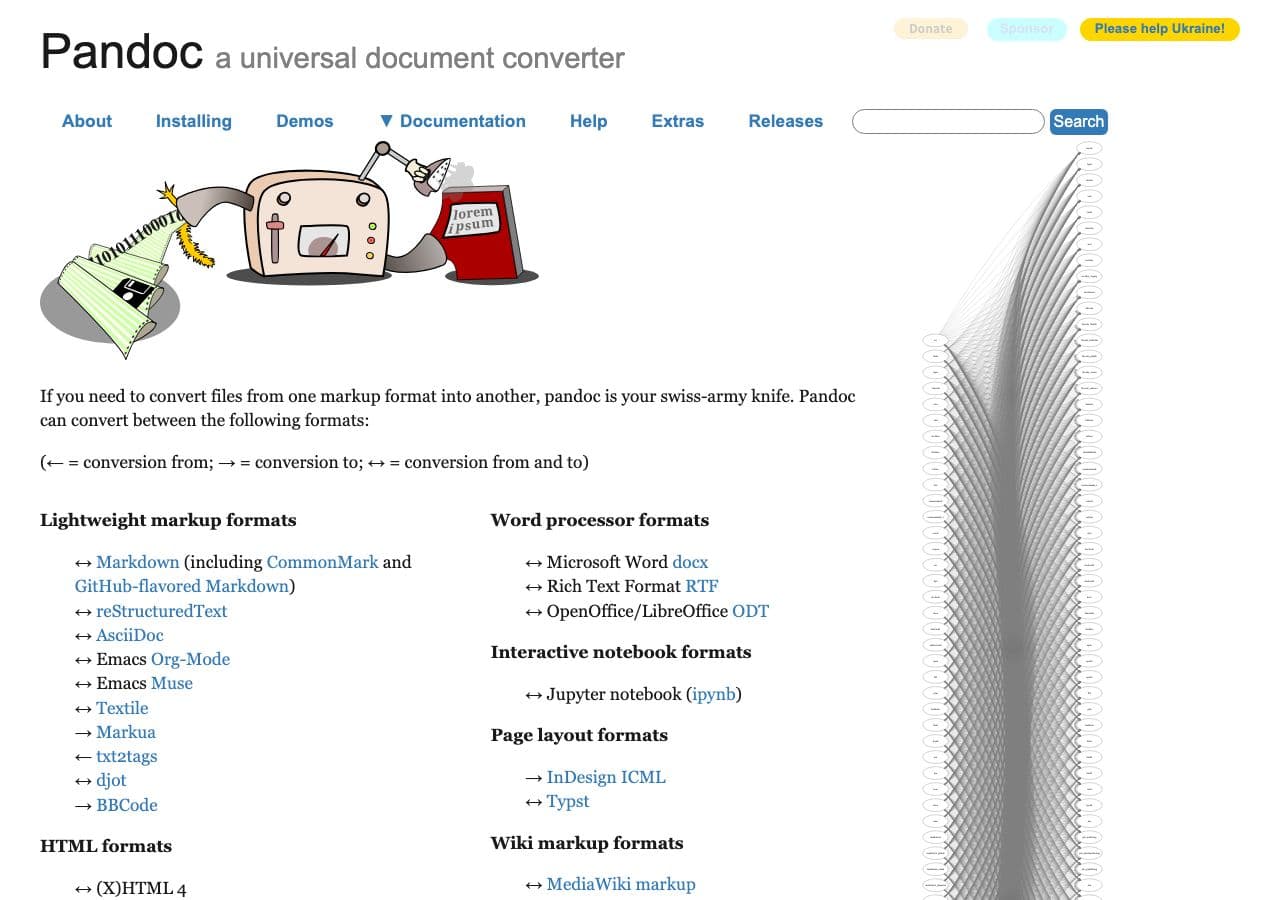
Pandoc calls itself a "universal document converter," and it earns the title. This command-line tool converts between Markdown, HTML, LaTeX, DOCX, ODT, EPUB, PDF, reStructuredText, AsciiDoc, MediaWiki, and dozens of other markup and document formats. A single command like pandoc input.md -o output.pdf handles the conversion.
Pandoc is the tool of choice for developers, technical writers, and academics. It powers many documentation pipelines, converting Markdown source files to HTML for websites, PDF for distribution, and EPUB for ebooks. With custom templates and filters, Pandoc handles complex document transformations that no GUI tool can match. If you work with text-based formats, Pandoc is essential.
Pros
- Converts between more document formats than any other tool.
- Free and open source.
- Custom templates and filters for advanced workflows.
- Excellent for Markdown, LaTeX, and technical documentation.
Cons
- Command-line only. No graphical interface.
- PDF output requires LaTeX or wkhtmltopdf.
- Learning curve for advanced features.
Pricing
- Free (open source, GPL licensed).
4. Adobe Acrobat - Best Premium PDF and Document Converter
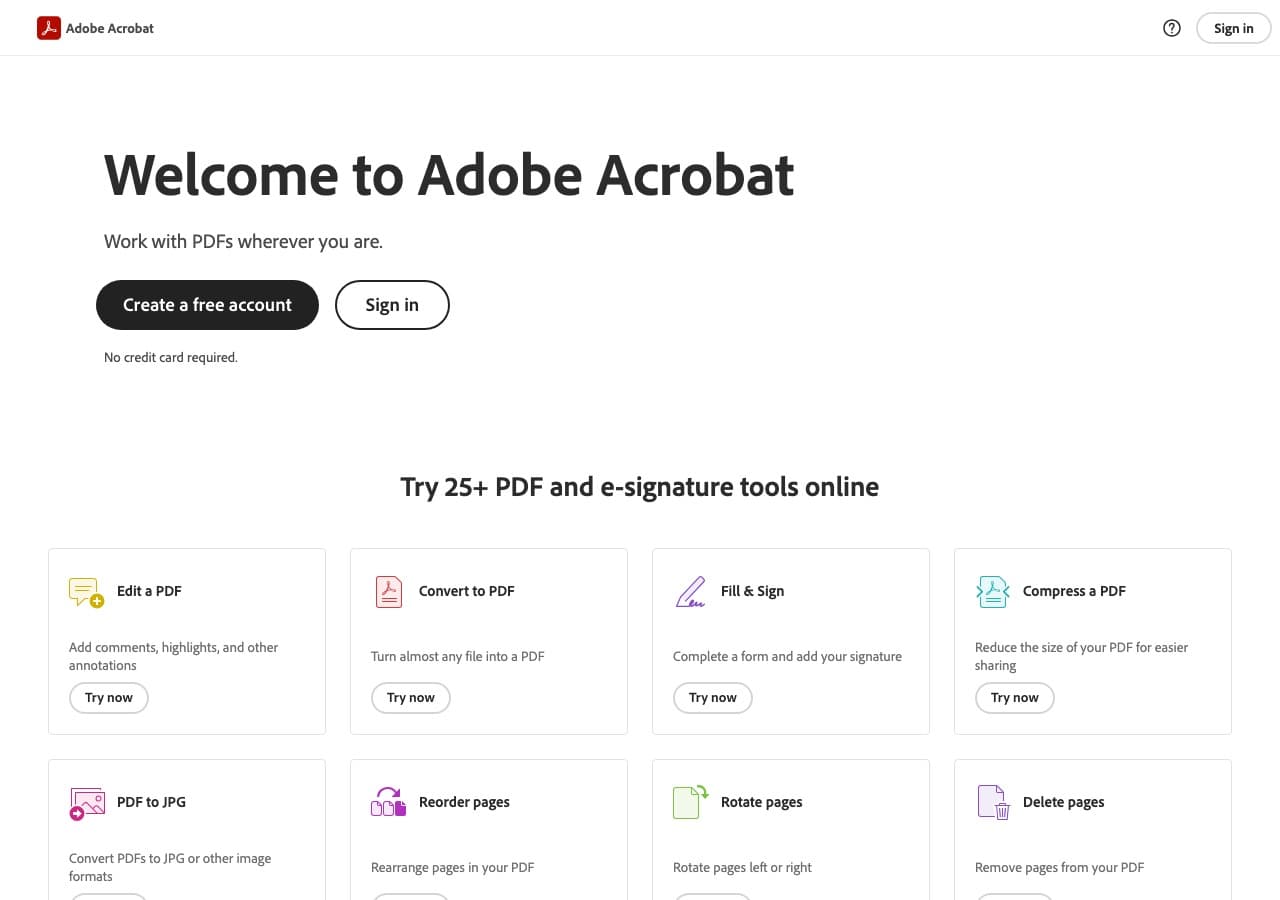
Adobe Acrobat is the gold standard for PDF work and document conversion. It converts PDF to Word, Excel, PowerPoint, and images with the best formatting retention of any tool. The OCR engine turns scanned documents into searchable, editable text. For organizations that work heavily with PDF documents, Acrobat remains the most reliable option.
Acrobat also converts Word, Excel, and PowerPoint files to PDF with perfect fidelity, since Adobe created the PDF format. The online tools at acrobat.adobe.com handle quick conversions without installing the desktop app. The main drawback is the price, as Acrobat requires a Creative Cloud subscription.
Pros
- Best PDF to Word conversion quality available.
- Excellent OCR for scanned documents.
- Perfect PDF creation from Office formats.
- Online tools for quick conversions.
Cons
- Expensive subscription ($22.99/month for Pro).
- Heavy application with slow startup.
Pricing
- Free: Online tools with limited features.
- $22.99/month: Acrobat Pro subscription.
5. PDF Expert - Best Mac PDF Editor With Document Conversion
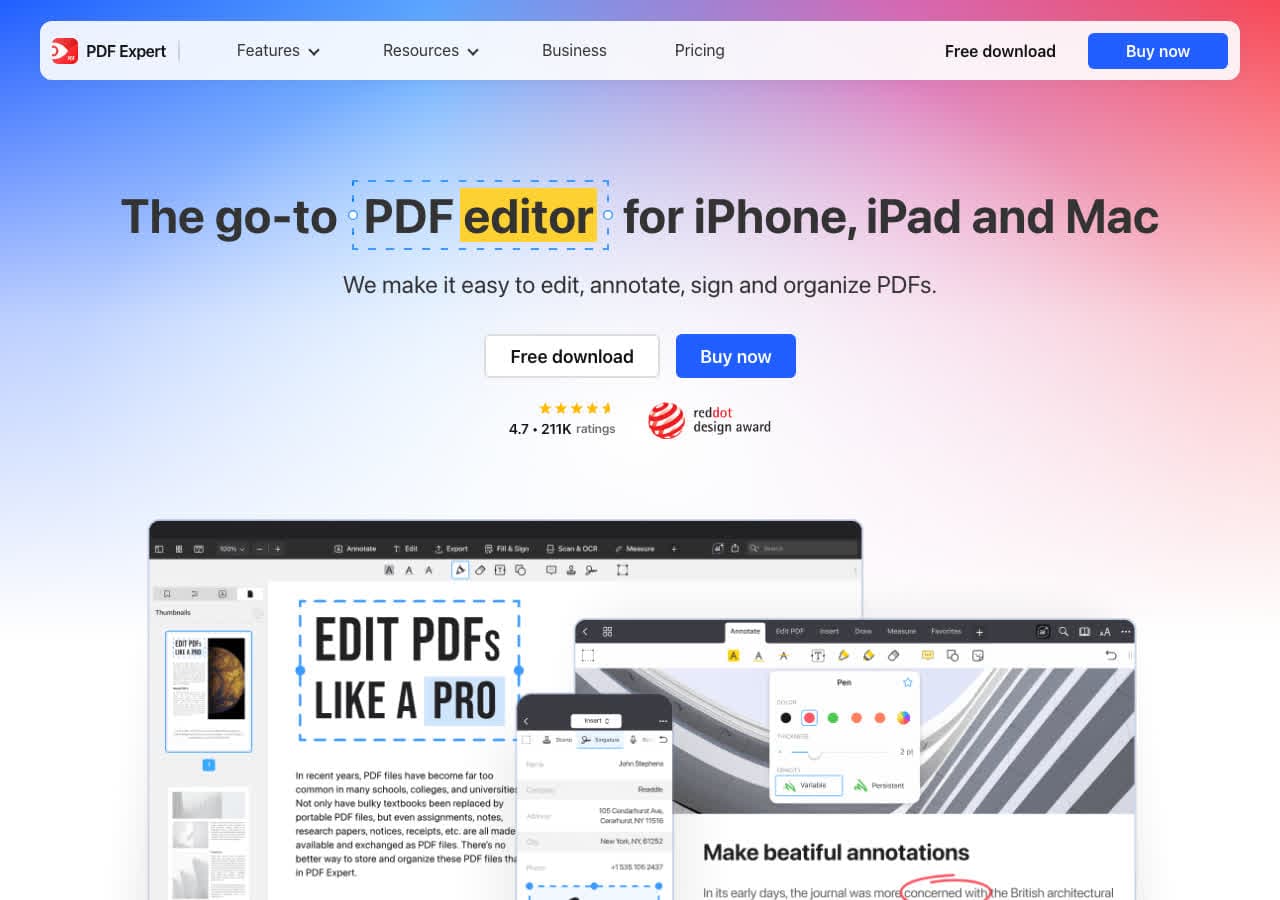
PDF Expert is a polished Mac PDF editor that handles document conversion elegantly. It converts PDF to Word, Excel, PowerPoint, images, and text with good formatting retention. The native macOS interface makes it fast and pleasant to use, and it handles large PDF files smoothly.
PDF Expert also creates PDFs from other document types and includes annotation, form filling, and digital signing. For Mac users who need a premium PDF tool at a lower price point than Adobe Acrobat, PDF Expert is the best alternative with strong conversion capabilities.
Pros
- Beautiful native Mac interface.
- Good PDF to Word conversion quality.
- Fast and lightweight.
- One-time purchase or subscription option.
Cons
- Mac and iOS only. No Windows or Linux.
- OCR is less accurate than Adobe Acrobat.
Pricing
- $79.99: One-time purchase.
- $79.99/year: Subscription with updates.
6. Foxit PDF Editor - Best Lightweight PDF Editor With Document Export
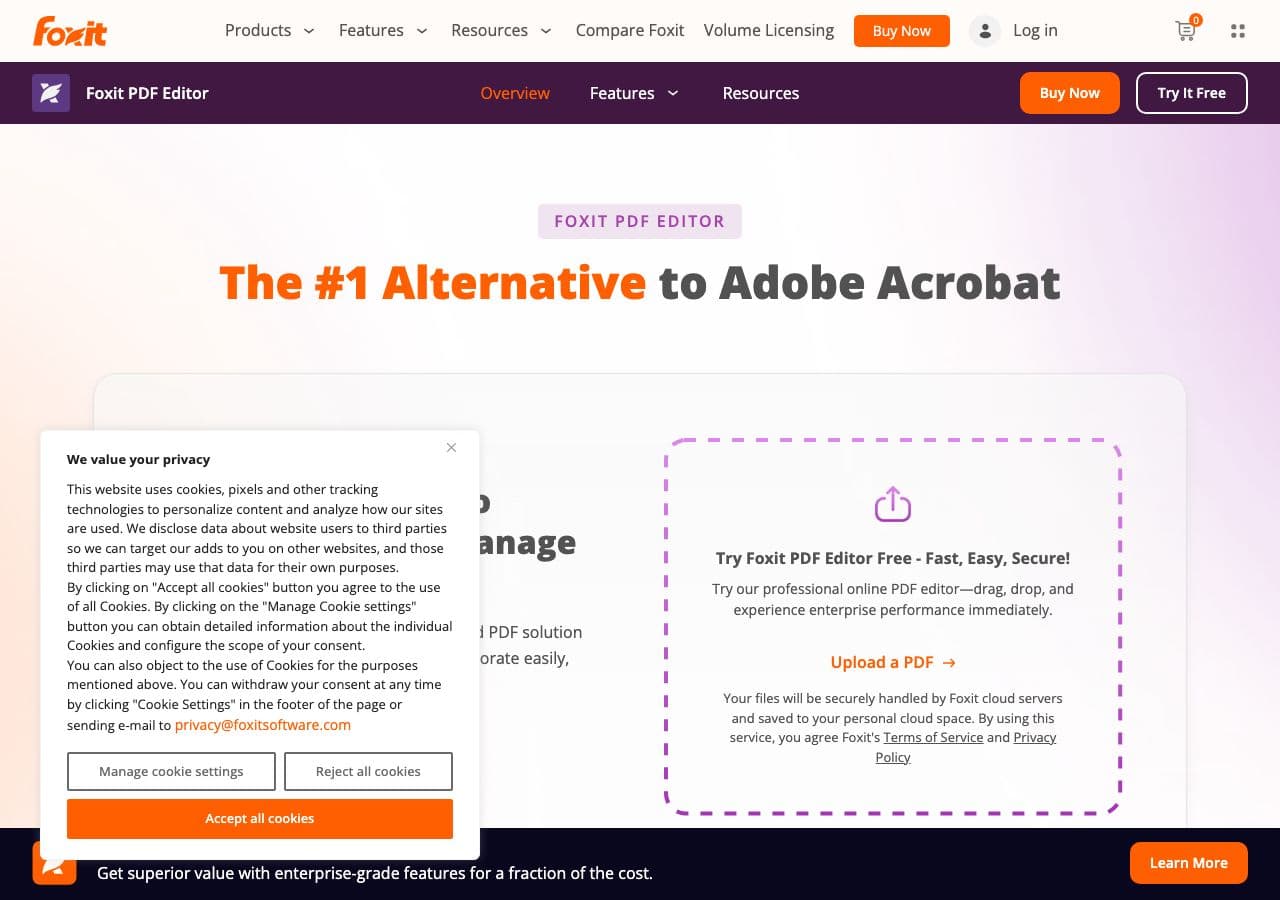
Foxit PDF Editor is a fast, lightweight alternative to Adobe Acrobat that runs on Windows, Mac, and Linux. It converts PDF to Word, Excel, PowerPoint, HTML, images, and text, with solid formatting preservation. Foxit also creates PDFs from virtually any printable document through its PDF printer driver.
Foxit is popular in enterprise environments for its security features, collaboration tools, and lower price compared to Adobe. The PDF editor includes OCR, form creation, digital signatures, and redaction. For Windows users who need a full-featured PDF solution with document conversion, Foxit offers the best value.
Pros
- Lightweight and fast compared to Acrobat.
- Cross-platform (Windows, Mac, Linux).
- Strong enterprise and security features.
- Good PDF to Office conversion.
Cons
- Subscription pricing.
- Some features are Windows-only.
Pricing
- Free: Foxit Reader (view only).
- $149.99/year: PDF Editor Pro subscription.
How to Convert
The offline file converter for Mac, Windows and Linux.
- Converts video, audio, images, documents, ebooks and more
- Everything runs locally. Your files never leave your device
- Pay once. Access forever
Get the app on Mac, Windows and Linux
7. Smallpdf - Best Online Document and PDF Converter
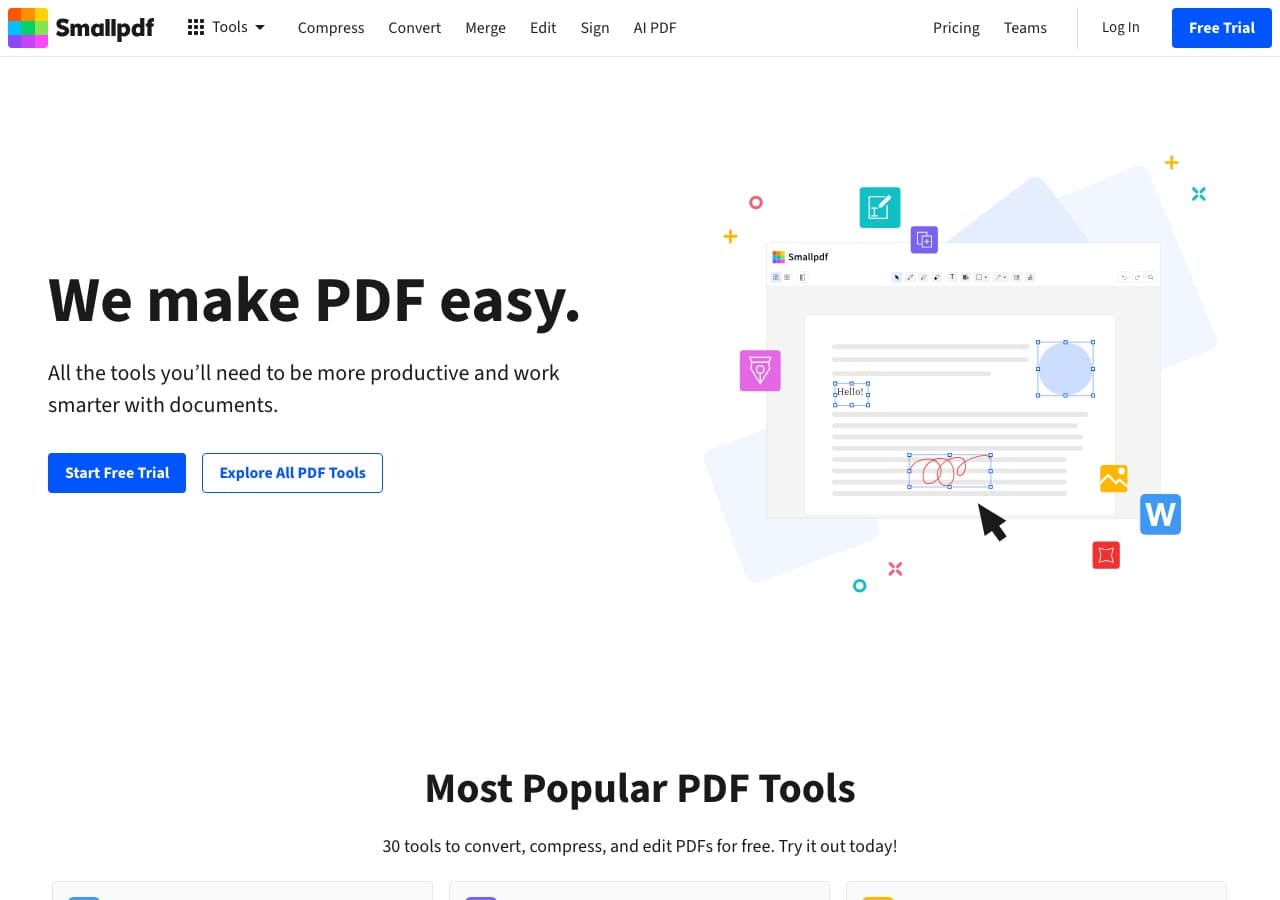
Smallpdf is a polished online platform with over 20 PDF tools including conversion to and from Word, Excel, PowerPoint, JPG, and other formats. The interface is clean and modern, and each tool does one thing well. Need to convert PDF to Word? There is a dedicated tool for exactly that.
Smallpdf processes over a billion files per year, which speaks to its reliability. The free tier allows 2 tasks per day, which is enough for occasional use. Files are processed on their servers and deleted after one hour. For regular online document conversion, the Pro plan removes limits and adds batch processing.
Pros
- Clean, intuitive interface with dedicated tools.
- Good conversion quality.
- No software to install.
- Desktop app available for offline use.
Cons
- Free tier: 2 tasks per day.
- Files uploaded to their servers.
Pricing
- Free: 2 tasks/day.
- $12/month: Pro (unlimited tasks).
8. iLovePDF - Best Free Online PDF Tool Suite
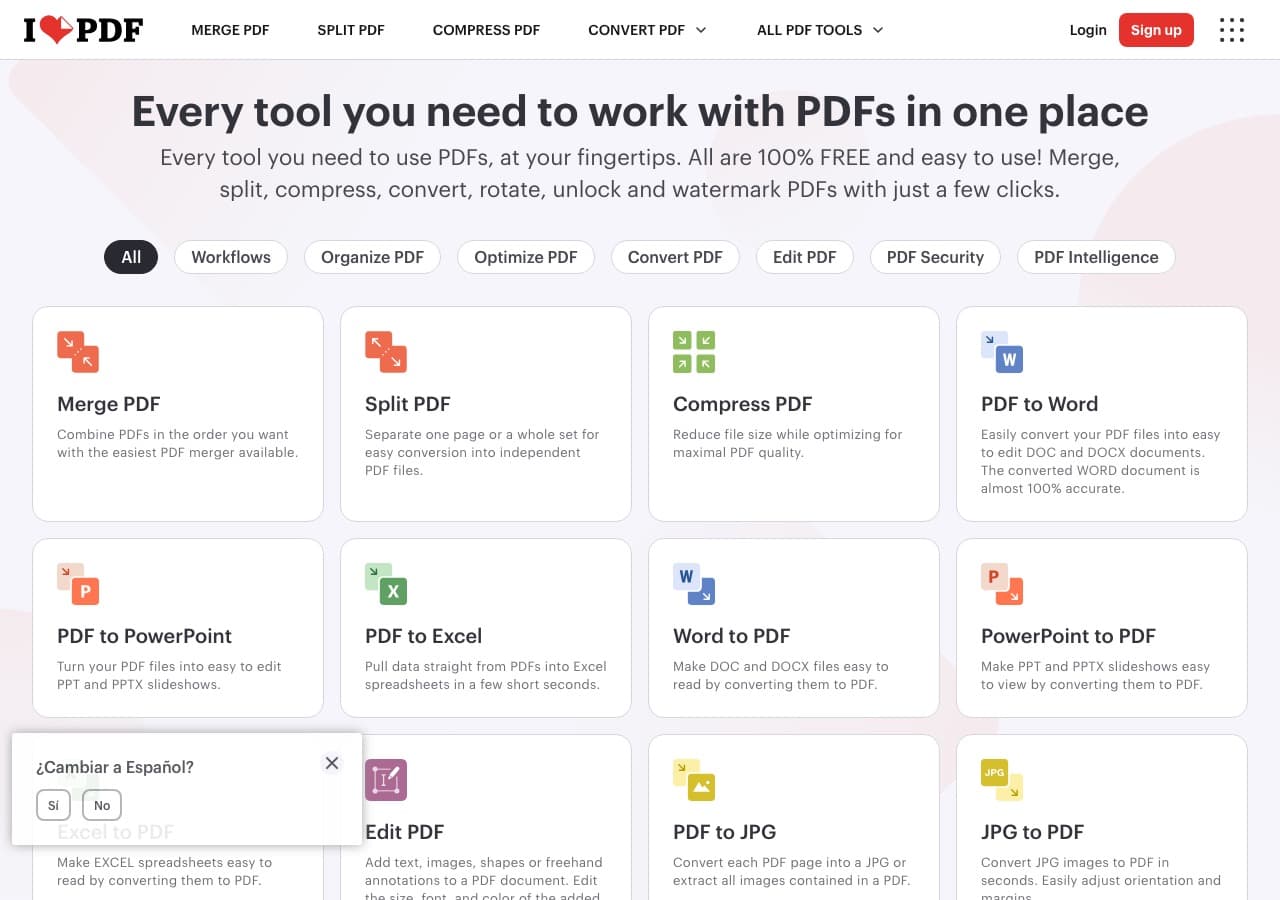
iLovePDF is a comprehensive online PDF platform with tools for converting, merging, splitting, compressing, and editing PDF files. The conversion tools handle PDF to Word, Excel, PowerPoint, JPG, and back. The free tier is more generous than most competitors, allowing multiple conversions per day.
iLovePDF has grown into a trusted name in online document conversion, with a desktop app for offline use and a mobile app for on-the-go work. The conversion quality is solid for most documents, though complex layouts may lose some formatting. For free online document conversion, iLovePDF offers the best balance of features and generosity.
Pros
- Generous free tier with multiple daily conversions.
- Comprehensive tool suite (merge, split, compress, convert).
- Desktop and mobile apps available.
Cons
- Files uploaded to their servers.
- Complex document formatting may not survive conversion.
Pricing
- Free: Multiple tools with daily limits.
- $7/month: Premium (unlimited).
9. Calibre - Best for Ebook and Document Format Conversion
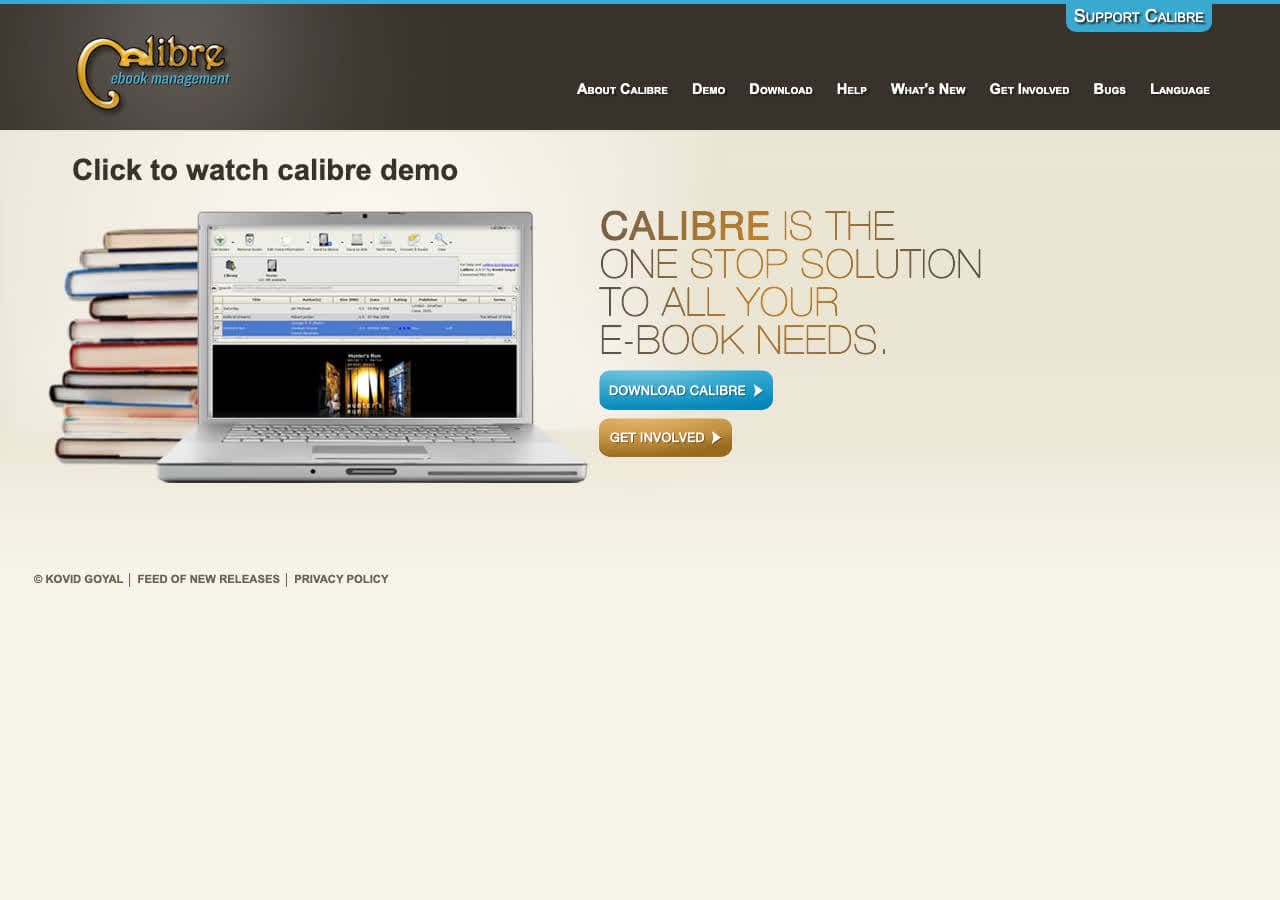
Calibre is primarily an ebook manager, but its conversion engine handles many document formats. It converts between EPUB, MOBI, AZW3, PDF, DOCX, HTML, TXT, RTF, and more. The conversion is highly customizable, with control over fonts, margins, page breaks, and table of contents generation.
Calibre is the best tool for converting documents into ebook-friendly formats. Need to turn a collection of HTML pages into an EPUB? Convert a Word document into a Kindle-compatible MOBI? Calibre handles these workflows with more control than any other free tool. It runs on Mac, Windows, and Linux.
Pros
- Free and open source.
- Best document-to-ebook conversion available.
- Highly customizable output settings.
- Cross-platform.
Cons
- Interface is cluttered and not beginner-friendly.
- PDF output quality is limited.
Pricing
- Free (open source, GPL licensed).
10. Wondershare UniConverter - Best Premium All-in-One With Document Support
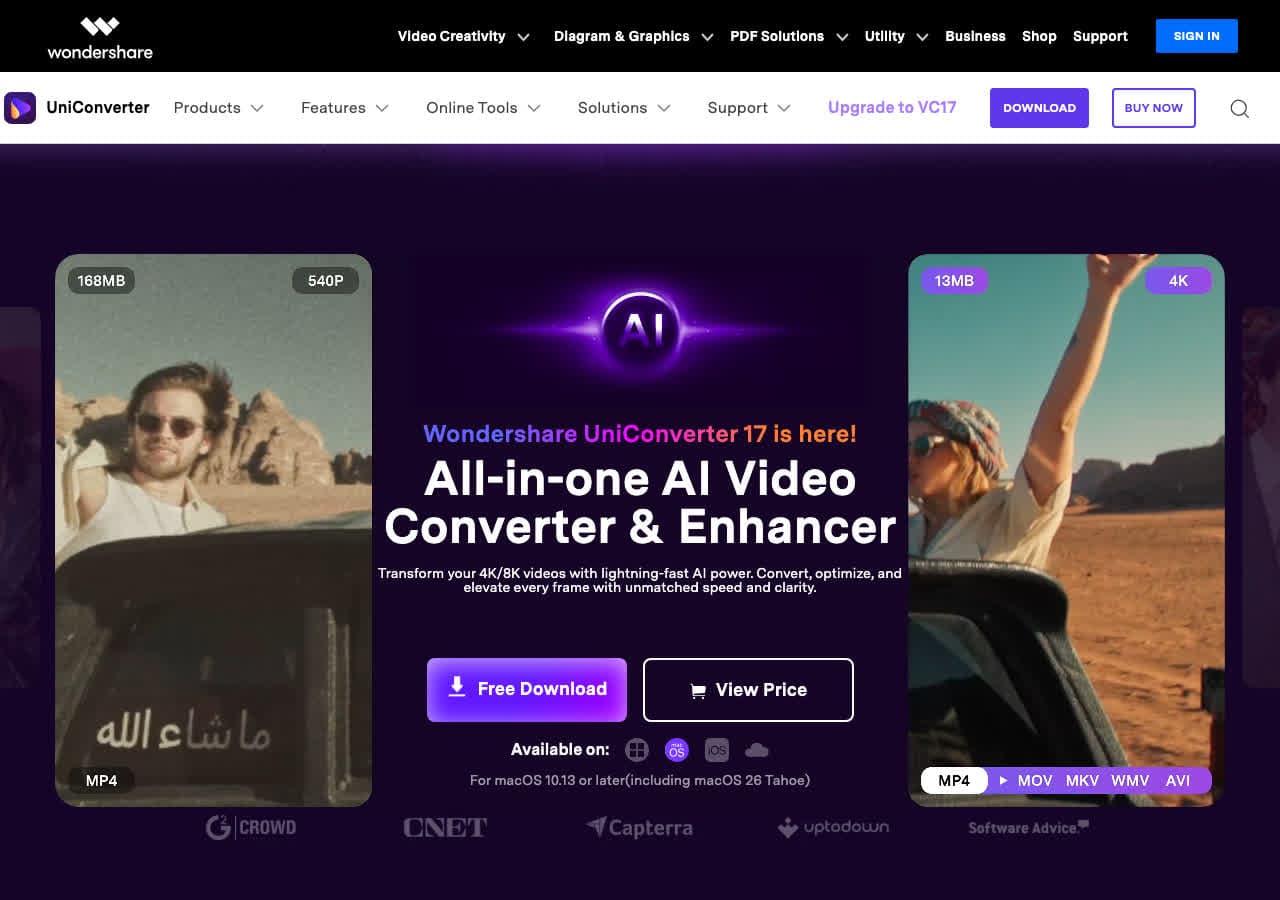
Wondershare UniConverter is a premium all-in-one converter that handles documents alongside video, audio, and images. It supports over 1000 formats total and includes PDF conversion tools for converting between PDF, Word, Excel, and image formats. The interface is polished and modern.
While Wondershare is primarily known for video conversion, its document tools are capable. The PDF converter handles basic conversions well, and the batch processing engine can convert multiple files simultaneously. For users who need one app that handles every file type, Wondershare covers the full spectrum.
Pros
- 1000+ format support across all file types.
- Clean, modern interface.
- Batch processing.
Cons
- Expensive subscription ($49.99/year).
- Document features are secondary to video.
Pricing
- $49.99/year subscription.
- $79.99: Lifetime license.
11. PDF24 - Best Free Windows PDF and Document Converter
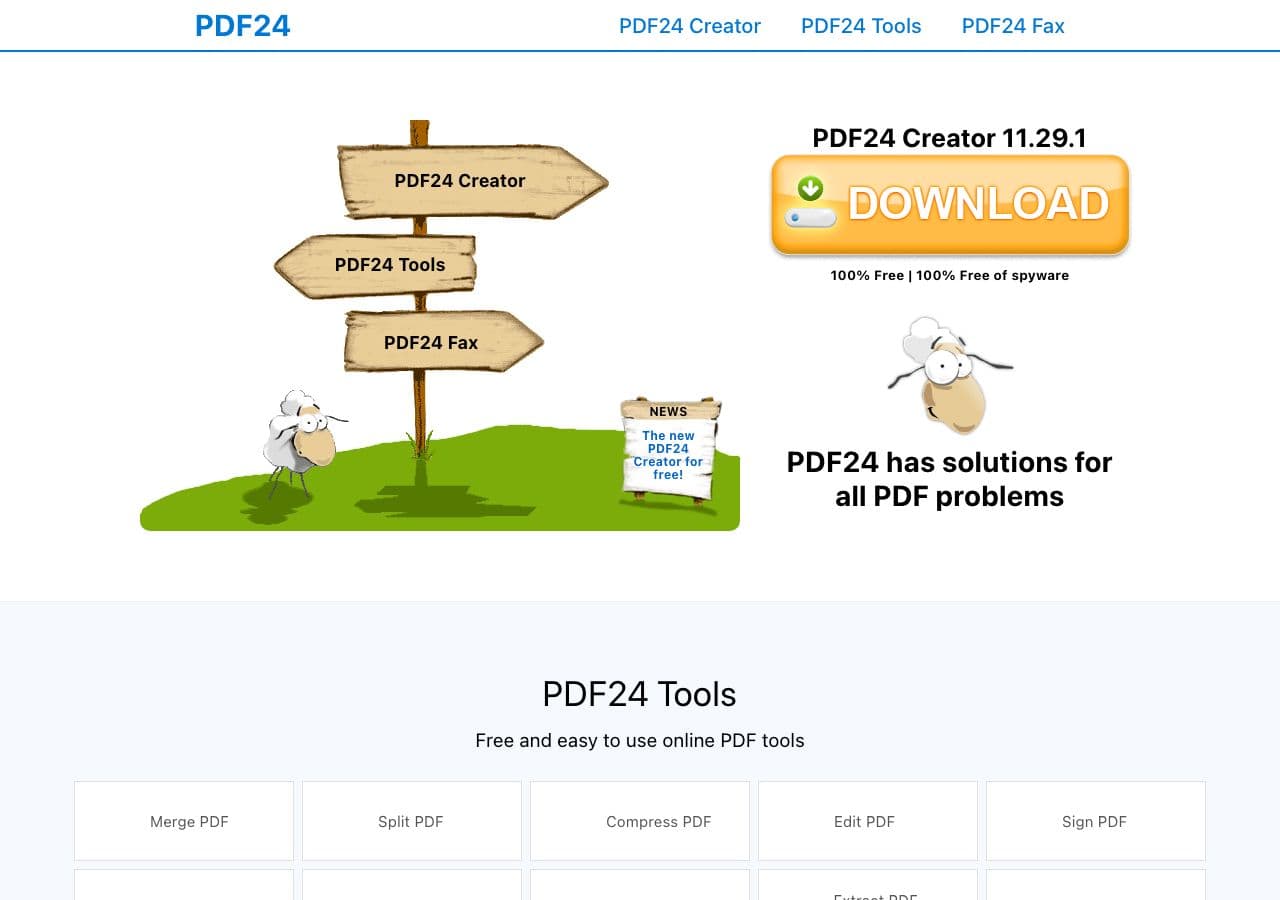
PDF24 is a completely free PDF toolkit for Windows that includes conversion, merging, splitting, compression, OCR, and more. It creates PDFs from any printable document through a virtual printer driver and converts PDFs to Word, images, and other formats. The online tools work on any platform.
PDF24 is genuinely free with no watermarks, no file limits, and no premium tier. The company generates revenue through its business solutions, so the free tools remain unrestricted. For Windows users who need a comprehensive PDF converter without paying anything, PDF24 is the best option available.
Pros
- Completely free with no limits or watermarks.
- Comprehensive toolset (convert, merge, split, OCR).
- Virtual printer for creating PDFs from any app.
- Online tools for cross-platform use.
Cons
- Desktop app is Windows only.
- Conversion quality is not as precise as Adobe Acrobat.
Pricing
- Free (no restrictions).
12. Ghostscript - Best Open Source PostScript and PDF Engine
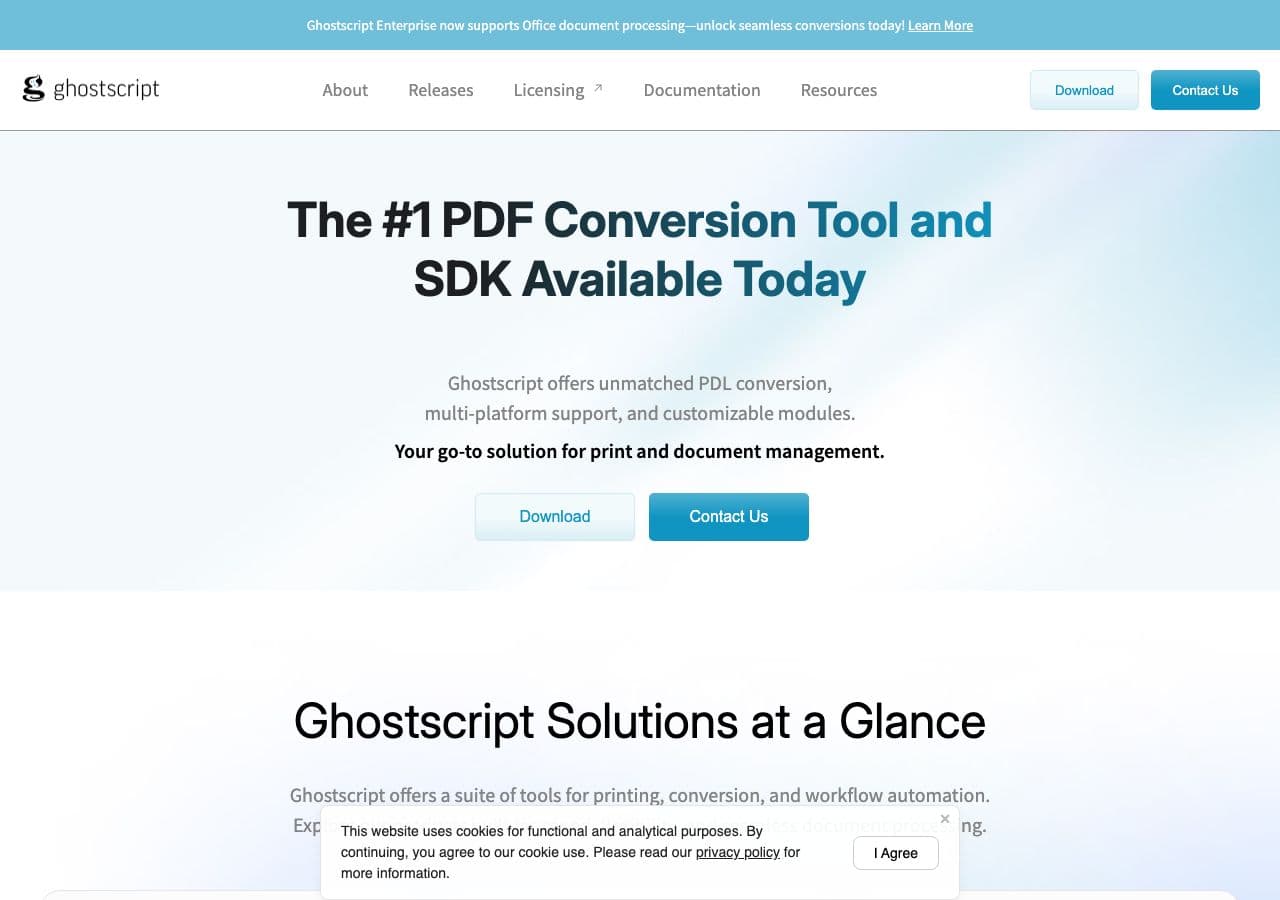
Ghostscript is an open-source interpreter for PostScript and PDF. It is the engine that powers many other PDF tools and handles conversion between PDF, PostScript, EPS, and image formats. Commands like gs -sDEVICE=pdfwrite -o output.pdf input.ps convert PostScript to PDF with precise control over quality settings.
Ghostscript is essential for developers and system administrators who need programmatic PDF processing. It handles PDF optimization, compression, page extraction, merging, and rasterization. While it is not user-friendly for casual users, it is the most reliable open-source engine for PDF manipulation available.
Pros
- Free and open source.
- The most reliable PDF/PostScript processing engine.
- PDF optimization and compression.
- Cross-platform.
Cons
- Command-line only. No GUI.
- Steep learning curve.
Pricing
- Free (open source, AGPL licensed).
How to Convert
The offline file converter for Mac, Windows and Linux.
- Converts video, audio, images, documents, ebooks and more
- Everything runs locally. Your files never leave your device
- Pay once. Access forever
Get the app on Mac, Windows and Linux
13. CloudConvert - Best Online Document Converter
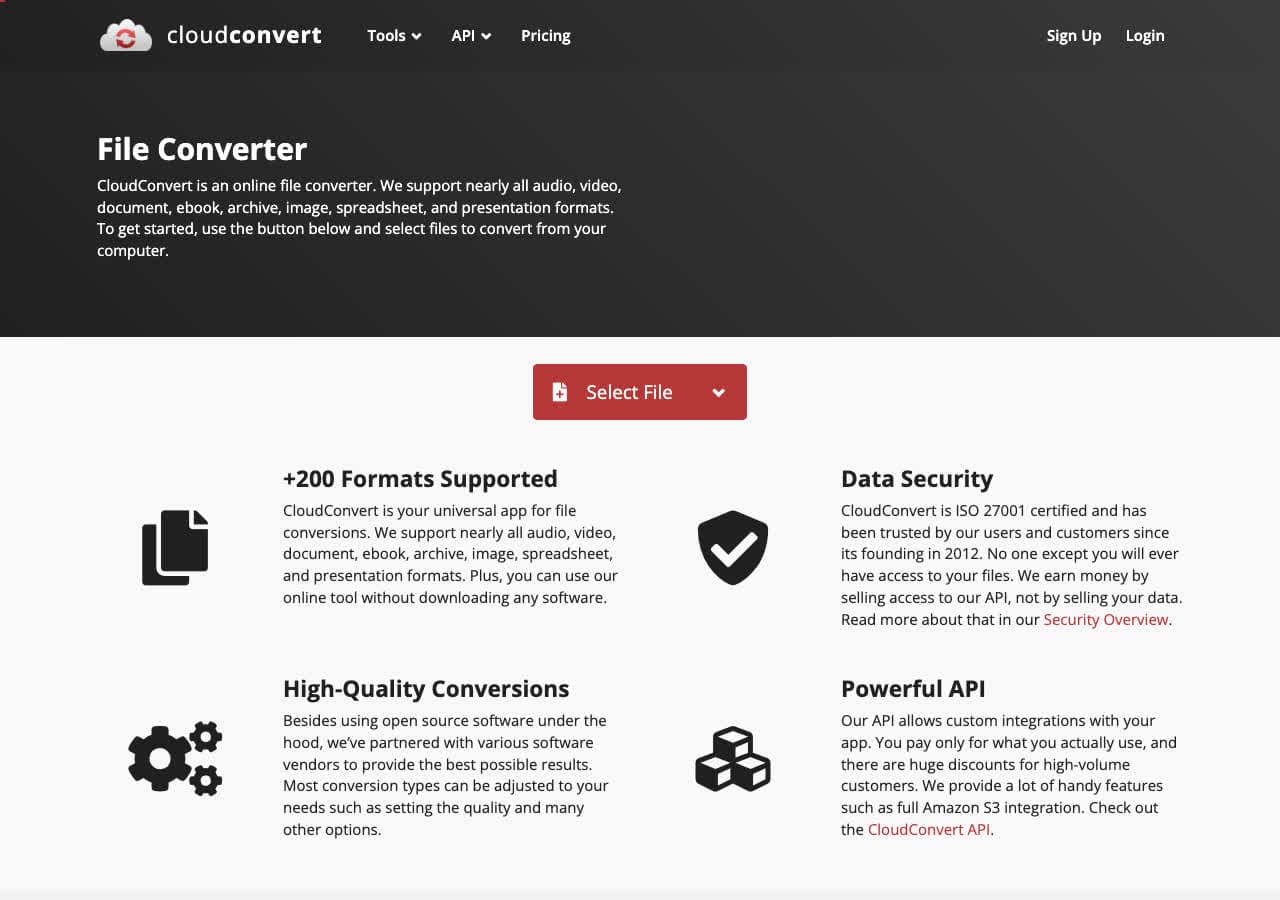
CloudConvert handles document conversion online without any software installation. Upload your document, choose your target format (DOCX, PDF, ODT, HTML, RTF, TXT, EPUB, and more), and download the result. It supports 25 free conversions per day and offers advanced settings for output quality.
CloudConvert stands out among online document converters for its broad format support and conversion quality. The developer API makes it possible to integrate document conversion into custom workflows and applications. For occasional online document conversion with reliable results, CloudConvert is the best option.
Pros
- No software to install.
- Broad document format support.
- 25 free conversions per day.
- Developer API.
Cons
- Documents are uploaded to their servers.
- Not suitable for confidential documents.
Pricing
- Free: 25 conversions/day, 1GB limit.
- From $8/month: Higher limits.
14. Zamzar - Best for Quick No-Install Document Conversions
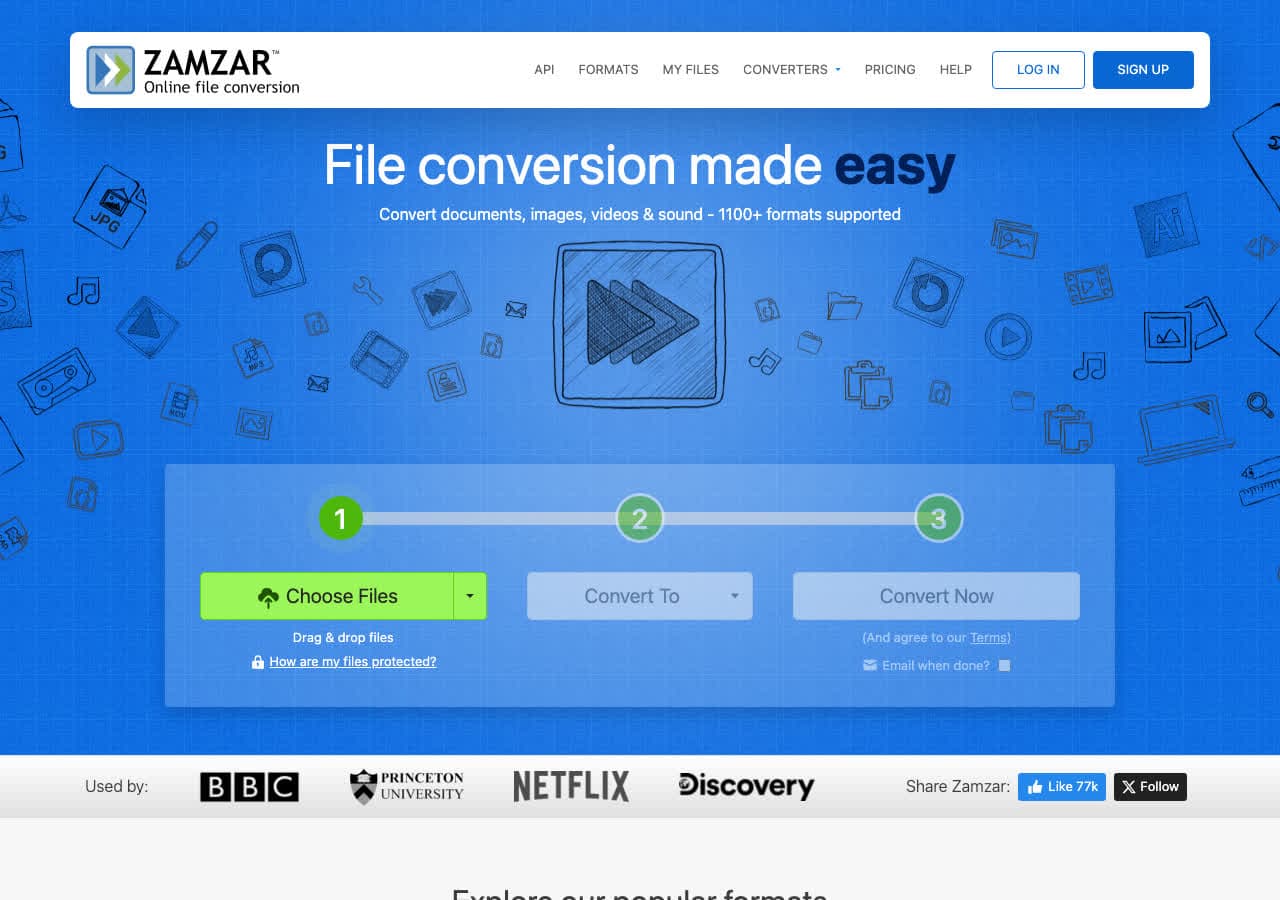
Zamzar converts documents online with a dead-simple workflow: upload, choose format, download. No account needed for free conversions. It supports DOCX, DOC, PDF, ODT, RTF, TXT, HTML, EPUB, and many other document formats. Since 2006, Zamzar has been one of the most trusted names in online conversion.
The free tier is limited to 2 files per day with a 50MB file size cap, which is usually sufficient for documents since most are well under 50MB. For quick, one-off document conversions when you do not want to install software, Zamzar is fast and reliable.
Pros
- No software to install, no account needed.
- Trusted service since 2006.
- Simple workflow.
Cons
- Free tier: 2 files/day, 50MB limit.
- Documents uploaded to their servers.
Pricing
- Free: 2 files/day, 50MB limit.
- From $18/month: Higher limits.
15. Convertio - Best Online Converter for Document Format Variety
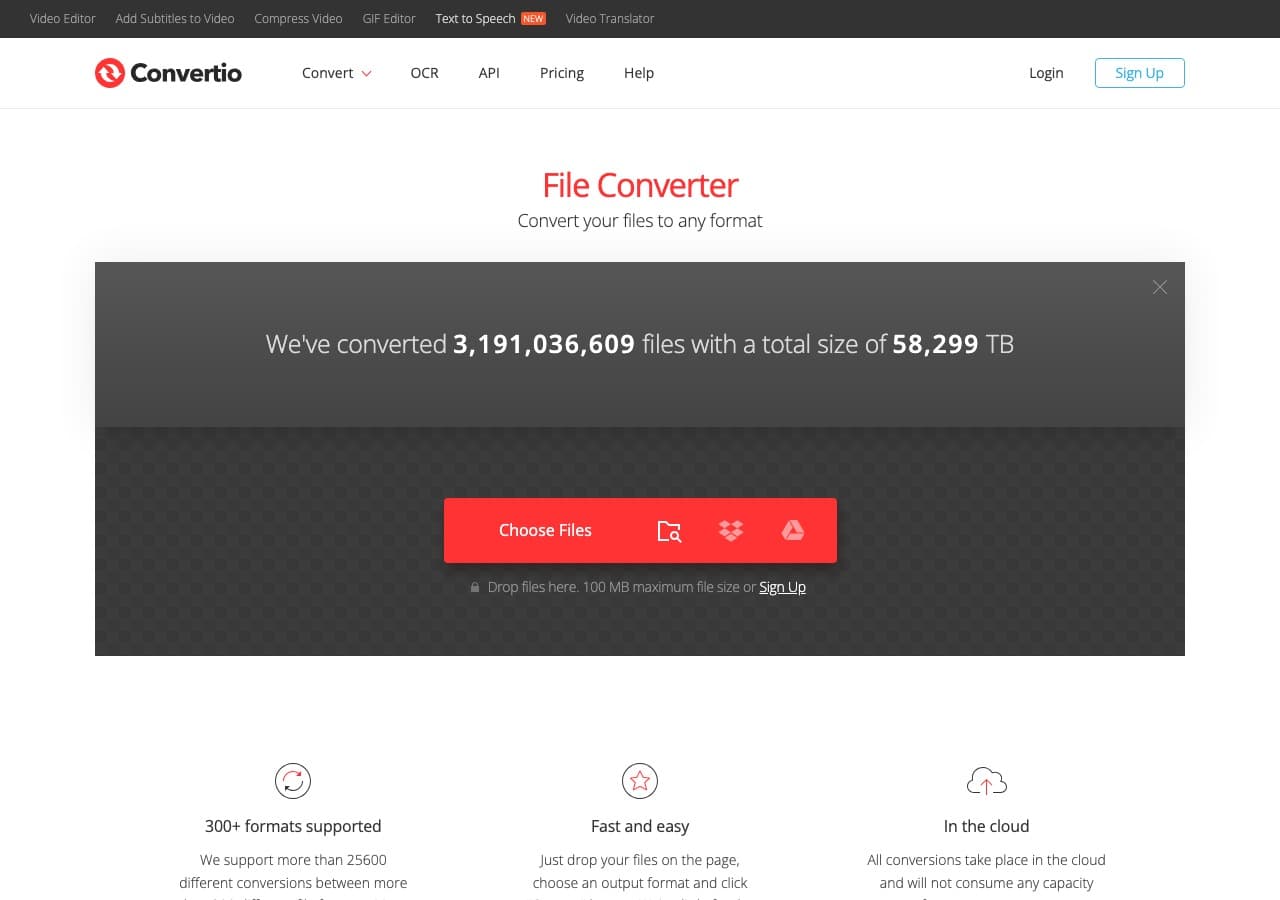
Convertio supports over 300 formats across documents, images, video, and audio. For documents, it handles DOCX, DOC, PDF, ODT, RTF, TXT, HTML, EPUB, MOBI, and many more. The interface is clean with a two-step workflow, and it integrates with Google Drive and Dropbox.
The 100MB free file limit is generous for documents. Convertio also supports batch conversion on paid plans. The conversion quality is reliable for standard documents, though highly formatted files may lose some layout details.
Pros
- 300+ format support.
- Google Drive and Dropbox integration.
- Clean interface.
Cons
- 10 free conversions per day.
- Documents uploaded to their servers.
Pricing
- Free: 100MB, 10 conversions/day.
- From $9.99/month: More conversions.
16. FreeConvert - Best Free Online Document Converter
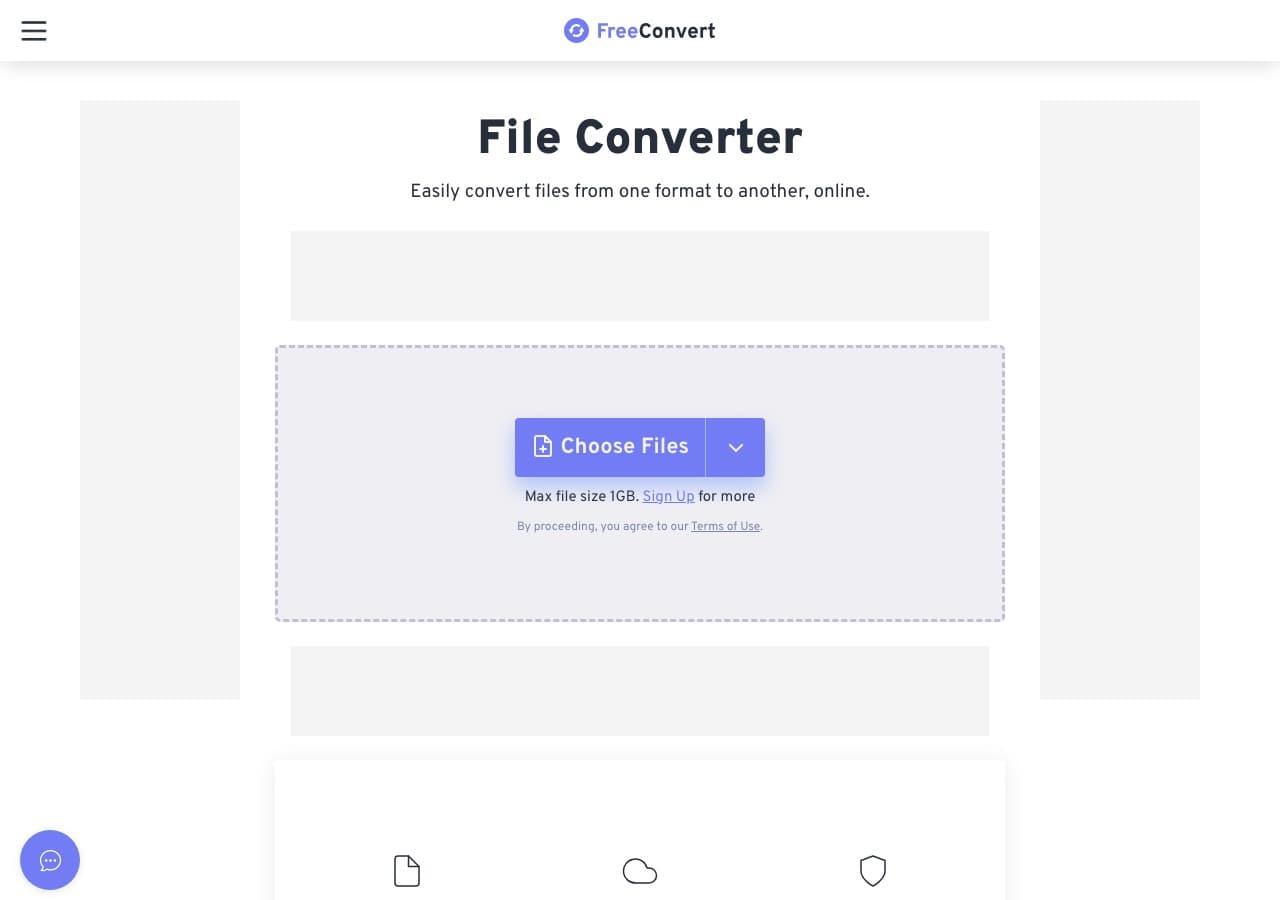
FreeConvert offers a 1GB free file size limit, the most generous of any online converter. While most documents are small, this is useful for large PDFs with embedded images, presentation files, or document archives. Free users get 25 conversions per day.
FreeConvert handles DOCX, PDF, ODT, RTF, TXT, HTML, and other document formats. The interface includes some advanced settings that most online tools lack. No account is required for free use.
Pros
- 1GB free file size limit.
- 25 free conversions per day.
- No account required.
Cons
- Free conversions are queued behind paid users.
- Documents uploaded to their servers.
Pricing
- Free: 1GB limit, 25 conversions/day.
- From $9.99/month: Faster processing.
17. Online-Convert - Best Online Converter With Advanced Document Settings
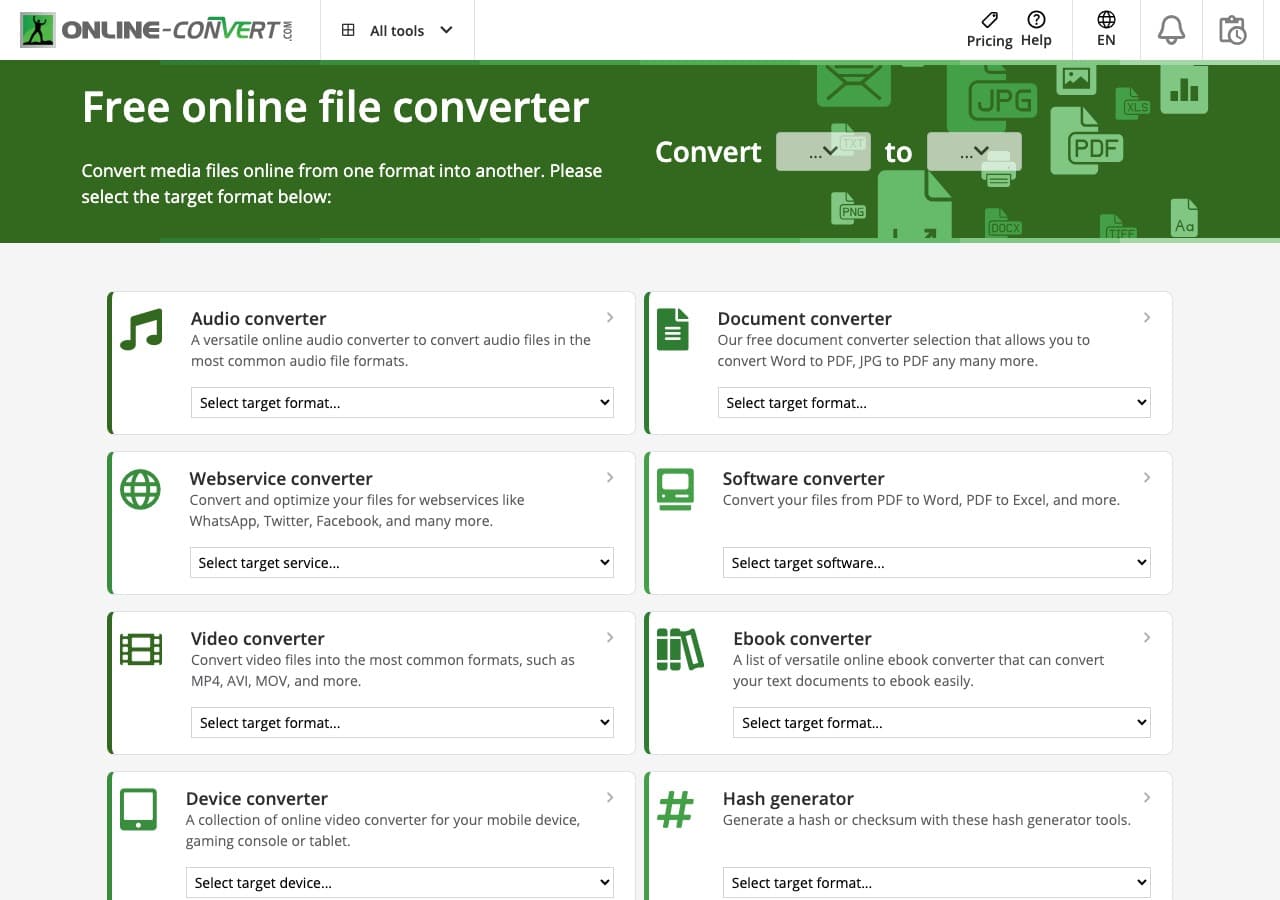
Online-Convert provides detailed output controls for document conversion. When converting to PDF, for example, you can set page size, margins, orientation, and compression. When converting to ebook formats, you can specify font size, encoding, and metadata. Most online tools skip these settings entirely.
The site supports a wide range of document formats and accepts files from your computer, URL, Google Drive, or Dropbox. For occasional conversions where you need specific output settings, Online-Convert provides more control than any other browser-based option.
Pros
- Detailed output settings for document conversion.
- Multiple input sources.
- Wide format support.
Cons
- Free tier has file size and daily limits.
- Interface is cluttered with ads.
Pricing
- Free: Limited conversions and file size.
- From $6.99/month: Higher limits and no ads.
18. Nitro PDF - Best Windows PDF Editor With Document Conversion
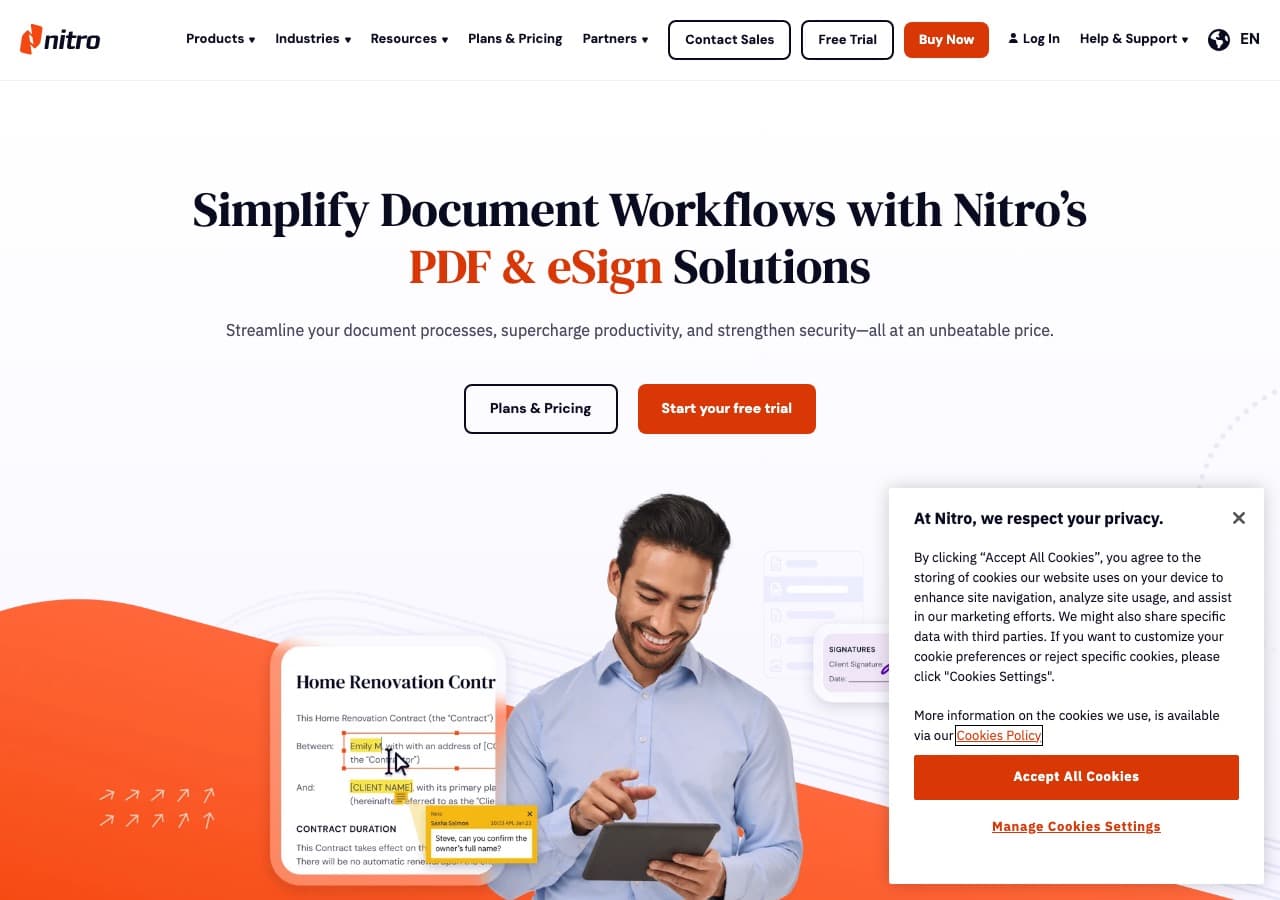
Nitro PDF is a Windows PDF editor designed for business users who need to convert documents regularly. It converts PDF to and from Word, Excel, PowerPoint, and images with strong formatting retention. The batch conversion feature processes entire folders of documents at once, saving time for large-volume workflows.
Nitro includes OCR for scanned documents, digital signatures, and collaboration tools. The conversion quality is competitive with Adobe Acrobat at a lower price point. For Windows-centric businesses that need reliable PDF and document conversion, Nitro is a strong alternative to Acrobat.
Pros
- Strong PDF to Word conversion quality.
- Batch conversion for multiple files.
- OCR for scanned documents.
- Lower price than Adobe Acrobat.
Cons
- Windows only.
- Subscription pricing.
Pricing
- Free: Online tools with limited features.
- $179.99/year: Nitro PDF Pro.
How to Convert
The offline file converter for Mac, Windows and Linux.
- Converts video, audio, images, documents, ebooks and more
- Everything runs locally. Your files never leave your device
- Pay once. Access forever
Get the app on Mac, Windows and Linux
Frequently Asked Questions
What is the best free document converter?
LibreOffice is the best free document converter. It opens and saves documents in dozens of formats, handles Microsoft Office files well, and includes a command-line mode for batch conversion. For PDF-specific work on Windows, PDF24 is completely free with no restrictions.
How do I convert a Word document to PDF?
The easiest ways to convert Word to PDF: open the file in Microsoft Word or LibreOffice and use File, Export as PDF. On Mac, you can also use File, Print, then Save as PDF. For batch conversion, use LibreOffice's command-line mode or an online converter like Smallpdf or iLovePDF. How to Convert handles this on desktop without an internet connection.
Can I convert PDF to editable Word?
Yes, but quality varies. Adobe Acrobat provides the best PDF to Word conversion with the most accurate formatting retention. Free alternatives like Smallpdf and iLovePDF handle simple documents well. For scanned PDFs, you need OCR (optical character recognition), which Adobe Acrobat, Foxit, and Nitro PDF all include.
Is it safe to convert documents online?
Reputable online converters like CloudConvert, Smallpdf, and Zamzar are generally safe, but your documents are uploaded to their servers during processing. For confidential documents like contracts, financial reports, or legal files, use an offline converter like How to Convert, LibreOffice, or Pandoc that processes files locally on your device.
Final Thoughts
The right document converter depends on your formats and privacy needs. For confidential documents that should never leave your device, How to Convert handles everything offline for a one-time purchase. LibreOffice is the best free option with excellent format support and batch capabilities. For PDF-specific work, Adobe Acrobat remains the gold standard, with Foxit and Nitro as strong alternatives. And for quick online conversions, Smallpdf and CloudConvert deliver reliable results from your browser.
How to Convert
The offline file converter for Mac, Windows and Linux.
- Converts video, audio, images, documents, ebooks and more
- Everything runs locally. Your files never leave your device
- Pay once. Access forever
Get the app on Mac, Windows and Linux
