18 Best File Converter Mac Apps (Free and Paid)
Looking for the best file converter apps for your Mac? We've rounded up 18 top picks, free and paid, covering video, audio, image, and document conversion. Find the right tool for your workflow.
Posted by
 Jake Manger
Whether you need to convert a video for a client, resize images in bulk, or turn a Word doc into a PDF, having a reliable file converter on your Mac is essential.
But with so many options out there, it can be hard to know which ones are worth your time and which ones are quietly uploading your files to a server you've never heard of.
In this guide, we've rounded up the 18 best file converter apps for Mac in 2026, covering free and paid options across video, audio, image, and document formats. We'll break down their features, pros and cons, and pricing so you can pick the right one for your workflow.
1. How to Convert

How to Convert is a privacy-first file converter built for Mac (and Windows/Linux). It converts files locally on your device, so nothing gets uploaded to a server. It supports hundreds of formats across video, audio, images, documents, ebooks, and more, all through a simple drag-and-drop interface.
There's also a free web demo for single-file conversions that uses WebAssembly. Supported conversions run locally in your browser tab without uploading the file.
How to Convert Pros
- All conversions happen locally. Files never leave your device.
- Supports hundreds of file formats (video, audio, image, document, ebook, and more).
- Simple drag-and-drop interface with no learning curve.
- One-time purchase, no subscription.
- Free web demo for single-file conversions across supported formats.
- Works offline.
How to Convert Cons
- Paid desktop app; the free web demo handles one file at a time and fewer formats.
- No cloud sync or online storage features.
How to Convert Pricing
- Free: Web demo for single-file conversions across supported multimedia formats.
- Desktop app: One-time purchase.
 How to Convert
The offline file converter for Mac, Windows and Linux.
- Converts video, audio, images, documents, ebooks and more
- Everything runs locally. Your files never leave your device
- Pay once. Access forever
Get the app on Mac, Windows and Linux
2. HandBrake

HandBrake is a free, open-source video transcoder that's been a staple for Mac users for years. It's particularly good at converting video files into MP4 or MKV containers with a range of codec options. If you mainly work with video, HandBrake is hard to beat for the price (free).
HandBrake Pros
- Completely free and open source.
- Excellent video compression with hardware acceleration support.
- Built-in presets for Apple devices, web, and more.
- Batch scanning and queuing for multiple files.
HandBrake Cons
- Video only, no audio, image, or document conversion.
- Interface can feel dated and overwhelming for beginners.
- Limited output formats (MP4, MKV, WebM).
HandBrake Pricing
- Free (open source).
3. Permute
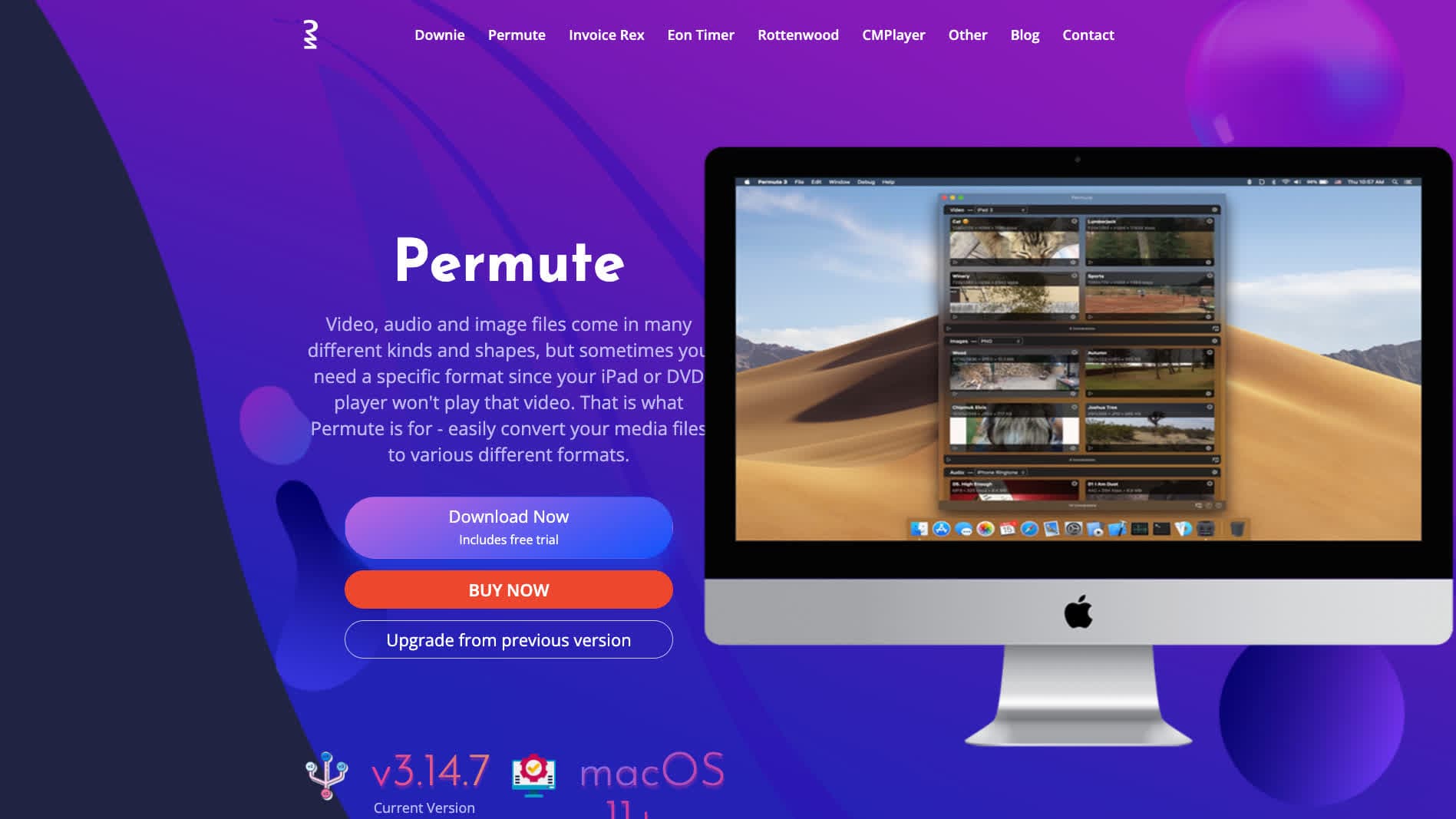
Permute is a polished Mac-native media converter by Charlie Monroe Software. It handles video, audio, and image conversions with a clean drag-and-drop interface that feels right at home on macOS. If you want a no-fuss converter that looks good and works fast, Permute is a solid choice.
Permute Pros
- Beautiful, native macOS design.
- Handles video, audio, and image conversions.
- Drag-and-drop with batch support.
- Hardware-accelerated encoding.
Permute Cons
- No document or ebook conversion.
- Paid app with no free tier.
- Mac only, no cross-platform support.
Permute Pricing
- One-time purchase via the Mac App Store.
4. VLC Media Player

Most people know VLC as a media player, but it also has built-in file conversion capabilities. You can convert video and audio files between a wide range of formats directly from the app. It's not the most intuitive converter, but it's free and you might already have it installed.
VLC Pros
- Free and open source.
- Supports a huge range of audio and video formats.
- Available on every platform (Mac, Windows, Linux, mobile).
- No ads, no tracking, no account required.
VLC Cons
- Conversion feature is buried in the menus and not intuitive.
- No image or document conversion.
- Limited output customization compared to dedicated converters.
VLC Pricing
- Free (open source).
5. Adapter

Adapter is a free all-in-one media converter for Mac. It uses FFmpeg under the hood and wraps it in a clean, simple interface. It handles video, audio, and image conversions and includes some handy extras like subtitle burning, video trimming, and image resizing.
Adapter Pros
- Completely free with no limitations.
- Converts video, audio, and images.
- Built-in extras like subtitle overlays, resizing, and trimming.
- Simple and clean interface.
Adapter Cons
- No document or ebook conversion.
- Updates are infrequent.
- Fewer output format options than some paid tools.
Adapter Pricing
- Free.
6. XnConvert
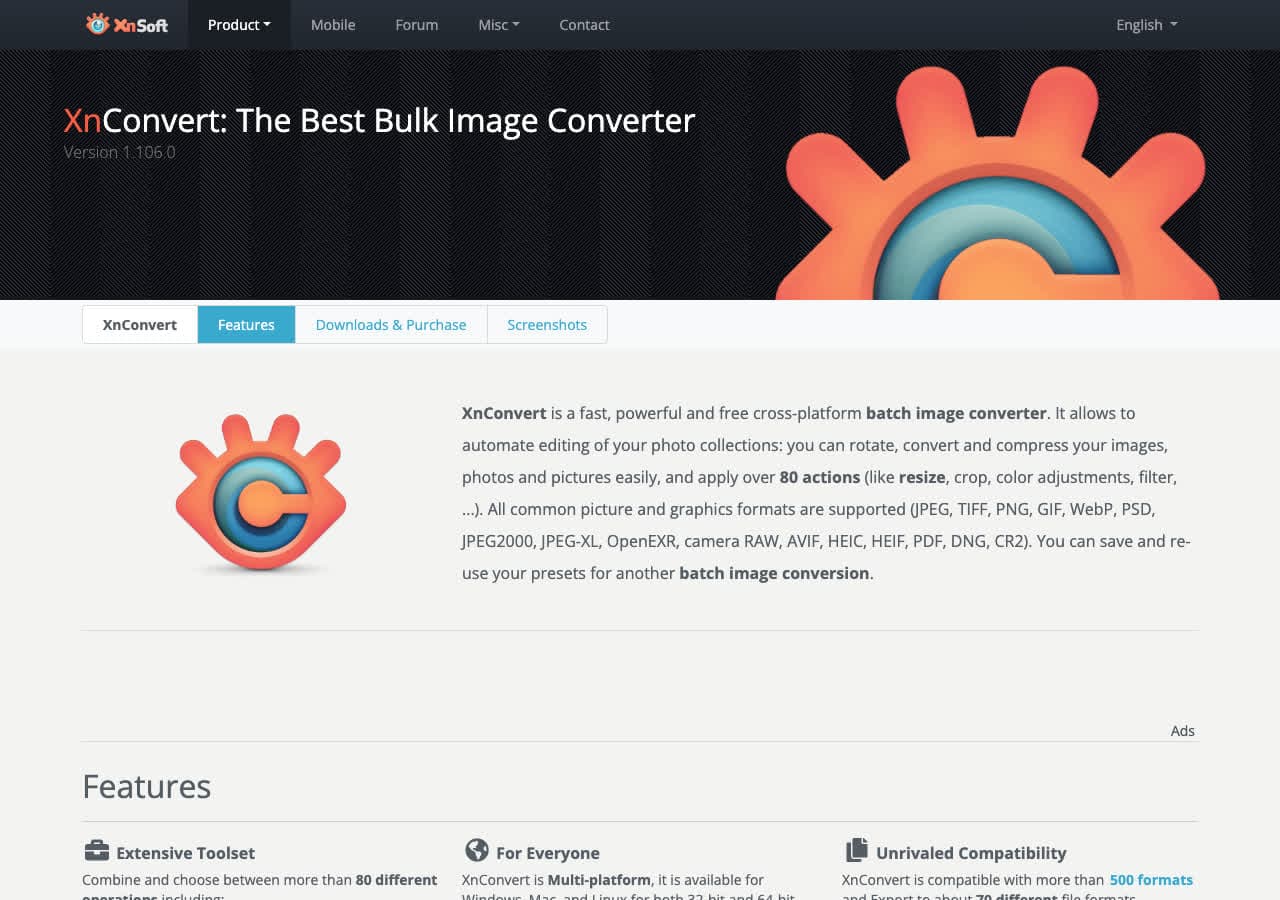
XnConvert is a powerful batch image converter and processor. If you need to resize, crop, watermark, or convert hundreds of images at once, XnConvert handles it with ease. It supports over 500 image formats and lets you chain together multiple processing actions.
XnConvert Pros
- Free for personal use.
- Supports 500+ image formats.
- Powerful batch processing with chained actions (resize, watermark, rotate, etc.).
- Cross-platform (Mac, Windows, Linux).
XnConvert Cons
- Images only, no video, audio, or document support.
- Interface feels a bit dated.
- Requires a paid license for commercial use.
XnConvert Pricing
- Free for personal use.
- $27 for a commercial license.
7. Any Video Converter
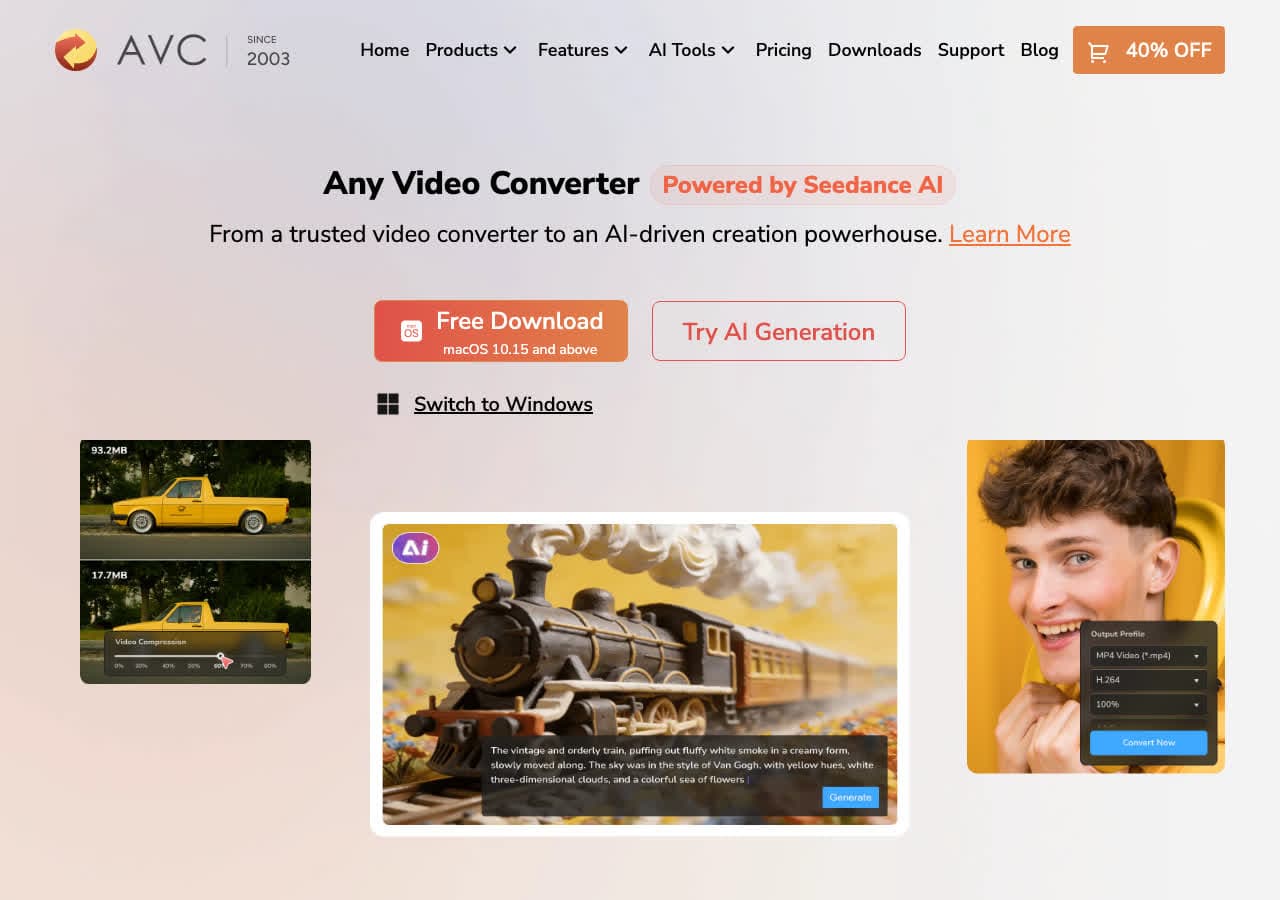
Any Video Converter is a long-standing video converter that offers both a free and a paid (Ultimate) version. The free version covers basic video conversion, while the paid version adds DVD ripping, screen recording, and more output formats.
Any Video Converter Pros
- Free version available with core features.
- Supports a wide range of video input and output formats.
- Includes basic video editing (trim, crop, merge).
- Device-specific presets for Apple, Android, and gaming consoles.
Any Video Converter Cons
- Free version has limited features and may bundle extra software.
- Video only, no audio, image, or document conversion.
- Interface feels cluttered.
Any Video Converter Pricing
- Free (basic version).
- $49.95 (Ultimate, one-time).
8. Wondershare UniConverter

Wondershare UniConverter is a feature-packed media toolkit that goes beyond conversion. It handles video, audio, and image conversion, plus DVD burning, screen recording, video compression, and more. It's aimed at users who want an all-in-one media solution.
Wondershare UniConverter Pros
- Supports 1,000+ formats for video, audio, and images.
- 90x faster conversion speed with GPU acceleration.
- Built-in video editor, compressor, and screen recorder.
- Batch processing support.
Wondershare UniConverter Cons
- Expensive, especially for a subscription.
- Free trial adds watermarks and limits features.
- Can feel bloated if you only need simple conversion.
- No document conversion.
Wondershare UniConverter Pricing
- Free trial (limited, watermarked output).
- $29.99/year or $55.99 (one-time perpetual plan).
9. Calibre
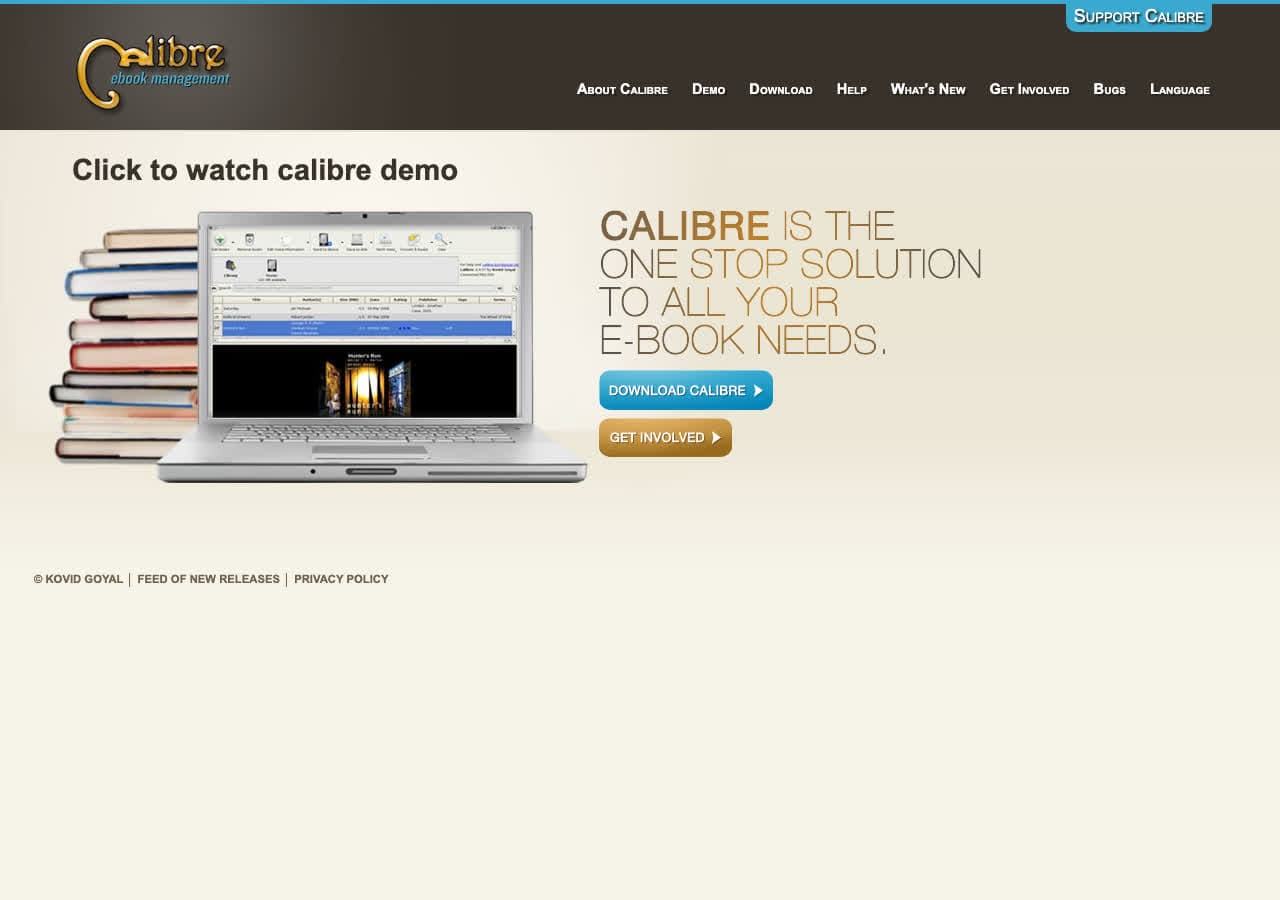
Calibre is the go-to ebook management and conversion tool. If you need to convert between EPUB, MOBI, PDF, AZW3, and dozens of other ebook formats, Calibre does it all, and it's completely free. It also doubles as a full ebook library manager.
Calibre Pros
- Free and open source.
- Supports dozens of ebook formats (EPUB, MOBI, AZW3, PDF, and more).
- Full ebook library management with metadata editing.
- Built-in ebook reader and editor.
Calibre Cons
- Ebooks only, no media or document conversion.
- Interface is functional but not pretty.
- Can be overwhelming for users who just want a quick conversion.
Calibre Pricing
- Free (open source).
10. FFmpeg

FFmpeg is the industry-standard command-line tool for audio and video processing. Most of the converter apps on this list (including online converters) use FFmpeg under the hood. If you're comfortable with the terminal, FFmpeg gives you the most power and flexibility available.
FFmpeg Pros
- Free and open source.
- Supports virtually every audio and video format in existence.
- Extremely powerful and can do anything from simple conversion to complex media processing.
- Used by professionals and powers most other conversion tools.
FFmpeg Cons
- Command-line only, no graphical interface.
- Steep learning curve for beginners.
- No image or document conversion (media only).
FFmpeg Pricing
- Free (open source).
11. LibreOffice
LibreOffice is a free, open-source office suite that can open and convert between a wide range of document formats. Need to turn a .docx into a PDF, or open an old .wps file? LibreOffice handles it. It also supports spreadsheets, presentations, and more.
LibreOffice Pros
- Free and open source.
- Supports a wide range of document formats (DOCX, ODT, RTF, PDF, and more).
- Full office suite, not just a converter.
- Can be used from the command line for batch conversions.
LibreOffice Cons
- Documents only, no media conversion.
- Complex formatting may not convert perfectly from Microsoft Office formats.
- The app is large and can feel slow to launch.
LibreOffice Pricing
- Free (open source).
12. CloudConvert

CloudConvert is a popular online converter that supports over 200 formats. It handles video, audio, images, documents, ebooks, spreadsheets, and more. The catch: your files are uploaded to their servers for processing, so it's not ideal for sensitive documents.
CloudConvert Pros
- Supports 200+ formats across all file types.
- No software installation required, runs in the browser.
- API available for automation.
- High-quality output with lots of customization options.
CloudConvert Cons
- Files are uploaded to their servers (privacy concern).
- Free tier is limited to 25 conversions per day.
- Requires an internet connection.
- Paid plans can get expensive for heavy use.
CloudConvert Pricing
- Free: 25 conversions/day.
- Packages: From $9 for 500 conversion minutes.
- Subscriptions: From $9/month.
13. Pixelmator Pro

Pixelmator Pro is a professional image editor built exclusively for Mac. While it's primarily an editing tool, it excels at converting between image formats including HEIC, JPEG, PNG, TIFF, WebP, PSD, and more. If you already use it for editing, it doubles as a great image converter.
Pixelmator Pro Pros
- Native Mac app with excellent performance.
- Supports a wide range of image formats including PSD and RAW.
- ML-powered editing features (Super Resolution, background removal).
- One-time purchase, no subscription.
Pixelmator Pro Cons
- Images only, no video, audio, or document conversion.
- Overkill if you only need format conversion.
- Mac only.
Pixelmator Pro Pricing
- $49.99 (one-time, Mac App Store).
14. Automator / Shortcuts
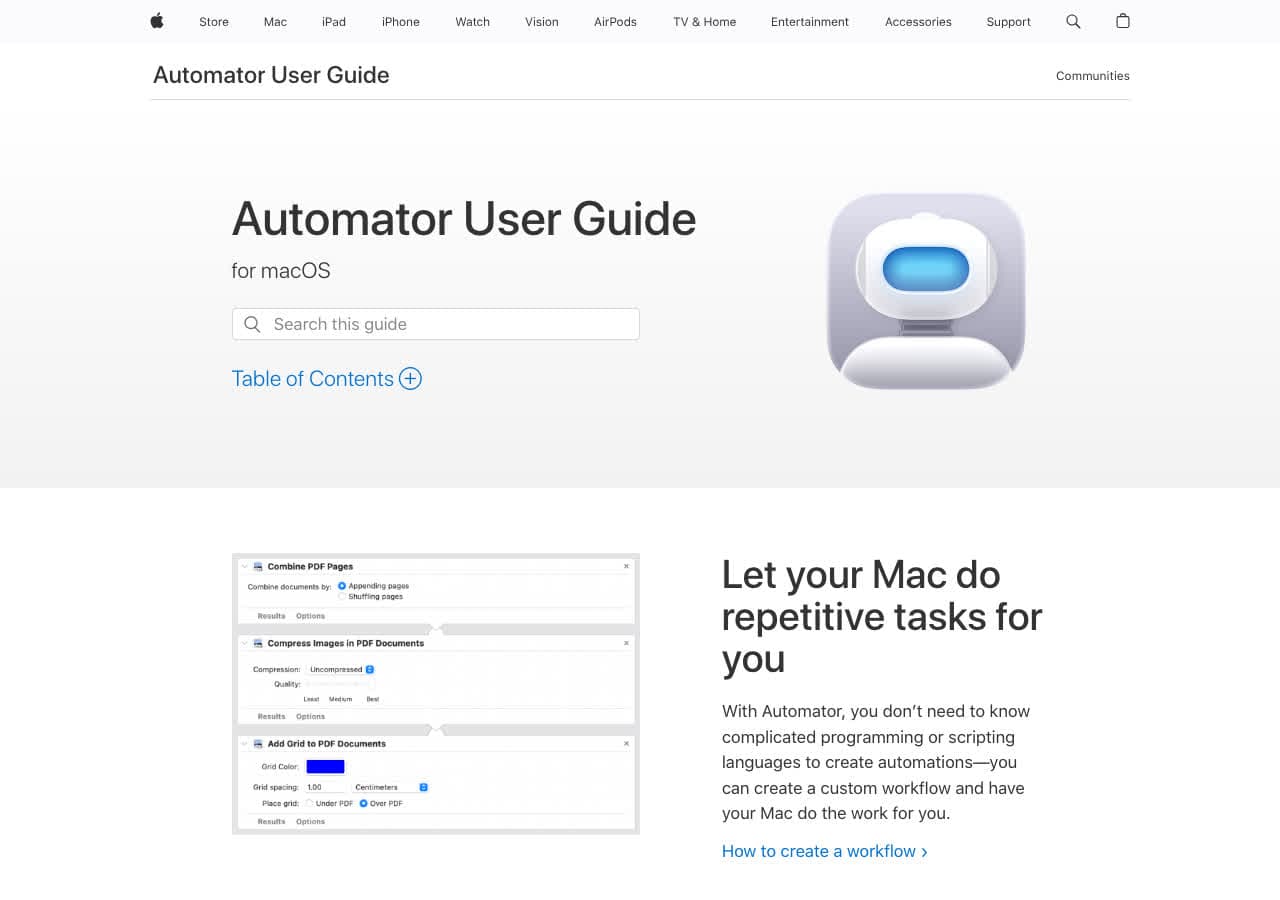
Your Mac comes with built-in automation tools: Automator (on older macOS) and Shortcuts (on macOS Monterey and later). Both can be used to create quick file conversion workflows, especially for images and PDFs. No downloads needed.
Automator / Shortcuts Pros
- Already installed on your Mac, completely free.
- Great for batch image conversion (JPEG, PNG, TIFF, HEIC).
- Can create reusable Quick Actions in Finder.
- No third-party software or accounts needed.
Automator / Shortcuts Cons
- Limited to basic image and PDF conversions.
- No video, audio, or document format conversion.
- Requires some setup to build workflows.
Automator / Shortcuts Pricing
- Free (built into macOS).
15. ImageMagick
ImageMagick is a free, open-source command-line tool for image conversion and manipulation. It supports over 200 image formats and is the go-to tool for developers and power users who need scriptable image processing. Think of it as the FFmpeg of images.
ImageMagick Pros
- Free and open source.
- Supports 200+ image formats.
- Extremely powerful batch processing and scripting.
- Widely used and well-documented.
ImageMagick Cons
- Command-line only, no GUI.
- Images only, no video, audio, or document support.
- Can be tricky to install and configure for beginners.
ImageMagick Pricing
- Free (open source).
16. PDF Expert
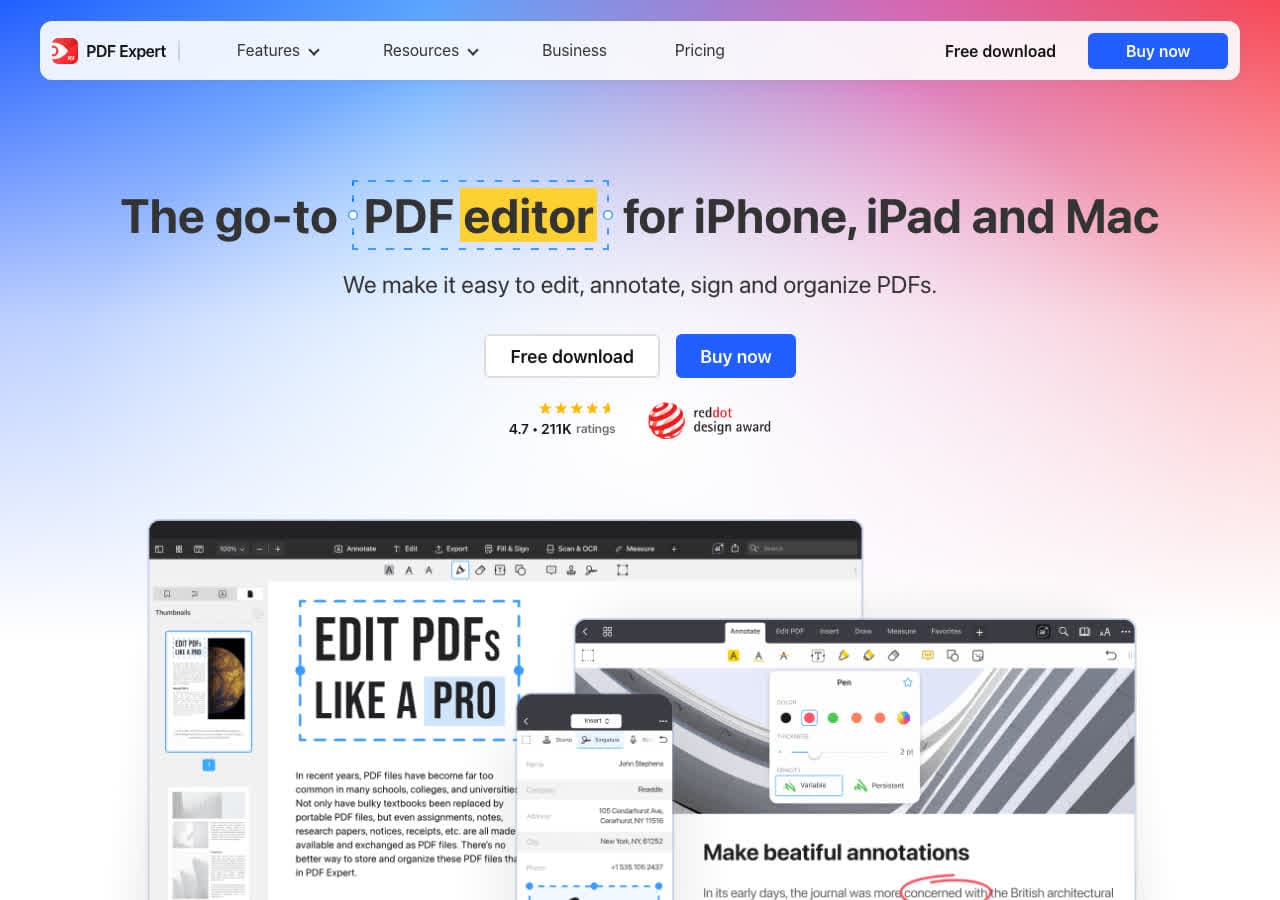
PDF Expert by Readdle is one of the best PDF apps on Mac. While it's primarily a PDF editor and reader, it can convert PDFs to and from Word, Excel, PowerPoint, and image formats. If you work with PDFs daily, this is a great tool to have.
PDF Expert Pros
- Best-in-class PDF editing and annotation on Mac.
- Converts PDFs to Word, Excel, PowerPoint, and images.
- Fast, native Mac app with a clean interface.
- Supports form filling and digital signatures.
PDF Expert Cons
- PDF-focused only, no general file conversion.
- Subscription pricing model.
- Mac and iOS only.
PDF Expert Pricing
- $79.99/year subscription.
- Free trial available.
17. Zamzar
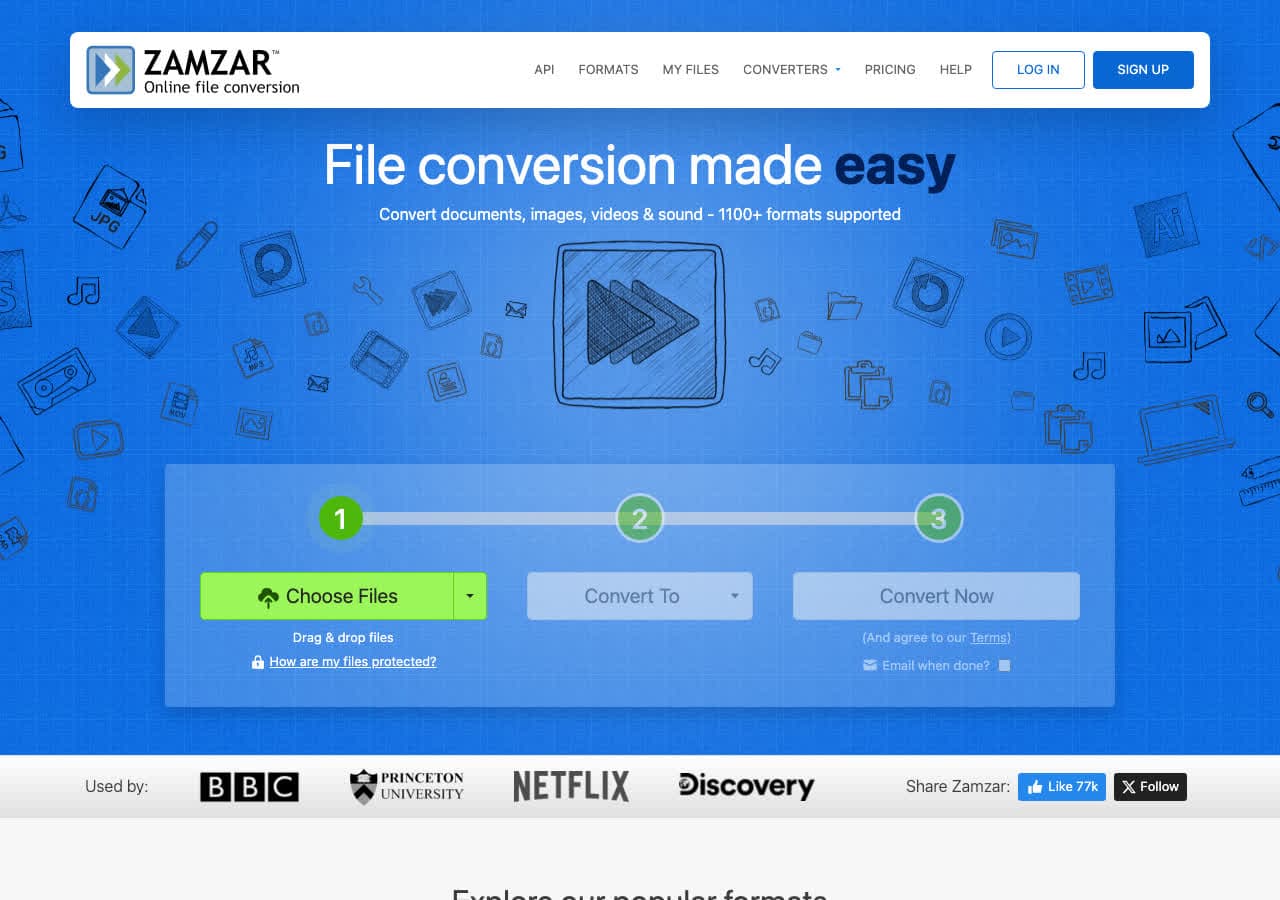
Zamzar is one of the oldest and most well-known online file converters. It supports over 1,200 format conversions across documents, images, video, audio, and ebooks. It's browser-based, so there's nothing to install, but your files are uploaded to their servers.
Zamzar Pros
- Supports 1,200+ format conversions.
- No software to install, works in any browser.
- Simple drag-and-drop interface.
- Email delivery option for converted files.
Zamzar Cons
- Files are uploaded to their servers (privacy concern for sensitive documents).
- Free tier limited to 25 MB file size and 2 conversions at a time.
- Slower conversion speeds on the free plan.
- Requires internet connection.
Zamzar Pricing
- Free: 25 MB limit, 2 files at a time.
- Basic: $18/month (200 MB, unlimited files).
- Pro: $30/month (400 MB).
18. Switch Audio Converter

Switch by NCH Software is a dedicated audio converter for Mac. It supports over 40 audio formats including MP3, WAV, FLAC, AAC, OGG, and WMA. If you primarily work with audio files and need reliable batch conversion, Switch gets the job done.
Switch Pros
- Supports 40+ audio formats.
- Batch conversion with folder monitoring.
- Can extract audio from video files.
- Simple, focused interface.
Switch Cons
- Audio only, no video, image, or document conversion.
- Free version is for non-commercial use only.
- Interface looks dated.
Switch Pricing
- Free (non-commercial use).
- $29.99 (Plus, one-time purchase).
Final Thoughts
The best file converter for your Mac depends on what you're converting and how much you value privacy, simplicity, and format coverage.
If you want a single app that handles virtually every format locally on your Mac without uploading anything, How to Convert is the most complete option. For video-specific work, HandBrake and Permute are excellent. For ebooks, Calibreis unbeatable. And if you're comfortable with the terminal, FFmpeg and ImageMagick give you the most power and flexibility.
One thing to keep in mind: if you're converting sensitive files (resumes, bank statements, contracts, IDs), always prefer a tool that converts locally on your device rather than uploading to a server. Your files are your business.
How to Convert
The offline file converter for Mac, Windows and Linux.
- Converts video, audio, images, documents, ebooks and more
- Everything runs locally. Your files never leave your device
- Pay once. Access forever
Get the app on Mac, Windows and Linux
