5 Best HEIC Converters for Windows in 2026

Got iPhone photos that a Windows app or website won’t accept? Converting HEIC to JPG usually solves that. I’ve rounded up five options, including free tools and my own app.
1. How to Convert
Windows · $29 once
This is my app. It handles almost any file, so you can use it for photos as well as video, audio and documents. Drop in your files and choose the output; it finds and runs the conversion tools for you.
1. Add your files. Drag your HEIC files into How to Convert.
2. Choose the output and convert. Choose JPG from the output menu and click Convert.
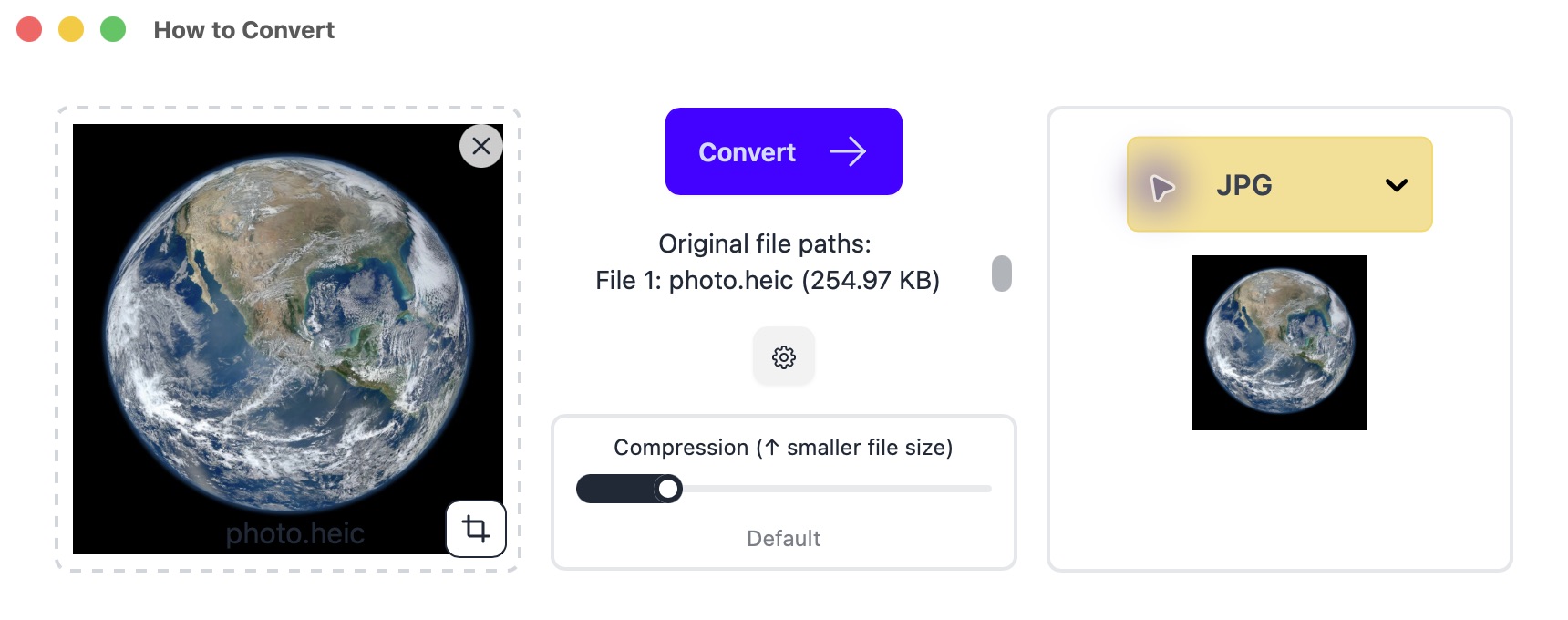
Drop in your file on the left; choose JPG on the right. Mac app shown. Example photo: NASA.
Other options
2. iMazing Converter
Mac, Windows · Free
A free, focused choice for turning iPhone HEIC photos into JPG or PNG. Use it when that is the only conversion you need.
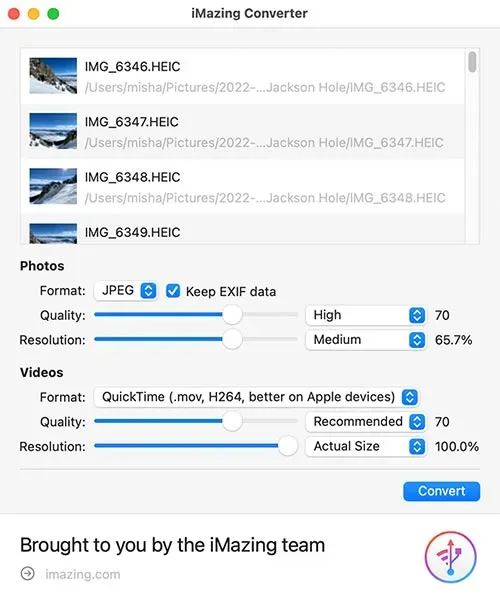
- Open iMazing Converter and drag in your HEIC files or photo folder.
- Set Photos → Format to JPEG. Keep the original resolution and choose a high quality setting. Uncheck Keep EXIF data if you do not want camera and location metadata included.
- Click Convert and choose a destination folder. Open a result and try the upload again.
Keep your HEIC originals. If the website still rejects a JPG, check its pixel dimensions and file-size limit.
3. CopyTrans HEIC
Windows · Free and premium plans
Adds HEIC conversion to File Explorer. Free-plan batch limits apply.
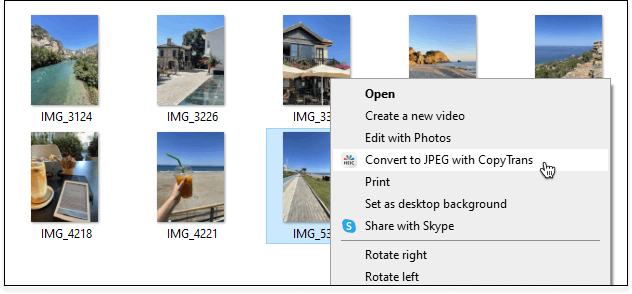
- Install CopyTrans HEIC, then select your HEIC photos in File Explorer.
- Right-click → Convert to JPEG with CopyTrans. On Windows 11, check Show more options.
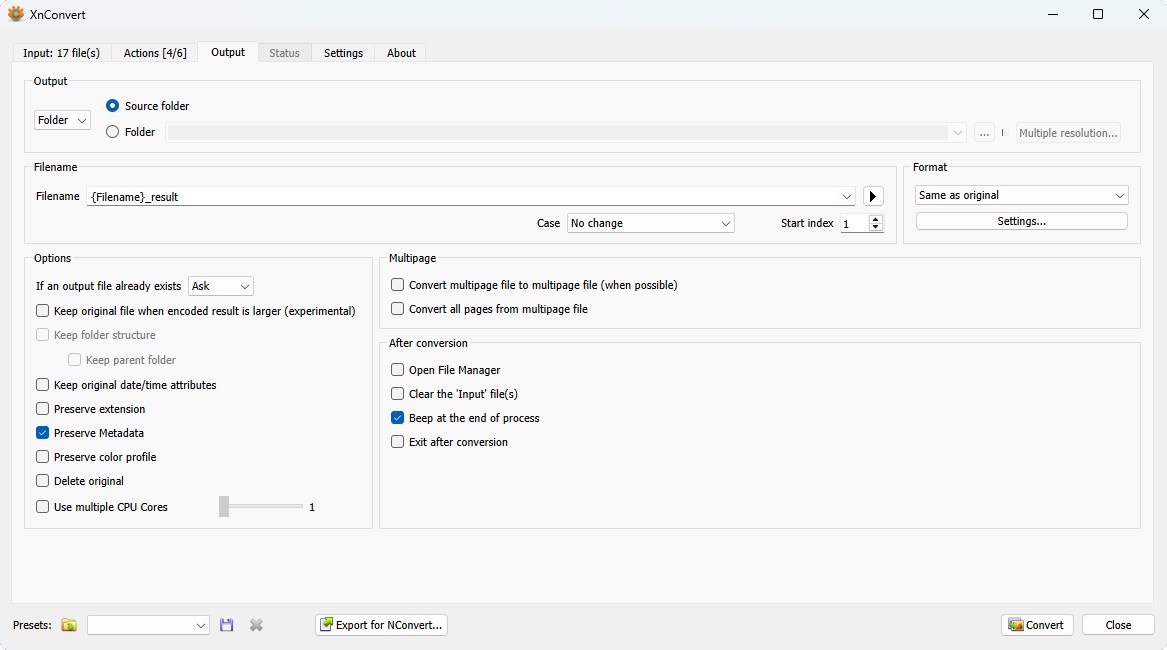
4. XnConvert
Mac, Windows, Linux · Free for private/educational use; business license available
Good for batches that also need resizing. Free for personal use; company use requires a licence.
- Add photos on the Input tab. Add a resize action on Actions only if needed.
- On Output, choose JPG and a destination folder, then click Convert.
5. CloudConvert
Browser · Limited free tier; paid plans
An occasional conversion without installing an app. Files upload to its servers; free limits apply.
- Click Select File and choose your HEIC file.
- Set the output to JPG, click Convert, then download the result.