18 Best HEIC to JPG Converters in 2026 (Free and Paid)
The best HEIC to JPG converters for 2026. Convert Apple HEIC photos to JPG format with these free and paid tools.
Posted by
 Jake Manger
HEIC (High Efficiency Image Container) is Apple's default photo format on iPhones and iPads since iOS 11. HEIC files are roughly half the size of equivalent JPGs while maintaining the same visual quality, which saves storage space on your device. The problem is compatibility. Windows computers, many websites, social media platforms, email clients, and older software do not support HEIC natively. Try to upload a HEIC photo to a website or open it on a Windows PC and you will get an error or a blank preview.
Converting HEIC to JPG solves the compatibility problem. JPG is universally supported by every device, browser, and application. We tested HEIC to JPG converters across Mac, Windows, Linux, and the web to find the 18 best options. This list includes desktop apps, command-line tools, built-in system utilities, and online converters. Whether you need to convert a single photo or batch process an entire camera roll, one of these tools will get the job done.
1. How to Convert - Best All-in-One HEIC to JPG Converter
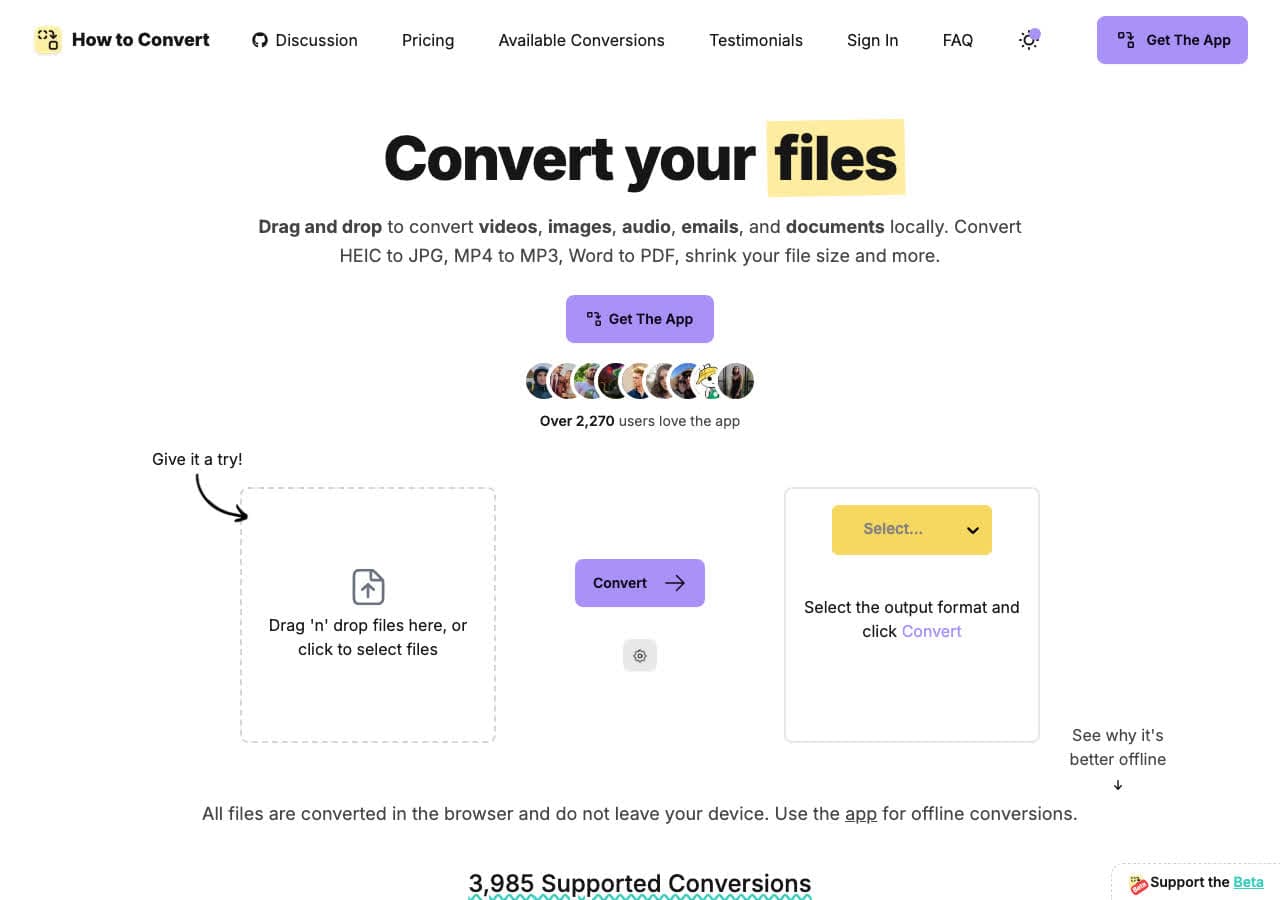
How to Convert converts HEIC to JPG locally on your computer without uploading your photos anywhere. Drop HEIC files into the app, select JPG as the output format, and convert. Your photos stay on your machine the entire time. How to Convert also handles HEIC to PNG, WebP, TIFF, and other image formats.
The batch conversion feature is useful for processing entire camera rolls. Test a representative set first, then run the remaining HEIC photos through the same JPG settings. The paid desktop app works on Mac, Windows, and Linux for batches and broader format support; the free web demo handles one supported file at a time.
Pros
- Local conversion. Photos never leave your device.
- Batch convert HEIC files locally, with practical size depending on the files and your computer.
- Handles all image formats, not just HEIC to JPG.
- One-time purchase. No subscription.
- Works on Mac, Windows, and Linux.
Cons
- Desktop app is a paid one-time purchase.
- Web demo handles one file at a time and fewer formats than the desktop app.
Pricing
- Free: Web demo for single-file conversions across supported formats.
- Desktop app: One-time purchase for Mac, Windows, and Linux.
 How to Convert
The offline file converter for Mac, Windows and Linux.
- Converts video, audio, images, documents, ebooks and more
- Everything runs locally. Your files never leave your device
- Pay once. Access forever
Get the app on Mac, Windows and Linux
2. ImageMagick - Best Command-Line HEIC to JPG Converter
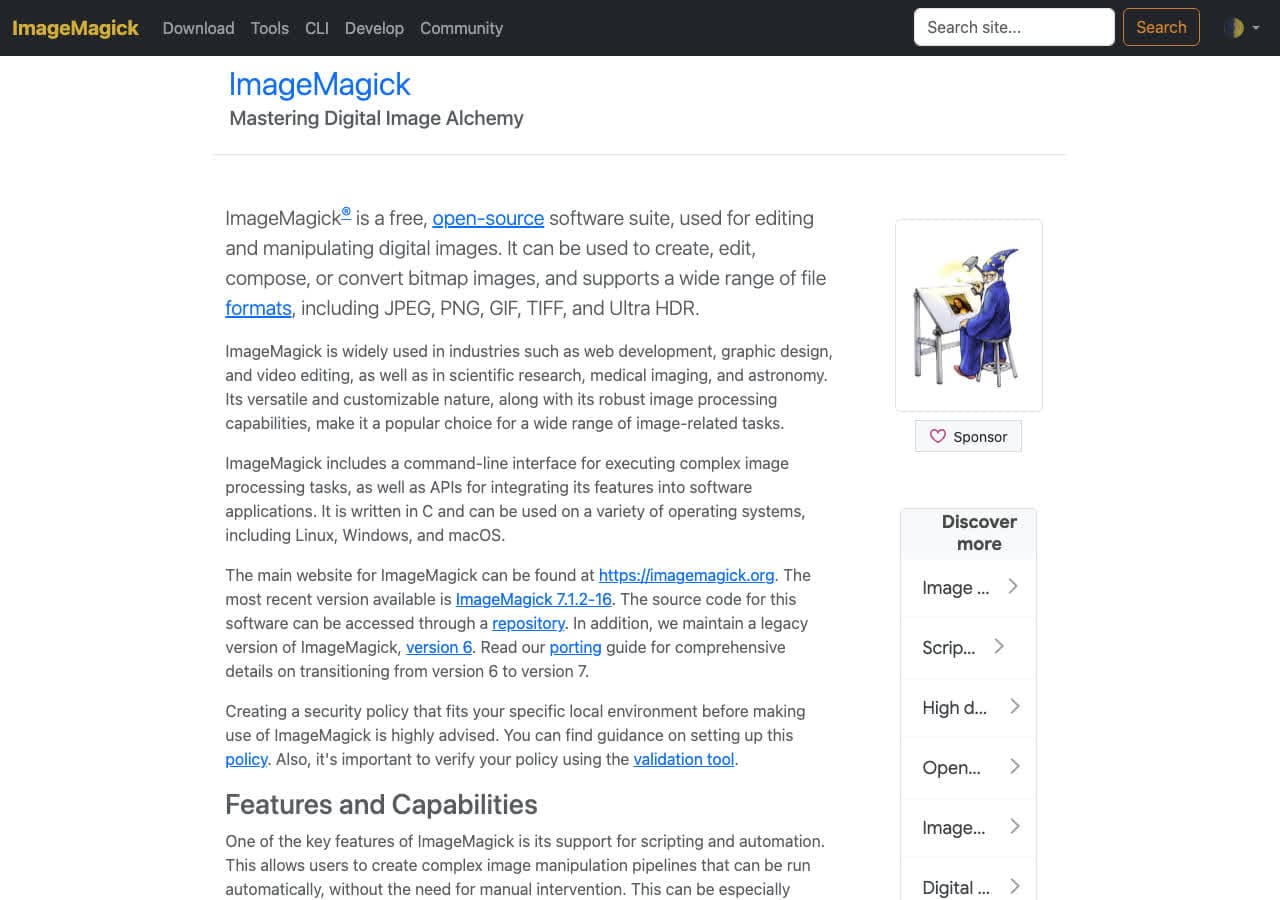
ImageMagick converts HEIC to JPG from the command line with a single command: magick input.heic output.jpg. For batch conversion, use magick mogrify -format jpg *.heic to convert every HEIC file in a folder to JPG. ImageMagick preserves EXIF metadata including GPS coordinates, camera settings, and timestamps.
ImageMagick requires the libheif library for HEIC support, which is included in most modern installations. You can control JPG quality with the -quality flag: magick input.heic -quality 90 output.jpg. ImageMagick is free, open source, and runs on Mac, Windows, and Linux. For automated HEIC conversion workflows, it is the best tool available.
Pros
- Batch convert entire folders of HEIC files.
- Preserves EXIF metadata.
- Control JPG quality precisely.
- Free and open source.
Cons
- Command-line only.
- Requires libheif library for HEIC support.
Pricing
- Free (open source, Apache 2.0 license).
3. XnConvert - Best Batch HEIC to JPG Converter with GUI
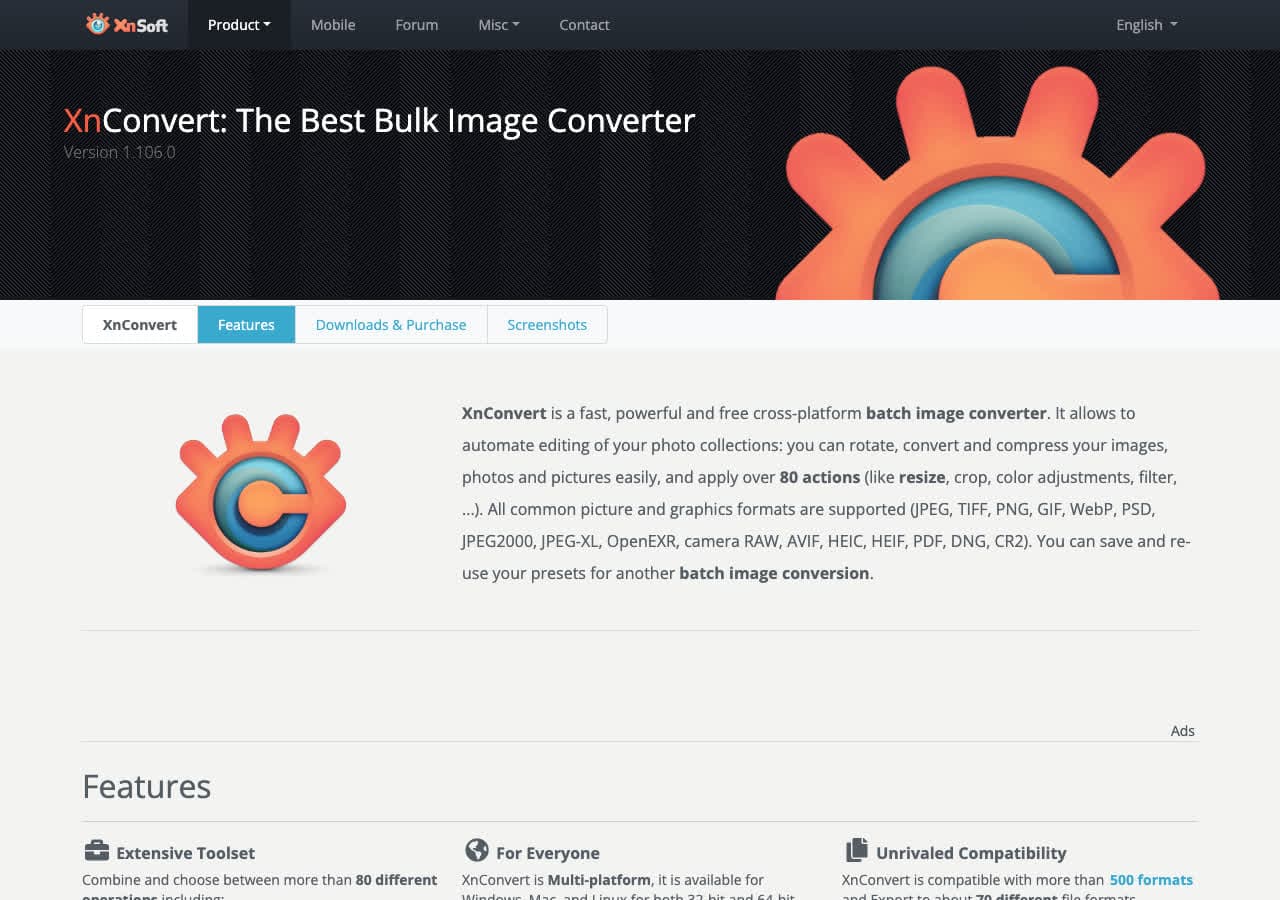
XnConvert is a batch image converter with HEIC support and a graphical interface. Drop hundreds of HEIC files, select JPG as the output format, optionally add processing steps like resize or rename, and convert them all at once. The action pipeline lets you chain operations: convert HEIC to JPG, resize to 1920px, and rename with a pattern.
XnConvert is the best option for non-technical users who need to batch convert HEIC photos. The graphical interface makes it easy to see what files are queued and what settings will be applied. Profiles save your favorite conversion settings for reuse. XnConvert is free for personal use and runs on Mac, Windows, and Linux.
Pros
- GUI batch conversion with HEIC support.
- Action pipeline for chained operations.
- Free for personal use.
- Cross-platform.
Cons
- Commercial license required for business use.
- HEIC support may require additional plugins on some systems.
Pricing
- Free for personal use.
- Commercial license available.
4. GIMP - Best Free Image Editor for HEIC to JPG Conversion
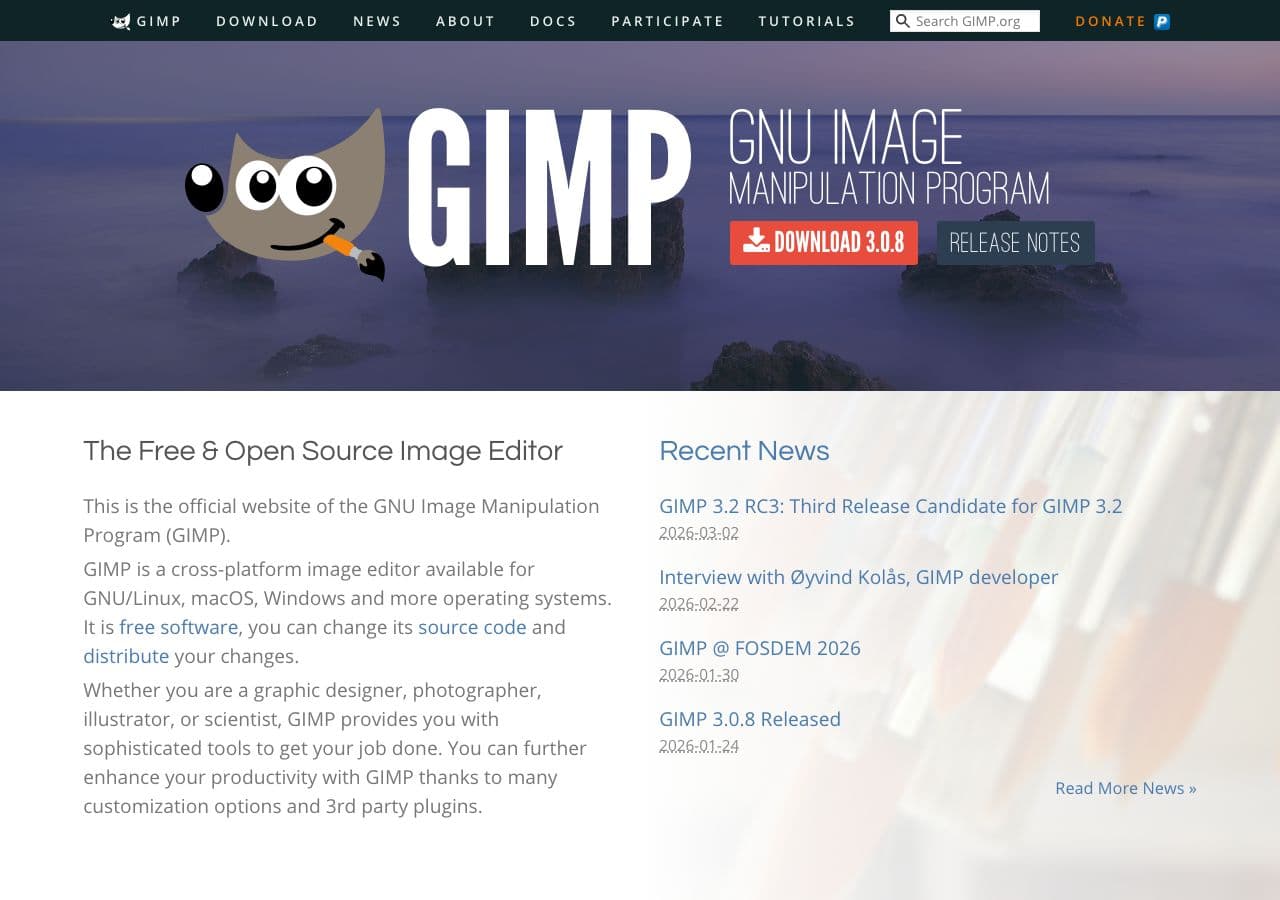
GIMP opens HEIC files and exports them as JPG with full control over quality settings. GIMP's HEIC support uses the libheif library. Open a HEIC photo, make any edits if needed (crop, adjust colors, resize), then use File > Export As to save as JPG.
GIMP is not ideal for batch HEIC conversion since it processes one file at a time. But if you need to convert individual HEIC photos and also edit them, GIMP is a free, open source option with professional-grade editing tools. It runs on Mac, Windows, and Linux.
Pros
- Free and open source.
- Full image editing alongside conversion.
- Control over JPG quality and settings.
- Cross-platform.
Cons
- No batch conversion without scripting.
- Overkill for simple HEIC to JPG tasks.
Pricing
- Free (open source, GPL licensed).
5. Pixelmator Pro - Best Mac Image Editor for HEIC to JPG

Pixelmator Pro is a Mac-native image editor with seamless HEIC support. Since it uses Apple's native frameworks, it opens HEIC files instantly and exports to JPG, PNG, TIFF, WebP, HEIC, and other formats. The export dialog gives you a quality slider and live file size preview so you can balance quality and file size.
Pixelmator Pro is the best option for Mac users who want to edit HEIC photos and convert them in a polished, native interface. It includes advanced photo editing tools like ML-powered noise reduction, object removal, and color adjustments. For simple HEIC to JPG conversion, it is elegant but overkill.
Pros
- Native Mac HEIC support. Opens instantly.
- Live quality and file size preview.
- Professional photo editing tools.
- Beautiful Mac-native interface.
Cons
- Mac only.
- No batch conversion.
- Paid app.
Pricing
- One-time purchase via the Mac App Store (~$49.99).
6. IrfanView - Best Windows HEIC to JPG Converter
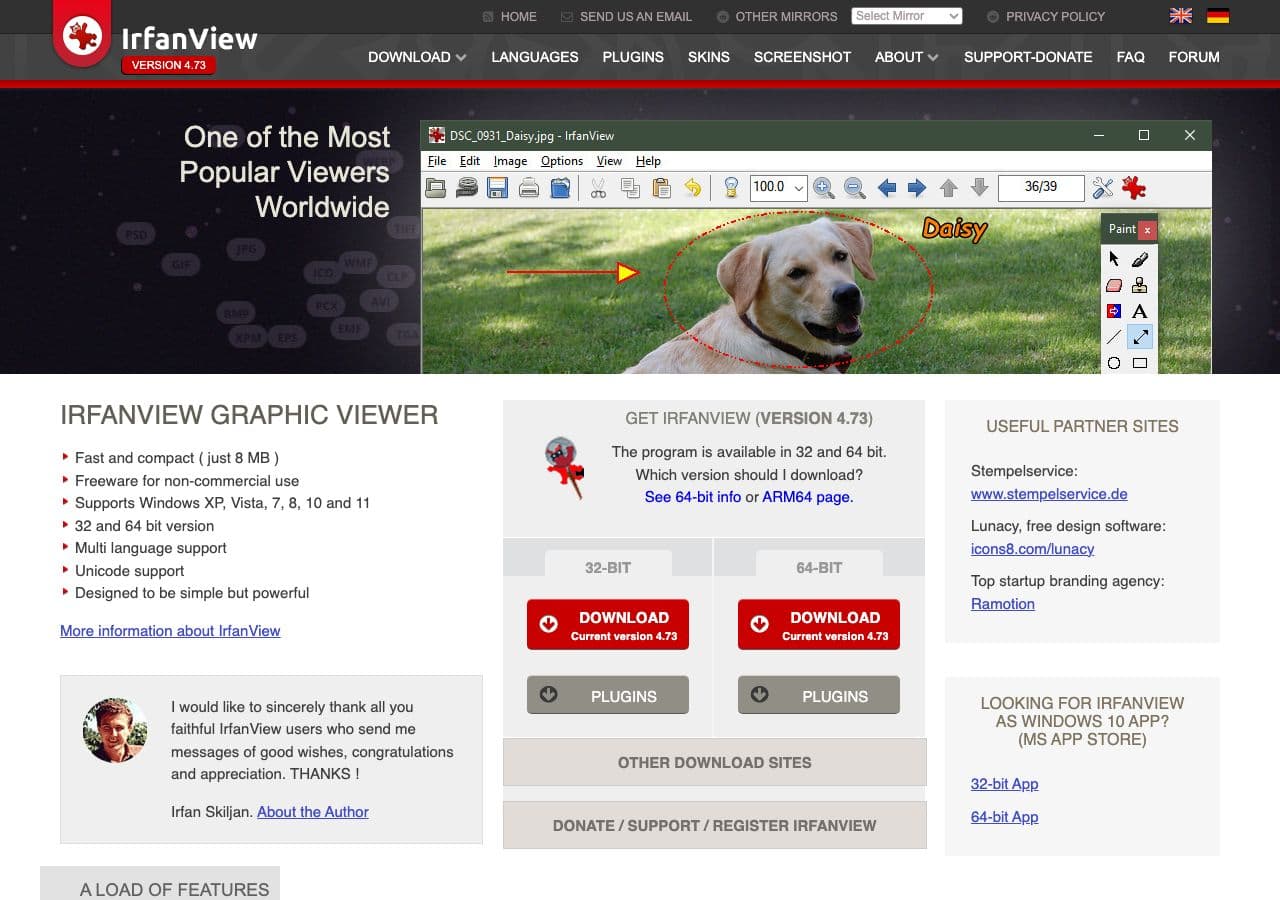
IrfanView is a lightweight Windows image viewer with HEIC support via plugins. Install the HEIC plugin, and IrfanView opens HEIC files and converts them to JPG with the batch conversion feature. The batch converter handles hundreds of files with options for format, quality, resize, and file naming.
IrfanView is the fastest way to batch convert HEIC to JPG on Windows. It is small, fast, and uses minimal resources. The batch conversion dialog is comprehensive but straightforward. IrfanView has been a staple Windows utility for decades and is free for personal use.
Pros
- Fast, lightweight HEIC to JPG conversion.
- Batch conversion for hundreds of files.
- Free for personal use.
- Minimal resource usage.
Cons
- Windows only.
- HEIC requires plugin installation.
Pricing
- Free for personal use.
- Commercial: $12 one-time.
How to Convert
The offline file converter for Mac, Windows and Linux.
- Converts video, audio, images, documents, ebooks and more
- Everything runs locally. Your files never leave your device
- Pay once. Access forever
Get the app on Mac, Windows and Linux
7. FastStone Image Viewer - Best Windows Image Viewer with HEIC Support
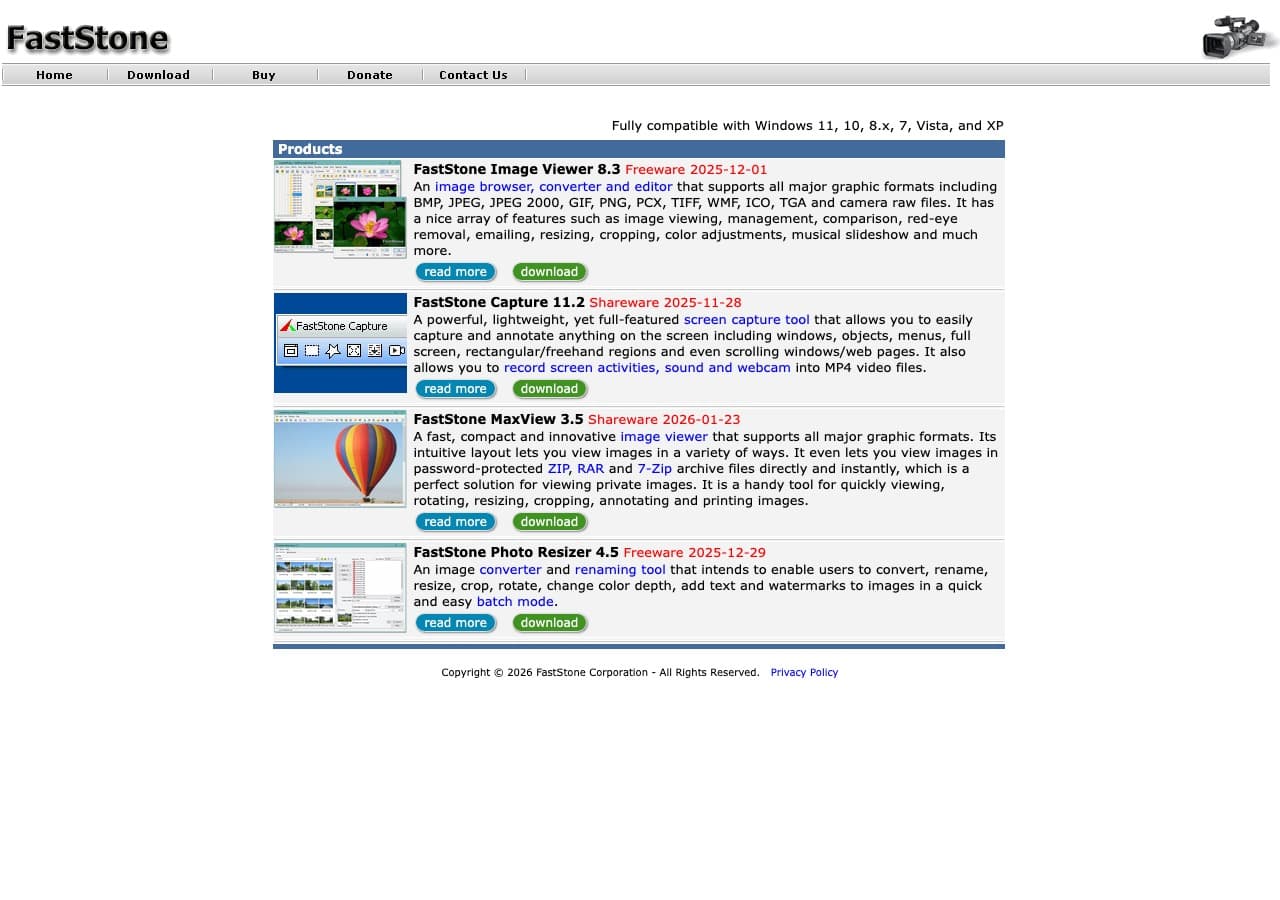
FastStone Image Viewer opens HEIC files on Windows and includes batch conversion to JPG. Select HEIC photos in the file browser, open the batch convert dialog, set JPG as the output format with quality settings, and convert them all. FastStone also batch resizes images during conversion.
FastStone is a solid alternative to IrfanView for Windows HEIC to JPG conversion. The full-screen image viewer lets you browse HEIC photos before deciding which to convert. The batch converter handles format conversion, resizing, renaming, and DPI adjustment in one pass. Free for personal use.
Pros
- HEIC viewing and batch conversion.
- Combined resize and convert.
- Full-screen image browser.
- Free for personal use.
Cons
- Windows only.
- Fewer features than XnConvert for batch work.
Pricing
- Free for personal use.
- Lifetime: $34.95 one-time.
8. Paint.NET - Best Free Windows Image Editor for HEIC
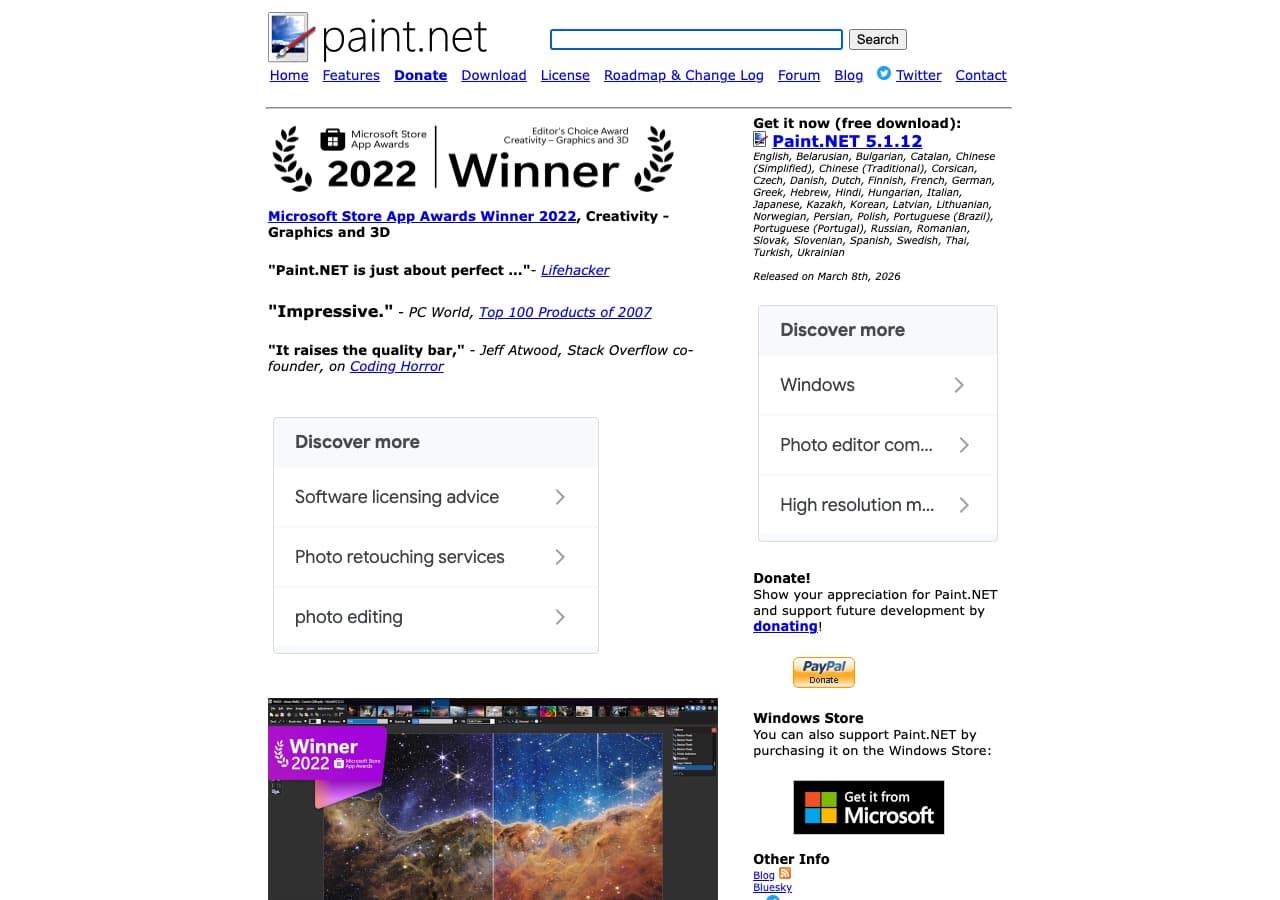
Paint.NET is a free image editor for Windows that opens HEIC files (with the HEIC codec installed from the Microsoft Store) and saves them as JPG. The interface is simpler than GIMP or Photoshop, making it accessible for basic HEIC to JPG conversion with light editing.
Paint.NET is a good choice for Windows users who want to view, edit, and convert HEIC photos without a complex interface. Open a HEIC file, crop or adjust if needed, then Save As JPG. It does not support batch conversion, so it is best for individual files. Paint.NET is free and lightweight.
Pros
- Free and lightweight.
- Simple interface for basic editing.
- HEIC support via Windows codec.
- Layers and effects for editing.
Cons
- Windows only.
- No batch conversion.
- HEIC codec must be installed separately.
Pricing
- Free (from getpaint.net).
- Microsoft Store: Optional paid version with auto-updates.
9. Photopea - Best Browser-Based HEIC to JPG Converter with Editing
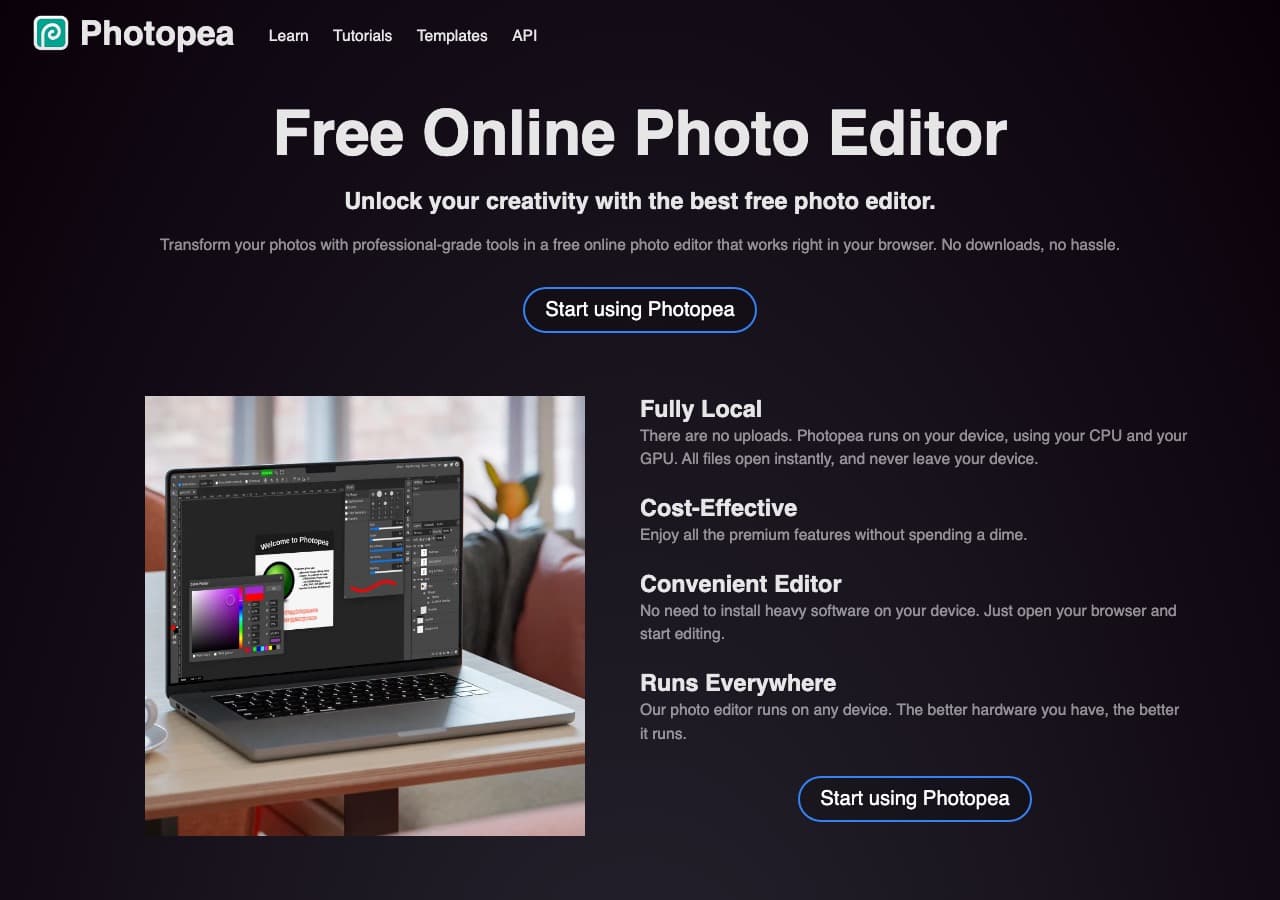
Photopea is a free browser-based image editor that opens HEIC files and exports as JPG. It looks and works like Photoshop, running entirely in your browser with no software installation. Open a HEIC photo, edit it if needed, then File > Export As > JPG to convert.
Photopea is the best option when you need to convert a HEIC file on a computer where you cannot install software. It works on any platform with a modern browser: Windows, Mac, Linux, Chromebook. The HEIC processing happens in the browser, so your photos are not uploaded to a server. Photopea is free with ads, or ad-free with a premium subscription.
Pros
- No installation required. Works in any browser.
- Photoshop-like editing tools.
- HEIC processed locally in browser.
- Free to use.
Cons
- Ads in free version.
- No batch conversion.
Pricing
- Free with ads.
- Premium: $5/month for ad-free.
10. FFmpeg - Best Command-Line HEIC Converter for Developers
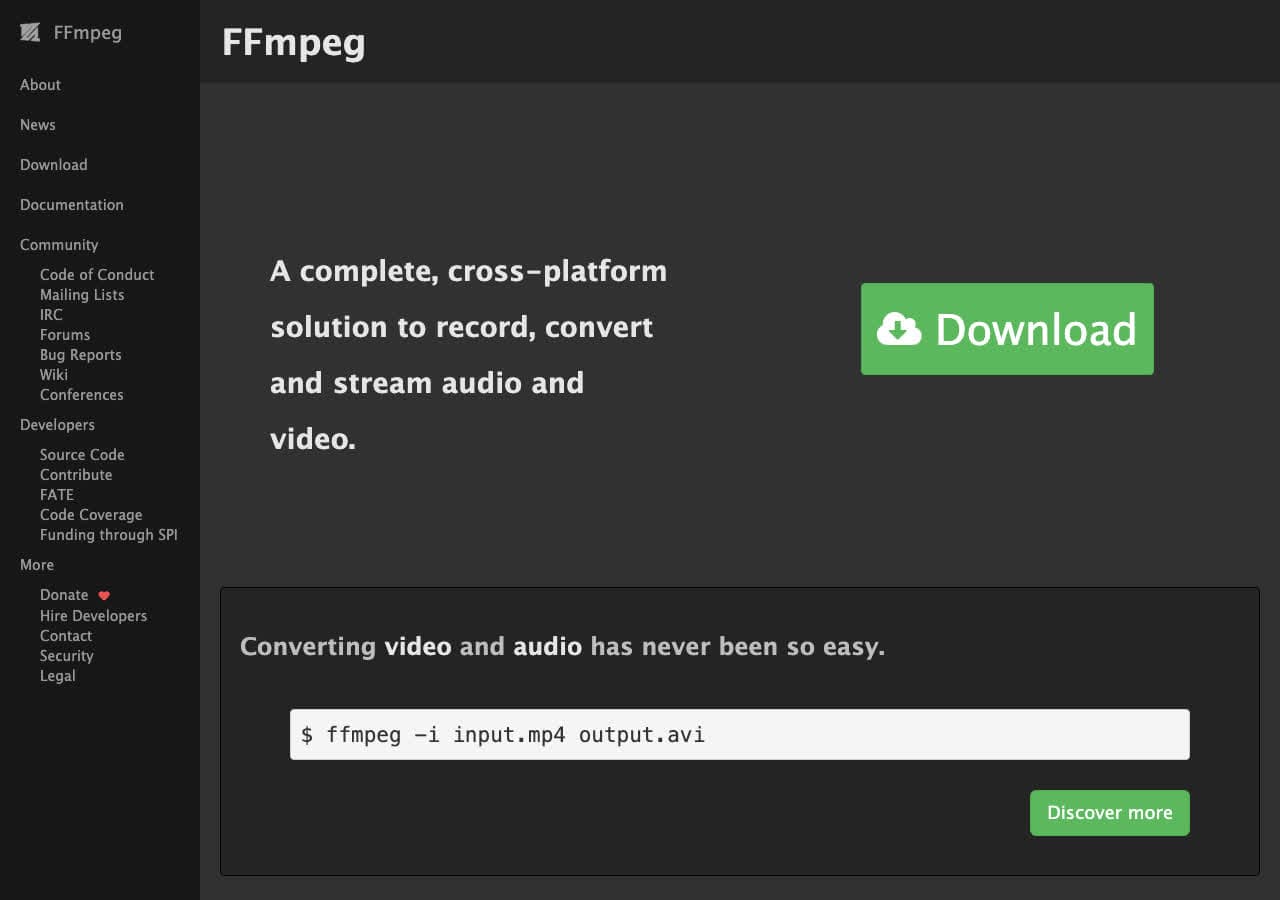
FFmpeg converts HEIC to JPG from the command line: ffmpeg -i input.heic output.jpg. FFmpeg uses libheif for HEIC decoding and outputs JPG with configurable quality. For batch conversion, a shell loop processes entire folders: for f in *.heic; do ffmpeg -i "$f" "${f%.heic}.jpg"; done.
FFmpeg is the choice for developers building HEIC conversion into automated pipelines. It handles HEIC alongside every other media format, so you can process mixed batches of photos and videos. FFmpeg is free, open source, and runs on every platform.
Pros
- Scriptable for automated HEIC conversion.
- Handles HEIC alongside video and audio.
- Free and open source.
- Cross-platform.
Cons
- Command-line only.
- HEIC support depends on build configuration.
Pricing
- Free (open source, LGPL/GPL licensed).
11. Automator - Best Built-in Mac HEIC to JPG Converter
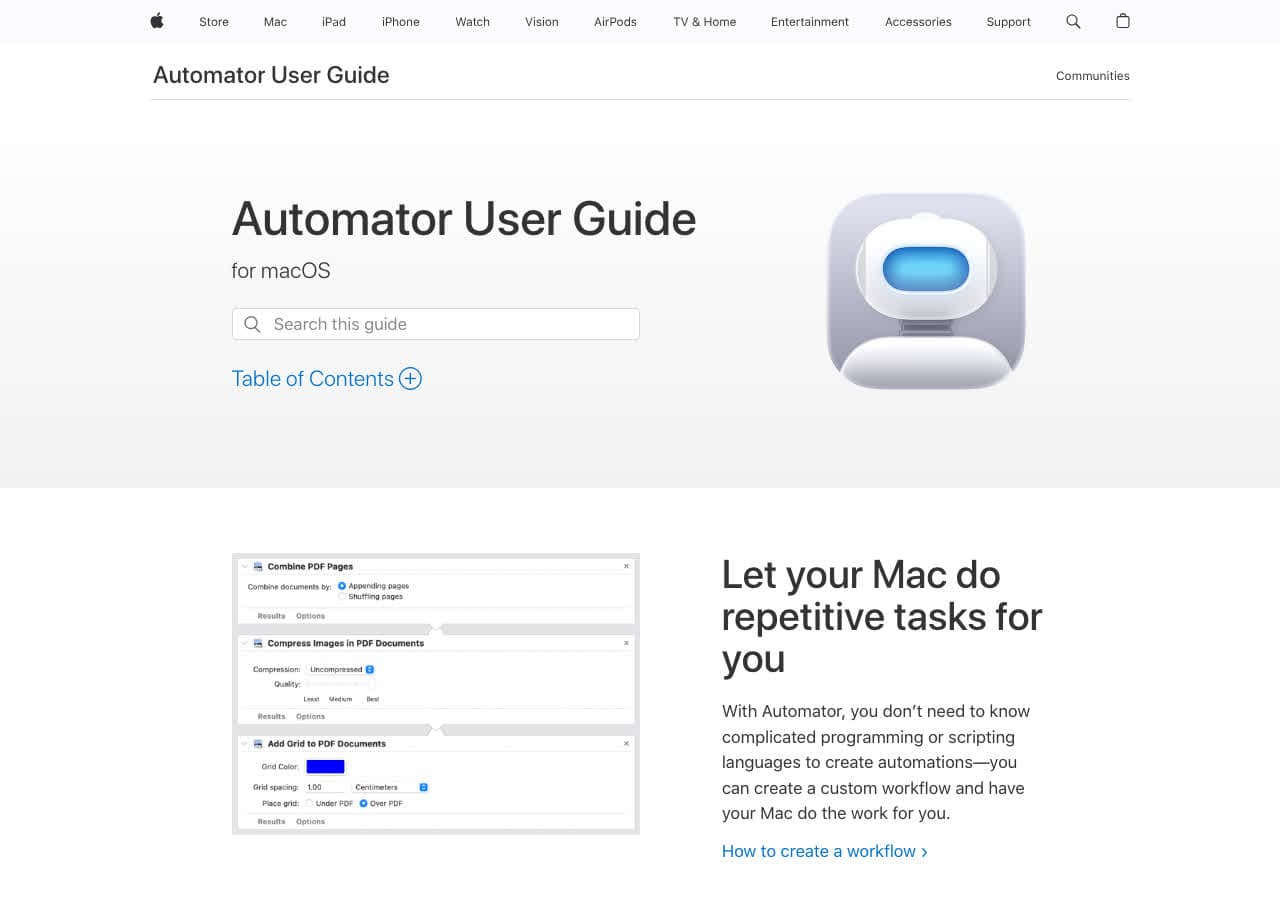
Automator is built into macOS and can batch convert HEIC to JPG without installing anything. Create a Quick Action with the "Change Type of Images" action set to JPEG, save it, then right-click any HEIC photos in Finder and select your action. The photos convert instantly.
Automator is the zero-install solution for Mac users. Since macOS natively supports HEIC, the conversion is fast and preserves metadata. You can also add a resize step to the workflow. Save the Quick Action once and it appears in the right-click menu forever. On newer macOS versions, Shortcuts offers similar functionality.
Pros
- Built into macOS. No installation.
- Right-click conversion from Finder.
- Fast native HEIC processing.
- Free.
Cons
- Mac only.
- Requires setting up the workflow first.
- Being replaced by Shortcuts on newer macOS.
Pricing
- Free (included with macOS).
12. CloudConvert - Best Online HEIC to JPG Converter
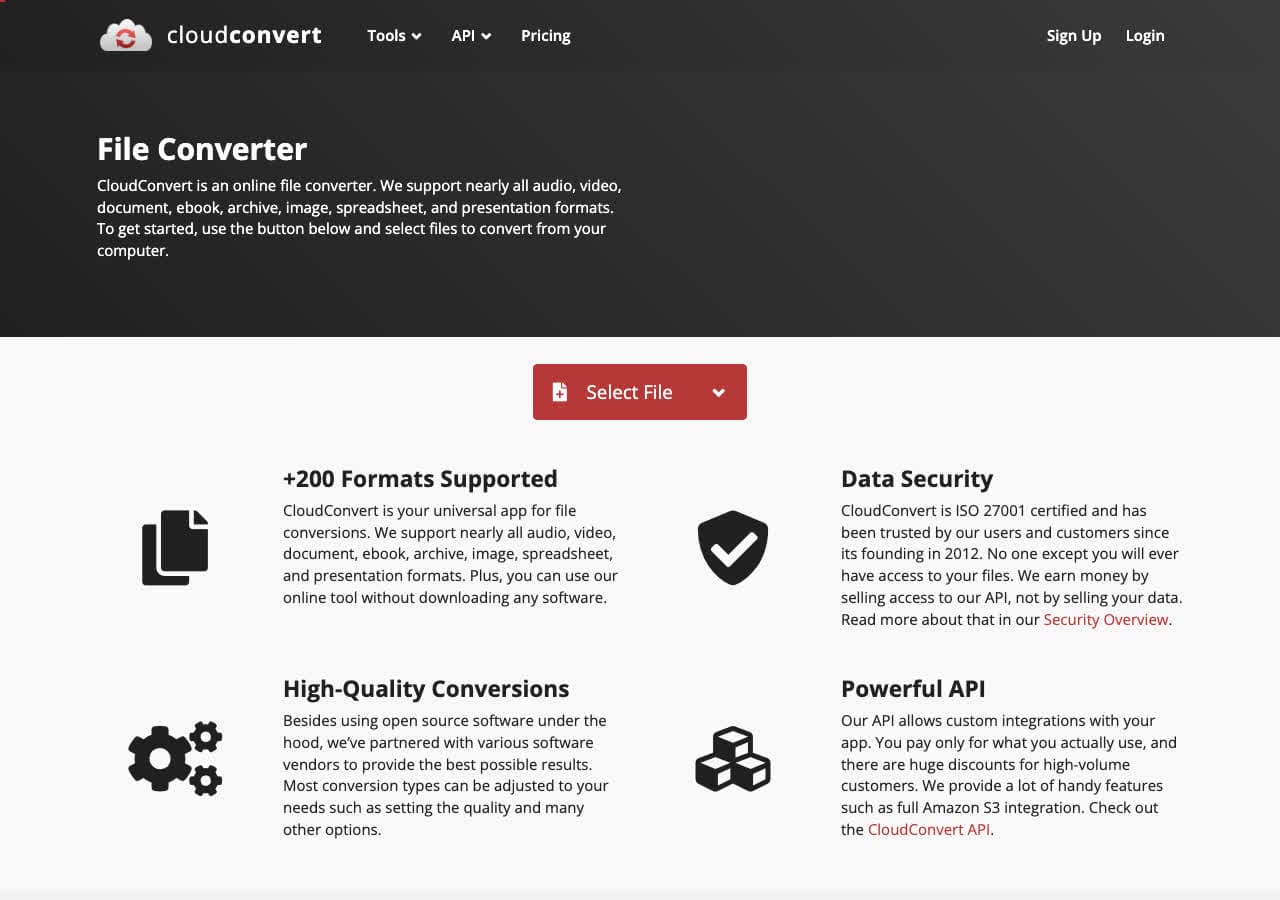
CloudConvert converts HEIC to JPG online with high quality. Upload your HEIC photos, select JPG as the output, optionally adjust quality and resolution settings, and download the converted files. The free tier gives you 25 conversion minutes per day, which is enough for dozens of photos.
CloudConvert produces the best quality HEIC to JPG conversions of any online service. It preserves colors accurately and offers control over output quality. Batch upload is supported for converting multiple photos at once. Files are deleted from CloudConvert servers within 24 hours.
Pros
- High-quality HEIC to JPG conversion.
- No software installation needed.
- Adjustable output quality.
- 25 free minutes per day.
Cons
- Photos are uploaded to the cloud.
- Free tier limited for large batches.
Pricing
- Free: 25 conversion minutes per day.
- Paid: From $9 for 500 minutes.
How to Convert
The offline file converter for Mac, Windows and Linux.
- Converts video, audio, images, documents, ebooks and more
- Everything runs locally. Your files never leave your device
- Pay once. Access forever
Get the app on Mac, Windows and Linux
13. Zamzar - Best Simple Online HEIC to JPG Converter
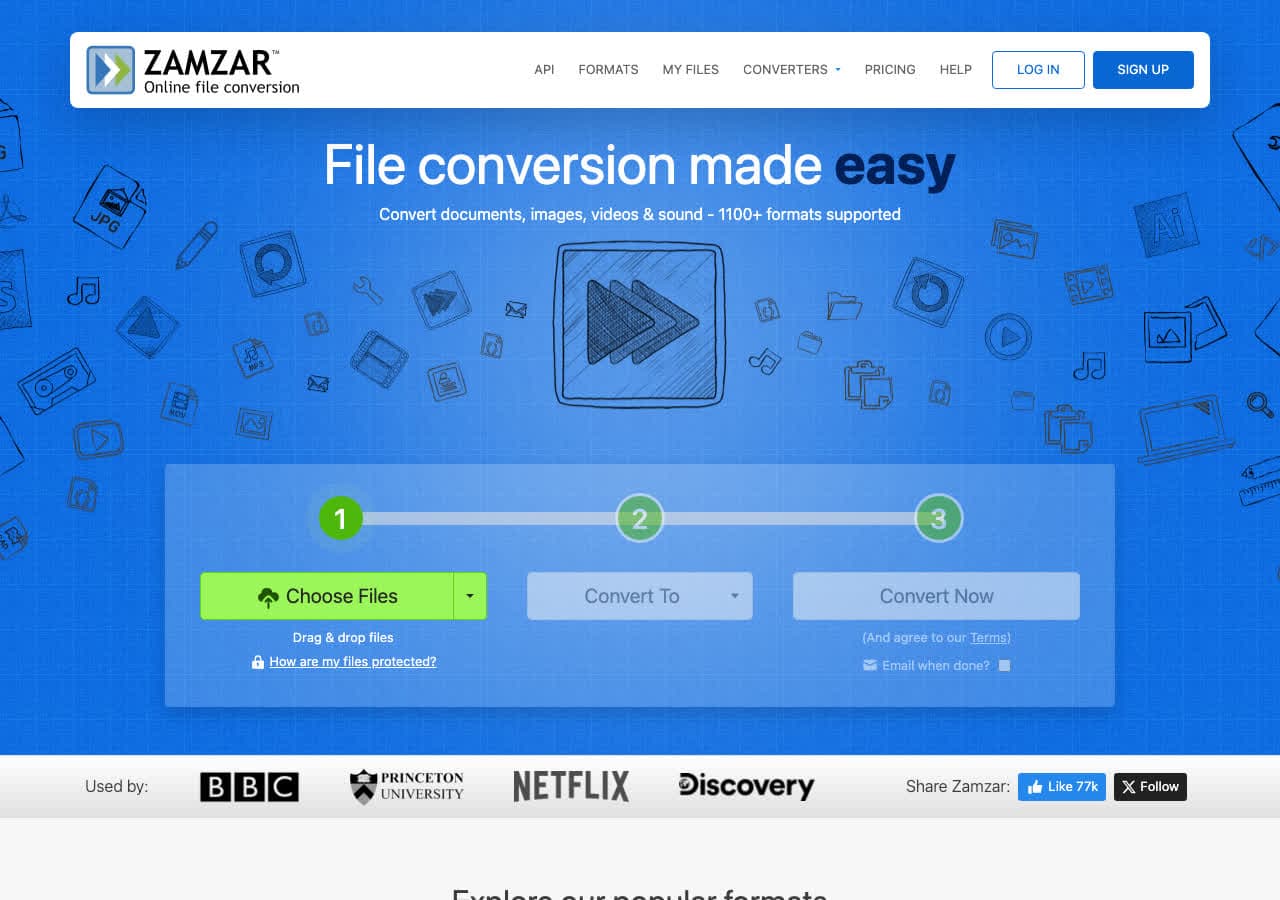
Zamzar converts HEIC to JPG online with the simplest possible interface. Upload a HEIC file, select JPG, click Convert, and download. No settings to configure, no account to create. The free tier handles files up to 50 MB with two conversions per day.
Zamzar is the quickest way to convert a single HEIC photo when you just need it done. No fuss, no complexity. Upload and convert in under 30 seconds. For bulk HEIC conversion or privacy-sensitive photos, use a desktop tool instead.
Pros
- Dead simple interface.
- No account required.
- Fast conversion.
- No software to install.
Cons
- 2 free conversions per day.
- 50 MB file size limit on free tier.
Pricing
- Free: 50 MB, 2 conversions per day.
- Basic: From $18/month.
14. Convertio - Best Online HEIC Converter with Cloud Integration
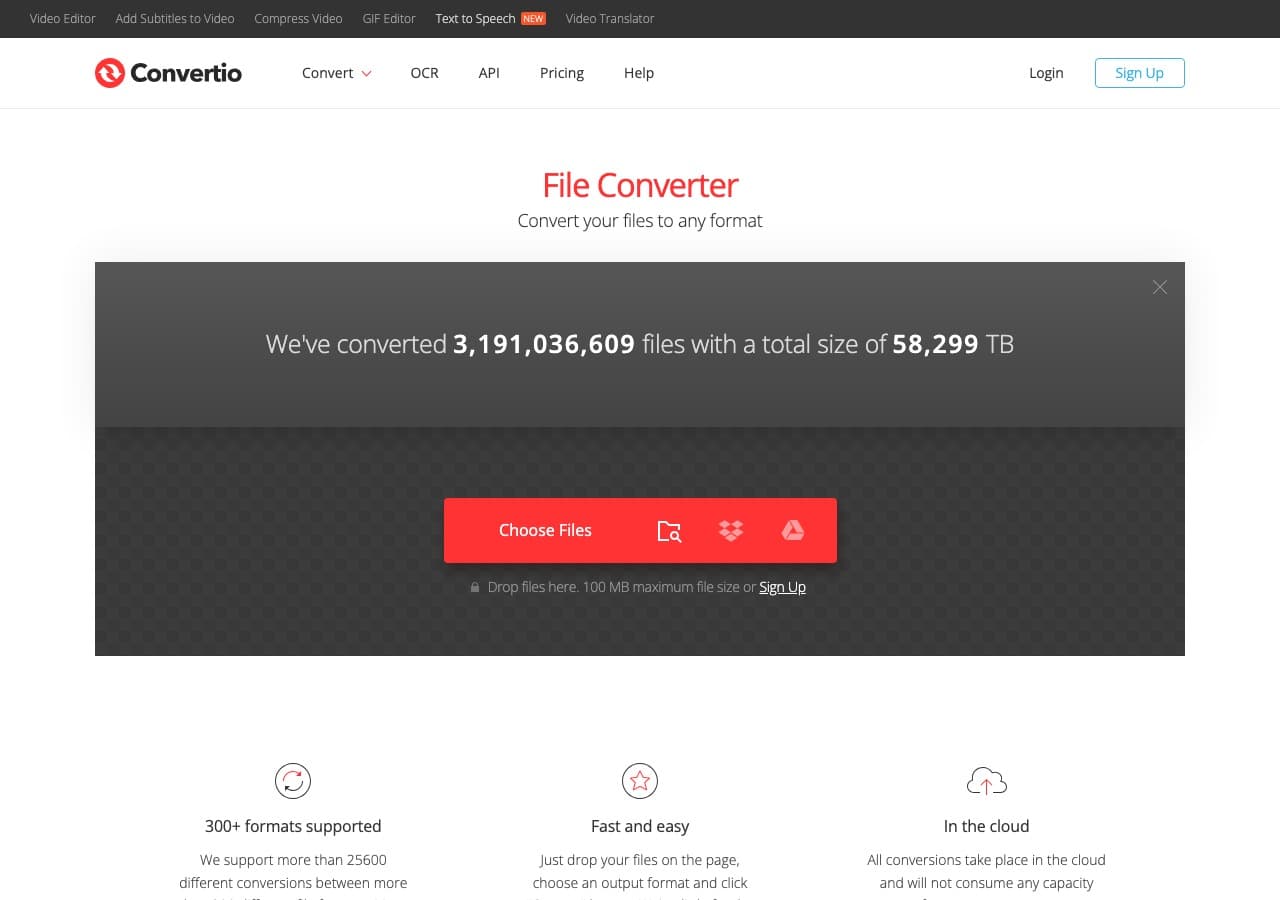
Convertio converts HEIC to JPG online with Google Drive and Dropbox integration. Pull HEIC photos directly from your cloud storage, convert them to JPG, and save the results back without downloading and re-uploading. The free tier allows files up to 100 MB.
The cloud integration makes Convertio convenient when your HEIC photos are already synced to Google Drive or iCloud (via Dropbox). Convert them without transferring files to your computer first. Convertio handles multiple HEIC files in a batch with individual progress tracking.
Pros
- Google Drive and Dropbox integration.
- 100 MB free file size limit.
- Batch conversion support.
- No installation required.
Cons
- Free tier limited to 10 minutes per day.
- Photos uploaded to Convertio servers.
Pricing
- Free: 100 MB, 10 minutes per day.
- Light: From $9.99/month.
15. FreeConvert - Best Free Online HEIC to JPG Converter
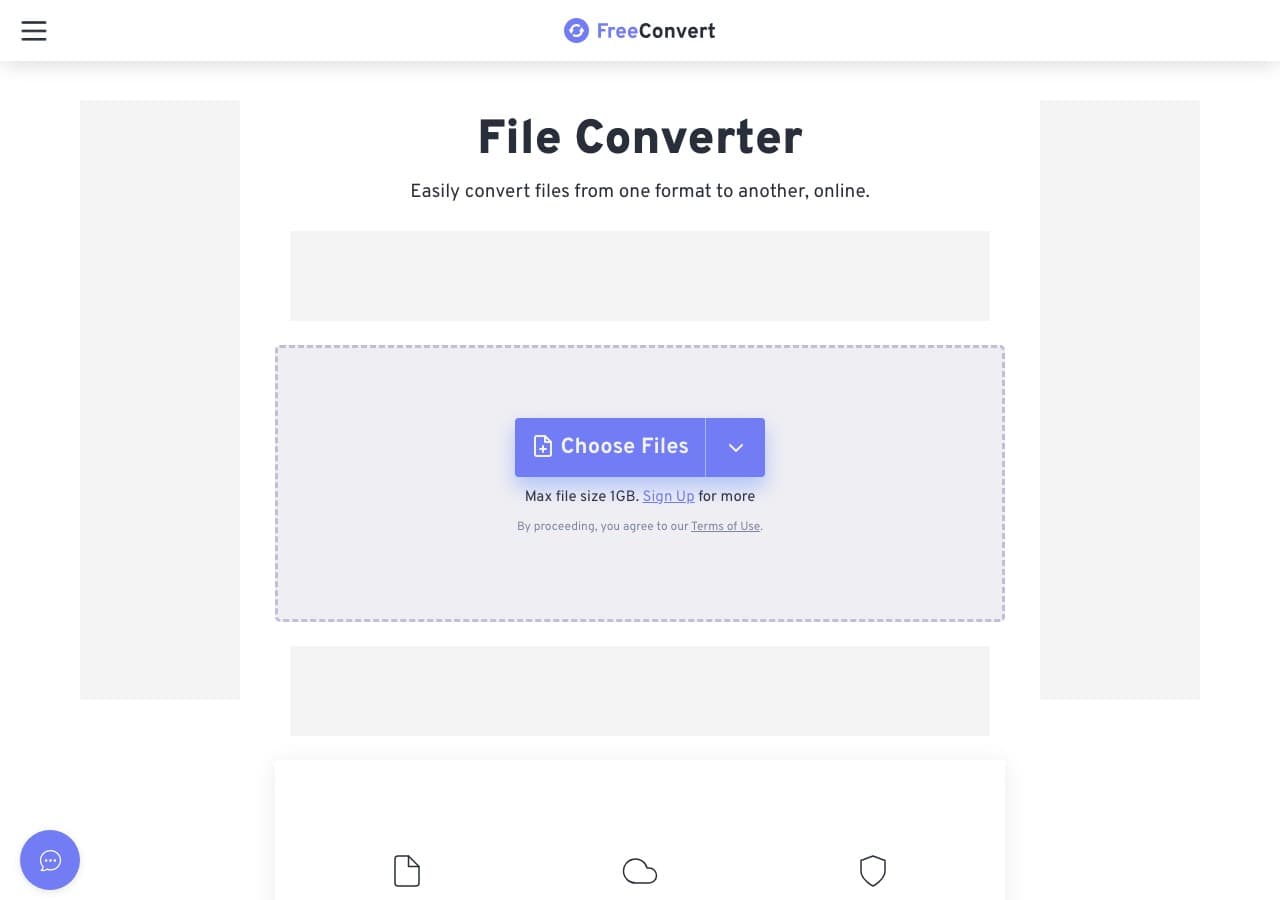
FreeConvert offers a dedicated HEIC to JPG converter page online. Upload HEIC photos up to 1 GB (free), adjust quality settings if needed, and download the JPG output. The 1 GB file size limit is the most generous free tier among online converters, though HEIC photos are typically much smaller.
FreeConvert handles batch HEIC to JPG conversion with advanced settings including quality control, resolution adjustment, and metadata preservation. The interface shows individual progress for each file. It works on any platform with a browser.
Pros
- 1 GB free file size limit.
- Advanced quality settings.
- Batch conversion support.
- No installation needed.
Cons
- Photos uploaded to servers.
- Free tier has daily limits on total usage.
Pricing
- Free: 1 GB file size limit.
- Pro: From $9.99/month.
16. Online-Convert - Best Online HEIC Converter with Advanced Settings
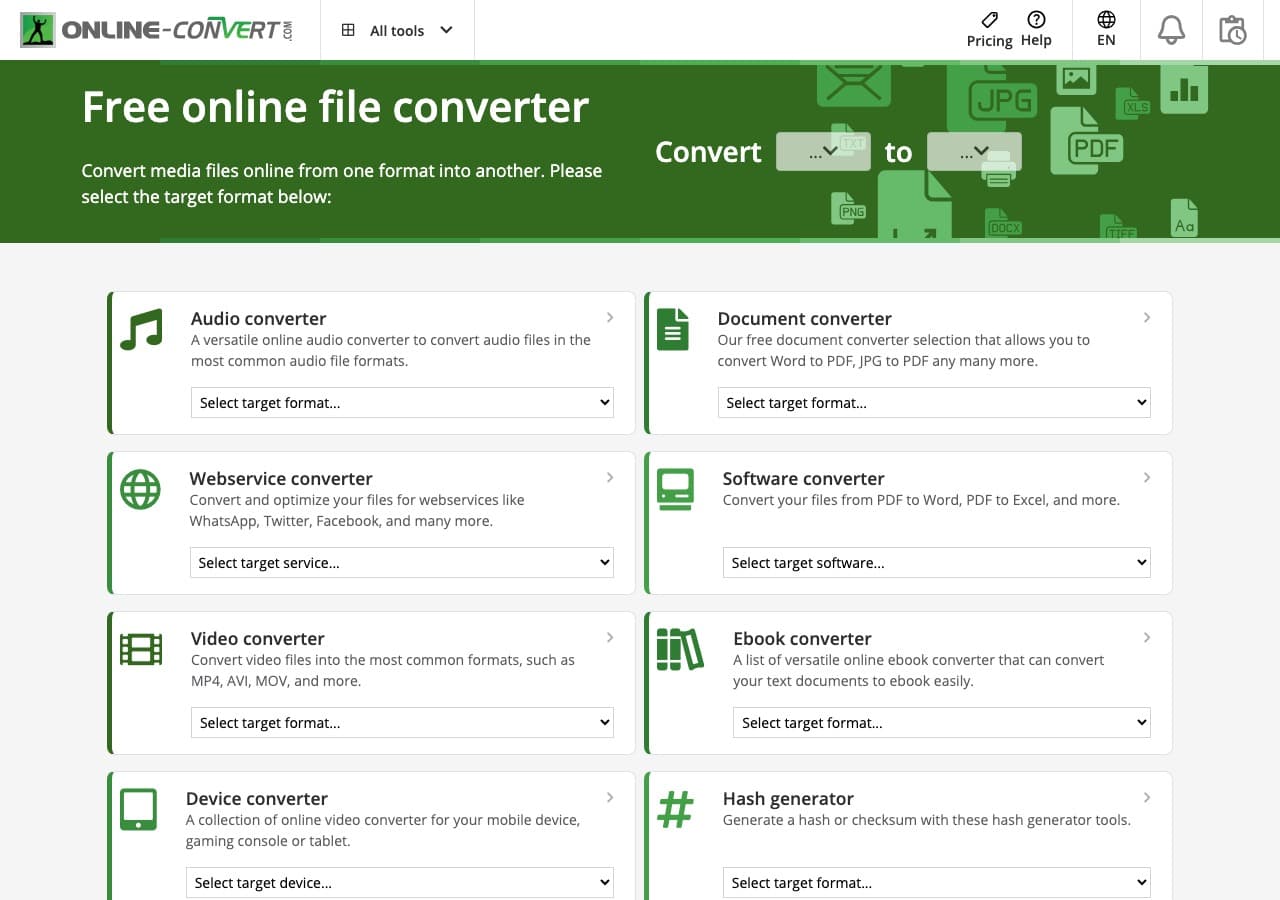
Online-Convert provides a HEIC to JPG converter with the most detailed output settings of any online tool. Control quality, DPI, color depth, and image dimensions. You can also strip or preserve EXIF metadata, which is useful for privacy when sharing photos online.
Online-Convert is the best online option when you need precise control over the JPG output settings. The free tier handles files up to 100 MB. Batch conversion is supported with paid plans. The interface is functional but cluttered with ads on the free tier.
Pros
- Detailed output settings (DPI, color, quality).
- Option to strip EXIF metadata.
- No installation needed.
- Multiple input sources.
Cons
- Ads on free tier.
- 100 MB file size limit on free tier.
Pricing
- Free: 100 MB limit with ads.
- Paid: From $7.99/month.
17. LibreOffice - Best Free Office Suite with HEIC Import
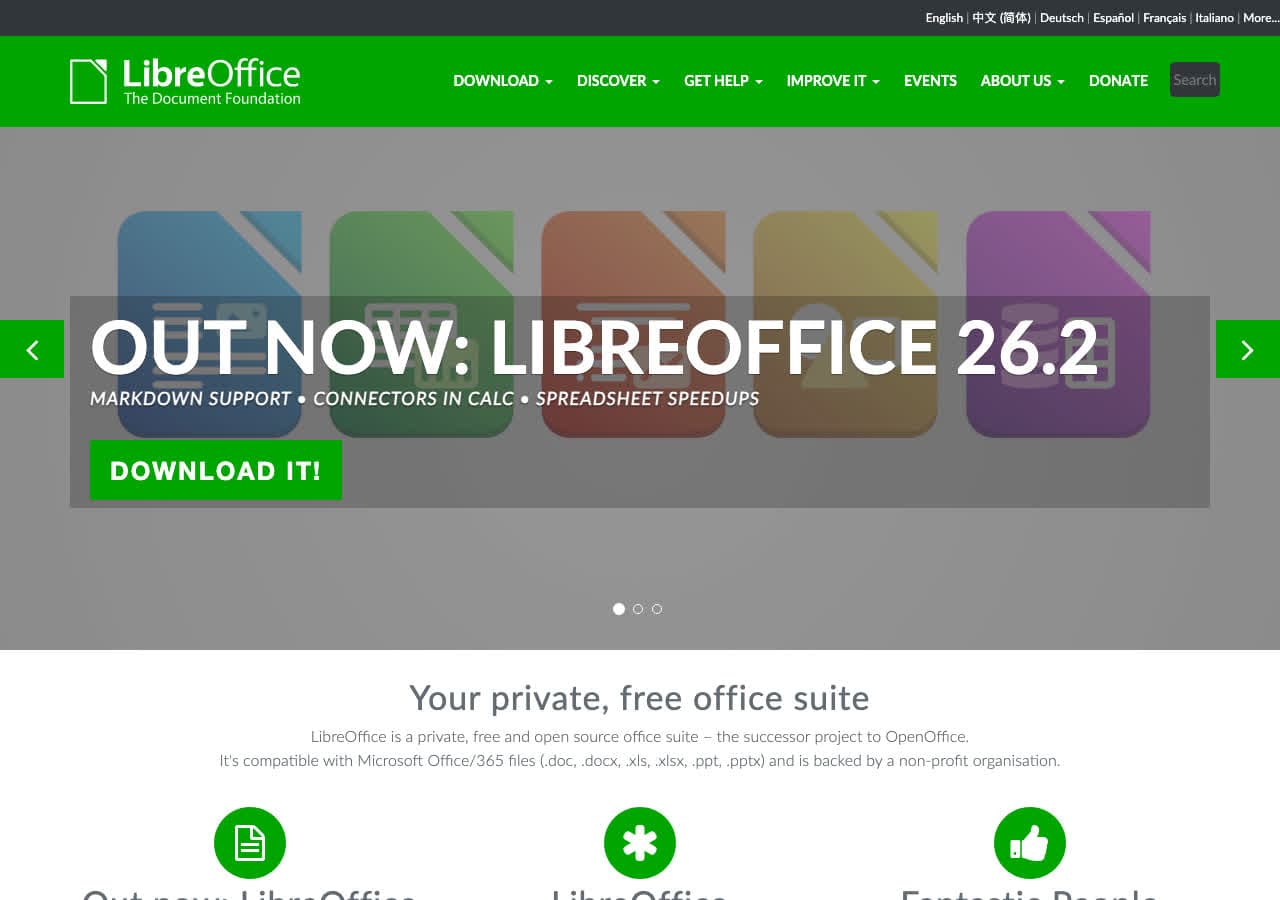
LibreOffice can open HEIC images in its Draw application and export them as JPG, PNG, or other formats. This is not its primary purpose, but if you already have LibreOffice installed, it serves as a basic HEIC to JPG converter. Insert a HEIC image, then export the page as JPG.
LibreOffice is not the most efficient HEIC converter, but it is free, open source, and may already be on your computer. For users who occasionally need to convert a HEIC file and do not want to install a dedicated converter, LibreOffice is a workable option.
Pros
- Free and open source.
- May already be installed.
- Handles basic HEIC to JPG conversion.
Cons
- Not designed for image conversion.
- Cumbersome workflow for this task.
- No batch HEIC conversion.
Pricing
- Free (open source, MPL licensed).
18. Inkscape - Best Free Vector Editor with HEIC Support
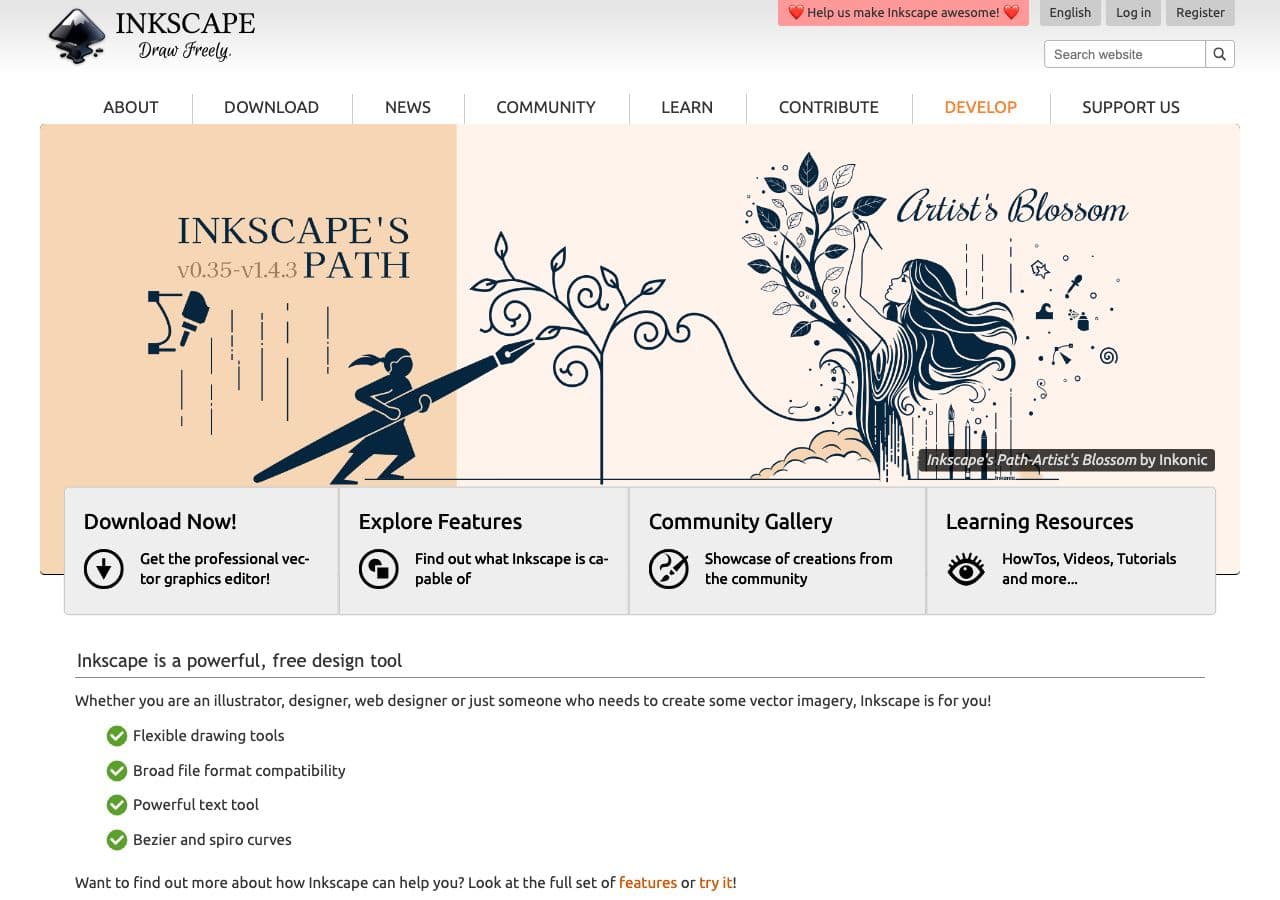
Inkscape can import HEIC images and export them as PNG (and from there to JPG with another tool). Inkscape is primarily a vector editor, so its HEIC support is limited. But if you need to embed a HEIC photo in a vector composition and export the result, Inkscape handles it.
Inkscape is not recommended as a primary HEIC to JPG converter. Use it only if you are already working in Inkscape and need to incorporate HEIC photos into your vector workflow. For straightforward HEIC to JPG conversion, any other tool on this list is more practical.
Pros
- Free and open source.
- Can import HEIC for vector workflows.
- Exports to PNG at any resolution.
Cons
- Not designed for HEIC conversion.
- Cannot export directly to JPG.
- Impractical for this use case.
Pricing
- Free (open source, GPL licensed).
Frequently Asked Questions
What is HEIC and why does Apple use it?
HEIC (High Efficiency Image Container) is Apple's default photo format since iOS 11. It uses the HEVC (H.265) codec to compress images to roughly half the file size of equivalent JPGs while maintaining the same visual quality. Apple uses HEIC to save storage space on iPhones and iPads. A 3 MB JPG becomes a 1.5 MB HEIC with no visible quality loss.
Does converting HEIC to JPG lose quality?
There is a small quality loss because both HEIC and JPG are lossy formats. Converting from one lossy format to another introduces a generation of compression artifacts. In practice, the quality loss is negligible at high JPG quality settings (90+). Set your converter to JPG quality 90-95 for the best balance of quality and file size.
How do I stop my iPhone from taking HEIC photos?
Go to Settings > Camera > Formats and select "Most Compatible." This switches your iPhone to capture photos in JPG instead of HEIC. The trade-off is larger file sizes, roughly double. You can also keep HEIC and set Settings > Photos > Transfer to Mac or PC to "Automatic," which converts HEIC to JPG automatically when sharing.
What is the fastest way to batch convert HEIC to JPG?
On Mac, use Automator to create a right-click Quick Action that converts HEIC to JPG instantly. On Windows, IrfanView or XnConvert batch convert hundreds of HEIC files in seconds. For command-line users, ImageMagick's mogrify command converts entire folders with one command. For a cross-platform GUI solution, How to Convert handles batch HEIC to JPG conversion locally.
Final Thoughts
For the fastest HEIC to JPG conversion on Mac, Automator is free and built in. On Windows, IrfanView or XnConvert handle batch conversion for free. For a cross-platform solution that handles HEIC alongside every other file format, How to Convert processes everything locally with a one-time purchase. For quick online conversions without installing software, CloudConvert delivers the best quality. Choose the tool that fits your platform and volume, and stop struggling with HEIC compatibility.
How to Convert
The offline file converter for Mac, Windows and Linux.
- Converts video, audio, images, documents, ebooks and more
- Everything runs locally. Your files never leave your device
- Pay once. Access forever
Get the app on Mac, Windows and Linux
