6 Best Image Converters for Windows in 2026

Whether you need one JPG or a whole folder of PNGs, you have a few options on Windows. I’ve rounded up six here, including Paint, free batch converters and my own app.
1. How to Convert
Windows · $29 once
This is my app. It handles almost any file, so you can use it for photos as well as video, audio and documents. Drop in your files and choose the output; it finds and runs the conversion tools for you.
1. Add your files. Drag your images into How to Convert.
2. Choose the output and convert. Pick the format you need, such as JPG or PNG, and click Convert.
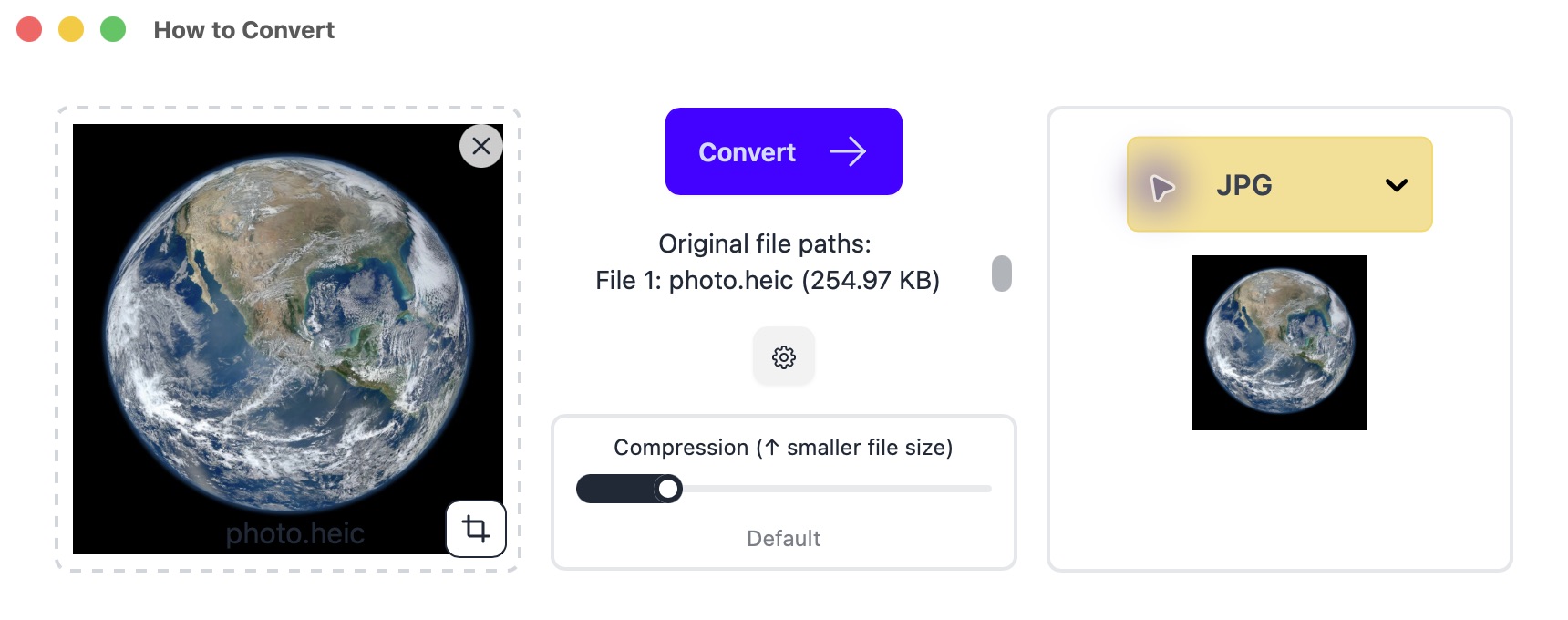
HEIC to JPG shown here. The same format menu handles other image conversions. Example photo: NASA.
Other options
2. XnConvert
Mac, Windows, Linux · Free for private/educational use; business license available
Choose this for repeat batches that also need resizing or renaming. Company use requires a licence.
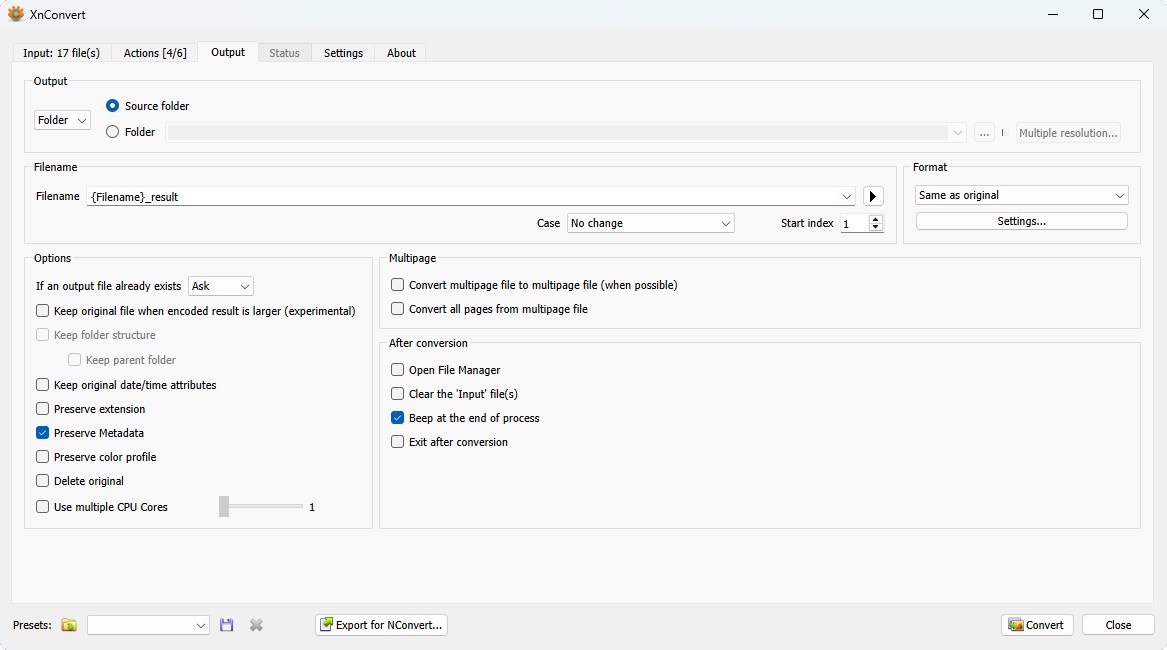
- Open XnConvert’s Input tab and add your files or folder.
- Leave Actions empty for a format change only. If you need smaller dimensions, add Resize and keep the aspect ratio to avoid stretching.
- Select JPEG for ordinary photos or PNG for transparency. Save to a new folder, then click Convert. Check a few results before processing the rest.
JPG cannot keep a transparent background. Use PNG for a logo that needs to stay transparent.
3. Microsoft Paint
Windows · Included with Windows
Built into Windows and enough for one ordinary image.
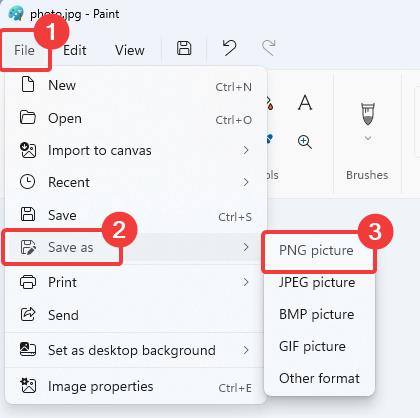
- Open the image in Paint and choose File → Save as.
- Choose PNG, JPEG or another available format, name the copy and save.
4. IrfanView
Windows · Free for non-commercial use
A Windows image viewer with batch tools. Some formats need its plugin pack.
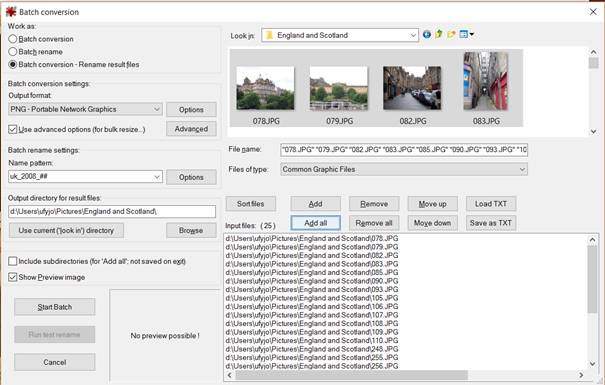
- Choose File → Batch Conversion/Rename and add your images.
- Select the output format and folder, then Start Batch.
5. FastStone Image Viewer
Windows · Free for personal/educational use
Good for browsing photos and converting a selection. Commercial use needs a licence.
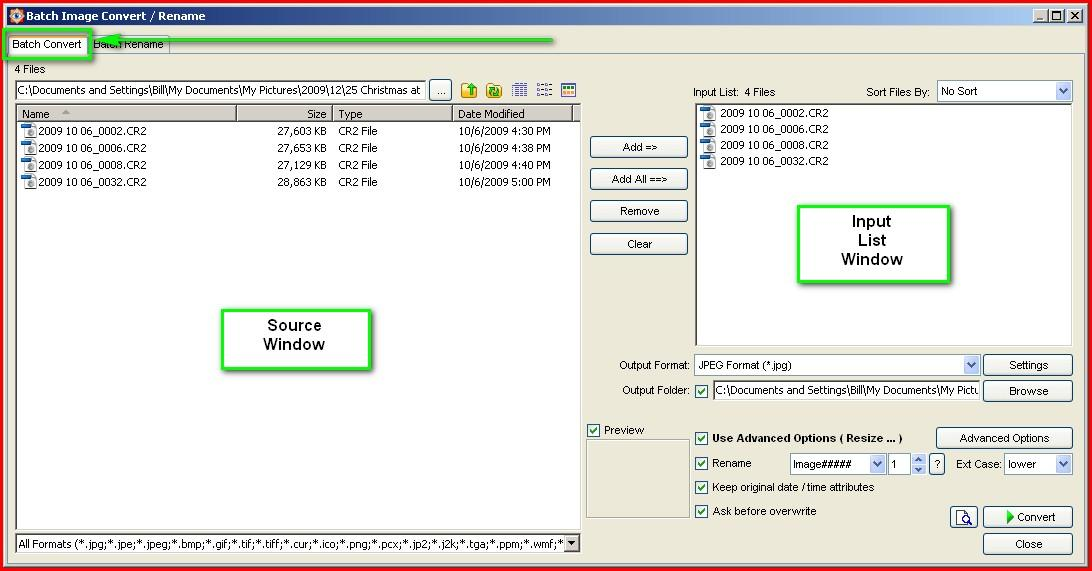
- Select images in FastStone Image Viewer, then Tools → Batch Convert Selected Images.
- Choose an output format and folder, then Convert.
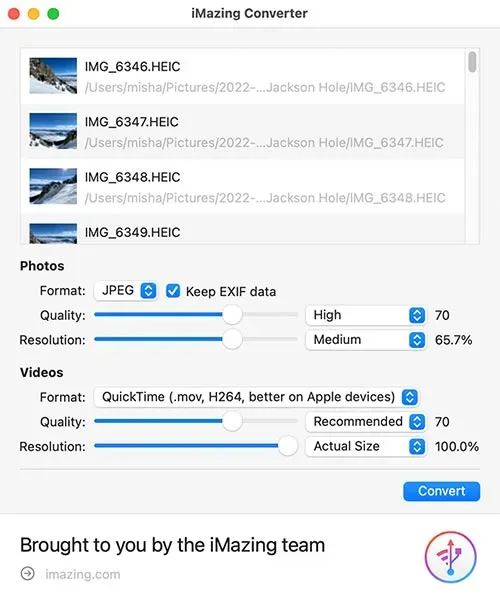
6. iMazing Converter
Mac, Windows · Free
Free and focused on iPhone HEIC photos.
- Drop your HEIC photos into iMazing Converter and choose JPEG or PNG.
- Set the quality for JPEG, click Convert and choose a destination folder.