18 Best HEIC to PNG Converters in 2026 (Free and Paid)
The best HEIC to PNG converters in 2026. Compare offline desktop apps, open-source tools, and online converters for turning iPhone photos into editing-friendly PNG files.
Posted by
 Jake Manger
HEIC is Apple's default photo format on iPhones since iOS 11. It is technically HEIF, a container around HEVC video frames, and it produces files about half the size of JPEG at the same quality. The problem is everything outside the Apple ecosystem. Adobe Lightroom only added native HEIC support recently, half the editors still cannot read it, most CMS uploaders reject it, and the moment you drop an iPhone photo into a forum, a Discord message, or a Windows app, you hit the “file type not supported” wall. So you end up here, looking for the best HEIC to PNG converter. This guide compares 18 of them in 2026.
Most HEIC → PNG conversions happen for editing or upload reasons. PNG is the right pick when you need lossless output; if you just need an upload-friendly photo and do not care about lossless, HEIC to JPG is usually the better choice because the file will be much smaller.
Why People Convert HEIC → PNG (and What to Watch For)
The main reasons:
- Editing in tools that do not read HEIC — older Photoshop builds, GIMP without plugins, most scientific imaging tools, many Windows-only editors. PNG opens everywhere.
- Lossless preservation before edits — re-saving HEIC re-encodes through HEVC and adds a small quality loss. Converting to PNG once, editing, and saving as PNG until the final export gives you a clean intermediate.
- Submission to a system that demands PNG — some passport-photo portals, certain badge / ID systems, archive workflows that mandate lossless input.
- Asset pipelines — turning iPhone photos into Android resource folders, Xcode asset catalogs, or Windows app resources where PNG is the expected format.
A few HEIC-specific gotchas:
- HDR / 10-bit color. HEIC can store 10 bits per channel. PNG can too (PNG-16), but most tools downconvert silently to 8-bit. If color depth matters (color grading, fine print), check that your tool preserves bit depth.
- Multiple images per file. A HEIC can hold burst-mode shots, Live Photos, or depth maps. Most converters output only the primary image. Tools like ImageMagick can extract all of them.
- Color profile. iPhones tag photos as Display P3 by default. Tools that strip the profile output sRGB and shift the colors. Look for explicit color profile preservation.
- EXIF / location data. iPhone HEICs carry GPS coordinates, timestamps, and camera settings. PNG can preserve EXIF, but most converters strip it silently. If you do not want GPS in the output, that is good. If you need the timestamps, check the tool.
Quick Picks for HEIC → PNG
- You are on a Mac: Preview, or
sipsfrom the terminal. Both are free and HEIC-native — no plugin needed. - You are on Windows: install Microsoft's HEIF Image Extension (free from the Store), then Paint or Photos handles HEIC like any other image. Or use How to Convert.
- You are on Linux: ImageMagick with the libheif package, or
heif-convertdirectly. - You have a folder of iPhone exports: any batch tool below works — How to Convert, XnConvert, ImageMagick, or the macOS Finder Quick Action.
- Bit depth or color profile matters: ImageMagick or Photoshop. The simpler tools downconvert silently.
One-shot from the site: HEIC to PNG converter.
The 18 Converters
1. How to Convert (I built this one) — best private HEIC-to-PNG converter

Drag iPhone HEICs in, pick PNG, hit convert. Local, no upload, no Microsoft Store extension needed on Windows. Color profile and EXIF are preserved by default. Batch a whole “Photos” export at once. This matters for iPhone photos specifically: they often carry sensitive subjects, location data, or work materials you do not want on a stranger's server.
Pros
- HEIC support on Windows without the HEIF Image Extension.
- Local — no upload of iPhone photos to a third party.
- Batch folders in the paid desktop app.
Cons
- Paid desktop app; the free web demo handles one file at a time.
Pricing
- One-time purchase.
 How to Convert
The offline file converter for Mac, Windows and Linux.
- Converts video, audio, images, documents, ebooks and more
- Everything runs locally. Your files never leave your device
- Pay once. Access forever
Get the app on Mac, Windows and Linux
2. macOS Preview + sips — best Mac built-ins
On a Mac, Preview opens HEIC natively. File → Export → PNG. For batches, select the folder in Finder, right-click → Quick Actions → Convert Image → PNG.
CLI version, available out of the box on every Mac:
sips -s format png input.heic --out output.png
Whole folder:
for f in *.heic; do sips -s format png "$f" --out "${f%.heic}.png"; doneBoth Preview and sipsuse Apple's native HEIC decoder, so they handle Display P3 color and Live Photo extraction correctly without extra setup.
Pros
- Free, installed.
- Best HEIC color handling outside Photoshop — uses Apple's native decoder.
- Quick Actions handle folder batches.
Cons
- Mac only.
- No bit depth control — outputs 8-bit PNG even from 10-bit HEIC.
Pricing
- Free with macOS.
3. ImageMagick — best command-line HEIC-to-PNG
Make sure you have an ImageMagick build with libheif enabled (Homebrew's build does; some Linux distro packages do not — check with magick -list format | grep -i heic).
magick input.heic output.png
For a whole folder of iPhone exports:
for f in *.heic; do magick "$f" -define png:compression-level=9 "${f%.heic}.png"; doneIf you want to preserve 10-bit color and the embedded color profile:
magick input.heic -depth 16 -profile $(magick input.heic -format "%[profile:icc]" info:) output.png
For HEICs that contain multiple images (burst mode, Live Photos), index the frame explicitly:
magick "input.heic[0]" output.png   # primary still
magick "input.heic[1]" preview.png # second frame, often a thumbnail or Live Photo motion
Pros
- Cross-platform.
- Bit depth and color profile control.
- Frame indexing for multi-image HEICs.
Cons
- CLI only.
- Some Linux packages ship without libheif — you may need to build or reinstall.
Pricing
- Free, open source.
4. heif-convert (libheif)
The reference HEIF/HEIC decoder ships with a CLI tool:
heif-convert input.heic output.png
Fastest pure HEIC → PNG tool I have used. No ImageMagick install needed. Available via Homebrew (brew install libheif) and most Linux package managers.
Pros
- Fastest single-purpose HEIC decoder.
- Tiny install footprint.
Cons
- CLI only.
- Few output options compared to ImageMagick.
Pricing
- Free, open source.
5. Windows Photos + HEIF Extension
Install Microsoft's HEIF Image Extension from the Store (free). Then Photos opens HEIC like any other image. File → Save as → PNG. Done.
The HEVC Video Extension is also worth installing if you also work with iPhone .MOV / .MP4 video. Microsoft moved it behind a $1 paywall around 2021, then reverted; check both prices before clicking.
Pros
- Free and built-in once the extension is installed.
- Same UI as any other image on Windows.
Cons
- Needs the extension installed (one-time, free).
- No batch mode.
Pricing
- Free (extension may briefly require purchase depending on the year).
6. XnConvert
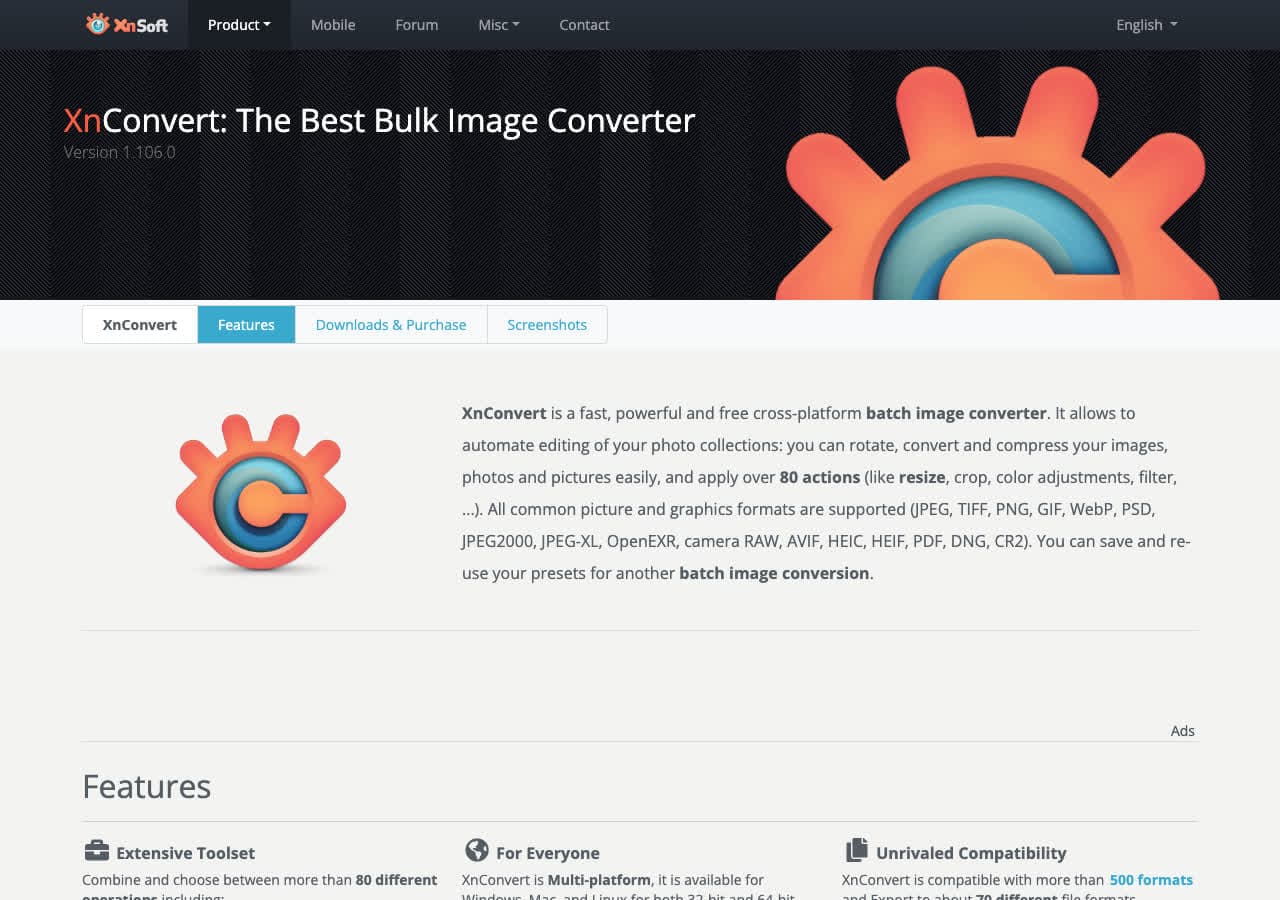
Cross-platform batch tool. Drag in a folder of HEICs, set output to PNG, hit Convert. Useful for “here is my entire iPhone Photos export, give me PNGs” jobs.
Pricing
- Free for personal use.
7. IrfanView
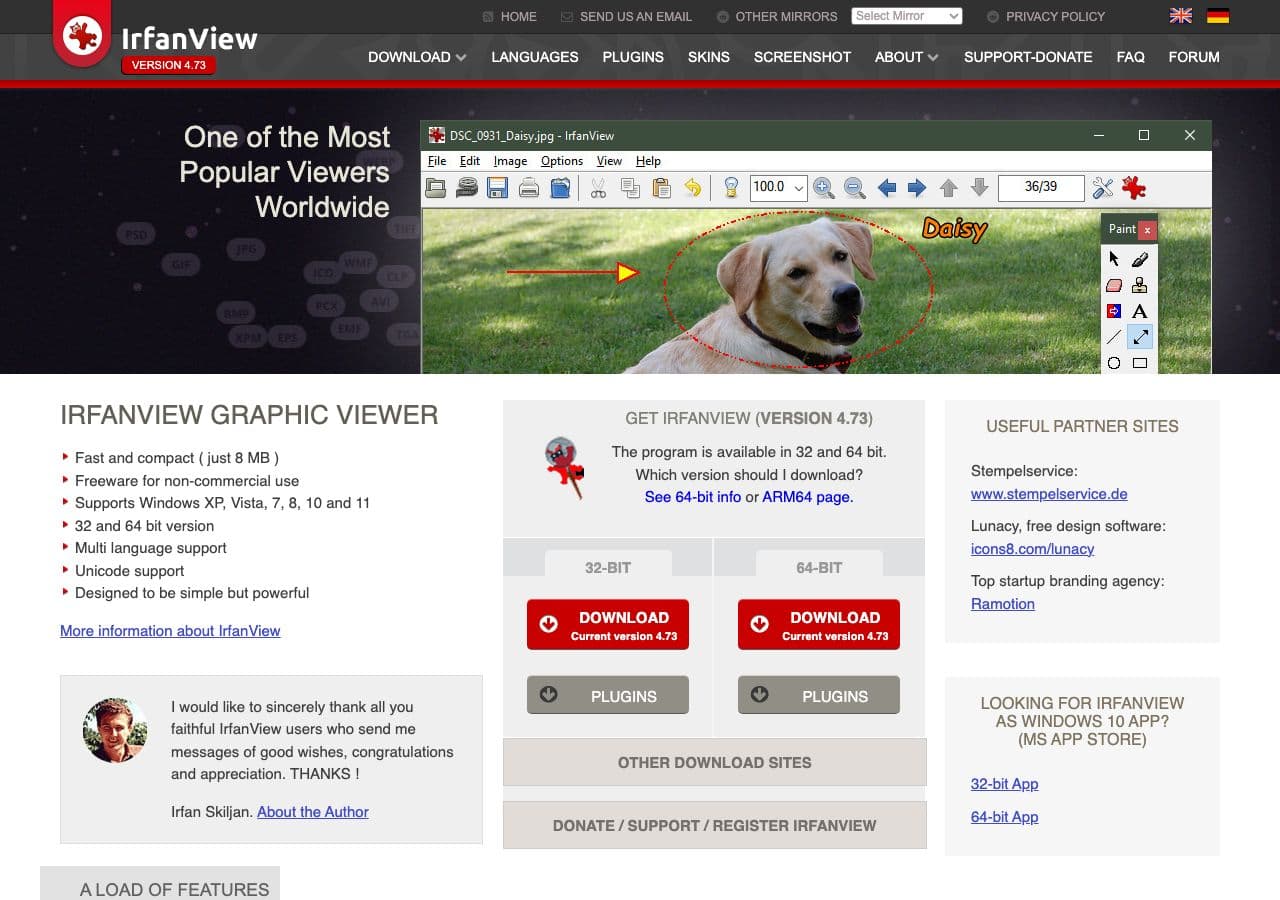
Windows-only. With the plugin pack and the HEIF Image Extension installed, IrfanView batch-converts HEIC → PNG faster than any GUI tool.
Pricing
- Free for personal use.
8. Adobe Photoshop
Native HEIC support since 2019. File → Open → HEIC, File → Save As → PNG. Best bit-depth and color-profile handling of any tool — useful when you need 16-bit PNG output for further editing.
Pricing
- Subscription.
9. Affinity Photo
Native HEIC support. Export Persona → PNG. Photoshop alternative with one-time pricing.
Pricing
- One-time purchase.
10. Pixelmator Pro

Mac-native, opens HEIC out of the box, PNG export with a live size preview. Strong pick if you also want to edit the iPhone photo before exporting.
Pricing
- One-time purchase, Mac App Store.
11. GIMP (with the HEIF plugin)
GIMP's recent builds include HEIF support via libheif. Open the HEIC, export as PNG. Good when you want to edit in GIMP's tooling.
Pricing
- Free, open source.
12. Photopea
Browser-based Photoshop clone. Reads HEIC and exports PNG. Files stay client-side. Useful when you cannot install software but need to handle iPhone photos.
Pricing
- Free with ads; paid premium.
13. Apple Photos (Export)
If your HEICs are in the Mac Photos app, File → Export → Export Unmodified Original gives HEIC; Export 1 Photo → Photo Kind → PNG converts during export. Useful for selectively exporting tagged albums.
Pricing
- Free with macOS.
14. iMazing HEIC Converter
Free dedicated HEIC converter from iMazing. Drag and drop, pick output, done. The most polished single-purpose HEIC tool on Mac and Windows.
Pricing
- Free.
15. CloudConvert
Web converter with HEIC support. Drop file, pick PNG, download. Privacy caveat: iPhone photos often contain personal subjects and GPS metadata. Stay local for anything sensitive.
Pricing
- Free tier; paid above.
16. Convertio
Web converter with HEIC → PNG support. Same upload model.
Pricing
- Free with caps; paid above.
17. heictojpg.com / heictopng.com
Single-purpose HEIC converters. Quick to use, no signup. Web upload model. Useful only for a single non-sensitive photo.
Pricing
- Free.
18. FreeConvert
Web converter with HEIC → PNG. Clean UI, reasonable free tier.
Pricing
- Free with caps; paid above.
How to Choose
- On a Mac, one or many files: Preview,
sips, or the Finder Quick Action. All free, all native. - On Windows, occasional: install the HEIF Image Extension, use Photos.
- On Windows, batch: How to Convert or IrfanView with the extension.
- On Linux:
heif-convertor ImageMagick with libheif. - Bit depth or color matters: ImageMagick or Photoshop.
- Private iPhone photos: any local tool. Do not upload them to a web converter.
Final Thoughts
HEIC to PNG is a perfectly safe conversion when you actually need lossless output — for editing, for systems that require PNG, or for archival. For everyday uploads, HEIC → JPG produces a much smaller file and is usually the more practical conversion. The Mac built-ins are excellent and free; on Windows the HEIF extension closes most of the gap. Stay local for anything that came off your phone — iPhone HEICs almost always carry context (subjects, locations, timestamps) you do not want on a third-party server.
How to Convert
The offline file converter for Mac, Windows and Linux.
- Converts video, audio, images, documents, ebooks and more
- Everything runs locally. Your files never leave your device
- Pay once. Access forever
Get the app on Mac, Windows and Linux
