18 Best HEIC to WebP Converters in 2026 (Free and Paid)
The best HEIC to WebP converters in 2026. Compare offline desktop apps, open-source tools, and online converters for publishing iPhone photos on the web with smaller file sizes.
Posted by
 Jake Manger
HEIC to WebP is the “put my iPhone photos on the web” conversion. HEIC is half the size of JPEG and looks better, but most browsers and CMS uploaders still treat it like an exotic format in 2026. WebP is the universal modern web image format — supported in every browser since Chrome 32 / Safari 14 / Firefox 65, and accepted by basically every CMS and CDN. So if you are publishing iPhone photos to a blog, a portfolio, a documentation site, or any platform that serves images to browsers, HEIC → WebP keeps the file-size win without the compatibility wall. This guide compares 18 HEIC to WebP converters in 2026.
Also worth saying upfront: iPhone HEICs often contain GPS coordinates and timestamps. Most converters strip them silently, which is what you want if you are publishing publicly — but check the tool if you need the metadata preserved.
What Makes HEIC → WebP Different
Both HEIC and WebP are modern formats with lossy and lossless modes, both support transparency, both compress significantly better than JPEG. So you are not upgrading the file; you are swapping one efficient format for one with broader web support. A few specifics to keep in mind:
- File size is similar. WebP at quality 80 is usually within 10–15% of HEIC at the same perceived quality. You will not save a lot of disk space; you are converting for compatibility, not size.
- HDR / 10-bit color is lost. WebP is 8-bit. iPhones can shoot in 10-bit P3 HDR. Converting flattens to 8-bit; on a calibrated display you may see a small color shift.
- Live Photos drop the motion. HEICs with Live Photo motion convert to a static WebP. If you want the motion, use FFmpeg to extract the video portion and produce an animated WebP or MP4 instead.
- EXIF / GPS is often stripped. Good if publishing; bad if you need it for archival. Check the tool.
Quick Picks for HEIC → WebP
- One file, fastest: Squoosh — drop the HEIC, output WebP, side-by-side preview.
- Folder of iPhone exports: ImageMagick (one command), XnConvert, or How to Convert.
- Site build pipeline:
sharpin Node, orheif-convertpiped tocwebp. - Sensitive iPhone photos: stay local. Never upload personal HEICs to a stranger's server.
One-shot: HEIC to WebP converter.
1. How to Convert (I built this one)

Drag HEICs in, pick WebP, choose quality (default 80), hit convert. Local. Handles HEIC on Windows without the Microsoft HEIF Image Extension. Strips GPS by default for publication safety; toggleable.
Pros
- Local — no upload of personal photos.
- Works on Windows without the HEIF extension.
- Batch folder support.
Pricing
- One-time purchase; free web demo for single-file conversions.
 How to Convert
The offline file converter for Mac, Windows and Linux.
- Converts video, audio, images, documents, ebooks and more
- Everything runs locally. Your files never leave your device
- Pay once. Access forever
Get the app on Mac, Windows and Linux
2. ImageMagick
One-liner (requires an ImageMagick build with libheif and libwebp):
magick input.heic -quality 80 -define webp:method=6 output.webp
Folder:
for f in *.heic; do magick "$f" -quality 80 -define webp:method=6 "${f%.heic}.webp"; doneTo strip EXIF / GPS during conversion:
magick input.heic -strip -quality 80 output.webp
Pricing
- Free, open source.
3. heif-convert + cwebp pipeline
The fastest CLI pipeline if you have both tools installed:
heif-convert input.heic - | cwebp -q 80 -m 6 -o output.webp -
Each tool is single-purpose; together they are about 2x faster than ImageMagick for the same job because there is no general-purpose pipeline overhead.
Pricing
- Free, open source.
4. macOS Preview + sips
Preview reads HEIC natively. File → Export → choose WebP from the Format dropdown (added in macOS Sonoma). For batches, Finder → right-click → Quick Actions → Convert Image → WebP.
CLI version on macOS Sonoma and later:
sips -s format webp input.heic --out output.webp
Pricing
- Free with macOS.
5. Squoosh
The Chrome team's browser converter. Reads HEIC (added in 2023), writes WebP, runs client-side. The live preview slider is the best way to find the right WebP quality for a specific iPhone photo before batch-converting the rest.
Pricing
- Free.
6. XnConvert
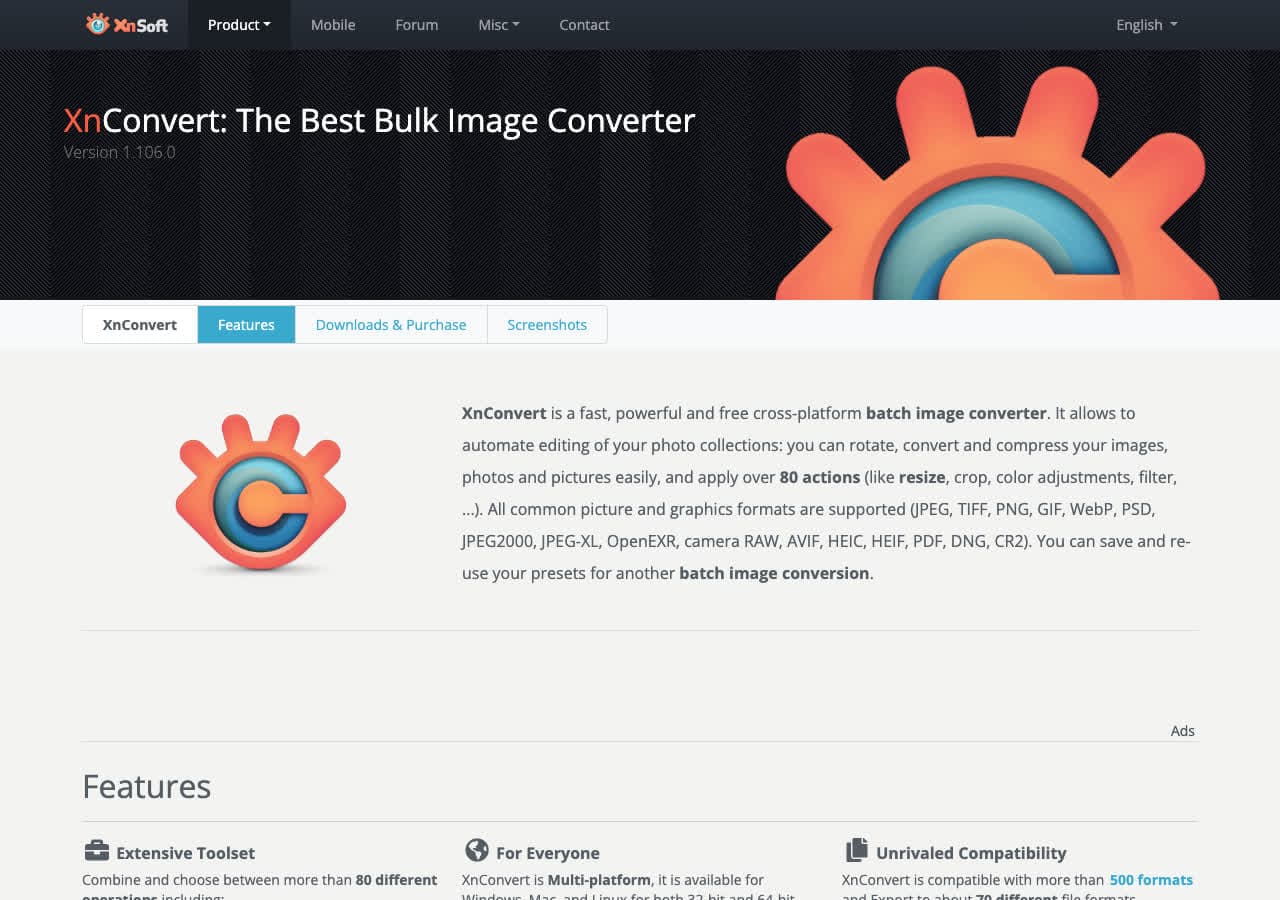
Cross-platform batch tool. Reads HEIC, writes WebP with quality + lossless toggle. Useful for “here is my iPhone Photos export, give me web-ready WebPs” jobs.
Pricing
- Free for personal use.
7. sharp (Node.js)
For build pipelines:
import sharp from "sharp";
await sharp("input.heic").webp({ quality: 80, effort: 6 }).toFile("output.webp");
sharp needs to be built against libheif for HEIC support — the npm package usually includes it, but if you see a “Input file is missing or of an unsupported image format” error, that is why.
Pricing
- Free, open source.
8. Pixelmator Pro

Mac-native editor with native HEIC and WebP support. File → Export → WebP with a live size preview. Good when you also want to crop or color-correct before publishing.
Pricing
- One-time purchase, Mac App Store.
9. Adobe Photoshop
File → Open the HEIC, File → Export → Save As → WebP. Best color and bit-depth handling. Overkill for a one-off but the right pick if HEICs are part of a regular editing workflow.
Pricing
- Subscription.
10. Affinity Photo
One-time-purchase Photoshop alternative. Reads HEIC, exports WebP via the Export Persona.
Pricing
- One-time purchase.
11. GIMP (with HEIF plugin)
Recent GIMP builds include libheif. Open HEIC, File → Export As → .webp. Good for editing in the same workflow.
Pricing
- Free, open source.
12. Photopea
Browser-based Photoshop clone. Reads HEIC, exports WebP, client-side. Useful when you cannot install software but need to publish iPhone photos quickly.
Pricing
- Free with ads; paid premium.
13. iMazing HEIC Converter
Free single-purpose HEIC converter for Mac and Windows. Drag and drop, choose WebP, done.
Pricing
- Free.
14. IrfanView
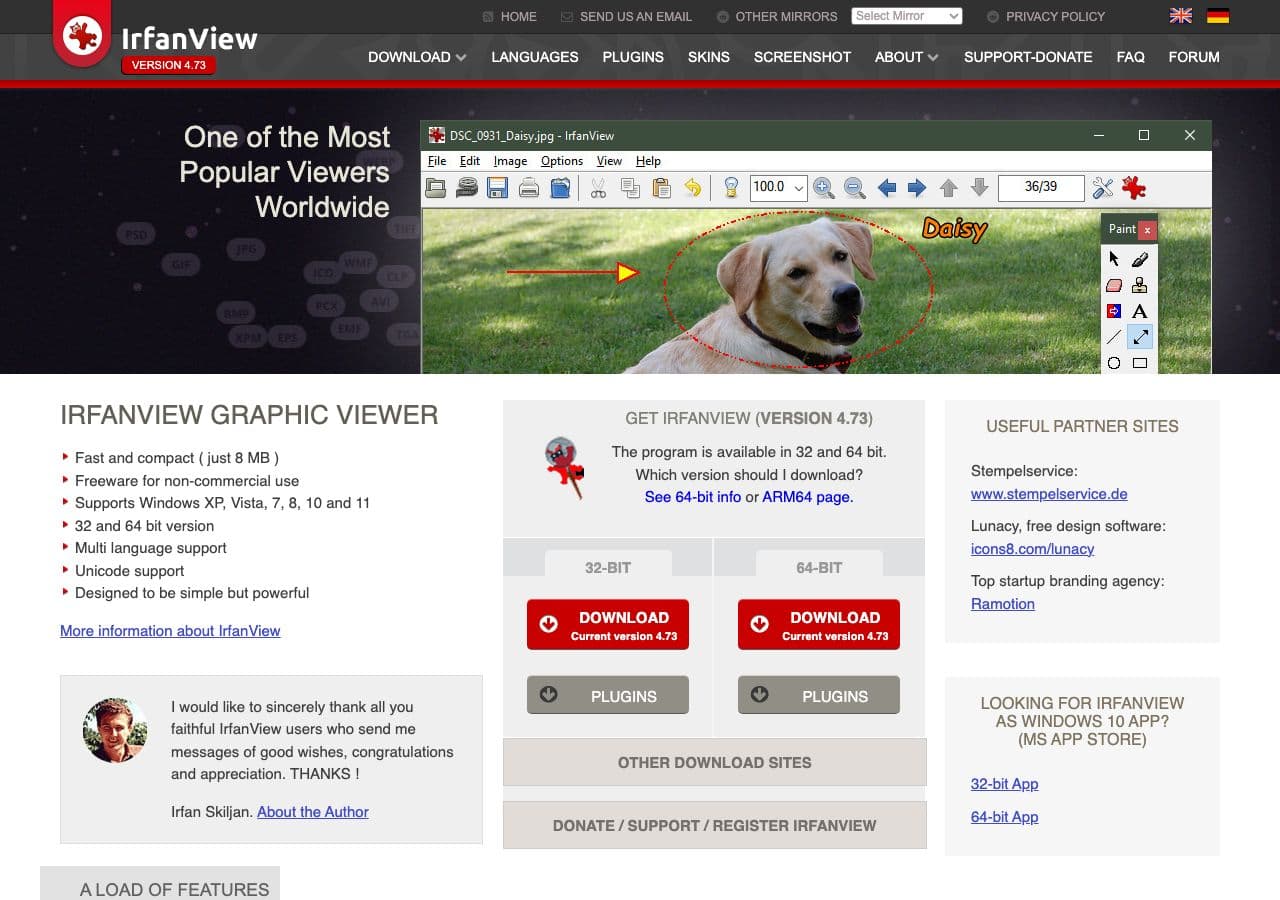
Windows-only batch tool. With plugins + the HEIF extension, IrfanView batch-converts HEIC → WebP at high speed. Good for large iPhone backup folders.
Pricing
- Free for personal use.
15. CloudConvert
Web converter with HEIC and WebP support. Drop a file, pick output, download. Same privacy caveat — iPhone photos often carry sensitive context. Stay local for personal images.
Pricing
- Free tier; paid above.
16. Convertio
Web converter, similar to CloudConvert. Clean UI, smaller free file-size cap.
Pricing
- Free with caps; paid above.
17. FreeConvert
Web converter with quality slider for HEIC → WebP. Same upload model.
Pricing
- Free with caps; paid above.
18. heictojpg.com (also does WebP)
Single-purpose HEIC web converter; despite the name it offers WebP output too. Fast for a single non-sensitive photo.
Pricing
- Free.
How to Choose
- One file, want a preview: Squoosh.
- Folder of iPhone exports: ImageMagick, How to Convert, or XnConvert.
- Mac, native: Preview or sips.
- Site build: sharp (Node) or the heif-convert / cwebp pipeline.
- Private photos: stay local.
- You care about GPS metadata: ImageMagick or Photoshop. Most other tools strip it.
Final Thoughts
HEIC to WebP is the right conversion for putting iPhone photos on the web — you keep most of the file-size benefit of HEIC while picking up universal browser support. The size win is small (often under 15%); the compatibility win is huge. For publishing, strip the EXIF / GPS unless you have a reason to keep it. For personal use, lossless WebP works if you want a no-loss intermediate; for site assets, lossy at quality 80 is the standard.
How to Convert
The offline file converter for Mac, Windows and Linux.
- Converts video, audio, images, documents, ebooks and more
- Everything runs locally. Your files never leave your device
- Pay once. Access forever
Get the app on Mac, Windows and Linux
