18 Best Image Converter Apps in 2026 (Free and Paid)
The best image converter apps for 2026. Convert JPG, PNG, WebP, HEIC, SVG, and more with these free and paid tools.
Posted by
 Jake Manger
Image formats are everywhere, and they are not always interchangeable. Your iPhone shoots HEIC photos that Windows apps cannot open. Your designer sends PSD files you need as PNG. Your website needs WebP for performance, but your CMS only accepts JPG. A screenshot saves as BMP when you need PDF. Without a good image converter, you are stuck manually exporting from editors or uploading to questionable websites.
We tested image converters across Mac, Windows, and Linux to find the 18 best options in 2026. This list includes command-line tools for batch processing thousands of images, desktop apps with visual interfaces, and online converters for quick one-off jobs. Whether you need to convert a single photo or process an entire library, one of these tools will fit your workflow.
1. How to Convert - Best All-in-One Desktop Image Converter
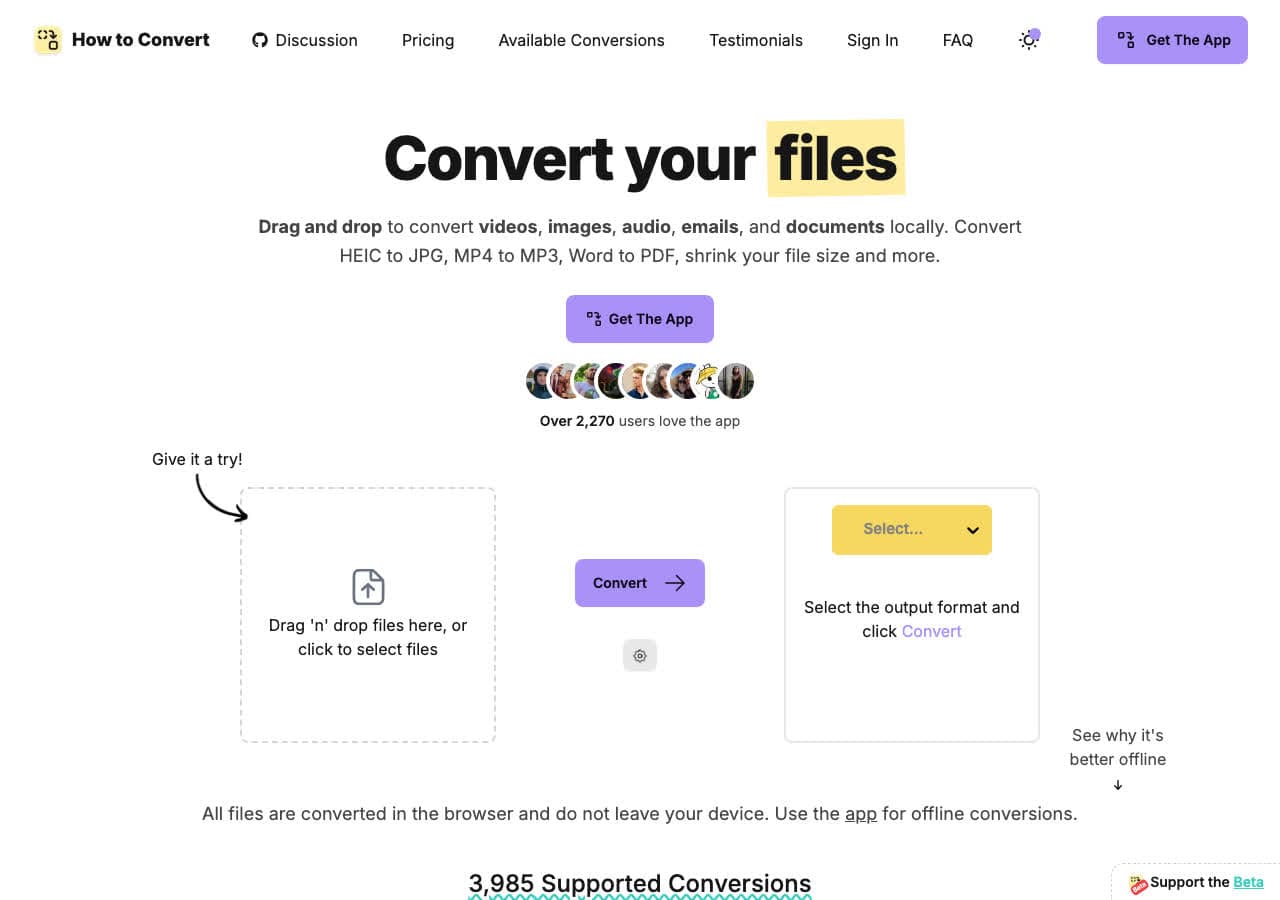
How to Convert is a privacy-first file converter that handles image conversion entirely on your machine. Drop any image in, pick your output format, and the conversion happens without uploading anything to the cloud. It supports hundreds of image formats including JPG, PNG, WebP, HEIC, TIFF, BMP, SVG, ICO, and many more, plus it handles video, audio, documents, and ebooks in the same app.
For image conversion specifically, How to Convert is useful when you need to handle formats alongside other file types. Need to convert HEIC photos to JPG, a Word document to PDF, and a video to MP4 in the same session? One app covers everything. The paid desktop app works on Mac, Windows, and Linux, and the free web demo handles single-file conversions for common formats.
Pros
- All conversions happen locally. Your files never leave your device.
- Supports hundreds of image formats plus video, audio, documents, and ebooks.
- One-time purchase. No subscription fees.
- Free web demo for single-file conversions.
- Works on Mac, Windows, and Linux.
Cons
- One-time purchase; the free web demo handles one file at a time.
- Not a dedicated image editor like Photoshop or GIMP.
Pricing
- Free: Browser converter for common formats.
- Desktop app: One-time purchase, all platforms.
 How to Convert
The offline file converter for Mac, Windows and Linux.
- Converts video, audio, images, documents, ebooks and more
- Everything runs locally. Your files never leave your device
- Pay once. Access forever
Get the app on Mac, Windows and Linux
2. ImageMagick - Best Command-Line Image Processor
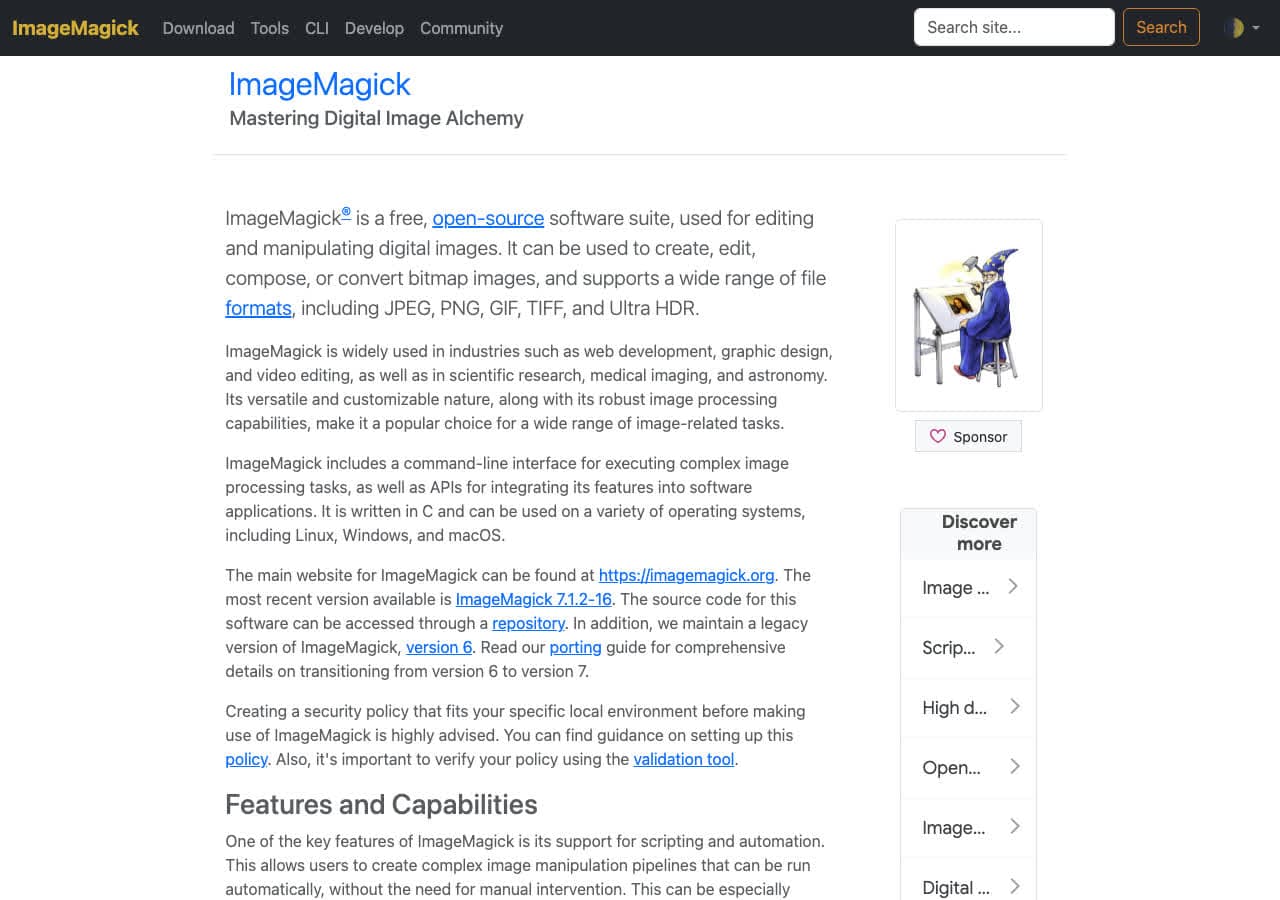
ImageMagick is the most powerful command-line image processing tool available. It reads and writes over 200 image formats including JPG, PNG, WebP, HEIC, TIFF, PDF, SVG, EPS, GIF, BMP, ICO, and many obscure formats that no other tool supports. A single command like magick input.heic output.jpg handles conversion, and you can add resizing, cropping, watermarking, and color adjustments in the same command.
ImageMagick excels at batch processing. Shell scripts can convert entire directories of images, create thumbnails, apply watermarks, and optimize file sizes automatically. It is the backbone of many web applications and content management systems for server-side image processing. For developers and power users who work with images programmatically, ImageMagick is indispensable.
Pros
- 200+ image format support, the most of any tool.
- Powerful batch processing and scripting.
- Free and open source.
- Image manipulation (resize, crop, watermark) alongside conversion.
- Available on Mac, Windows, and Linux.
Cons
- Command-line only. No graphical interface.
- Complex syntax with a steep learning curve.
- Security vulnerabilities have been found in older versions (keep it updated).
Pricing
- Free (open source, Apache 2.0 licensed).
3. XnConvert - Best Free Batch Image Converter
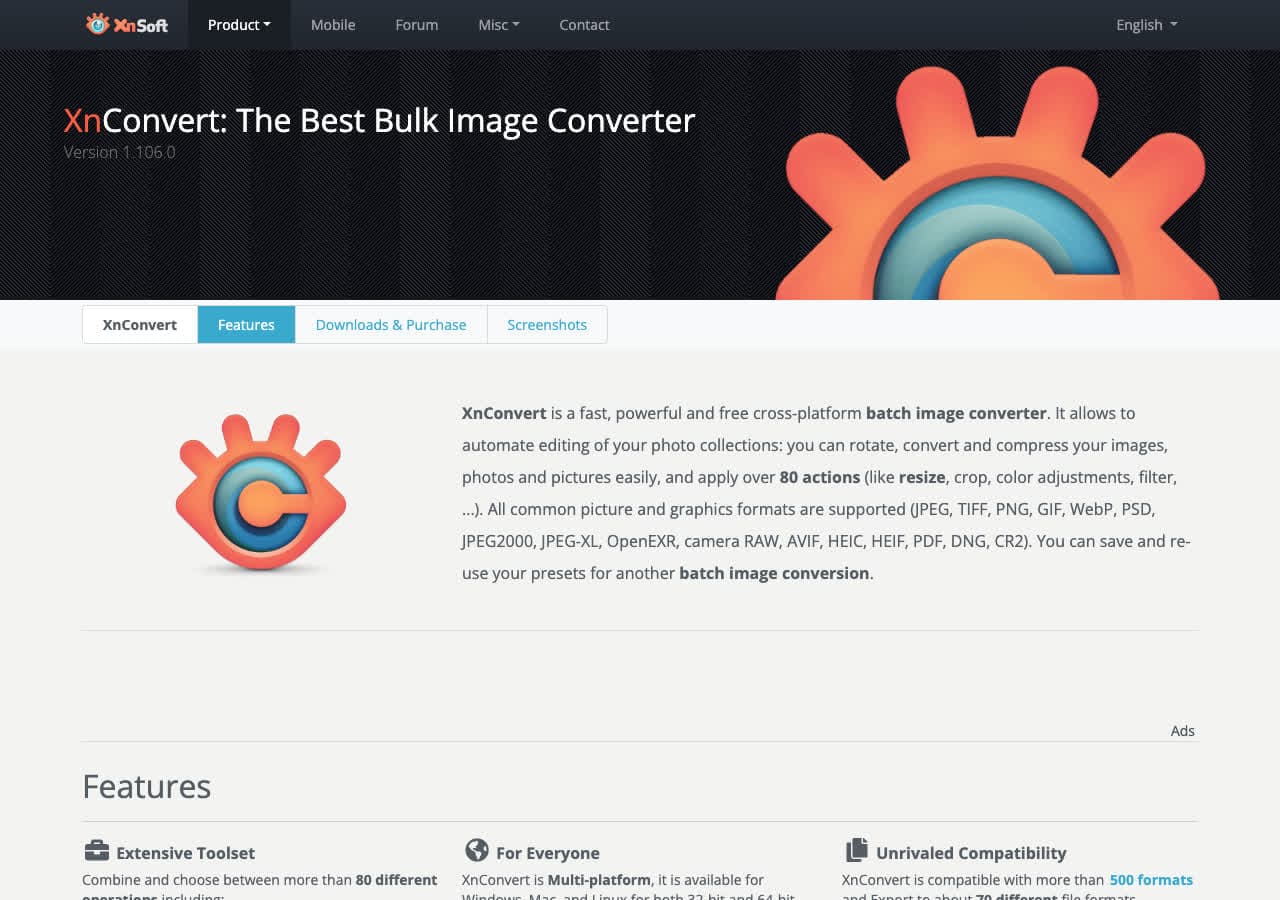
XnConvert is a free batch image converter with a graphical interface that supports over 500 input formats and 80 output formats. It bridges the gap between ImageMagick's power and a user-friendly GUI. Load hundreds of images, set up your conversion pipeline with actions like format conversion, resizing, watermarking, and filters, then process everything in one batch.
XnConvert stands out for its action pipeline system. You can chain multiple operations together, like converting from PNG to JPG, resizing to 1920px wide, adding a watermark, and adjusting JPEG quality, all in a single batch run. It runs on Mac, Windows, and Linux and is free for personal use. For photographers and designers who regularly process large numbers of images, XnConvert saves hours of manual work.
Pros
- 500+ input formats, 80+ output formats.
- Action pipeline for chaining multiple operations.
- Free for personal use.
- Cross-platform (Mac, Windows, Linux).
- Handles batch processing of thousands of images.
Cons
- Commercial use requires a license.
- Interface can feel overwhelming with so many options.
Pricing
- Free: Personal use.
- Contact for pricing: Commercial license.
4. GIMP - Best Free Image Editor With Format Conversion
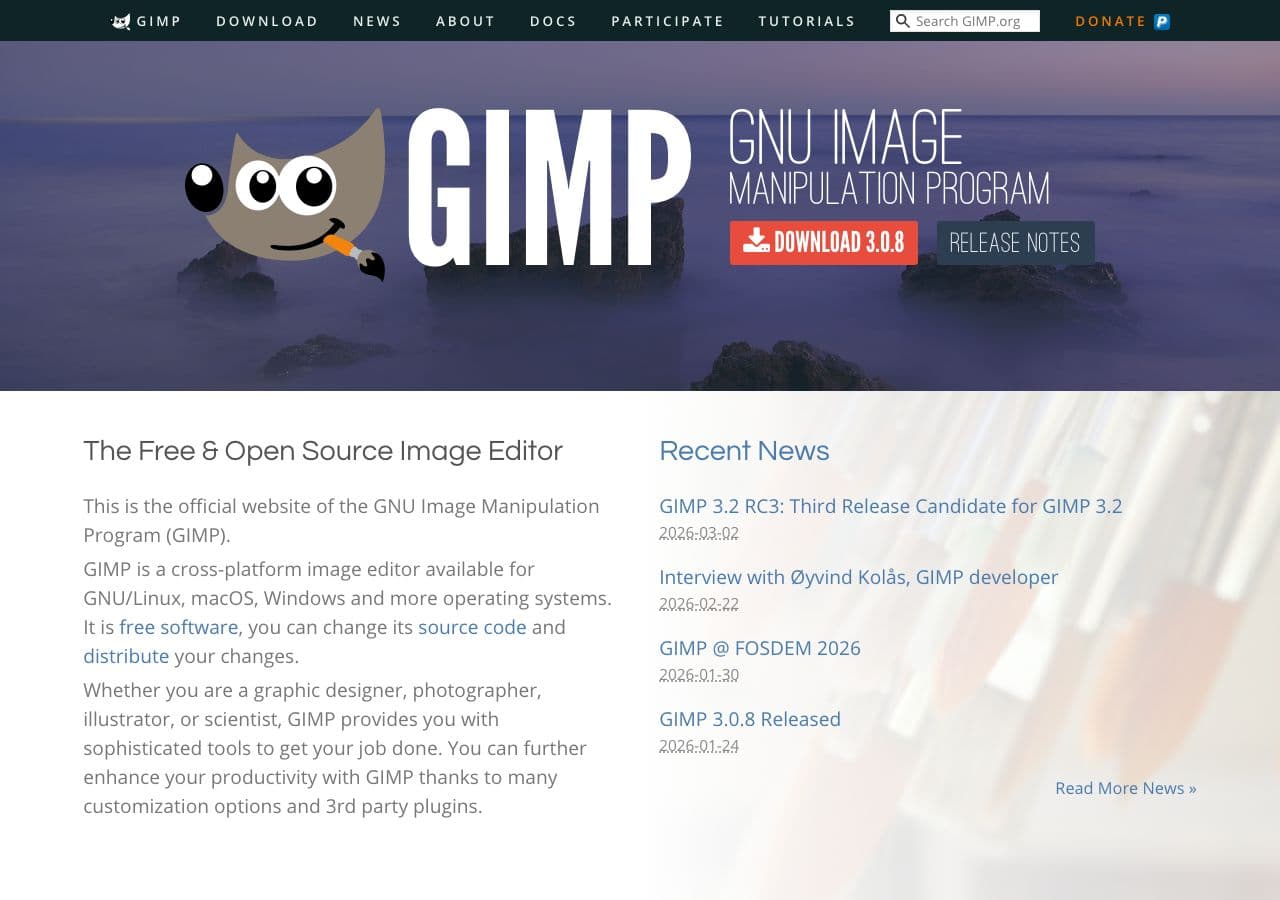
GIMP (GNU Image Manipulation Program) is a free, open-source image editor that rivals Photoshop in capability. While it is primarily an editor, its Export functionality handles image format conversion well. Open any image in GIMP, then use File, Export As to save it in JPG, PNG, WebP, TIFF, BMP, PSD, PDF, and many other formats with detailed quality controls.
GIMP is the best choice when you need to both edit and convert images. Adjust colors, retouch photos, remove backgrounds, or resize, then export to your desired format in the same workflow. With HEIC plugin support and regular updates, GIMP handles modern formats alongside legacy ones. The trade-off is that it is overkill for simple format conversion, like driving a truck to the corner store.
Pros
- Free and open source with professional-grade editing.
- Broad format support for import and export.
- Detailed quality controls when exporting.
- Cross-platform (Mac, Windows, Linux).
Cons
- Massive overkill for simple format conversion.
- No batch conversion without scripting (Script-Fu).
- Interface has a steep learning curve.
Pricing
- Free (open source, GPL licensed).
5. Pixelmator Pro - Best Mac-Native Image Converter

Pixelmator Pro is a beautifully designed image editor built exclusively for Mac. It supports opening and exporting images in HEIC, JPG, PNG, TIFF, WebP, PSD, PDF, SVG, and many other formats. The export dialog gives you quality sliders and preview, so you can see the file size impact of your quality settings before saving.
Pixelmator Pro leverages Apple Silicon and Metal for fast processing, making it particularly quick at handling large images and batch exports. While it is primarily an editor, its Quick Export feature lets you save images in different formats with one click. For Mac users who want an elegant alternative to Photoshop that also handles format conversion beautifully, Pixelmator Pro is the best option.
Pros
- Beautiful native macOS interface.
- Fast performance on Apple Silicon.
- Excellent HEIC, WebP, and PSD support.
- Visual export preview with quality slider.
Cons
- Mac only. No Windows or Linux version.
- No batch conversion feature.
- Paid app with no free tier.
Pricing
- $49.99: One-time purchase from the Mac App Store.
6. IrfanView - Best Lightweight Windows Image Converter
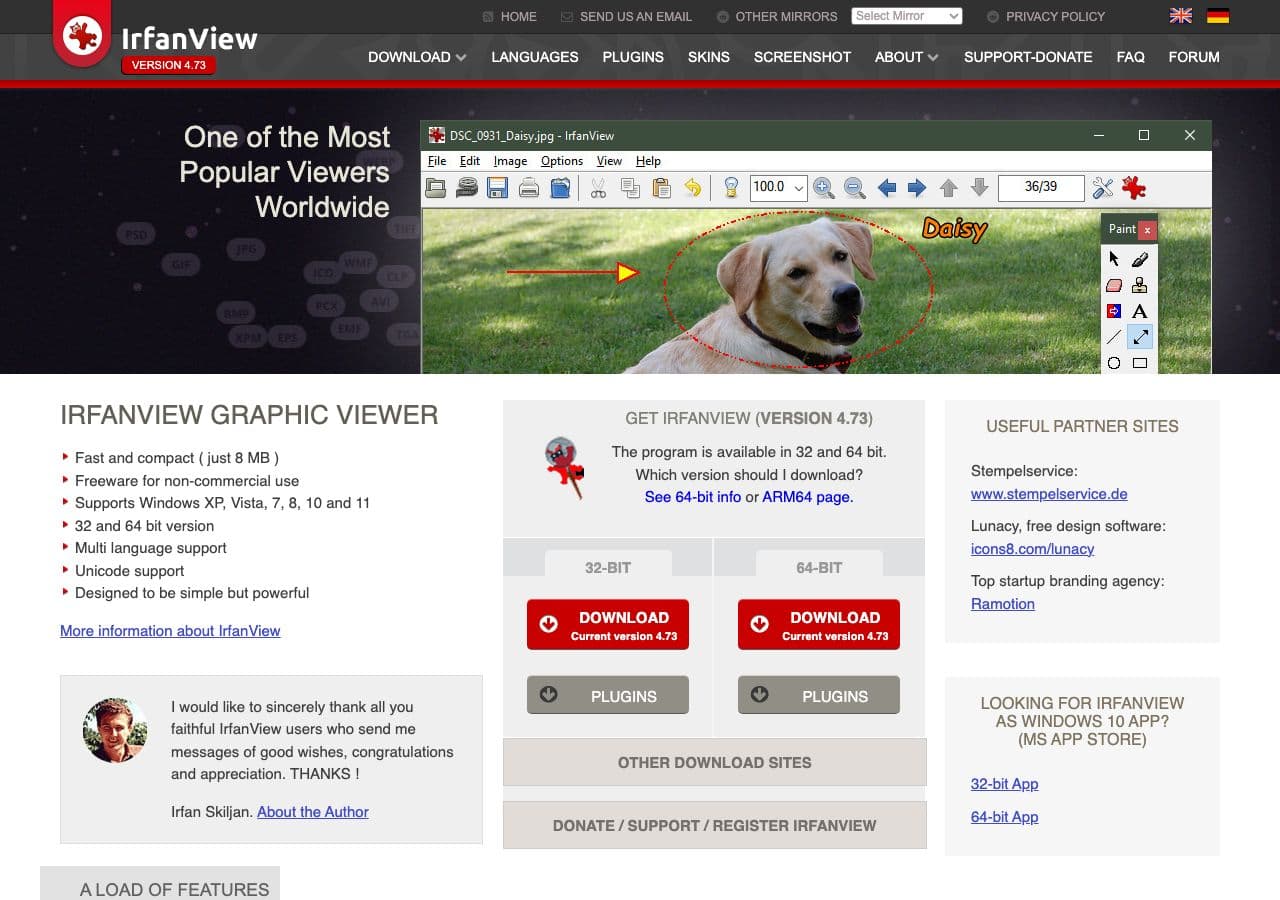
IrfanView is a legendary Windows image viewer that has been around since 1996. It is tiny, fast, and handles batch image conversion like a champion. The Batch Conversion dialog lets you convert thousands of images between formats, with optional resizing, renaming, and quality settings, all in one operation.
IrfanView supports over 100 formats through its plugin system, including JPG, PNG, WebP, HEIC, TIFF, BMP, GIF, ICO, PSD, RAW camera formats, and more. It opens instantly, processes files quickly, and uses minimal system resources. For Windows users who need fast, reliable batch image conversion without bloat, IrfanView remains one of the best tools available after nearly three decades.
Pros
- Lightning fast and lightweight.
- Powerful batch conversion with renaming and resizing.
- 100+ formats with plugins.
- Free for personal use.
Cons
- Windows only.
- Dated interface design.
- Some formats require separate plugin downloads.
Pricing
- Free: Personal use.
- $12: Commercial license.
How to Convert
The offline file converter for Mac, Windows and Linux.
- Converts video, audio, images, documents, ebooks and more
- Everything runs locally. Your files never leave your device
- Pay once. Access forever
Get the app on Mac, Windows and Linux
7. Paint.NET - Best Free Windows Image Editor With Export
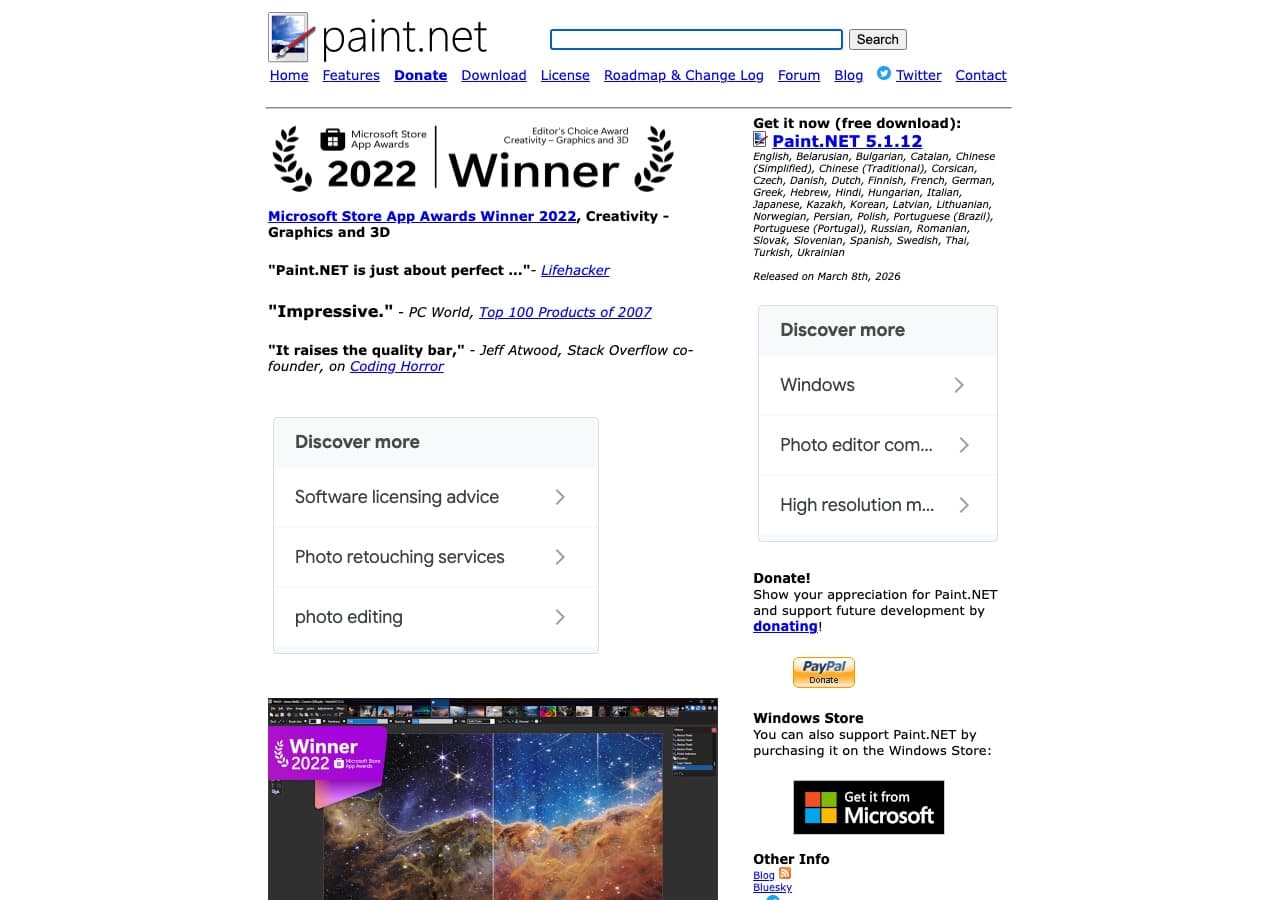
Paint.NET is a free image editor for Windows that started as a replacement for Microsoft Paint and grew into a capable editing tool. It opens and saves images in JPG, PNG, BMP, GIF, TIFF, TGA, and DDS formats natively, with WebP and HEIC support through free plugins. The Save dialog includes quality controls and file size previews.
Paint.NET fills a nice middle ground between basic tools like Paint and complex editors like GIMP. It loads quickly, has a clean interface, supports layers and effects, and handles common image conversion tasks without any learning curve. For Windows users who need occasional format conversion alongside basic editing, Paint.NET is an excellent free choice.
Pros
- Free and lightweight.
- Clean, intuitive interface.
- Layer support and basic editing tools.
- Extensible with free plugins for more formats.
Cons
- Windows only.
- Limited format support without plugins.
- No batch conversion.
Pricing
- Free (from getpaint.net).
- $10.99: Microsoft Store version (supports development).
8. FastStone Image Viewer - Best Windows Viewer With Batch Conversion
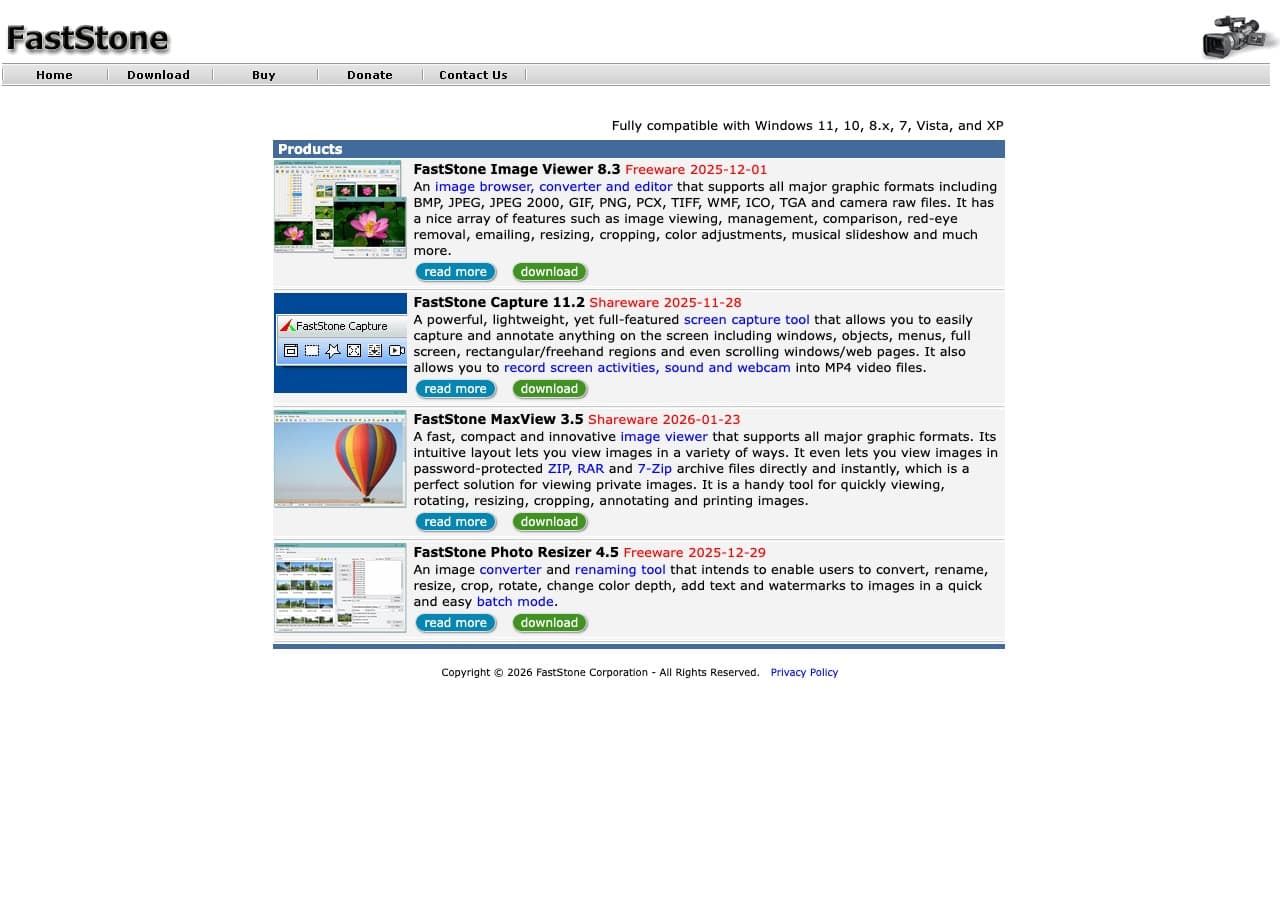
FastStone Image Viewer is a fast, stable image viewer for Windows with a built-in batch conversion engine. It supports all major image formats including JPG, PNG, BMP, GIF, TIFF, WebP, and RAW camera formats. The batch conversion tool lets you convert, resize, rename, and apply effects to hundreds of images at once.
FastStone is particularly good for photographers who need to process camera RAW files and export them as JPG or PNG. It reads most RAW formats natively and includes basic adjustment tools for exposure, color, and sharpness. The full-screen viewer with a hidden toolbar is elegant, and the batch tools are powerful without being complicated.
Pros
- Fast and stable with low resource usage.
- Good RAW format support for photographers.
- Batch conversion with resize and rename.
- Free for personal use.
Cons
- Windows only.
- Interface is functional but not modern.
Pricing
- Free: Personal use.
- $34.95: Lifetime license for commercial use.
9. Inkscape - Best Free SVG and Vector Image Converter
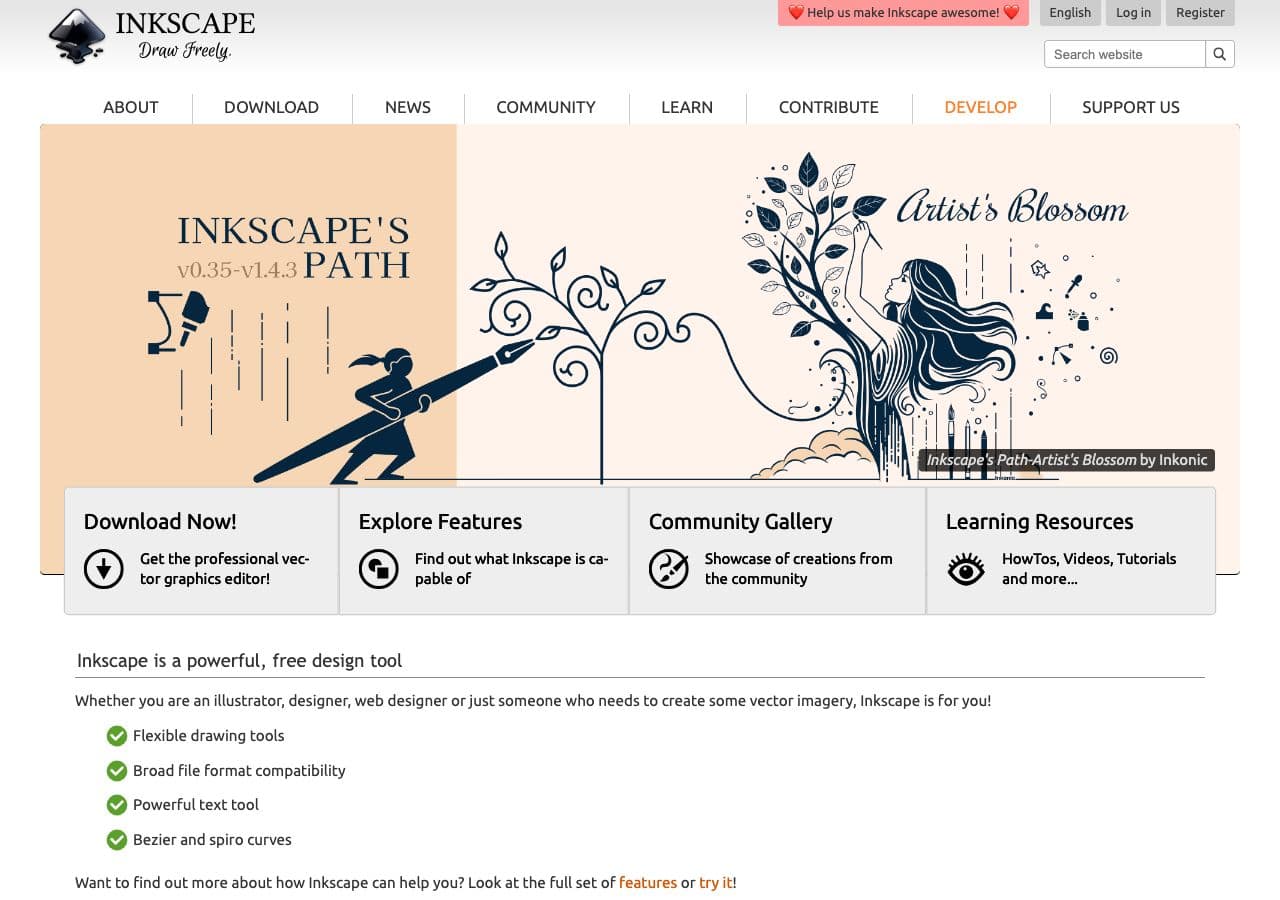
Inkscape is a free, open-source vector graphics editor that excels at converting between vector and raster formats. It is the best tool for working with SVG files, and it can export to PNG, PDF, EPS, and other formats. If you need to convert an SVG logo to PNG at various sizes, or turn an EPS file into SVG, Inkscape is the go-to tool.
Inkscape also includes a command-line mode for batch processing, which is useful for automated workflows like generating PNG sprites from SVG source files. It runs on Mac, Windows, and Linux. For designers and developers who work with vector graphics, Inkscape is an essential free tool that handles conversion alongside full vector editing capabilities.
Pros
- Best free SVG editor and converter available.
- Exports to PNG, PDF, EPS, and more.
- Command-line mode for batch processing.
- Cross-platform (Mac, Windows, Linux).
Cons
- Primarily a vector editor, not a general image converter.
- Can be slow with very large or complex files.
- Limited raster format support.
Pricing
- Free (open source, GPL licensed).
10. Photopea - Best Free Online Photoshop Alternative With Export
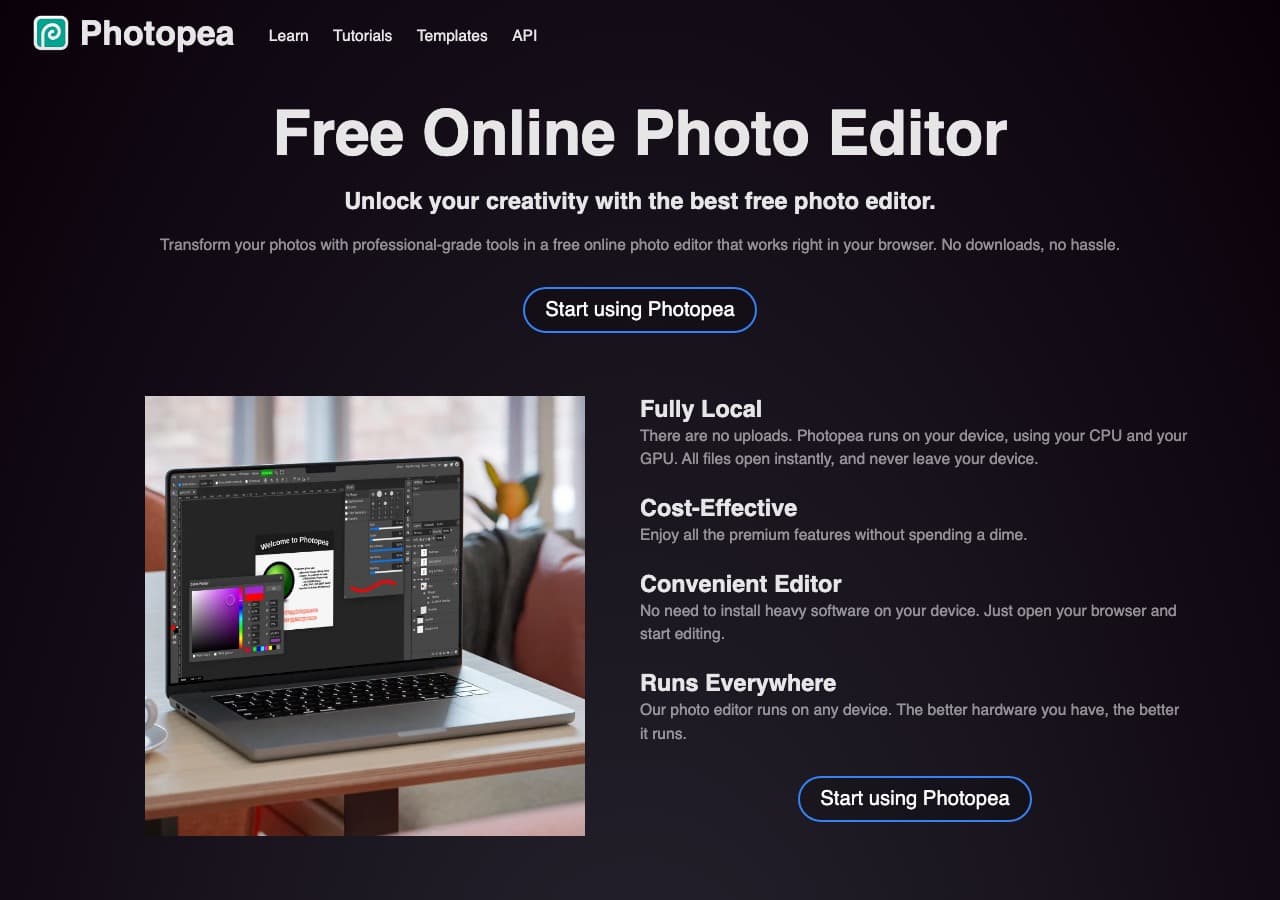
Photopea is a free online image editor that looks and works like Photoshop, right in your browser. It opens PSD, XCF, Sketch, XD, CDR, and RAW files alongside standard formats like JPG, PNG, WebP, SVG, and PDF. You can export to any of these formats with quality controls, making it excellent for cross-format conversion.
Photopea is particularly useful for opening Photoshop PSD files without a Creative Cloud subscription. Need to extract layers from a PSD as individual PNGs? Or convert a Sketch file to PSD? Photopea handles it without installing anything. All processing happens in your browser, so your files are not uploaded to any server.
Pros
- Free with no account required.
- Opens PSD, Sketch, XD, and other proprietary formats.
- Runs entirely in the browser, no upload to servers.
- Full editing capabilities alongside conversion.
Cons
- Requires an internet connection to load the app (though files stay local).
- No batch processing.
- Free version shows ads.
Pricing
- Free (with ads).
- $5/month: Premium (no ads).
11. FFmpeg - Best for Automated Image Conversion
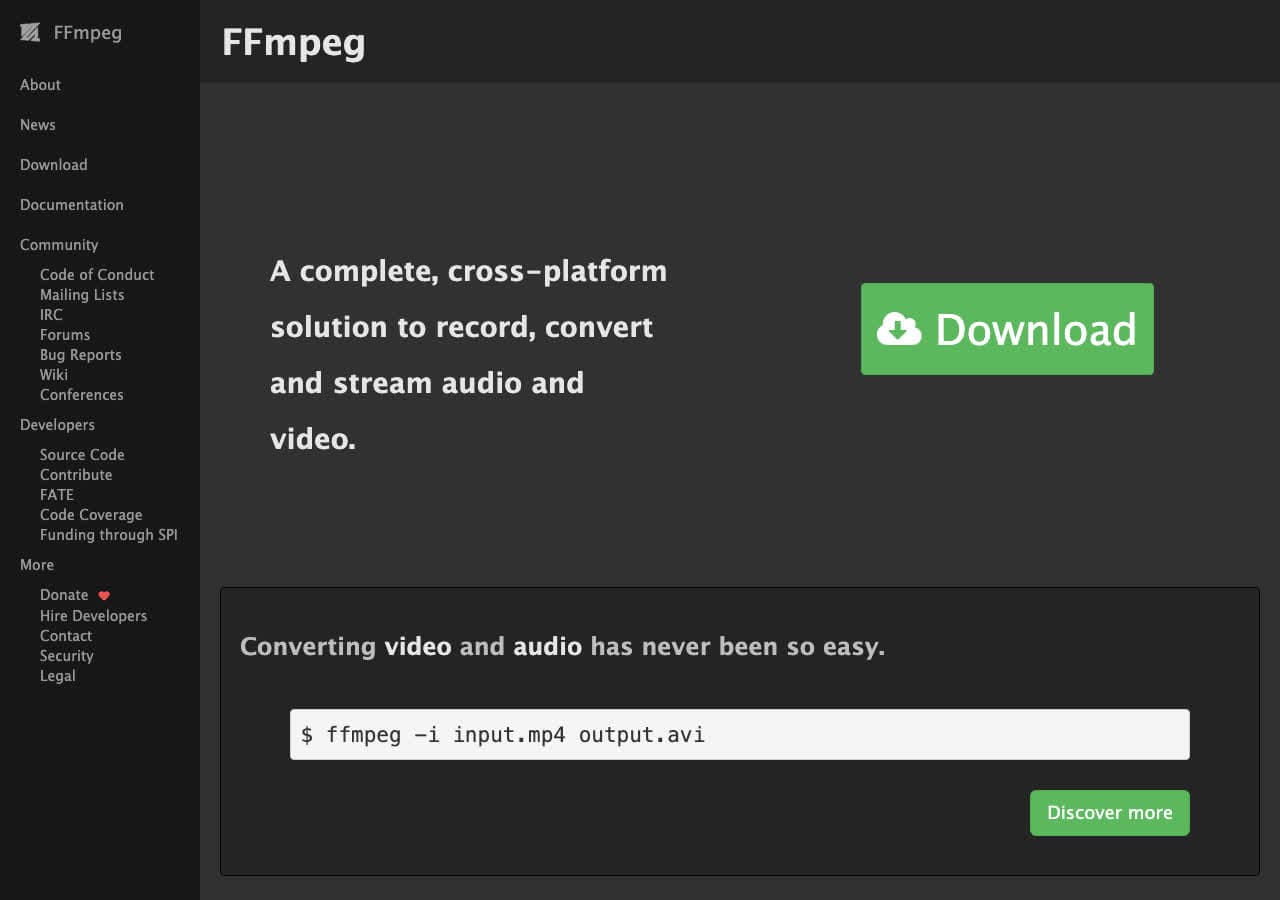
FFmpeg is best known for video and audio processing, but it also handles image conversion well. It can convert between PNG, JPG, WebP, BMP, TIFF, and other raster formats with control over quality, resolution, and color space. It is particularly useful for converting image sequences to video or extracting frames from video as images.
FFmpeg is the right choice for automated image processing pipelines. Shell scripts can convert batches of images, generate thumbnails, and create animated GIFs or WebP from image sequences. If you already use FFmpeg for video work, you can handle image conversion without installing another tool.
Pros
- Free and open source.
- Handles images alongside video and audio.
- Fully scriptable for automation.
- Cross-platform.
Cons
- Command-line only.
- ImageMagick is better for image-specific tasks.
- Limited image format support compared to ImageMagick.
Pricing
- Free (open source, LGPL/GPL licensed).
12. Automator - Best Built-in Mac Image Converter
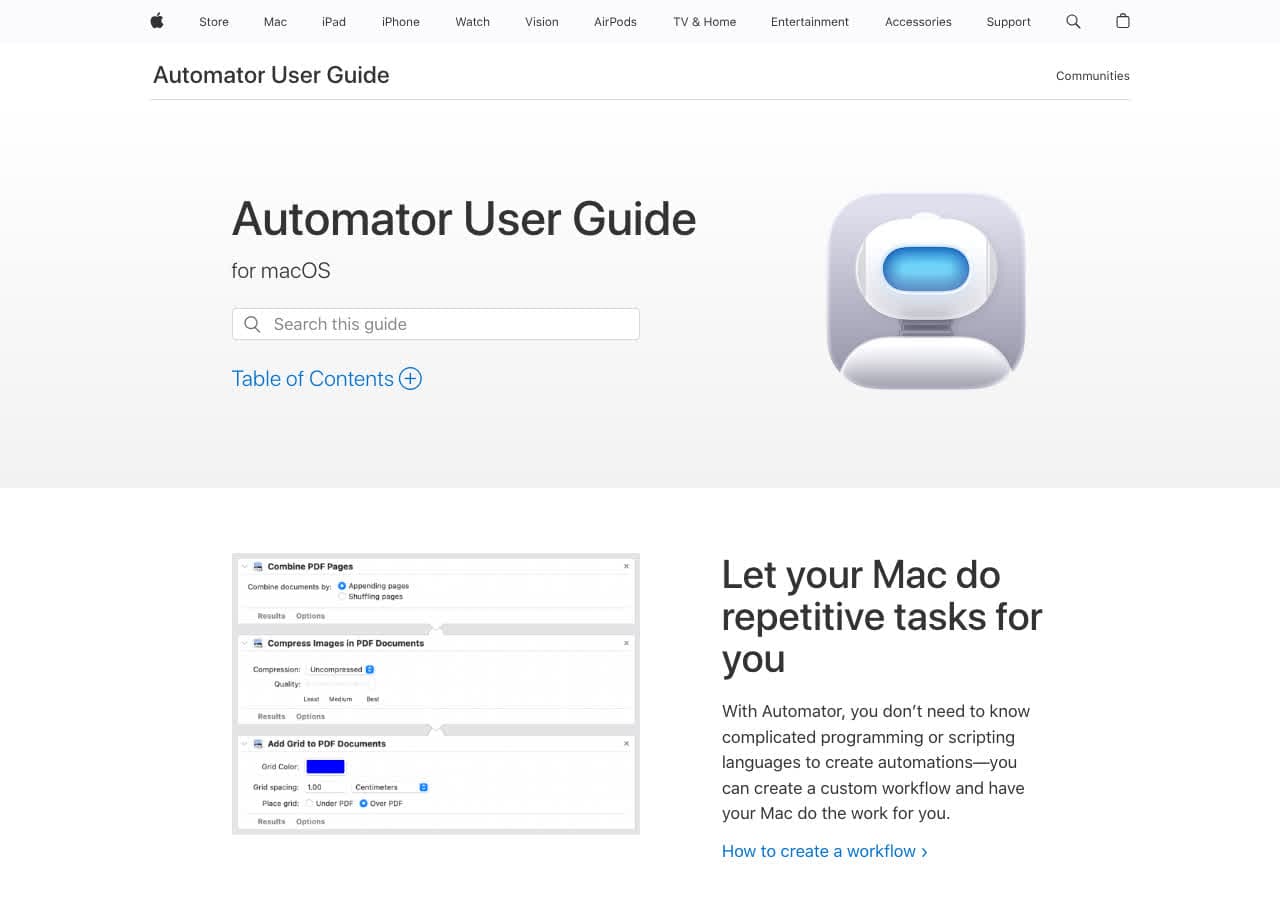
Automator comes pre-installed on every Mac and includes a "Change Type of Images" action that converts between JPEG, PNG, TIFF, BMP, and other formats. You can create a Quick Action that converts images when you right-click them in Finder, or build a workflow that batch-processes entire folders automatically.
Automator is the easiest way to set up recurring image conversion on Mac. Create a folder action that automatically converts any HEIC photo dropped into a specific folder to JPG, for example. No third-party software needed. The trade-off is limited format support, as Automator only handles the formats macOS natively supports.
Pros
- Pre-installed on every Mac. No download needed.
- Create right-click Quick Actions for one-click conversion.
- Folder actions for automatic batch processing.
- Free.
Cons
- Mac only.
- Limited to formats macOS supports natively.
- Being replaced by Shortcuts in newer macOS versions.
Pricing
- Free (included with macOS).
How to Convert
The offline file converter for Mac, Windows and Linux.
- Converts video, audio, images, documents, ebooks and more
- Everything runs locally. Your files never leave your device
- Pay once. Access forever
Get the app on Mac, Windows and Linux
13. LibreOffice - Best for Document-Embedded Image Export
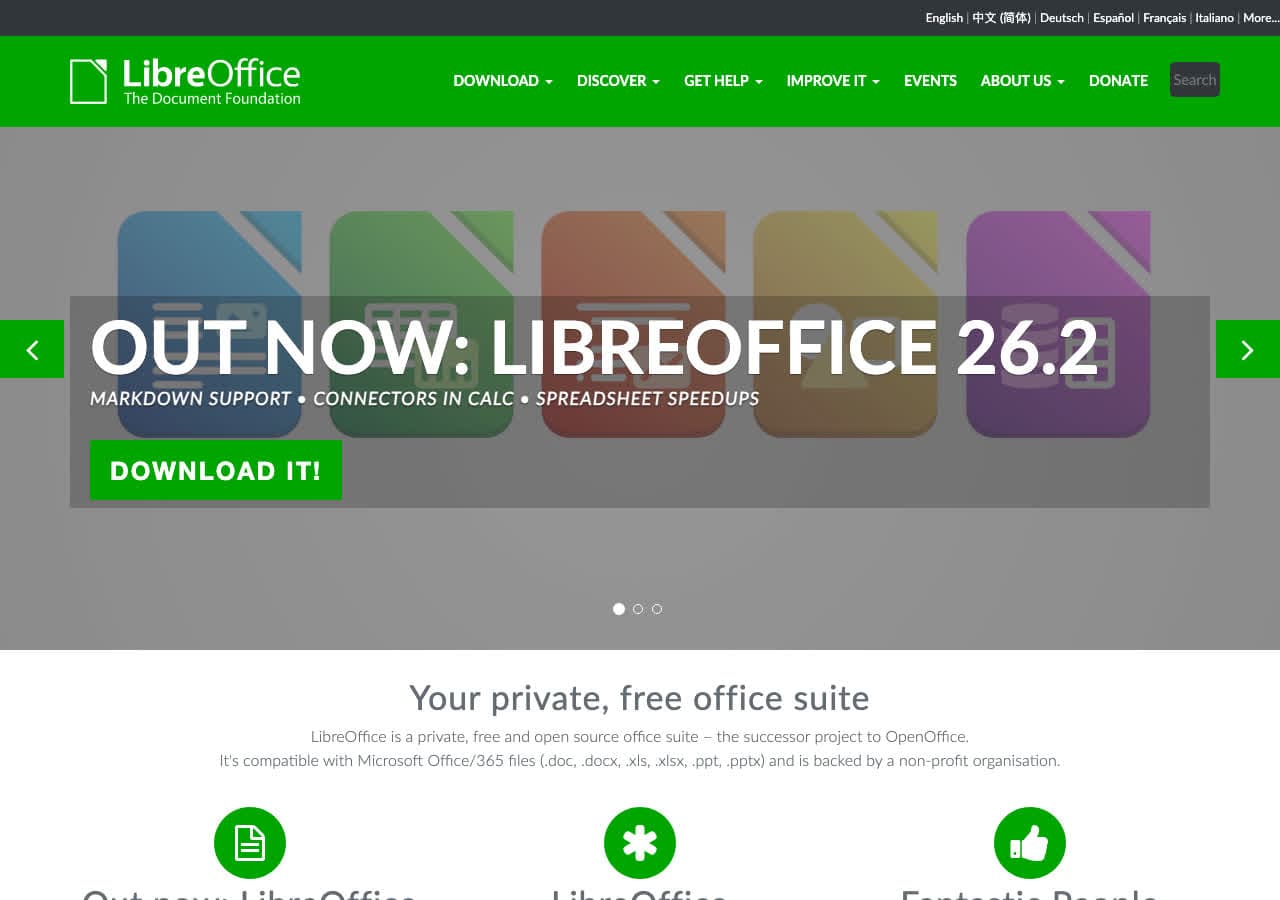
LibreOffice is a free office suite that can export documents, presentations, and spreadsheets as images. LibreOffice Draw opens and exports SVG, PNG, JPG, TIFF, BMP, and PDF. LibreOffice Impress can export presentation slides as individual images. It is not a traditional image converter, but it fills a gap when you need images from office documents.
LibreOffice is also useful for converting between document formats that contain images. Open a Word file and export it as PDF with embedded images preserved. Or use the command-line libreoffice --headless --convert-to png to batch-convert documents to images in automated workflows.
Pros
- Free and open source.
- Exports documents and presentations as images.
- Command-line mode for batch processing.
- Cross-platform.
Cons
- Not designed as an image converter.
- Limited image format support.
Pricing
- Free (open source, MPL licensed).
14. CloudConvert - Best Online Image Converter
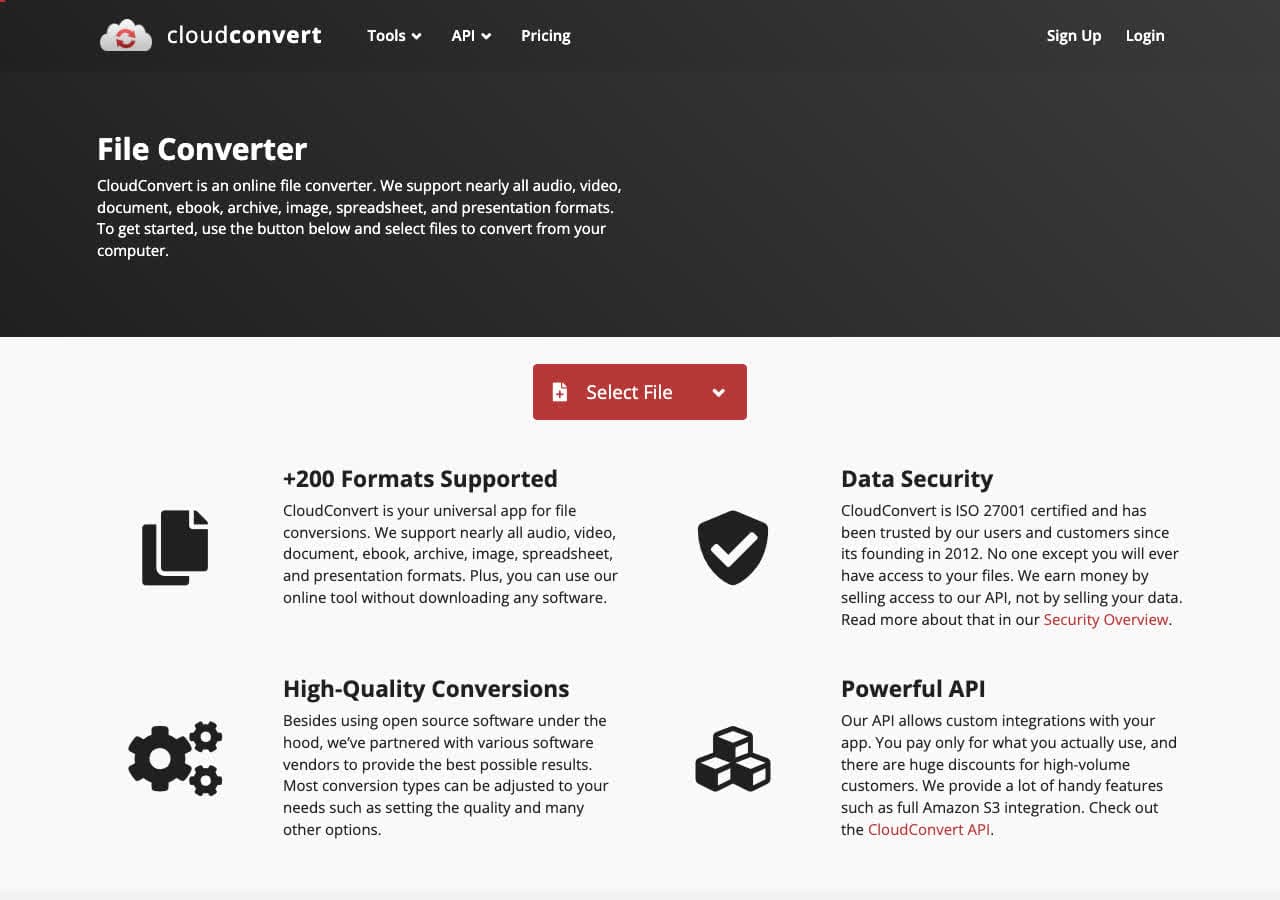
CloudConvert is a browser-based converter that handles image formats without software installation. Upload your image, choose your output format (JPG, PNG, WebP, HEIC, SVG, TIFF, BMP, GIF, ICO, and more), adjust optional settings like quality and dimensions, and download the result. It supports 25 free conversions per day.
CloudConvert stands out among online image tools for its quality controls. You can set JPEG quality, PNG compression level, resize dimensions, and DPI, settings most online converters skip entirely. The API allows developers to integrate image conversion into their own applications and websites.
Pros
- No software to install.
- Advanced quality and dimension controls.
- 25 free conversions per day.
- Developer API available.
Cons
- Files are uploaded to their servers.
- Free tier limited to 1GB file size.
Pricing
- Free: 25 conversions/day, 1GB limit.
- From $8/month: Higher limits.
15. Zamzar - Best for Quick No-Install Image Conversions
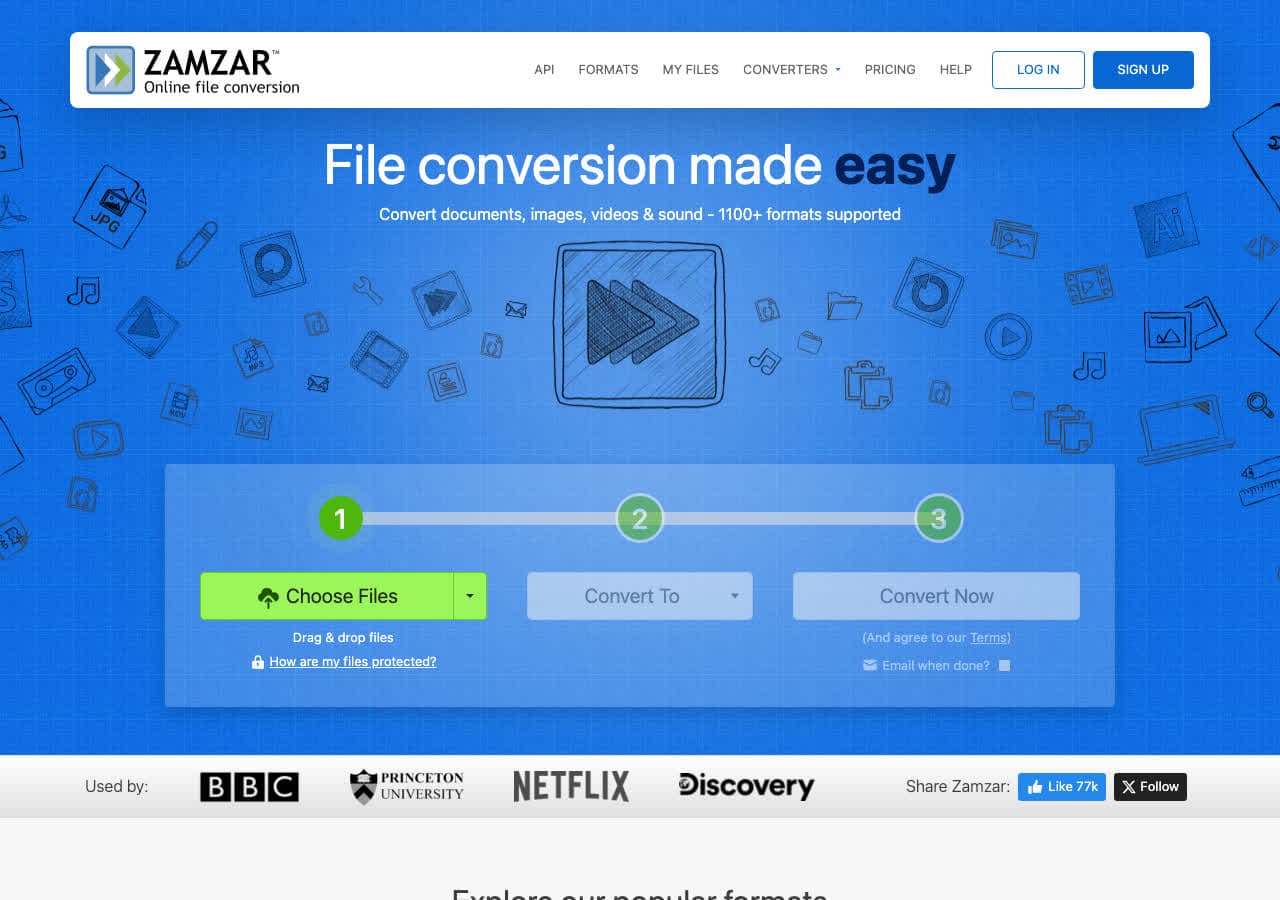
Zamzar converts image files online with the simplest possible workflow: upload, choose format, download. No account needed. It supports JPG, PNG, BMP, GIF, TIFF, WebP, ICO, SVG, and many more image formats. Since 2006, Zamzar has been one of the most trusted names in online conversion.
The free tier is limited to 2 files per day with a 50MB cap, which is usually more than enough for image files since most photos are under 20MB. For quick one-off image conversions when you do not want to install software, Zamzar is fast and reliable.
Pros
- No software to install, no account needed.
- Trusted service since 2006.
- 50MB limit is enough for most images.
Cons
- Free tier: 2 files/day only.
- Files uploaded to their servers.
Pricing
- Free: 2 files/day, 50MB limit.
- From $18/month: Higher limits.
16. Convertio - Best Online Image Converter for Format Variety
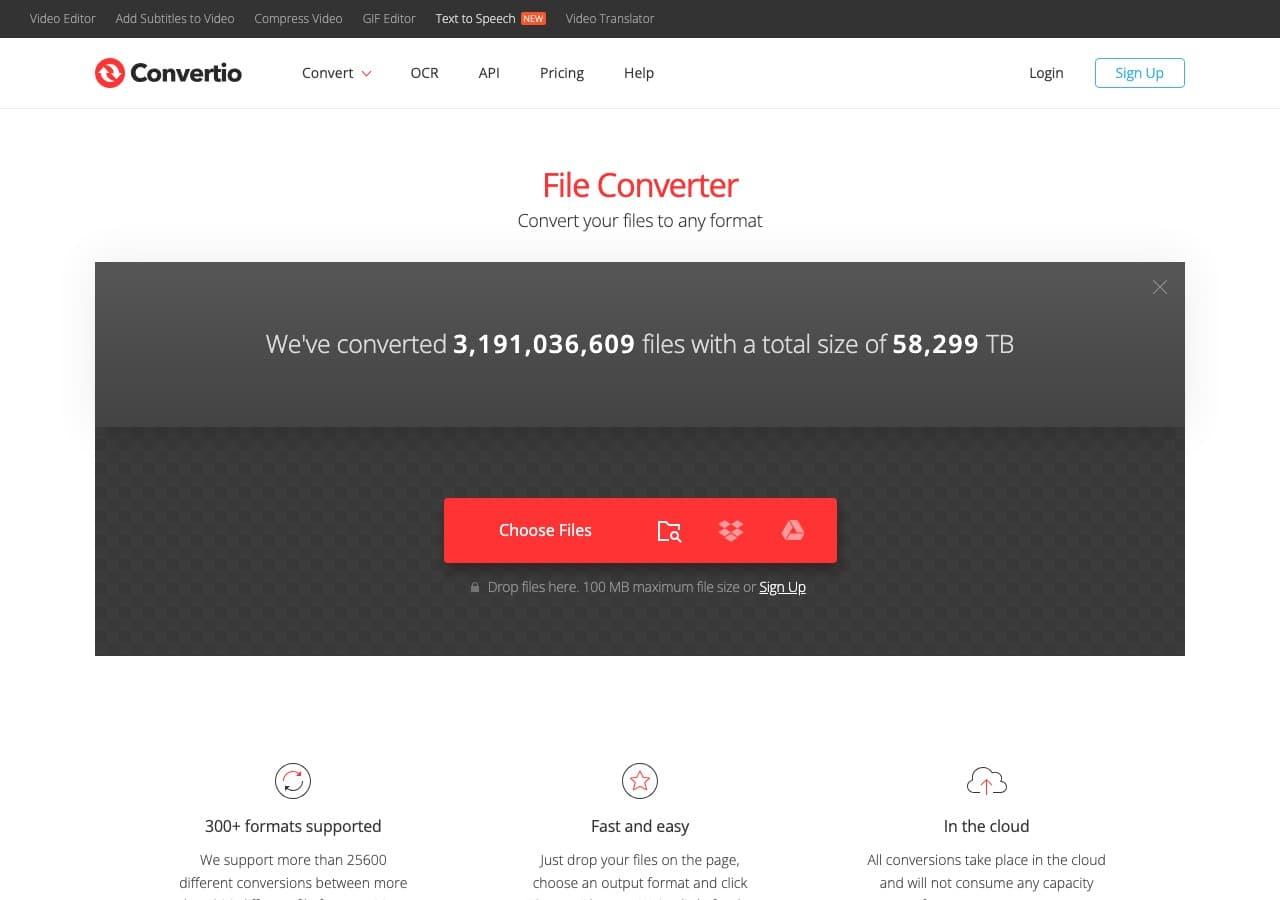
Convertio supports over 300 formats across images, video, audio, and documents. For images, it handles JPG, PNG, WebP, HEIC, SVG, BMP, TIFF, GIF, ICO, EPS, PSD, and many more. The clean interface makes conversion a two-step process: upload and pick your format.
Convertio integrates with Google Drive and Dropbox for cloud-based conversion, which is handy if your images are stored online. The 100MB free limit is generous for images. Paid plans add batch processing and remove limits.
Pros
- 300+ formats including obscure image types.
- Clean, modern interface.
- Google Drive and Dropbox integration.
Cons
- 10 free conversions per day.
- Files uploaded to their servers.
Pricing
- Free: 100MB, 10 conversions/day.
- From $9.99/month: More conversions and larger files.
17. FreeConvert - Best Free Online Image Converter for Large Files
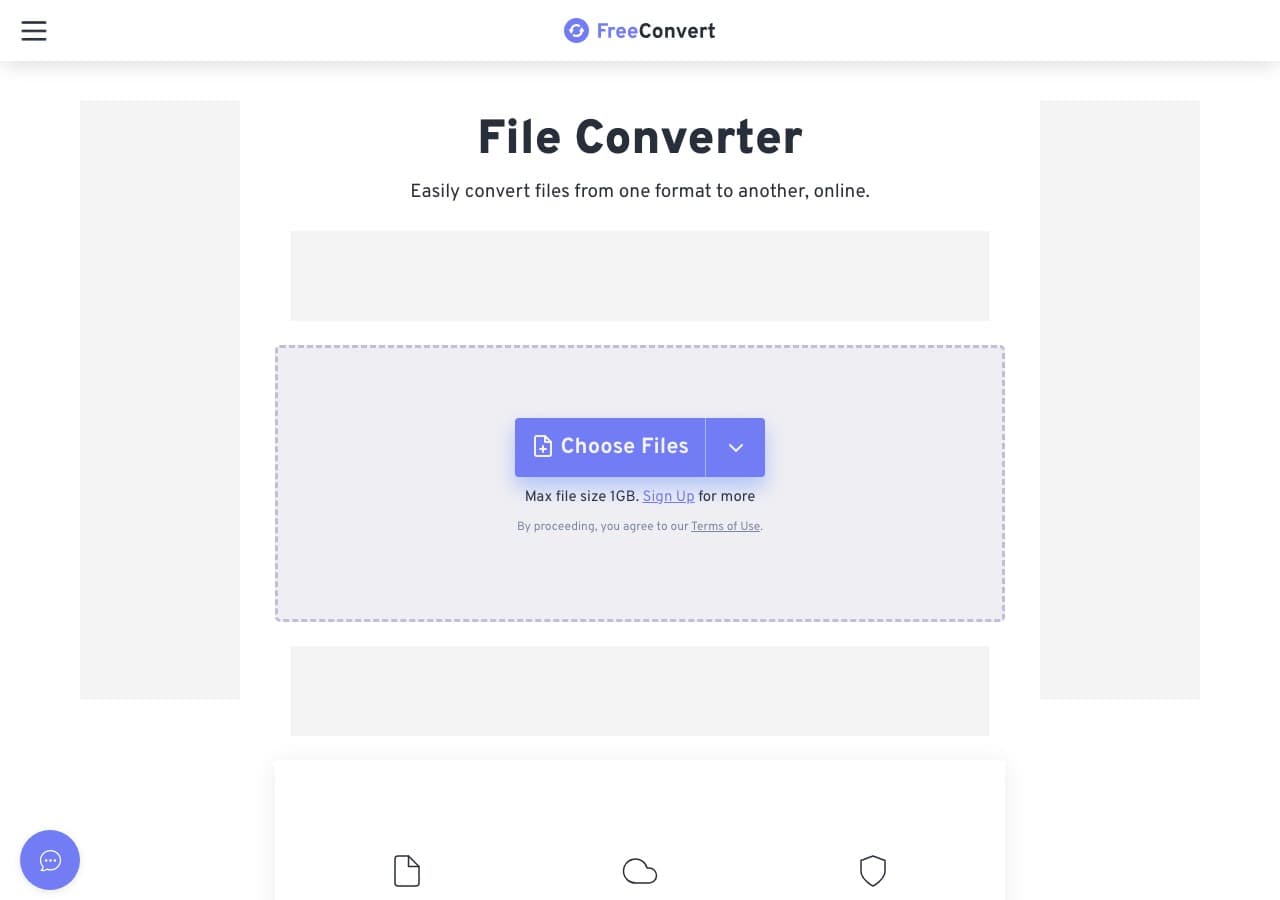
FreeConvert offers a 1GB free file size limit, the most generous of any major online converter. While most images are well under 1GB, this is useful for high-resolution TIFF files, multi-page documents, or large PSD files that can reach hundreds of megabytes.
The interface includes advanced settings for image conversion like quality level, DPI, and resize dimensions. Free users get 25 conversions per day. For large images or high-resolution files that exceed other services' limits, FreeConvert is the go-to online option.
Pros
- 1GB free file size limit.
- Advanced settings (quality, DPI, resize).
- 25 free conversions per day.
- No account required.
Cons
- Free conversions are slower (queued behind paid users).
- Files uploaded to their servers.
Pricing
- Free: 1GB limit, 25 conversions/day.
- From $9.99/month: Faster and larger files.
18. Online-Convert - Best Online Image Converter With Advanced Settings
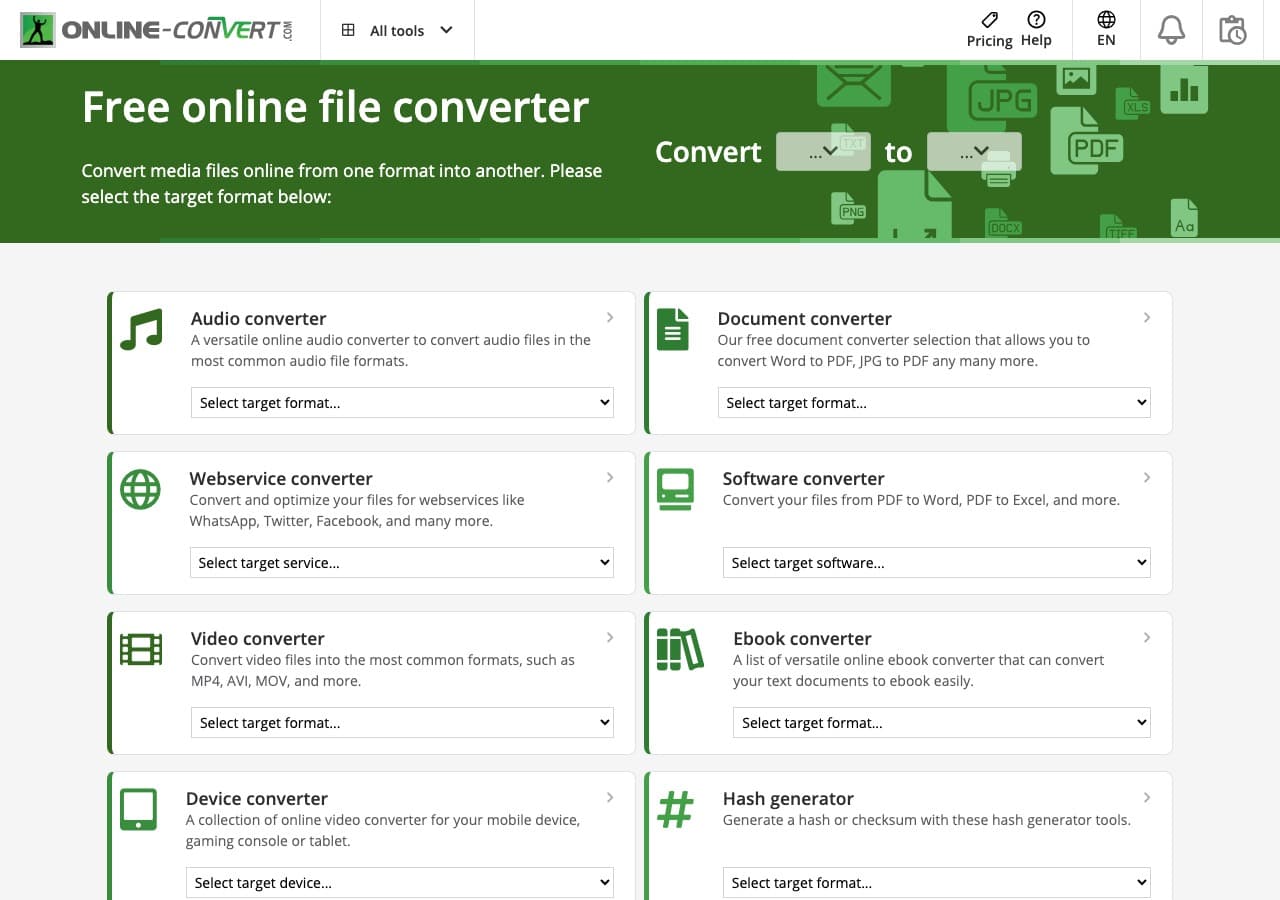
Online-Convert provides the most detailed output controls of any online image converter. When converting to JPG, you can set quality, resize dimensions, DPI, color depth, and even strip or preserve EXIF metadata. Most online tools give you a format dropdown and nothing else. Online-Convert gives you the precision that power users need.
The site supports a wide range of image formats and accepts files from your computer, URL, Google Drive, or Dropbox. Free users have file size and daily limits, but for occasional conversions where you need specific quality settings, Online-Convert provides more control than any other browser-based option.
Pros
- Detailed output settings (quality, DPI, color depth, EXIF).
- Multiple input sources (upload, URL, cloud).
- Wide format support.
Cons
- Free tier has file size and daily limits.
- Interface is cluttered with ads.
- Files uploaded to their servers.
Pricing
- Free: Limited conversions and file size.
- From $6.99/month: Higher limits and no ads.
How to Convert
The offline file converter for Mac, Windows and Linux.
- Converts video, audio, images, documents, ebooks and more
- Everything runs locally. Your files never leave your device
- Pay once. Access forever
Get the app on Mac, Windows and Linux
Frequently Asked Questions
What is the best free image converter?
XnConvert is the best free image converter with a graphical interface. It supports 500+ input formats, 80+ output formats, and handles batch processing with customizable action pipelines. For command-line batch processing, ImageMagick is unmatched with 200+ format support. How to Convert has a free web demo for single-file conversions across common image formats, with no installation required.
Does converting images reduce quality?
Converting to lossy formats like JPG always involves some quality loss because of compression. The amount depends on the quality setting you choose. Converting from JPG to PNG does not improve quality (it just makes the file larger). Converting between lossless formats like PNG to TIFF preserves perfect quality. For the best results, keep your source files in a lossless format and only convert to lossy when needed.
What image format should I use?
JPG is best for photographs and complex images where small file size matters. PNG is best for screenshots, graphics with text, and images that need transparency. WebP offers better compression than both JPG and PNG and supports transparency, making it ideal for web use. HEIC is Apple's efficient format for iPhone photos. TIFF is used in professional printing. SVG is for vector graphics like logos and icons.
How do I convert HEIC to JPG?
On Mac, you can convert HEIC to JPG using Preview (open the file, then File, Export as JPEG) or Automator for batch conversion. On Windows, use IrfanView, XnConvert, or How to Convert. For a quick one-off conversion, use an online converter like CloudConvert or Convertio. ImageMagick handles HEIC to JPG via the command line with magick input.heic output.jpg.
Final Thoughts
The right image converter depends on your volume and complexity. For all-in-one offline conversion across every file type, How to Convert handles images alongside video, audio, and documents for a one-time purchase. For free batch processing with a GUI, XnConvert is purpose-built for the job. Power users and developers should learn ImageMagick for its unmatched format support and scriptability. And for quick one-off conversions without installing anything, CloudConvert or Convertio will handle it from your browser.
How to Convert
The offline file converter for Mac, Windows and Linux.
- Converts video, audio, images, documents, ebooks and more
- Everything runs locally. Your files never leave your device
- Pay once. Access forever
Get the app on Mac, Windows and Linux
