18 Best M4A to MP3 Converters in 2026 (Free and Paid)
The best M4A to MP3 converters in 2026. Compare offline desktop apps, open-source tools, and online converters for podcasts, voice notes, music libraries, and devices that prefer MP3.
Posted by
 Jake Manger
M4A is Apple's container for AAC audio — what iTunes, the Apple Music store, voice memos on iPhone, and most podcasts produce. MP3 is the format that works on absolutely everything: car stereos, old MP3 players, Bluetooth speakers, smart TVs, exercise watches, kids' toys with USB ports. Converting M4A to MP3 is the “make this work in the place I actually need it” conversion, and the only meaningful choices are bitrate, whether to preserve tags, and (sometimes) whether to do it without a quality loss step you cannot reverse. This guide compares 18 M4A to MP3 converters in 2026.
M4A → MP3 is also a place where the tool you pick really does affect quality — both M4A and MP3 are lossy, so the conversion is “lossy of a lossy.” The next section explains how to keep that loss small.
The Quality Math of M4A → MP3
M4A files are usually AAC at a bitrate of 128–256 kbps. MP3 at the same bitrate sounds worsethan AAC — that is the whole reason AAC exists. So a naive M4A → MP3 conversion at “the same” bitrate gives you a worse-sounding file. To keep perceived quality similar:
- If your M4A is 128 kbps AAC (the iTunes / Apple Music default), encode MP3 at 192 kbps for similar perceived quality.
- If your M4A is 256 kbps AAC (the higher-quality Apple Music tier), encode MP3 at 320 kbps — the maximum MP3 bitrate.
- For voice content (podcasts, voice memos), 96–128 kbps MP3 is fine.
A few practical points:
- DRM-protected M4A files cannot be converted. If the file came from Apple Music subscription (not purchased) or iTunes Store before 2009, it is a .M4P with DRM. Conversion tools refuse it. You need to play it through an audio capture tool or purchase it cleanly.
- ID3 tags should transfer. Title, artist, album, artwork — the major tools preserve these. The bad tools strip them silently.
- Album art is the biggest tag-preservation gotcha. Some tools preserve it; some skip it; some embed it at a downscaled size.
Quick Picks for M4A → MP3
- One file on a Mac: Music app → File → Convert → Create MP3 Version. Built in.
- One file on Windows: iTunes (still works) → Edit → Preferences → Import Settings → MP3 → right-click → Create MP3 Version.
- Folder of files, free: FFmpeg or fre:ac.
- Folder of files, GUI: XLD (Mac), fre:ac (cross-platform), or How to Convert.
- Audio you care about: 256–320 kbps MP3 to keep the loss small.
One-shot: M4A to MP3 converter.
1. How to Convert (I built this one)

Drop M4As in, pick MP3, set bitrate (default 192, sensible for typical input), hit convert. Tags including album art transfer. Local — useful for personal audio archives.
Pricing
- One-time purchase; free web demo for single-file conversions.
 How to Convert
The offline file converter for Mac, Windows and Linux.
- Converts video, audio, images, documents, ebooks and more
- Everything runs locally. Your files never leave your device
- Pay once. Access forever
Get the app on Mac, Windows and Linux
2. FFmpeg
Single file at 192 kbps:
ffmpeg -i input.m4a -b:a 192k output.mp3
Variable bitrate (better quality per size):
ffmpeg -i input.m4a -q:a 2 output.mp3
-q:a 2 is roughly 190 kbps VBR — the most-recommended quality setting for libmp3lame.
Whole folder, preserving tags:
for f in *.m4a; do ffmpeg -i "$f" -q:a 2 -map_metadata 0 "${f%.m4a}.mp3"; donePricing
- Free, open source.
3. macOS Music app
Apple Music app (the one that replaced iTunes) converts M4A → MP3 if you point it at an M4A in your library. Music → Settings → Files → Import Settings → MP3 Encoder, then right-click the track → Convert → Create MP3 Version.
Quality default is 160 kbps; bump to 320 in the import settings if you care.
Pricing
- Free with macOS.
4. iTunes (Windows)
iTunes for Windows is still maintained. Same workflow as the Mac Music app: Edit → Preferences → Import Settings → MP3 Encoder, then right-click → Create MP3 Version.
Pricing
- Free.
5. fre:ac
The best free dedicated audio batch converter on Windows, Mac, and Linux. UI is clean, exposes LAME's real options (VBR, preset, channel mode), preserves tags including album art.
The right pick for “I have a 5,000-song library to convert.”
Pricing
- Free, open source.
6. XLD (Mac)
X Lossless Decoder — the audiophile's Mac batch converter. Despite the name, it handles lossy formats too. Cleanest MP3 output of any Mac tool, with LAME presets exposed.
Pricing
- Free, donation-supported.
7. MediaHuman Audio Converter
Simple drag-and-drop Mac and Windows audio converter. Batch M4A → MP3 with bitrate selection. Fewer knobs than fre:ac; faster to learn.
Pricing
- Free.
8. Audacity
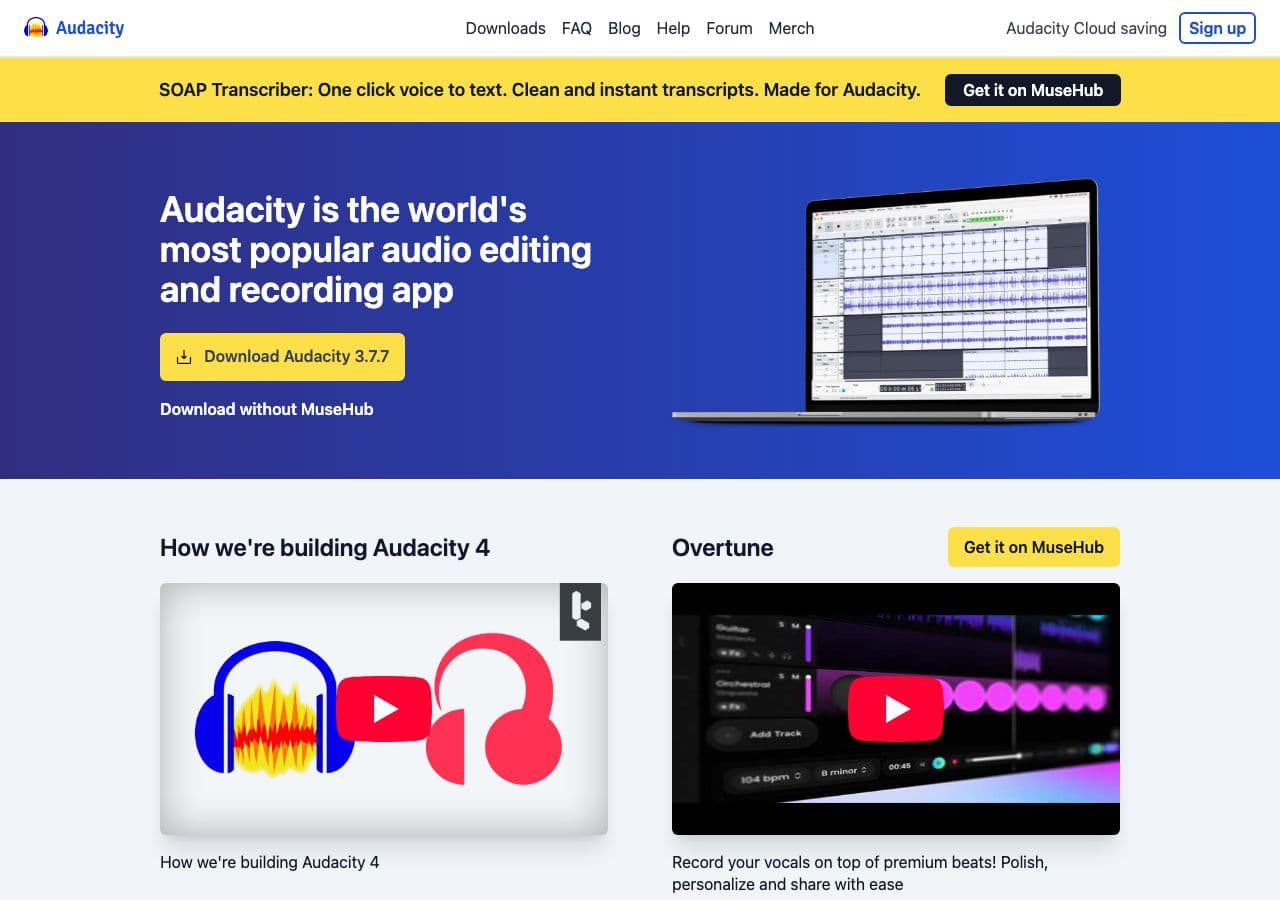
Free audio editor with MP3 export. Best for “convert and edit” workflows — trim silence, normalize volume, then export MP3. Overkill for a pure batch conversion.
File → Export → Export as MP3. Requires LAME, which Audacity bundles in recent builds.
Pricing
- Free, open source.
9. VLC
Media → Convert / Save → choose the M4A → output as MP3. VLC's converter is functional rather than polished — works fine for a one-off conversion.
Pricing
- Free, open source.
10. LAME (CLI)
The reference MP3 encoder. Use it directly when you want maximum control:
# Decode M4A to WAV first, then encode with LAME
ffmpeg -i input.m4a -f wav - | lame -V 2 - output.mp3
-V 2 is the audiophile-recommended VBR quality preset (~190 kbps average).
Pricing
- Free, open source.
11. SoX
Audio processing toolkit with MP3 output (with LAME installed):
sox input.m4a -C 192 output.mp3
Useful when chaining with other SoX effects (normalize, fade, resample).
Pricing
- Free, open source.
12. Switch Audio Converter (NCH)
Lightweight commercial audio converter for Mac and Windows. M4A → MP3 with batch and tag preservation.
Pricing
- Free home edition; paid for commercial use.
13. dBpoweramp
Premium audio converter favored by audiophiles. Best metadata handling, AccurateRip integration for CDs. Worth the price for serious music library work; overkill for casual M4A → MP3.
Pricing
- Paid.
14. afconvert (macOS CLI)
Apple's built-in audio converter, available in Terminal on every Mac:
afconvert -f MPEG -d ".mp3 192" input.m4a output.mp3
Uses Apple's MP3 encoder rather than LAME — slightly different sonic character but technically fine.
Pricing
- Free with macOS.
15. CloudConvert
Web audio converter with bitrate selection. Tag preservation. Audio files are often private (voice memos, calls); stay local for those.
Pricing
- Free tier; paid above.
16. Online Audio Converter (123apps)
Web converter with M4A → MP3 and basic editing (trim, fade). Generous free tier.
Pricing
- Free with limits; paid above.
17. Convertio
Web M4A → MP3 with quality selection.
Pricing
- Free with caps; paid above.
18. FreeConvert
Web converter with quality options.
Pricing
- Free with caps; paid above.
How to Choose
- One file, casual: the OS built-in (Music app on Mac, iTunes on Windows).
- Folder of files: FFmpeg, fre:ac, XLD, or How to Convert.
- Audio library, all formats: dBpoweramp.
- Quick one-off, no install: Online Audio Converter or another web tool.
- Voice memos / private audio: stay local.
- DRM-protected M4P: none of these tools will work. Re-purchase or play through audio capture.
Final Thoughts
M4A → MP3 is the most common audio conversion on the planet because so much audio comes out of Apple's ecosystem and so many playback devices still demand MP3. Pick a bitrate one step higher than your source M4A (192 kbps if the source is 128 kbps AAC; 320 if the source is 256), use a tool that preserves tags and album art, and your converted library will sound and behave like the original to anyone but a careful audiophile.
How to Convert
The offline file converter for Mac, Windows and Linux.
- Converts video, audio, images, documents, ebooks and more
- Everything runs locally. Your files never leave your device
- Pay once. Access forever
Get the app on Mac, Windows and Linux
