18 Best MP3 to WAV Converters in 2026 (Free and Paid)
The best MP3 to WAV converters in 2026. Compare offline desktop apps, open-source tools, and online converters for editing, transcription, audio repair, and tools that expect uncompressed WAV.
Posted by
 Jake Manger
MP3 to WAV is the conversion you do when an audio tool refuses to load an MP3 directly. Most modern DAWs (Logic, Pro Tools, Ableton, Reaper, FL Studio) read MP3, but plenty of audio plugins do not. Hardware samplers expect WAV. CD-burning software wants WAV. Some scientific audio analysis tools refuse anything that is not PCM. So the conversion happens — but it is worth understanding upfront that you are not improving the audio. MP3 → WAV simply unpacks the lossy MP3 into a larger uncompressed container; all of MP3's compression artifacts remain baked into the pixels, just stored uncompressed. This guide compares 18 MP3 to WAV converters in 2026.
The two settings that matter for MP3 → WAV are sample rate (44.1 vs 48 kHz) and bit depth (16 vs 24 bit). The next section explains how to choose.
Sample Rate and Bit Depth — What to Pick
- Sample rate: match what the MP3 has, unless the destination demands otherwise. Most MP3s are 44.1 kHz (the CD standard). Most video work uses 48 kHz. Most DAW projects pick one and stick with it.
ffprobe input.mp3tells you what the source uses. - Bit depth: 16-bit is fine for everything CD-quality. 24-bit gives more headroom if you plan to do volume adjustments, mastering, or fades in the DAW — the math works in higher precision and rounds back to 16 at export.
- Channels: stereo unless the MP3 is genuinely mono (voice).
A safe default for DAW import: 44.1 kHz, 24-bit, stereo. This is what FFmpeg's default WAV output produces if the source is 44.1 kHz stereo.
Quick Picks for MP3 → WAV
- Quick, one file: Audacity or VLC.
- Batch: FFmpeg, SoX, or fre:ac.
- For DAW import: just drop the MP3 into the DAW directly — it converts internally. Skip a second tool.
- Best CLI: FFmpeg, default settings.
- Best Mac built-in: afconvert or Music app.
One-shot: MP3 to WAV converter.
1. How to Convert (I built this one)

Drop MP3s in, pick WAV, hit convert. Default 44.1 kHz / 16-bit stereo. Optional 24-bit and 48 kHz for DAW workflows. Local.
Pricing
- One-time purchase; free web demo for single-file conversions.
 How to Convert
The offline file converter for Mac, Windows and Linux.
- Converts video, audio, images, documents, ebooks and more
- Everything runs locally. Your files never leave your device
- Pay once. Access forever
Get the app on Mac, Windows and Linux
2. FFmpeg
One-liner with matching sample rate / bit depth:
ffmpeg -i input.mp3 output.wav
Explicit 24-bit for DAW import:
ffmpeg -i input.mp3 -acodec pcm_s24le output.wav
Batch a folder:
for f in *.mp3; do ffmpeg -i "$f" "${f%.mp3}.wav"; donePricing
- Free, open source.
3. Audacity
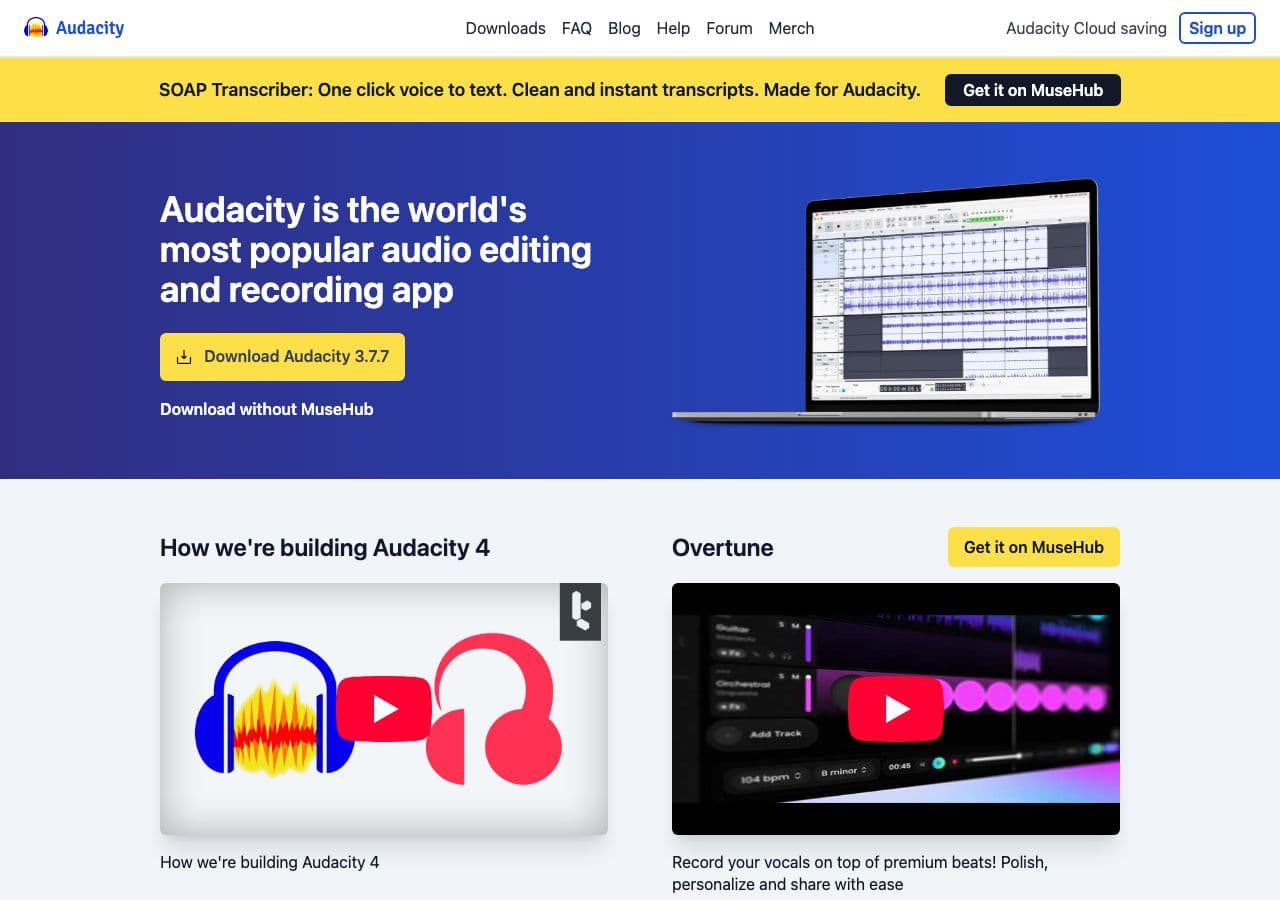
Open MP3, File → Export → WAV with chosen bit depth. The right pick when you want to edit before exporting.
Pricing
- Free, open source.
4. SoX
Audio processing toolkit:
sox input.mp3 -b 24 output.wav
Add effects in the same command (resample, normalize, fade):
sox input.mp3 -b 24 output.wav rate 48000 norm
Pricing
- Free, open source.
5. macOS Music app / afconvert
Music app: Settings → Files → Import Settings → WAV Encoder, right-click → Create WAV Version.
CLI:
afconvert -f WAVE -d LEI24 input.mp3 output.wav
LEI24 is little-endian integer 24-bit; LEI16 for 16-bit.
Pricing
- Free with macOS.
6. VLC
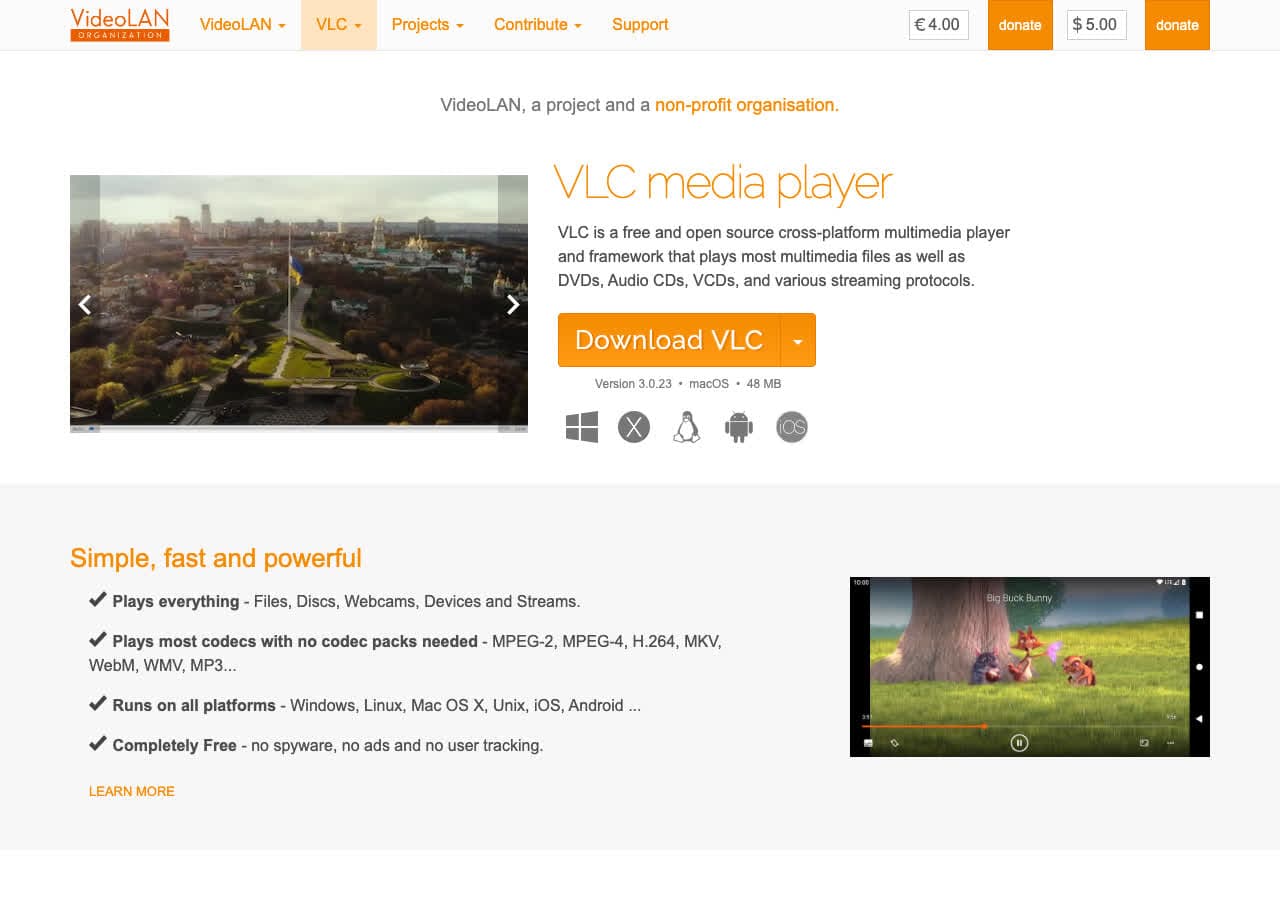
Media → Convert / Save → output WAV. Quick one-off workflow.
Pricing
- Free, open source.
7. fre:ac
Cross-platform batch converter. MP3 → WAV with bit depth choice. Preserves tags via BWF (Broadcast WAV) metadata.
Pricing
- Free, open source.
8. XLD (Mac)
Mac audiophile batch converter. Cleanest WAV output on macOS with sample-rate and bit-depth controls.
Pricing
- Free.
9. Foobar2000 (Windows)
Audiophile Windows player + converter. Tools → Convert → WAV output.
Pricing
- Free.
10. MediaHuman Audio Converter
Simple drag-and-drop batch tool.
Pricing
- Free.
11. Switch Audio Converter (NCH)
Lightweight commercial converter.
Pricing
- Free home; paid commercial.
12. dBpoweramp
Premium library converter with detailed bit-depth and dithering options. Useful for high-volume MP3 → WAV in archive workflows.
Pricing
- Paid.
13. Your DAW (Logic, Pro Tools, Ableton, Reaper, FL Studio)
If MP3 → WAV is for DAW import, skip the second tool. Drag the MP3 onto an audio track; the DAW converts to PCM internally and gives you the project sample rate and bit depth automatically.
Pricing
- Whatever your DAW costs.
14. CloudConvert
Web converter with WAV output options.
Pricing
- Free tier; paid above.
15. Convertio
Web MP3 → WAV.
Pricing
- Free with caps; paid above.
16. Online Audio Converter (123apps)
Browser-based converter.
Pricing
- Free with limits; paid above.
17. FreeConvert
Web converter.
Pricing
- Free with caps; paid above.
18. Zamzar
Long-running web converter.
Pricing
- Free with daily limits; paid above.
How to Choose
- DAW import: let the DAW do it. Skip second tools.
- Plugin or sampler: FFmpeg one-liner at 24-bit.
- Batch: FFmpeg, SoX, or fre:ac.
- One file, casual: Audacity or VLC.
- Mac CLI: afconvert.
Final Thoughts
MP3 → WAV is a container change, not a quality upgrade. The output is bigger than the source and sounds identical (which means the same artifacts as the MP3). For DAW import, the DAW does this for you — adding a second tool to the pipeline is wasted effort. For other uses, FFmpeg's default settings produce a clean, standard WAV that any audio tool will accept.
How to Convert
The offline file converter for Mac, Windows and Linux.
- Converts video, audio, images, documents, ebooks and more
- Everything runs locally. Your files never leave your device
- Pay once. Access forever
Get the app on Mac, Windows and Linux
