18 Best MP4 to OGV Converters in 2026 (Free and Paid)
The best MP4 to OGV converters for 2026. Convert MP4 to Ogg Theora video for HTML5 fallback, Wikipedia uploads, and open-source projects with these free and paid tools.
Posted by
 Jake Manger
Want to convert your MP4 to OGV right now?
Use our free single-file MP4 to OGV web demo. It runs locally on your device, so your file never leaves your computer. No uploads, no signup, no waiting in a queue.
Or read on for the 18 best MP4 to OGV converters compared.
OGV (Ogg Theora video, in the Ogg container) is the patent-free open-source video format. It is what Wikipedia and Wikimedia Commons require for video uploads, what many open-source projects standardize on, and what some HTML5 video players accept as a fallback. If you have an MP4 and need OGV, it usually is for one of those specific reasons rather than general distribution.
Theora is older and less efficient than H.264, so OGV files are usually larger than the equivalent MP4 at the same visual quality. The good news is that converting MP4 to OGV is well-supported by free tools because Theora and the Ogg container are open standards. We tested 18 desktop, command-line, and online converters to find the best options.
1. How to Convert (I built this one) - Best Local-First MP4 to OGV Converter
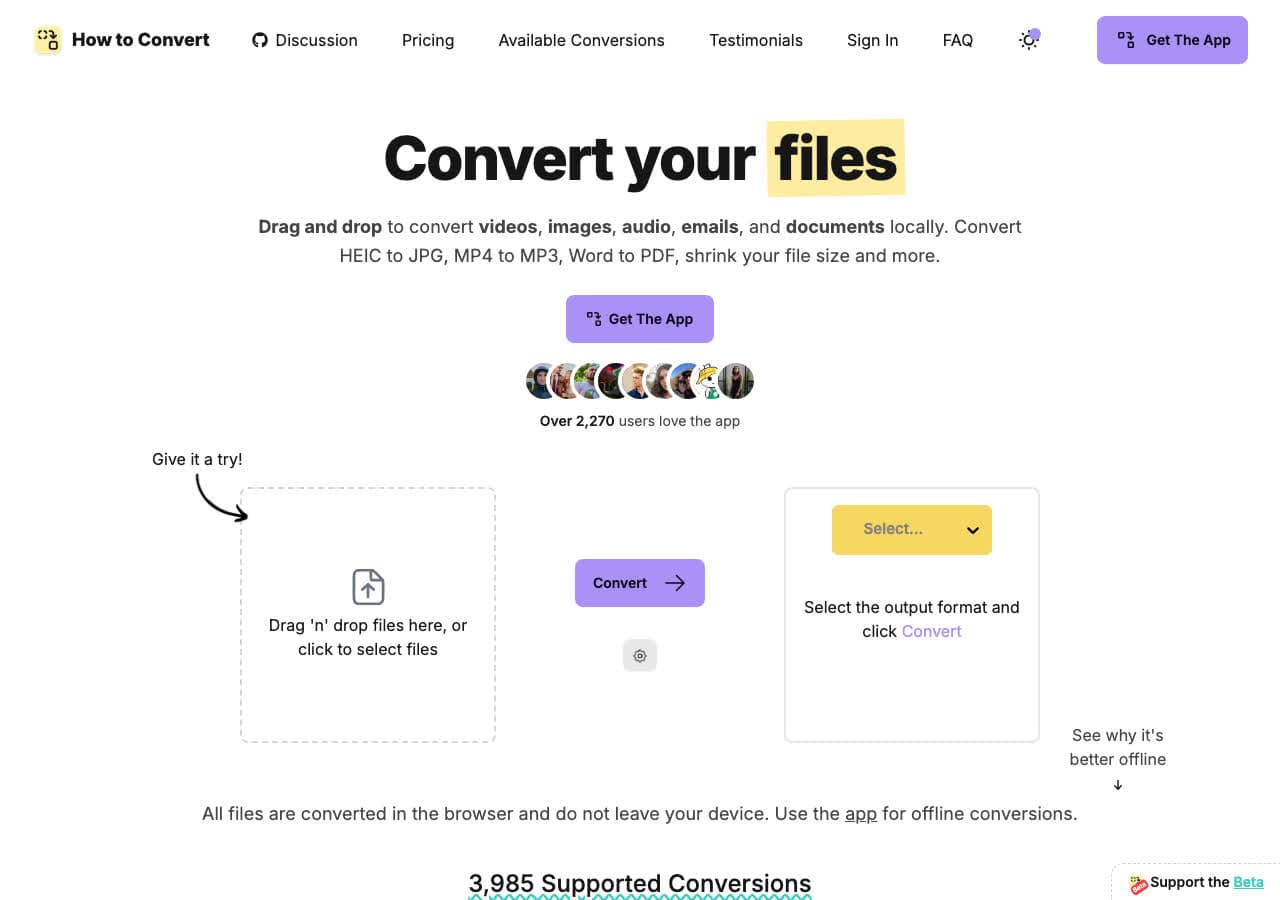
How to Convert converts MP4 to OGV locally on your device. Drop the MP4 file in, choose OGV, convert. The desktop app handles batch conversion. There is also a free browser MP4 to OGV converter for one-off jobs. Useful when you are preparing a video for Wikipedia or a project that requires patent-free formats.
Pros
- Local conversion. Files never leave your device.
- Batch convert entire folders.
- One-time purchase. No subscription.
- Mac, Windows, and Linux.
Cons
- Desktop app is a paid one-time purchase.
Pricing
- Free browser converter for common formats.
- Desktop: One-time purchase.
 How to Convert
The offline file converter for Mac, Windows and Linux.
- Converts video, audio, images, documents, ebooks and more
- Everything runs locally. Your files never leave your device
- Pay once. Access forever
Get the app on Mac, Windows and Linux
2. FFmpeg - Best Command-Line MP4 to OGV Converter
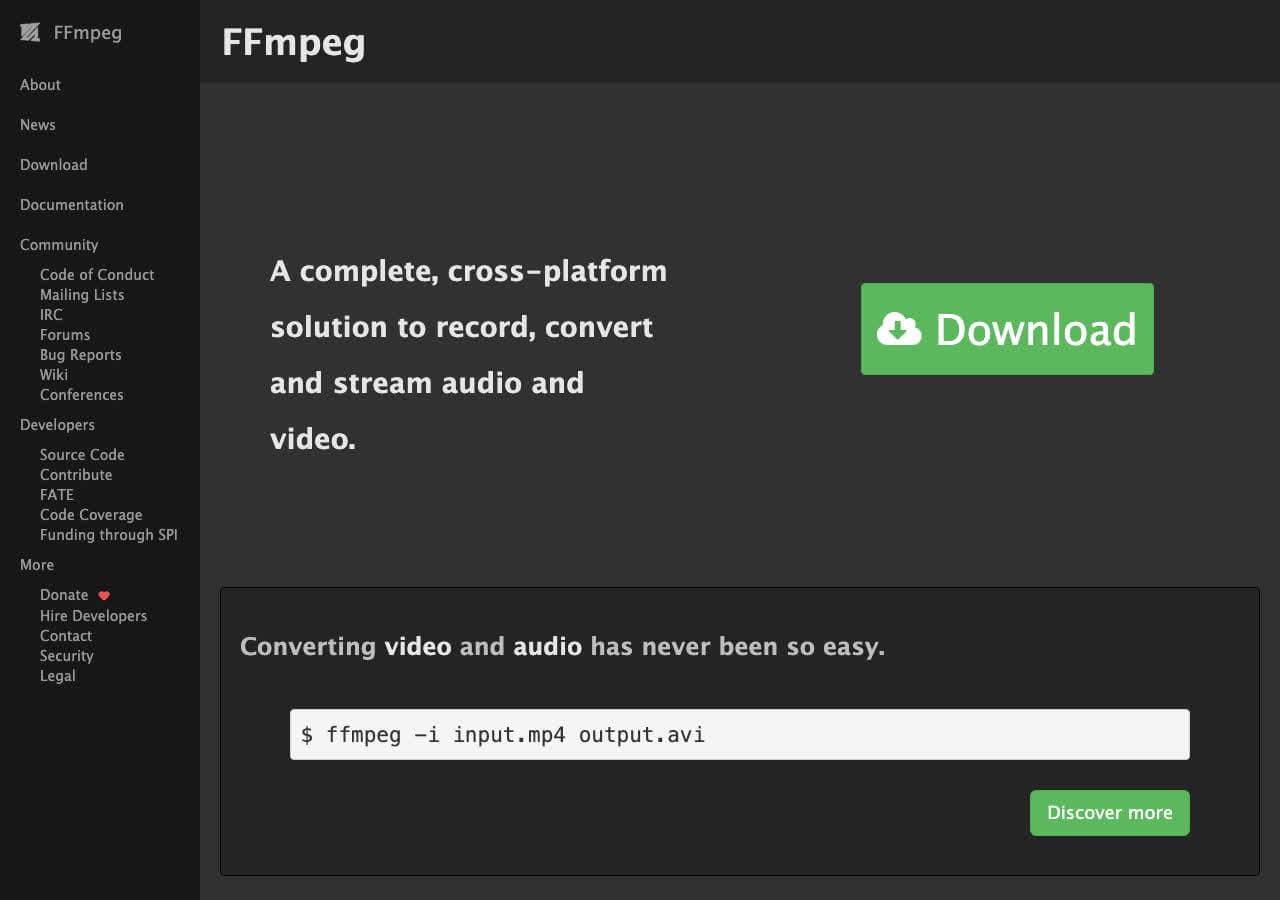
FFmpeg does MP4 to OGV with one command: ffmpeg -i input.mp4 -c:v libtheora -q:v 7 -c:a libvorbis -q:a 5 output.ogv. Theora quality scale runs 0-10 (higher is better); 7 is a sensible default. Audio is encoded with Vorbis since OGV pairs naturally with Vorbis or Opus inside Ogg.
Pros
- Full control over Theora and Vorbis quality.
- Scriptable for batch jobs.
- Free, open source, runs everywhere.
Cons
- Command-line only.
- Need libtheora and libvorbis compiled in.
Pricing
- Free (open source).
3. VLC - Best Already-Installed MP4 to OGV Tool
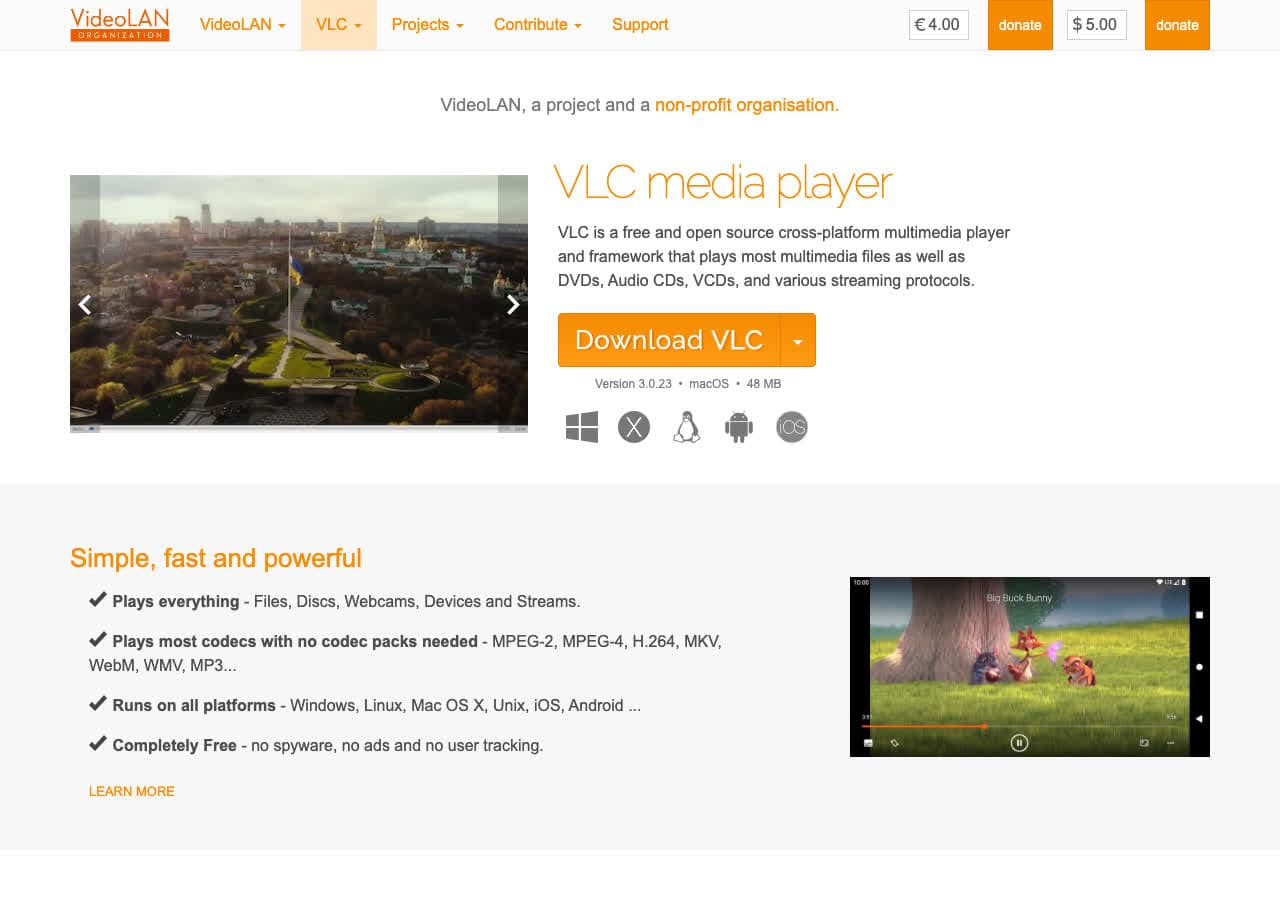
VLC includes an OGV/Theora profile under Media > Convert/Save. Add the MP4, pick the OGV profile, save with a .ogv extension. Best free GUI option when you only need an occasional conversion.
Pros
- Free, open source, probably already installed.
- Built-in OGV/Theora profile.
- Cross-platform.
Cons
- Conversion menu is buried.
- Less control than FFmpeg.
Pricing
- Free (open source, GPL).
4. Shutter Encoder - Best Free GUI for OGV Output
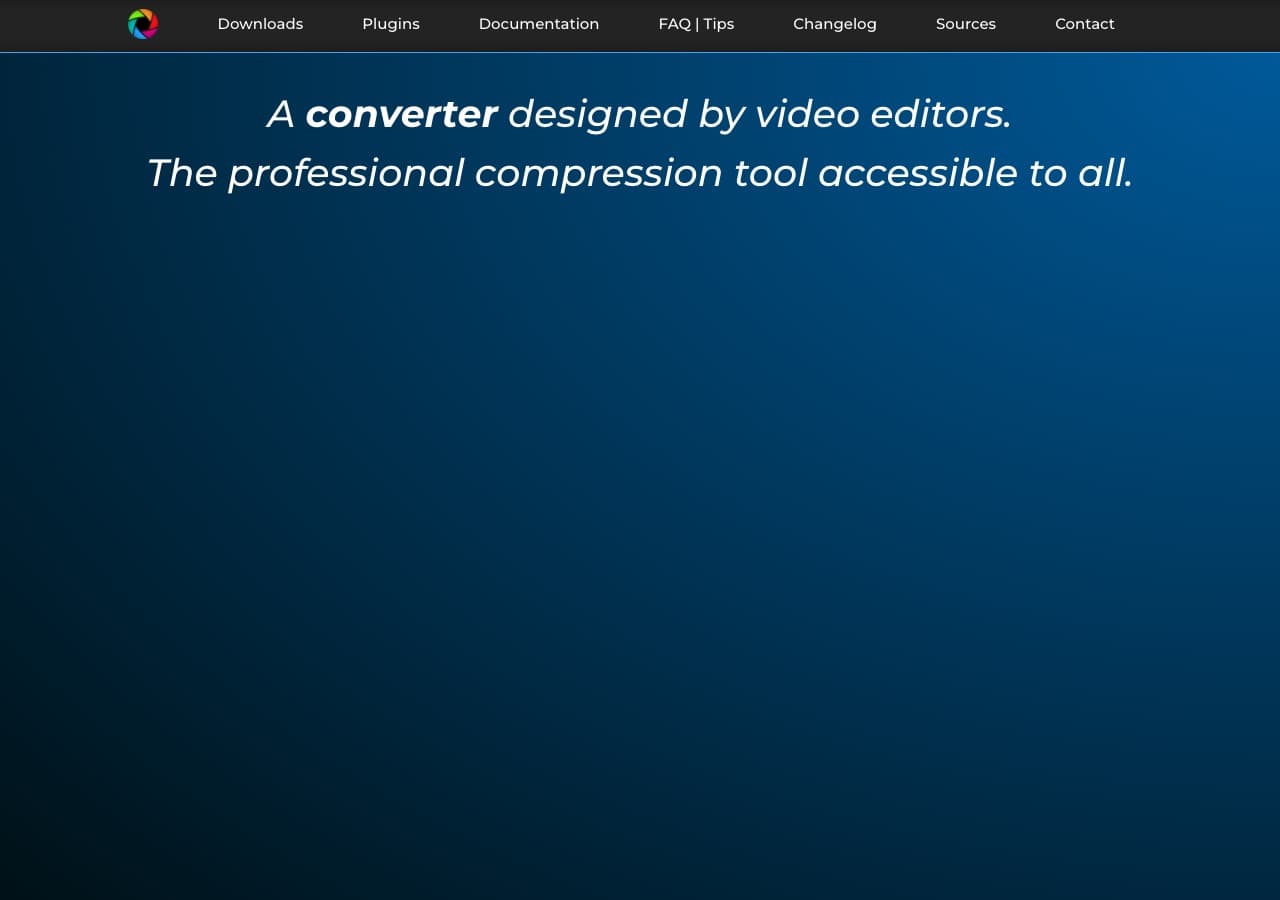
Shutter Encoder wraps FFmpeg in a clean GUI with Theora/Vorbis presets. Best free GUI for batch MP4 to OGV jobs with quality control.
Pros
- Theora and Vorbis presets.
- Detailed quality controls.
- Excellent for batch jobs.
- Free, cross-platform.
Cons
- UI has a lot of options.
Pricing
- Free (donations welcome).
5. HandBrake - Does Not Output OGV
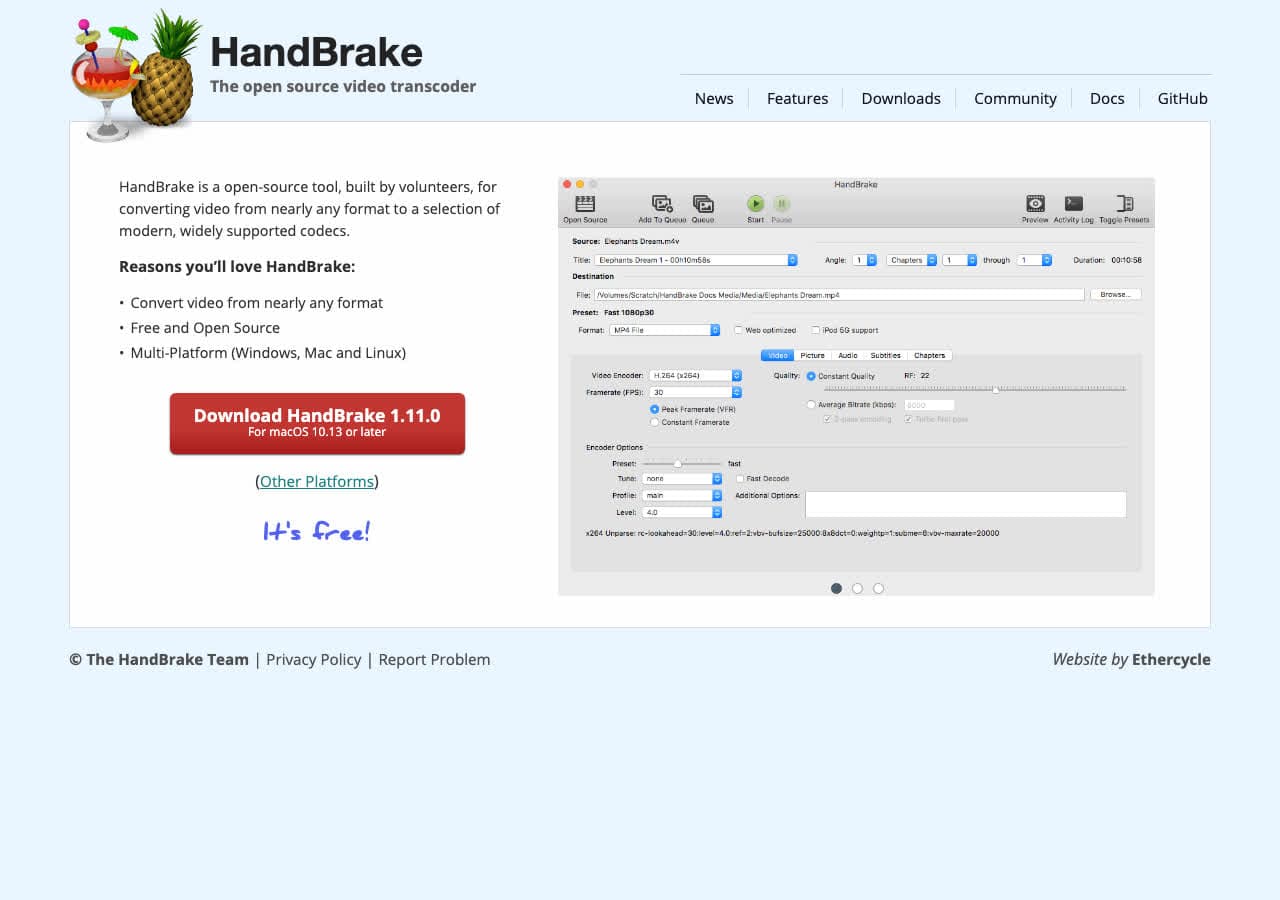
HandBrake outputs MP4, MKV, and WebM only. It does not produce .ogv. We include it because so many guides incorrectly claim HandBrake handles every format. For OGV, use FFmpeg, VLC, or Shutter Encoder.
Pros
- Best-in-class for MP4/MKV/WebM output.
- Free, open source.
Cons
- Does not output OGV.
Pricing
- Free (open source).
6. Wondershare UniConverter - Polished Paid OGV App
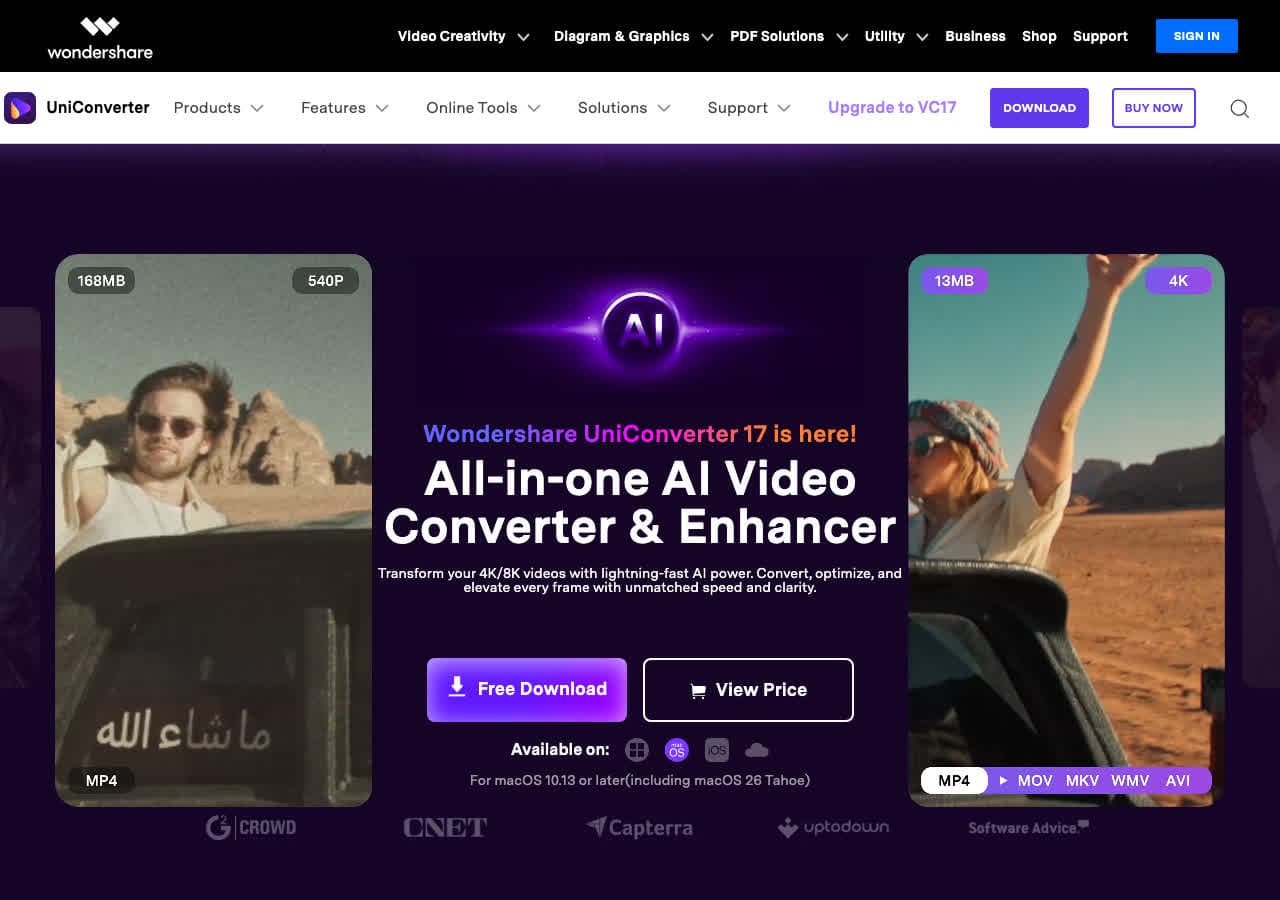
Wondershare UniConverter handles MP4 to OGV through a polished UI with hardware acceleration. Drop the MP4, pick OGV, convert.
Pros
- Polished UI.
- Hardware acceleration.
- Mac and Windows.
Cons
- Paid software.
- Free trial limits output length.
Pricing
- Subscription: From around $40/year.
- Lifetime: Around $80 one-time.
How to Convert
The offline file converter for Mac, Windows and Linux.
- Converts video, audio, images, documents, ebooks and more
- Everything runs locally. Your files never leave your device
- Pay once. Access forever
Get the app on Mac, Windows and Linux
7. Movavi Video Converter - Beginner-Friendly OGV Tool
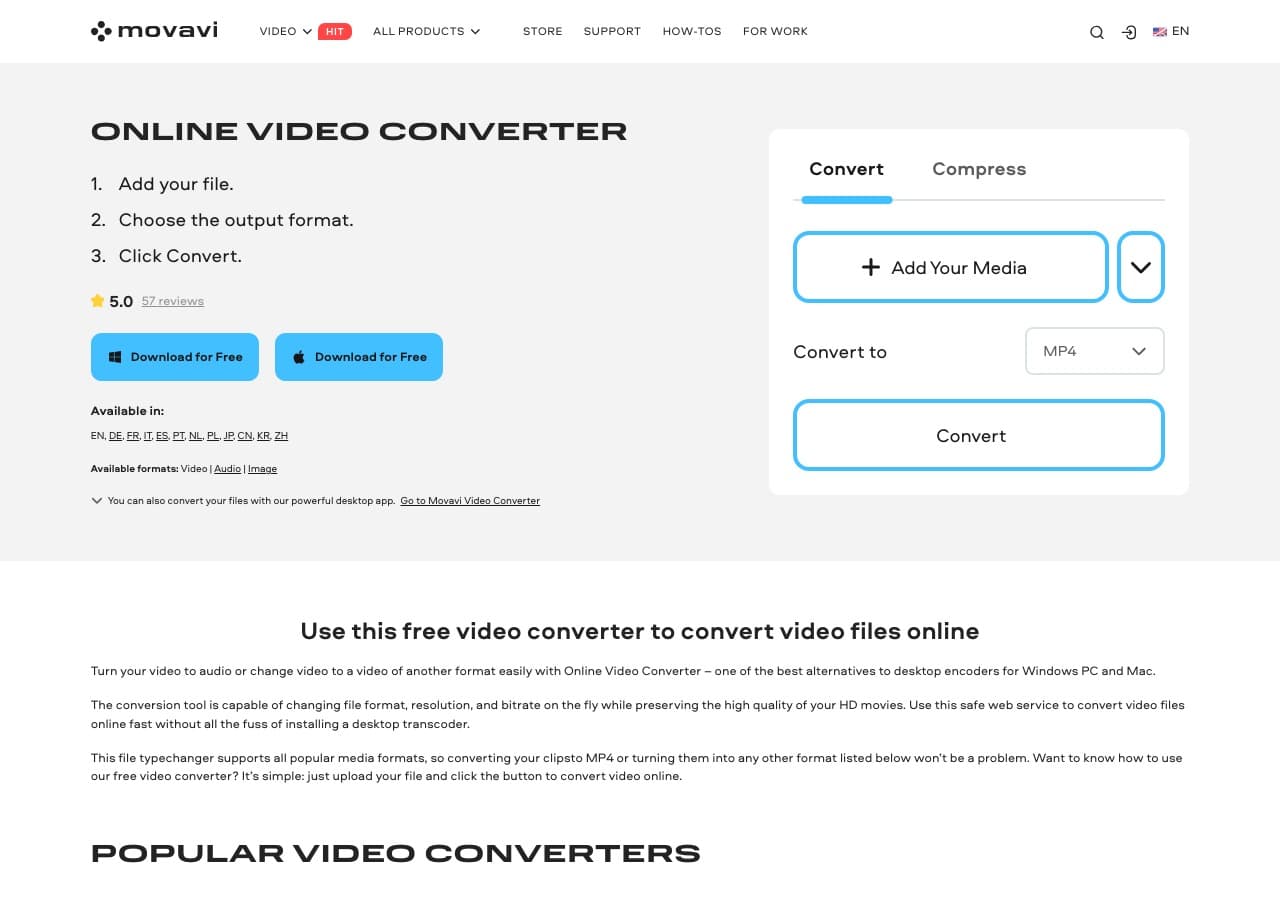
Movavi Video Converter includes OGV as one of the output presets. Friendly UI for non-technical users, with built-in trim and merge.
Pros
- Very beginner-friendly.
- Built-in trim and merge.
- Mac and Windows.
Cons
- Paid software.
- Persistent upsell prompts.
Pricing
- Subscription: Around $40/year.
- Lifetime: Around $50 one-time.
8. Any Video Converter - Free Windows MP4 to OGV
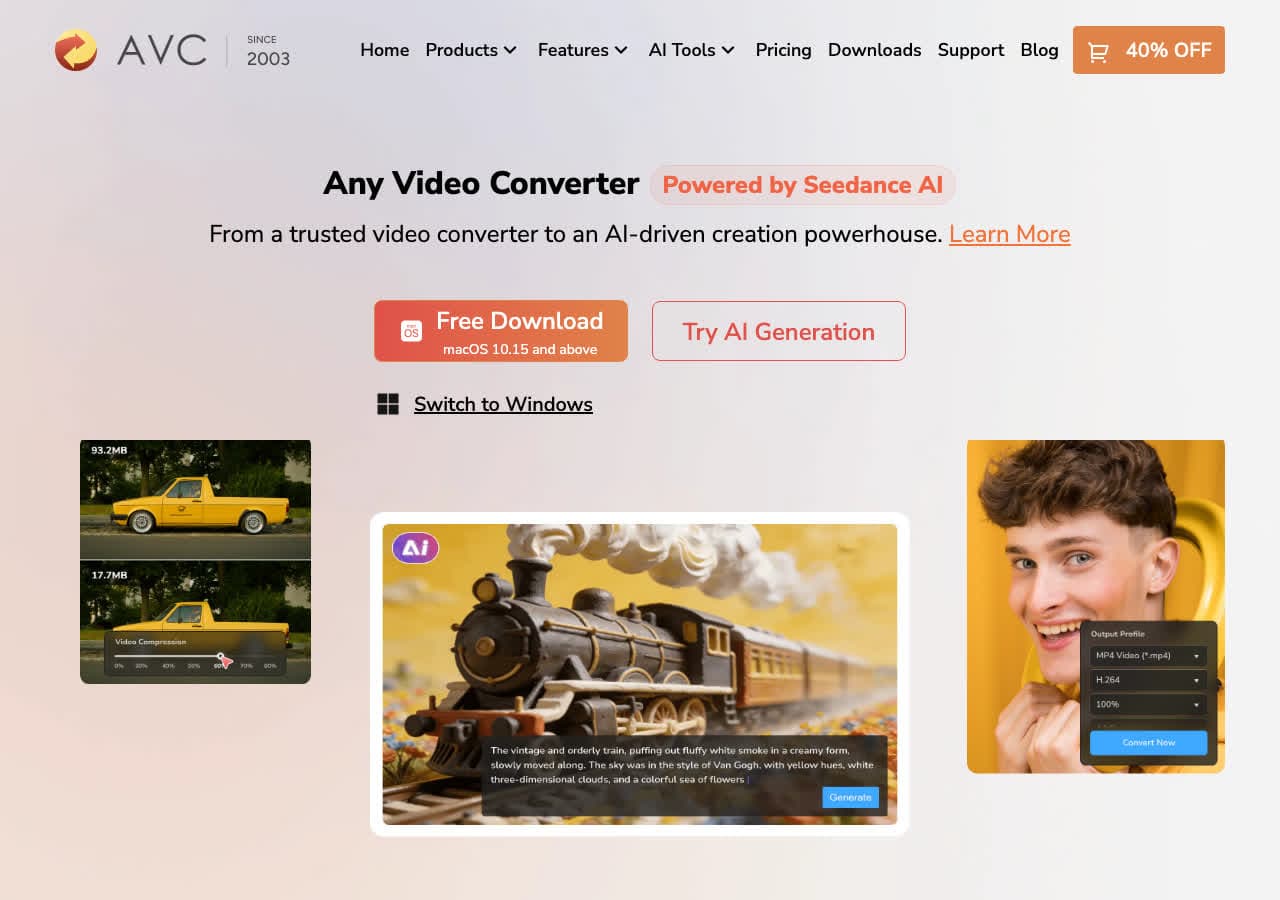
Any Video Converter (Free edition) supports OGV output and runs batch jobs. Free for personal use. Decline bundled offers during install.
Pros
- Free OGV output.
- Batch friendly.
- Mac and Windows.
Cons
- Installer may bundle offers.
- UI feels dated.
Pricing
- Free edition available.
- Pro: One-time around $50.
9. Freemake Video Converter - Familiar Windows Tool
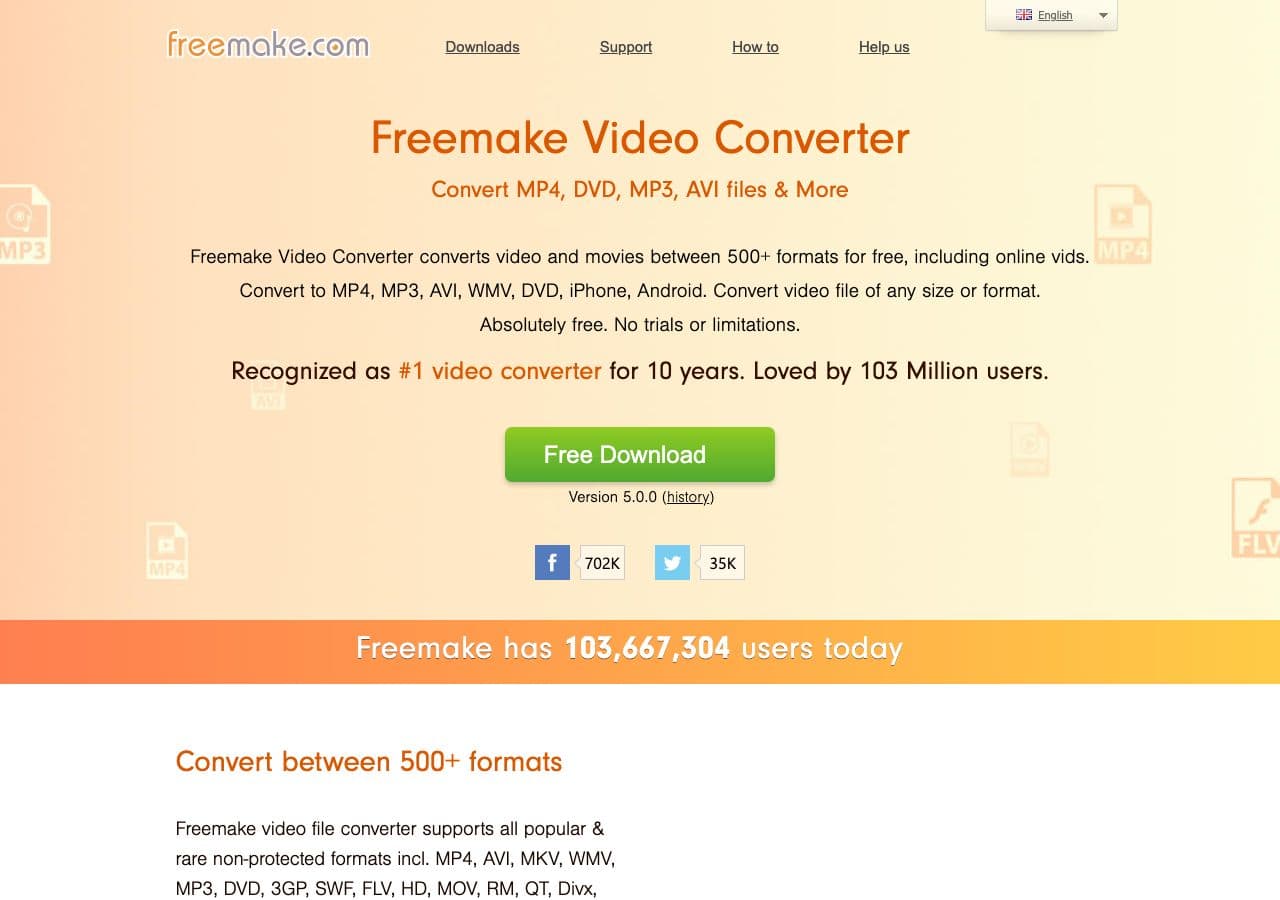
Freemake Video Converter handles MP4 to OGV. Free version adds a watermark. Use the official download and decline bundled offers.
Pros
- Friendly UI.
- Familiar to Windows users.
Cons
- Free version watermark.
- Installer may bundle offers.
- Windows only.
Pricing
- Free with watermark.
- Gold Pack: Around $20 one-time.
10. Switch by NCH - Reliable Batch MP4 to OGV
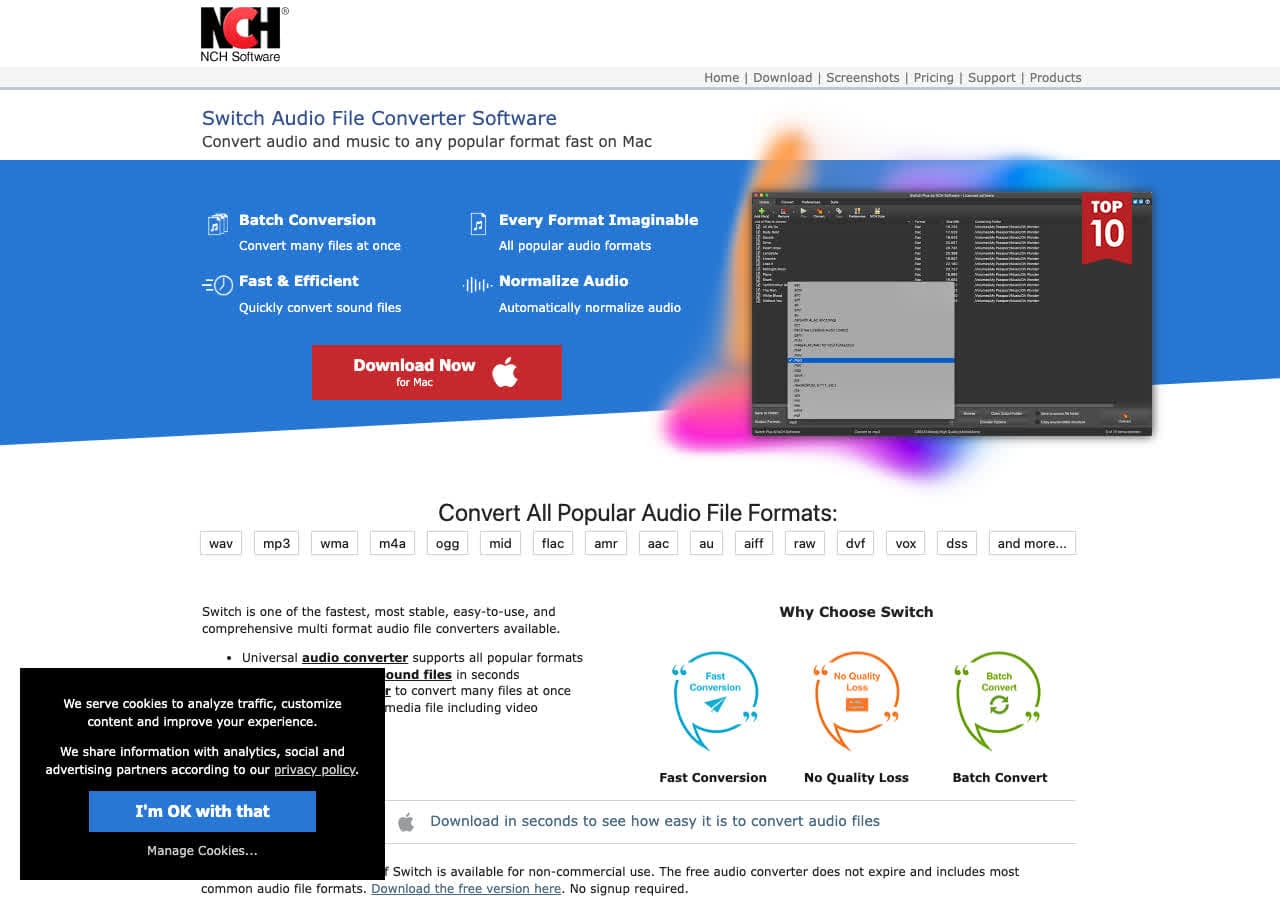
Switch by NCH includes OGV in its output options. Reliable for repeatable jobs. Free for personal, paid for commercial.
Pros
- Simple batch queue.
- Mac and Windows.
Cons
- Dated UI.
- Personal vs commercial license confusion.
Pricing
- Free for non-commercial use.
- Plus: Around $35 one-time.
11. Prism Video Converter - Lightweight OGV Tool
Prism Video Converter outputs OGV with low system requirements. Good fit for older machines. Same NCH licensing as Switch.
Pros
- Lightweight, runs on older hardware.
- Mac and Windows.
Cons
- UI feels dated.
Pricing
- Free for non-commercial use.
- Plus: Around $50 one-time.
12. Permute - Best Mac-Native MP4 to OGV
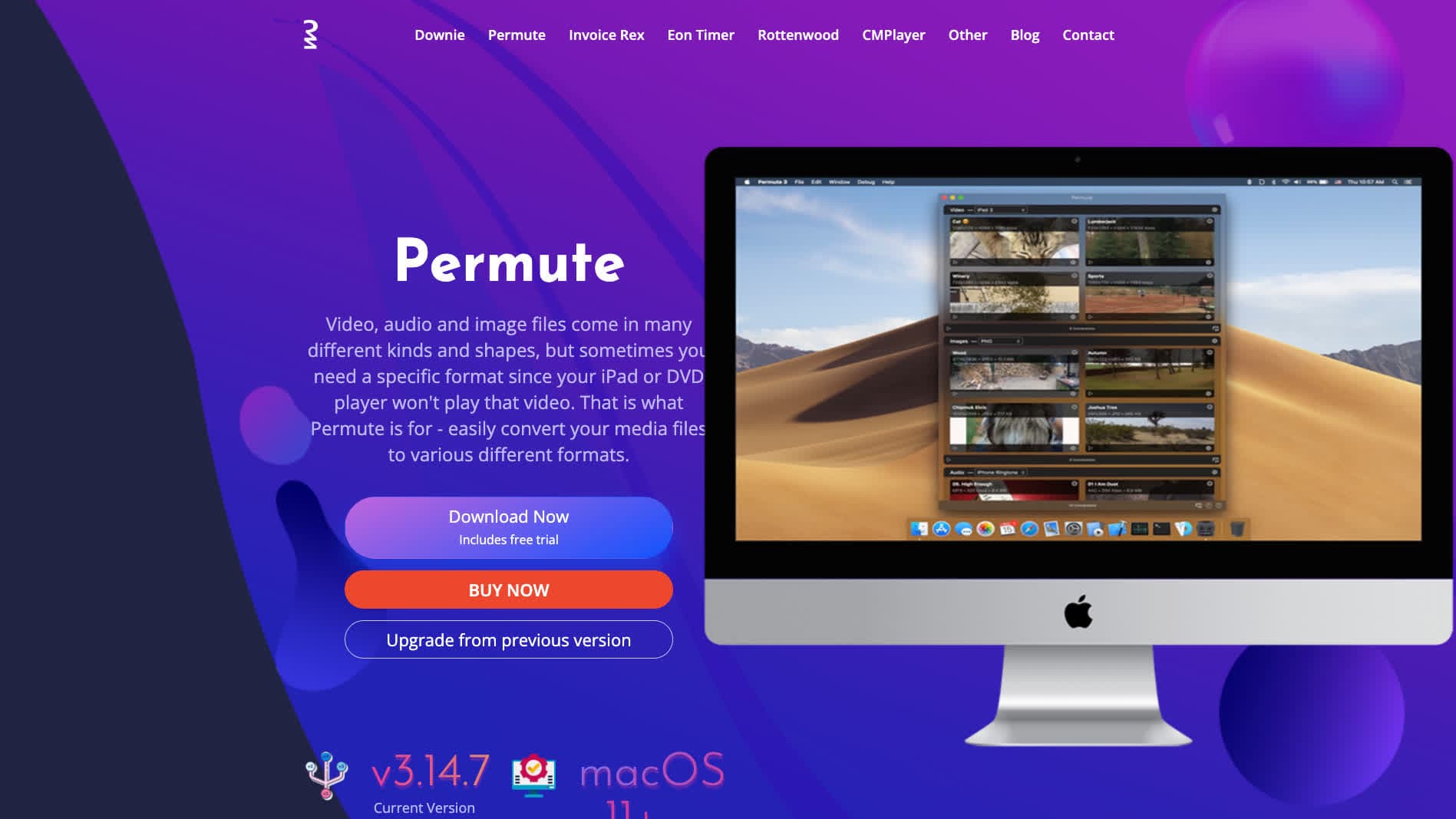
Permute is a Mac app that uses FFmpeg under the hood. Supports OGV with drag-and-drop simplicity.
Pros
- Native Mac UI.
- Drag-and-drop.
- FFmpeg under the hood.
Cons
- Mac only.
- Paid app.
Pricing
- One-time around $20 (or via Setapp).
How to Convert
The offline file converter for Mac, Windows and Linux.
- Converts video, audio, images, documents, ebooks and more
- Everything runs locally. Your files never leave your device
- Pay once. Access forever
Get the app on Mac, Windows and Linux
13. CloudConvert - Best Online MP4 to OGV
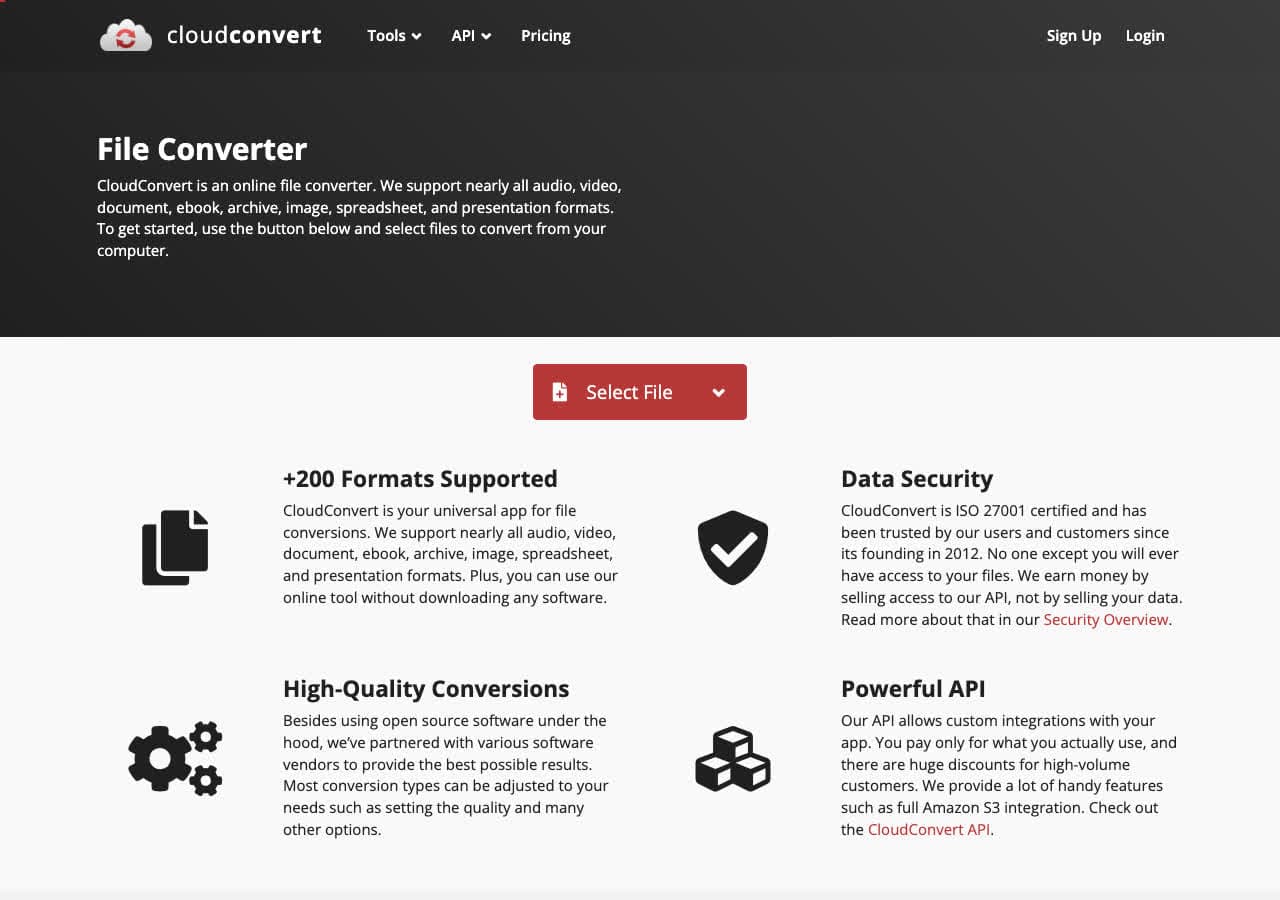
CloudConvert offers a dedicated MP4 to OGV page with bitrate control. Free tier allows 25 conversion minutes per day.
Pros
- No installation required.
- Adjustable bitrate.
- API for automation.
Cons
- Files uploaded to the cloud.
- Free tier limited for large jobs.
Pricing
- Free: 25 minutes per day.
- Paid: From $9 for 500 minutes.
14. Convertio - Simple Online MP4 to OGV
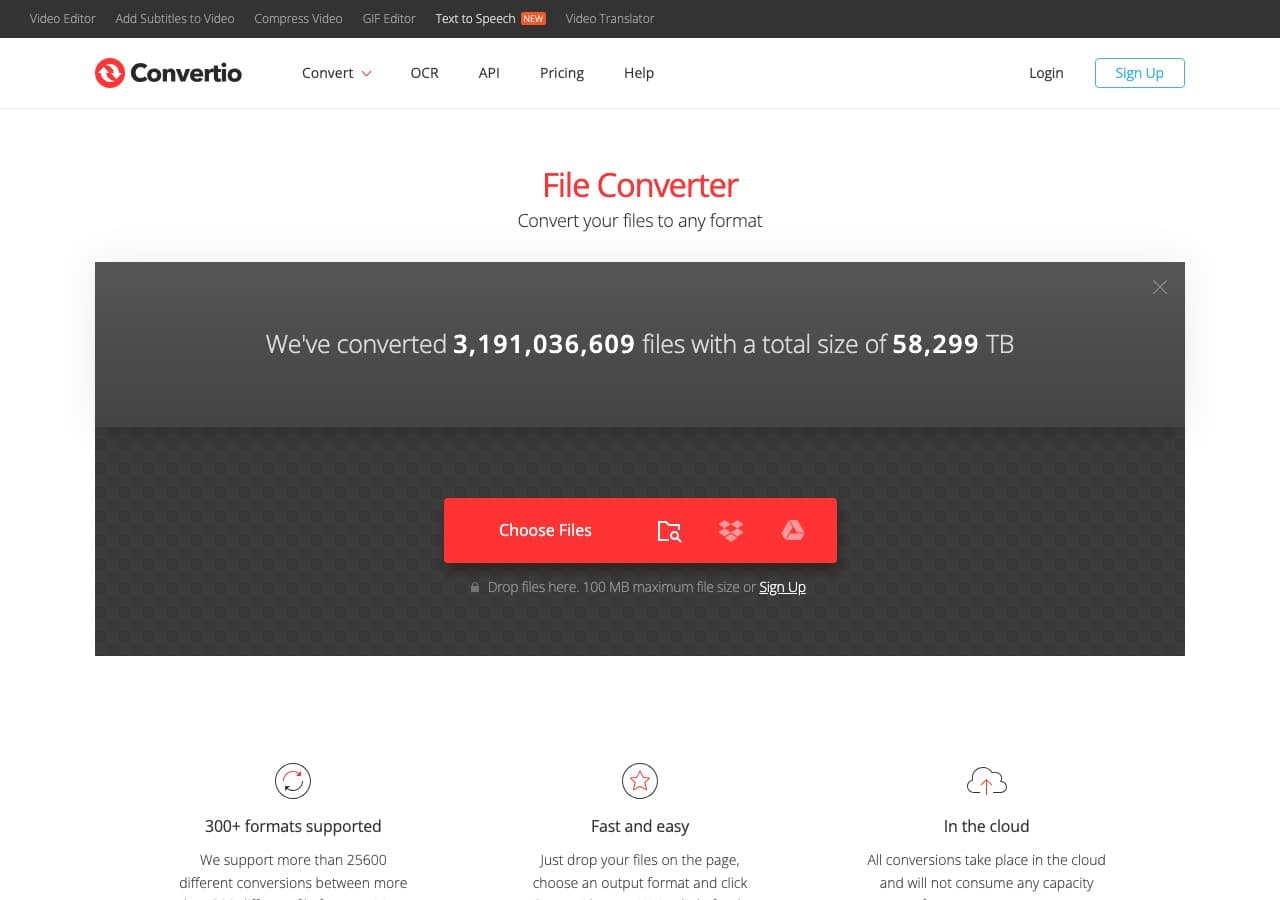
Convertio offers a clean MP4 to OGV flow with cloud storage integration.
Pros
- Clean, simple UI.
- Google Drive and Dropbox integration.
- 100 MB free file size.
Cons
- Files uploaded to the cloud.
- Free tier limited to about 10 minutes per day.
Pricing
- Free: 100 MB, 10 minutes per day.
- Light: From $9.99/month.
15. Zamzar - Easiest Online MP4 to OGV
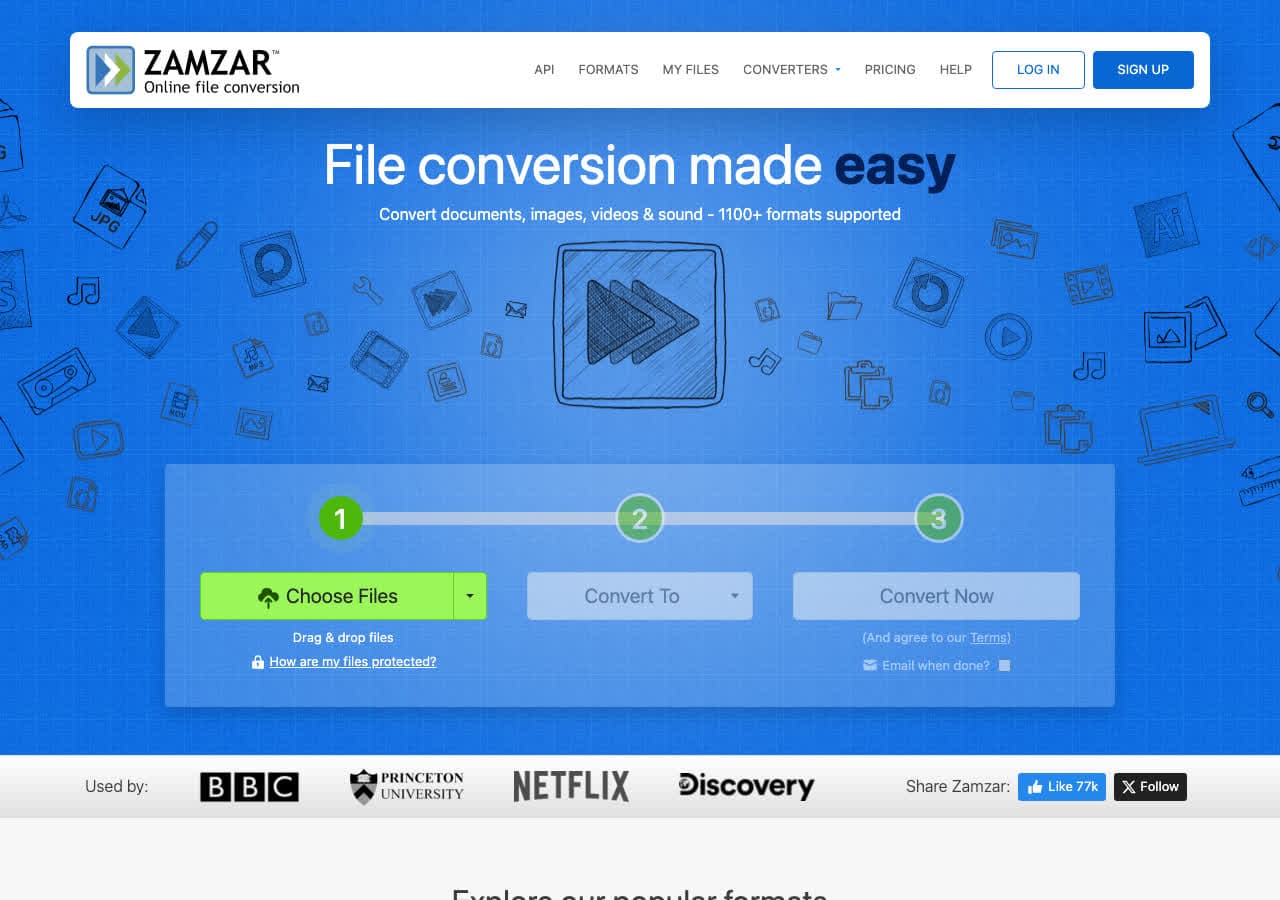
Zamzar is the simplest online MP4 to OGV converter. Free tier allows 2 conversions per day, 50 MB.
Pros
- Dead-simple workflow.
- No account needed.
Cons
- 2 free conversions per day.
- 50 MB free file cap.
Pricing
- Free: 2 conversions per day, 50 MB.
- Basic: From $18/month.
16. FreeConvert - Generous Free Tier
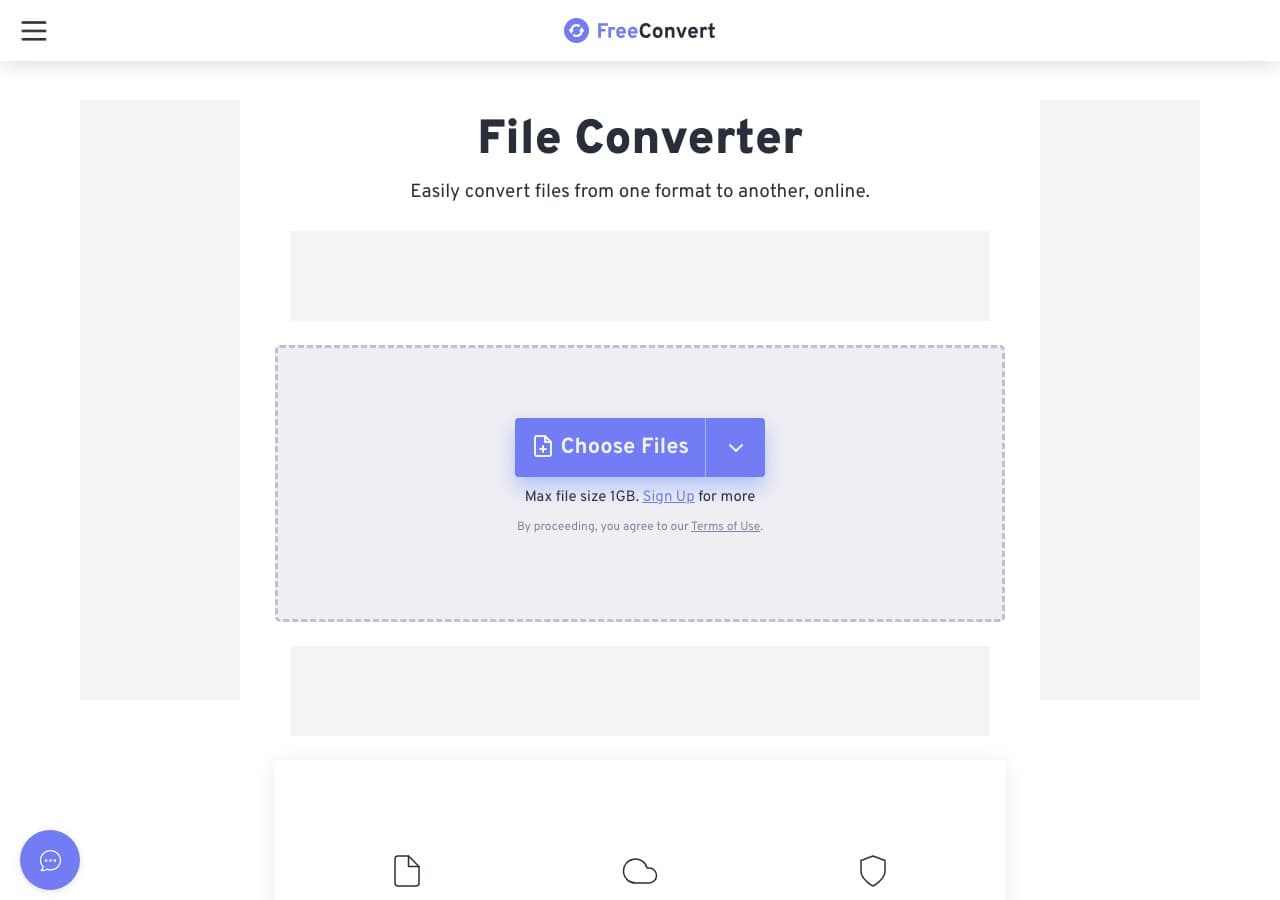
FreeConvert handles MP4 to OGV with a 1 GB free file size limit and adjustable codec settings.
Pros
- 1 GB free file size limit.
- Advanced bitrate and codec settings.
Cons
- Files uploaded to servers.
- Daily usage limits on free tier.
Pricing
- Free: 1 GB file size limit.
- Pro: From $9.99/month.
17. Online-Convert - Most Detailed OGV Output
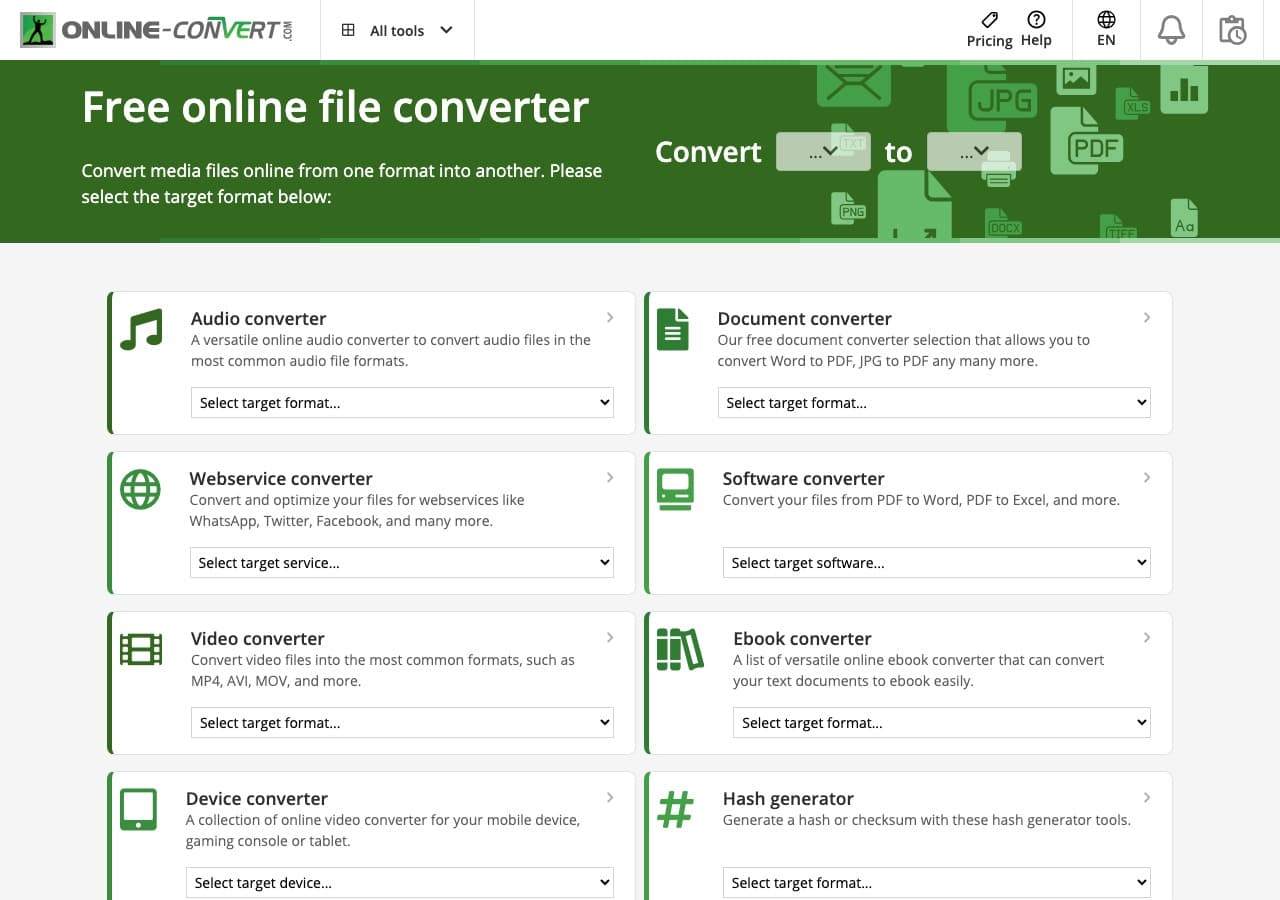
Online-Convert exposes the most detailed output controls: codec, bitrate, frame rate, audio settings, crop, rotate.
Pros
- Most detailed settings of any web tool.
Cons
- Cluttered UI with ads.
- 100 MB free file size limit.
Pricing
- Free with ads.
- Paid: From $7.99/month.
18. Adapter - Minimal MP4 to OGV Tool
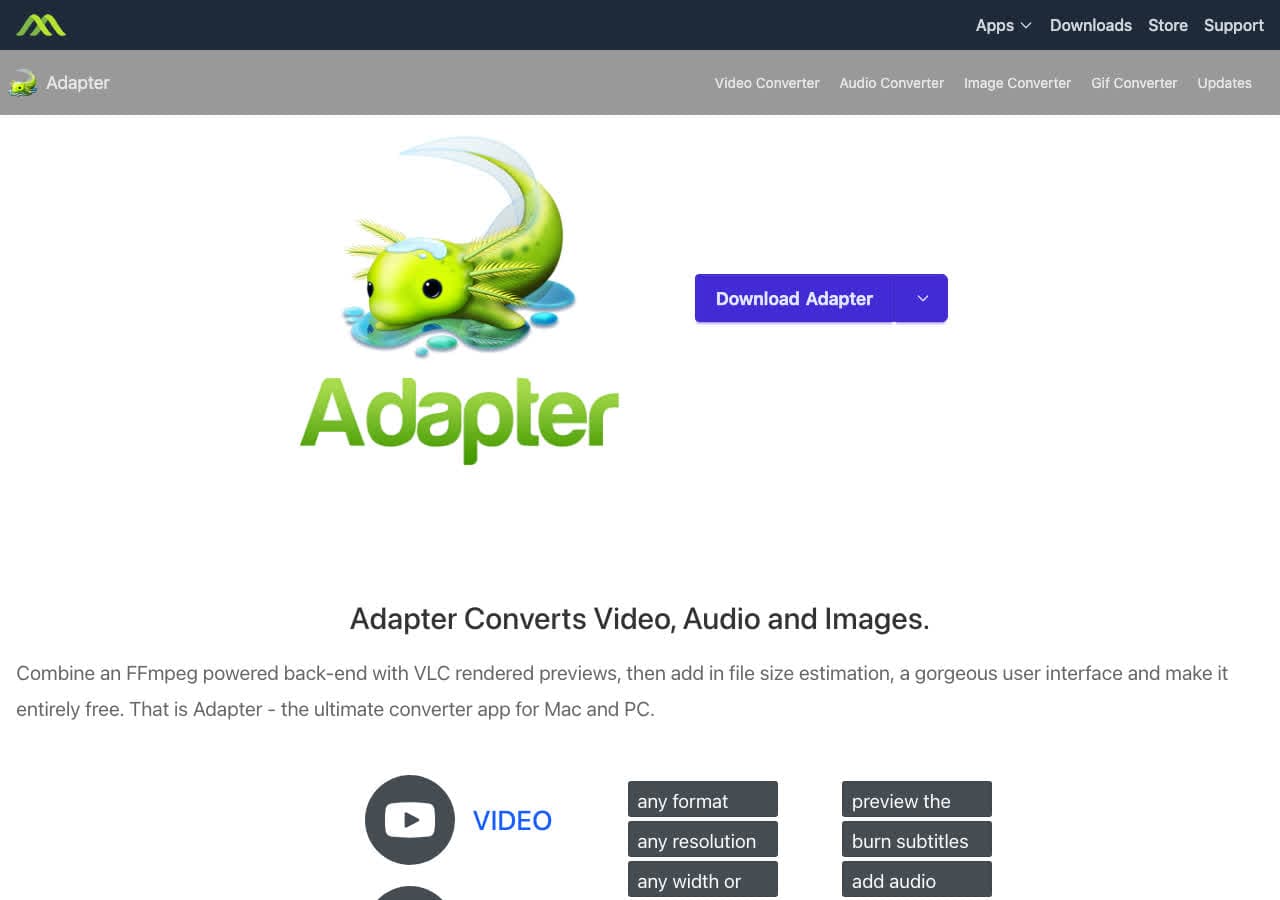
Adapter is a free FFmpeg-based converter on Mac and Windows. Drag in an MP4, pick OGV, convert.
Pros
- Minimal UI.
- Free, FFmpeg-based.
Cons
- Development has slowed.
Pricing
- Free.
Frequently Asked Questions
Why would I want OGV instead of MP4?
OGV is the patent-free open-source video format. Wikipedia and Wikimedia Commons require it for video uploads. Some open-source projects standardize on it for licensing reasons. Some HTML5 video players accept it as a fallback. For general distribution, MP4 (H.264) is more efficient and more compatible, so use OGV only when you specifically need an open format.
Will my OGV file be larger than the MP4?
Usually yes. Theora is older and less efficient than H.264 (MP4) at the same visual quality. Expect OGV files to be around 30-50% larger than the equivalent MP4 unless you accept lower quality settings.
What audio codec should an OGV file use?
Vorbis is the traditional pairing for Theora video inside Ogg, and almost every player that supports OGV also supports Vorbis. Opus is more efficient but newer; check that your target platform supports it before using it.
Final Thoughts
For one-off MP4 to OGV conversion in the browser, our free MP4 to OGV converter handles the file locally. For batch jobs or precise quality control, FFmpeg or Shutter Encoder are the strongest free options. For a polished local app that handles MP4 to OGV alongside every other format, How to Convert is the cross-platform pick.
How to Convert
The offline file converter for Mac, Windows and Linux.
- Converts video, audio, images, documents, ebooks and more
- Everything runs locally. Your files never leave your device
- Pay once. Access forever
Get the app on Mac, Windows and Linux
