18 Best PDF to PNG Converters in 2026 (Free and Paid)
The best PDF to PNG converters in 2026. Compare offline desktop apps, open-source tools, and online converters for extracting crisp pages, slides, receipts, and document previews.
Posted by
 Jake Manger
PDF to PNG is the conversion you reach for when you need to take pages out of a PDF and use them as images — a slide for a blog post, a contract page for a chat thread, a receipt as proof, a page of a report turned into a thumbnail. PNG keeps the text and lines crisp, which is what you almost always want from a PDF page. The conversion sounds simple, but the difference between a good tool and a bad one is the DPI you can pick, whether the page extraction is clean, and whether you can grab page 17 specifically rather than all 200 pages. This guide compares 18 PDF to PNG converters in 2026.
Also worth knowing: PDF pages do not have a fixed pixel resolution — they are vector descriptions that get rasterized at whatever DPI you ask for. Picking the right DPI is half the battle, and the next section covers it.
What DPI Should You Use?
A PDF page does not have pixels. It has glyphs, vectors, and possibly embedded images. When you convert to PNG, the tool rasterizes the page at the DPI you specify. The right number depends on what you are going to do with the PNG:
- 72 DPI — screen thumbnail. Fine for a preview tile or a small inline image. A US Letter page becomes 612×792 pixels.
- 150 DPI — comfortable reading size on a Retina or 4K screen. A US Letter page becomes 1275×1650 pixels. The default in most tools.
- 300 DPI — print quality. Use this if the PNG will end up printed, on a slide deck projector, or zoomed in for detail review. US Letter → 2550×3300.
- 600+ DPI — archival or further OCR. Big files. Rarely necessary.
When in doubt, 200 DPI is a good general-purpose default — clear on any modern screen, not absurdly large.
Quick Picks for PDF → PNG
- One page, fastest: Preview on Mac, or any PDF viewer on Windows + screenshot.
- All pages of a PDF as PNGs:
pdftoppm(CLI), ImageMagick, or How to Convert. - Specific page range:
pdftoppm -f 3 -l 5or any tool below with a page selector. - Print or zoom-quality output: 300 DPI from any tool that lets you set it.
- Sensitive PDF (contracts, IDs, medical): stay local. Skip web converters.
One-shot: PDF to PNG converter.
1. How to Convert (I built this one)

Drop a PDF in, choose page range or all-pages, set DPI, hit convert. One PNG per page out. Local — sensitive PDFs stay on your machine. The DPI picker is exposed (not buried), so you do not get a surprise 72-DPI output when you wanted 300.
Pricing
- One-time purchase; free web demo for single-file conversions.
 How to Convert
The offline file converter for Mac, Windows and Linux.
- Converts video, audio, images, documents, ebooks and more
- Everything runs locally. Your files never leave your device
- Pay once. Access forever
Get the app on Mac, Windows and Linux
2. pdftoppm — best command-line PDF-to-PNG
Part of the Poppler tools. The cleanest, fastest CLI for rasterizing PDFs. Available via Homebrew (brew install poppler), apt (apt install poppler-utils), or Chocolatey.
Convert all pages at 200 DPI:
pdftoppm -png -r 200 input.pdf page
Result: page-1.png, page-2.png, etc.
Specific page range (pages 3 through 5):
pdftoppm -png -r 200 -f 3 -l 5 input.pdf page
Single page (page 7), at 300 DPI:
pdftoppm -png -r 300 -f 7 -l 7 input.pdf page-7-only
The cleanest output of any tool — uses Poppler's renderer which matches what Adobe Reader shows.
Pricing
- Free, open source.
3. ImageMagick
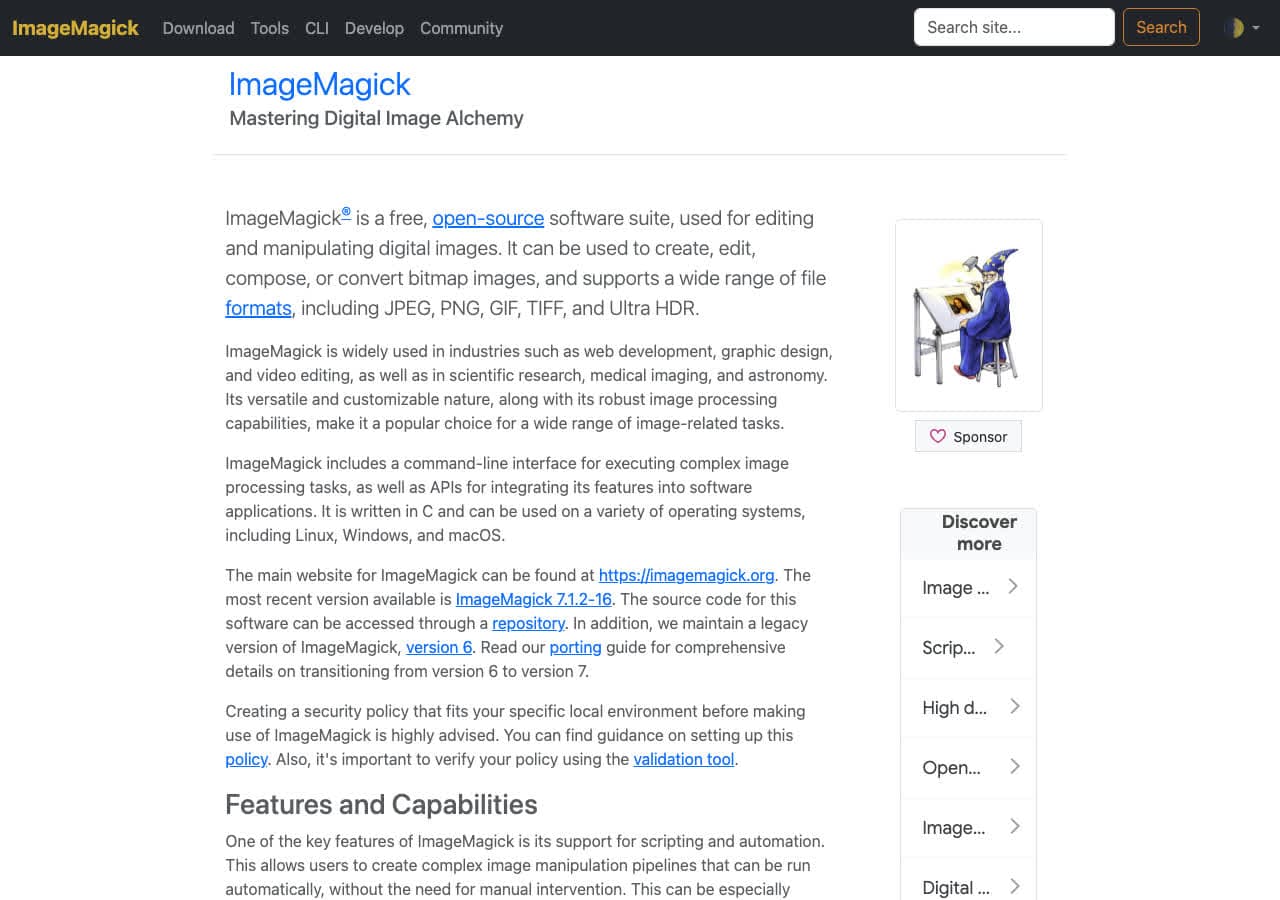
ImageMagick uses Ghostscript under the hood for PDF rendering, so install both (brew install ghostscript).
All pages at 200 DPI:
magick -density 200 input.pdf page-%03d.png
Single page (page 5, zero-indexed):
magick -density 200 input.pdf[4] page-5.png
Page range (pages 3–5):
magick -density 200 "input.pdf[2-4]" page-%03d.png
ImageMagick is more flexible than pdftoppm for chaining other transformations (resize, crop, color profile) into the same command, at the cost of a Ghostscript dependency and slightly slower rendering.
Pricing
- Free, open source.
4. macOS Preview
Open the PDF in Preview, click a page in the sidebar, File → Export → PNG. Set the resolution in the export dialog. Quick for one or two pages; tedious for a whole document.
For multiple pages, select them in the sidebar, drag them onto the desktop — Preview drops each as a PDF, which you then convert with another tool. Use pdftoppm or sips instead for batches.
CLI on Mac via sips (single page at a time):
sips -s format png input.pdf --out output.png
Note: sips only converts the first page of a multi-page PDF.
Pricing
- Free with macOS.
5. PDF24
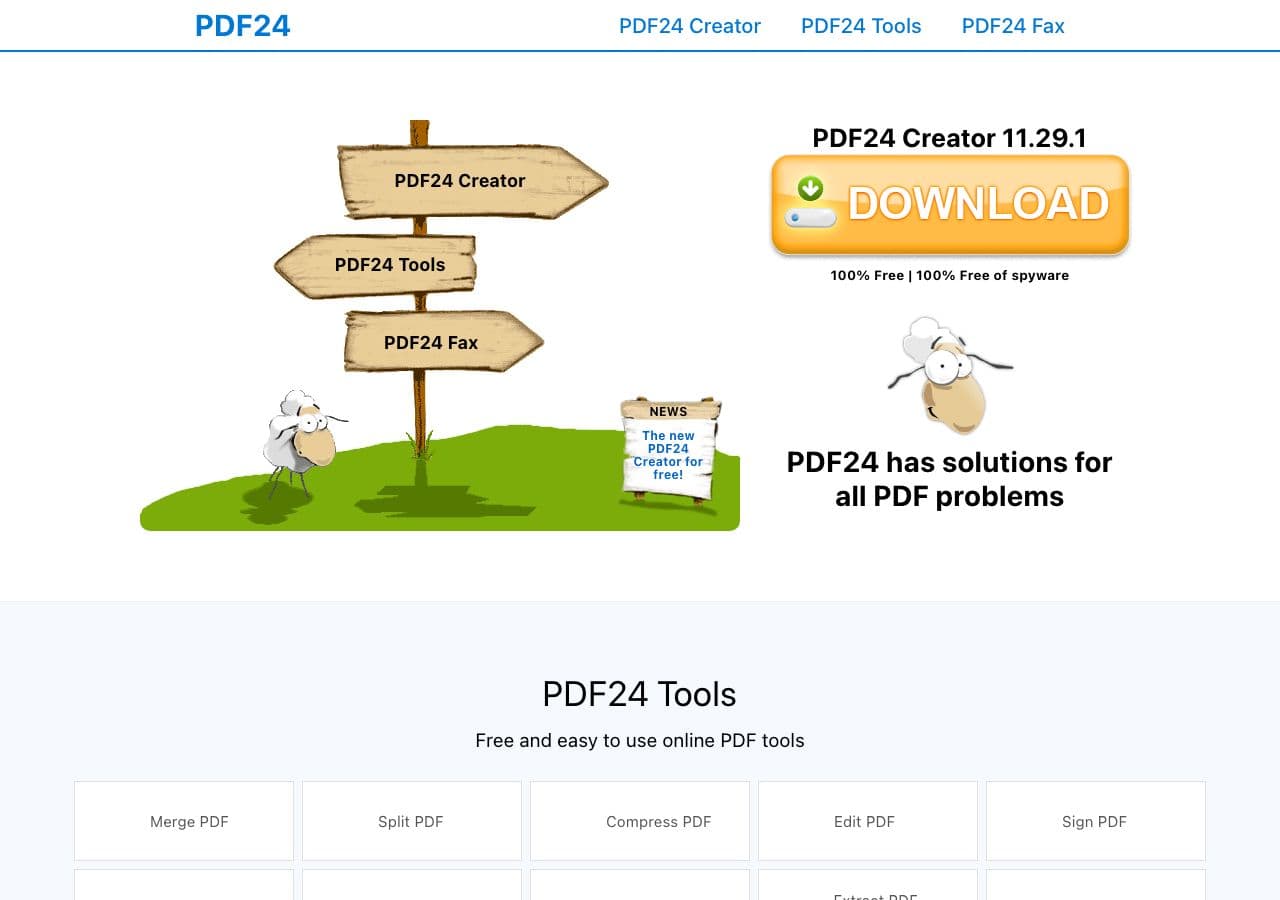
Free Windows toolkit. PDF → Image tool with PNG output, page-range selector, and DPI control. Best free Windows option.
Pricing
- Free for personal use.
6. Adobe Acrobat
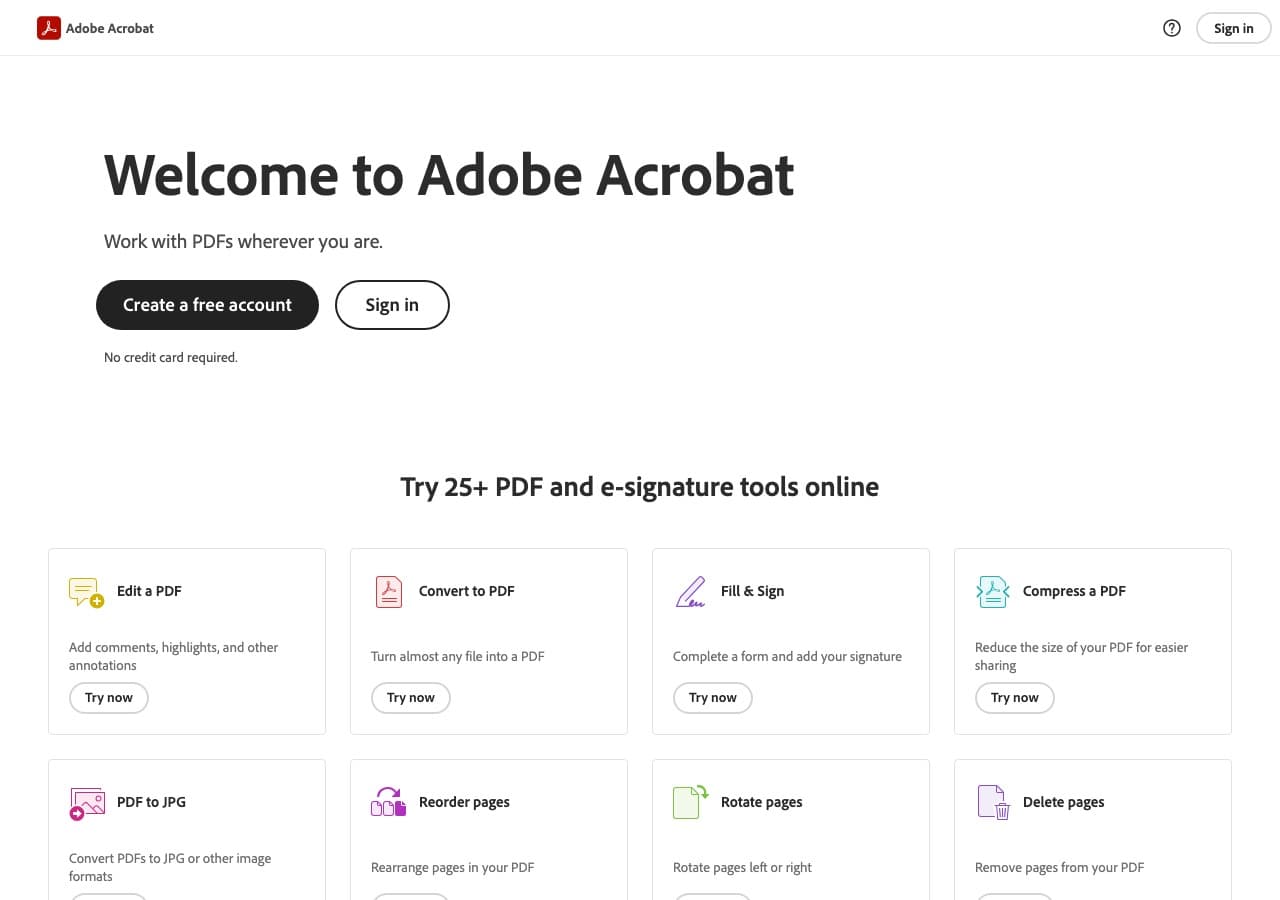
File → Export → Image → PNG. Page-range and resolution controls. Best for fidelity — uses the same renderer as Reader. Worth using if you already have Acrobat or need to also redact / sign before export.
Pricing
- Subscription.
7. PDF Expert (Mac)
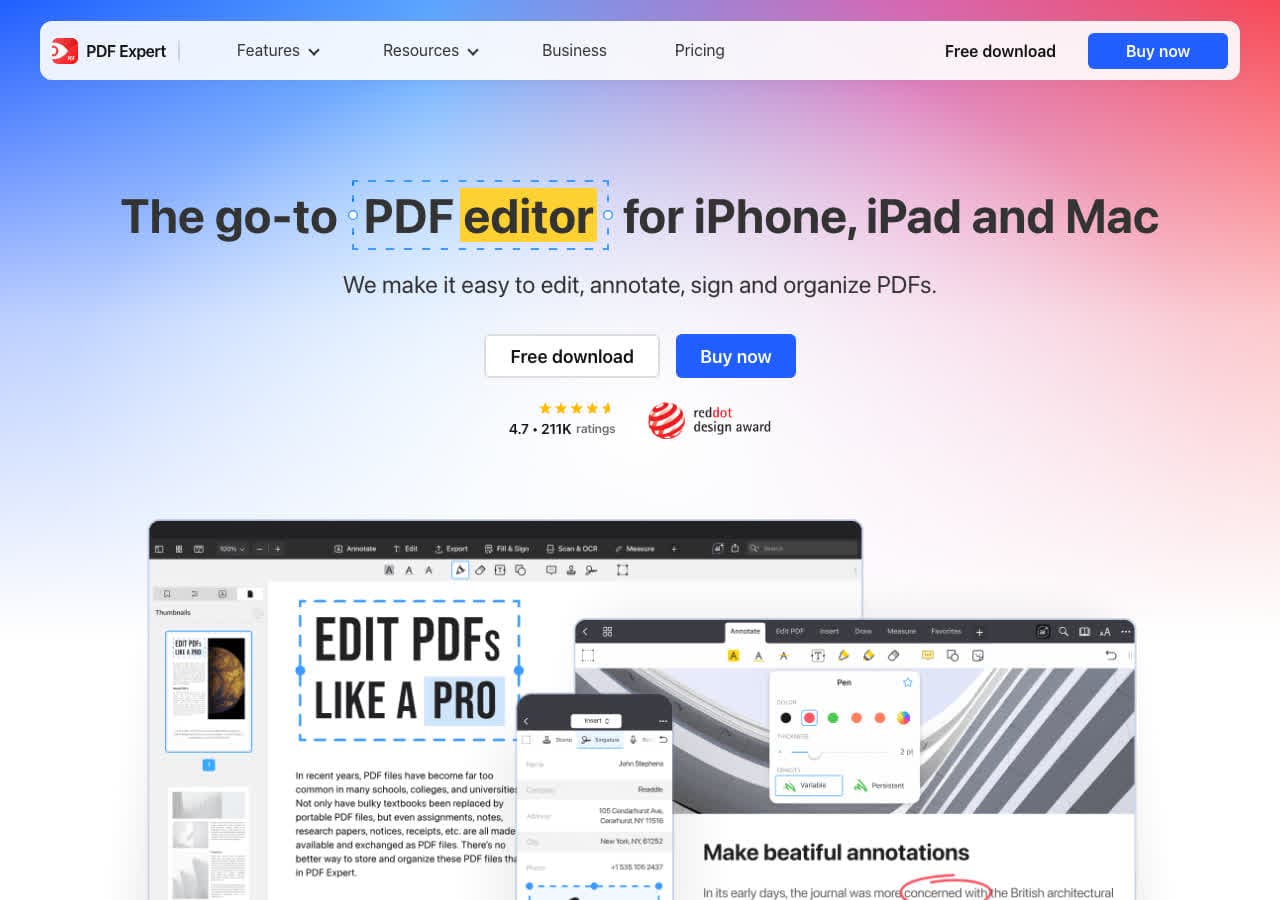
File → Export → choose PNG, set range. Mac-native polish.
Pricing
- Subscription or one-time.
8. Foxit PDF Editor
Convert → To Image → PNG, with page-range and resolution. Lighter and cheaper than Acrobat.
Pricing
- Subscription or perpetual.
9. Ghostscript
The PDF / PostScript engine that ImageMagick uses under the hood. Useful when you want maximum control over color and rendering:
gs -sDEVICE=png16m -r200 -o page-%03d.png input.pdf
The reference renderer. Best fidelity for technical PDFs (CAD exports, scientific publications).
Pricing
- Free, AGPL (commercial license available).
10. pdf2image (Python)
Python wrapper around pdftoppm. The right pick for scripted workflows in a Python codebase:
from pdf2image import convert_from_path
pages = convert_from_path("input.pdf", dpi=200)
for i, page in enumerate(pages):
    page.save(f"page-{i+1}.png", "PNG")
Pricing
- Free, open source.
11. PyMuPDF (fitz)
A faster Python PDF library using the MuPDF renderer:
import fitz
doc = fitz.open("input.pdf")
for i, page in enumerate(doc):
    pix = page.get_pixmap(dpi=200)
    pix.save(f"page-{i+1}.png")
2–3x faster than pdf2image. Best for high-volume PDF processing in Python.
Pricing
- Free, open source.
12. pdf-lib + pdf.js (Node.js)
For Node.js pipelines, pdf.js renders to canvas in headless Chrome. Sharp can then save the canvas to PNG. The right pick for serverless PDF → PNG.
Pricing
- Free, open source.
13. CloudConvert
Web converter. PDF → PNG with resolution and page-range controls. Stay local for sensitive PDFs.
Pricing
- Free tier; paid above.
14. Smallpdf
Web PDF → PNG with a simple flow. Drops a ZIP of PNGs for multi-page PDFs.
Pricing
- Free with daily limits; paid above.
15. iLovePDF
PDF → JPG tool primarily, but offers PNG output. Web upload model.
Pricing
- Free with limits; paid above.
16. Convertio
Web converter, PDF → PNG, batch ZIP output.
Pricing
- Free with caps; paid above.
17. FreeConvert
Web converter with resolution slider. Same model.
Pricing
- Free with caps; paid above.
18. PDFtoImage.com / similar single-purpose sites
Dozens of single-purpose web sites for this conversion. Quick for non-sensitive files. Pick a reputable one and avoid uploading anything private.
Pricing
- Free.
How to Choose
- One or two pages, quick: Preview, Acrobat, or a single-purpose web tool.
- All pages, batch: pdftoppm or ImageMagick.
- Specific page range: pdftoppm with
-f / -l. - High volume / pipeline: PyMuPDF (Python) or pdf-lib (Node).
- Maximum fidelity: Ghostscript or Acrobat.
- Sensitive PDF: stay local.
Final Thoughts
PDF → PNG is one of the most useful PDF conversions because PNGs of pages are easy to embed anywhere — a chat message, a doc, a slide deck. The two things that matter most are the DPI you choose (200 is a safe default) and whether the tool can extract specific pages cleanly. pdftoppm is the fastest CLI tool; the OS built-ins handle one or two pages for free; web converters are convenient for non-sensitive PDFs and the wrong choice for anything private.
How to Convert
The offline file converter for Mac, Windows and Linux.
- Converts video, audio, images, documents, ebooks and more
- Everything runs locally. Your files never leave your device
- Pay once. Access forever
Get the app on Mac, Windows and Linux
