18 Best PDF to Word Converters in 2026 (Free and Paid)
The best PDF to Word converters for 2026. Convert PDF to DOCX with accurate formatting using these free and paid tools.
Posted by
 Jake Manger
PDF is great for sharing because it locks formatting in place, but it is awful when you need to actually edit the content. Maybe you have a contract you need to revise, a resume you want to update, or a report that needs new numbers. In all of those cases, converting PDF to Word (DOCX) is the fastest path back to an editable document.
The catch is that not all PDFs are created equal. Text-based PDFs usually convert cleanly. Scanned PDFs need OCR. And complex layouts (columns, tables, footnotes, headers) can turn into a mess if the converter does not rebuild structure correctly. Below are the 18 best PDF to Word converters in 2026, including offline desktop apps for privacy, professional PDF editors for maximum accuracy, and simple online tools for quick one-off conversions.
Before You Convert: 3 Tips for Better DOCX Output
First, understand why PDF → Word is hard. PDF is a final-layout format: instead of storing "normal" document structure (headings, paragraphs, lists, tables), it often stores positioned text runs plus drawing instructions. When converters turn a PDF into a DOCX, many of them are essentially reconstructing the page visually using text boxes, frames, and shapes so the Word file looks like the PDF. The result can be a DOCX that matches the original layout but is frustrating to edit because it does not behave like a native Word document.
Newer neural network based approaches are emerging that do a better job of inferring real reading order and semantic structure (paragraphs, tables, columns). But for many tools today, it is normal to get a Word file that needs cleanup: removing text boxes, reflowing paragraphs, rebuilding tables, and reapplying styles.
Second, figure out whether your PDF is text-based or scanned. If you cannot select text in the PDF, it is likely an image scan and you will need OCR. Tools like Adobe Acrobat, Foxit, Nitro, and many mobile scanners can run OCR before you export to Word.
Third, if the PDF has a complex layout, expect a cleanup pass. Even the best converters may misread tables, multi-column text, or floating images. Plan to review headings, spacing, and page breaks in Word after converting.
Privacy and Security Notes
If your PDF contains sensitive information (bank statements, legal documents, medical files, internal company data), avoid uploading it to random free converters. Prefer offline tools that convert locally, or choose a reputable vendor with clear security and retention policies.
As a rule of thumb: online converters are convenient for non-sensitive documents, while desktop tools are safer for confidential files because your document never leaves your device.
1. Adobe Acrobat - Best overall (accuracy + OCR)
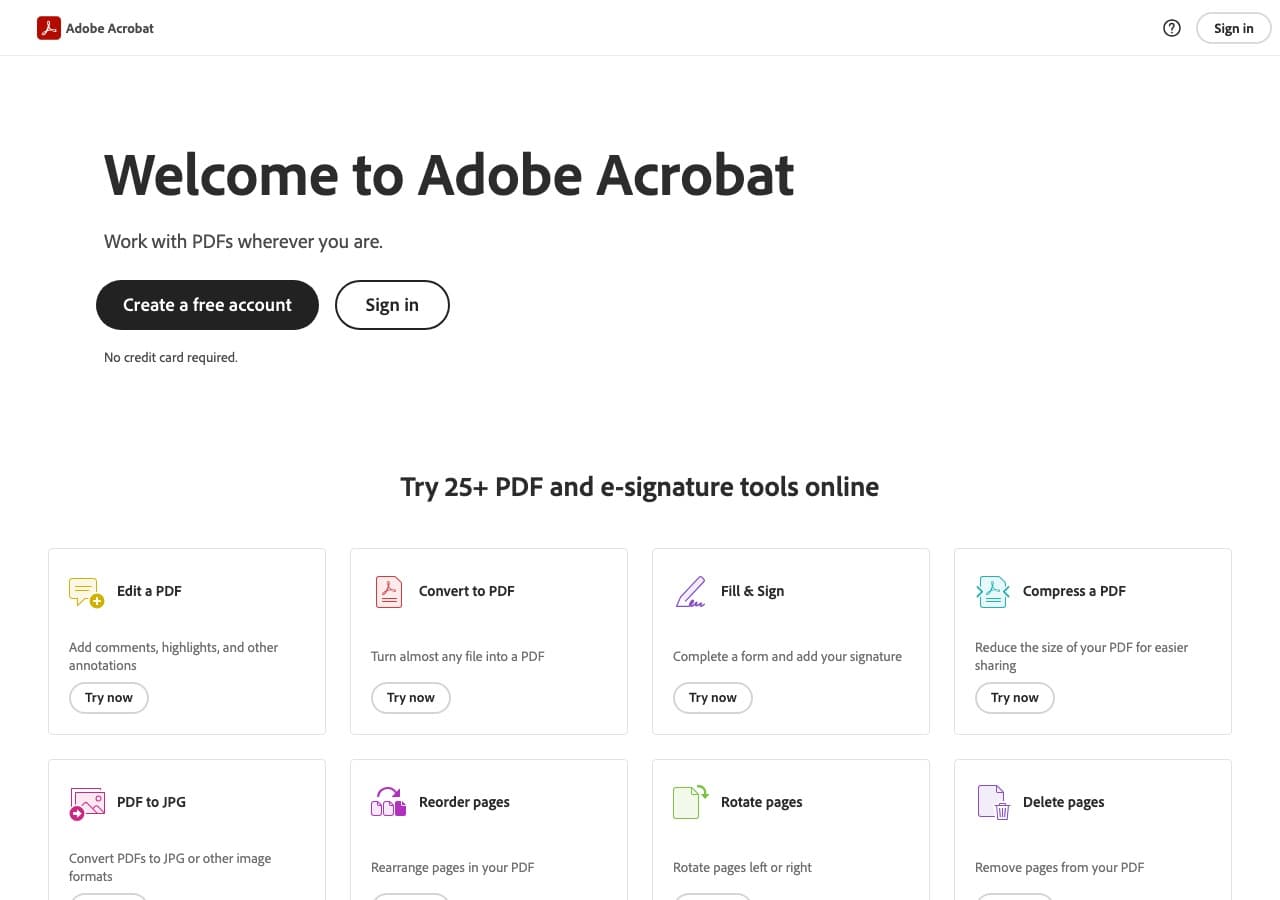
If you want the highest chance of a clean, editable DOCX, a professional PDF editor with strong OCR is usually the best place to start. Acrobat has years of engineering behind its text extraction, font handling, reading order detection, and layout reconstruction, and it tends to do better than lightweight web tools on complex documents.
It is still important to set expectations: because PDF is not a semantic document format, even Acrobat may export a Word file that looks identical but uses positioned elements (text boxes/frames) under the hood. Newer neural approaches are improving this, but for many real-world PDFs you should expect a cleanup pass in Word.
Pros
- Best-in-class OCR and layout reconstruction for tricky PDFs.
- Great when you also need to edit, redact, sign, or comment on PDFs.
- Strong handling of fonts, headers/footers, and multi-page docs.
Cons
- Subscription pricing is expensive if you only need occasional conversion.
- Exports can still require cleanup for tables, columns, and complex layouts.
Pricing
- Free trial: Often available.
- Paid: Acrobat subscription (varies by region/plan).
2. How to Convert (I built this one) - Best privacy-first desktop converter
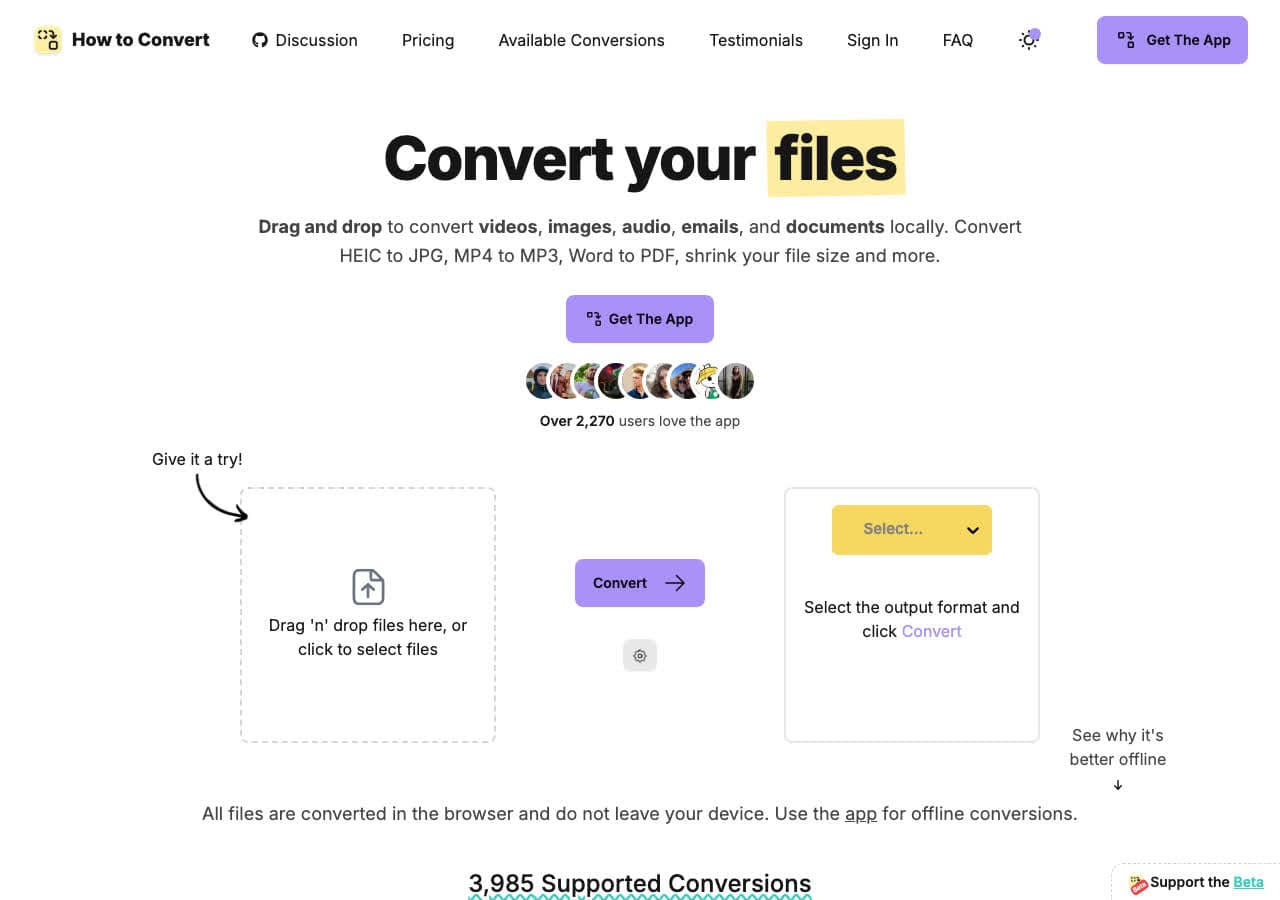
How to Convert is a local desktop converter for repeat workflows where files should stay on your machine.
Like many PDF → Word tools, How to Convert can run into the common PDF limitation: because PDFs often do not contain real paragraph structure, the exported DOCX may preserve the visual layout using positioned text boxes or frames. The document can look right but feel "weird" to edit. For text-based PDFs it can work well, but for complex layouts you should plan to clean up styles and reflow content in Word.
Pros
- Runs locally for privacy: your PDF never needs to be uploaded.
- Great for batch conversion and repeat workflows on your own machine.
- Handles many file types (not just PDF → Word) in the same app.
- One-time purchase for the desktop app; no subscription required.
Cons
- Scanned PDFs still need OCR for best results.
- Exported DOCX may use text boxes/frames, which can be annoying to edit.
Pricing
- Free: Browser converter for common formats.
- Desktop app: One-time purchase (Mac/Windows/Linux).
3. Smallpdf - Best for simple web-based conversion
Converting PDF to Word sounds simple, but the quality you get depends on what is inside the PDF. If the PDF was generated from a Word document, conversion is usually clean. If it is a scanned contract, a brochure with multiple columns, or a form with embedded fonts, you need a tool that can rebuild structure and run OCR.
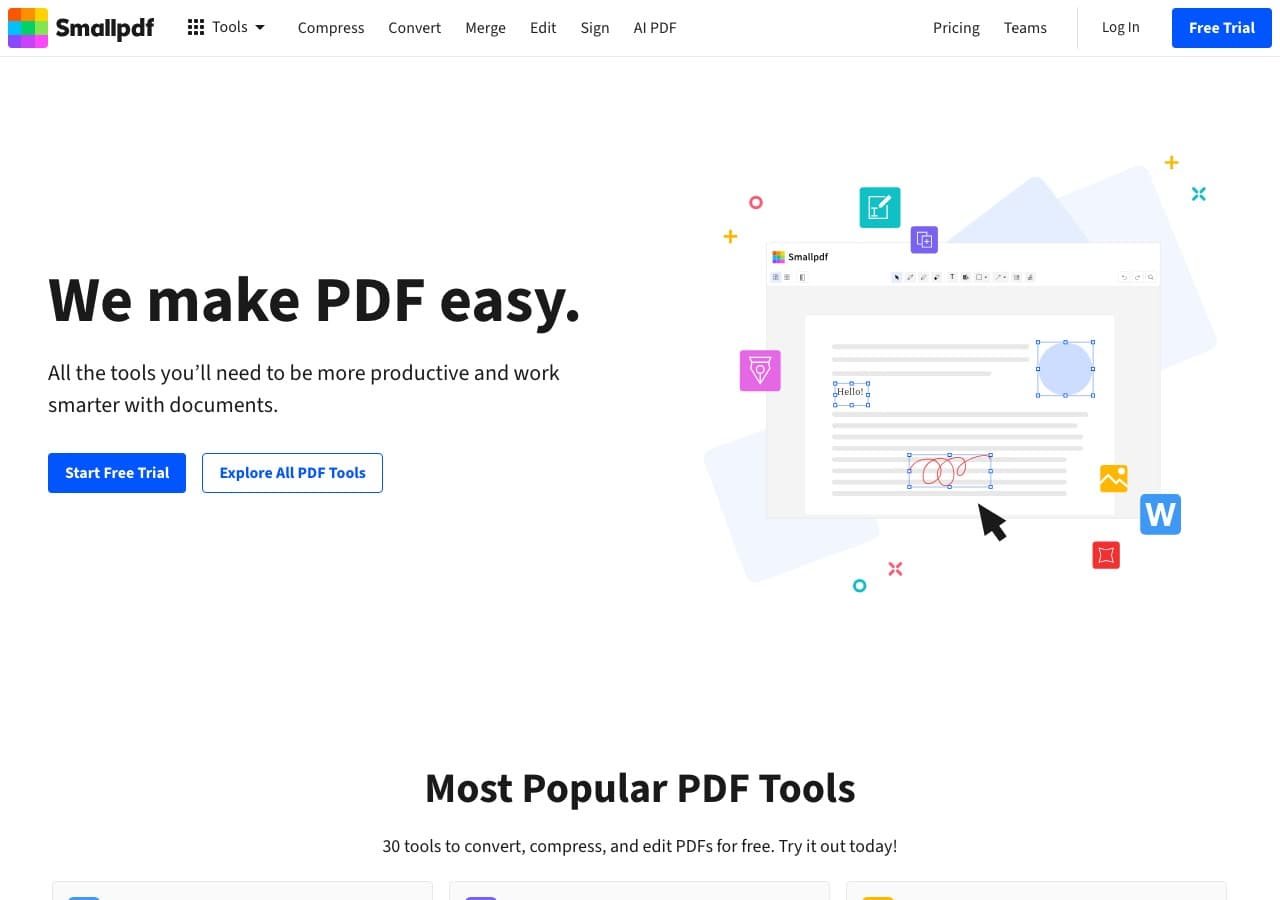
Smallpdf is a strong option in 2026 for PDF → DOCX, especially for simple web-based conversion. Use it when you care about keeping headings, paragraphs, and basic formatting intact, then plan a quick cleanup pass in Word to fix tables, spacing, or hyphenation.
Pros
- Very easy: upload PDF, download DOCX.
- Works on any device without installing software.
- Good for quick one-off conversions.
Cons
- Requires uploading your document to a third-party server.
- Free tiers often limit file size, pages, or number of conversions per day.
Pricing
- Free: Limited conversions/size.
- Paid: Monthly subscription for higher limits.
4. iLovePDF - Best for quick PDF batch tasks
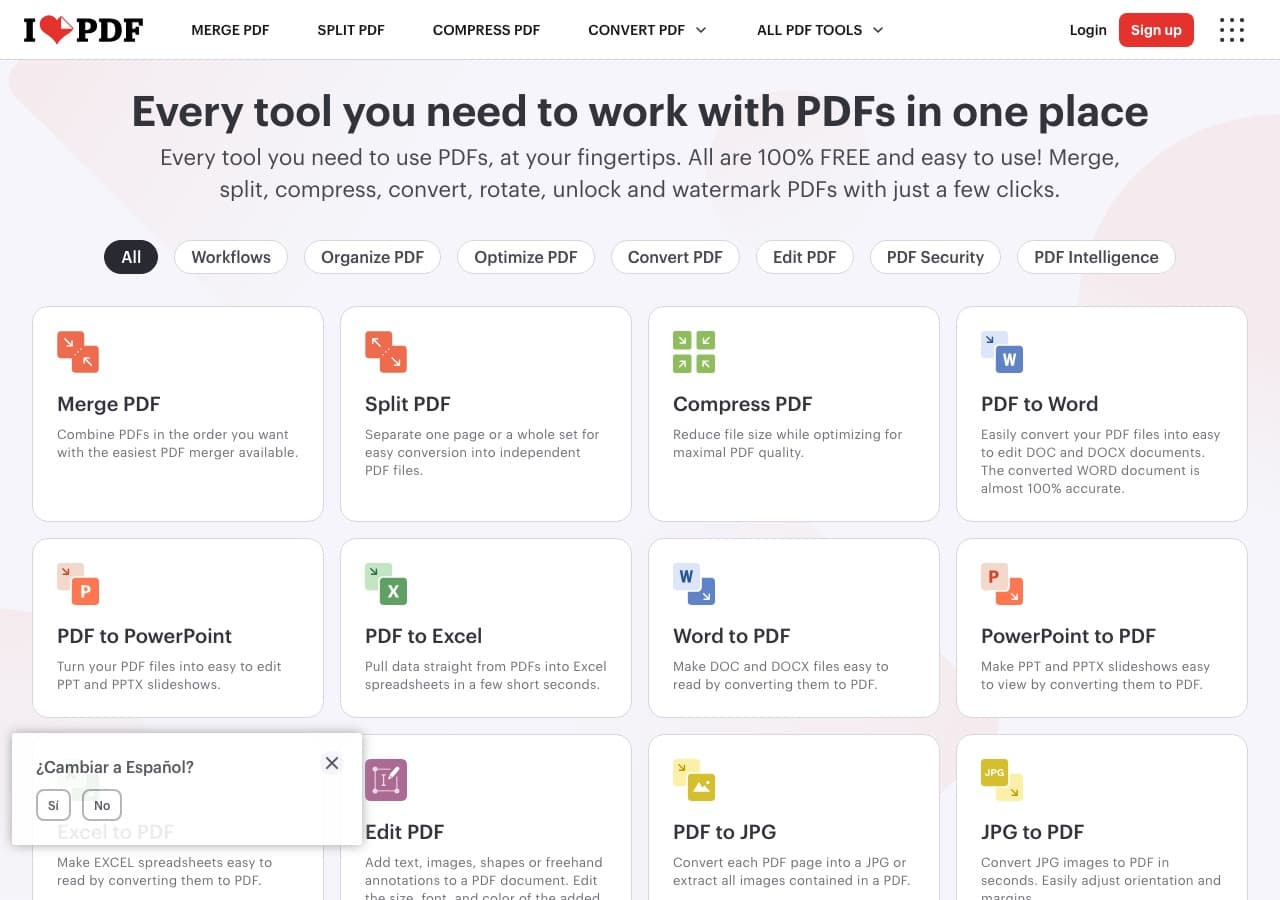
Converting PDF to Word sounds simple, but the quality you get depends on what is inside the PDF. If the PDF was generated from a Word document, conversion is usually clean. If it is a scanned contract, a brochure with multiple columns, or a form with embedded fonts, you need a tool that can rebuild structure and run OCR.
iLovePDF is a strong option in 2026 for PDF → DOCX, especially for quick PDF batch tasks. Use it when you care about keeping headings, paragraphs, and basic formatting intact, then plan a quick cleanup pass in Word to fix tables, spacing, or hyphenation.
Pros
- Very easy: upload PDF, download DOCX.
- Works on any device without installing software.
- Good for quick one-off conversions.
Cons
- Requires uploading your document to a third-party server.
- Free tiers often limit file size, pages, or number of conversions per day.
Pricing
- Free: Limited conversions/size.
- Paid: Monthly subscription for higher limits.
5. CloudConvert - Best API-friendly online converter
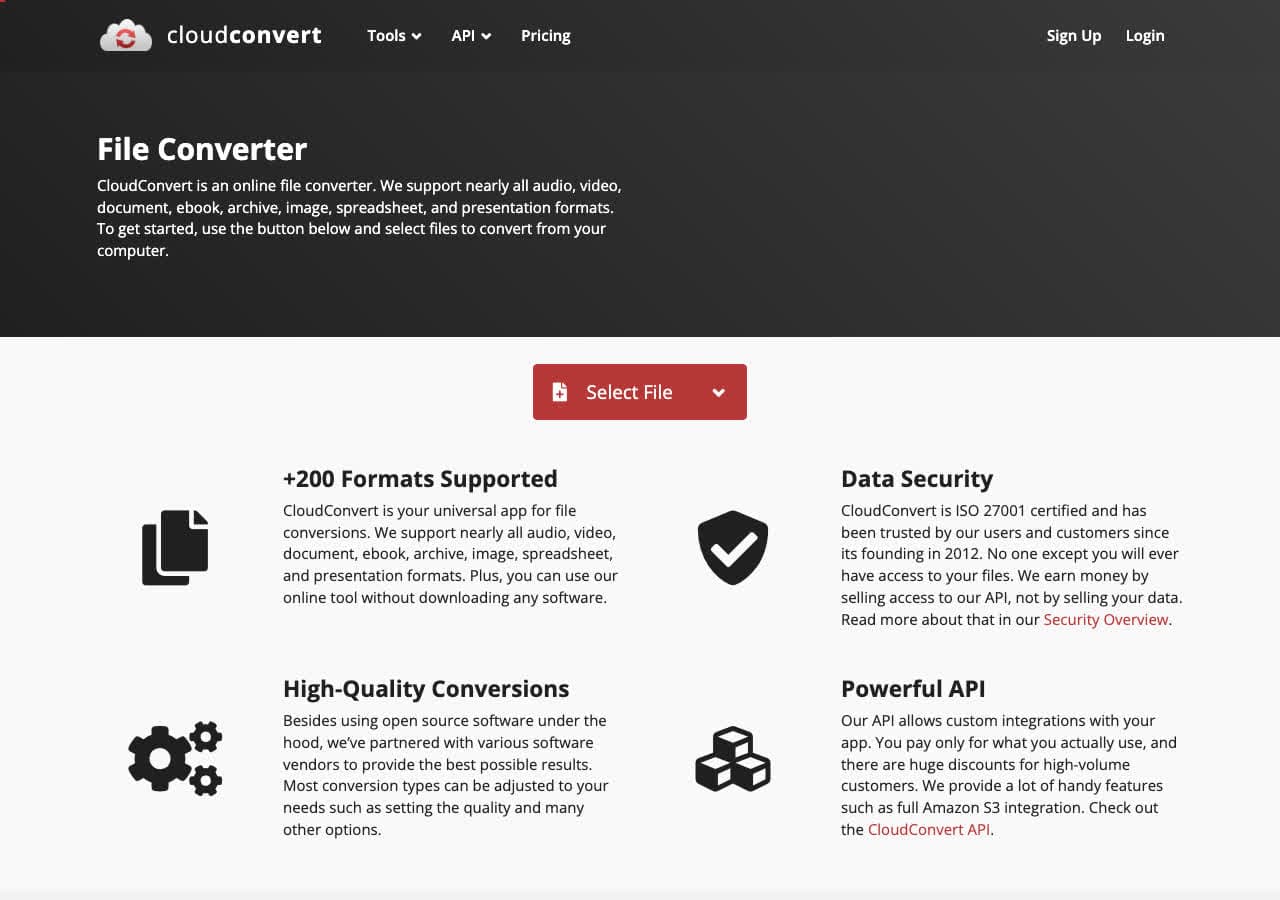
Converting PDF to Word sounds simple, but the quality you get depends on what is inside the PDF. If the PDF was generated from a Word document, conversion is usually clean. If it is a scanned contract, a brochure with multiple columns, or a form with embedded fonts, you need a tool that can rebuild structure and run OCR.
CloudConvert is a strong option in 2026 for PDF → DOCX, especially when you need an API-friendly online converter. Use it when you care about keeping headings, paragraphs, and basic formatting intact, then plan a quick cleanup pass in Word to fix tables, spacing, or hyphenation.
Pros
- Excellent developer experience: API, webhooks, and automation-friendly.
- Handles huge format variety and lets you tune conversion settings.
- Reliable for occasional conversions without installing software.
Cons
- You must upload files to a third-party cloud for conversion.
- Free tier has daily/minute limits; large PDFs can consume credits quickly.
Pricing
- Free: Limited credits.
- Pay as you go: Credit packs for usage-based conversion.
- Subscription: Monthly plans for higher volume.
6. Convertio - Best for lots of input formats
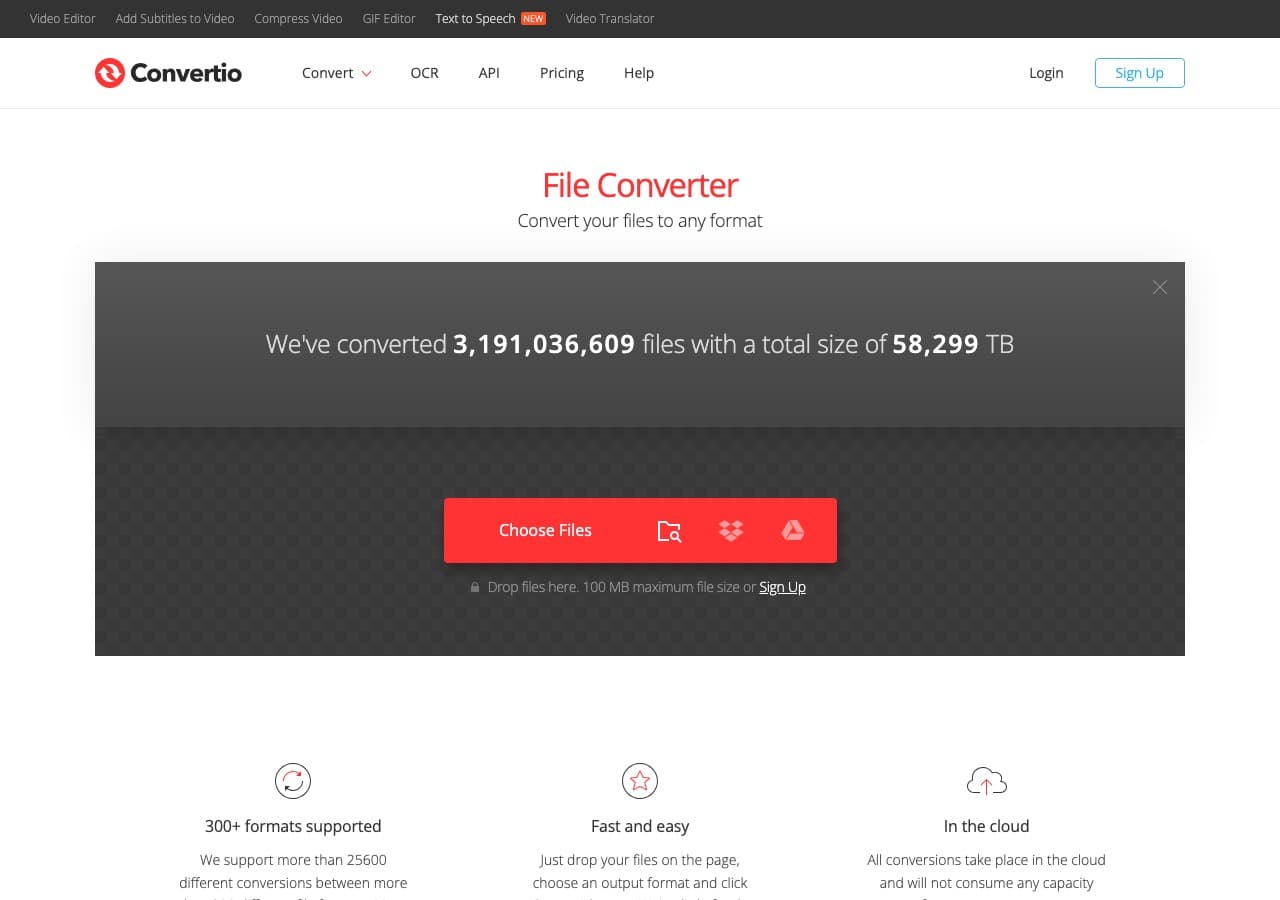
Converting PDF to Word sounds simple, but the quality you get depends on what is inside the PDF. If the PDF was generated from a Word document, conversion is usually clean. If it is a scanned contract, a brochure with multiple columns, or a form with embedded fonts, you need a tool that can rebuild structure and run OCR.
Convertio is a strong option in 2026 for PDF → DOCX, especially when you have lots of input formats. Use it when you care about keeping headings, paragraphs, and basic formatting intact, then plan a quick cleanup pass in Word to fix tables, spacing, or hyphenation.
Pros
- Very easy: upload PDF, download DOCX.
- Works on any device without installing software.
- Good for quick one-off conversions.
Cons
- Requires uploading your document to a third-party server.
- Free tiers often limit file size, pages, or number of conversions per day.
Pricing
- Free: Limited conversions/size.
- Paid: Monthly subscription for higher limits.
7. Zamzar - Best email-to-convert legacy option
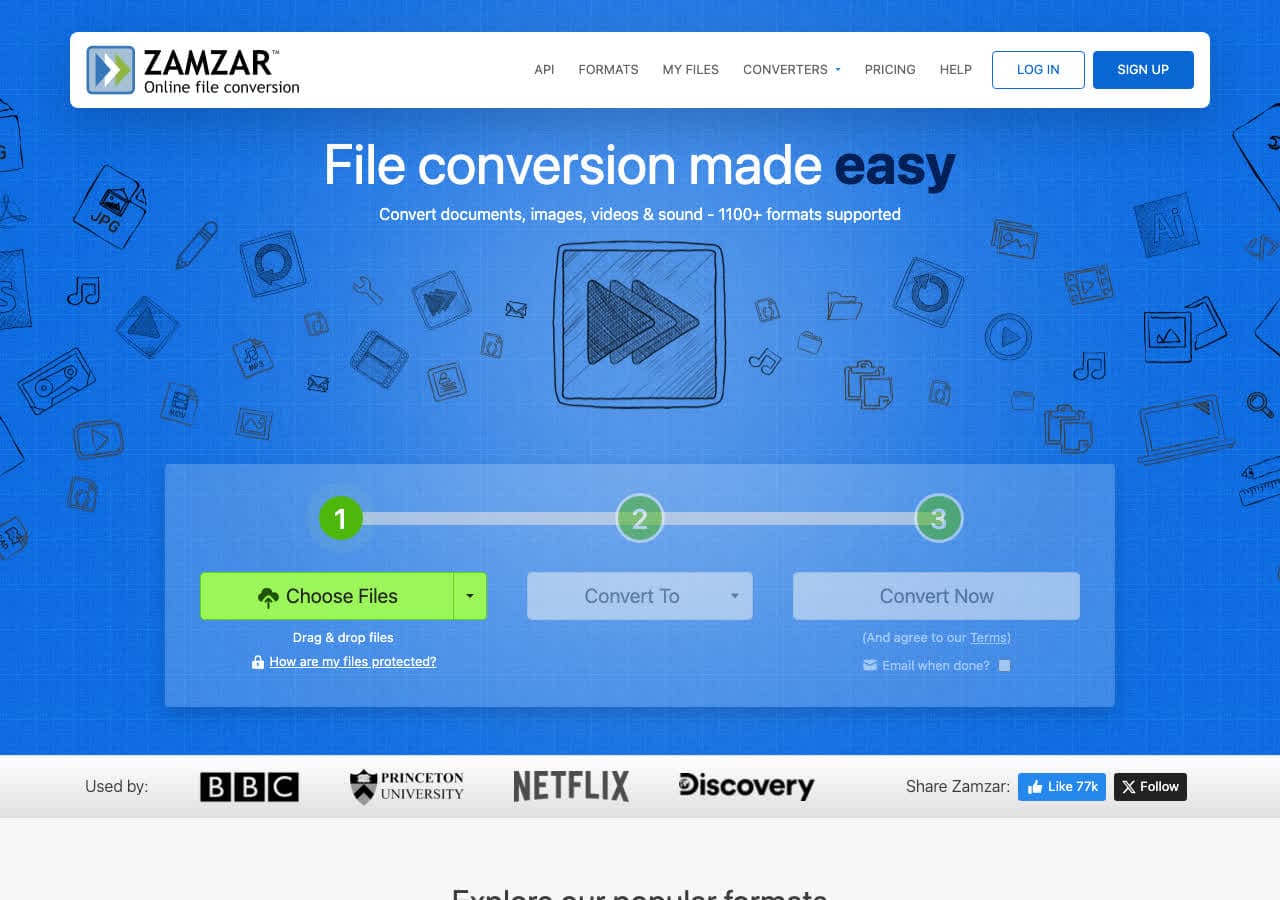
Converting PDF to Word sounds simple, but the quality you get depends on what is inside the PDF. If the PDF was generated from a Word document, conversion is usually clean. If it is a scanned contract, a brochure with multiple columns, or a form with embedded fonts, you need a tool that can rebuild structure and run OCR.
Zamzar is a strong option in 2026 for PDF → DOCX, especially when you want a long-running email-to-convert option. Use it when you care about keeping headings, paragraphs, and basic formatting intact, then plan a quick cleanup pass in Word to fix tables, spacing, or hyphenation.
Pros
- Very easy: upload PDF, download DOCX.
- Works on any device without installing software.
- Good for quick one-off conversions.
Cons
- Requires uploading your document to a third-party server.
- Free tiers often limit file size, pages, or number of conversions per day.
Pricing
- Free: Limited conversions/size.
- Paid: Monthly subscription for higher limits.
8. Online-Convert - Best for niche settings and formats
Converting PDF to Word sounds simple, but the quality you get depends on what is inside the PDF. If the PDF was generated from a Word document, conversion is usually clean. If it is a scanned contract, a brochure with multiple columns, or a form with embedded fonts, you need a tool that can rebuild structure and run OCR.
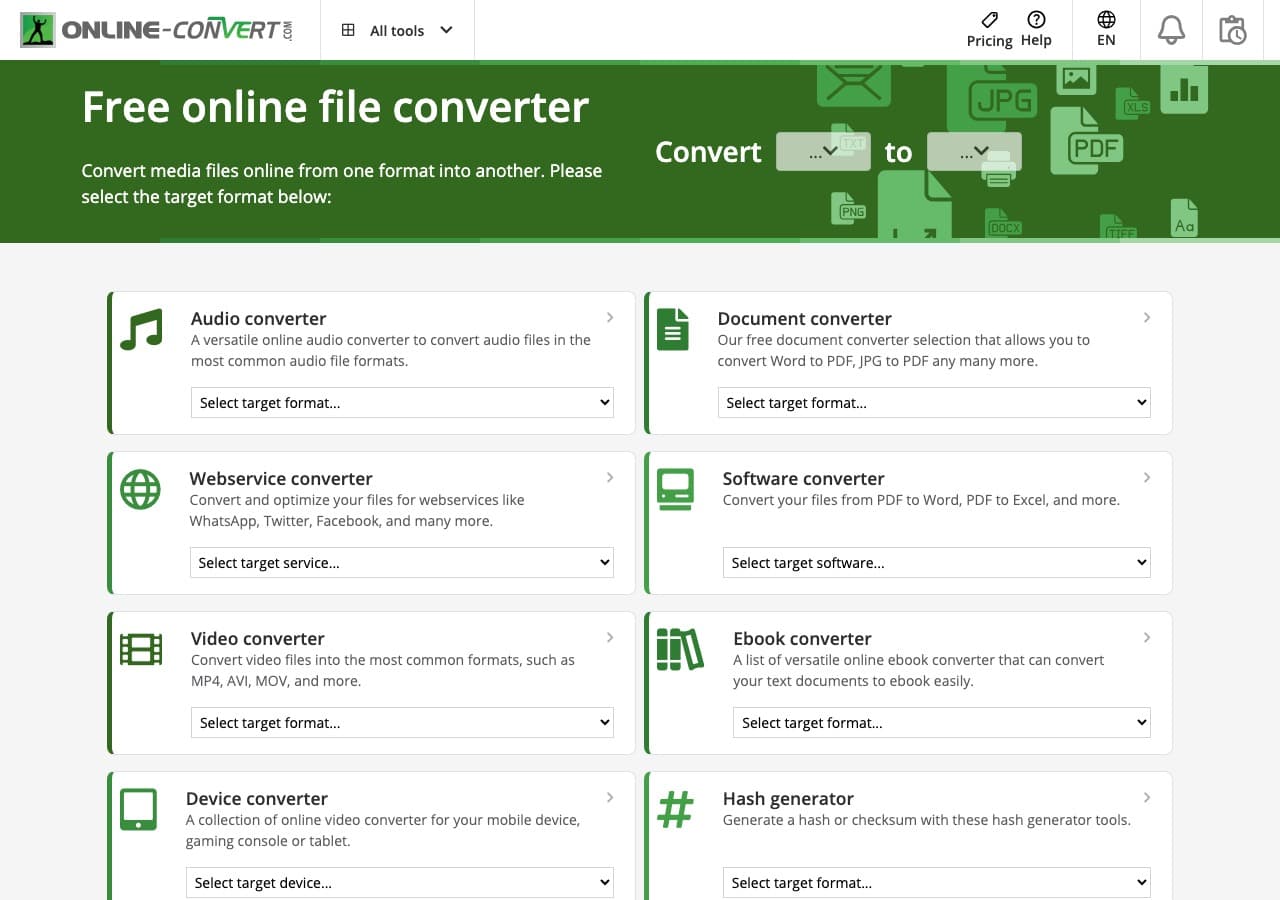
Online-Convert is a strong option in 2026 for PDF → DOCX, especially for niche settings and formats. Use it when you care about keeping headings, paragraphs, and basic formatting intact, then plan a quick cleanup pass in Word to fix tables, spacing, or hyphenation.
Pros
- Very easy: upload PDF, download DOCX.
- Works on any device without installing software.
- Good for quick one-off conversions.
Cons
- Requires uploading your document to a third-party server.
- Free tiers often limit file size, pages, or number of conversions per day.
Pricing
- Free: Limited conversions/size.
- Paid: Monthly subscription for higher limits.
9. FreeConvert - Best free-tier online converter
Converting PDF to Word sounds simple, but the quality you get depends on what is inside the PDF. If the PDF was generated from a Word document, conversion is usually clean. If it is a scanned contract, a brochure with multiple columns, or a form with embedded fonts, you need a tool that can rebuild structure and run OCR.
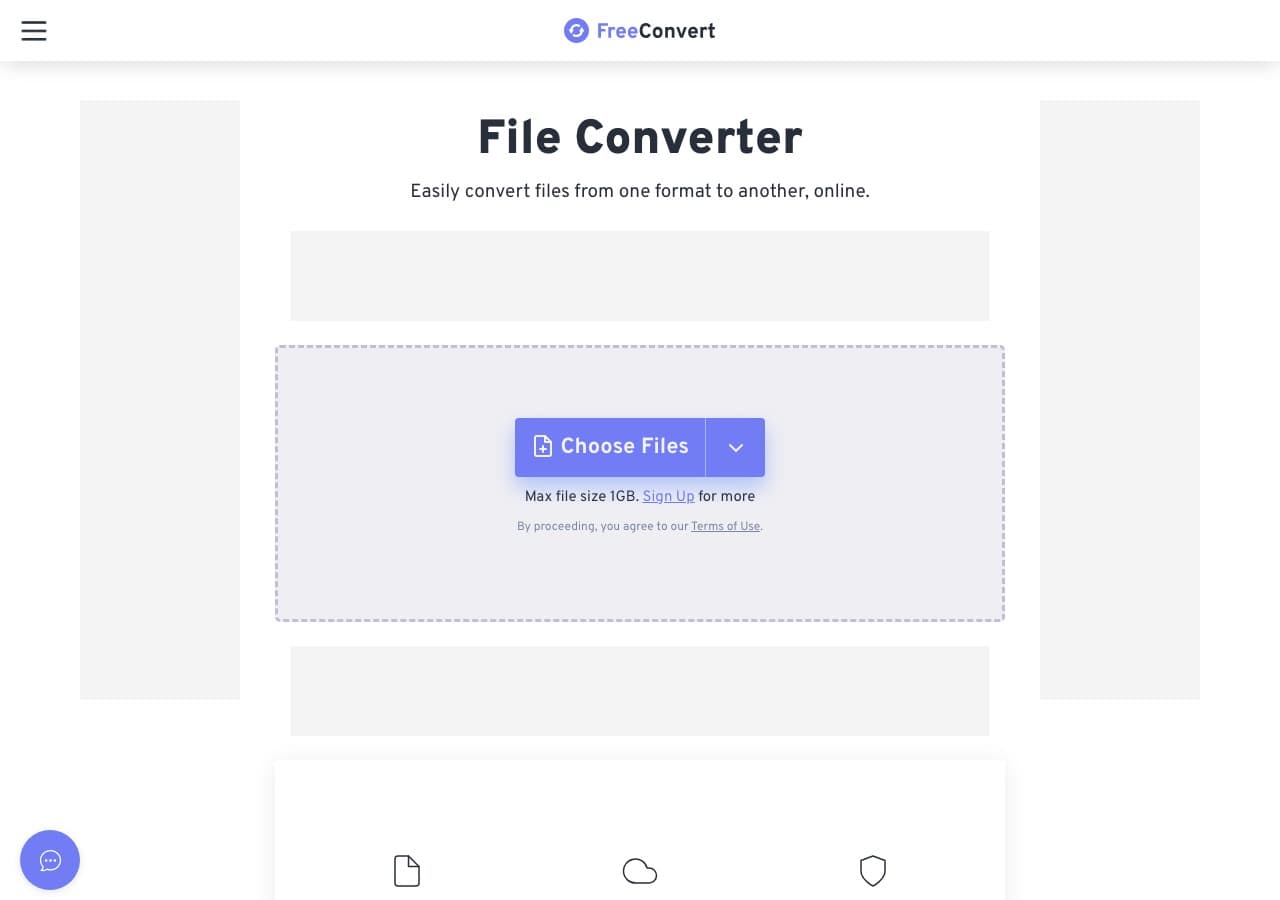
FreeConvert is a strong option in 2026 for PDF → DOCX, especially when you want a generous free-tier online converter. Use it when you care about keeping headings, paragraphs, and basic formatting intact, then plan a quick cleanup pass in Word to fix tables, spacing, or hyphenation.
Pros
- Very easy: upload PDF, download DOCX.
- Works on any device without installing software.
- Good for quick one-off conversions.
Cons
- Requires uploading your document to a third-party server.
- Free tiers often limit file size, pages, or number of conversions per day.
Pricing
- Free: Limited conversions/size.
- Paid: Monthly subscription for higher limits.
10. PDF24 - Best free Windows desktop toolkit
Converting PDF to Word sounds simple, but the quality you get depends on what is inside the PDF. If the PDF was generated from a Word document, conversion is usually clean. If it is a scanned contract, a brochure with multiple columns, or a form with embedded fonts, you need a tool that can rebuild structure and run OCR.
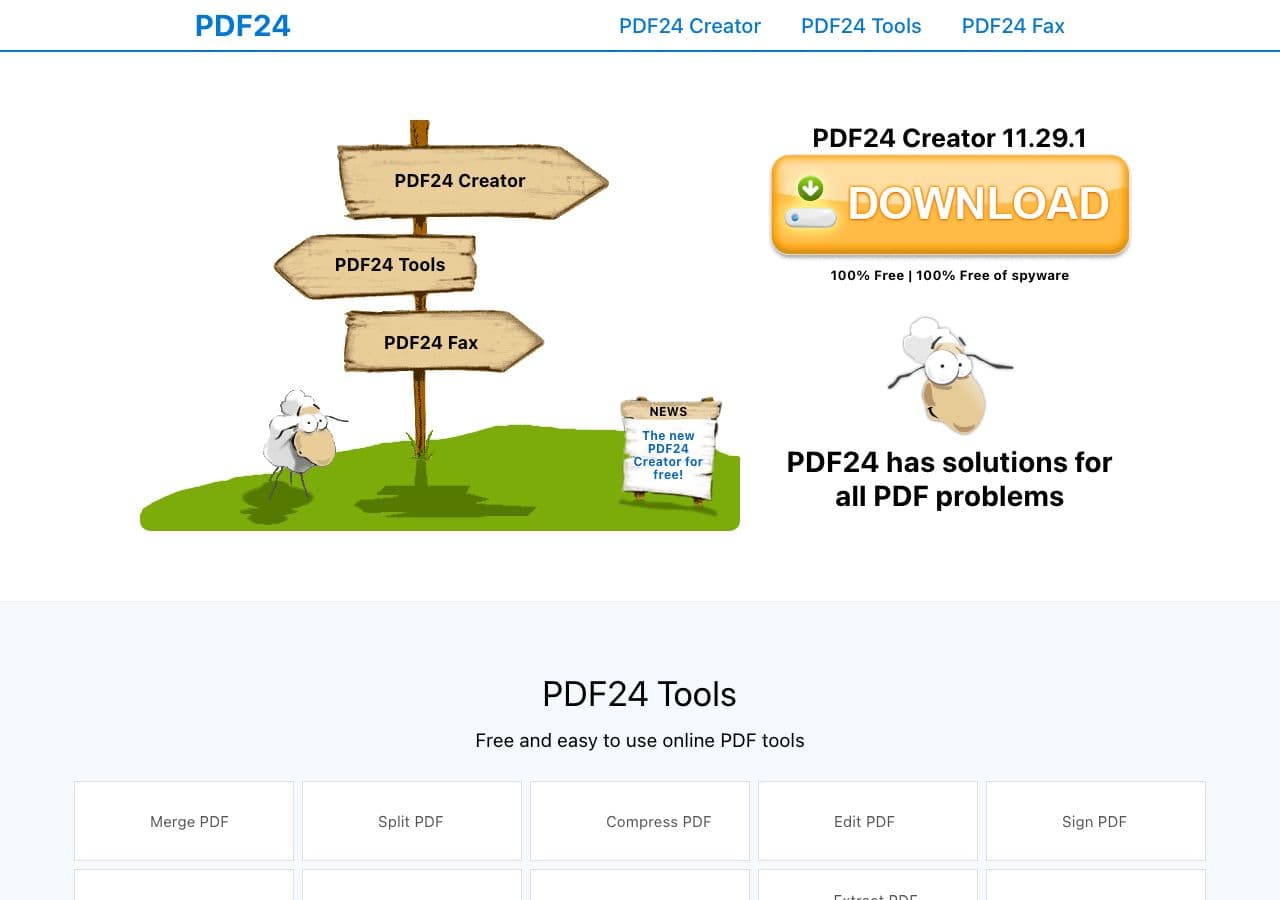
PDF24 is a strong option in 2026 for PDF → DOCX, especially when you want a free Windows desktop toolkit. Use it when you care about keeping headings, paragraphs, and basic formatting intact, then plan a quick cleanup pass in Word to fix tables, spacing, or hyphenation.
Pros
- Great free Windows toolbox: merge, compress, OCR, and convert.
- Offline-friendly and fast for everyday PDF tasks.
- Useful when you need more than just conversion.
Cons
- Windows-focused; Mac users need alternatives.
- Conversion quality varies depending on source PDF complexity.
Pricing
- Free: Desktop tools (Windows).
11. LibreOffice - Best free offline DOCX export
Converting PDF to Word sounds simple, but the quality you get depends on what is inside the PDF. If the PDF was generated from a Word document, conversion is usually clean. If it is a scanned contract, a brochure with multiple columns, or a form with embedded fonts, you need a tool that can rebuild structure and run OCR.
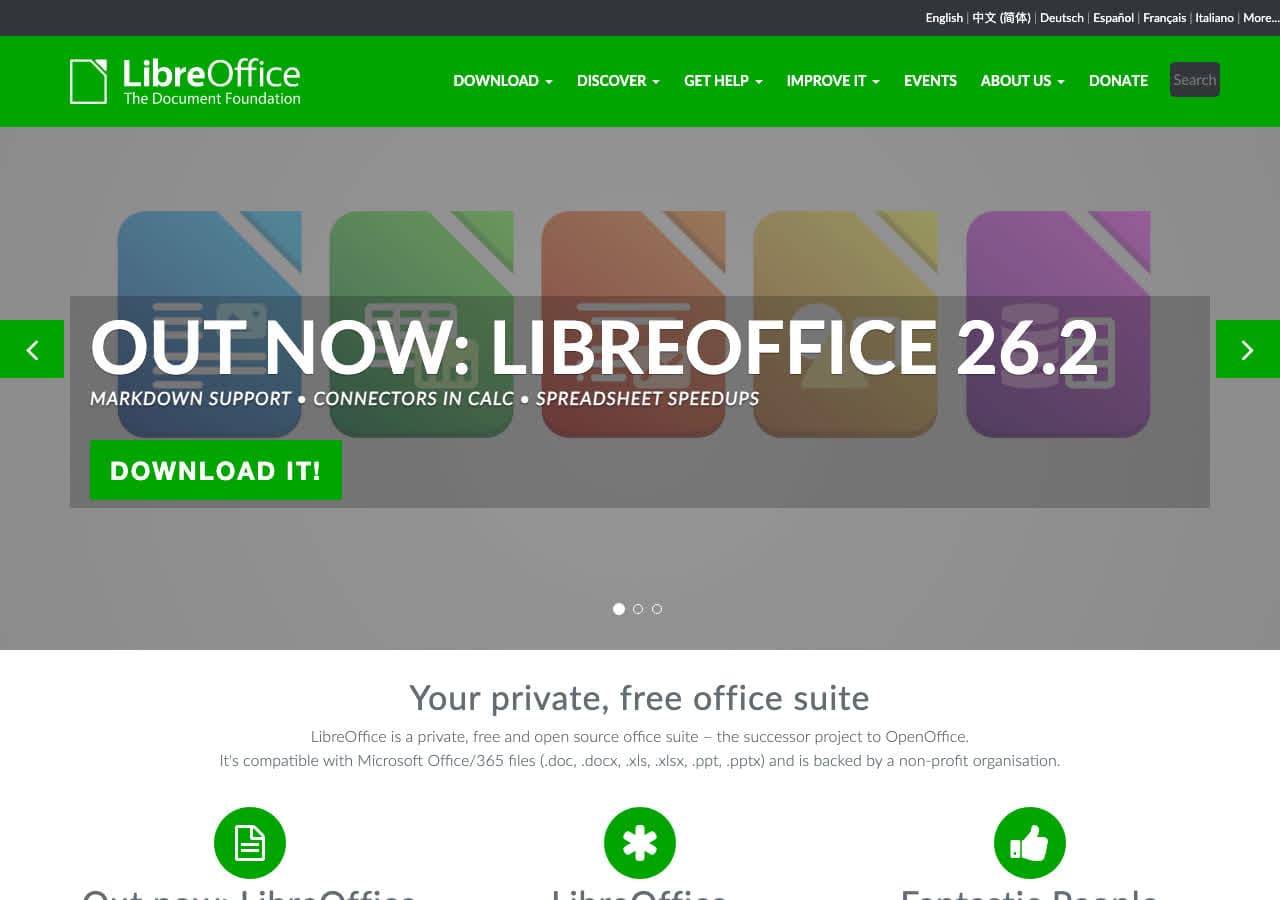
LibreOffice is a strong option in 2026 for PDF → DOCX, especially when you want free offline DOCX export. Use it when you care about keeping headings, paragraphs, and basic formatting intact, then plan a quick cleanup pass in Word to fix tables, spacing, or hyphenation.
Pros
- Free offline conversion on Mac/Windows/Linux.
- Good when your PDF is mostly text with simple formatting.
- Can export to DOCX and then edit in Word or Google Docs.
Cons
- Complex layouts (columns, forms) can come out messy.
- OCR is not the focus; scanned PDFs usually need preprocessing.
Pricing
- Free: Open source.
12. Pandoc - Best for technical docs + CLI pipelines
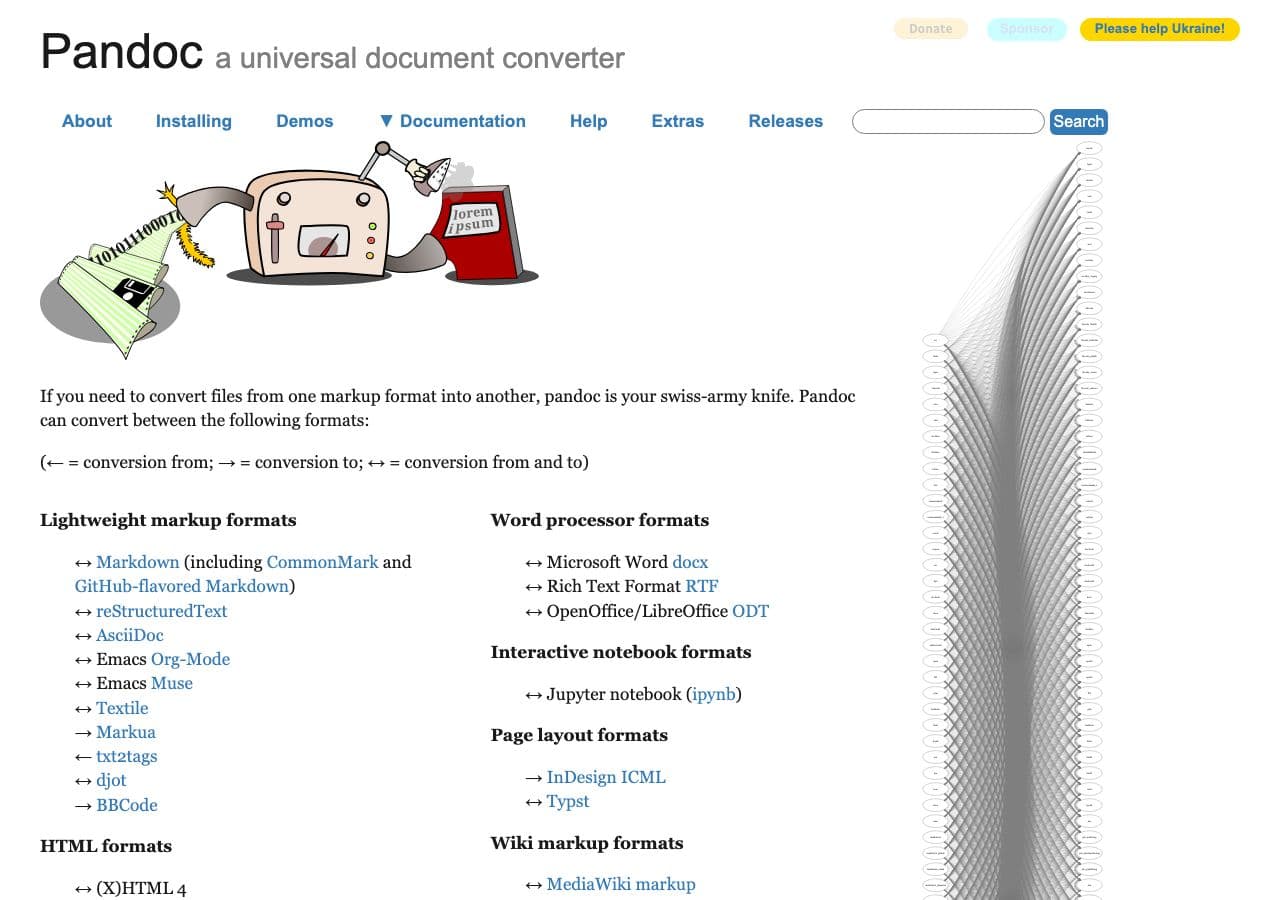
Converting PDF to Word sounds simple, but the quality you get depends on what is inside the PDF. If the PDF was generated from a Word document, conversion is usually clean. If it is a scanned contract, a brochure with multiple columns, or a form with embedded fonts, you need a tool that can rebuild structure and run OCR.
Pandoc is a strong option in 2026 for PDF → DOCX, especially for technical docs and CLI pipelines. Use it when you care about keeping headings, paragraphs, and basic formatting intact, then plan a quick cleanup pass in Word to fix tables, spacing, or hyphenation.
Pros
- Perfect for technical writing pipelines and reproducible conversion.
- Plays well with Markdown/LaTeX and automation scripts.
- Open source and widely used by developers.
Cons
- Not ideal for visually complex PDFs; expects text-based sources.
- Command-line learning curve.
Pricing
- Free: Open source.
13. Calibre - Best when PDFs are actually ebooks
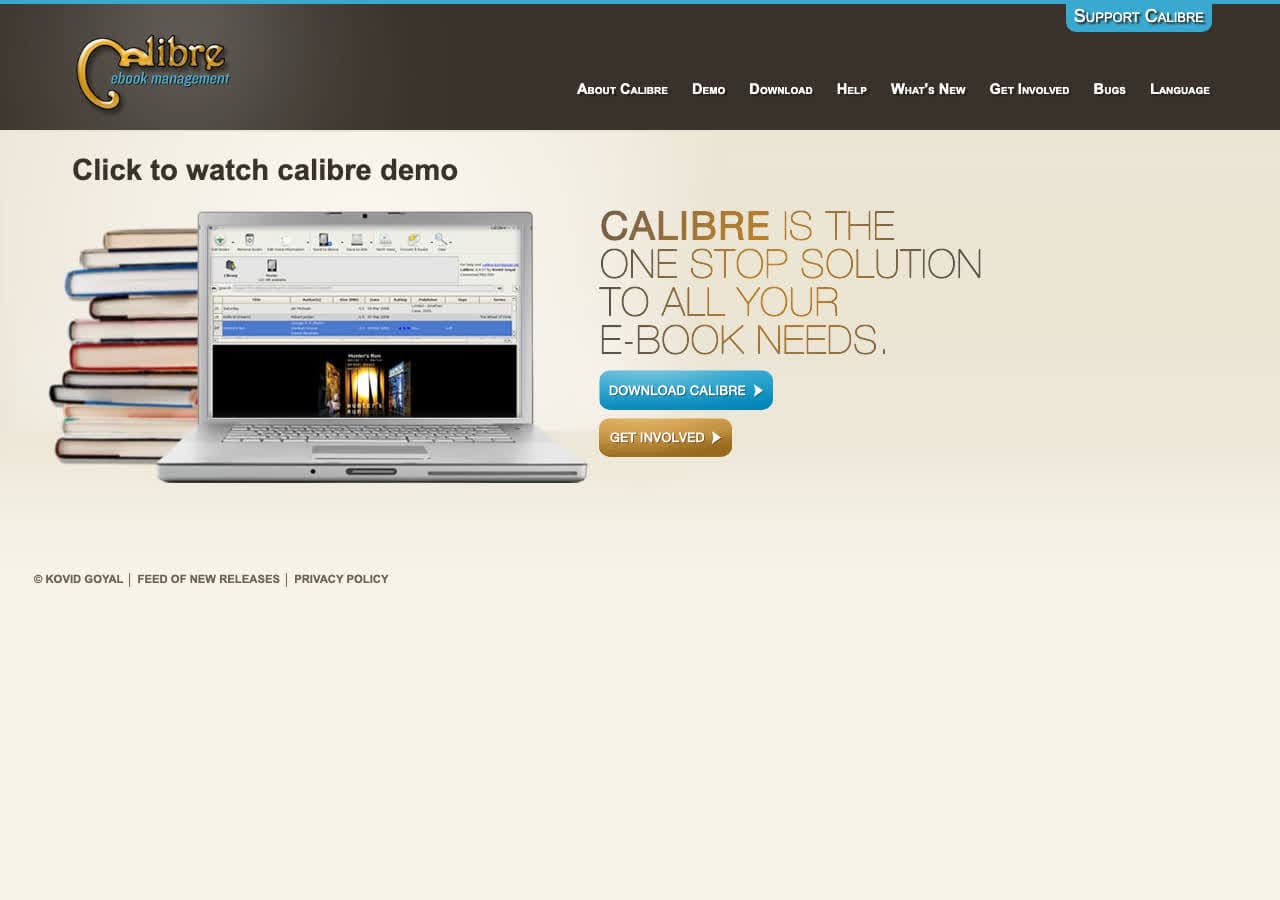
Converting PDF to Word sounds simple, but the quality you get depends on what is inside the PDF. If the PDF was generated from a Word document, conversion is usually clean. If it is a scanned contract, a brochure with multiple columns, or a form with embedded fonts, you need a tool that can rebuild structure and run OCR.
Calibre is a strong option in 2026 for PDF → DOCX, especially when the PDFs are actually ebooks. Use it when you care about keeping headings, paragraphs, and basic formatting intact, then plan a quick cleanup pass in Word to fix tables, spacing, or hyphenation.
Pros
- Excellent when the “PDF” is really an ebook or text-heavy document.
- Powerful metadata + library management on top of conversion.
- Free and open source.
Cons
- Not designed for complex business PDFs with columns/tables.
- Best results often come from EPUB, not PDF.
Pricing
- Free: Open source.
14. Ghostscript - Best for repair/preprocess before converting
Converting PDF to Word sounds simple, but the quality you get depends on what is inside the PDF. If the PDF was generated from a Word document, conversion is usually clean. If it is a scanned contract, a brochure with multiple columns, or a form with embedded fonts, you need a tool that can rebuild structure and run OCR.
Ghostscript is a strong option in 2026 for PDF → DOCX, especially for repair or preprocessing before conversion. Use it when you care about keeping headings, paragraphs, and basic formatting intact, then plan a quick cleanup pass in Word to fix tables, spacing, or hyphenation.
Pros
- Great for repairing, flattening, or standardizing PDFs before conversion.
- Helpful for automation and server-side workflows.
- Open source and widely available.
Cons
- Not a direct “PDF to Word” one-click tool; used as preprocessing.
- Command-line oriented.
Pricing
- Free: Open source.
- Commercial: Licensing available for enterprise distributions.
15. Nitro PDF - Best Acrobat alternative for teams
Converting PDF to Word sounds simple, but the quality you get depends on what is inside the PDF. If the PDF was generated from a Word document, conversion is usually clean. If it is a scanned contract, a brochure with multiple columns, or a form with embedded fonts, you need a tool that can rebuild structure and run OCR.
Nitro PDF is a strong option in 2026 for PDF → DOCX, especially when you want an Acrobat alternative for teams. Use it when you care about keeping headings, paragraphs, and basic formatting intact, then plan a quick cleanup pass in Word to fix tables, spacing, or hyphenation.
Pros
- Good balance of editing tools + export/conversion features.
- Often cheaper than Acrobat for similar everyday workflows.
- Useful when you need OCR, forms, and document cleanup too.
Cons
- Export quality still depends heavily on the PDF layout.
- Some features are gated behind higher-tier plans.
Pricing
- Free trial: Usually available.
- Paid: Subscription or perpetual license depending on vendor.
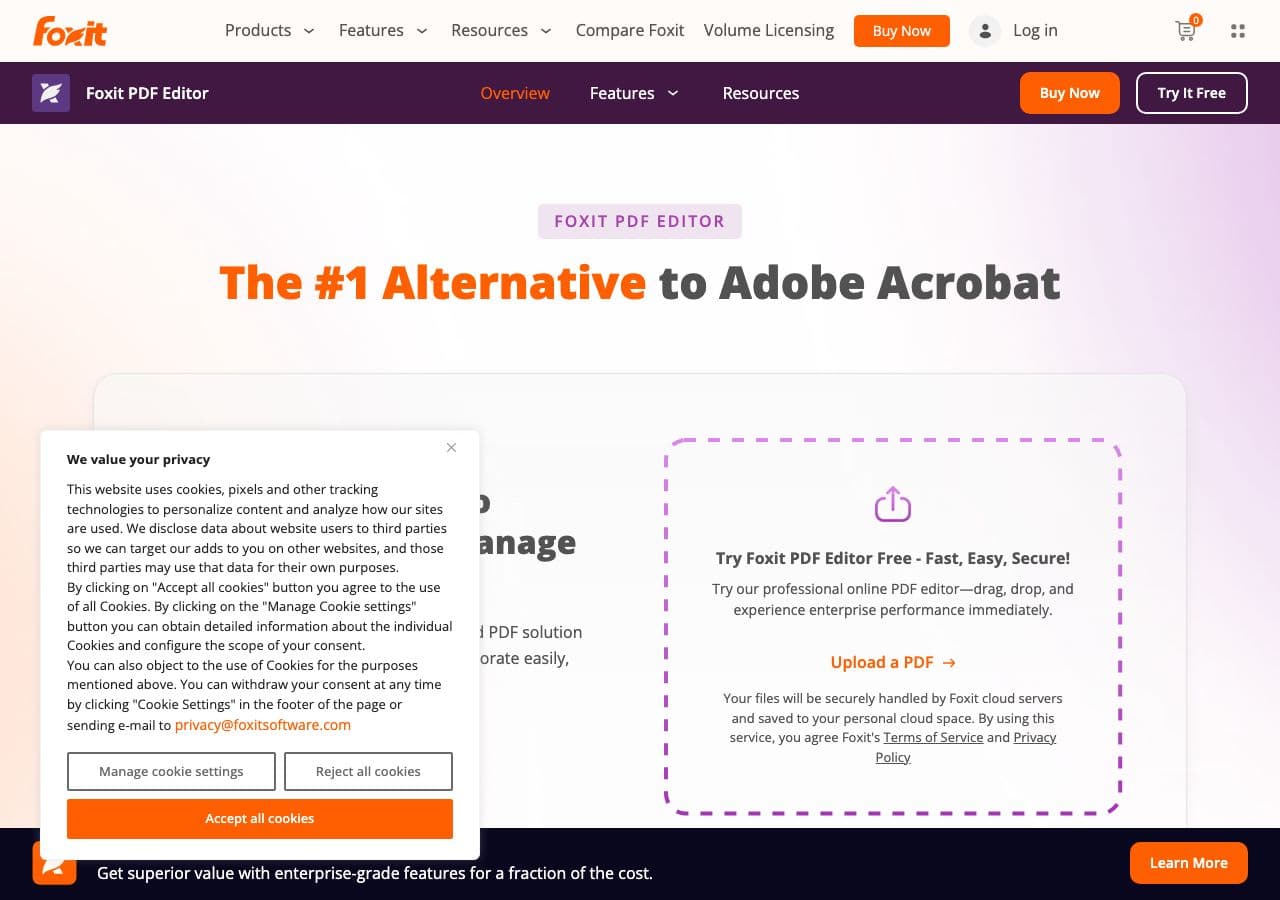
16. Foxit PDF Editor - Best lightweight pro editor
Converting PDF to Word sounds simple, but the quality you get depends on what is inside the PDF. If the PDF was generated from a Word document, conversion is usually clean. If it is a scanned contract, a brochure with multiple columns, or a form with embedded fonts, you need a tool that can rebuild structure and run OCR.
Foxit PDF Editor is a strong option in 2026 for PDF → DOCX, especially when you want a lightweight pro editor. Use it when you care about keeping headings, paragraphs, and basic formatting intact, then plan a quick cleanup pass in Word to fix tables, spacing, or hyphenation.
Pros
- Good balance of editing tools + export/conversion features.
- Often cheaper than Acrobat for similar everyday workflows.
- Useful when you need OCR, forms, and document cleanup too.
Cons
- Export quality still depends heavily on the PDF layout.
- Some features are gated behind higher-tier plans.
Pricing
- Free trial: Usually available.
- Paid: Subscription or perpetual license depending on vendor.
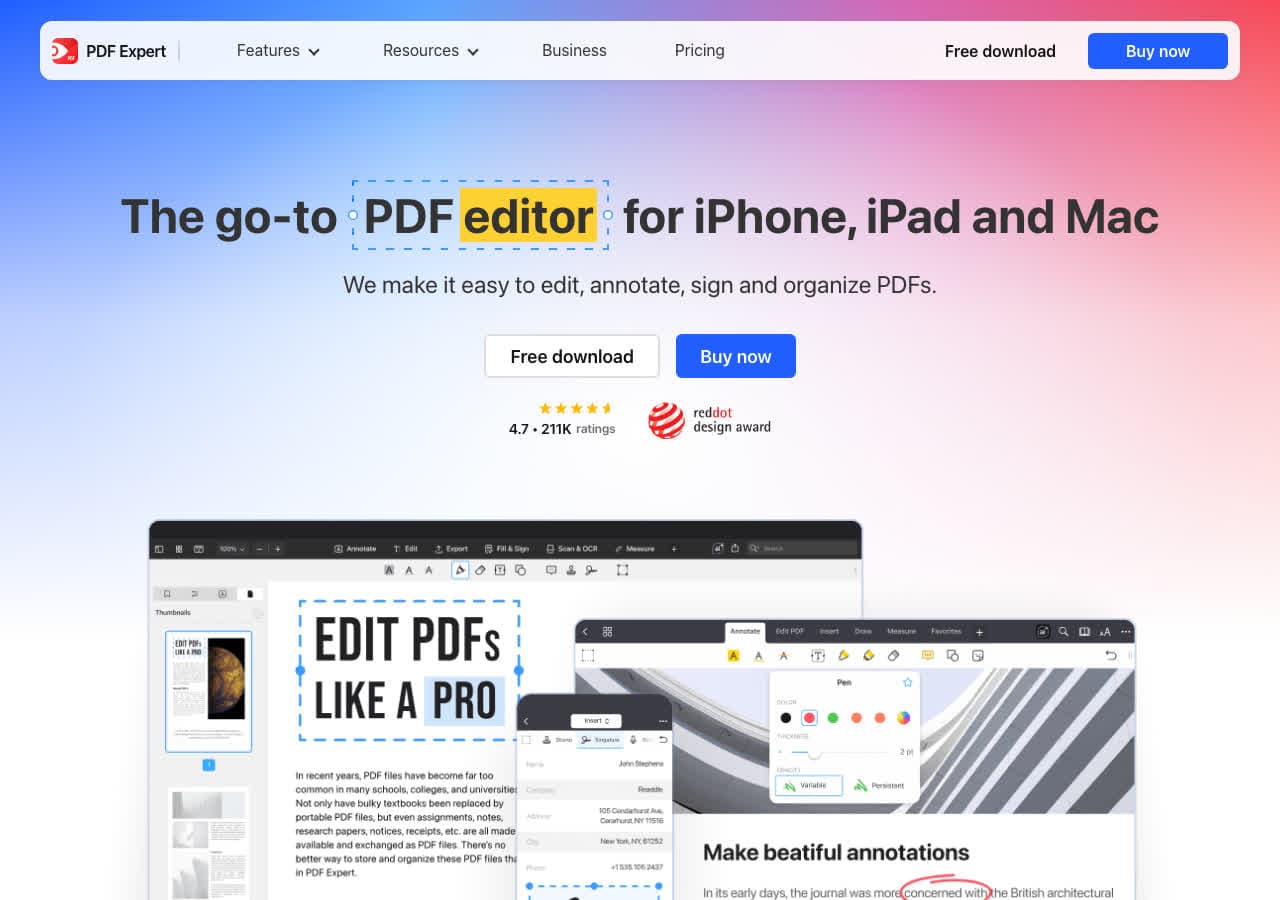
17. PDF Expert - Best for Mac users
Converting PDF to Word sounds simple, but the quality you get depends on what is inside the PDF. If the PDF was generated from a Word document, conversion is usually clean. If it is a scanned contract, a brochure with multiple columns, or a form with embedded fonts, you need a tool that can rebuild structure and run OCR.
PDF Expert is a strong option in 2026 for PDF → DOCX, especially for Mac users. Use it when you care about keeping headings, paragraphs, and basic formatting intact, then plan a quick cleanup pass in Word to fix tables, spacing, or hyphenation.
Pros
- Good output quality on typical text-heavy PDFs.
- Supports common DOCX workflows (track changes, styles) after conversion.
- Works for one-off conversions and repeat use cases.
Cons
- Mac-only.
- Advanced export/edit features may require a paid plan.
Pricing
- Free tier: Varies by tool (limits may apply).
- Paid plans: Unlock higher limits, batch conversion, and editing features.
18. Wondershare PDFelement - Best value pro suite

Converting PDF to Word sounds simple, but the quality you get depends on what is inside the PDF. If the PDF was generated from a Word document, conversion is usually clean. If it is a scanned contract, a brochure with multiple columns, or a form with embedded fonts, you need a tool that can rebuild structure and run OCR.
Wondershare PDFelement is a strong option in 2026 for PDF → DOCX, especially when you want a good-value pro suite. Use it when you care about keeping headings, paragraphs, and basic formatting intact, then plan a quick cleanup pass in Word to fix tables, spacing, or hyphenation.
Pros
- Good balance of editing tools + export/conversion features.
- Often cheaper than Acrobat for similar everyday workflows.
- Useful when you need OCR, forms, and document cleanup too.
Cons
- Export quality still depends heavily on the PDF layout.
- Some features are gated behind higher-tier plans.
Pricing
- Free trial: Usually available.
- Paid: Subscription or perpetual license depending on vendor.
Frequently Asked Questions
Which PDF to Word converter is the most accurate?
For the highest accuracy on tricky documents, a full PDF editor with OCR usually wins. Adobe Acrobat is the gold standard, and alternatives like Foxit, Nitro, and PDFelement are also strong. For simple text-based PDFs, many online converters (CloudConvert, Smallpdf, iLovePDF) are good enough.
What is the safest way to convert PDF to Word?
The safest approach is converting locally with a desktop tool so the file never gets uploaded. If you must use an online converter, read its privacy policy and avoid uploading confidential documents.
Why does my converted Word file look messy?
PDF is a layout format, not a structured document format. Many PDFs store text as positioned blocks, not paragraphs. When a converter rebuilds the document, it has to guess reading order, spacing, and table structure. The messier the original layout, the more manual cleanup you will need in Word.
Final Thoughts
If you convert PDF to Word regularly, pick a tool based on your main constraint. For maximum accuracy and OCR, use a professional PDF editor like Acrobat (or a strong alternative). For privacy and repeat workflows, convert locally with a desktop app. For quick one-off jobs on non-sensitive files, a simple online converter is hard to beat.
 How to Convert
The offline file converter for Mac, Windows and Linux.
- Converts video, audio, images, documents, ebooks and more
- Everything runs locally. Your files never leave your device
- Pay once. Access forever
Get the app on Mac, Windows and Linux
