18 Best PNG to PDF Converters in 2026 (Free and Paid)
The best PNG to PDF converters in 2026. Compare offline desktop apps, open-source tools, and online converters for turning screenshots, diagrams, and scanned pages into shareable PDFs.
Posted by
 Jake Manger
PNG to PDF is the conversion you reach for when you have a screenshot or two — sometimes a stack of them — that need to ship as a real document. Screenshots of a Slack thread for a legal record. UI mockups for a client review. Diagrams for a report. The PNG keeps the sharp text and crisp edges; the PDF makes it a single, page-ordered, share-friendly file. This guide compares 18 PNG to PDF converters in 2026, with attention to the things that actually matter: multi-image combining, page sizing, output file size, and whether the tool preserves the screenshot crispness or quietly re-encodes it.
PNG → PDF is also a place where tool choice has a real impact on output file size — embedding a 5 MB PNG and embedding a re-encoded JPG of the same image produce wildly different PDFs. The next section covers when each is what you want.
The PNG-Specific Size Problem
PDF supports both lossless (PNG-like) and lossy (JPG-like) image streams. The choice has big consequences:
- Embed PNG losslessly: text and edges stay crisp. File size roughly equals the input PNG. For screenshots, charts, diagrams, this is what you want.
- Re-encode as JPG inside the PDF: file size drops dramatically (often 3–10x smaller). Text and edges get ringy, especially at lower qualities. For photos that happen to be PNG, this is fine; for screenshots, it is wrong.
The default behavior varies. ImageMagick re-encodes by default unless you pass -compress LZW. img2pdf embeds losslessly by default. Most web converters re-encode silently at a quality you do not get to choose. If the PNG was a screenshot and the output PDF looks worse than the source, the tool re-encoded it.
Quick Picks for PNG → PDF
- One quick PDF on a Mac: select PNGs in Finder → right-click → Quick Actions → Create PDF.
- One quick PDF on Windows: Photos → Print → Microsoft Print to PDF.
- Multi-page, screenshots, edges matter: img2pdf, How to Convert, or PDF24 — all preserve crisp PNG output.
- Smallest output file: ImageMagick with re-encode, but understand you are trading edge quality.
- Sensitive screenshots (work, finance, IDs): stay local. Skip web converters.
One-shot: PNG to PDF converter.
1. How to Convert (I built this one)

Drag PNGs in, reorder, choose page size, hit convert. Lossless PNG embedding by default — screenshots stay crisp. Optional re-encode for size when you have a photo-in-PNG. Local.
Pricing
- One-time purchase; free web demo for single-file conversions.
 How to Convert
The offline file converter for Mac, Windows and Linux.
- Converts video, audio, images, documents, ebooks and more
- Everything runs locally. Your files never leave your device
- Pay once. Access forever
Get the app on Mac, Windows and Linux
2. img2pdf — best command-line PNG-to-PDF
Small Python CLI tool. Embeds PNGs byte-for-byte into the PDF — no re-encoding, no quality loss. Output PDF is roughly the sum of the input PNG sizes.
img2pdf screenshot1.png screenshot2.png -o output.pdf
With explicit page size:
img2pdf --pagesize A4 *.png -o output.pdf
Fastest CLI tool for this conversion. The right pick for any pipeline where screenshot edge quality matters.
Pricing
- Free, open source.
3. macOS Finder Quick Action / Preview
Select PNGs in Finder, right-click → Quick Actions → Create PDF. Embeds losslessly. Or open the PNGs in Preview, drag the sidebar to reorder, File → Export as PDF.
Pricing
- Free with macOS.
4. Windows Photos → Print to PDF
Open PNGs in Photos, Print, pick “Microsoft Print to PDF.” Works for the basic case. No control over compression — the result is usually re-encoded as JPG inside the PDF, so screenshots get fuzzier. For crisp screenshots use PDF24 instead.
Pricing
- Free with Windows.
5. PDF24
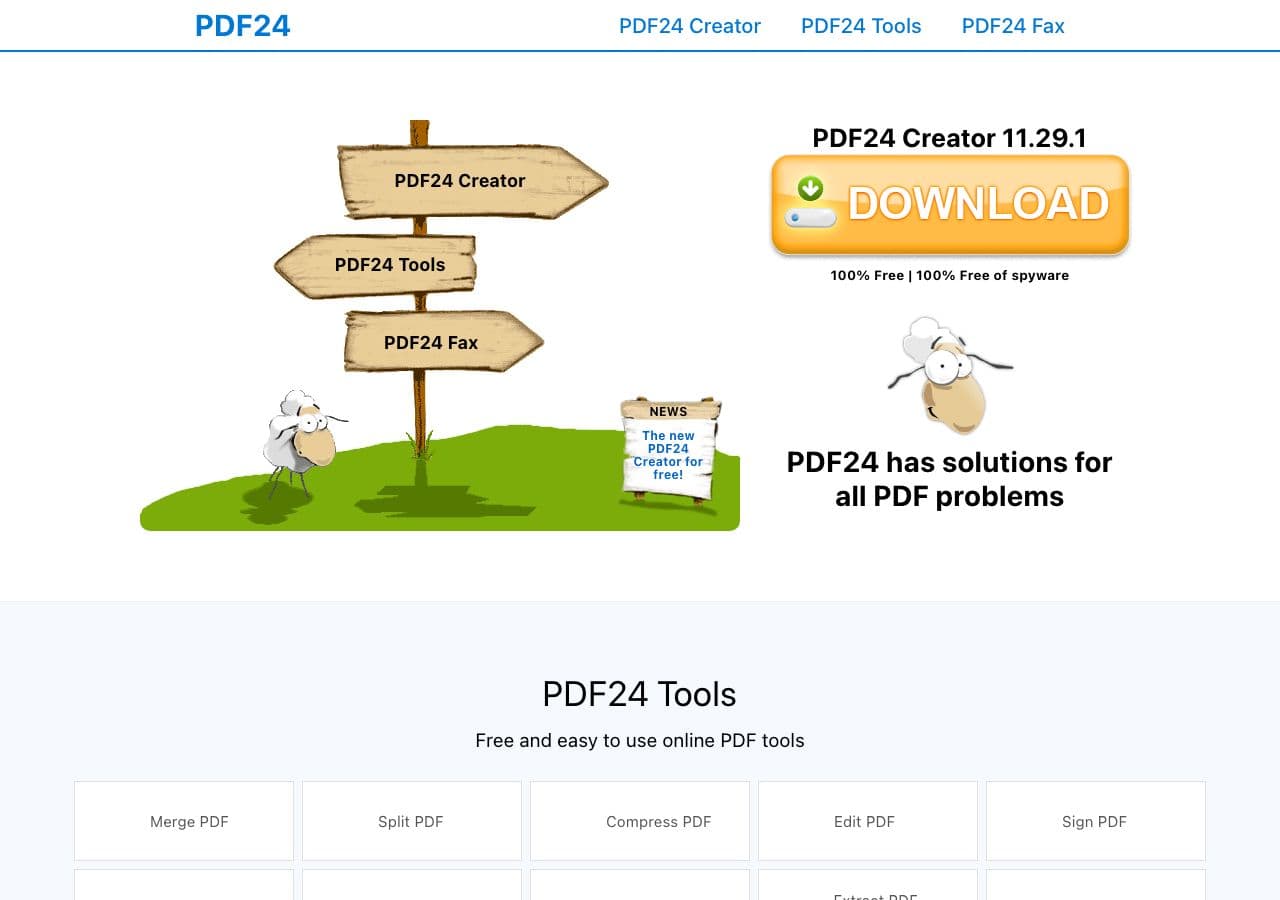
Free Windows toolkit. The JPG-to-PDF and PNG-to-PDF tool preserves PNG losslessly by default. Multi-image combining, page size control, optional OCR. Best free Windows option.
Pricing
- Free for personal use.
6. ImageMagick
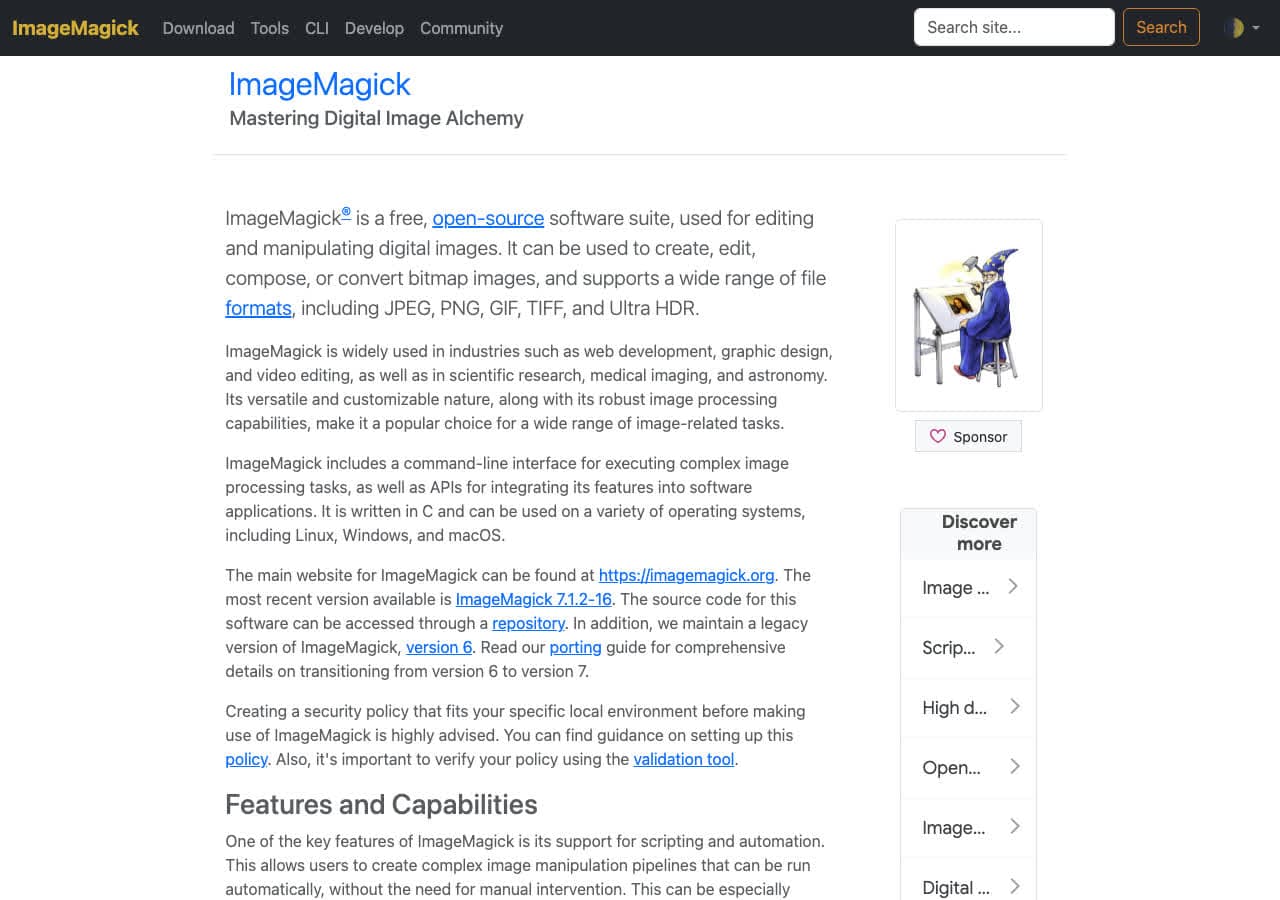
Basic — but with caveat that the default re-encodes PNGs as JPG inside the PDF, hurting screenshot quality:
magick *.png output.pdf
To preserve PNG losslessly inside the PDF (use this for screenshots):
magick *.png -compress LZW output.pdf
With explicit page size:
magick *.png -compress LZW -page Letter -gravity center output.pdf
Pricing
- Free, open source.
7. Adobe Acrobat
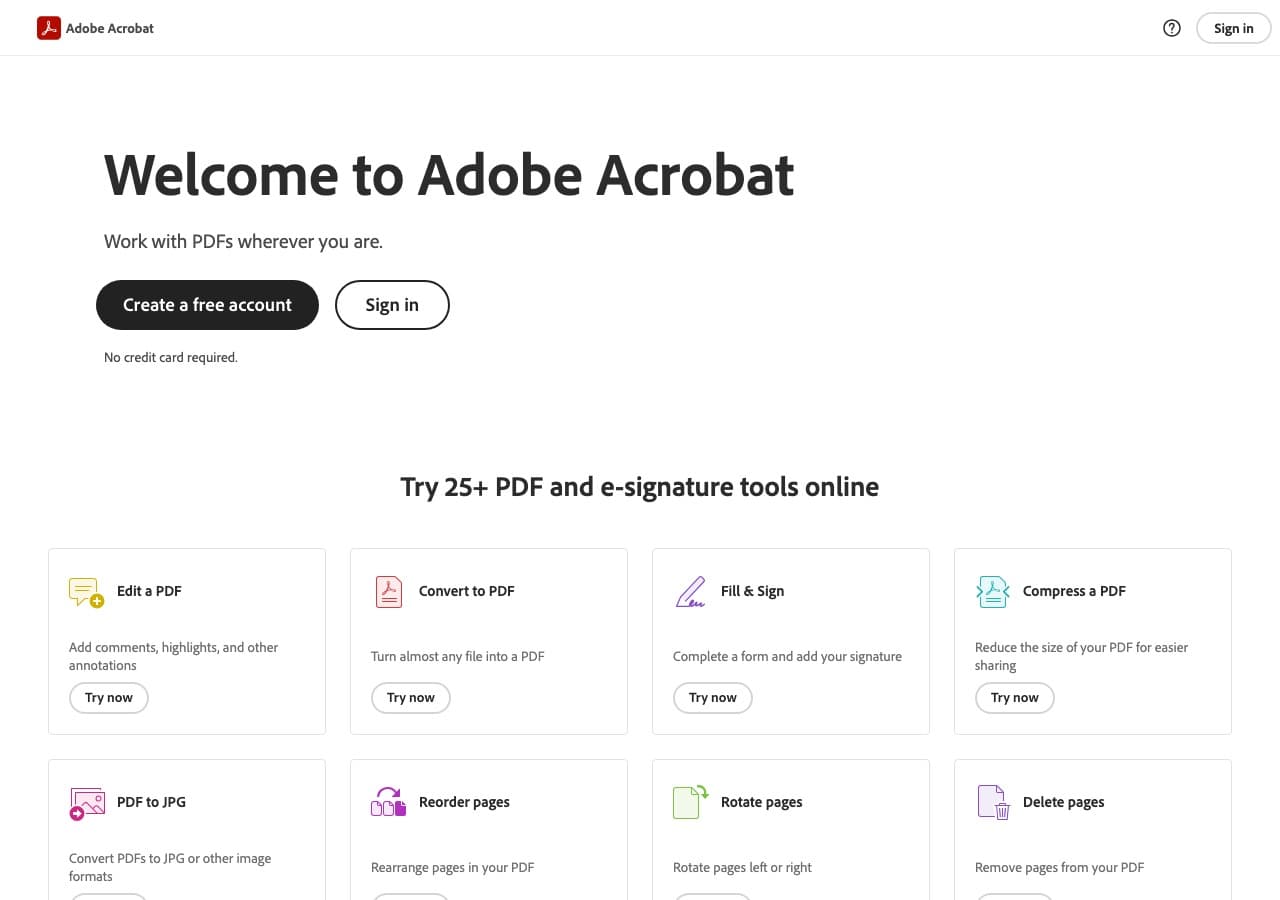
File → Create → Combine Files. Drag PNGs in, reorder, click Combine. Preserves PNG losslessly when configured. Optional OCR pass.
Pricing
- Subscription.
8. PDF Expert (Mac)
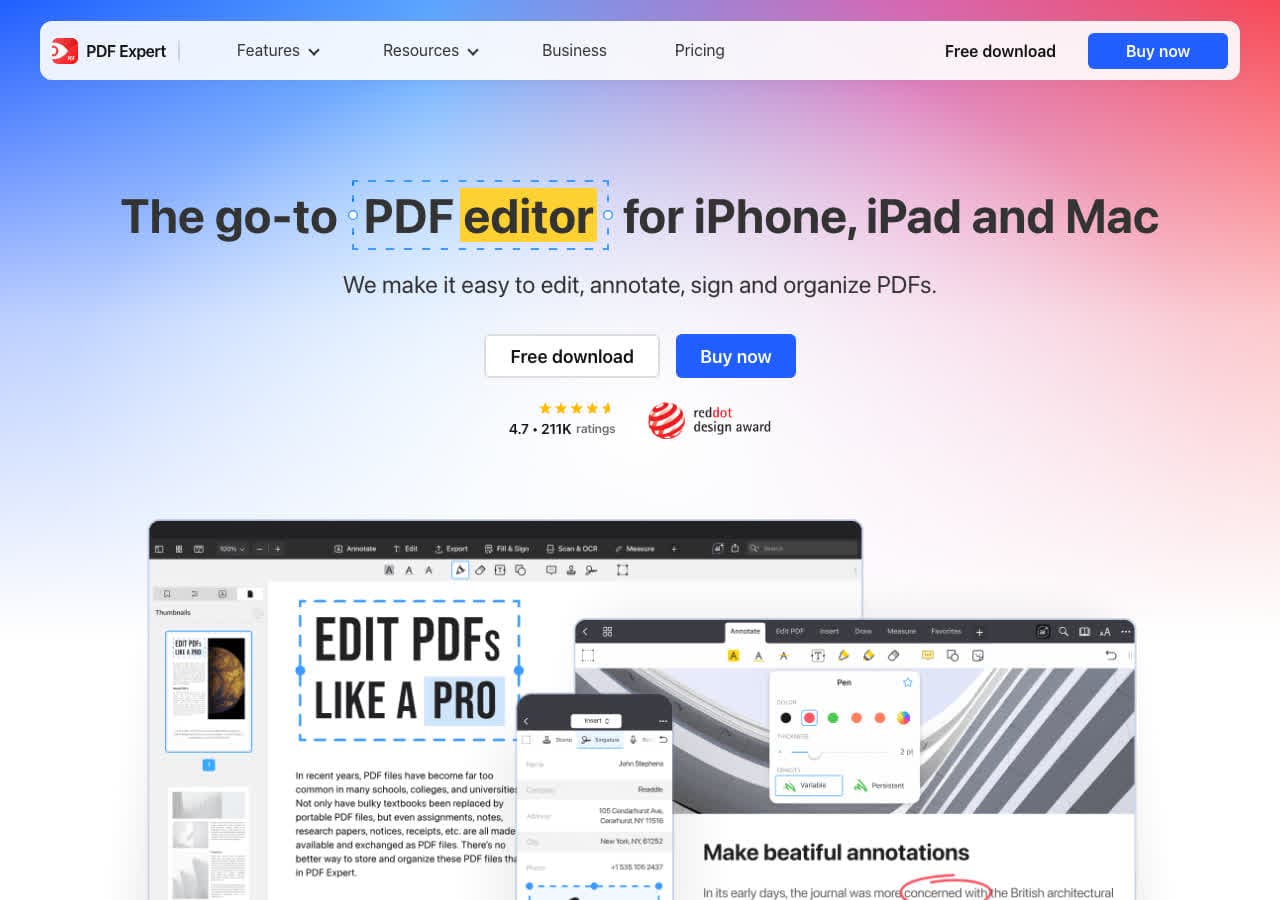
Mac-native, polished. Drag PNGs into a new PDF, save. Useful when you also need to annotate or sign afterwards.
Pricing
- Subscription or one-time depending on tier.
9. LibreOffice Draw
Insert PNG into Draw pages, File → Export as PDF. Fiddly compared to dedicated tools, but free and good for custom layouts.
Pricing
- Free, open source.
10. Foxit PDF Editor
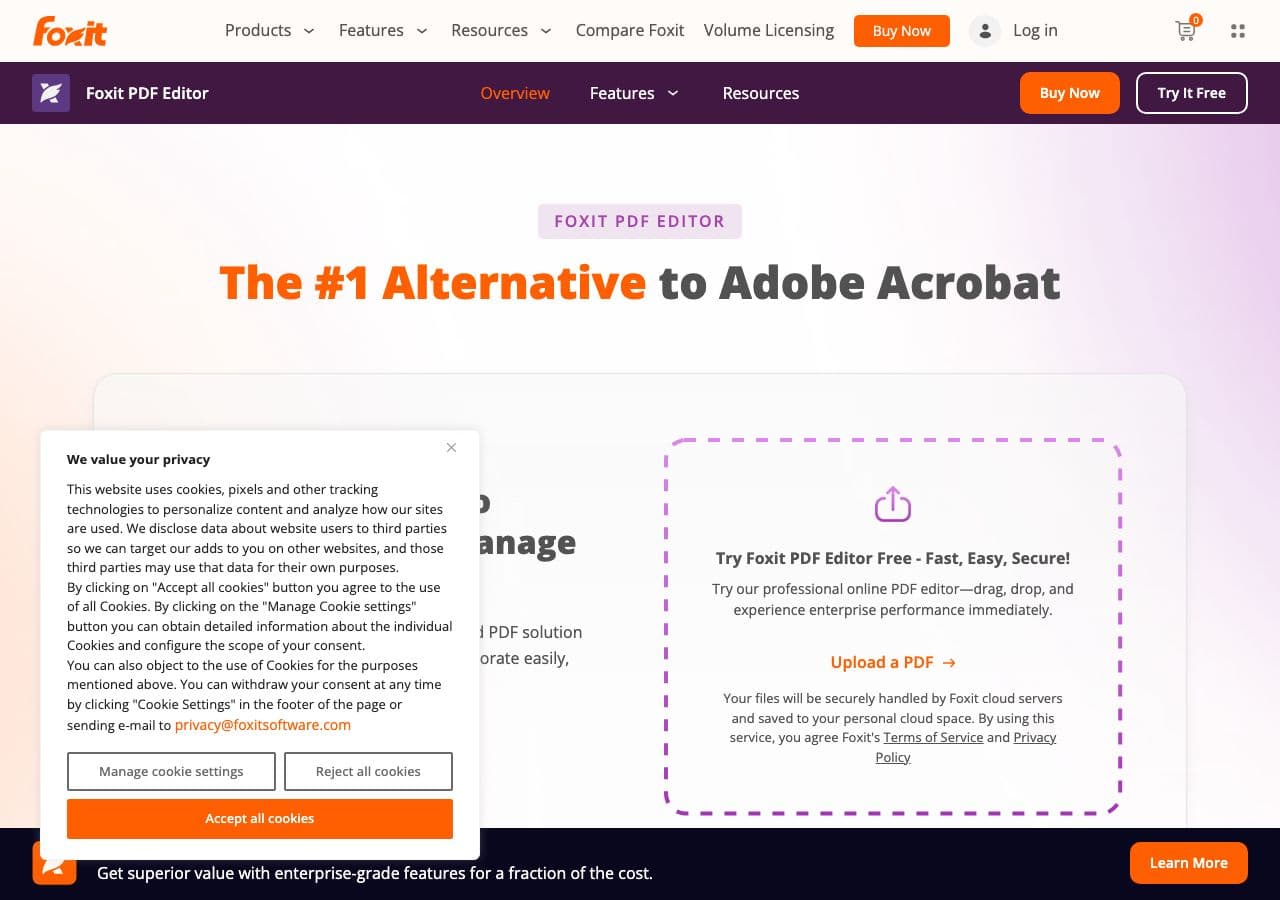
Lighter Acrobat alternative. Create → From File → multiple PNGs. Optional OCR. Strong on Windows.
Pricing
- Subscription or perpetual.
11. Smallpdf
Web converter. Drop PNGs, reorder, set page size, download. Often re-encodes — screenshots lose edge crispness. Fine for non-sensitive photos.
Pricing
- Free with daily limits; paid above.
12. iLovePDF
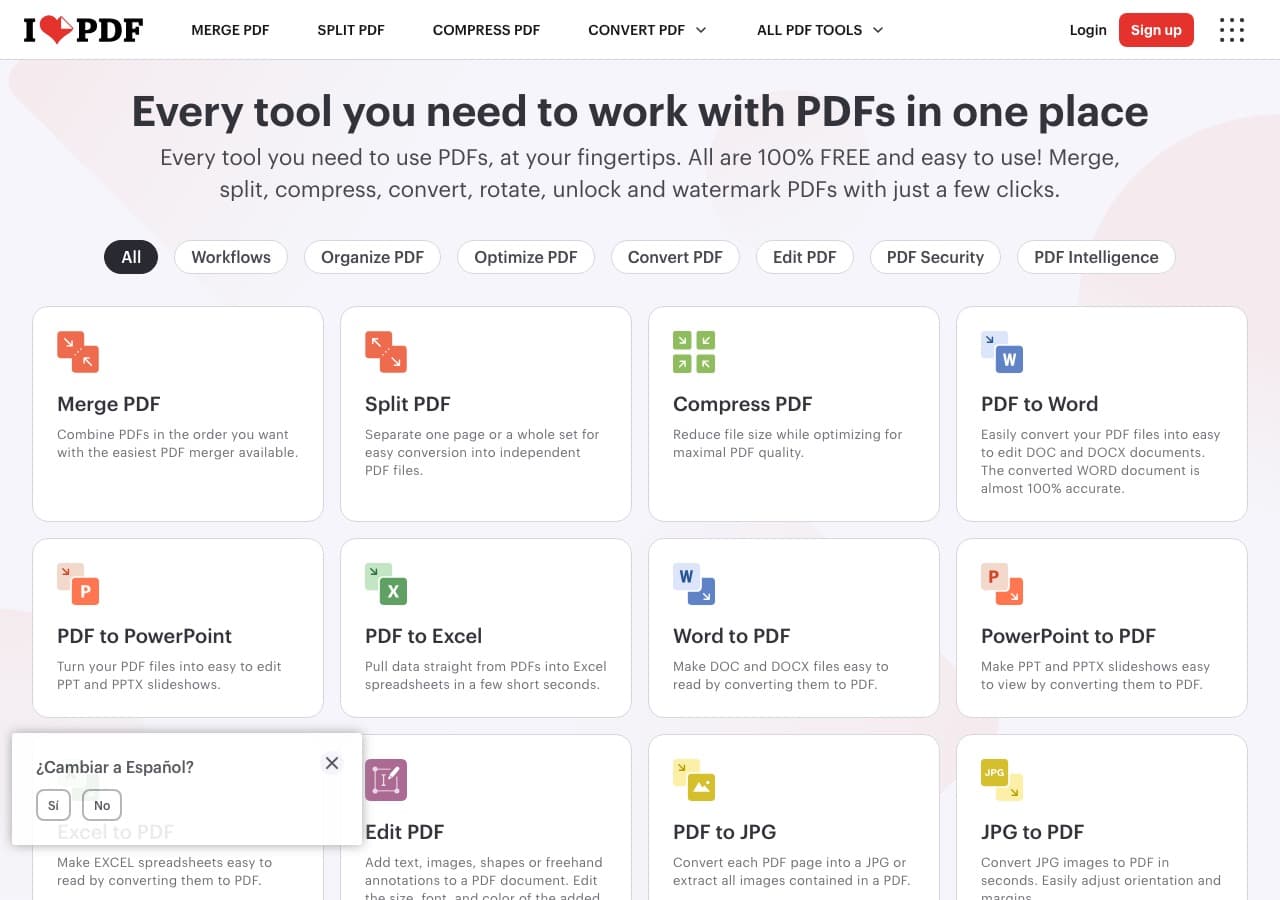
Web JPG/PNG → PDF tool with multi-file upload, drag-to-reorder, and a generous free tier.
Pricing
- Free with limits; paid above.
13. CloudConvert
Web converter with detailed options including a lossless toggle for the PDF image streams. Most edge-quality-preserving web option.
Pricing
- Free tier; paid above.
14. Convertio
Web PNG → PDF with batch upload and reorder. Clean UI.
Pricing
- Free with caps; paid above.
15. FreeConvert
Web converter with quality settings.
Pricing
- Free with caps; paid above.
16. Nitro PDF
Adobe alternative for teams. PNG → PDF with team collaboration on top.
Pricing
- Subscription.
17. Microsoft Word
Insert PNGs into Word, Save As → PDF. Slow, but useful when you want captions, headers, or branding around each image.
Pricing
- Microsoft 365 or Office.
18. Pandoc (for screenshot-into-doc workflows)
Not a direct converter, but useful when you are building a PDF that contains PNG screenshots and other content. Write a Markdown file with image references, run Pandoc:
pandoc input.md -o output.pdf
Pandoc embeds PNGs losslessly via LaTeX. The right pick for documentation-as-code workflows.
Pricing
- Free, open source.
How to Choose
- Quick, casual: OS built-in.
- Edge quality matters (screenshots, charts): img2pdf, PDF24, or How to Convert. Avoid tools that silently re-encode.
- Many screenshots, real layout: Acrobat, PDF Expert, or Foxit.
- Smallest file: ImageMagick with default re-encode, accepting the edge quality tradeoff.
- Need OCR: Acrobat, PDF24, or Foxit.
- Sensitive content: stay local.
- Docs-as-code workflow: Pandoc.
Final Thoughts
PNG → PDF is mostly used for screenshots and diagrams, and the edge crispness of the source is the thing most worth preserving. Tools that quietly re-encode hurt the result. img2pdf and PDF24 are the strongest free choices for crisp screenshot PDFs; ImageMagick works if you pass the right flag. For sensitive content, keep it local.
How to Convert
The offline file converter for Mac, Windows and Linux.
- Converts video, audio, images, documents, ebooks and more
- Everything runs locally. Your files never leave your device
- Pay once. Access forever
Get the app on Mac, Windows and Linux
