18 Best PNG to WebP Converters in 2026 (Free and Paid)
The best PNG to WebP converters in 2026. Compare offline desktop apps, open-source tools, and online converters for shrinking screenshots, product images, and site assets without giving up too much quality.
Posted by
 Jake Manger
PNG to WebP is the most rewarding image conversion you can run on a folder of screenshots. PNG is lossless but large. WebP has both a lossless mode (typically 20–35% smaller than PNG for the same image, byte-for-byte identical) and a lossy mode (5–10x smaller, visually indistinguishable on most content). For a website asset folder, an app icon set, a documentation site, or a personal screenshot archive, the size wins are significant — and unlike JPG → WebP, you do not have to give anything up to get them. This guide compares 18 PNG to WebP converters in 2026.
PNG → WebP also has a subtle gotcha worth understanding before you batch-convert: not every tool defaults to lossless WebP, and lossy WebP on text-heavy screenshots does introduce visible artifacts. The next section explains how to avoid that.
Lossless vs Lossy WebP — Which to Pick
WebP has two encoders. Most tools default to lossy. For PNG → WebP that is usually the wrong default.
Lossless WebP produces a file that decodes to the exact same pixels as the input PNG. Byte-for-byte. No quality loss. Typically 20–35% smaller than the source PNG. Use it for: screenshots, charts, diagrams, logos, line art, UI mockups, anything with sharp edges or text.
Lossy WebP drops information to shrink further. Typical output is 5–10x smaller than the PNG. Visually identical on photos. Not visually identical on screenshots with text — you get the same kind of ringing and color shift you would get from JPEG. Use it for: photos that happen to have been saved as PNG.
Rule of thumb: if the original would have been better as a JPG (a photo), use lossy WebP. If the original was correctly a PNG (a screenshot, logo, line art), use lossless WebP.
Quick Picks for PNG → WebP
- One file, quickest: Squoosh — the lossless toggle is right there.
- A folder of screenshots:
cwebp -lossless, or How to Convert. - A folder of photo-PNGs:
cwebp -q 80or any tool with quality 80 lossy. - Build pipeline:
sharpfor Node,cwebpfor shell scripts. - Transparent PNG: all tools below preserve alpha when going to WebP. You do not lose transparency the way you would with JPG.
One-shot from the site: PNG to WebP converter.
The 18 Converters
1. How to Convert (I built this one) — best private PNG-to-WebP

Drag PNGs in, pick WebP, choose lossless or lossy, hit convert. Files never leave your machine. The mode toggle is exposed (not hidden in an advanced panel), the paid desktop app supports batch conversion, and transparency is preserved automatically.
Pros
- Lossless / lossy choice surfaced clearly.
- Local — no upload.
- Batch folders in the paid desktop app.
Cons
- Paid desktop app; the free web demo handles one file at a time.
Pricing
- One-time purchase.
 How to Convert
The offline file converter for Mac, Windows and Linux.
- Converts video, audio, images, documents, ebooks and more
- Everything runs locally. Your files never leave your device
- Pay once. Access forever
Get the app on Mac, Windows and Linux
2. cwebp — best command-line PNG-to-WebP
Google's reference WebP encoder. Lossless mode for screenshots:
cwebp -lossless -m 6 input.png -o output.webp
Lossy for photo-PNGs:
cwebp -q 80 -m 6 input.png -o output.webp
For a whole folder of screenshots:
for f in *.png; do cwebp -lossless -m 6 "$f" -o "${f%.png}.webp"; doneThe -m 6 flag uses the slowest compression mode, which gives the smallest output. For batch jobs that need to finish quickly, drop to -m 4.
Pros
- Smallest output. It is the reference encoder.
- Explicit lossless flag.
- Scriptable.
Cons
- CLI only.
Pricing
- Free, open source.
3. ImageMagick
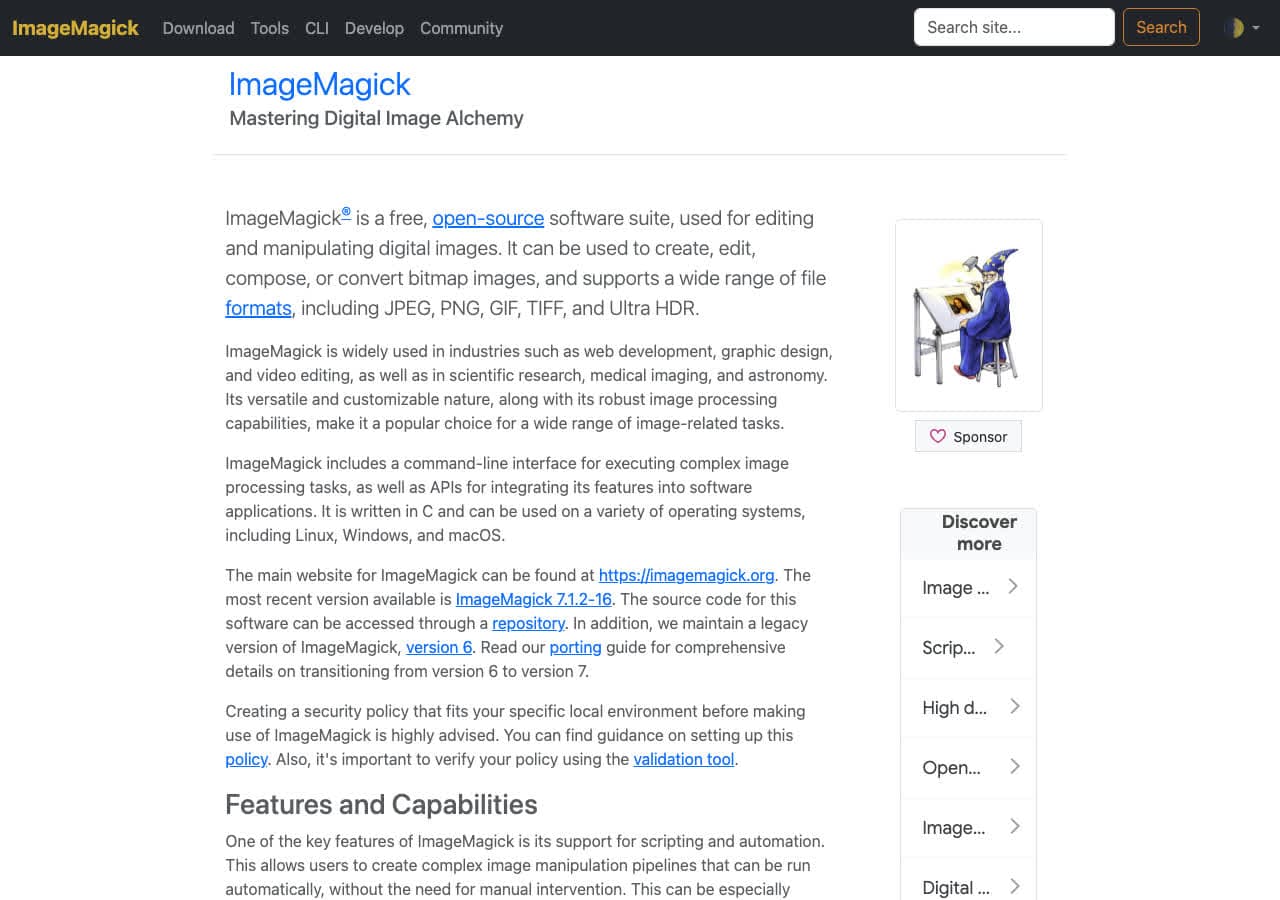
Lossless WebP via ImageMagick:
magick input.png -define webp:lossless=true -define webp:method=6 output.webp
Lossy:
magick input.png -quality 80 -define webp:method=6 output.webp
Pricing
- Free, open source.
4. Squoosh — best browser converter
The Chrome team's converter. WebP encoder runs in WebAssembly, files stay on your device. The advanced panel includes a lossless toggle and live size preview. The right pick for one-off conversions when you want to see both lossless and lossy output before committing.
Pricing
- Free.
5. XnConvert
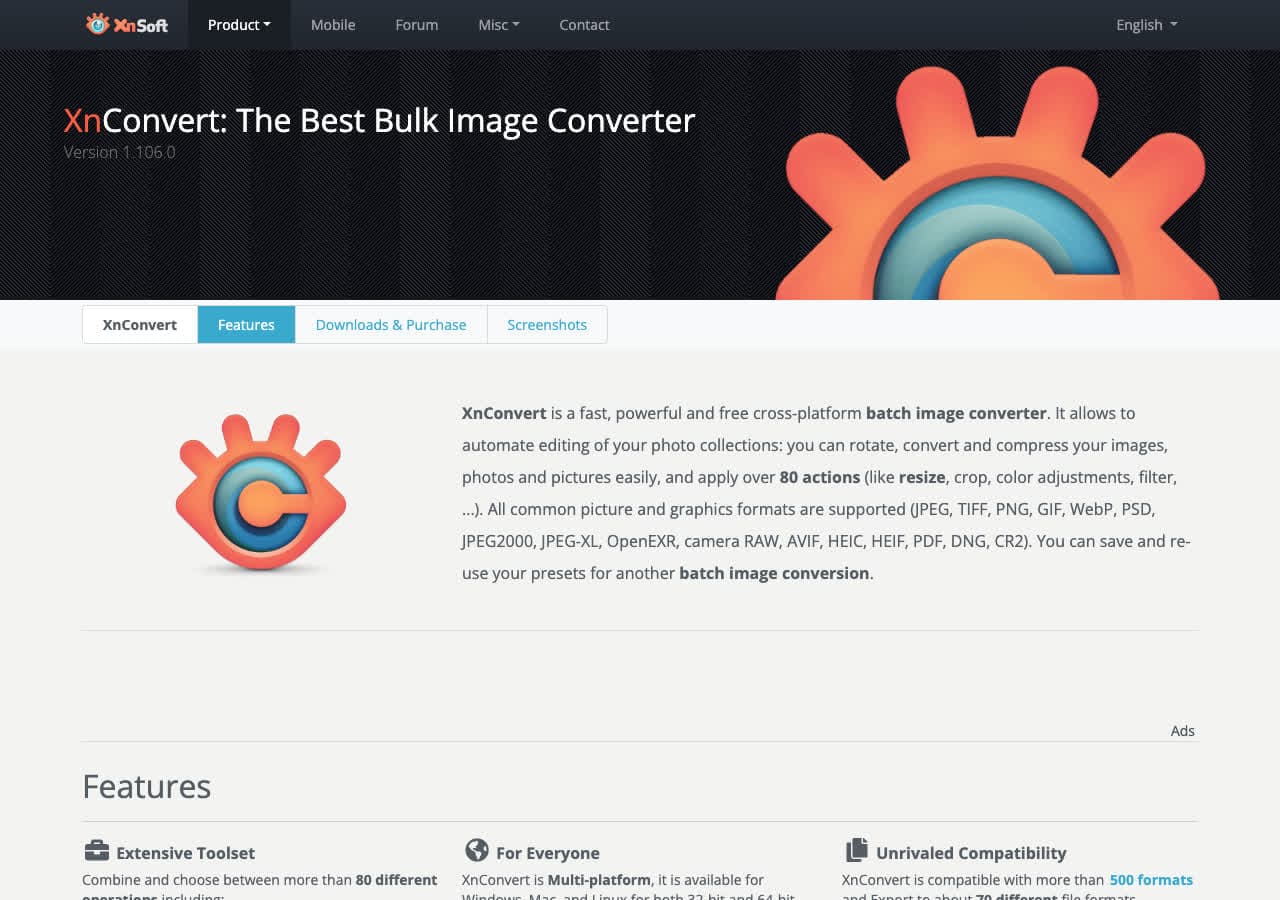
Batch UI with explicit lossless and quality settings for WebP output. Drag a folder, pick mode, convert. Cross-platform.
Pricing
- Free for personal use.
6. IrfanView
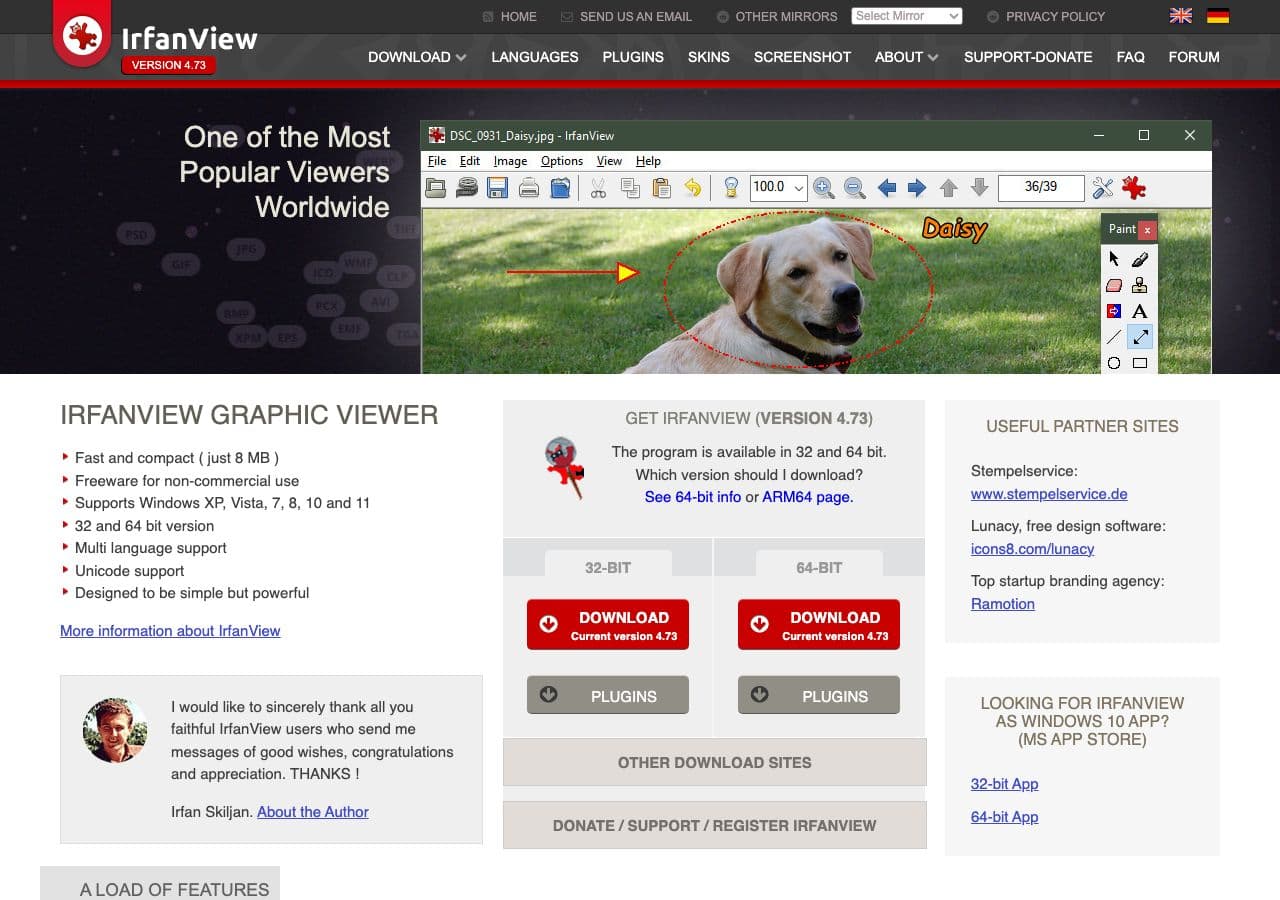
With the plugin pack, IrfanView batch-converts PNG → WebP on Windows. Lossless toggle and quality slider both exposed in the WebP options dialog.
Pricing
- Free for personal use.
7. sharp (Node.js)
The standard image library for Node build pipelines:
import sharp from "sharp";
await sharp("input.png").webp({ lossless: true, effort: 6 }).toFile("output.webp");
Used by Next.js and most modern static-site generators. The right pick when you want WebP generation as part of a build step.
Pricing
- Free, open source.
8. Next.js Image Optimization
The Next.js <Image> component serves WebP to browsers that support it. PNGs in your app get WebP-encoded on demand. Zero config. Best for sites with a handful to a few hundred images; large libraries benefit from converting ahead of time.
Pricing
- Free, part of Next.js.
9. GIMP
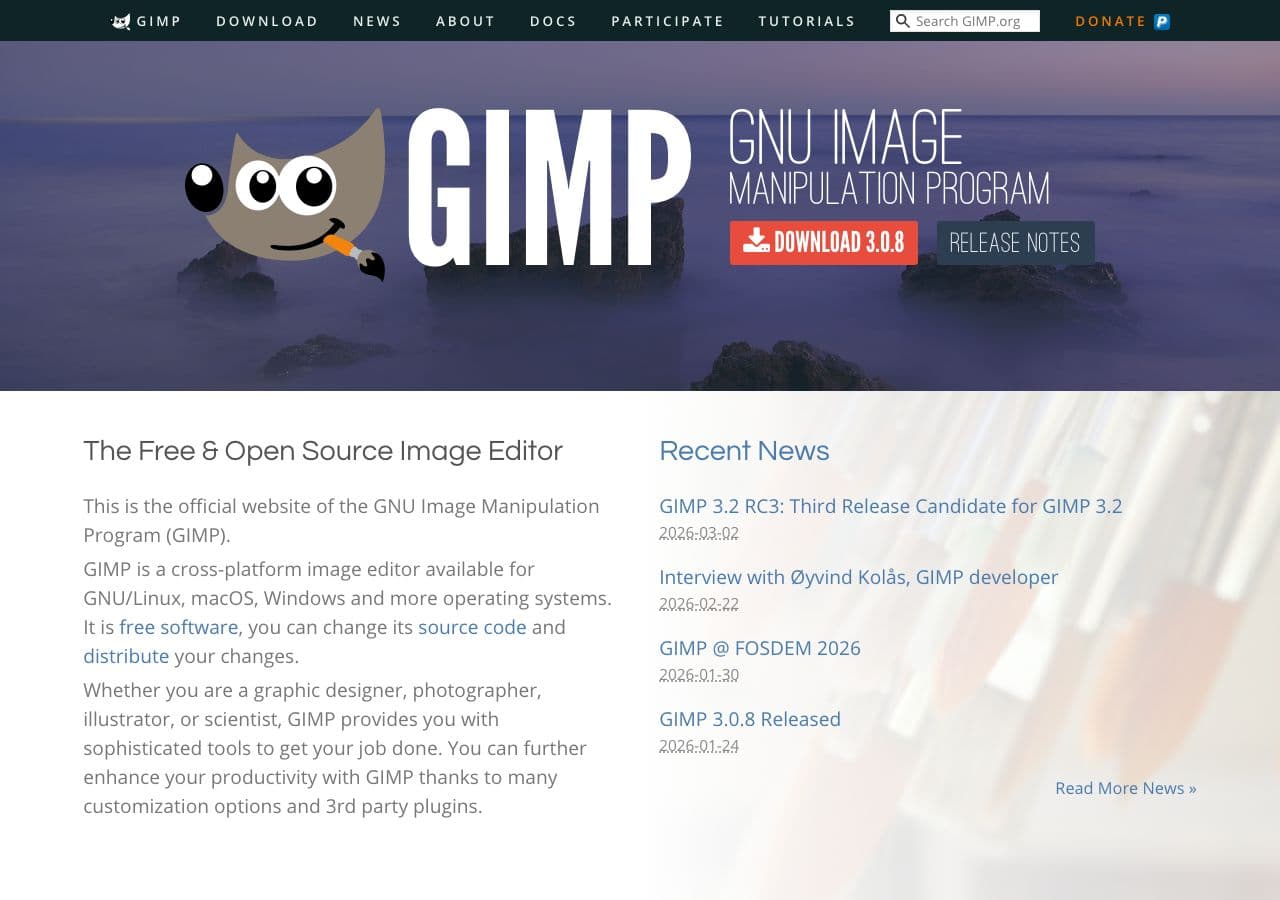
File → Export As → .webp. The export dialog exposes lossless, quality, animation, and metadata controls. Good for one-off conversions during an editing session.
Pricing
- Free, open source.
10. Adobe Photoshop
File → Export → Save As → WebP. Native WebP since 2022. Use when already editing in Photoshop.
Pricing
- Subscription.
11. Affinity Photo
One-time-purchase Photoshop alternative. WebP export via the Export Persona with lossless and quality options.
Pricing
- One-time purchase.
12. Pixelmator Pro

Mac-native editor with WebP export. Lossless toggle and live file-size preview. Useful when you want a visual comparison.
Pricing
- One-time purchase, Mac App Store.
13. Photopea
Photoshop clone in the browser. Opens PNGs, exports WebP, client-side. Useful when you cannot install software but need editing in between.
Pricing
- Free with ads; paid premium.
14. FFmpeg
One-liner for stills:
ffmpeg -i input.png -c:v libwebp -lossless 1 output.webp
Useful inside an FFmpeg pipeline (e.g., extracting a screenshot from a video and outputting WebP directly). Overkill for one image.
Pricing
- Free, open source.
15. CloudConvert
Reliable web converter with PNG → WebP support. Web upload privacy caveat applies.
Pricing
- Free tier; paid above.
16. Convertio
Web converter with PNG → WebP. Clean UI, smaller free file-size cap than CloudConvert.
Pricing
- Free with caps; paid above.
17. FreeConvert
Web converter with a quality slider. Same upload model; same privacy caveat.
Pricing
- Free with caps; paid above.
18. iLoveIMG
iLovePDF's image converter side. Browser batch PNG → WebP with a generous free tier.
Pricing
- Free with limits; paid removes them.
How to Choose
- Folder of screenshots:
cwebp -losslessor How to Convert with lossless mode. Lossy will visibly degrade your text. - Folder of photos saved as PNG: lossy WebP at quality 80. Huge file-size win, no visible loss.
- Single file: Squoosh. Best preview.
- Build pipeline: sharp (Node) or cwebp (script).
- Already on Next.js: let it handle it at runtime.
- Sensitive image: stay local.
Final Thoughts
PNG → WebP is the highest-leverage image conversion for anyone running a website. Lossless WebP is the right default for screenshots, charts, and UI assets — same quality as the source PNG, 20–35% smaller. Lossy WebP is for photos that happened to land in PNG form. The biggest mistake people make here is using the default lossy mode on text-heavy images and ending up with visibly worse output than the PNG. Pick the right encoder mode for the content, and the size wins follow.
How to Convert
The offline file converter for Mac, Windows and Linux.
- Converts video, audio, images, documents, ebooks and more
- Everything runs locally. Your files never leave your device
- Pay once. Access forever
Get the app on Mac, Windows and Linux
