18 Best Video to MP3 Converters in 2026 (Free and Paid)
The best video to MP3 converters for 2026. Extract MP3 audio from MP4, MOV, MKV, AVI, WebM and any other video format with these free and paid tools.
Posted by
 Jake Manger
Want to extract MP3 from your video right now?
Use our free single-file video to MP3 web demo. It works with MP4, MOV, MKV, AVI, WebM and other video formats, runs locally on your device, and never uploads your file to a server.
Or read on for the 18 best video to MP3 converters compared.
Most of the time when people search for a video to MP3 converter, they want one specific thing: take the audio out of a video and save it as an MP3 they can listen to. Podcast clips, lecture recordings, music videos, meeting recordings, screen captures, voice notes from a video call. The video itself is just a wrapper around the audio you actually want.
A good video to MP3 converter does three things: it accepts whatever video format you throw at it (MP4, MOV, MKV, AVI, WebM), it gives you control over MP3 bitrate so you can balance file size and quality, and it does not destroy audio sync. We tested 18 tools across desktop, command line, and the web to find the best options. Some are free, some are paid, all of them handle the core task without surprises.
1. How to Convert (I built this one) - Best Local-First Video to MP3 Converter
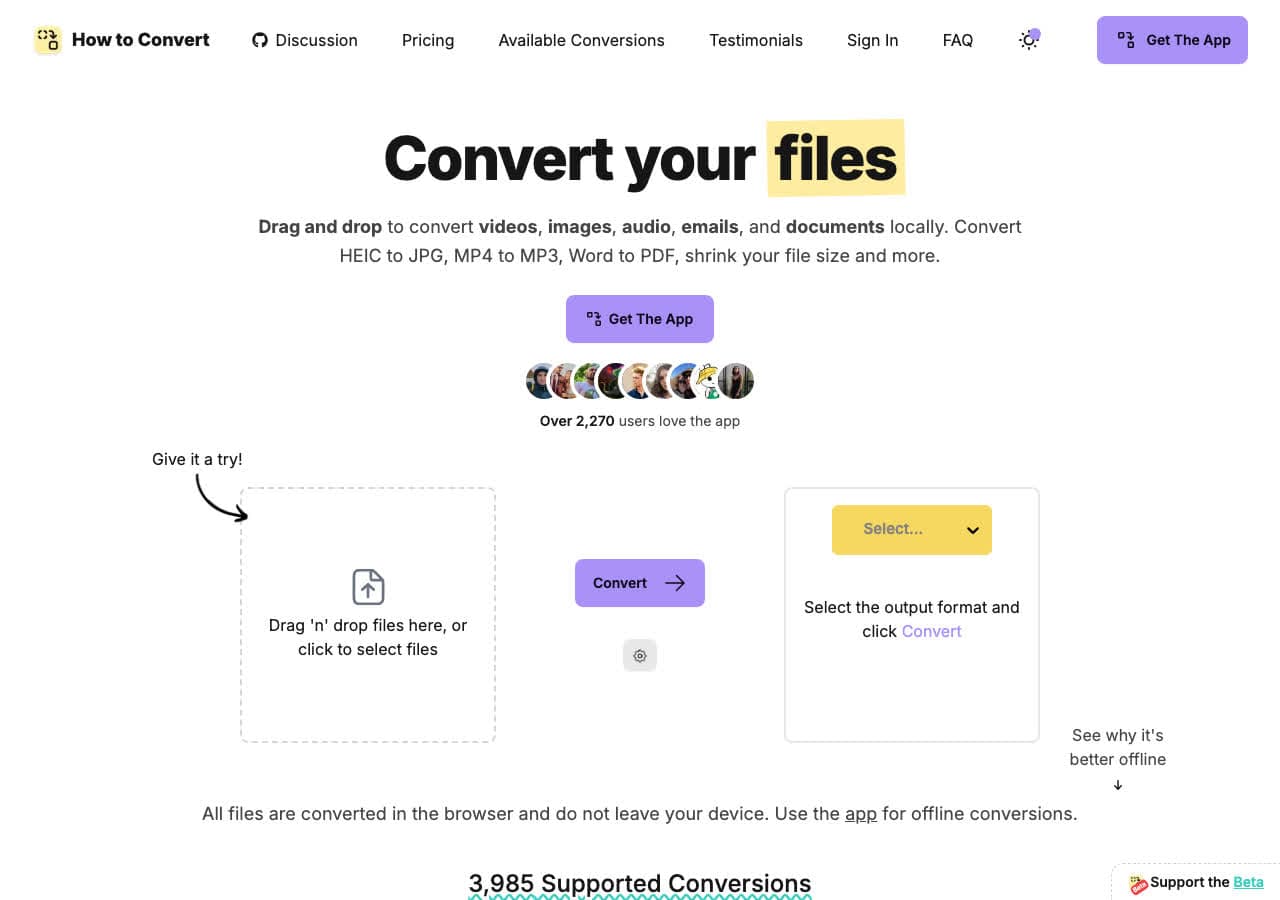
How to Convert extracts MP3 audio from any video format locally on your device. Drop in MP4, MOV, MKV, AVI, WebM, or anything else, choose MP3, and convert. Nothing is uploaded. The desktop app handles batch conversion, so you can select as many recordings as you like, drag them in, and pull MP3 audio from all of them in one pass. There is also a free browser video to MP3 converter for one-off jobs.
For lectures, meetings, interviews, or any private recording, local-first conversion matters. Your audio never leaves your computer. Bitrate is configurable, and the app handles all the common video formats without you needing to think about codecs.
Pros
- Local conversion. Audio never leaves your device.
- Works with MP4, MOV, MKV, AVI, WebM and more.
- Batch convert entire folders to MP3.
- One-time purchase. No subscription.
- Mac, Windows, and Linux.
Cons
- Desktop app is a paid one-time purchase.
- Web demo handles one file at a time.
Pricing
- Free: Browser converter for common formats.
- Desktop app: One-time purchase, all platforms.
 How to Convert
The offline file converter for Mac, Windows and Linux.
- Converts video, audio, images, documents, ebooks and more
- Everything runs locally. Your files never leave your device
- Pay once. Access forever
Get the app on Mac, Windows and Linux
2. FFmpeg - Best Command-Line Video to MP3 Extractor
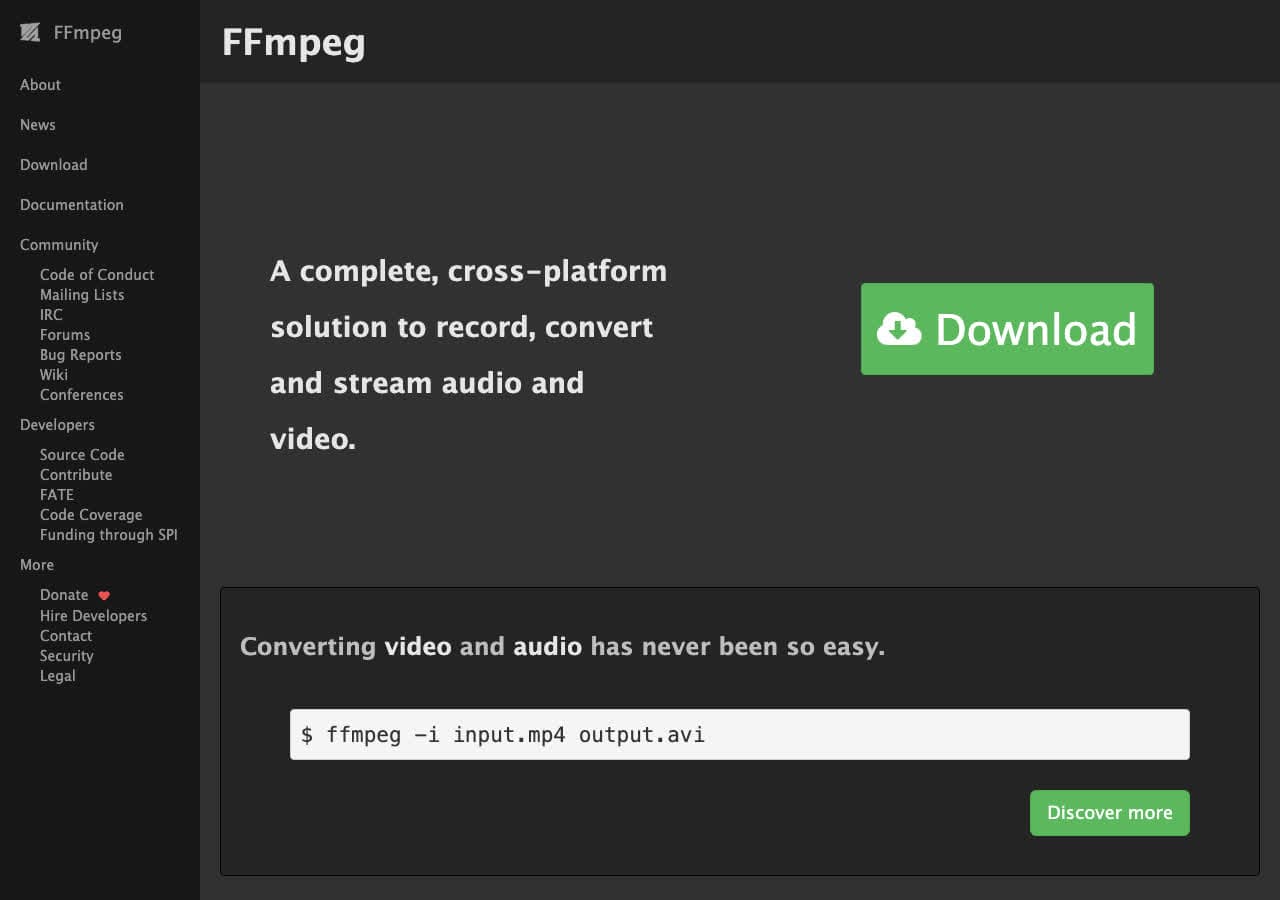
FFmpeg extracts MP3 from any video with one command: ffmpeg -i input.mp4 -vn -c:a libmp3lame -b:a 192k output.mp3. The -vn flag drops the video stream, and -b:a 192k sets the MP3 bitrate. For batch extraction, wrap it in a shell loop: for f in *.mp4; do ffmpeg -i "$f" -vn -c:a libmp3lame -b:a 192k "${f%.mp4}.mp3"; done.
FFmpeg handles every video format that has ever existed. If a video plays anywhere, FFmpeg can extract its audio. The trade-off is the command line, but for video to MP3 specifically, the command is short and easy to memorize.
Pros
- Handles every video format.
- Precise control over MP3 bitrate and quality.
- Scriptable for batch jobs.
- Free, open source, runs everywhere.
Cons
- Command line only.
- Need libmp3lame compiled in for MP3 output.
Pricing
- Free (open source, LGPL/GPL).
3. VLC - Best Already-Installed Video to MP3 Tool
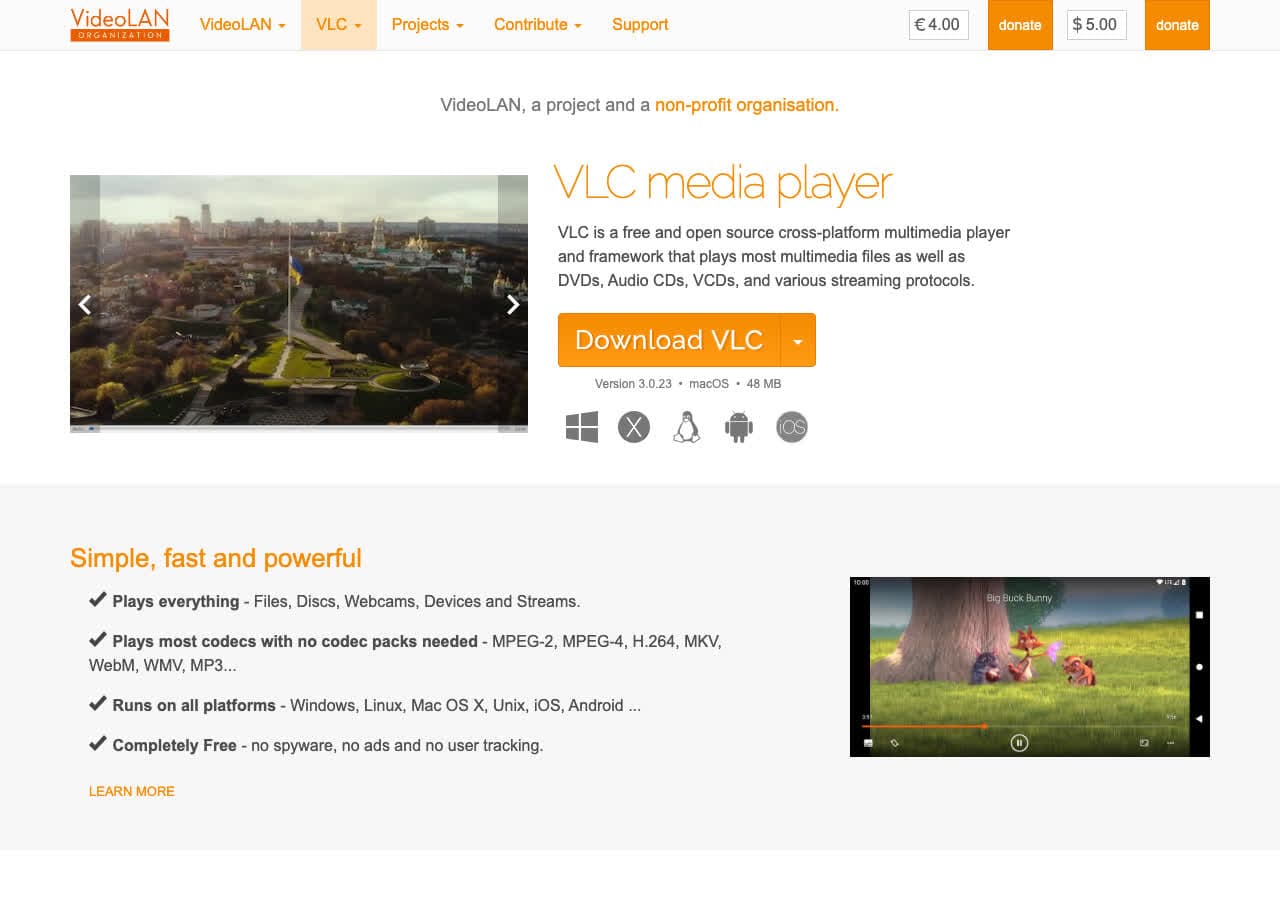
VLC converts videos to MP3 through Media > Convert/Save. Add the video, pick the "Audio - MP3" profile, choose an output filename ending in .mp3, and click Start. VLC strips the video and re-encodes the audio to MP3 in one pass.
VLC is the right pick for one-off video to MP3 jobs when you do not want to install another app. It handles odd or older video files better than most converters because of its broad codec support. The interface is functional rather than pretty.
Pros
- Free, open source, probably already installed.
- Handles unusual video formats well.
- Works offline. No uploads.
- Cross-platform.
Cons
- Conversion menu is buried.
- Limited control over MP3 bitrate without diving into profile settings.
Pricing
- Free (open source, GPL).
4. Audacity - Best for Editing Audio After Extraction
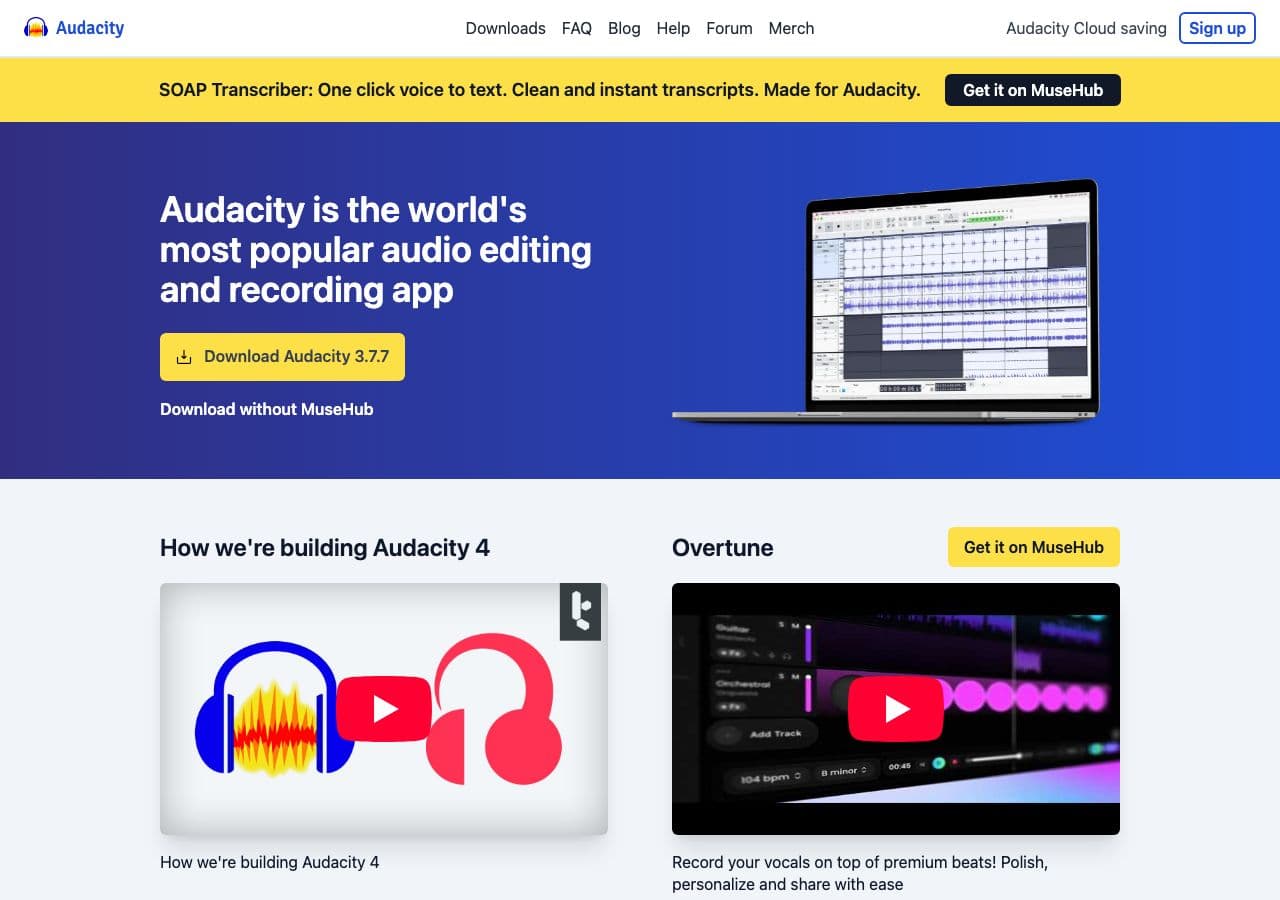
Audacity is an audio editor first, but with the FFmpeg integration installed it imports audio directly from MP4, MOV, MKV, AVI, and other video formats. Once imported, you can trim silence, normalize loudness, remove noise, or cut to a specific section, then export as MP3.
Audacity is the best pick when the MP3 you want is not the entire audio track. Pull the audio from a 90-minute meeting recording and export only the 5 minutes you actually need. Free, open source, and runs on Mac, Windows, and Linux.
Pros
- Edit audio before exporting MP3.
- Trim, normalize, denoise.
- Free, open source, cross-platform.
Cons
- Requires FFmpeg add-on for video import.
- Overkill for direct video to MP3 with no editing.
Pricing
- Free (open source, GPL).
5. fre:ac - Best Free Audio Converter with Video Input
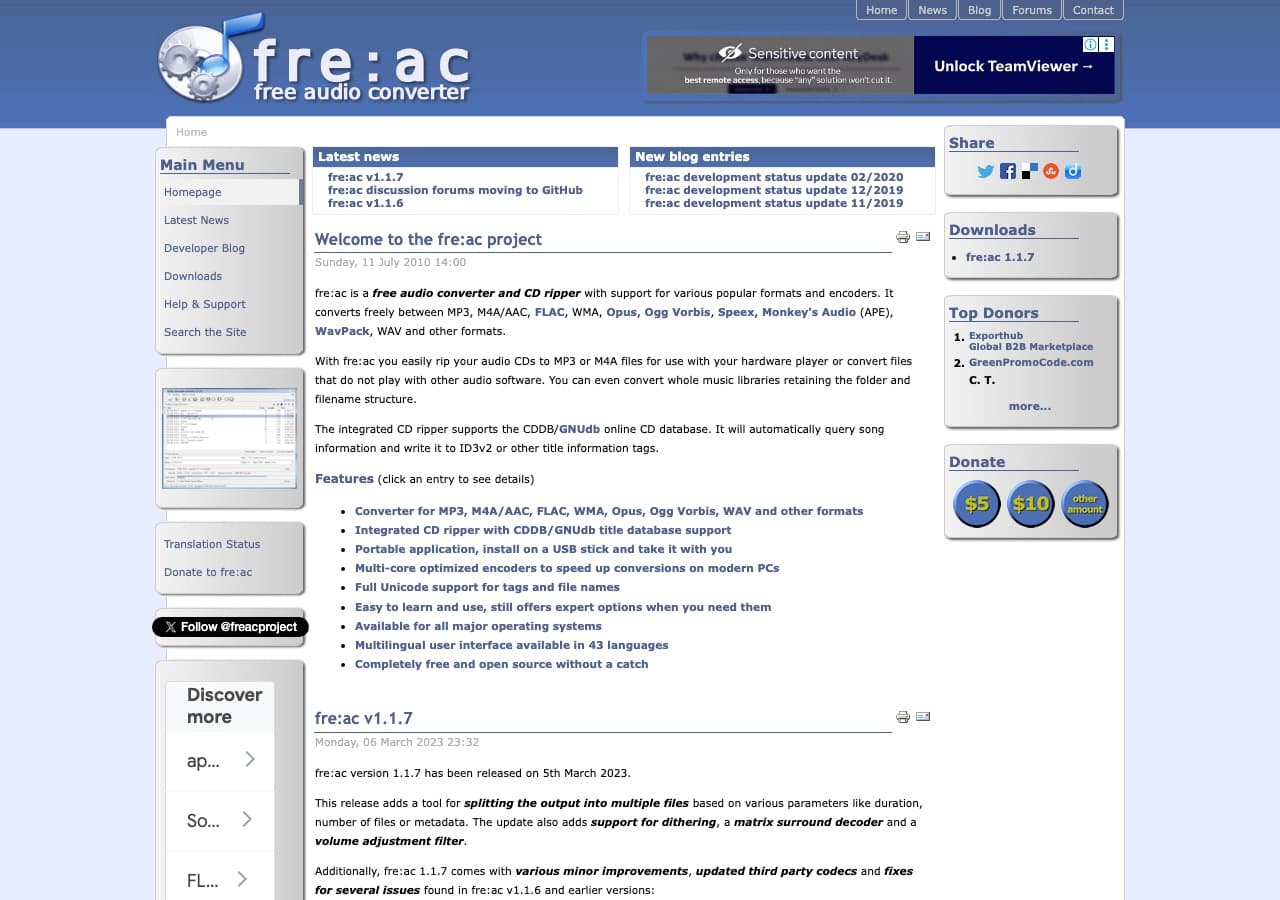
fre:ac is a free, open source audio converter that accepts most common video formats as input. Drop MP4, MKV, MOV files into the queue, choose MP3 with your bitrate of choice, and convert. fre:ac is built around batch processing, so it works well for converting many video recordings to MP3 in one pass.
For pure batch video to MP3 work without ads, watermarks, or upsells, fre:ac is one of the best free options. It runs on Mac, Windows, and Linux.
Pros
- Free, open source, no ads or upsells.
- Excellent batch conversion.
- Cross-platform.
Cons
- Interface is older-style.
- Some video formats need extra codecs installed.
Pricing
- Free (open source, GPL).
6. MediaHuman Audio Converter - Cleanest Video to MP3 GUI
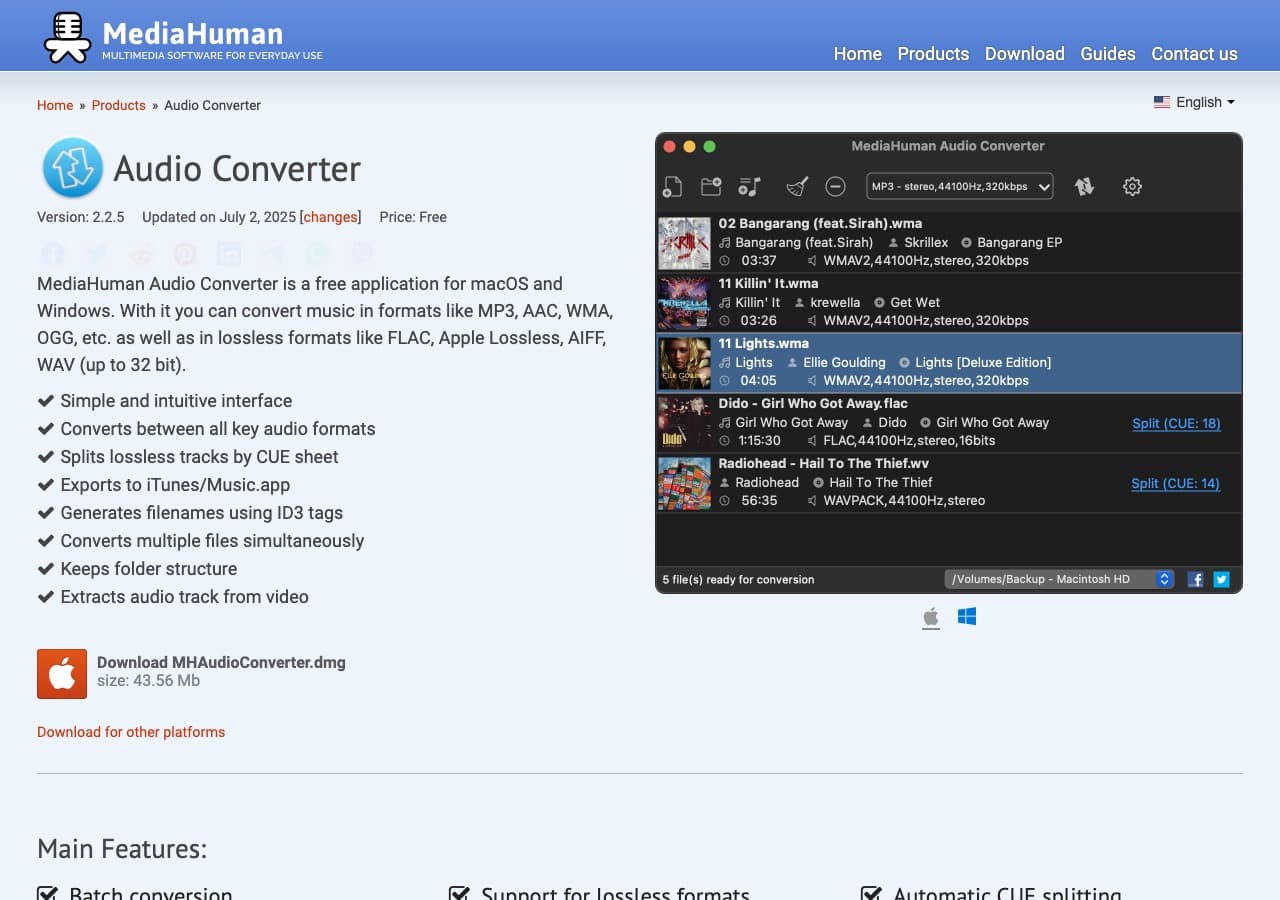
MediaHuman Audio Converter has one of the cleanest, most modern interfaces in this category. Drag a video onto the window, pick MP3, set bitrate, and start. It supports MP4, MOV, MKV, AVI, FLV, and other video formats, and it preserves metadata when present.
MediaHuman is free for personal use. For people who like a polished, native-feeling app and dislike the dated style of fre:ac or Switch, this is the best free pick. Mac and Windows only.
Pros
- Clean, modern UI.
- Free for personal use.
- Preserves metadata.
- Mac and Windows.
Cons
- No Linux version.
- Free version has occasional reminder dialogs.
Pricing
- Free for personal use.
- Donations and paid bundles available.
How to Convert
The offline file converter for Mac, Windows and Linux.
- Converts video, audio, images, documents, ebooks and more
- Everything runs locally. Your files never leave your device
- Pay once. Access forever
Get the app on Mac, Windows and Linux
7. Wondershare UniConverter - Most Polished Paid Option
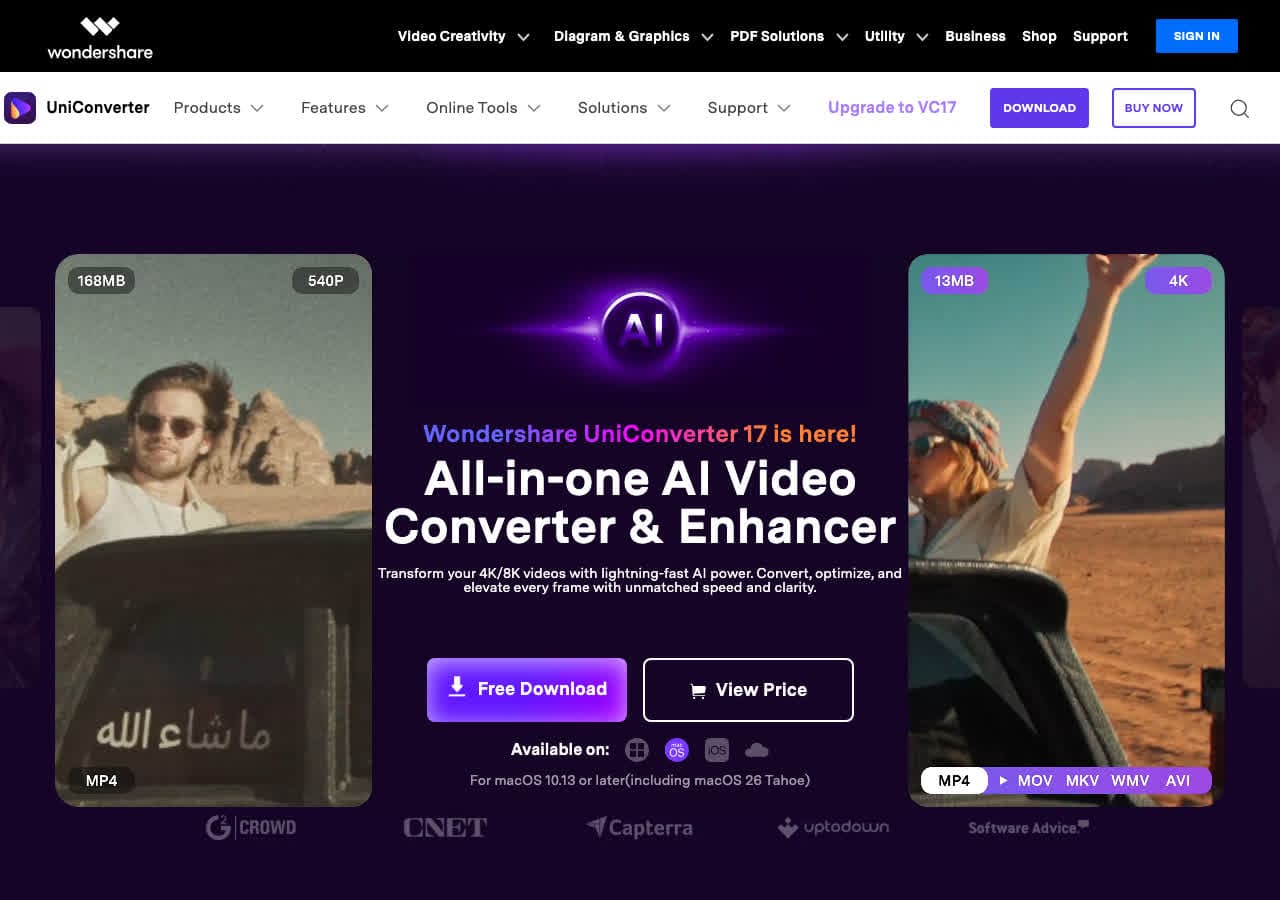
Wondershare UniConverter handles video to MP3 alongside everything else it does. Drop a video, pick MP3 from the audio output presets, optionally tweak bitrate, and convert. Hardware acceleration speeds up extraction noticeably on modern machines.
UniConverter is a good fit for non-technical users who want one polished commercial app for conversion, basic editing, and DVD authoring. It is paid software with a subscription model.
Pros
- Polished UI with strong presets.
- Hardware-accelerated conversion.
- Batch processing.
- Mac and Windows.
Cons
- Paid software.
- Free trial limits output length.
Pricing
- Subscription: From around $40/year.
- Lifetime: Around $80 one-time.
8. Movavi Video Converter - Best Beginner-Friendly Paid App
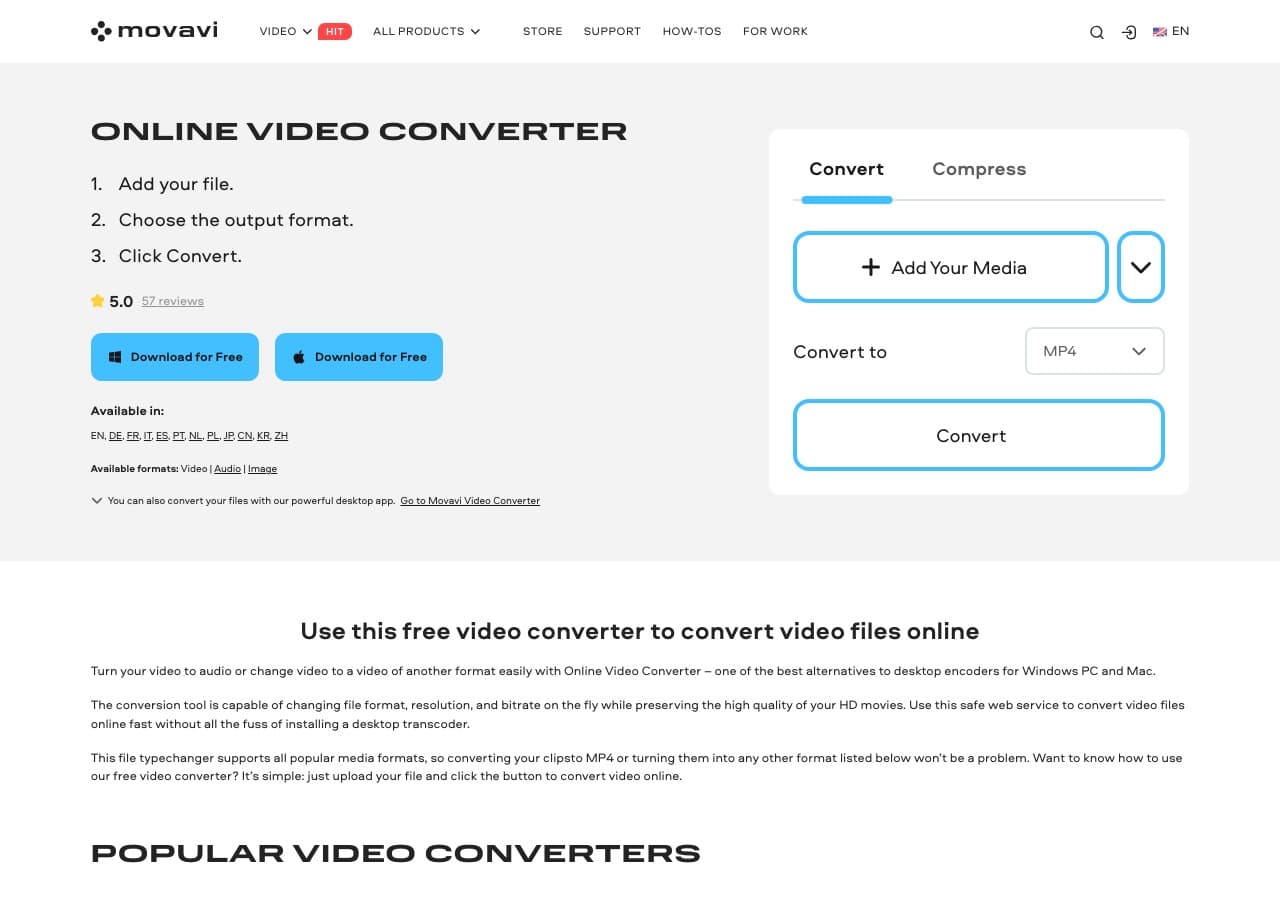
Movavi Video Converter extracts MP3 from videos with a couple of clicks. Add the video, pick the MP3 audio preset, choose bitrate, and convert. It handles batch jobs and includes basic trimming so you can isolate the section you want before extracting.
Movavi is the right fit for beginners who want a paid, polished app and do not want to learn FFmpeg or VLC profiles. Mac and Windows.
Pros
- Very beginner-friendly drag-and-drop UI.
- Built-in trim and merge.
- Batch conversion.
- Mac and Windows.
Cons
- Paid software.
- Persistent upsell prompts.
Pricing
- Subscription: Around $40/year.
- Lifetime: Around $50 one-time.
9. Switch by NCH - Reliable Batch Video to MP3 Tool
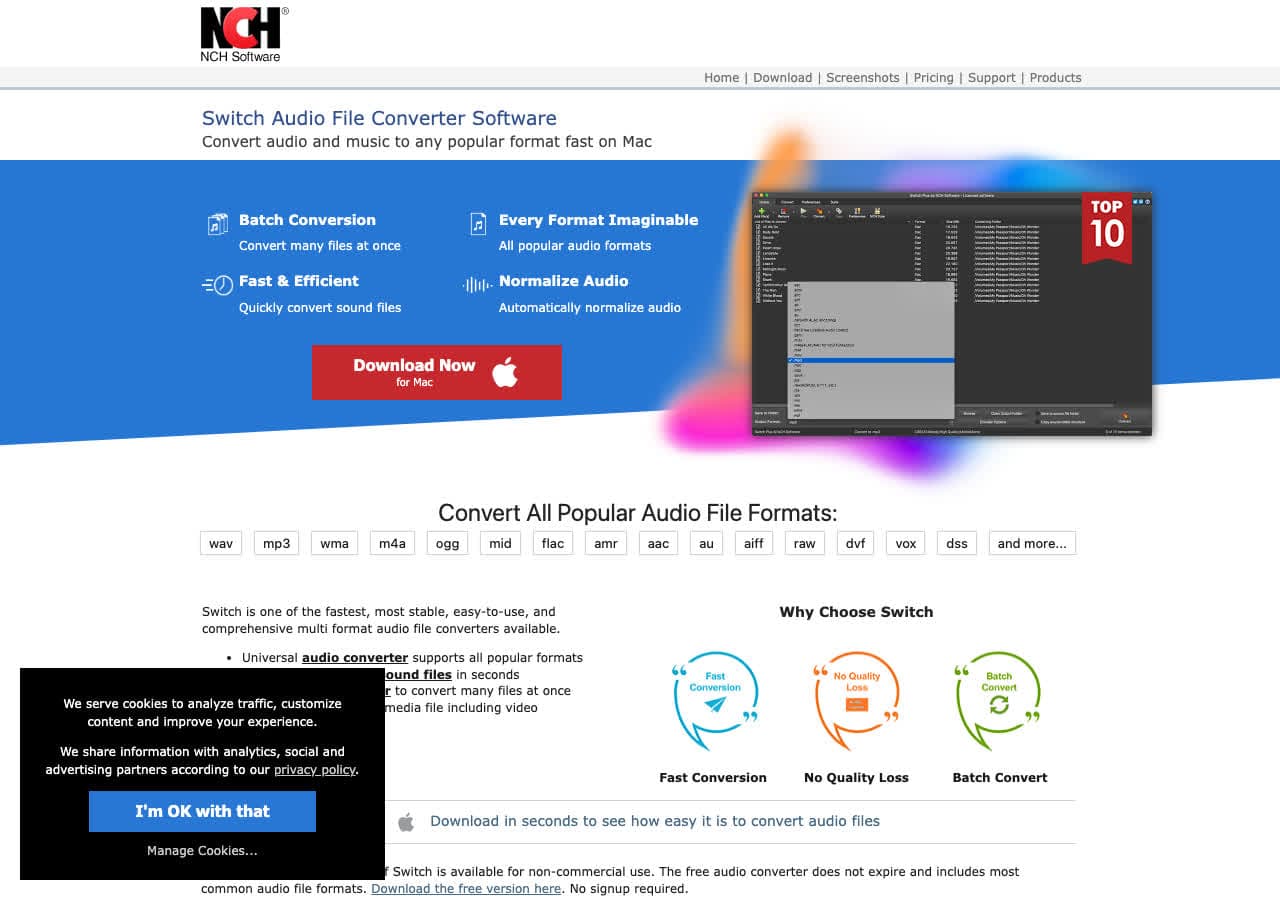
Switch by NCH is an audio-focused converter that accepts video as input. Drop MP4, MOV, AVI, or MKV files in, pick MP3 as the output format, set bitrate, click Convert. The queue interface is built for batches.
Switch is reliable and uncomplicated. The UI is dated, the licensing is "free for personal use, paid for commercial," and the installer pushes you toward other NCH apps. For straightforward batch video to MP3, it works.
Pros
- Simple batch queue.
- Reliable for repeatable jobs.
- Mac and Windows.
Cons
- Dated UI.
- Personal vs commercial license confusion.
Pricing
- Free for non-commercial use.
- Plus: Around $35 one-time for commercial use.
10. HandBrake - Use the "Audio Only" Trick
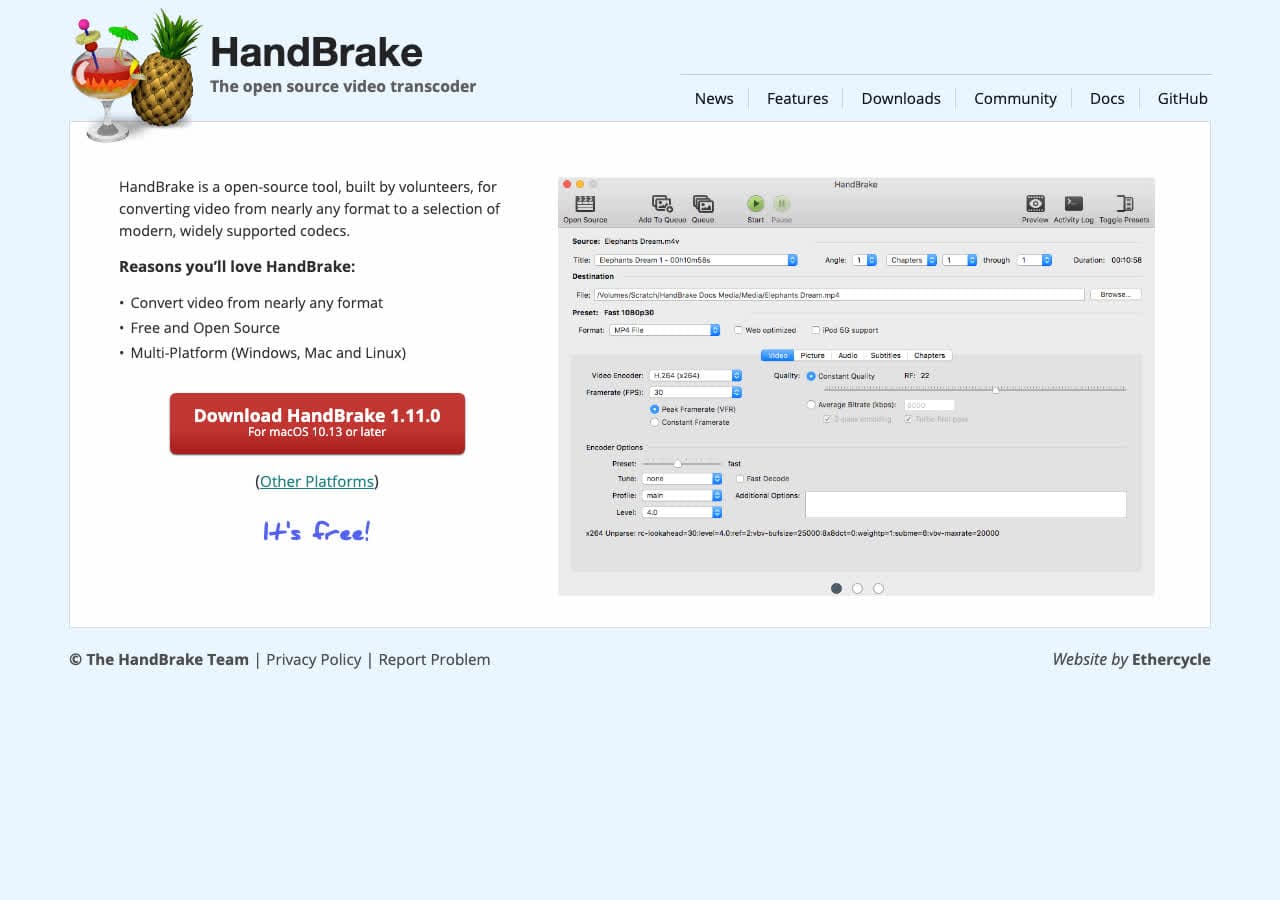
HandBrake does not officially output MP3 files, but it can produce an MP4 with no video and an MP3-encoded audio track. Combined with FFmpeg in a follow-up step (or by simply renaming the extension in some cases), this gets you usable audio. For most people there are easier tools, so HandBrake is best when you are already using it for video work.
We include HandBrake here because so many tutorials misclaim "HandBrake does video to MP3." It does not, directly. If you are already a HandBrake user, the workflow is fine. Otherwise, FFmpeg, VLC, or Audacity is faster.
Pros
- Familiar to many users.
- Excellent for the video side of the work.
- Free, open source, cross-platform.
Cons
- Does not output .mp3 directly.
- Requires a workaround for true video to MP3.
Pricing
- Free (open source).
11. Any Video Converter - Free Windows Video to MP3
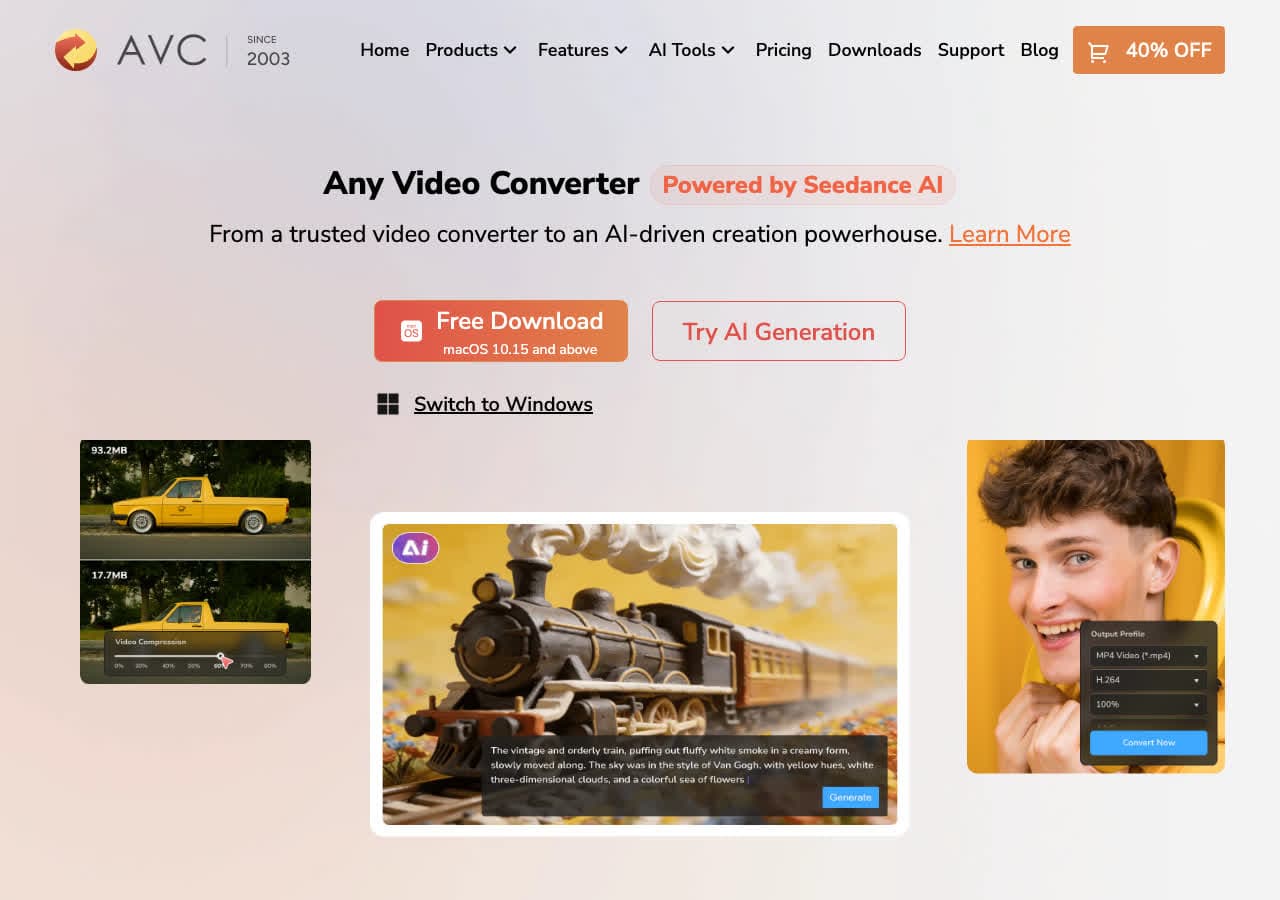
Any Video Converter (Free edition) extracts MP3 audio from videos in batch. Add the videos, pick MP3 as the output, choose bitrate, hit Convert. The Free edition is genuinely free, though installers have historically bundled optional offers.
For Windows users who want a no-cost batch tool with a familiar GUI, this is a workable option. Decline anything you do not want during install.
Pros
- Free MP3 output.
- Batch friendly.
- Mac and Windows.
Cons
- Installer may bundle offers.
- UI feels dated.
Pricing
- Free edition available.
- Pro: One-time around $50.
12. Freemake Video Converter - Familiar Windows Tool
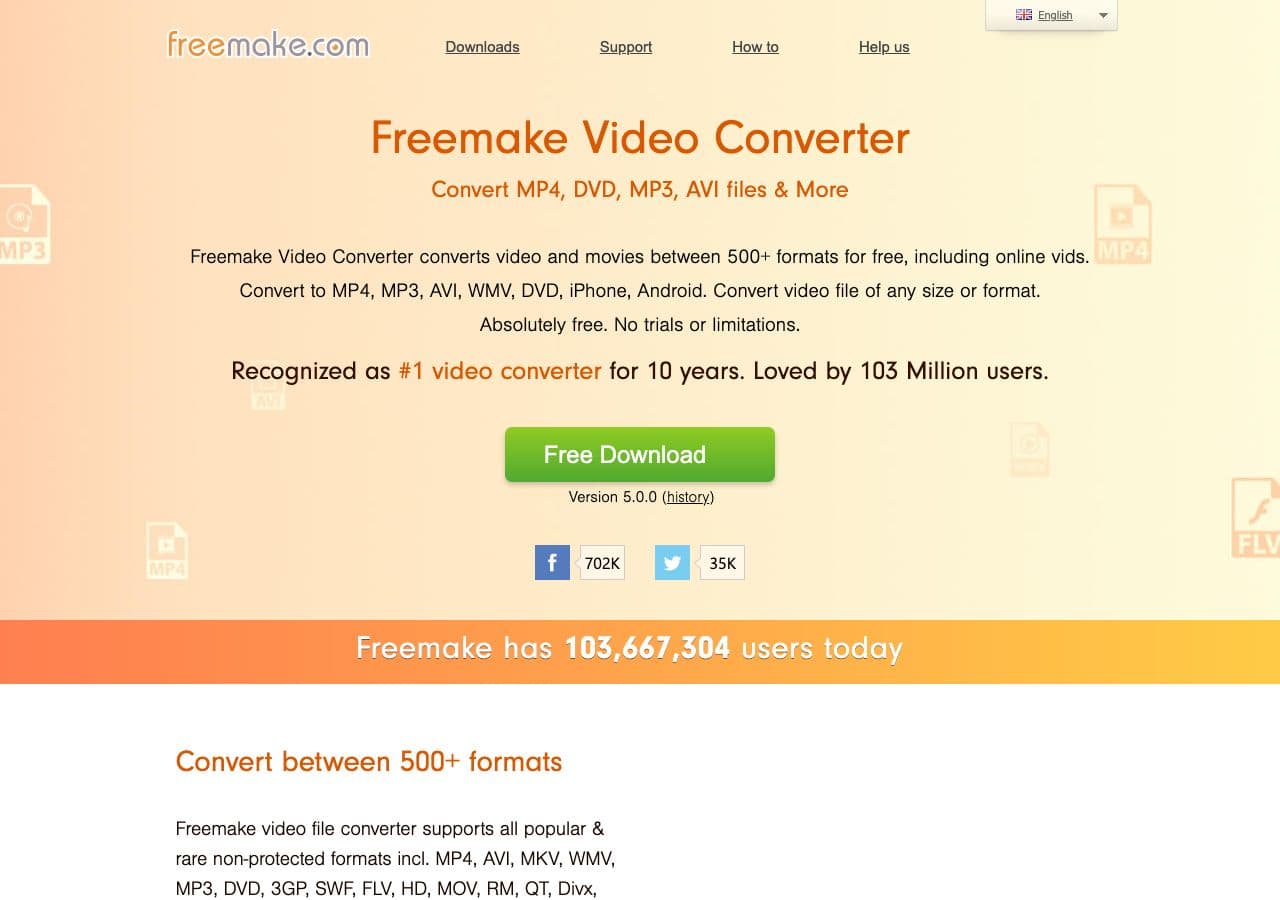
Freemake Video Converter extracts MP3 from any video. Drag in a video, click the MP3 button, choose bitrate, hit Convert. The interface is friendly and many people remember it from years past.
Be aware that Freemake adds a watermark on output unless you upgrade. For audio extraction this matters less than for video, but the upgrade pressure is real. Use the official download and decline bundled offers.
Pros
- Friendly UI.
- MP3 output presets.
- Familiar to long-time Windows users.
Cons
- Free version branding/watermark in some flows.
- Installer may include bundled offers.
- Windows only.
Pricing
- Free with limitations.
- Gold Pack: Around $20 one-time.
How to Convert
The offline file converter for Mac, Windows and Linux.
- Converts video, audio, images, documents, ebooks and more
- Everything runs locally. Your files never leave your device
- Pay once. Access forever
Get the app on Mac, Windows and Linux
13. CloudConvert - Best Online Video to MP3 Tool
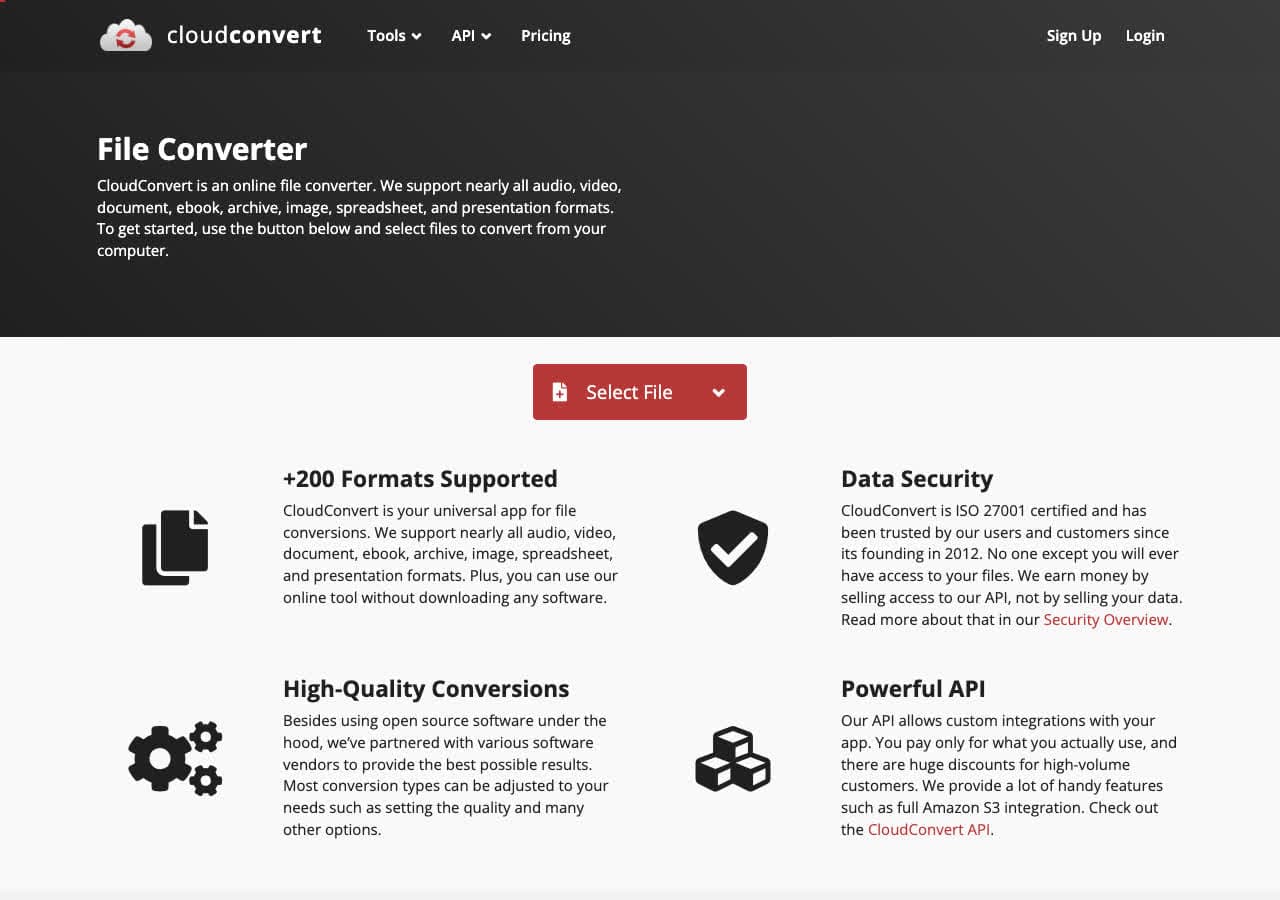
CloudConvert converts videos to MP3 with control over bitrate, sample rate, and channels. Upload, pick MP3, optionally tweak settings, download. It accepts MP4, MOV, MKV, AVI, WebM, FLV, and more. The free tier gives you 25 conversion minutes per day.
CloudConvert is a good pick when you cannot install software (work computer, school computer, Chromebook). For private recordings you should still convert locally, since CloudConvert needs the file uploaded.
Pros
- No installation required.
- Adjustable bitrate, sample rate, channels.
- API for automation.
- 25 free minutes per day.
Cons
- Files uploaded to the cloud.
- Not for sensitive recordings.
Pricing
- Free: 25 conversion minutes per day.
- Paid: From $9 for 500 minutes.
14. Convertio - Simple Online Video to MP3
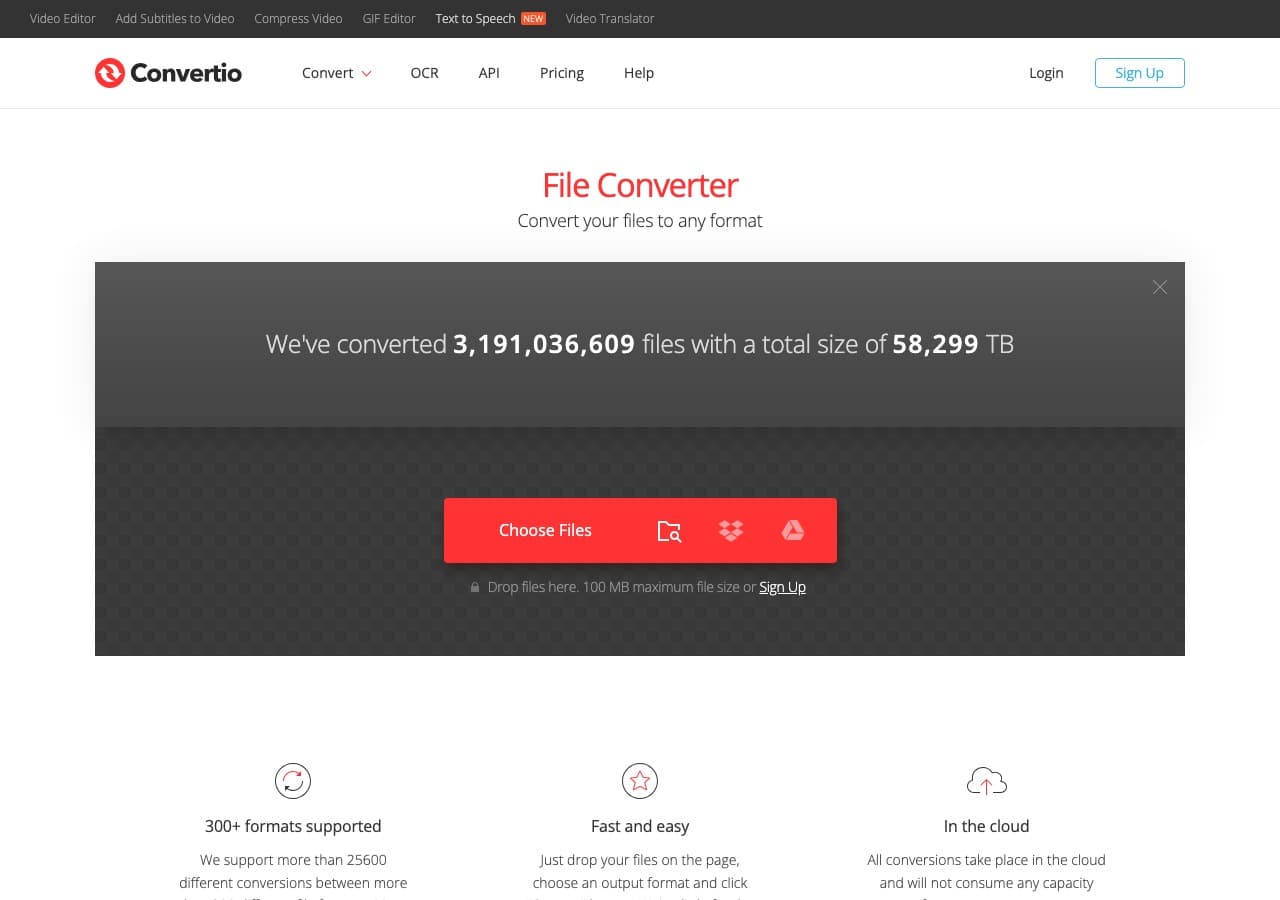
Convertio offers a clean video to MP3 flow with Google Drive and Dropbox integration. Useful when the video is already in cloud storage and you want the MP3 back in the same place without round-tripping through your computer.
Free tier supports files up to 100 MB and limits total conversion minutes per day. As with any online tool, do not use it for sensitive audio.
Pros
- Clean, simple UI.
- Google Drive and Dropbox integration.
- 100 MB free file size limit.
Cons
- Files uploaded to the cloud.
- Free tier limited to about 10 minutes per day.
Pricing
- Free: 100 MB, 10 minutes per day.
- Light: From $9.99/month.
15. Zamzar - Easiest Online Video to MP3 Conversion
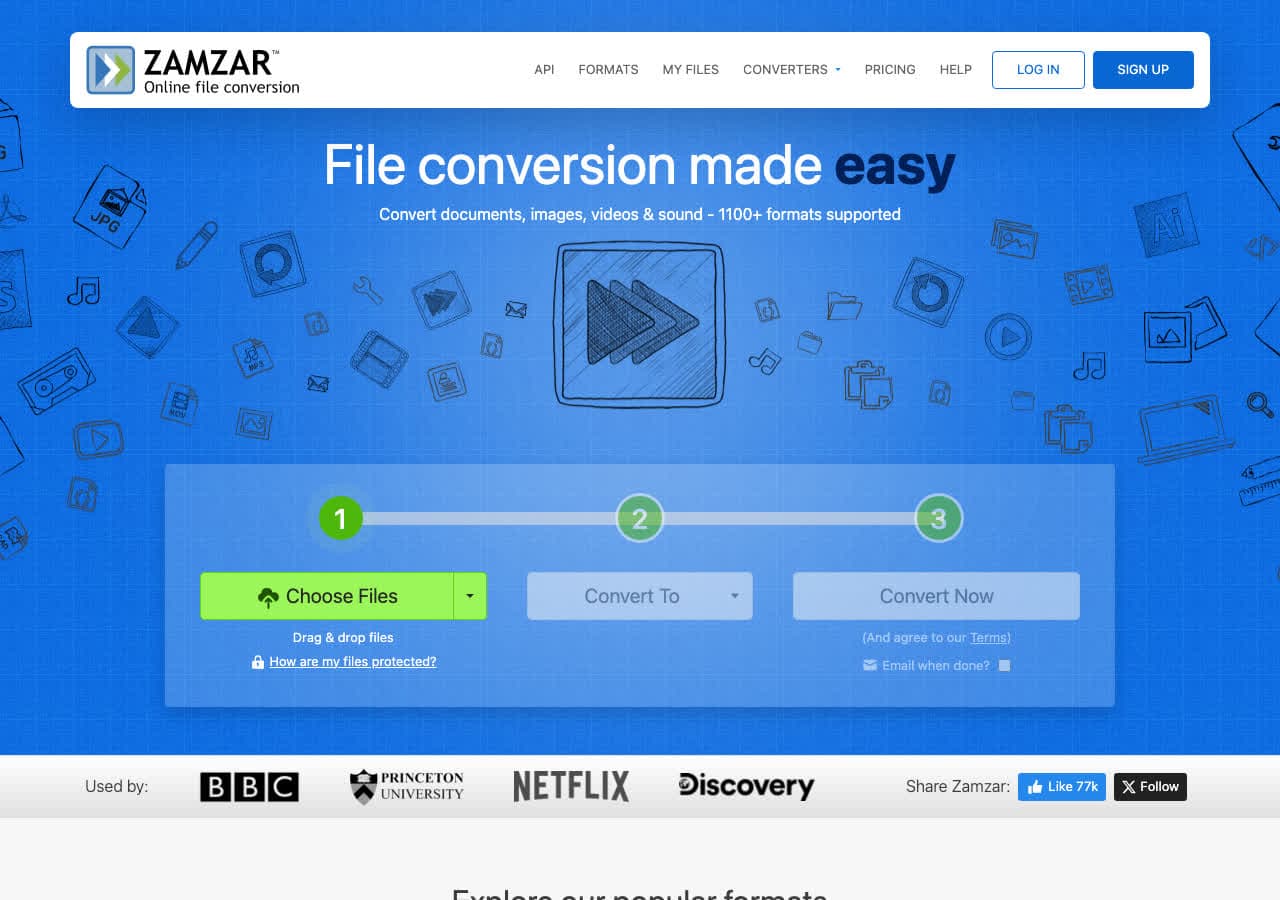
Zamzar is the simplest online video to MP3 converter. Upload, pick MP3, convert, download. No bitrate options, no decisions. For occasional one-off conversions of small files, Zamzar is fast.
Free tier allows two conversions per day with a 50 MB file limit. Fine for a single 5-minute clip, not enough for batch work.
Pros
- Dead-simple workflow.
- No account required for free tier.
- Works on mobile.
- API available.
Cons
- 2 free conversions per day.
- 50 MB file cap on free tier.
Pricing
- Free: 2 conversions per day, 50 MB.
- Basic: From $18/month.
16. FreeConvert - Generous Free Tier
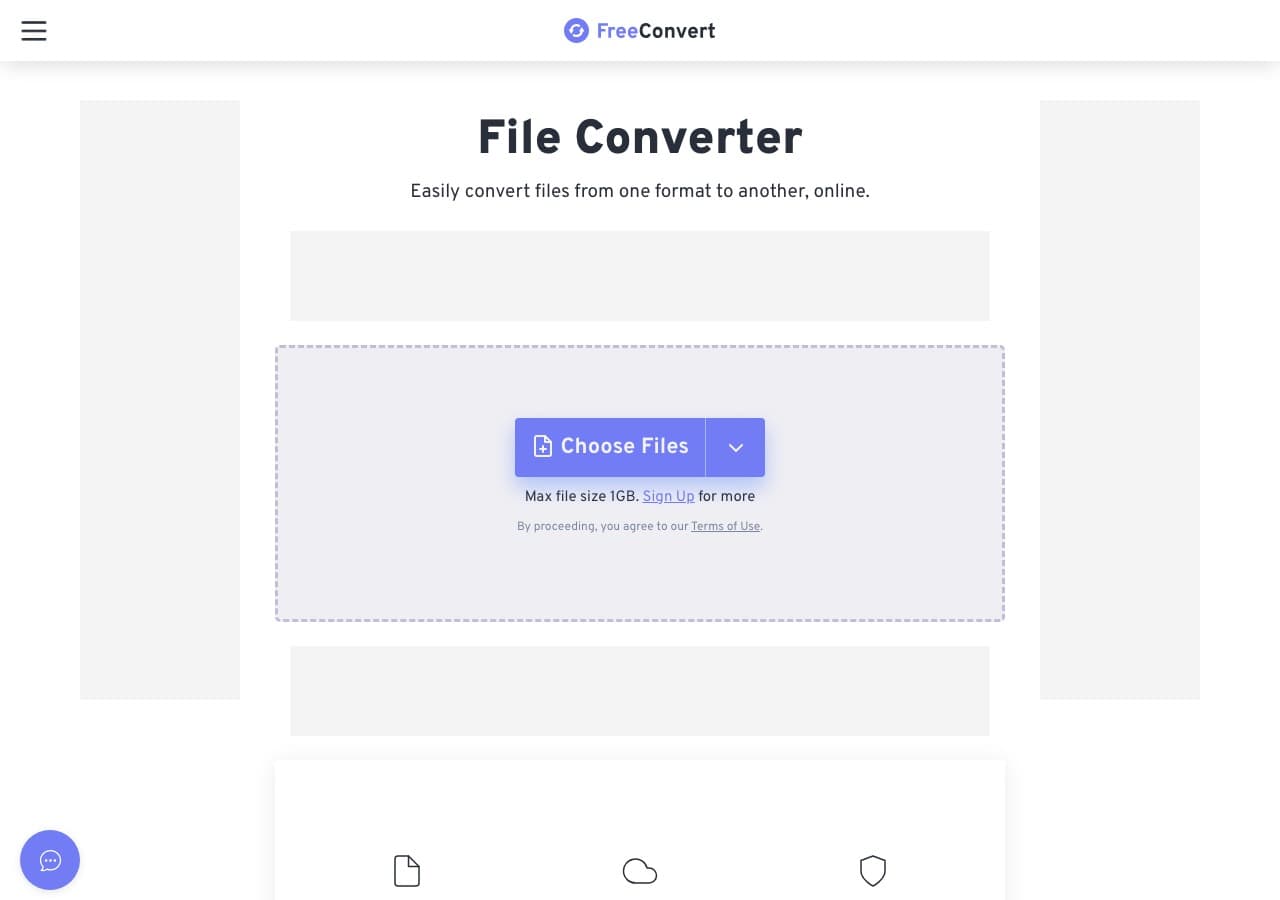
FreeConvert has the most generous free tier among online converters: 1 GB file size limit. That makes it a good fit when you need to extract MP3 from a long lecture recording or a multi-hour meeting. It also exposes bitrate, sample rate, and channels for output control.
FreeConvert is the right fallback when CloudConvert and Convertio do not have enough quota. Free tier is supported by ads.
Pros
- 1 GB free file size limit.
- Advanced bitrate and codec settings.
- Clean modern UI.
Cons
- Files uploaded to servers.
- Daily usage limits on free tier.
Pricing
- Free: 1 GB file size limit.
- Pro: From $9.99/month.
17. Online-Convert - Most Detailed Output Settings
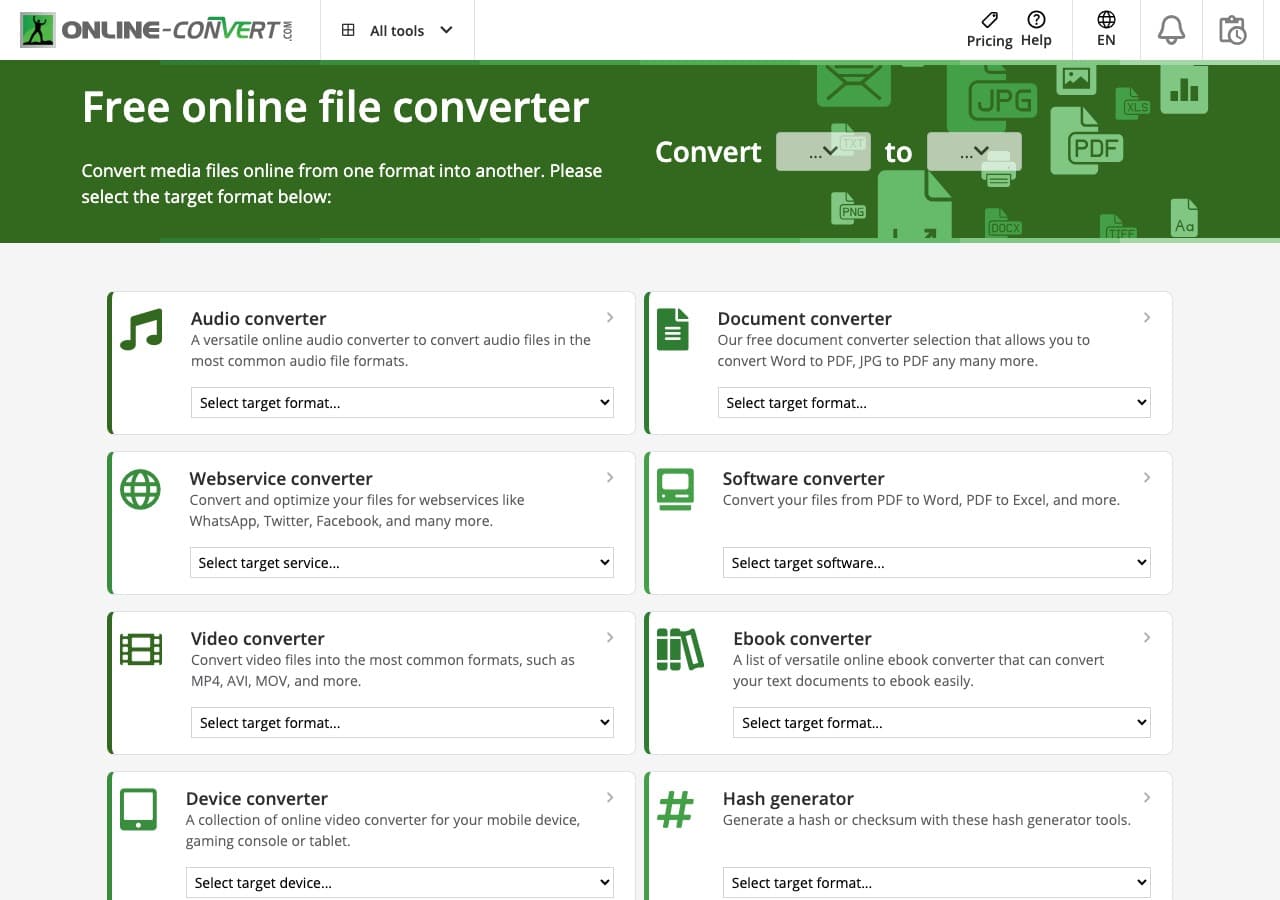
Online-Convert offers the most detailed output controls of any web-based video to MP3 tool. Bitrate, sample rate, channels, normalize loudness, trim silence, change tempo. For a one-off conversion that needs precise output settings, this is the best web tool.
The interface is cluttered with ads on the free tier. For a quick conversion that needs control, the depth is worth the friction.
Pros
- Most detailed audio output settings of any web tool.
- Built-in normalize, trim, and tempo controls.
Cons
- Cluttered UI with ads.
- 100 MB free file size limit.
Pricing
- Free with ads.
- Paid: From $7.99/month.
18. Adapter - Minimal Cross-Platform Tool
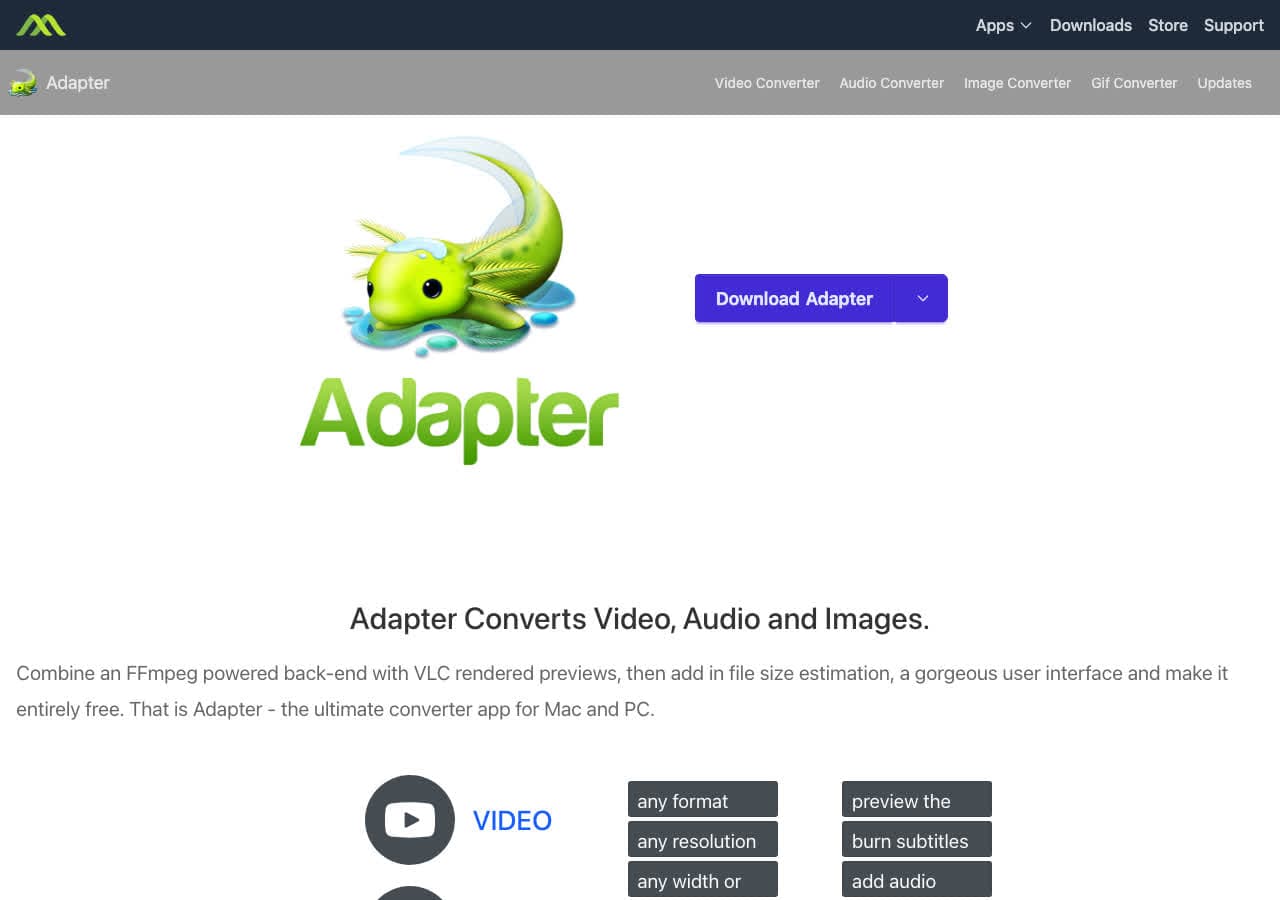
Adapter is a free FFmpeg-based converter on Mac and Windows. Drag in a video, pick MP3, convert. The interface is intentionally minimal, with a built-in preview window for sanity-checking the input.
Adapter is a nice middle ground between heavy paid suites and the bare command line of FFmpeg. Development has slowed in recent years, but the existing app still does video to MP3 reliably.
Pros
- Minimal, distraction-free UI.
- Built-in preview window.
- Free, FFmpeg-based.
Cons
- Development has slowed.
- Fewer settings than dedicated tools.
Pricing
- Free.
Frequently Asked Questions
Does converting video to MP3 lose quality?
The MP3 itself is a lossy format, so encoding to MP3 always discards some information. The good news is the audio inside a video is usually already lossy (AAC, Opus, or MP3), so converting it to MP3 at 192 kbps or higher is typically indistinguishable from the source for most listeners. For maximum quality, encode at 320 kbps.
What MP3 bitrate should I use?
128 kbps is acceptable for spoken content. 192 kbps is the sweet spot for most music and podcasts. 320 kbps is the highest standard MP3 bitrate and is recommended when you want the best possible quality. Higher bitrate means larger file size.
Is it legal to convert a YouTube video to MP3?
Converting YouTube videos to MP3 typically violates YouTube's Terms of Service and may infringe copyright depending on the content. The tools in this article are for converting your own videos: lectures you recorded, meetings you attended, your own footage, or videos you have a license to download. Always check the rights of the source.
What is the fastest way to batch convert video to MP3?
For large batches, FFmpeg in a shell script is the fastest path. fre:ac and Switch are the best free GUI options for batch jobs. For local-first batch conversion with a friendly interface, How to Convert handles entire folders at once. Online tools struggle with batches because of upload time and quota limits.
Final Thoughts
For one-off video to MP3 conversion in the browser, our free video to MP3 converter handles the file locally. For batch jobs, FFmpeg or fre:ac are the strongest free options. If you also need basic audio editing (trim, normalize, denoise), Audacity is the right tool. For a polished local app that handles video to MP3 alongside every other format, How to Convert is the cross-platform pick. Match the tool to the job and you will spend less time fighting with formats and more time using the audio.
How to Convert
The offline file converter for Mac, Windows and Linux.
- Converts video, audio, images, documents, ebooks and more
- Everything runs locally. Your files never leave your device
- Pay once. Access forever
Get the app on Mac, Windows and Linux
