How to Batch Convert PDF Comics to CBZ Safely
Convert a folder of PDF comics to ordered CBZ archives while checking page names, covers, spreads, image quality, and output counts.

If you have a folder of PDF comics and want them in a comic reader, convert one issue first. Once that looks right, the rest is just a normal batch: add the PDFs, choose CBZ once, click Convert and save the results in a new folder.
Keep the PDFs. A CBZ copy is great for reading, but PDF text, bookmarks and annotations may not survive when each page becomes an image.
What happens during PDF to CBZ conversion
The converter draws each PDF page as an image, numbers the images and puts them into a ZIP-based CBZ file. The page-image size decides how sharp small lettering looks and how large the final comic becomes.
You do not need to open archives or rename page files yourself when the converter does the job properly. Your part is to test one representative comic before committing a whole folder.
How to convert the folder
Copy the PDFs into a source folder
Leave that folder untouched and make a second empty folder for the CBZ results.
Drag in one typical PDF
Choose an issue with small text, dark art and a double-page spread if your collection has them. Add just that one first so a bad setting does not affect the whole folder.
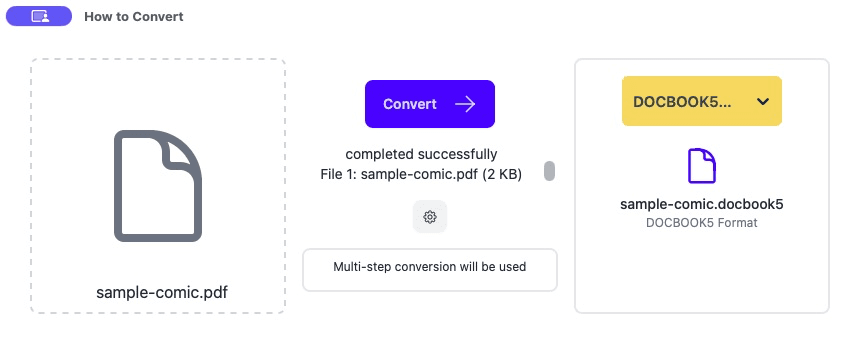
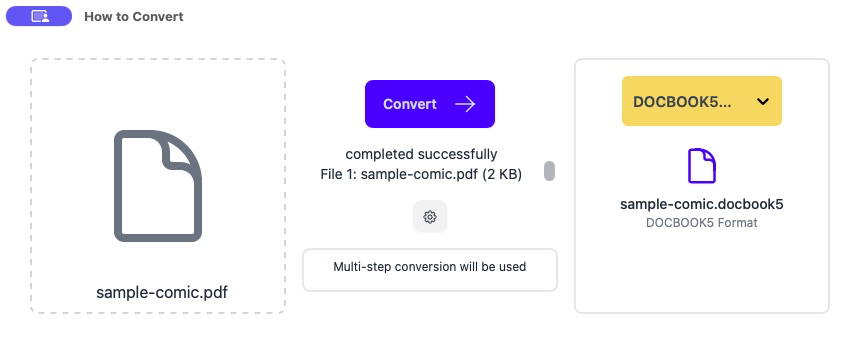
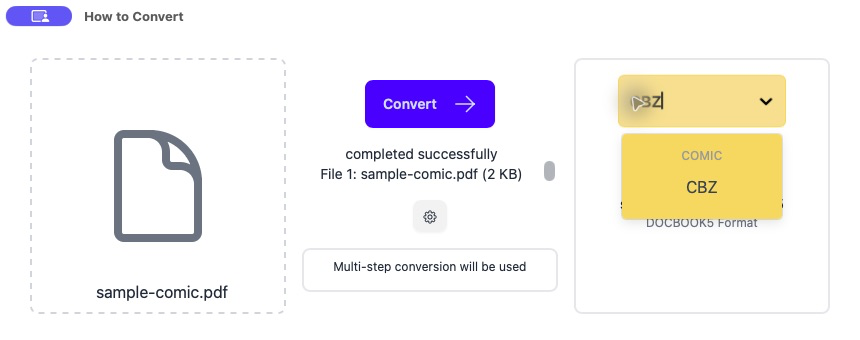
Choose CBZ
Open the output menu and select CBZ. This tells the app to turn the PDF pages into numbered images inside a comic archive.
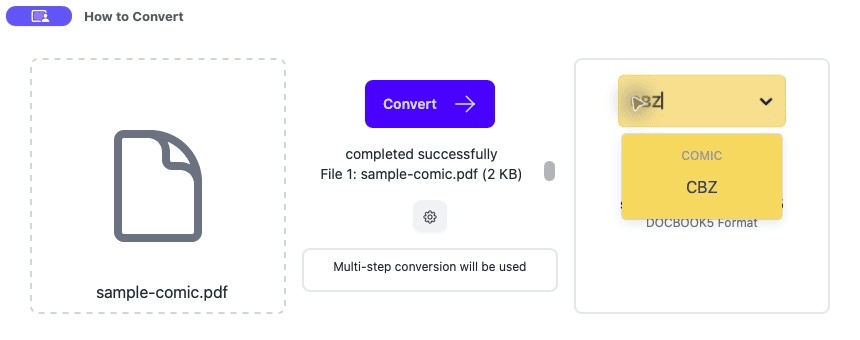
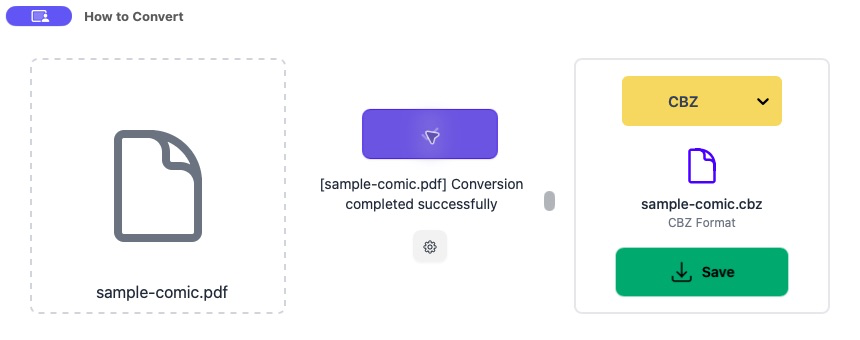
Click Convert
Wait for the completed message, then save the test CBZ into the new output folder.
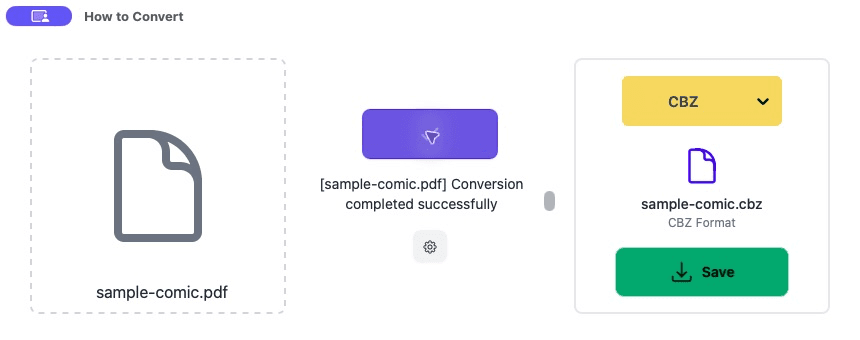
Read the test CBZ
Check the cover, page order, text sharpness, reading direction and final page in the comic app you use.
Run the batch
Add the remaining PDFs, choose CBZ once and convert them into the output folder. Compare the number of PDFs and CBZ files.
Common problems
One PDF refuses to convert
It may be password-protected or damaged.
Open it normally first, separate it from the batch and deal with that issue on its own.
Covers appear in the wrong place
The generated page order or reader setting is wrong.
Check the file in another comic reader and rebuild from the original if the order is truly wrong.
The CBZ files are enormous
The pages were rendered much larger than the reading device needs.
Lower the page size or image quality slightly and retest one issue.
Frequently asked questions
Can I convert several PDFs at once?
Yes. Test one first, then add the rest as a batch in the desktop app.
Will the text stay selectable?
Normally no. CBZ stores page images, so keep the PDF if selectable text or search matters.
Should the pages be JPG or PNG?
JPG is usually smaller for colour scans. PNG can keep line art very clean but may be much larger.
Can I delete the PDFs afterwards?
I would not. Keep them as the source in case you need text, bookmarks or a different CBZ setting later.
Extra: Choosing sharper pages without making huge files
A higher page resolution makes lettering sharper but also makes the CBZ larger and slower on some readers. The right setting is the smallest one that still looks clean on your actual screen.
Do not judge only by zooming to 400 percent on a desktop. Read a few pages at the size you normally use on the target device.
