How to Convert Markdown to EPUB
Turn a Markdown file into an EPUB ebook in a few clicks, then fix the common heading, image and formatting problems.

A Markdown file is plain text with a few simple characters for headings, bold text, lists and links. If your book is already in Markdown, you can drag that file into How to Convert, choose EPUB and click Convert.
For one normal file, that is genuinely all you need. A folder full of chapters, images and custom styling is a publishing project; I have put that more technical route in the optional section at the end.
What the Markdown marks mean
A line beginning with `#` is the main heading. `##` is a heading underneath it. Two asterisks around words make them bold, and a line beginning with a dash becomes a list item. The converter uses those marks to build the ebook.
EPUB text can resize to fit a phone, tablet or e-reader. That means the finished book will not keep fixed pages or line breaks from your text editor, and it should not try to.
How to convert the Markdown file
Open the Markdown file once
Check that the headings and lists look right in your Markdown preview or editor. Fix obvious typing mistakes before converting.
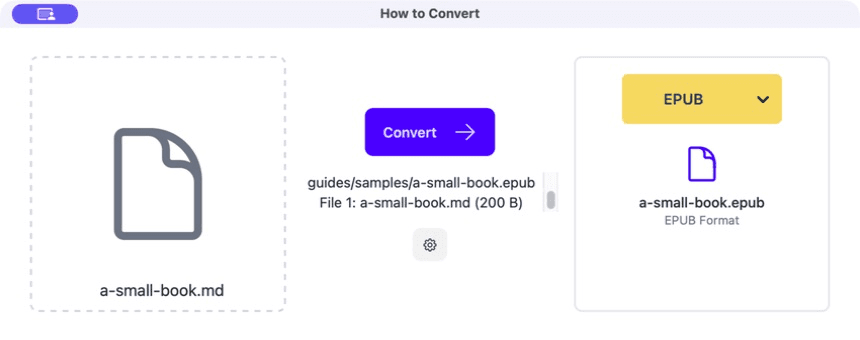
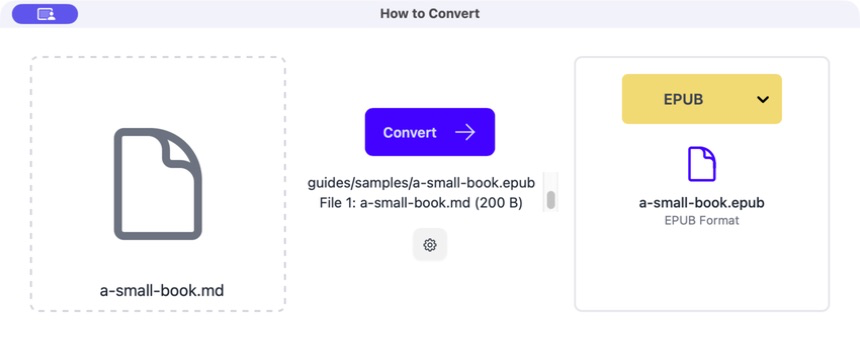
Drag the `.md` file into How to Convert
The file appears on the left. A single text-only Markdown file does not need a special project folder.
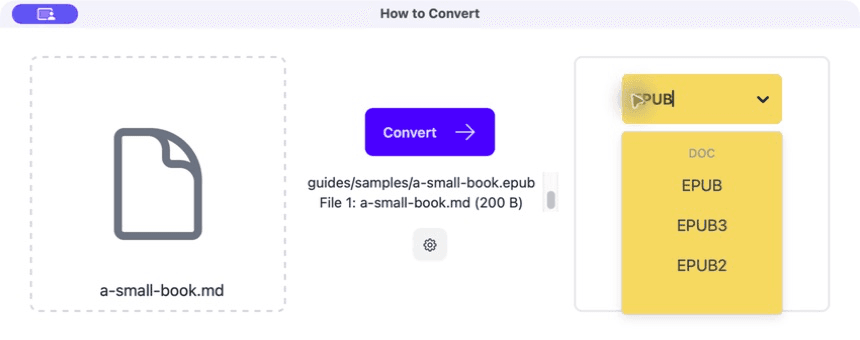
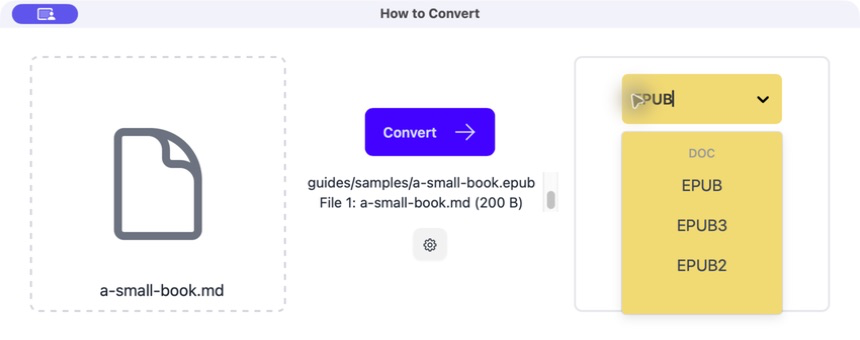
Choose EPUB
Open the output menu and select EPUB, then click Convert.
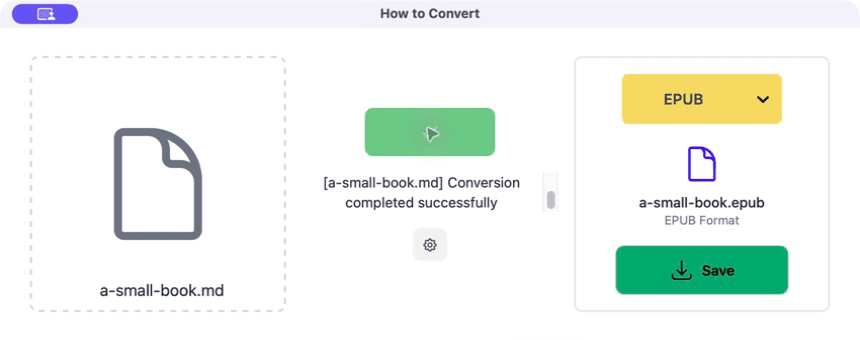
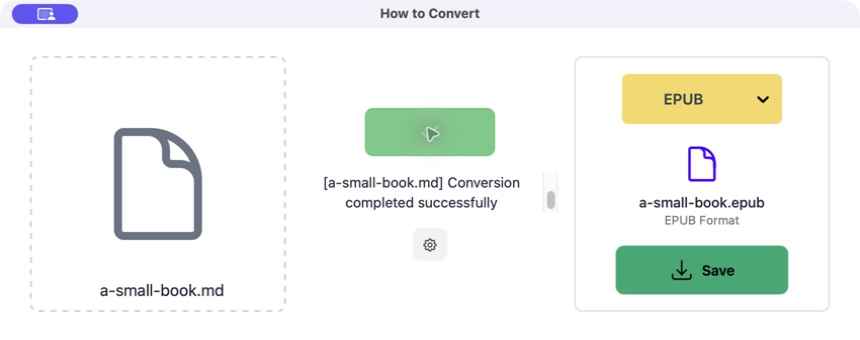
Save and read the result
Open the EPUB, use its chapter menu and change the font size. Check links, lists, bold text and the beginning and end of the book.
Common problems
The chapter menu is wrong
The heading levels in the Markdown file are inconsistent.
Use one `#` for the book title or main chapter level, then `##` for sections beneath it.
An image is missing
The Markdown points to a file that was not supplied or has a different name.
Check the path and filename. For a complex image-heavy book, use the project workflow in the extra section.
A code line runs off the screen
Long code does not wrap like normal prose.
Use shorter lines where practical or add ebook styling that allows the code block to scroll or wrap.
Frequently asked questions
Is Markdown good for ebooks?
Yes, especially for text-heavy books where simple structure and easy editing matter.
Do I need Pandoc for one file?
Not if you are using How to Convert. Drag in the file, choose EPUB and convert it.
Can Markdown include pictures?
Yes, but the converter must also be able to find the image files named in the Markdown.
Can I make a PDF from the same Markdown?
Yes. The same source can make EPUB for reading and PDF for fixed pages, although each output may need its own styling.
Extra: Books with several chapters, images or custom styling
For a larger book, keep the chapter files and an `images` folder together. A Markdown image looks like ``. The filename and capital letters must match the real image file.
Pandoc is the usual advanced tool for combining several chapter files, adding a cover and applying an EPUB stylesheet. List the chapter files in the order you want them to appear. After it builds the EPUB, open the book and follow every chapter link rather than checking only the first page.
EPUBCheck is a specialist validator that reports packaging and markup problems. Use it when a store or publisher requires a formally valid EPUB; it is an extra publishing check, not something you need before a normal personal conversion.
