How to Turn a Word Document Into an EPUB Ebook
Convert a normal Word document to EPUB in a few clicks, understand what changes, and fix the common problems without digging through ebook internals.

If you have a Word document and want to read it like an ebook, you can turn it into an EPUB in a few clicks. You do not need to unzip the Word file, inspect XML or learn how ebook files are built.
EPUB is the format used by Apple Books, Kobo and many other readers. Unlike a PDF, its text can resize and move to fit the screen. That is the main reason to use it for a novel, report or other text-heavy book.
What will change when Word becomes an ebook
A Word document is usually designed around pages. An EPUB is designed around the reader. The reader may change the font, margins and text size, so your line breaks and page numbers will not stay fixed. That is normal.
Ordinary headings, paragraphs, bold text, lists and pictures normally convert well. Headers, footers, floating text boxes and layouts made with lots of tabs or spaces are more likely to move. If every object must stay in exactly the same place, make a PDF instead.
How to convert Word to EPUB
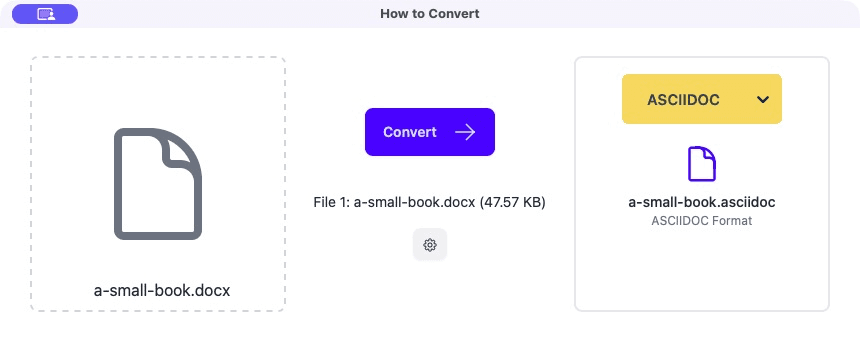
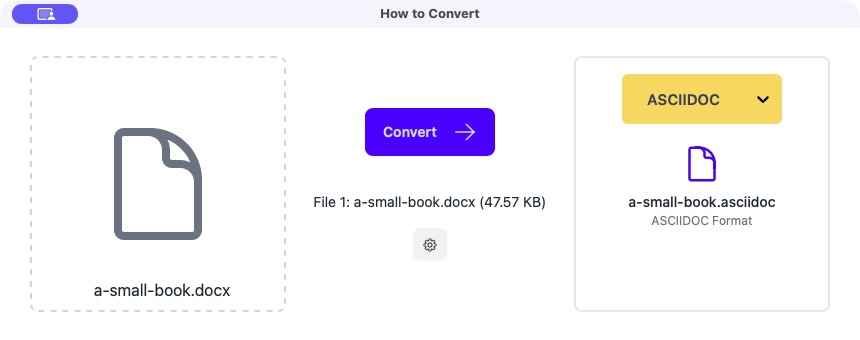
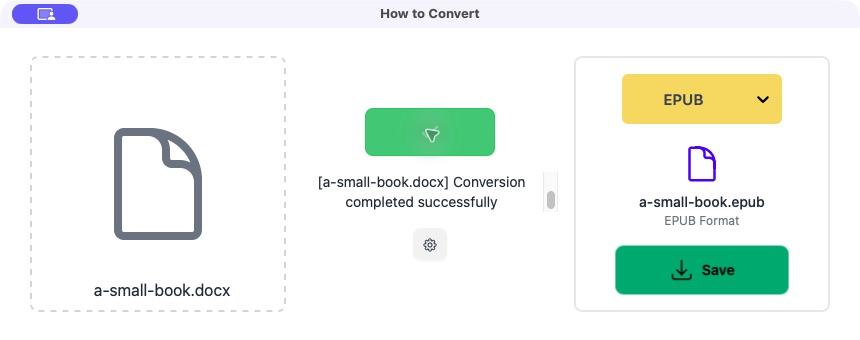
Open How to Convert and add the Word file
Drag the `.docx` into the app, or click the file area and choose it. I used a normal two-chapter Word document for the screenshots below.
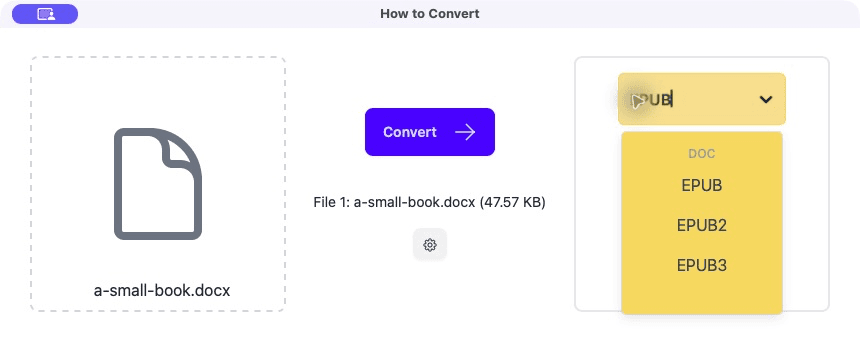
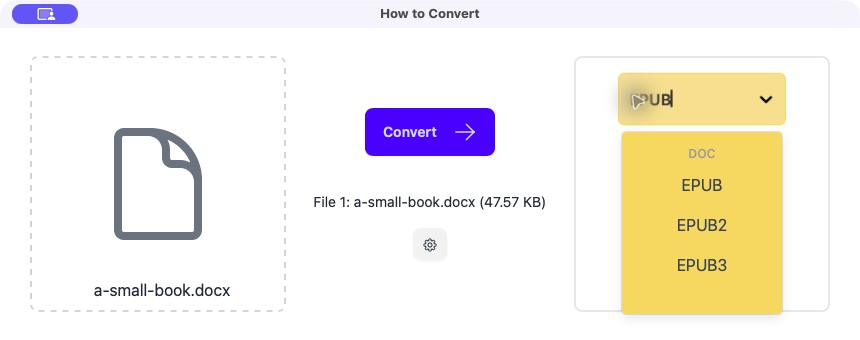
Choose EPUB
Open the yellow output menu and select EPUB. You may also see EPUB2 and EPUB3; plain EPUB is the simple starting point.
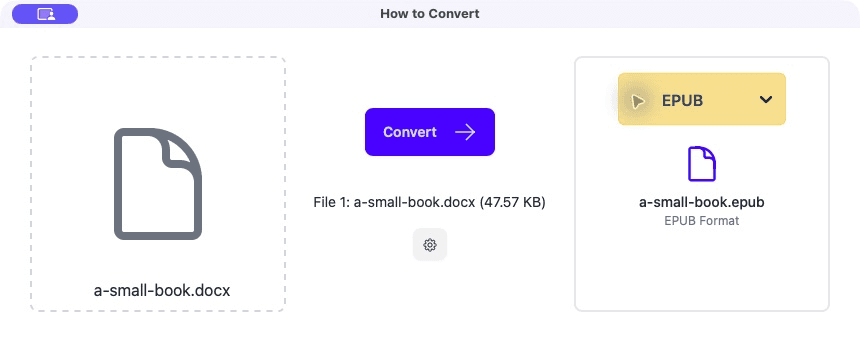
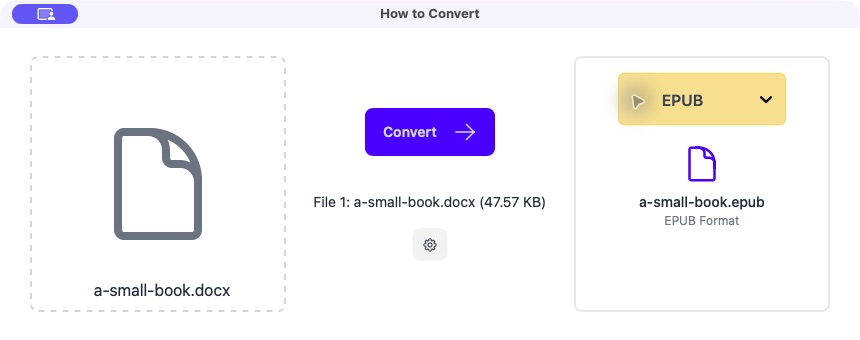
Click Convert
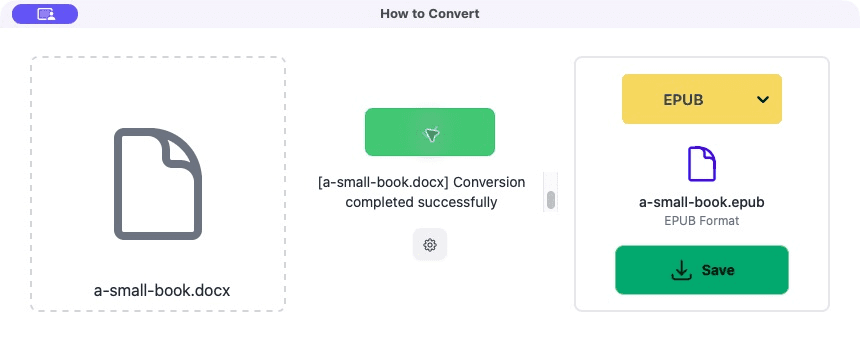
The app creates the ebook and shows its filename on the right. Your Word document is not changed.
Save the EPUB and open it
Open the result in Apple Books, Calibre or the reader you plan to use. Change the font size and use the chapter menu so you are testing it as an ebook, not just admiring the cover.
Common problems
The ebook looks plainer than Word
EPUB keeps the content but lets the reader control much of the page appearance.
Use EPUB for comfortable reading. Use PDF if the exact Word page design is the real requirement.
A chapter is missing from the menu
Its title is ordinary bold text rather than a Word heading.
Select the title in Word, apply Heading 1 and convert again.
A picture moves or overlaps text
It was positioned as a floating object in Word.
Set the picture to In Line with Text and convert again.
Frequently asked questions
Will the EPUB keep my Word page numbers?
No. The number of screens changes with the device and font size.
Do I need to edit any XML files?
No. For a normal Word-to-EPUB conversion, you only need the `.docx` file.
Should I make EPUB or PDF?
EPUB for a book that should resize on any screen; PDF for a document whose page layout must stay fixed.
Where should I fix a problem?
Fix the Word document when you can, then convert it again. That keeps one clear source for future editions.
Extra: Better chapters, pictures and accessibility in Word
If the chapter menu is missing or messy, go back to Word and use its built-in heading styles. Select a chapter title, open Home > Styles and choose Heading 1. Use Heading 2 for sections inside a chapter. Then convert the Word file again.
If a picture jumps somewhere strange, select it in Word and set Wrap Text to In Line with Text. This makes it behave more like a large character in the paragraph, which transfers to an ebook more reliably than a floating image.
For readers who cannot see an image, Word lets you add a short description: right-click the image and choose View Alt Text or Edit Alt Text, depending on your version. This is useful accessibility work, but it is not required just to make the basic conversion run.
