PNG vs JPG: Choose the Right Format Before You Convert
A clear PNG-versus-JPG guide for photos, screenshots, transparency, text, print, email, repeated editing, and file size.

Use JPG for photographs. Use PNG for screenshots, logos, diagrams and anything that needs a transparent background. That one rule gets most people to the right answer.
PNG is not automatically better because it is lossless. On a camera photo it can be enormous. JPG is not automatically worse either; it is designed to make photographs much smaller while still looking good.
The difference you will actually notice
JPG makes files smaller by simplifying details people are less likely to notice. That works well on photos, but it can make small text and hard graphic edges look fuzzy. PNG keeps those edges clean and can store transparent areas, but photo files are often much larger.
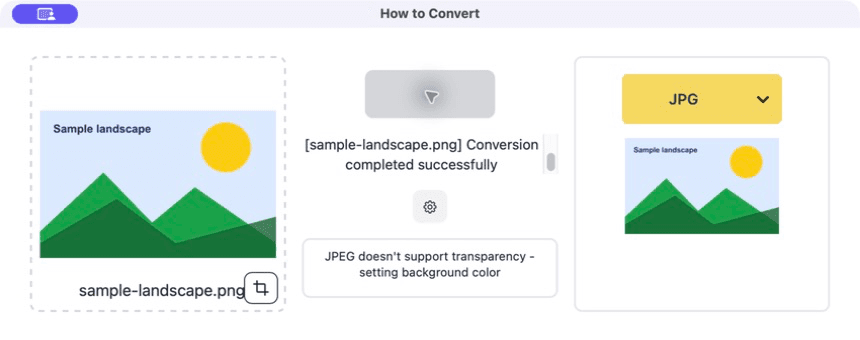
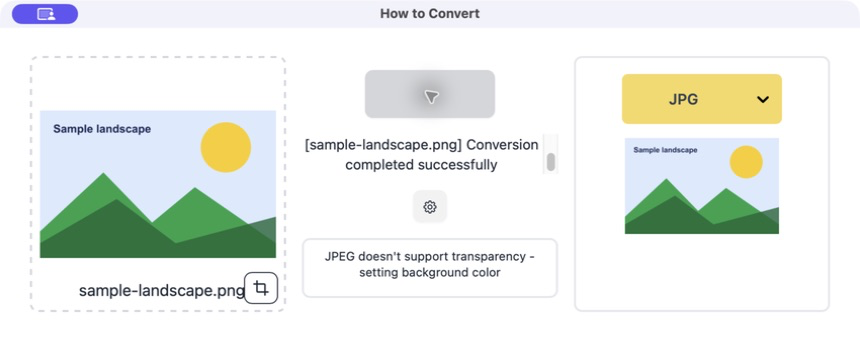
If you convert a transparent PNG to JPG, the transparent area has to become a real colour. How to Convert warns about this so you can choose the background rather than discovering a black or white box later.
How to choose and convert
Look at what is in the image
Choose JPG for a normal photo. Choose PNG for a screenshot, logo, diagram, pixel art or transparent graphic.
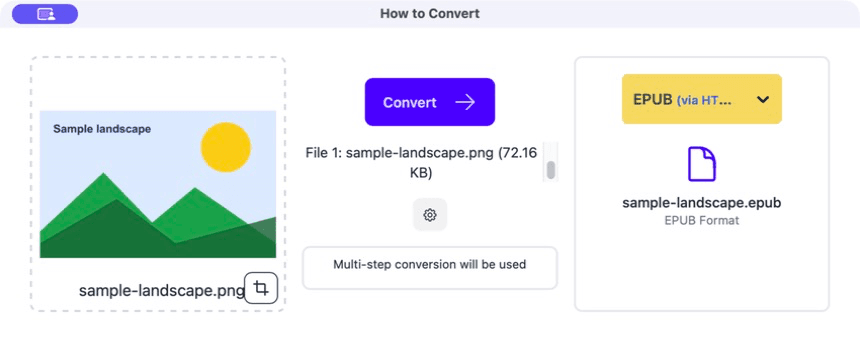
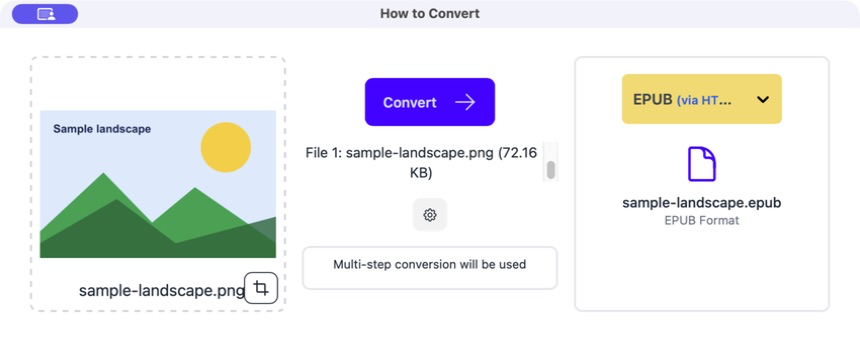
Drag the file into How to Convert
The original appears on the left and the output format appears on the right.
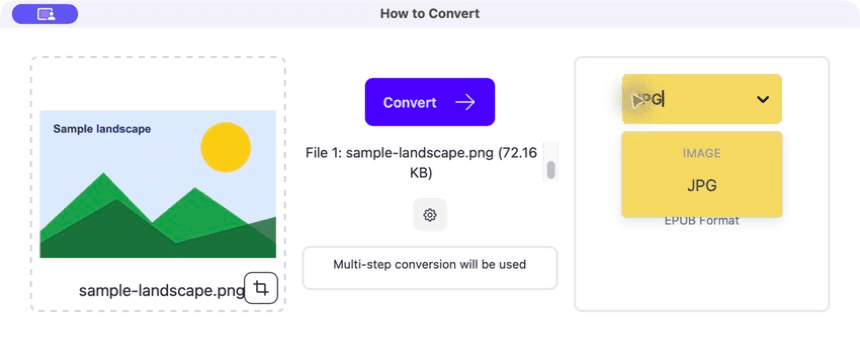
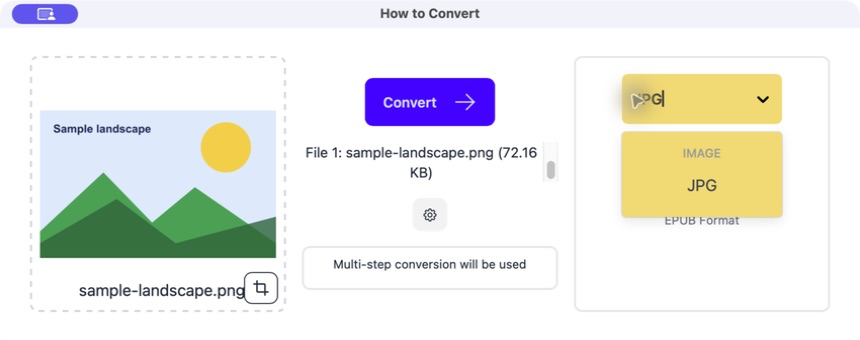
Choose JPG or PNG
If you choose JPG for a transparent PNG, set the background colour you want.
Click Convert and inspect the edges
Open the result and zoom in on small text, logos and transparent edges. Also compare the file size.
Common problems
The background changed
JPG cannot keep transparency.
Use PNG, or convert again with an intentional background colour.
Text has fuzzy halos
A screenshot was saved as a heavily compressed JPG.
Use PNG or WebP from the original screenshot.
The photo file is enormous
It was saved as PNG.
Make a JPG, WebP or AVIF copy for normal use.
Frequently asked questions
Is PNG higher quality than JPG?
PNG keeps its input exactly, but that does not make it the best format for every image. JPG is often the practical choice for photos.
Can JPG have a transparent background?
No. Use PNG, WebP or another format that supports transparency.
Which is better for printing?
Either can work. Use the format and colour instructions from the printer, and start with enough pixels.
Does converting JPG to PNG restore quality?
No. It preserves the current JPG pixels without another JPG save, but it cannot restore detail already removed.
Extra: Why a PNG screenshot can beat a JPG
Screenshots contain repeated flat colours and very sharp edges. PNG can describe that efficiently without adding fuzzy blocks around every letter. A detailed photograph is the opposite: there are small colour changes everywhere, which is where JPG is useful.
If a screenshot is still too large, try WebP before turning the JPG quality down until the text becomes ugly.
