18 Best Batch File Converter Apps in 2026 (Convert Multiple Files)
The best batch file converter apps for converting multiple files at once. Save time with bulk conversion tools for video, audio, images, and documents.
Posted by
 Jake Manger
Converting files one at a time is tedious. When you have a folder of 500 photos that need to go from PNG to JPG, a batch of 50 videos that need to be re-encoded for mobile, or a directory of Word documents that all need to become PDFs, you need a tool that handles bulk conversion. Batch file converters let you queue up hundreds or thousands of files, set the output format and settings once, and let the tool process everything while you do something else.
We tested batch converters across video, audio, image, and document formats to find the 18 best options for 2026. This list includes desktop apps with graphical queue systems, command-line tools that process entire folders with a single command, and online services with batch upload support. Whether you are a photographer processing a shoot, a video editor delivering multiple cuts, or an office worker converting a pile of documents, these tools will save you hours.
1. How to Convert - Best All-in-One Batch File Converter
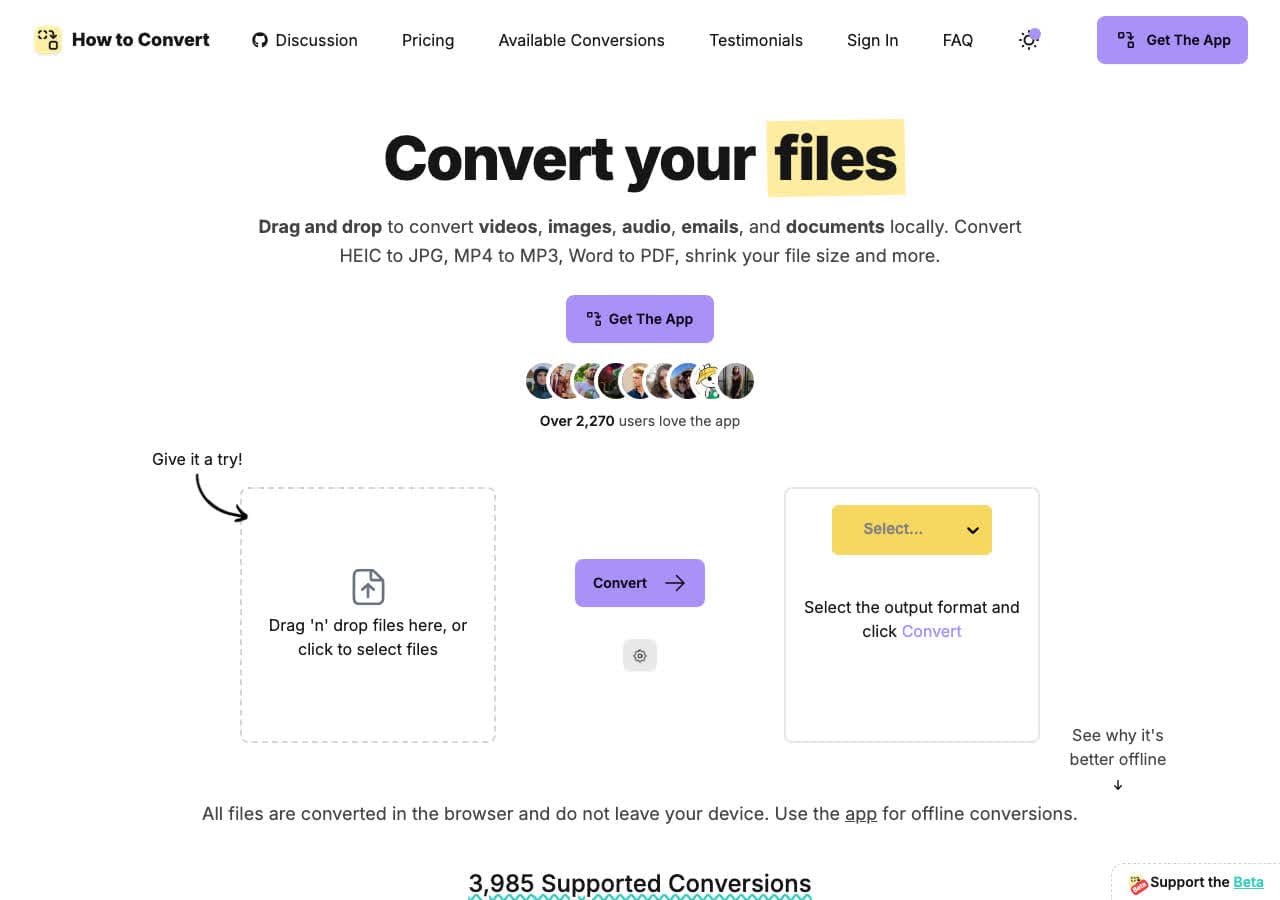
How to Convert handles batch conversion across multiple file types in a single app. Drop in video, audio, image, or document files, choose the required output, and process the queue locally on your machine. Practical batch size depends on the source files, available disk space, memory, and processing time.
What makes How to Convert stand out for batch workflows is its versatility. Most batch converters handle one file type. How to Convert handles video, audio, images, documents, and ebooks. The paid desktop app works on Mac, Windows, and Linux for batch and repeated jobs; the free web demo handles one supported file at a time.
Pros
- Batch conversion across all file types in one app.
- Batch queues sized to the files and resources available on your computer.
- Local processing. No uploads.
- One-time purchase. No subscription.
- Works on Mac, Windows, and Linux.
Cons
- Desktop app is a paid one-time purchase.
- Web demo handles one file at a time; batch conversion is desktop-only.
Pricing
- Free: Web demo for single-file conversions across supported formats.
- Desktop app: One-time purchase for Mac, Windows, and Linux.
 How to Convert
The offline file converter for Mac, Windows and Linux.
- Converts video, audio, images, documents, ebooks and more
- Everything runs locally. Your files never leave your device
- Pay once. Access forever
Get the app on Mac, Windows and Linux
2. FFmpeg - Best Command-Line Batch Converter for Any Format
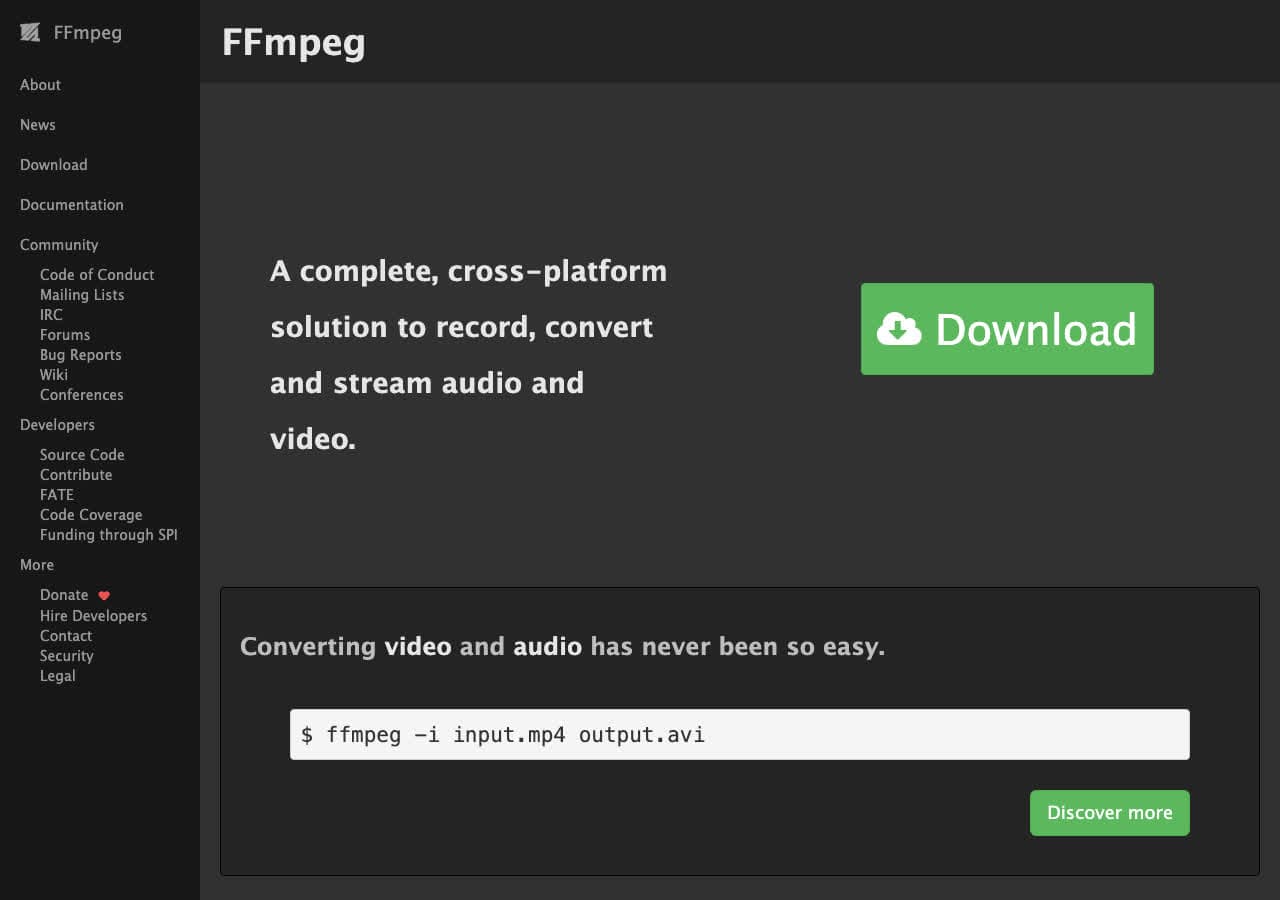
FFmpeg is the ultimate batch conversion tool for anyone comfortable with the command line. A single shell loop can convert thousands of files: for f in *.mov; do ffmpeg -i "$f" "${f%.mov}.mp4"; done converts every MOV file in a folder to MP4. FFmpeg handles virtually every video and audio format ever created.
FFmpeg shines in automated batch workflows. Write a script that watches a folder for new files and converts them automatically. Chain FFmpeg with other tools in a pipeline. Process files on a server without a graphical interface. For developers and system administrators who need to batch convert media at scale, FFmpeg is the foundation.
Pros
- Batch convert thousands of files with shell scripts.
- Supports more formats than any other tool.
- Free and open source.
- Automatable for unattended batch workflows.
Cons
- Command-line only. Requires scripting knowledge.
- No graphical queue or progress display.
Pricing
- Free (open source, LGPL/GPL licensed).
3. ImageMagick - Best Batch Image Processing and Conversion Tool
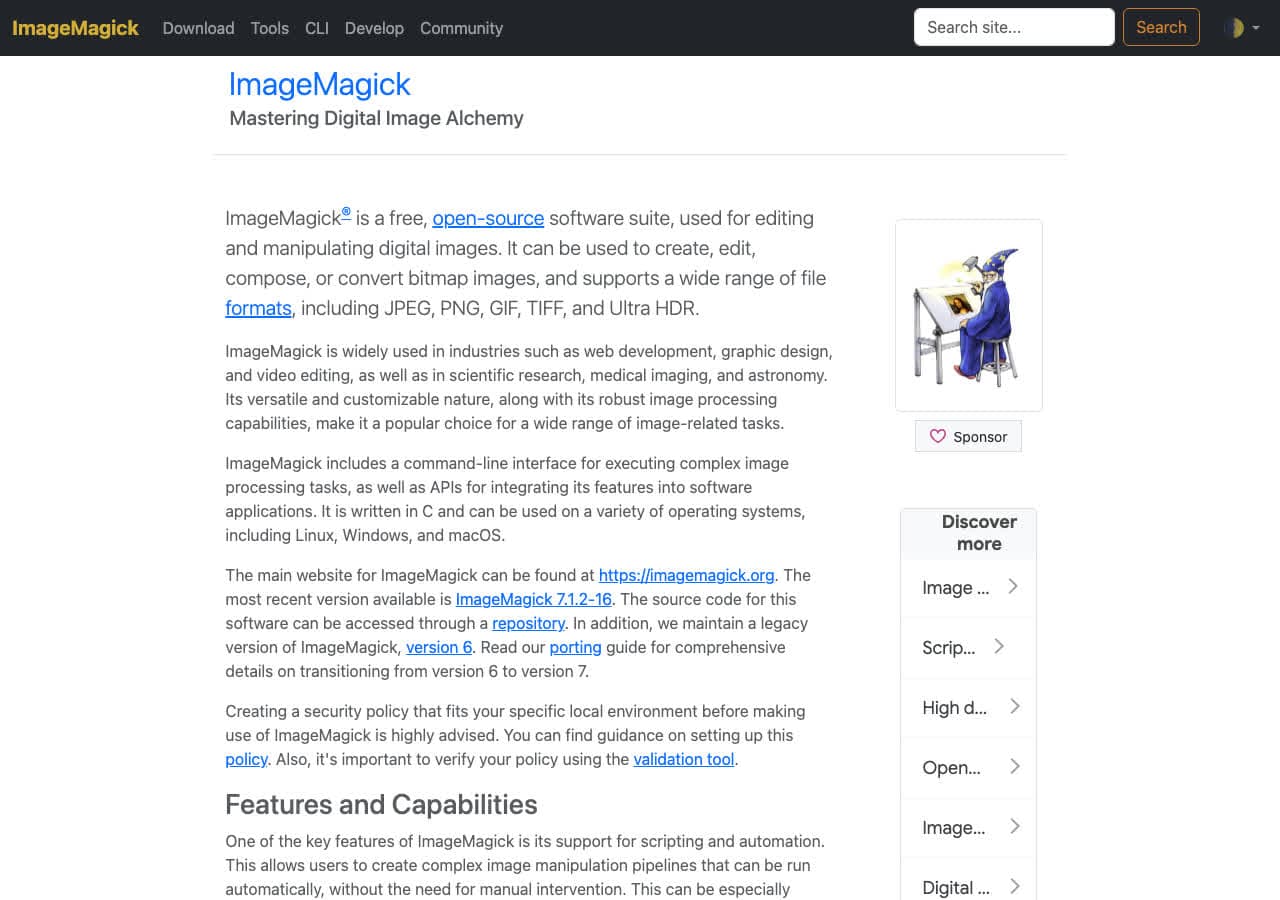
ImageMagick excels at batch image processing. The mogrify command converts entire folders in one shot: magick mogrify -format jpg -quality 85 *.png converts every PNG to JPG at 85% quality. ImageMagick supports over 200 image formats and can resize, crop, rotate, and apply filters during batch conversion.
For photographers and web developers who regularly process large batches of images, ImageMagick is indispensable. Convert a photo shoot from RAW to JPG, resize all images to web dimensions, add watermarks, and optimize file sizes, all in a single batch command. It is free, open source, and runs on every platform.
Pros
- Batch convert entire folders with one command.
- 200+ image formats supported.
- Resize, crop, and process during conversion.
- Free and open source.
Cons
- Command-line only.
- Images only.
Pricing
- Free (open source, Apache 2.0 license).
4. XnConvert - Best Dedicated Batch Image Converter with GUI
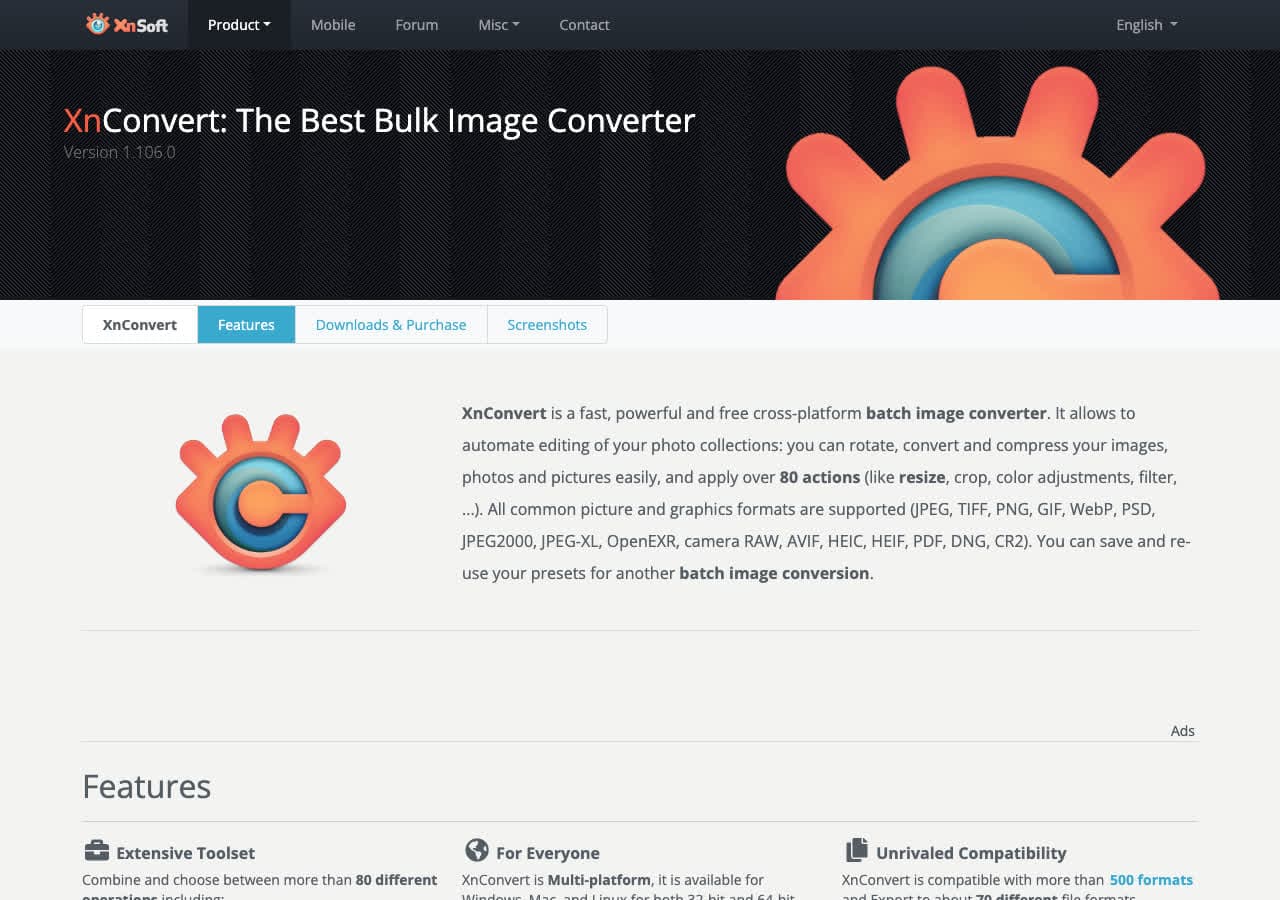
XnConvert was built specifically for batch image conversion with a graphical interface. Drop hundreds or thousands of images, set the output format and optional processing actions, and convert everything at once. The action pipeline lets you chain multiple steps: resize, rotate, adjust colors, add watermark, rename, and convert, all applied to every image in the batch.
XnConvert supports over 500 image formats and includes profiles for saving your favorite batch settings. It is the best option for users who want ImageMagick-level batch power without using the command line. XnConvert is free for personal use and runs on Mac, Windows, and Linux.
Pros
- Purpose-built for batch image conversion.
- 500+ image formats.
- Action pipeline for chained operations.
- Saveable profiles for repeat workflows.
Cons
- Images only.
- Commercial license required for business use.
Pricing
- Free for personal use.
- Commercial license available.
5. HandBrake - Best Batch Video Converter with Queue System
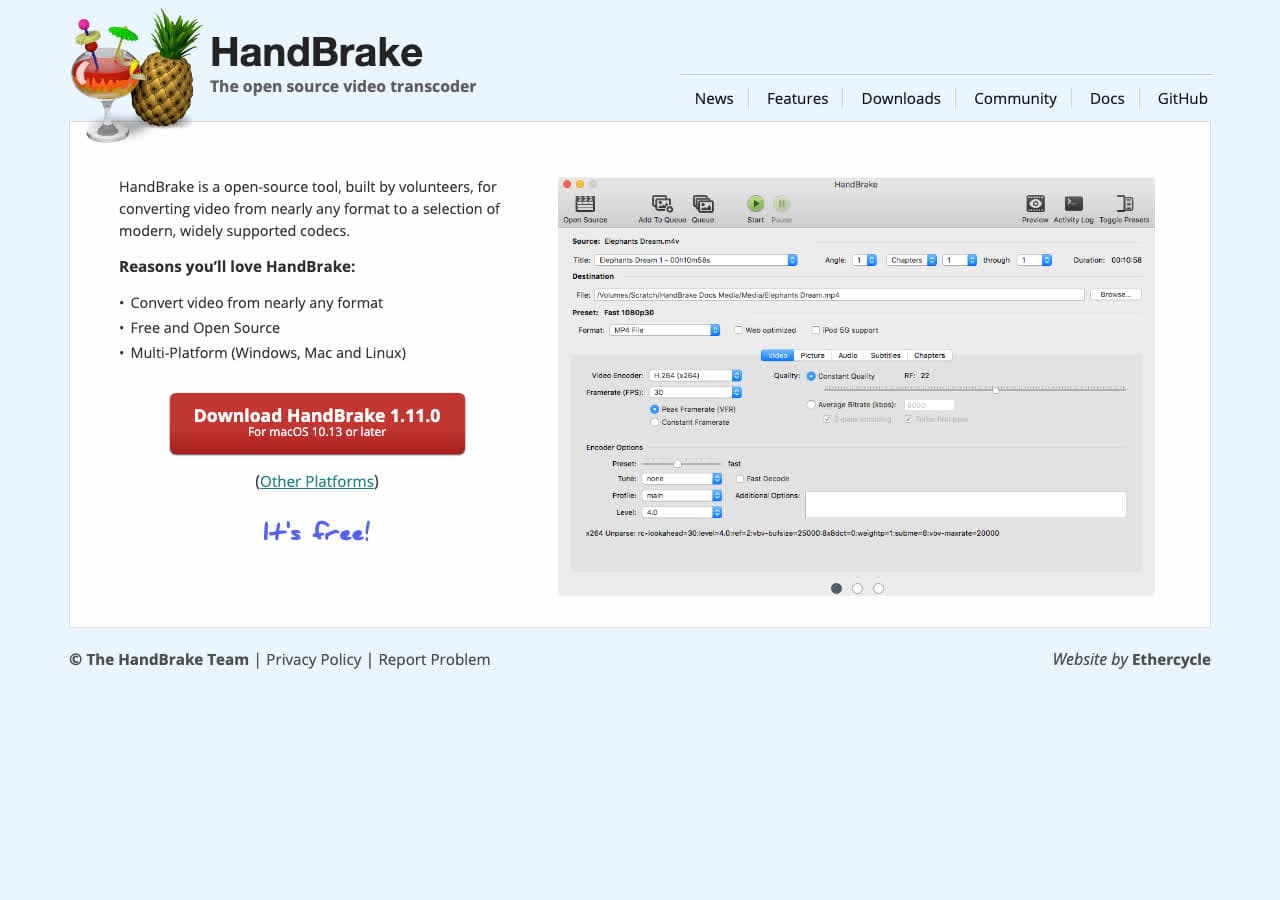
HandBrake includes a queue system for batch video conversion. Add multiple videos to the queue, each with its own output settings if needed, and let HandBrake process them sequentially. Hardware-accelerated encoding uses your GPU to speed up batch jobs. Device presets make it easy to convert a batch of videos for a specific device.
HandBrake is the best free option for batch video conversion with a graphical interface. The queue shows progress for each file and estimated time remaining. You can add files to the queue while others are converting. It runs on Mac, Windows, and Linux and is completely free and open source.
Pros
- Visual queue with per-file progress.
- Hardware-accelerated batch encoding.
- Device presets for quick setup.
- Free and open source.
Cons
- Only outputs MP4 and MKV.
- Sequential processing, not parallel.
Pricing
- Free (open source, GPL licensed).
6. LibreOffice - Best Batch Document Converter
LibreOffice supports command-line batch conversion for documents. Run libreoffice --headless --convert-to pdf *.docx to convert every Word document in a folder to PDF. This works for any format LibreOffice can read: DOCX, XLSX, PPTX, DOC, XLS, PPT, ODF, RTF, and more. The headless mode runs without opening the application.
LibreOffice batch conversion is perfect for office workflows. Convert a folder of Word documents to PDF for archiving, or convert legacy DOC files to modern DOCX format. Scripts can automate recurring batch jobs. LibreOffice is free, open source, and runs on Mac, Windows, and Linux.
Pros
- Command-line batch document conversion.
- All Microsoft Office formats supported.
- Free and open source.
- Scriptable for automated workflows.
Cons
- No graphical batch interface.
- Complex documents may lose some formatting.
Pricing
- Free (open source, MPL licensed).
How to Convert
The offline file converter for Mac, Windows and Linux.
- Converts video, audio, images, documents, ebooks and more
- Everything runs locally. Your files never leave your device
- Pay once. Access forever
Get the app on Mac, Windows and Linux
7. Calibre - Best Batch Ebook Converter
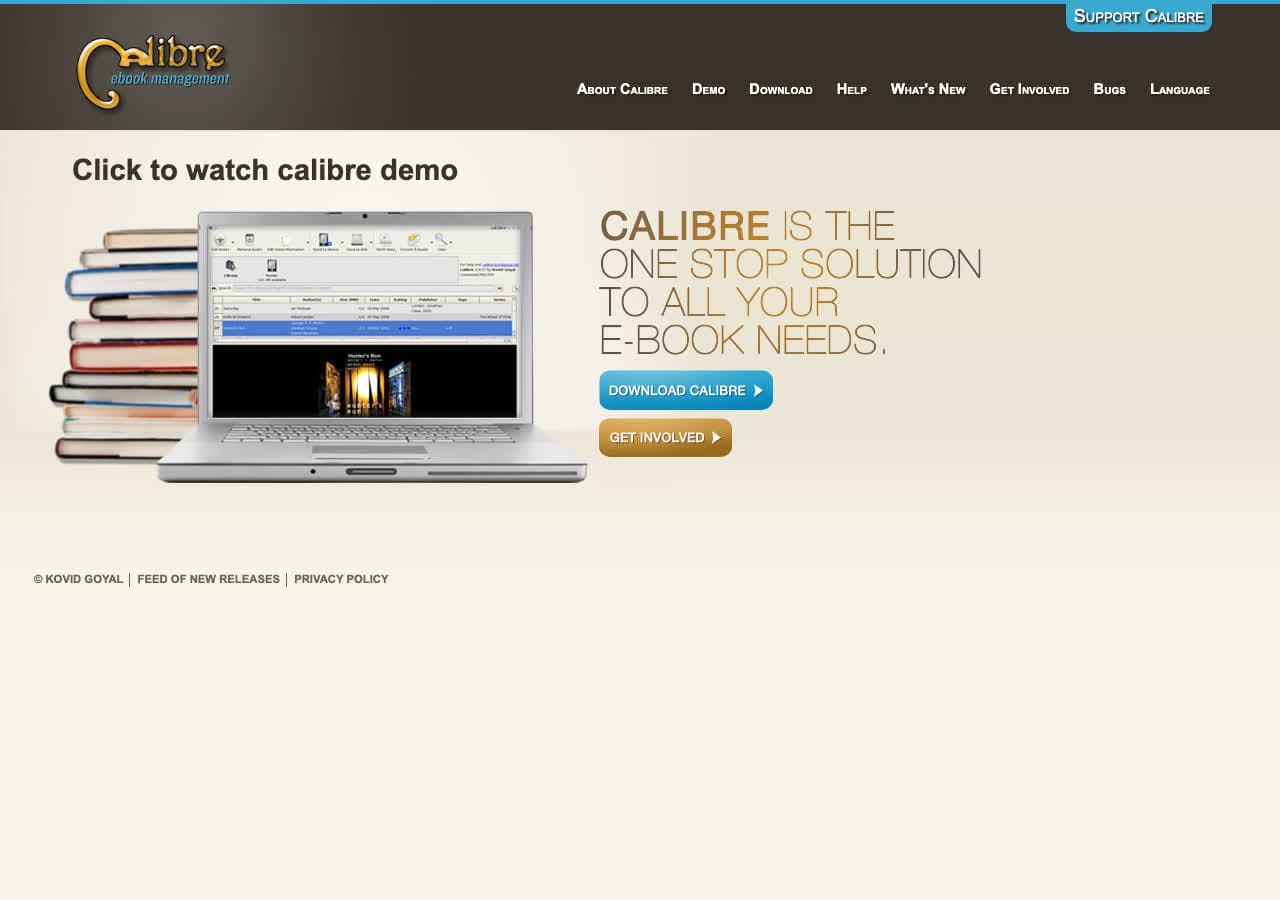
Calibre converts multiple ebooks at once. Select a batch of books in your library, choose Convert Books, pick the output format, and Calibre processes them all. The batch converter applies the same settings to every book: output format, fonts, margins, table of contents, and metadata handling. Progress is shown for each file.
Calibre is the go-to tool for managing and batch converting ebook libraries. Converting 100 EPUBs to MOBI for an older Kindle, or reformatting a collection of PDFs to EPUB for better readability on an e-reader, Calibre handles it. It is free, open source, and runs on Mac, Windows, and Linux.
Pros
- Batch convert entire ebook libraries.
- Consistent settings across all files.
- Free and open source.
- Library management alongside conversion.
Cons
- Ebooks only.
- Interface is cluttered.
Pricing
- Free (open source, GPL licensed).
8. IrfanView - Best Batch Image Converter for Windows
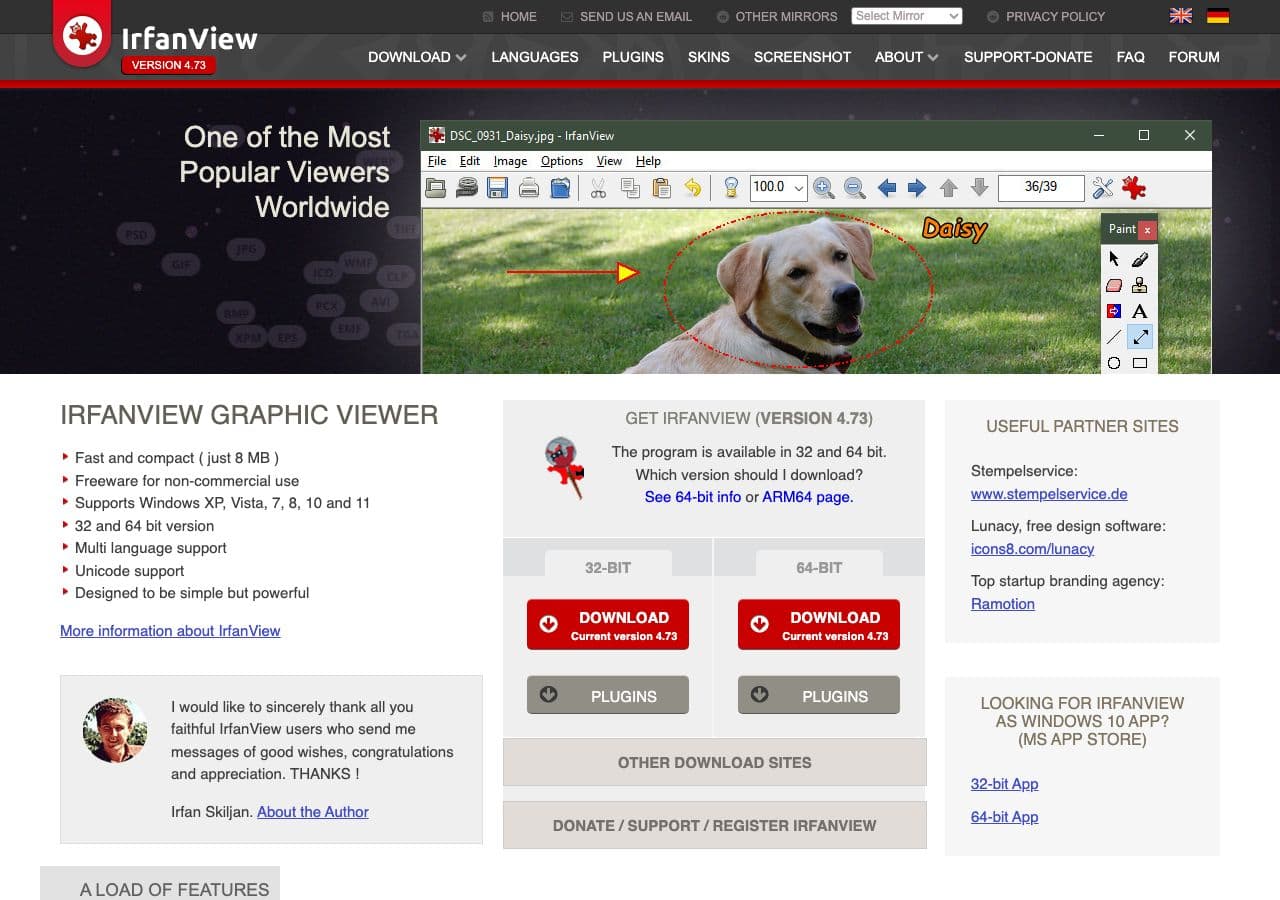
IrfanView is a lightweight Windows image viewer with a powerful batch conversion feature. File > Batch Conversion lets you add files or entire folders, set the output format and quality, add optional processing (resize, crop, rename), and convert thousands of images. IrfanView is fast and efficient, using minimal system resources even on large batches.
IrfanView has been a staple Windows utility for decades. The batch conversion dialog is comprehensive with options for output format, quality, resolution, color depth, and file naming patterns. With plugins, IrfanView supports RAW camera formats, WebP, HEIC, and many other formats. It is free for personal use.
Pros
- Fast, lightweight batch conversion.
- Handles thousands of images efficiently.
- Free for personal use.
- Plugin support for additional formats.
Cons
- Windows only.
- Dated interface.
Pricing
- Free for personal use.
- Commercial: $12 one-time.
9. FastStone Image Viewer - Best Batch Image Resizer and Converter
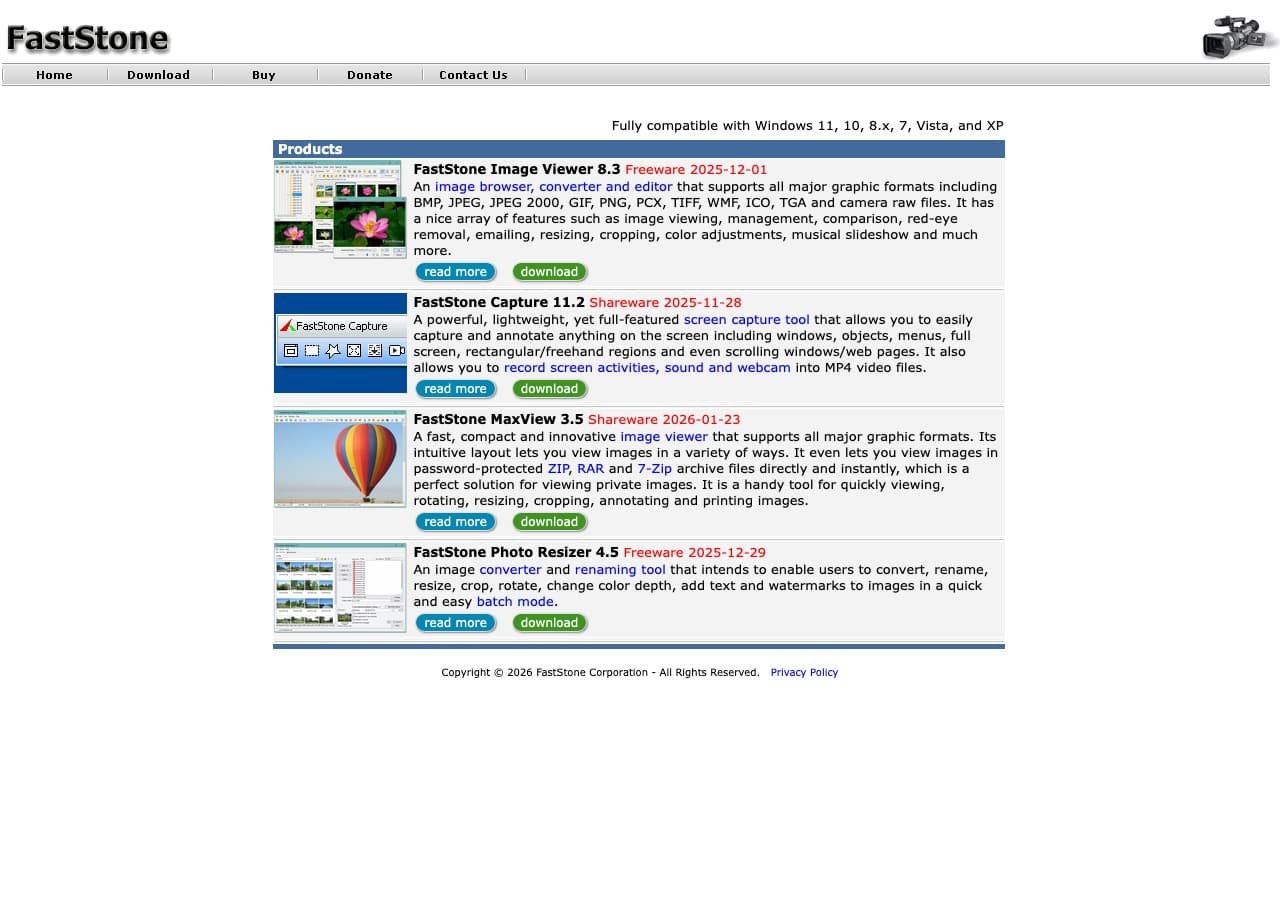
FastStone Image Viewer includes a batch conversion tool that handles format conversion and resizing together. Select images in the file browser, open Batch Convert, set the output format and optional resize dimensions, and process them all. FastStone supports JPG, PNG, BMP, GIF, TIFF, WebP, and other common formats.
FastStone is particularly useful for photographers who need to resize and convert images for web use. The batch tool handles format conversion, resizing, renaming, watermarking, and DPI adjustment in one pass. It is fast, efficient, and free for personal use on Windows.
Pros
- Combined batch resize and convert.
- Built into a full image viewer.
- Fast and lightweight.
- Free for personal use.
Cons
- Windows only.
- Fewer formats than XnConvert or ImageMagick.
Pricing
- Free for personal use.
- Lifetime license: $34.95 one-time.
10. fre:ac - Best Free Batch Audio Converter
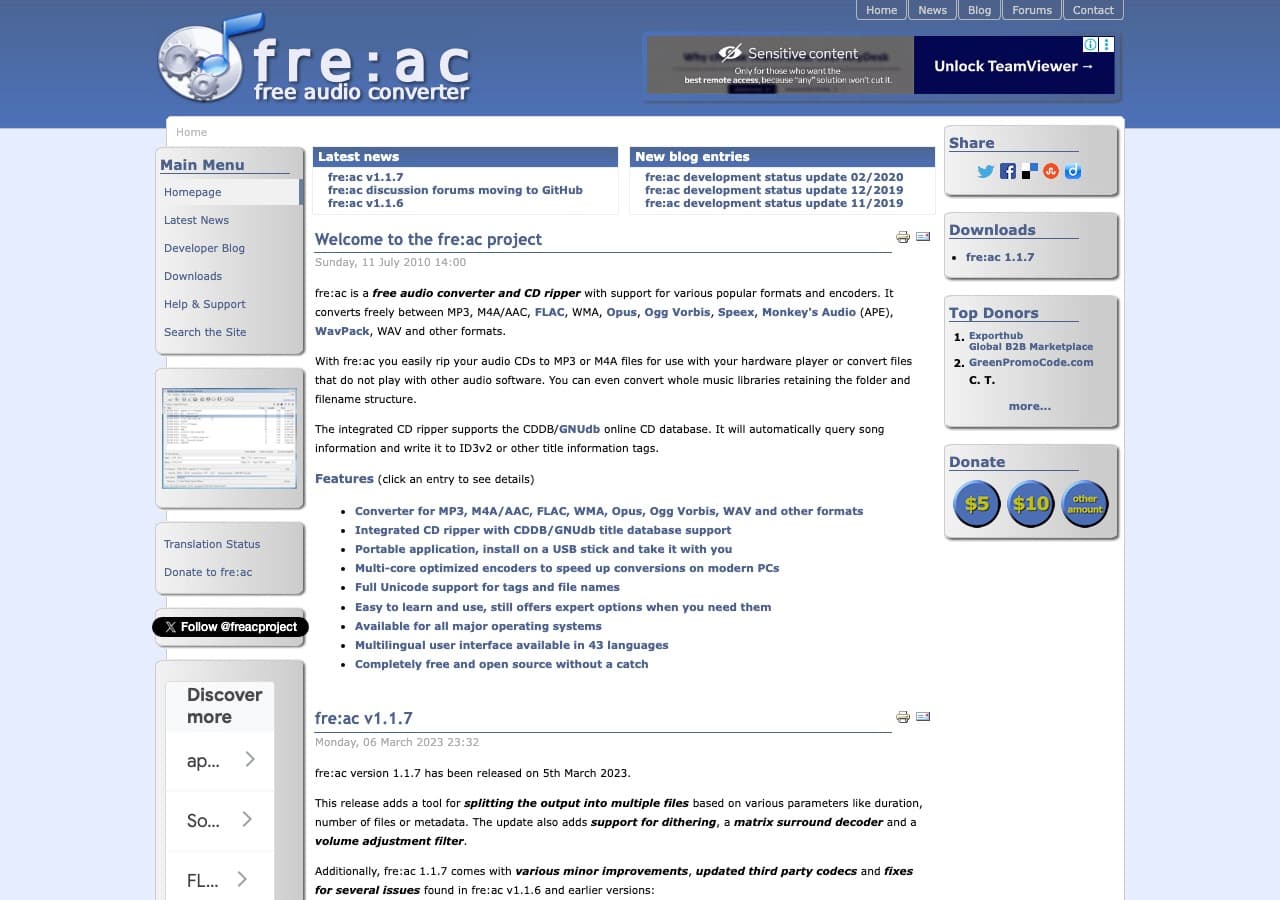
fre:ac is built for batch audio conversion. Drop an entire folder of audio files, select the output format (MP3, FLAC, WAV, AAC, OGG), and convert them all at once. Multi-core processing splits the work across CPU cores for faster batch jobs. fre:ac also rips audio CDs and automatically tags tracks from online databases.
fre:ac is the best free tool for batch audio conversion specifically. It handles hundreds of files efficiently, preserves metadata during conversion, and supports all major audio formats. The interface is straightforward: add files, pick format and quality, convert. It is free, open source, and cross-platform.
Pros
- Built for batch audio conversion.
- Multi-core processing for speed.
- Free and open source.
- Preserves metadata during conversion.
Cons
- Audio only.
- Basic interface design.
Pricing
- Free (open source, GPL licensed).
11. Any Video Converter - Best Batch Video Converter with Presets
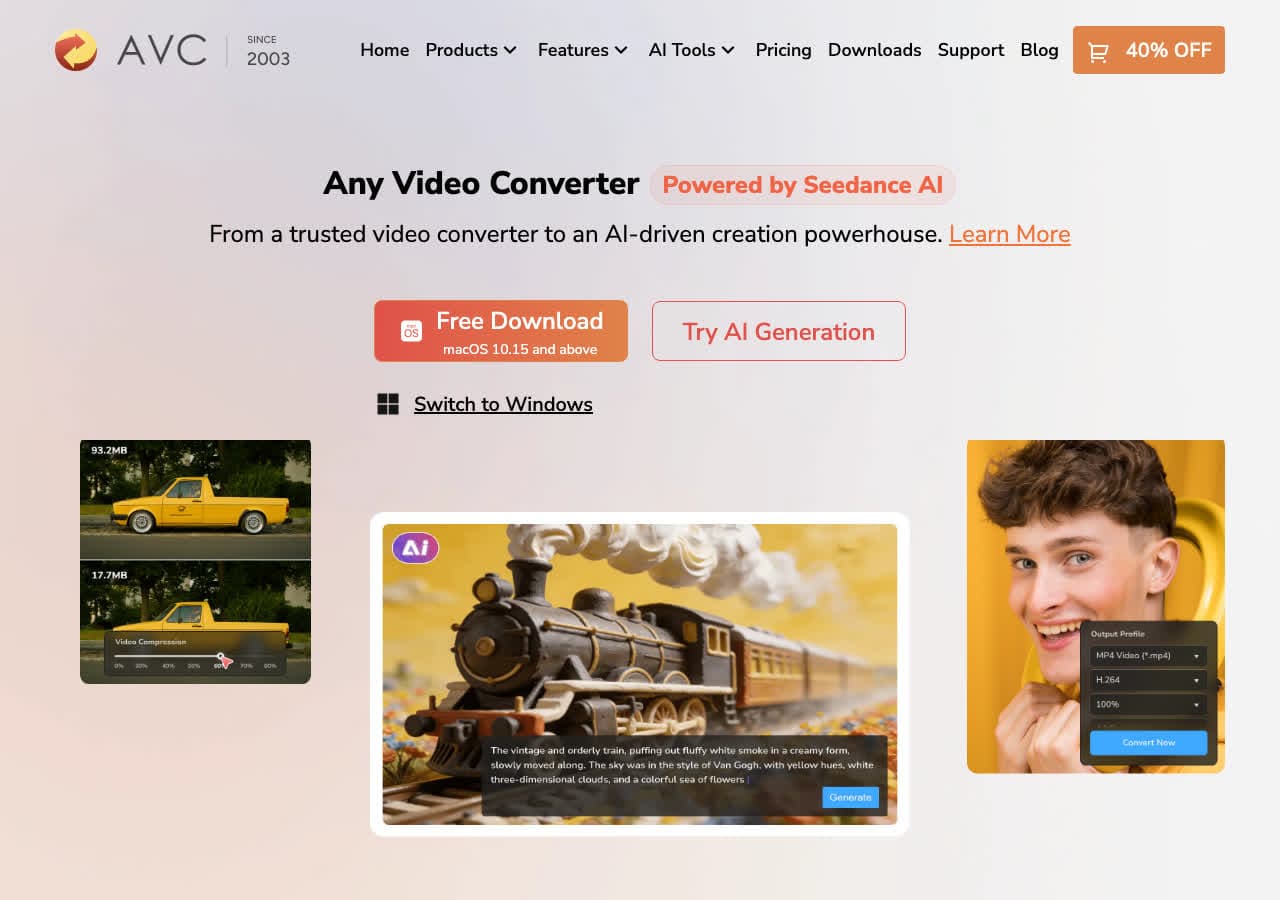
Any Video Converter handles batch video conversion with an easy-to-use interface. Add multiple video files, select the output format from device-specific presets or custom settings, and convert them all. The free version handles batch conversion of most common formats including MP4, AVI, MKV, MOV, WMV, and FLV.
Any Video Converter is designed for non-technical users who need to convert multiple videos. The device presets cover iPhone, iPad, Android, Samsung, and gaming consoles. The batch interface shows thumbnails and progress for each file. A paid Ultimate version adds more features, but the free version covers basic batch video conversion.
Pros
- Easy batch interface with thumbnails.
- Device presets for common targets.
- Free version handles basic batch conversion.
- Available on Mac and Windows.
Cons
- Free version has ads and upsells.
- Installer may bundle additional software.
Pricing
- Free: Basic batch conversion.
- Ultimate: ~$49.95 one-time for advanced features.
12. Wondershare UniConverter - Best Premium Batch Media Converter
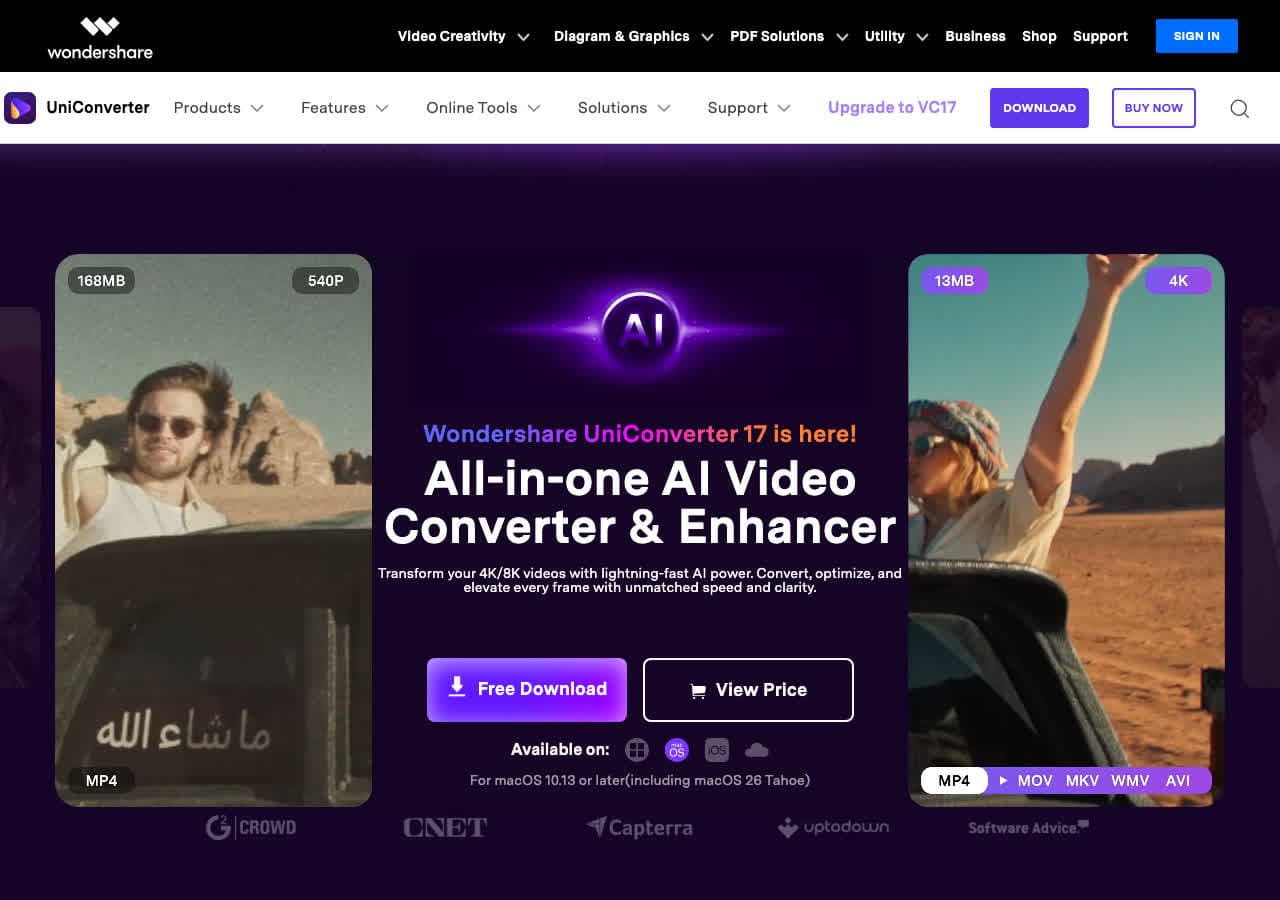
Wondershare UniConverter is a premium batch converter that processes video, audio, and image files simultaneously. Add dozens of files in different formats, set individual or global output settings, and convert them all with hardware-accelerated encoding. Wondershare claims 90x faster conversion speeds with GPU acceleration enabled.
The batch interface is polished and shows progress for each file. Wondershare supports over 1,000 formats and includes batch compression, batch watermarking, and batch video trimming. For organizations that need a professional batch conversion solution with support, Wondershare delivers. The pricing is higher than most alternatives.
Pros
- Polished batch interface with per-file progress.
- Hardware-accelerated batch encoding.
- 1,000+ formats.
- Batch compression and watermarking.
Cons
- Expensive subscription pricing.
- Free trial is limited.
Pricing
- Free trial: Limited features.
- Annual: ~$49.99/year.
- Perpetual: ~$79.99 one-time.
How to Convert
The offline file converter for Mac, Windows and Linux.
- Converts video, audio, images, documents, ebooks and more
- Everything runs locally. Your files never leave your device
- Pay once. Access forever
Get the app on Mac, Windows and Linux
13. Switch - Best Batch Audio Converter for Mac and Windows
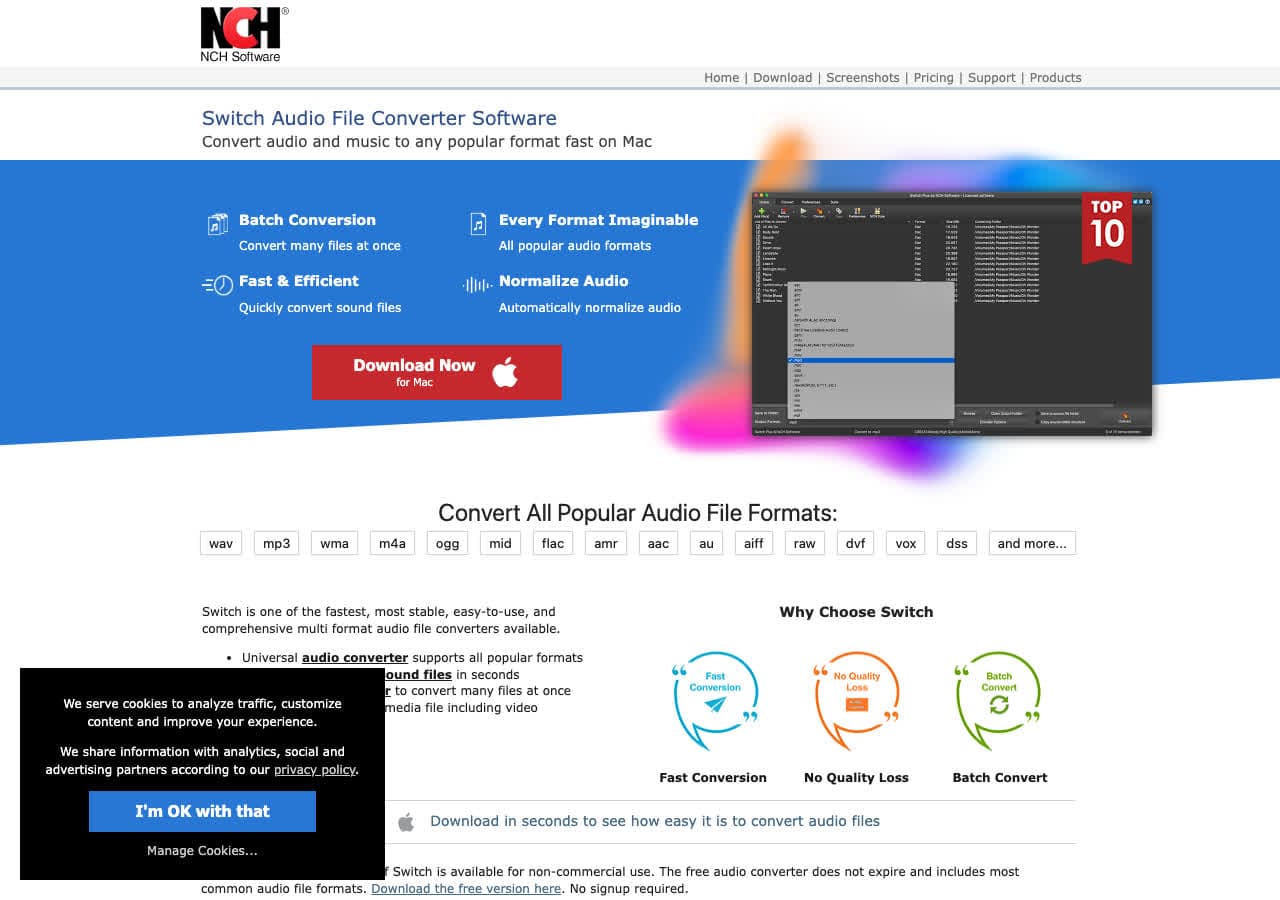
Switch by NCH Software is a dedicated audio converter with strong batch capabilities. Add folders of audio files, set the output format and quality, and convert everything at once. Switch supports MP3, WAV, FLAC, AAC, OGG, WMA, AIFF, and dozens of other audio formats.
Switch is simple and focused. The batch interface lists all queued files with format and status. It also extracts audio from video files in batch, which is useful for pulling audio from a collection of video recordings. Switch runs on Mac and Windows with a free version for non-commercial use.
Pros
- Simple batch audio conversion.
- Folder import for easy batch setup.
- Extracts audio from video in batch.
- Free for non-commercial use.
Cons
- Audio only.
- Paid for commercial use.
Pricing
- Free for non-commercial use.
- Plus: One-time purchase for commercial use.
14. Automator - Best Built-in Mac Batch Converter
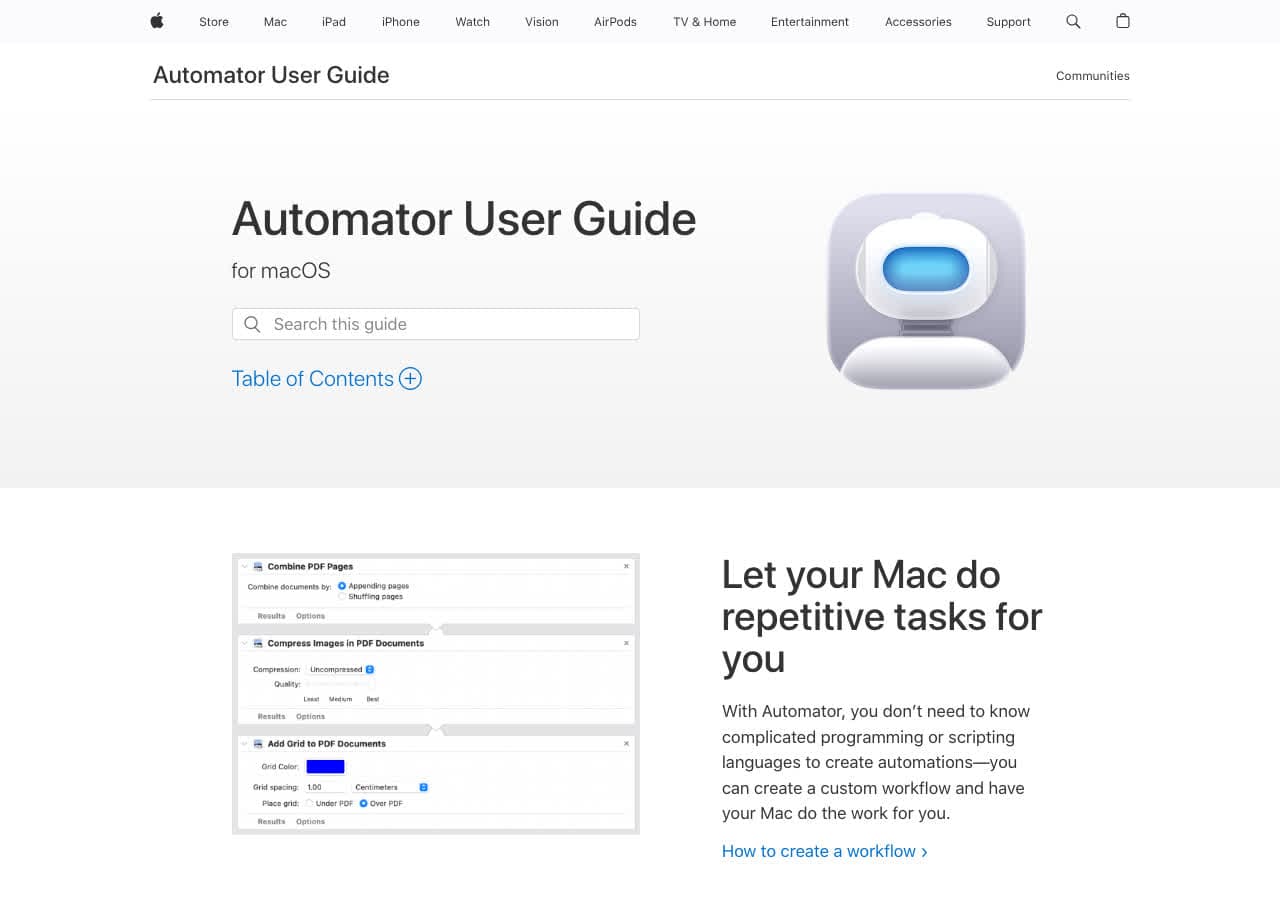
Automator is built into macOS and can batch convert images without installing any additional software. Create a workflow that takes a folder of images, converts them to JPG, PNG, or TIFF, and optionally resizes them. Save the workflow as a Quick Action for right-click batch conversion from Finder.
Automator is limited to image conversion, but for Mac users it is the zero-install option. Right-click a selection of photos in Finder, choose your saved Quick Action, and they convert instantly. For more complex batch workflows, Automator can chain actions: copy files, convert format, resize, rename, and move to a destination folder.
Pros
- Built into macOS. No installation needed.
- Right-click batch conversion from Finder.
- Chain multiple actions in one workflow.
- Free.
Cons
- Mac only.
- Limited to image formats.
- Being replaced by Shortcuts on newer macOS.
Pricing
- Free (included with macOS).
15. CloudConvert - Best Online Batch Converter with API
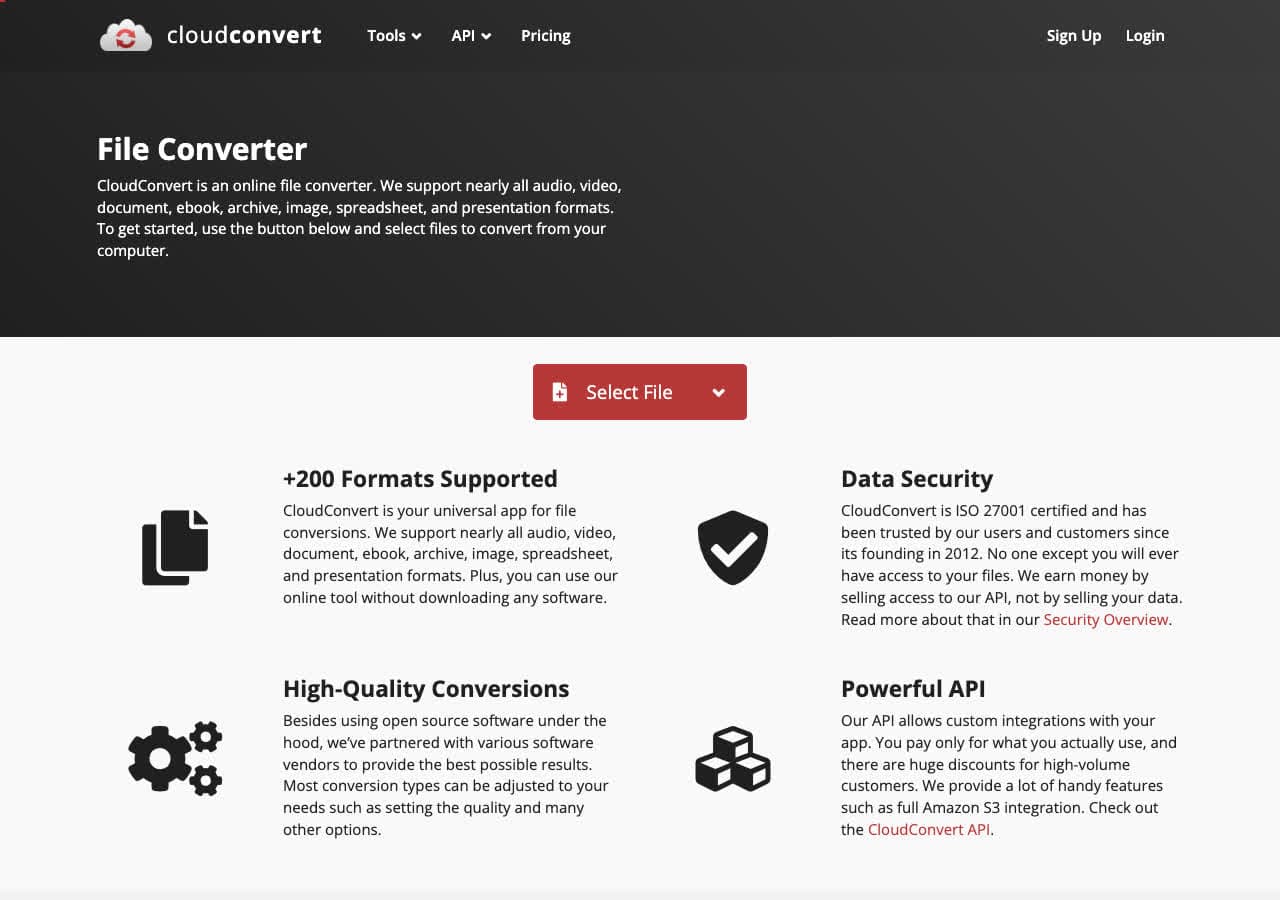
CloudConvert supports batch conversion online. Upload multiple files, set the output format for each, and convert them all. The free tier gives you 25 conversion minutes per day, which covers light batch work. For larger batches, paid packages offer more conversion time.
CloudConvert also provides an API for automated batch conversion. Developers can integrate conversion into their applications and workflows, processing batches programmatically. The API supports all 200+ formats that the web interface handles. For teams that need cloud-based batch conversion with an API, CloudConvert is the top choice.
Pros
- Online batch conversion. No software to install.
- Developer API for automated batches.
- 200+ formats.
- High-quality conversions.
Cons
- Files uploaded to the cloud.
- Free tier limited for large batches.
Pricing
- Free: 25 conversion minutes per day.
- Paid: From $9 for 500 minutes.
16. Zamzar - Best Online Batch Converter for Quick Jobs
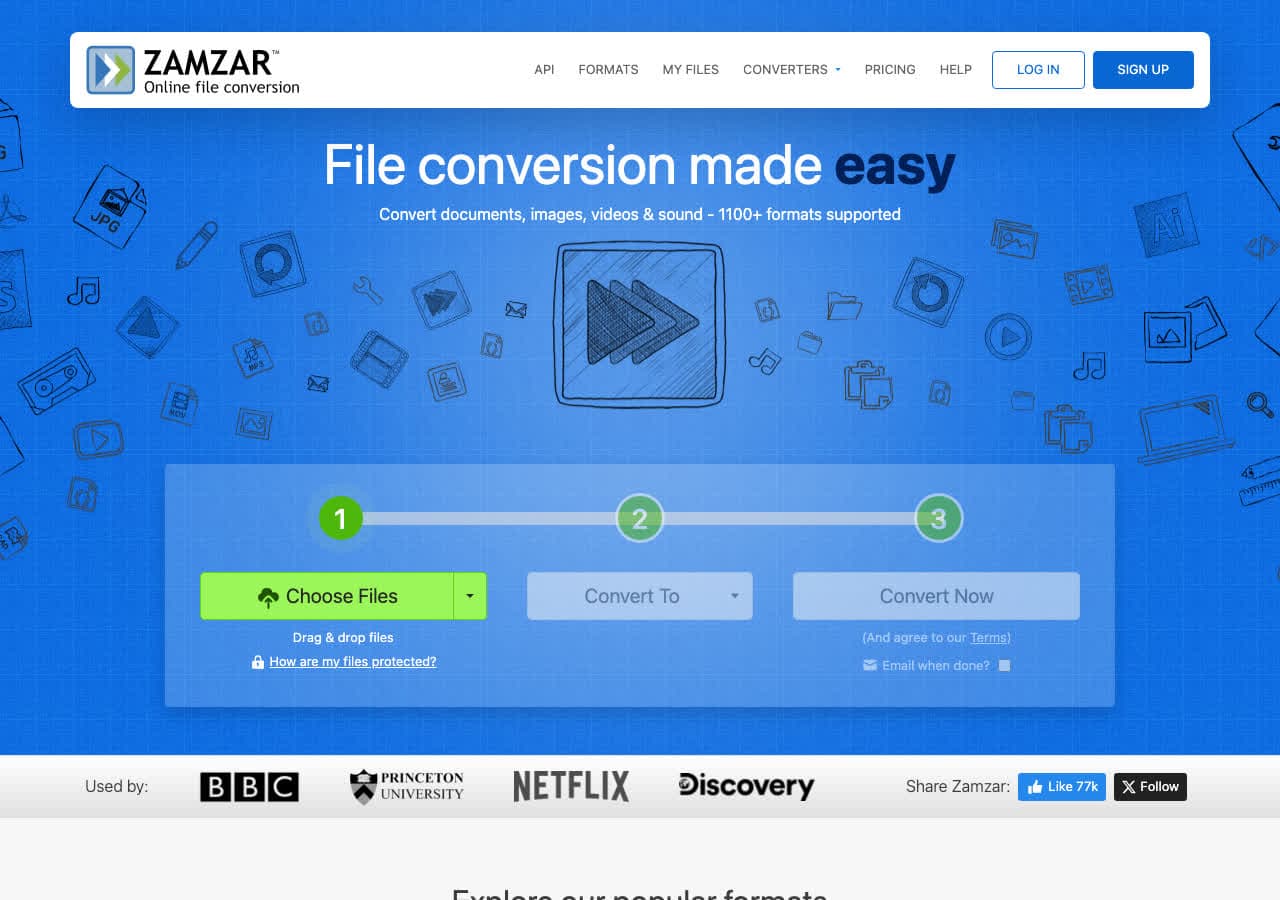
Zamzar supports batch uploads for online conversion. Select multiple files at once, choose the output format, and Zamzar processes them together. The free tier limits files to 50 MB each with two free conversions per day. Paid plans allow batch conversion of larger files without daily limits.
Zamzar is best for small batch jobs when you need to convert a handful of files quickly without installing software. Upload 5-10 files, convert, and download the results. For large batches of hundreds of files, a desktop tool is more practical. Zamzar supports 1,200+ format pairs.
Pros
- Batch upload from browser.
- 1,200+ format pairs.
- No installation needed.
- Simple interface.
Cons
- Free tier is very limited for batches.
- Impractical for large batch jobs.
Pricing
- Free: 50 MB limit, 2 conversions per day.
- Basic: From $18/month.
17. Convertio - Best Online Batch Converter with Cloud Storage
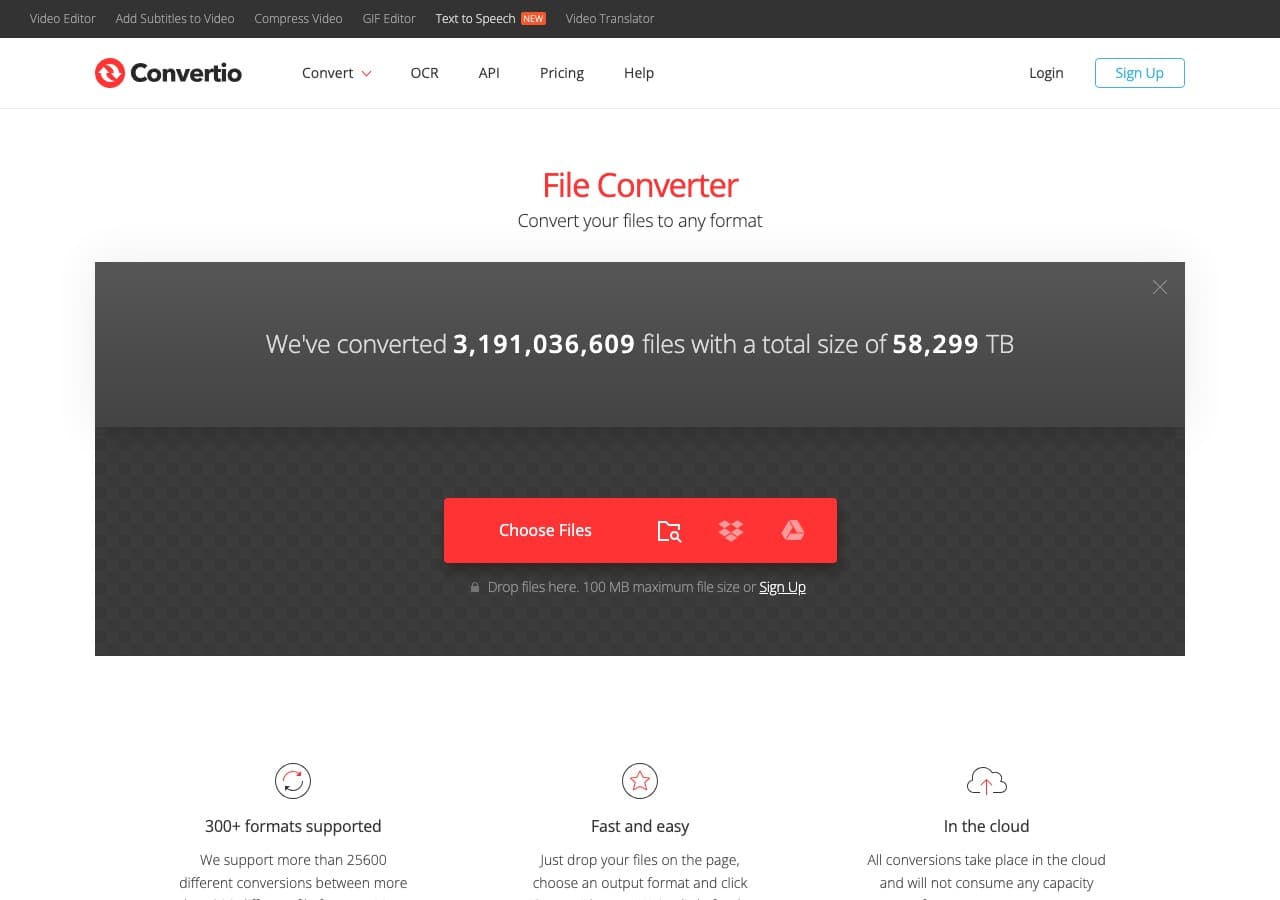
Convertio supports batch conversion with Google Drive and Dropbox integration. Upload multiple files from your computer or pull them directly from cloud storage, set the output format, and convert them all. The free tier allows files up to 100 MB with 10 conversion minutes per day.
The cloud storage integration makes Convertio efficient for batch workflows. If your files are already in Google Drive, convert a batch without downloading and re-uploading. Converted files can be saved back to your cloud storage. Convertio handles 300+ formats across all file types.
Pros
- Batch conversion from cloud storage.
- Google Drive and Dropbox integration.
- 300+ formats.
- 100 MB free file size limit.
Cons
- Free tier limited to 10 minutes per day.
- Files processed on remote servers.
Pricing
- Free: 100 MB limit, 10 minutes per day.
- Light: From $9.99/month.
18. FreeConvert - Best Free Online Batch Converter
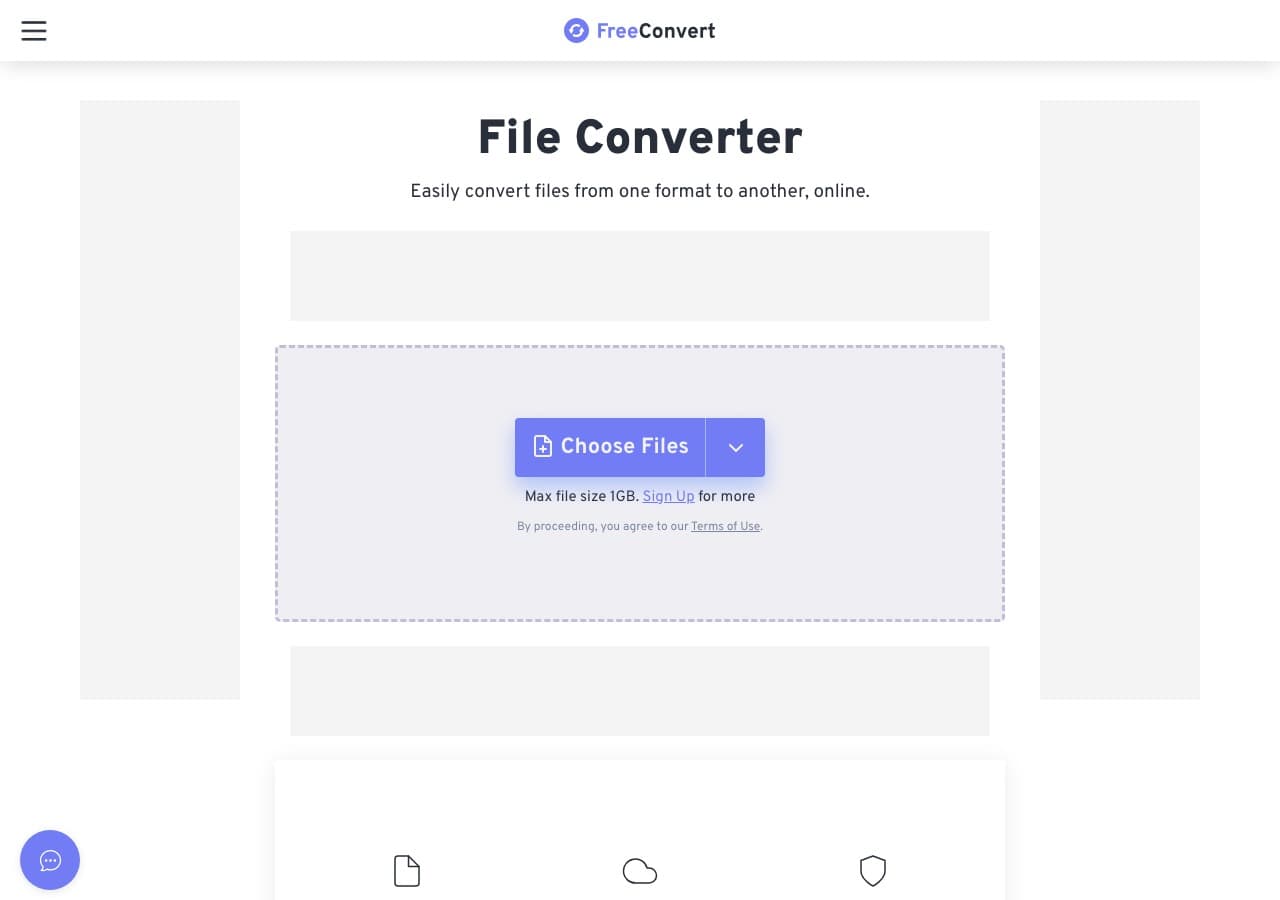
FreeConvert offers batch conversion online with a generous free tier. Upload multiple files up to 1 GB each (free), select the output format with optional advanced settings, and convert them all. FreeConvert supports video, audio, image, document, and ebook conversions.
FreeConvert stands out among online converters with its 1 GB free file size limit, which is much larger than most competitors. The batch interface handles multiple files with individual progress tracking. Advanced settings let you adjust quality, resolution, and codec for each conversion. It is a solid option for occasional batch work without software installation.
Pros
- 1 GB free file size limit.
- Batch upload and conversion.
- Advanced settings for each file.
- No software installation needed.
Cons
- Files uploaded to FreeConvert servers.
- Slower than desktop tools for large batches.
Pricing
- Free: 1 GB file size limit.
- Pro: From $9.99/month for higher limits.
Frequently Asked Questions
What is the fastest batch file converter?
For video, HandBrake and Wondershare UniConverter with hardware-accelerated GPU encoding are the fastest. For images, ImageMagick and XnConvert process thousands of files quickly. For audio, fre:ac uses multi-core processing for fast batch conversion. Desktop tools are always faster than online converters because they eliminate upload and download time.
Can I batch convert different file types at once?
Most batch converters handle one file type (video, audio, images, or documents). How to Convert is one of the few tools that batch converts different file types in the same session. For command-line users, you can script FFmpeg for media and ImageMagick for images in the same workflow.
How many files can I batch convert at once?
Desktop tools avoid upload quotas, but every tool and computer has practical limits. Batch size depends on the files, available disk space, memory, and processing time. Test a representative batch before scaling up, and split very large or mixed jobs into labelled groups that are easier to verify.
Should I use a GUI or command-line batch converter?
Use a GUI tool like XnConvert, HandBrake, or How to Convert if you want visual progress tracking and easy setup. Use command-line tools like FFmpeg, ImageMagick, or LibreOffice if you need to automate batch conversion in scripts, cron jobs, or CI/CD pipelines. Command-line tools are more flexible but require technical knowledge.
Final Thoughts
For batch conversion across all file types, How to Convert handles everything in one app with a one-time purchase. For free batch video conversion, HandBrake is the standard. For batch images, XnConvert provides a GUI while ImageMagick handles command-line power. For batch audio, fre:ac is fast and free. For batch documents, LibreOffice converts entire folders from the command line. Pick the tool that matches your file type and workflow, and stop converting files one at a time.
How to Convert
The offline file converter for Mac, Windows and Linux.
- Converts video, audio, images, documents, ebooks and more
- Everything runs locally. Your files never leave your device
- Pay once. Access forever
Get the app on Mac, Windows and Linux
