18 Best Free File Converter Apps in 2026 (No Hidden Costs)
The best completely free file converter apps for 2026. No subscriptions, no hidden fees. Convert video, audio, images, and documents for free.
Posted by
 Jake Manger
Finding a truly free file converter is harder than it should be. Most tools that advertise themselves as free come with watermarks on output files, file size limits, daily conversion caps, or aggressive upsells to a paid plan. You download what looks like a free converter only to discover it adds a logo to your video, limits exports to 720p, or requires a subscription after a seven-day trial. Worse, some free converters bundle adware or toolbars with the installer.
We tested dozens of file converters to find 18 that are genuinely free for real-world use. This list includes open source tools with no restrictions, freemium apps with generous free tiers, and online services that handle common conversions without charging. Whether you need to convert video, audio, images, documents, or ebooks, at least one of these tools will handle the job without hidden costs, watermarks, or bait-and-switch pricing.
1. How to Convert - Best Free Single-File Web Demo
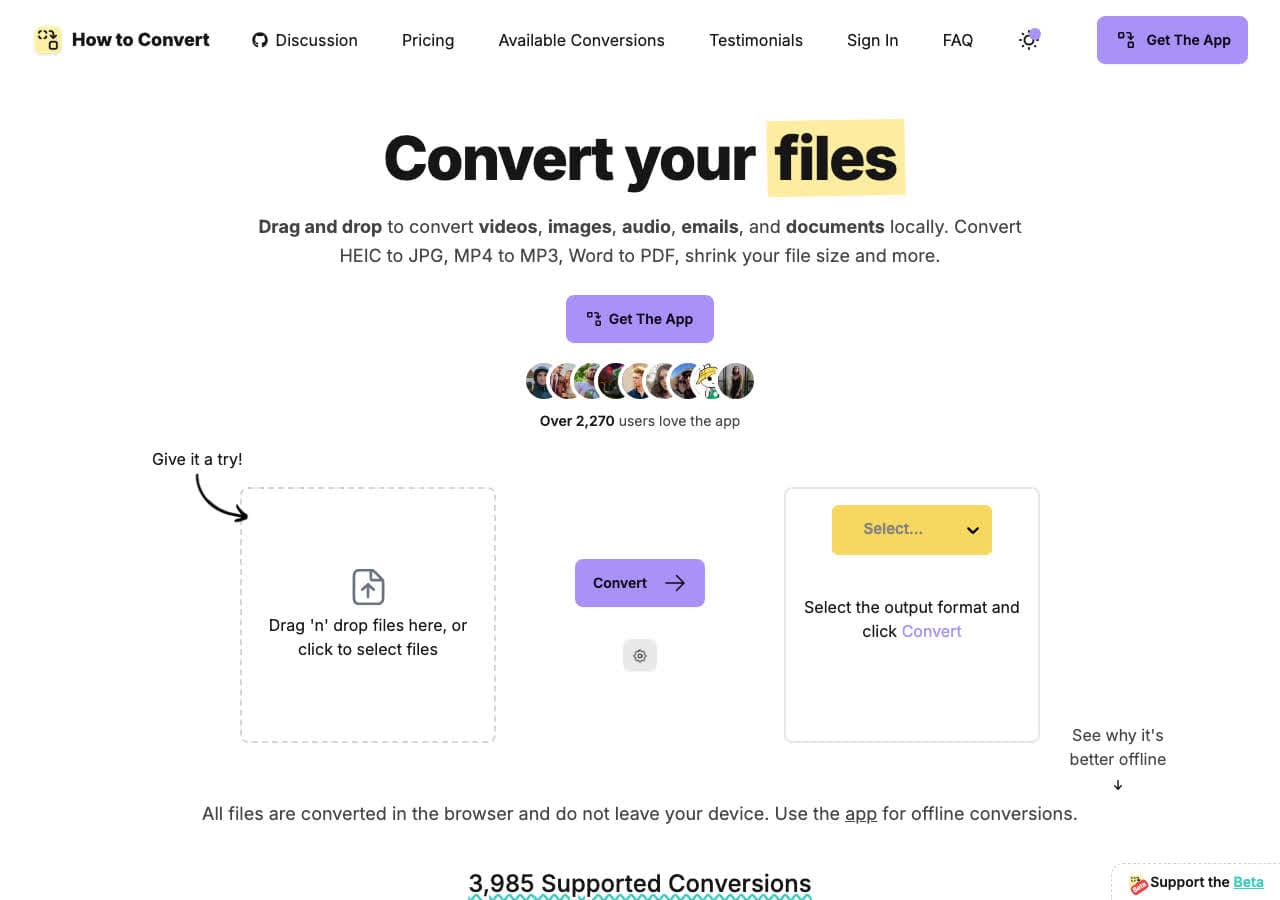
How to Convert offers a free web demo for single-file conversions across supported formats, with no installation required. Choose one file and an output format, then download the result. Processing happens locally in your browser, so the file does not leave your device. No account is required and the demo does not add a watermark.
How to Convert also offers a desktop app as a one-time purchase. It handles hundreds of additional formats, batch conversion, repeated work, and offline use. For this free converter roundup, the web demo stands on its own for a supported one-off conversion; use the desktop app when the job involves multiple files or broader format support.
Pros
- Free web demo for single-file conversions, with no account or watermark.
- Files process locally in your browser. Nothing uploaded to a server.
- No account or sign-up required.
- Covers common video, audio, image, and document formats.
Cons
- Desktop app with advanced features is a paid one-time purchase.
- Web demo handles one file at a time and fewer formats than the desktop app.
Pricing
- Free: Web demo for single-file conversions across supported formats.
- Desktop app: One-time purchase for Mac, Windows, and Linux.
 How to Convert
The offline file converter for Mac, Windows and Linux.
- Converts video, audio, images, documents, ebooks and more
- Everything runs locally. Your files never leave your device
- Pay once. Access forever
Get the app on Mac, Windows and Linux
2. HandBrake - Best Free Open Source Video Converter
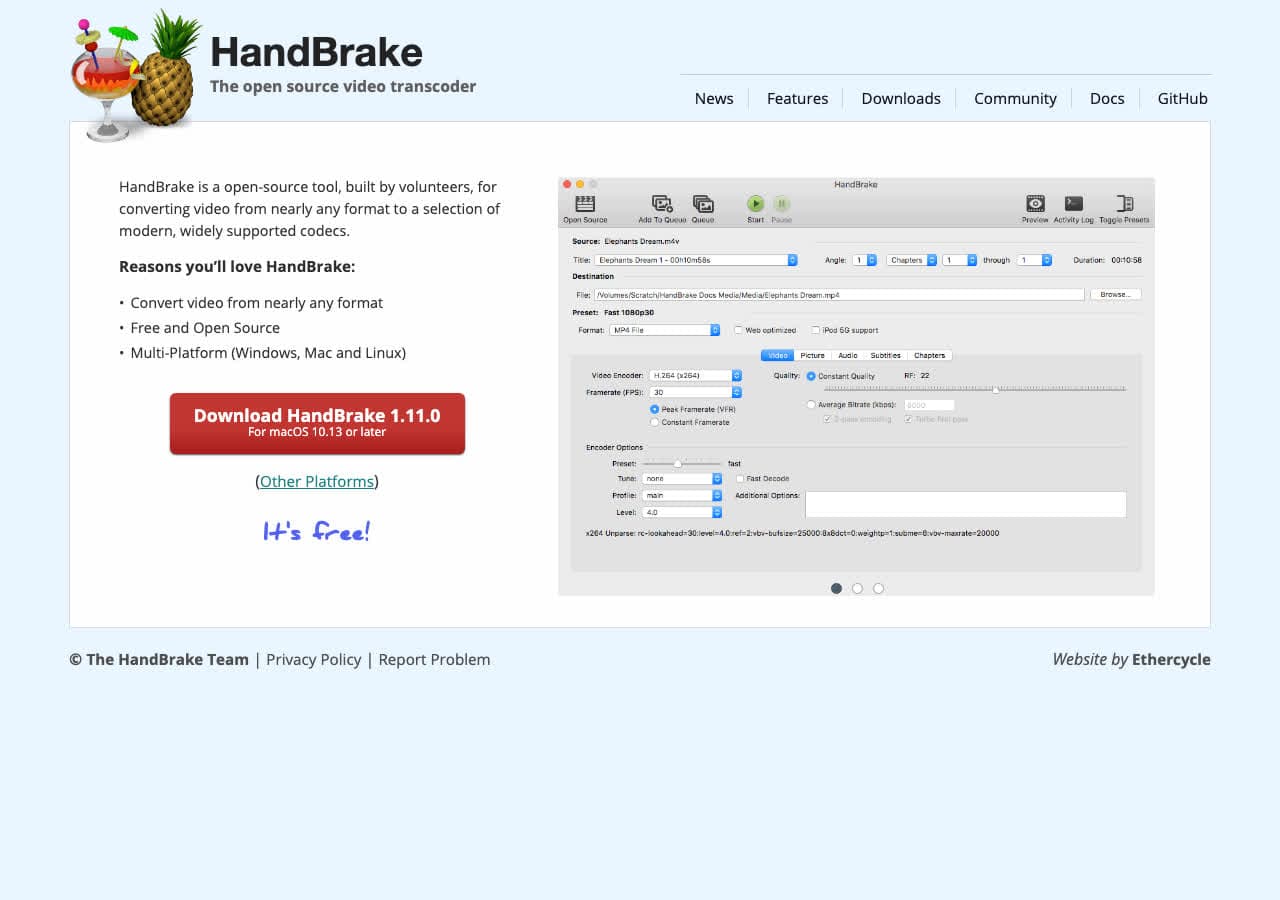
HandBrake is the gold standard for free video conversion. It is completely open source with no ads, no watermarks, no limits, and no premium tier. Every feature is available to every user. HandBrake converts nearly any video format to MP4 or MKV with full control over codecs, quality, resolution, frame rate, and audio tracks.
HandBrake includes a queue system for batch processing multiple videos, device presets for Apple, Android, Roku, and gaming consoles, and hardware-accelerated encoding on supported GPUs. The interface is straightforward once you learn the basics. For anyone who regularly converts video files, HandBrake is the first tool to install. It runs on Mac, Windows, and Linux.
Pros
- Completely free and open source. No restrictions.
- Hardware-accelerated encoding for faster conversions.
- Device presets for phones, tablets, and streaming devices.
- Batch queue for converting multiple files.
- Cross-platform (Mac, Windows, Linux).
Cons
- Only outputs MP4 and MKV containers.
- Video only. No audio or image conversion.
Pricing
- Free (open source, GPL licensed).
3. VLC - Best Free Media Player with Built-in File Conversion
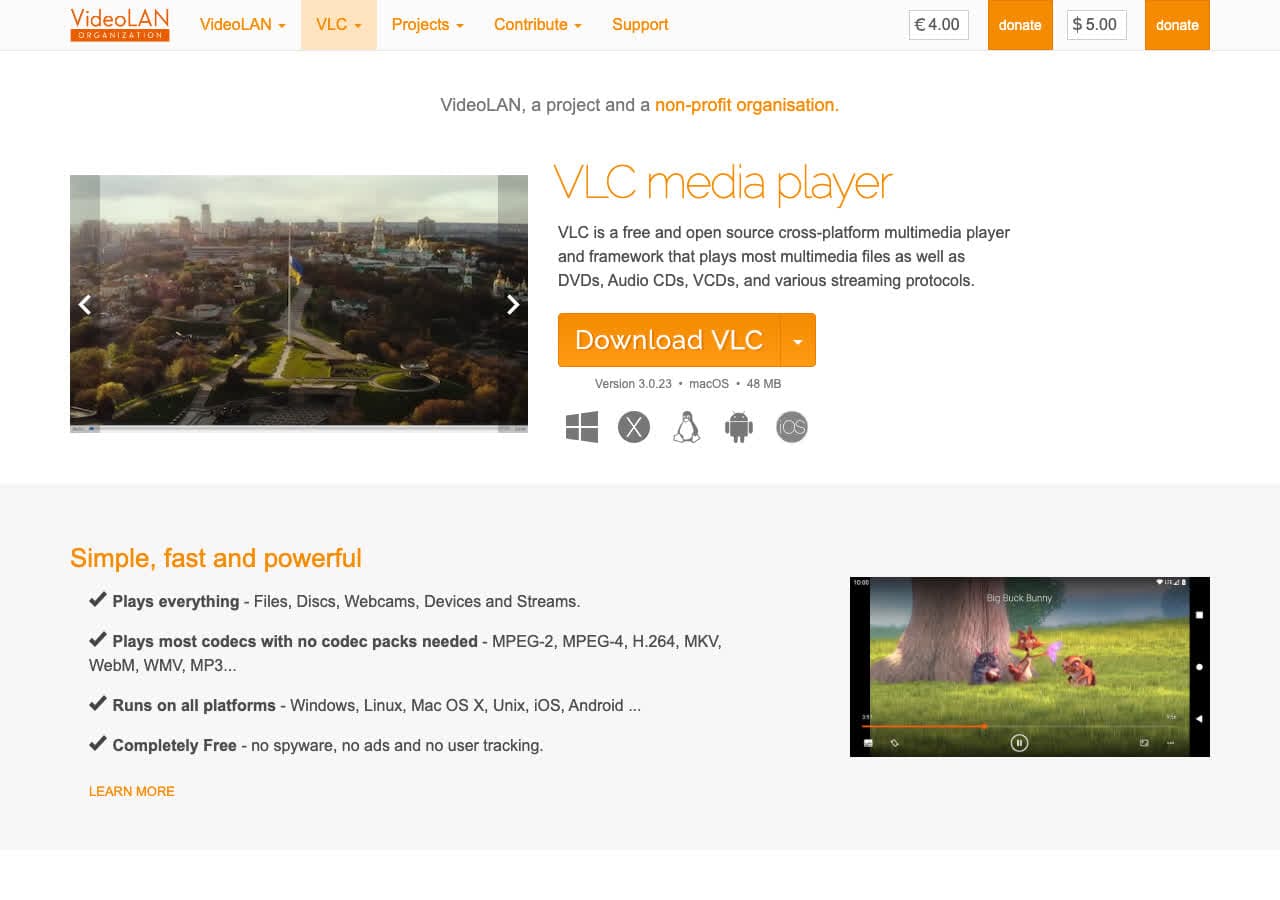
VLC is primarily known as a media player that plays anything, but it also converts between video and audio formats. The conversion feature is tucked under Media > Convert/Save. VLC handles MP4, MKV, AVI, MOV, MP3, FLAC, WAV, OGG, and dozens more formats. It is completely free and open source with no restrictions.
VLC is not the most powerful converter. It lacks batch processing, the conversion interface is basic, and there is limited control over output settings compared to dedicated tools like HandBrake. But if VLC is already on your computer (and it probably is), you can convert files without installing anything else. It runs on every platform including mobile.
Pros
- Free and open source. No limits or watermarks.
- Handles both video and audio conversion.
- Probably already installed on your computer.
- Runs on Mac, Windows, Linux, Android, and iOS.
Cons
- Conversion interface is not intuitive.
- No batch processing.
- Limited output customization.
Pricing
- Free (open source, GPL licensed).
4. FFmpeg - Best Free Command-Line Conversion Engine
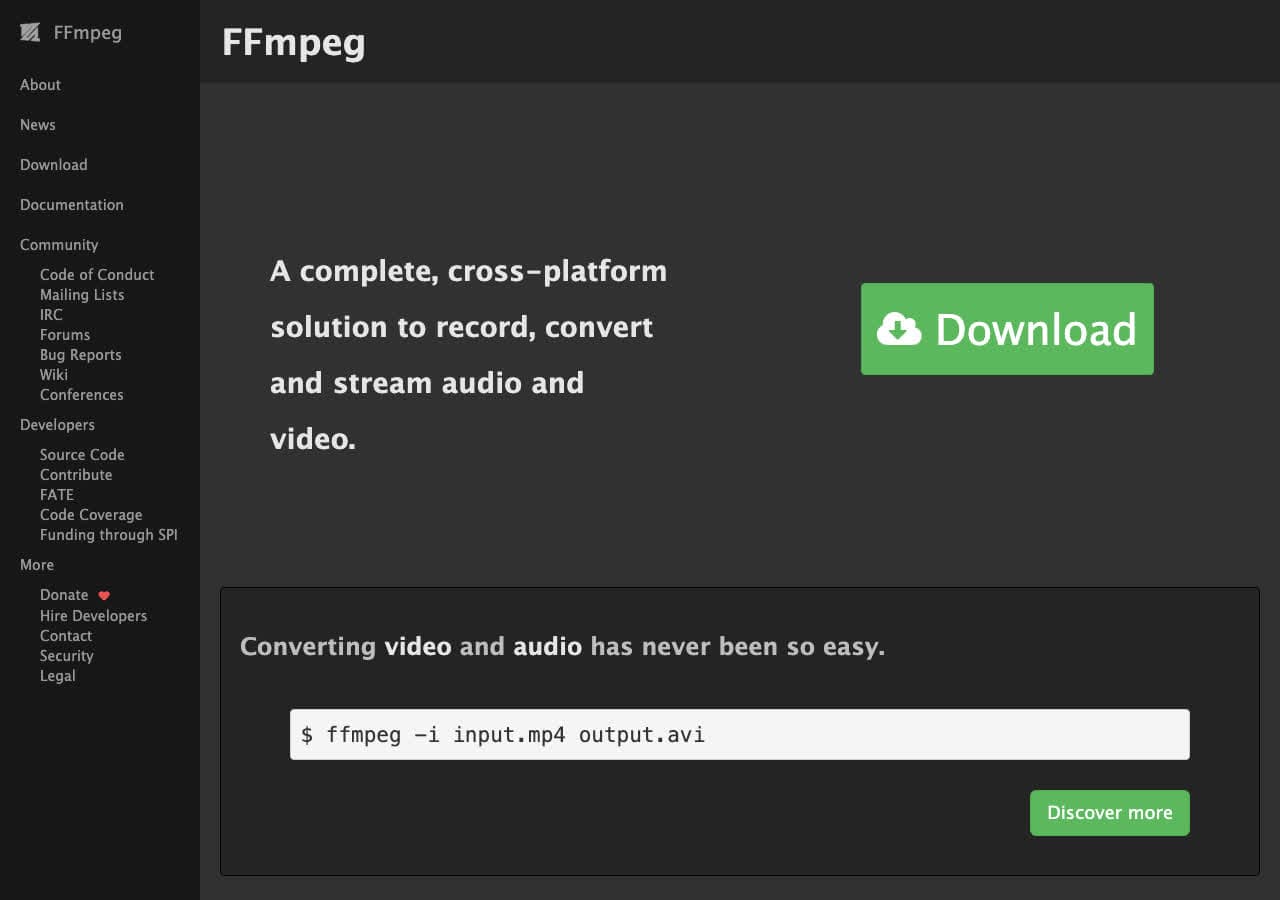
FFmpeg is the engine behind most video and audio converters on this list. HandBrake, VLC, and many commercial tools use FFmpeg under the hood. As a standalone command-line tool, FFmpeg converts between virtually every video, audio, and image format ever created. It handles codec transcoding, container remuxing, resolution scaling, audio extraction, subtitle embedding, and much more.
The catch is that FFmpeg has no graphical interface. You type commands in a terminal. For developers and power users, this is a feature, not a bug. You can script complex conversion pipelines, process thousands of files with a single command, and integrate FFmpeg into automated workflows. It is completely free, open source, and runs on every platform.
Pros
- Supports more formats than any other tool.
- Completely free and open source.
- Scriptable for automated batch workflows.
- Powers most other converters under the hood.
Cons
- Command-line only. No graphical interface.
- Steep learning curve.
Pricing
- Free (open source, LGPL/GPL licensed).
5. ImageMagick - Best Free Command-Line Image Converter
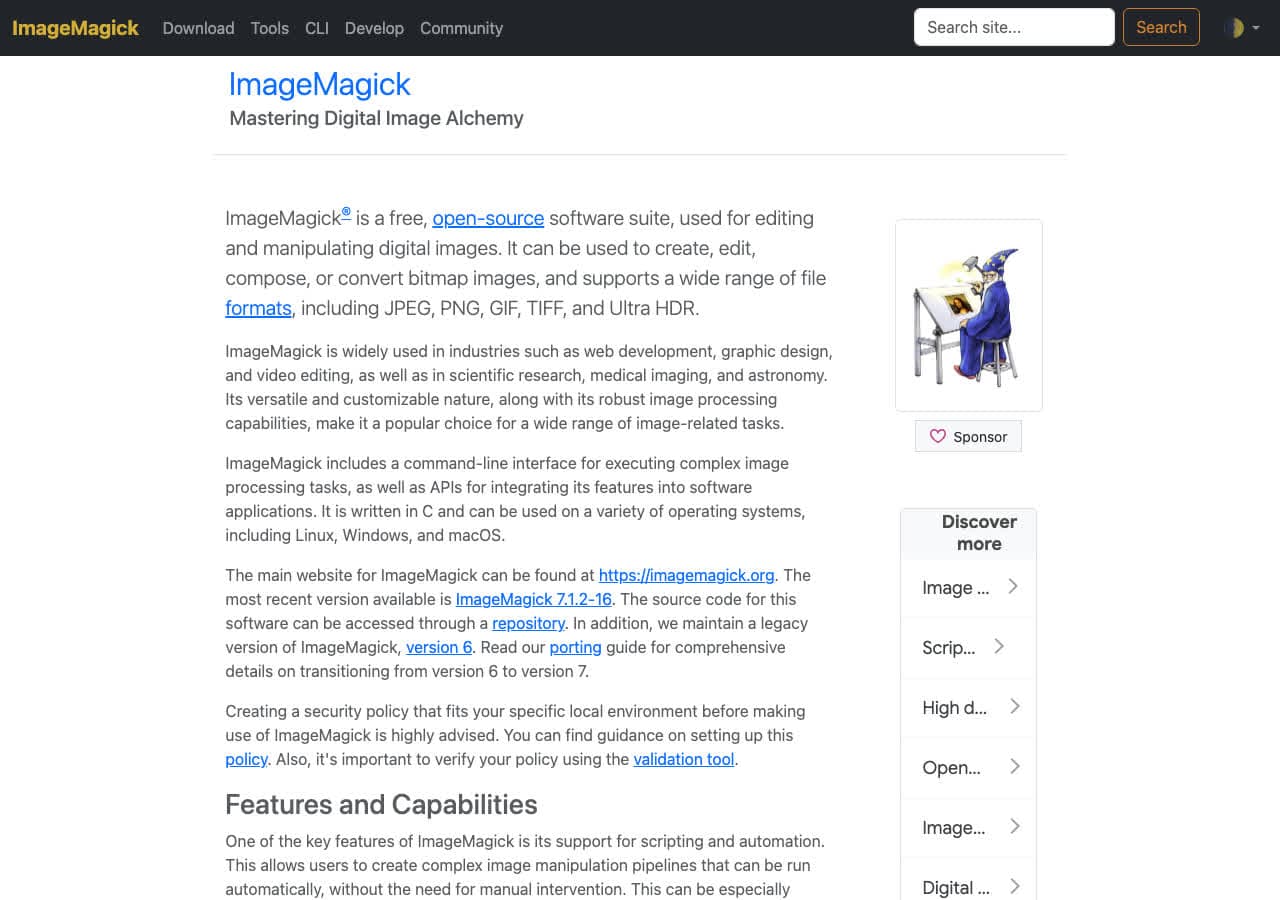
ImageMagick does for images what FFmpeg does for video. It converts between over 200 image formats including JPG, PNG, WebP, HEIC, TIFF, BMP, GIF, SVG, PDF, and RAW camera formats. Beyond conversion, ImageMagick resizes, crops, rotates, applies filters, composites images, and generates thumbnails. A single command can process thousands of images.
Like FFmpeg, ImageMagick is a command-line tool. You write commands like magick input.heic output.jpg or batch process entire folders with wildcards. It is the backbone of image processing on servers and in automated pipelines. ImageMagick is free, open source, and available on every platform. For non-technical users, tools like XnConvert provide a GUI for similar functionality.
Pros
- Supports 200+ image formats.
- Free and open source.
- Batch processing with shell commands.
- Extensive image manipulation beyond conversion.
Cons
- Command-line only.
- Complex syntax for advanced operations.
Pricing
- Free (open source, Apache 2.0 license).
6. XnConvert - Best Free Batch Image Converter with GUI
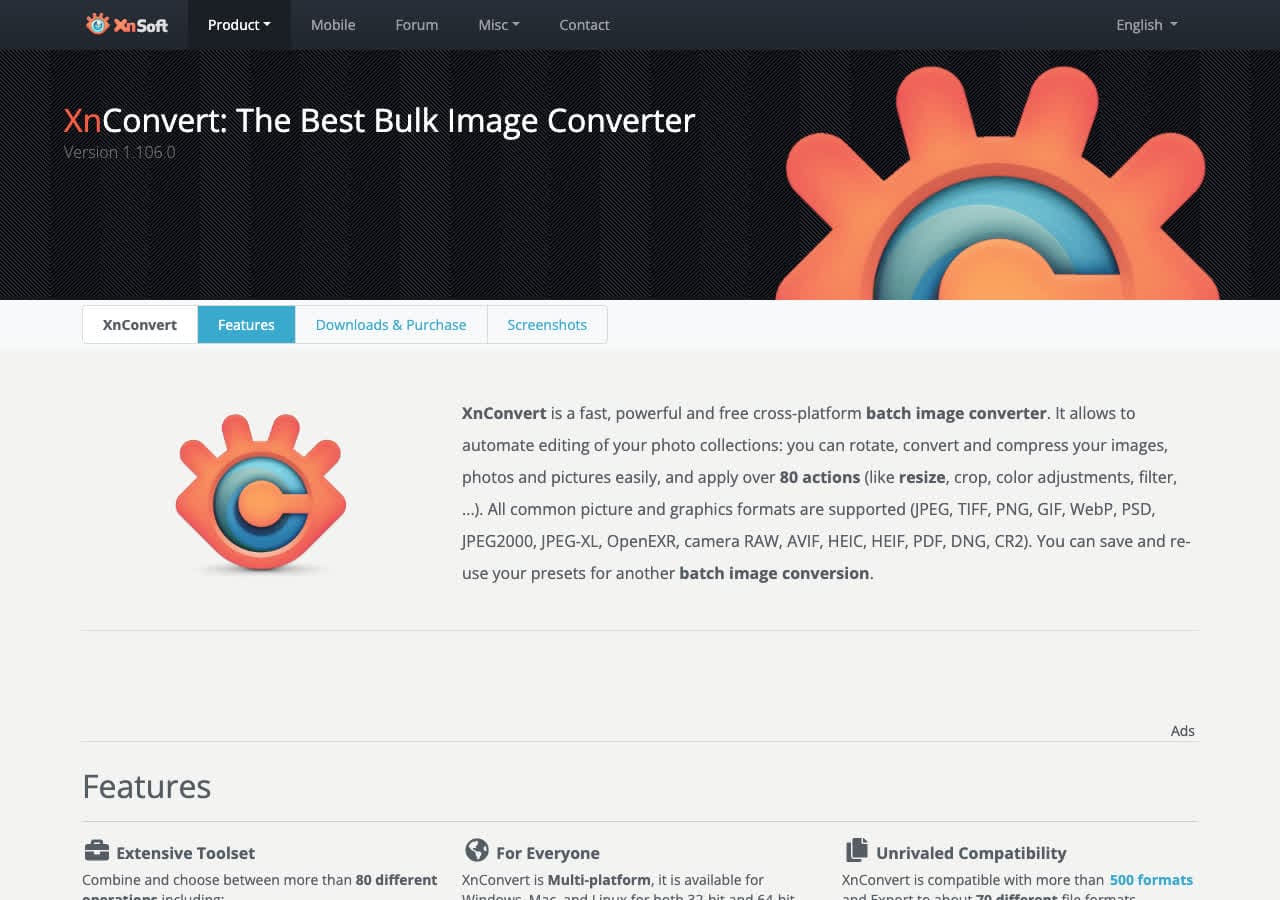
XnConvert is a free batch image converter with a proper graphical interface. Drop hundreds or thousands of images into XnConvert, pick the output format (JPG, PNG, WebP, TIFF, BMP, GIF, and 500+ others), add optional processing steps like resize, rotate, watermark, or color adjustment, and convert everything at once. It is free for personal and educational use.
XnConvert bridges the gap between command-line power tools like ImageMagick and basic online converters. The action pipeline lets you chain multiple operations: resize to 1920px wide, convert to JPG at 85% quality, add a watermark, and rename with a sequential pattern, all in one batch. It runs on Mac, Windows, and Linux.
Pros
- Free for personal and educational use.
- Supports 500+ image formats.
- Action pipeline for chained processing steps.
- Handles batch conversion of thousands of images.
- Cross-platform (Mac, Windows, Linux).
Cons
- Requires a paid license for commercial use.
- Images only. No video or audio conversion.
Pricing
- Free for personal and educational use.
- Commercial license available for business use.
How to Convert
The offline file converter for Mac, Windows and Linux.
- Converts video, audio, images, documents, ebooks and more
- Everything runs locally. Your files never leave your device
- Pay once. Access forever
Get the app on Mac, Windows and Linux
7. LibreOffice - Best Free Document and Spreadsheet Converter
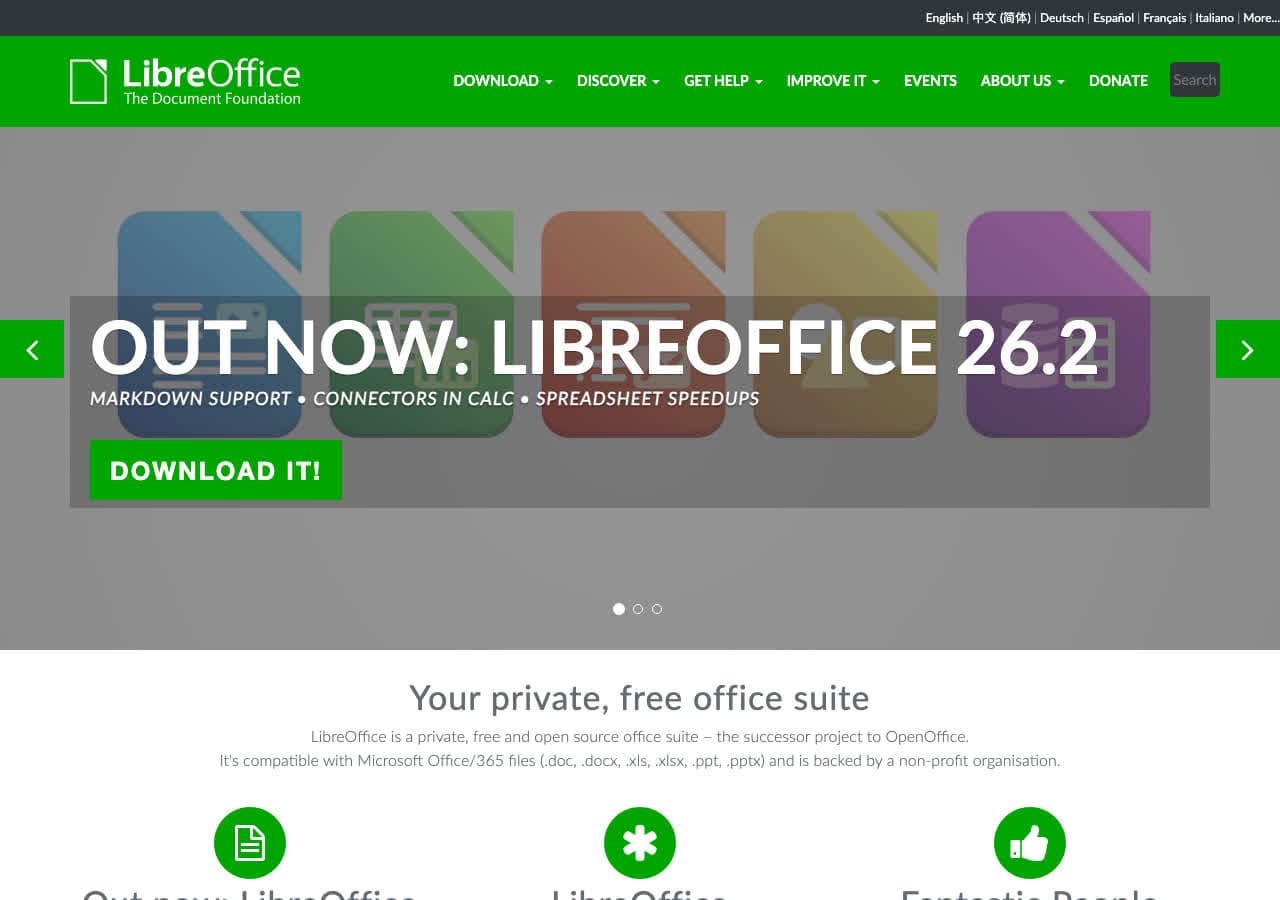
LibreOffice is the best free alternative to Microsoft Office, and it doubles as a powerful document converter. Open any DOCX, XLSX, PPTX, DOC, XLS, or PPT file and export it as PDF, ODF, RTF, HTML, plain text, or other formats. LibreOffice handles the conversion with excellent fidelity, preserving formatting, tables, images, and styles.
LibreOffice also supports command-line batch conversion. Run libreoffice --headless --convert-to pdf *.docx to convert an entire folder of Word documents to PDF without opening the application. This makes it useful for automated document processing pipelines. It is free, open source, and runs on Mac, Windows, and Linux.
Pros
- Free and open source with no restrictions.
- Opens and converts all Microsoft Office formats.
- Exports to PDF, HTML, RTF, and plain text.
- Command-line batch conversion support.
Cons
- Complex Office documents may lose some formatting.
- Large application to install just for conversion.
Pricing
- Free (open source, MPL licensed).
8. Calibre - Best Free Ebook Converter and Library Manager
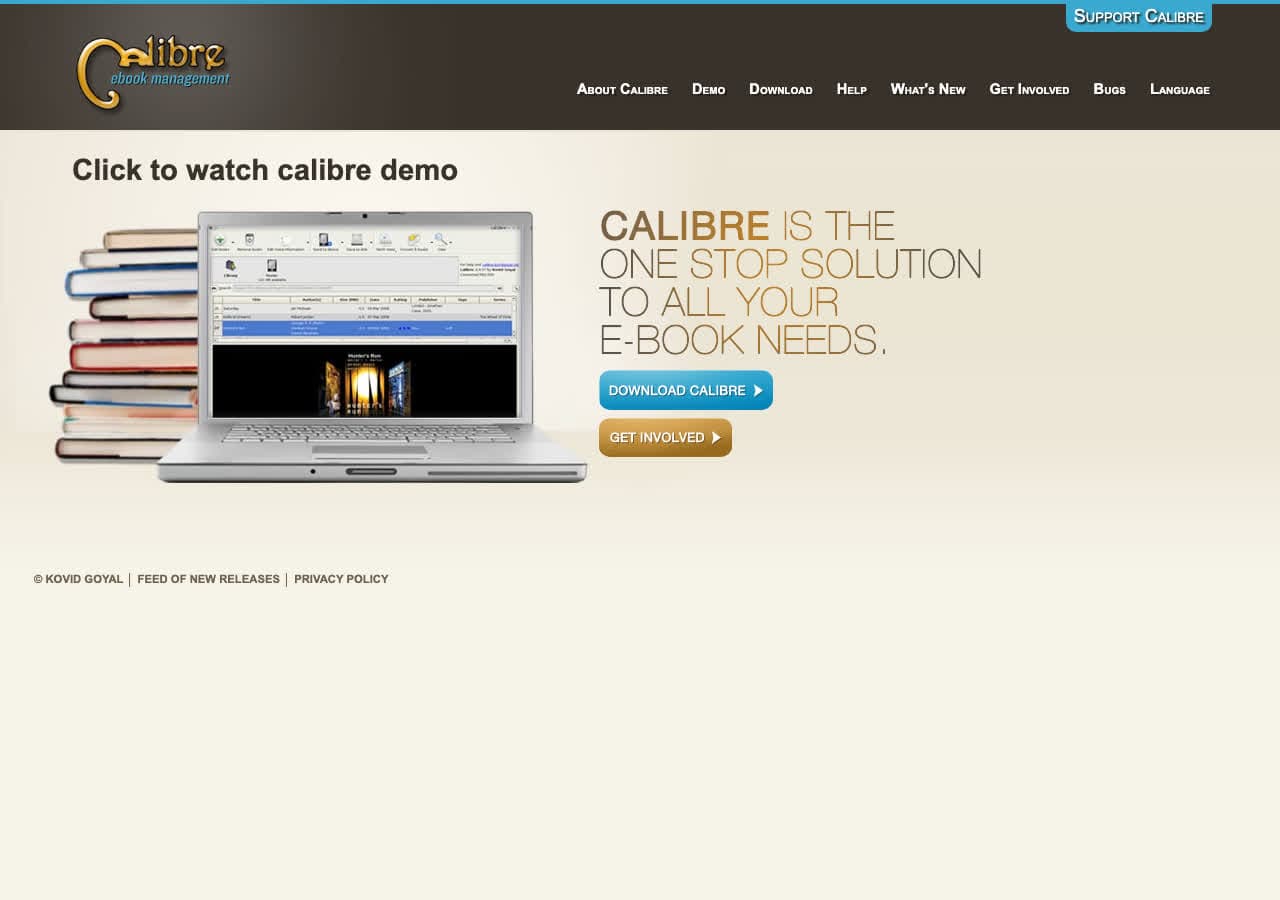
Calibre is the most comprehensive free ebook converter available. It converts between EPUB, MOBI, AZW3, PDF, DOCX, HTML, TXT, RTF, and many more ebook formats. Beyond conversion, Calibre manages your ebook library, syncs with e-readers, downloads metadata and covers, and includes a built-in ebook viewer.
Calibre gives you extensive control over conversion output. Customize fonts, margins, page breaks, table of contents, metadata, and cover images. The conversion engine handles complex formatting well, making it the go-to tool for anyone who works with ebooks regularly. It is completely free, open source, and runs on Mac, Windows, and Linux.
Pros
- Free and open source with no limits.
- Converts between all major ebook formats.
- Full library management included.
- Extensive output customization options.
Cons
- Interface is cluttered and overwhelming for new users.
- PDF output quality is limited.
Pricing
- Free (open source, GPL licensed).
9. Pandoc - Best Free Markup and Document Converter
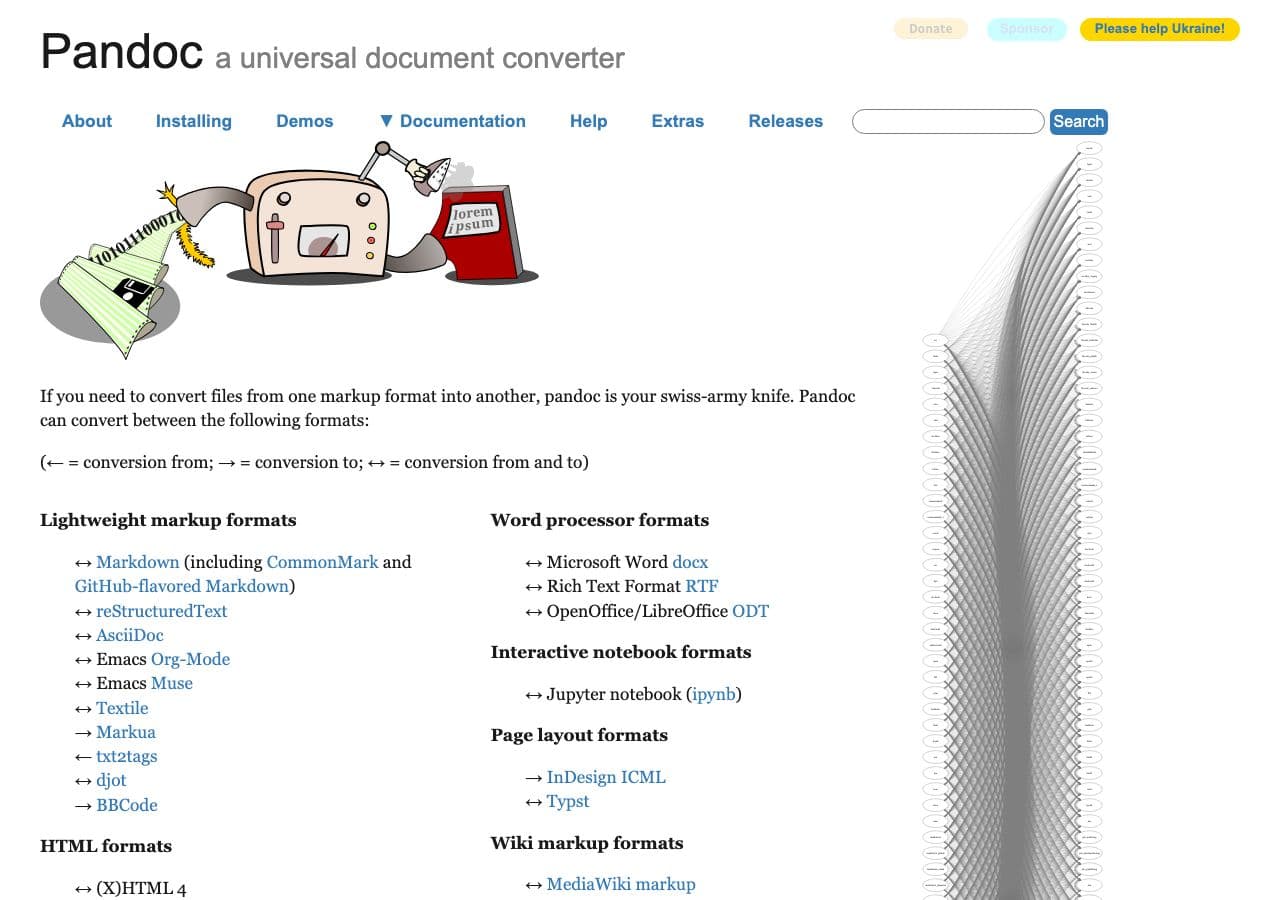
Pandoc converts between markup and document formats with precision. Markdown to HTML, LaTeX to PDF, DOCX to EPUB, reStructuredText to Markdown, HTML to Word. Pandoc handles dozens of text-based formats and preserves structure, headings, lists, tables, footnotes, and citations through every conversion.
Pandoc is a command-line tool beloved by academics, technical writers, and developers. Write your content in Markdown and use Pandoc to generate a PDF for print, an HTML page for the web, a DOCX for colleagues, and an EPUB for e-readers, all from the same source file. It is free, open source, and cross-platform.
Pros
- Free and open source.
- Converts between dozens of text-based formats.
- Preserves document structure perfectly.
- Scriptable for automated workflows.
Cons
- Command-line only.
- Text-based formats only. No media conversion.
Pricing
- Free (open source, GPL licensed).
10. Audacity - Best Free Audio Editor with Format Conversion
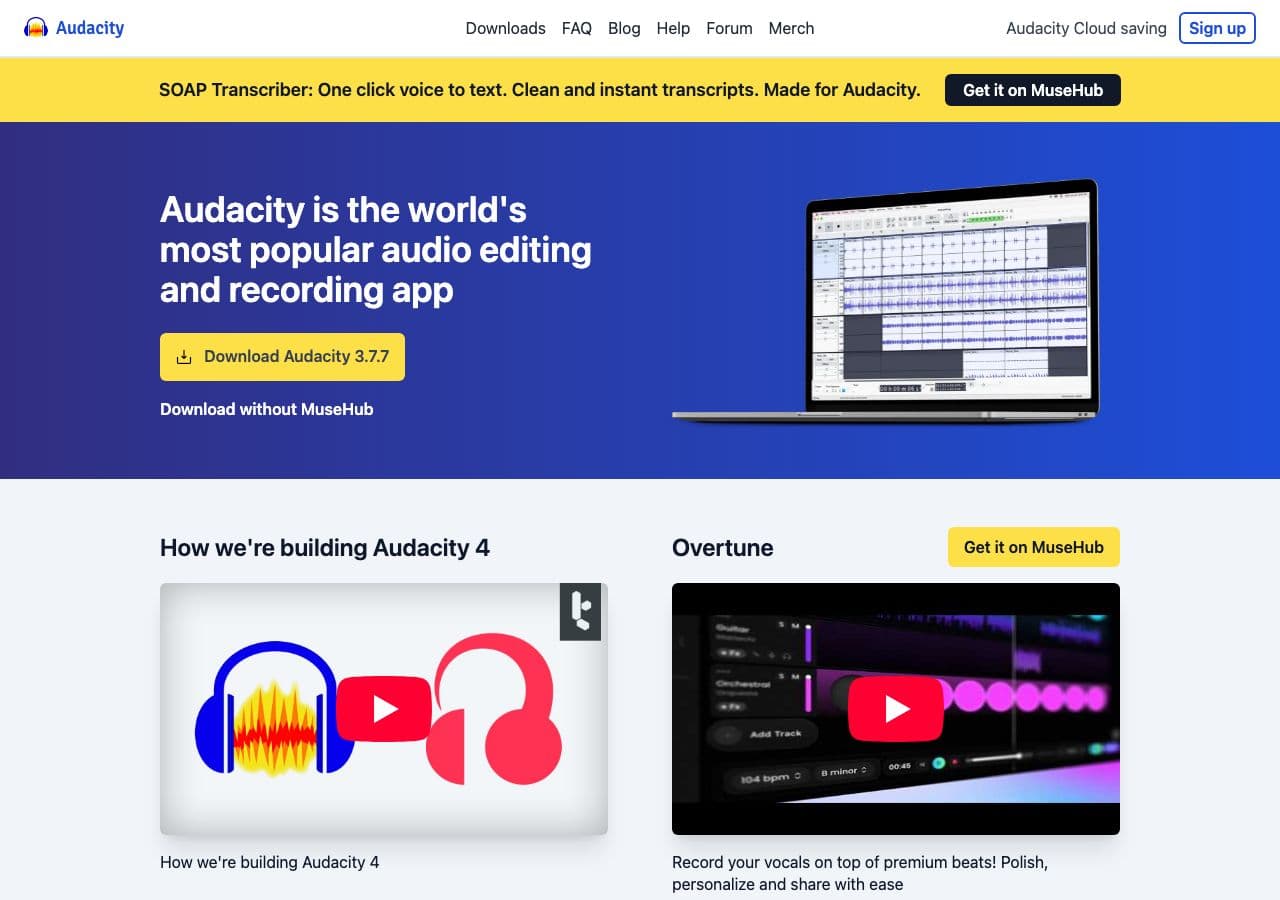
Audacity is a free, open source audio editor that doubles as a format converter. Import audio in WAV, MP3, FLAC, OGG, AIFF, and other formats, then export in your preferred format with full control over bitrate, sample rate, and channels. Audacity also lets you edit the audio before exporting: trim silence, normalize levels, remove noise, or apply effects.
For simple format conversion, Audacity is overkill. But if you need to convert audio and make edits in the same workflow, it is invaluable. Record a podcast in WAV, edit out mistakes, normalize audio levels, and export as MP3, all in one free tool. Audacity runs on Mac, Windows, and Linux.
Pros
- Free and open source.
- Full audio editing alongside conversion.
- Supports all common audio formats.
- Cross-platform (Mac, Windows, Linux).
Cons
- No batch conversion. One file at a time.
- Interface is dated.
Pricing
- Free (open source, GPL licensed).
11. GIMP - Best Free Image Editor with Format Conversion
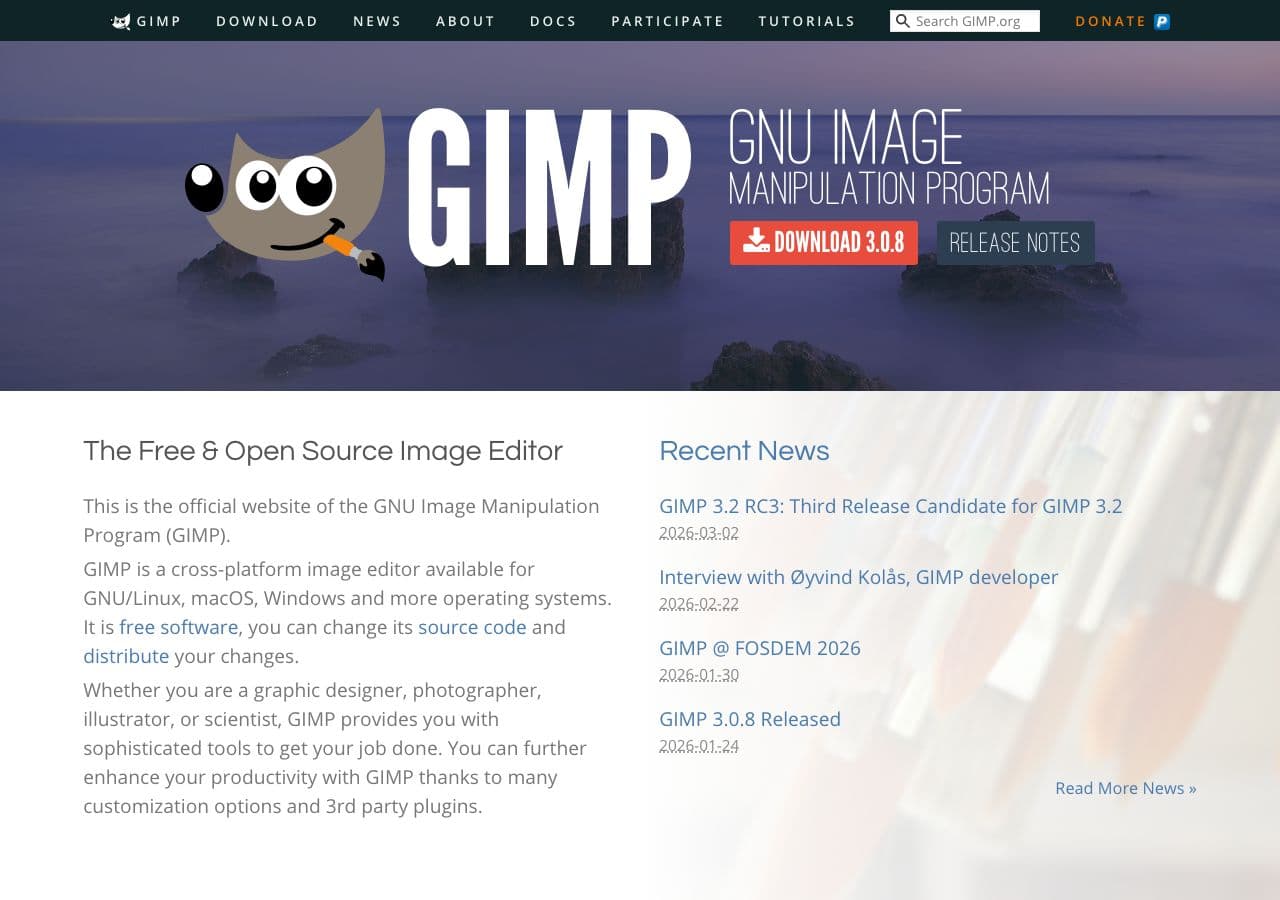
GIMP is a free, open source image editor comparable to Photoshop. It opens and exports images in JPG, PNG, WebP, TIFF, BMP, GIF, PSD, XCF, and many other formats. Use File > Export As to convert any image to a different format with control over quality settings, compression, and metadata.
GIMP is not a batch converter, so it is best for converting individual images, especially when you also need to edit, retouch, or resize them. Open a HEIC photo, crop and adjust colors, then export as JPG for sharing. For bulk conversions, pair GIMP with its built-in Script-Fu or use a dedicated batch tool like XnConvert.
Pros
- Free and open source.
- Professional-grade image editing included.
- Supports many image formats including PSD.
- Extensible with plugins and scripts.
Cons
- No batch conversion without scripting.
- Steep learning curve for the full editor.
Pricing
- Free (open source, GPL licensed).
12. Inkscape - Best Free Vector Graphics Converter
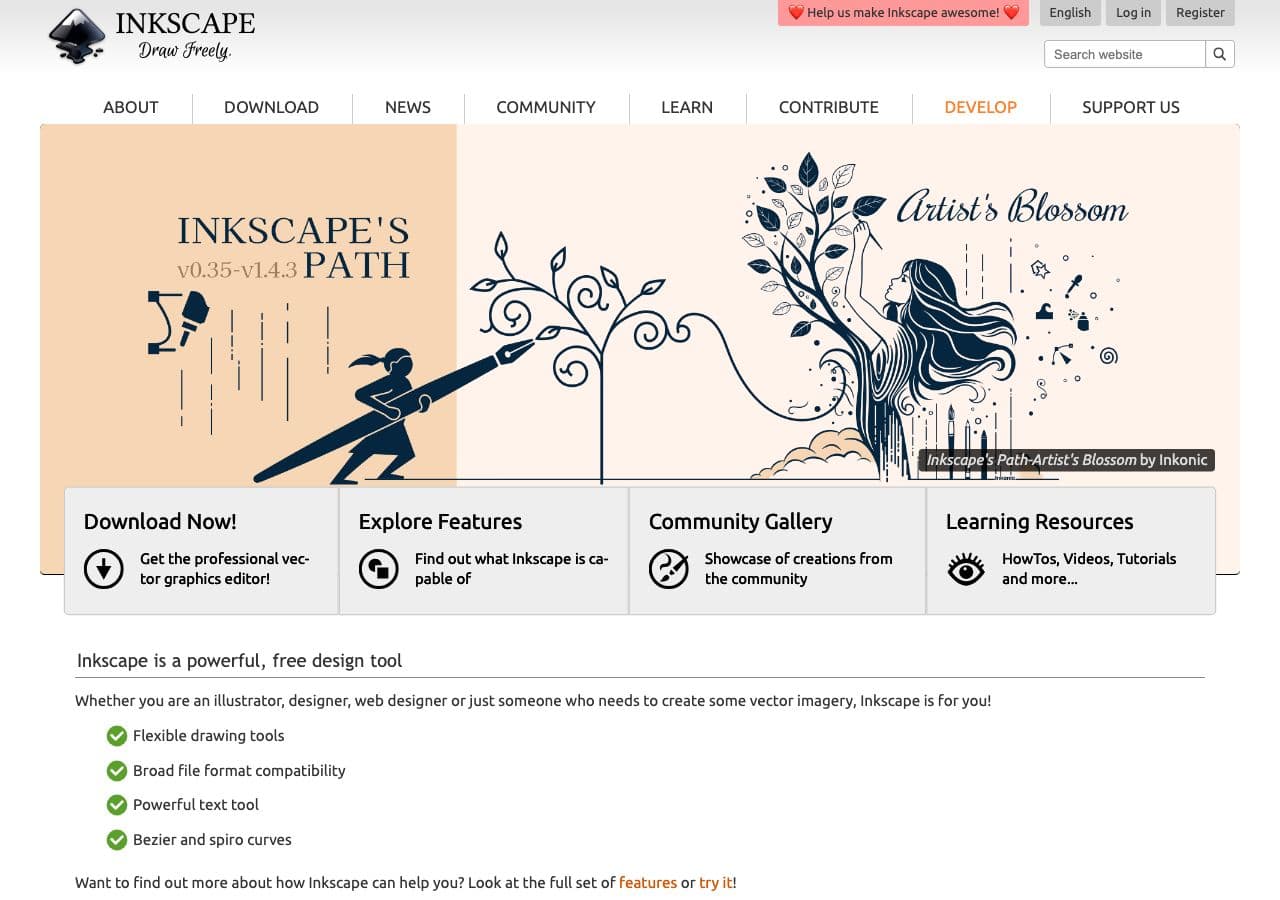
Inkscape is a free, open source vector graphics editor that handles SVG, PDF, EPS, AI (limited), WMF, and other vector formats. It is the best free tool for converting between vector formats. Open an SVG and export as PDF, or import an EPS file and save as SVG. Inkscape also exports to raster formats like PNG at any resolution.
Inkscape is the go-to tool when you need to work with SVG files. Edit paths, text, and shapes, then export for web, print, or other applications. The command-line interface supports batch conversion of vector files. Inkscape runs on Mac, Windows, and Linux and is completely free with no restrictions.
Pros
- Free and open source.
- Best free tool for SVG editing and conversion.
- Exports to PNG at any resolution.
- Command-line batch conversion support.
Cons
- Vector formats only (plus PNG export).
- Can be slow with complex files.
Pricing
- Free (open source, GPL licensed).
How to Convert
The offline file converter for Mac, Windows and Linux.
- Converts video, audio, images, documents, ebooks and more
- Everything runs locally. Your files never leave your device
- Pay once. Access forever
Get the app on Mac, Windows and Linux
13. fre:ac - Best Free Audio Format Converter
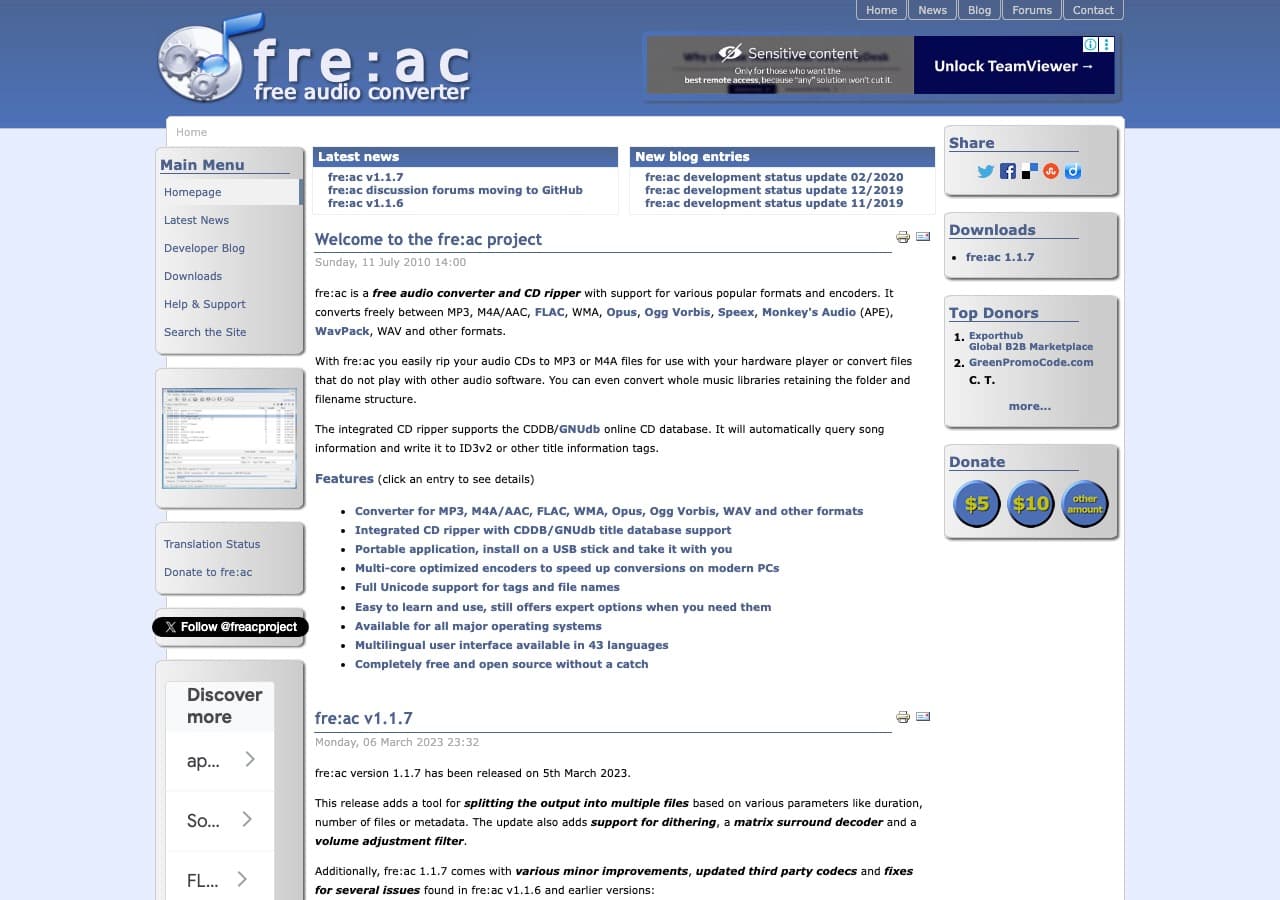
fre:ac (free audio converter) is a dedicated audio converter that handles MP3, MP4/AAC, FLAC, WAV, OGG Vorbis, Opus, WMA, and other audio formats. It is built specifically for audio conversion with batch processing, CD ripping, and automatic tagging from online databases. Drop a folder of audio files and convert them all to your preferred format.
fre:ac supports multi-core processing for fast batch conversions. It integrates with freedb and MusicBrainz for automatic track information lookup. The interface is straightforward: add files, pick the output format and quality, and click convert. It is free, open source, and runs on Mac, Windows, and Linux. A portable version is available for USB drives.
Pros
- Free and open source.
- Fast batch conversion with multi-core support.
- CD ripping with automatic tagging.
- Portable version available.
Cons
- Audio only. No video or image conversion.
- Basic interface.
Pricing
- Free (open source, GPL licensed).
14. PDF24 - Best Free PDF Converter for Windows
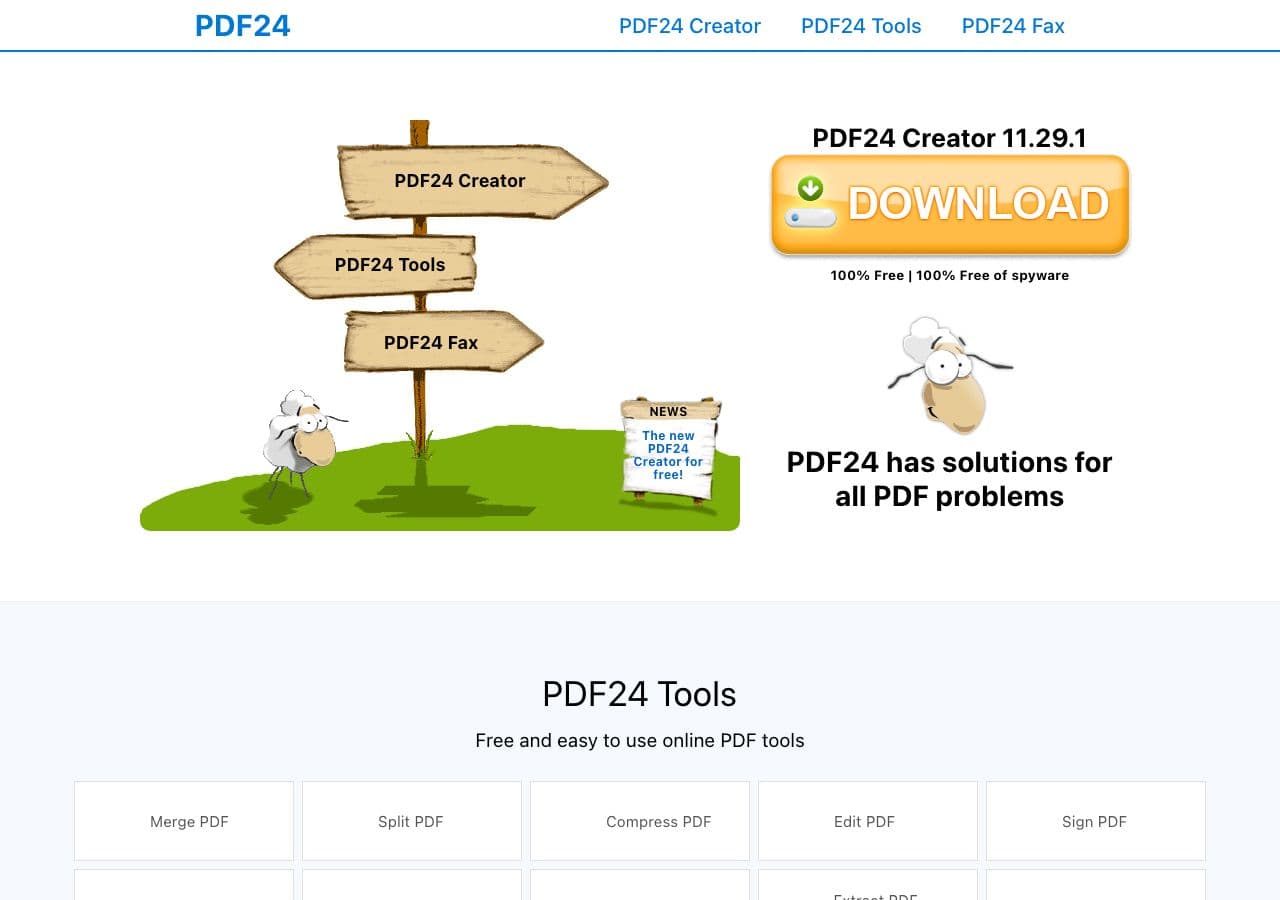
PDF24 is a completely free PDF toolkit for Windows. It creates PDFs from any document using a virtual printer, converts PDFs to images and text, merges multiple PDFs, splits PDFs into individual pages, compresses PDFs for email, adds watermarks, and much more. There are no watermarks, no file size limits, and no daily conversion caps.
PDF24 also offers online tools that work in any browser for cross-platform use. The desktop app installs a virtual PDF printer that lets you convert any printable document to PDF. For Windows users who regularly work with PDFs, PDF24 replaces paid tools like Adobe Acrobat for most common tasks.
Pros
- Completely free with no limits or watermarks.
- Merge, split, compress, and convert PDFs.
- Virtual printer for converting any document to PDF.
- Online tools for cross-platform use.
Cons
- Desktop app is Windows only.
- PDF only. No other format types.
Pricing
- Free (no restrictions).
15. Ghostscript - Best Free PostScript and PDF Processing Engine
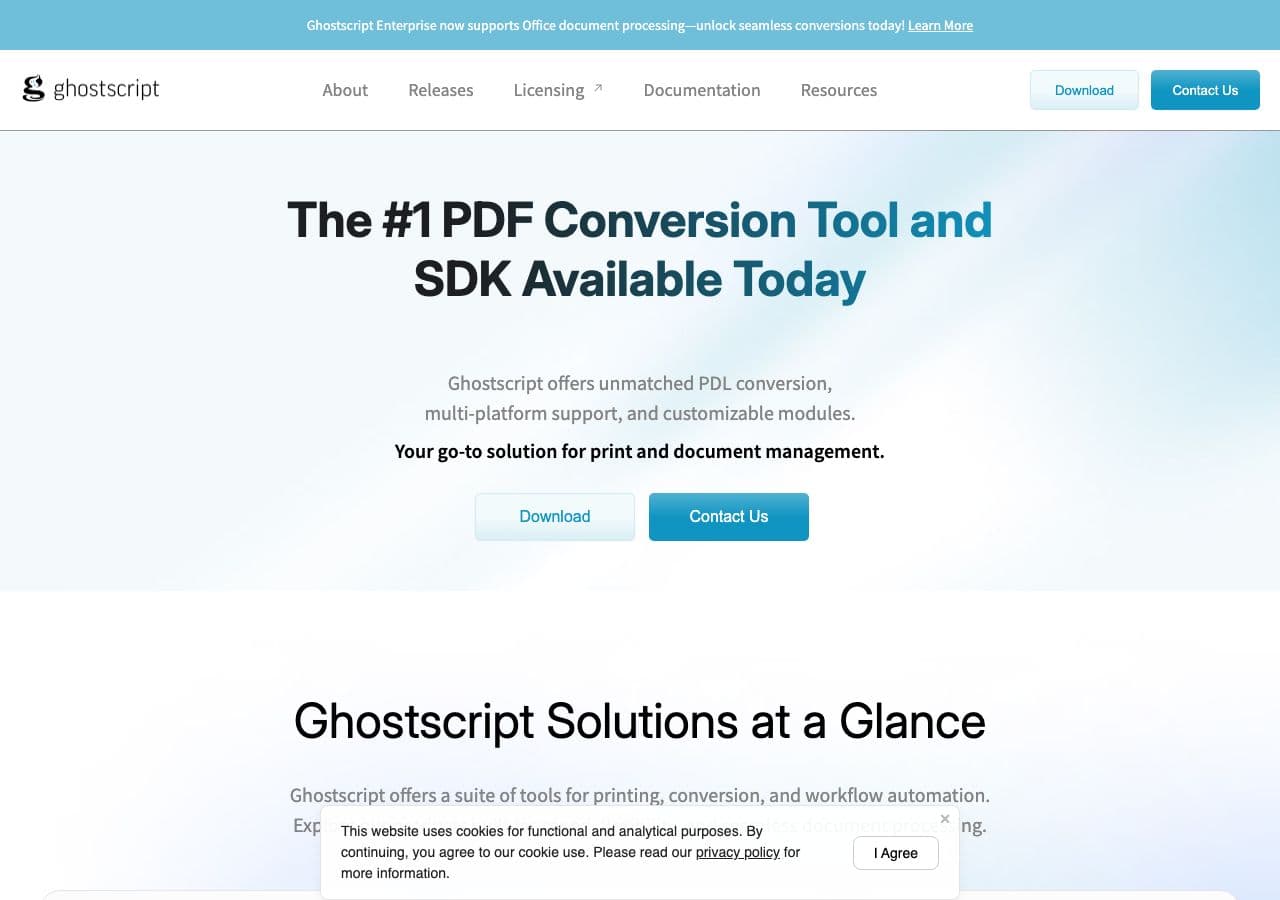
Ghostscript is a free interpreter for PostScript and PDF files. It converts between PDF versions, renders PDFs to images (PNG, JPG, TIFF), converts PostScript to PDF, merges PDFs, and compresses PDF files. Many other tools, including LibreOffice and various PDF editors, use Ghostscript as their PDF processing engine.
Ghostscript is a command-line tool primarily used in automated workflows and print production. Convert a folder of PostScript files to PDF, render PDF pages as high-resolution images for archiving, or compress PDFs for web distribution. It is free under the AGPL license and runs on Mac, Windows, and Linux.
Pros
- Free and open source (AGPL).
- Industry-standard PDF and PostScript processing.
- Renders PDFs to high-resolution images.
- Batch processing via command line.
Cons
- Command-line only.
- PDF and PostScript formats only.
Pricing
- Free (open source, AGPL licensed).
- Commercial license available for embedding.
16. CloudConvert - Best Free Online Converter with Daily Allowance
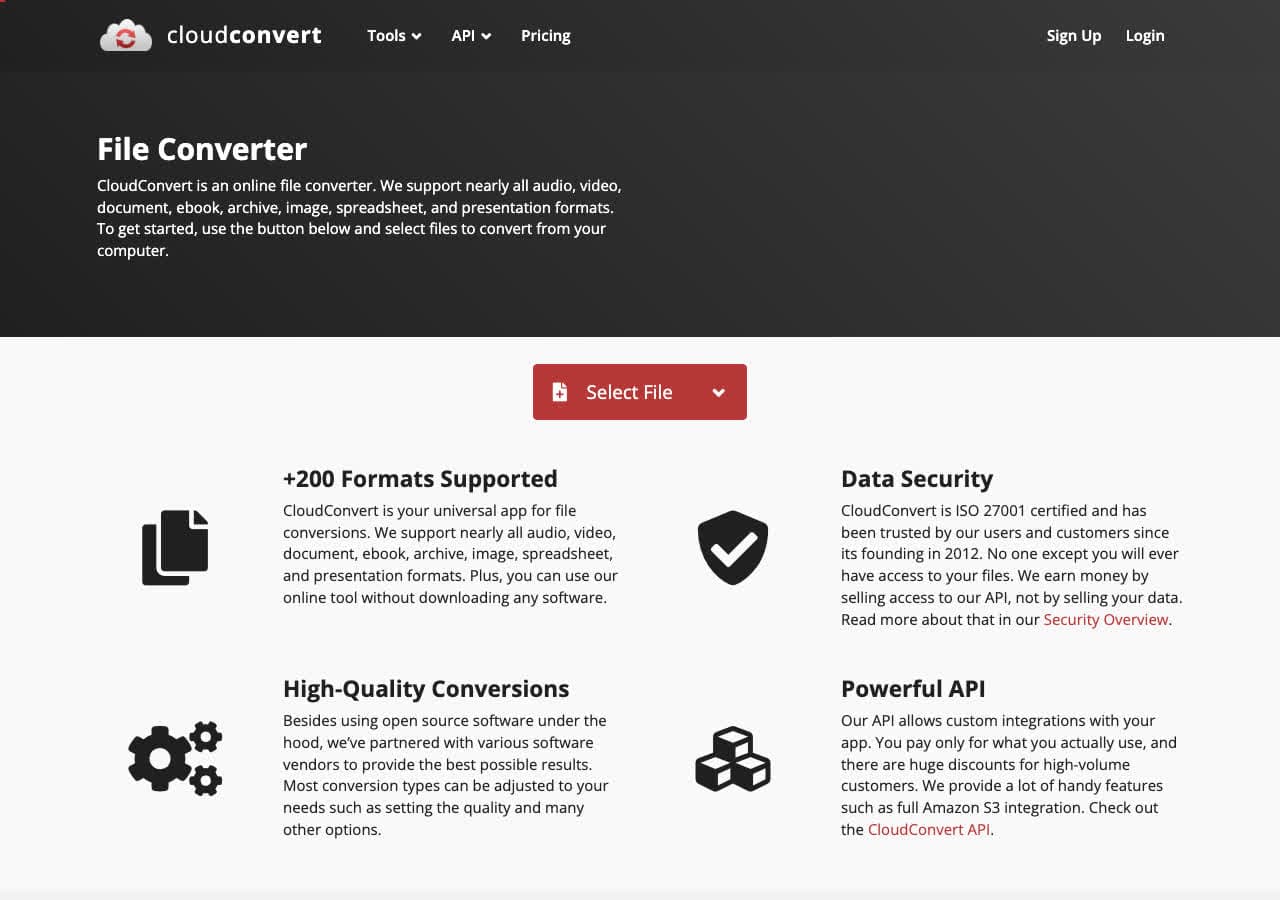
CloudConvert is an online converter that supports over 200 formats across video, audio, images, documents, ebooks, and archives. The free tier gives you 25 conversion minutes per day, which is enough for most casual use. Upload a file, choose the output format, adjust settings, and download the result. No software to install.
CloudConvert stands out from other online converters with its quality and reliability. Conversions are fast, output quality is excellent, and the interface is clean without intrusive ads. It also offers an API for developers who want to integrate conversion into their applications. Files are deleted from CloudConvert servers within 24 hours.
Pros
- 25 free conversion minutes per day.
- Supports 200+ formats.
- High-quality conversions.
- Developer API available.
Cons
- Files are uploaded to the cloud.
- Daily free limit may not be enough for heavy use.
Pricing
- Free: 25 conversion minutes per day.
- Paid: Packages starting at $9 for 500 minutes.
17. Zamzar - Best Free Online Converter for Quick Tasks
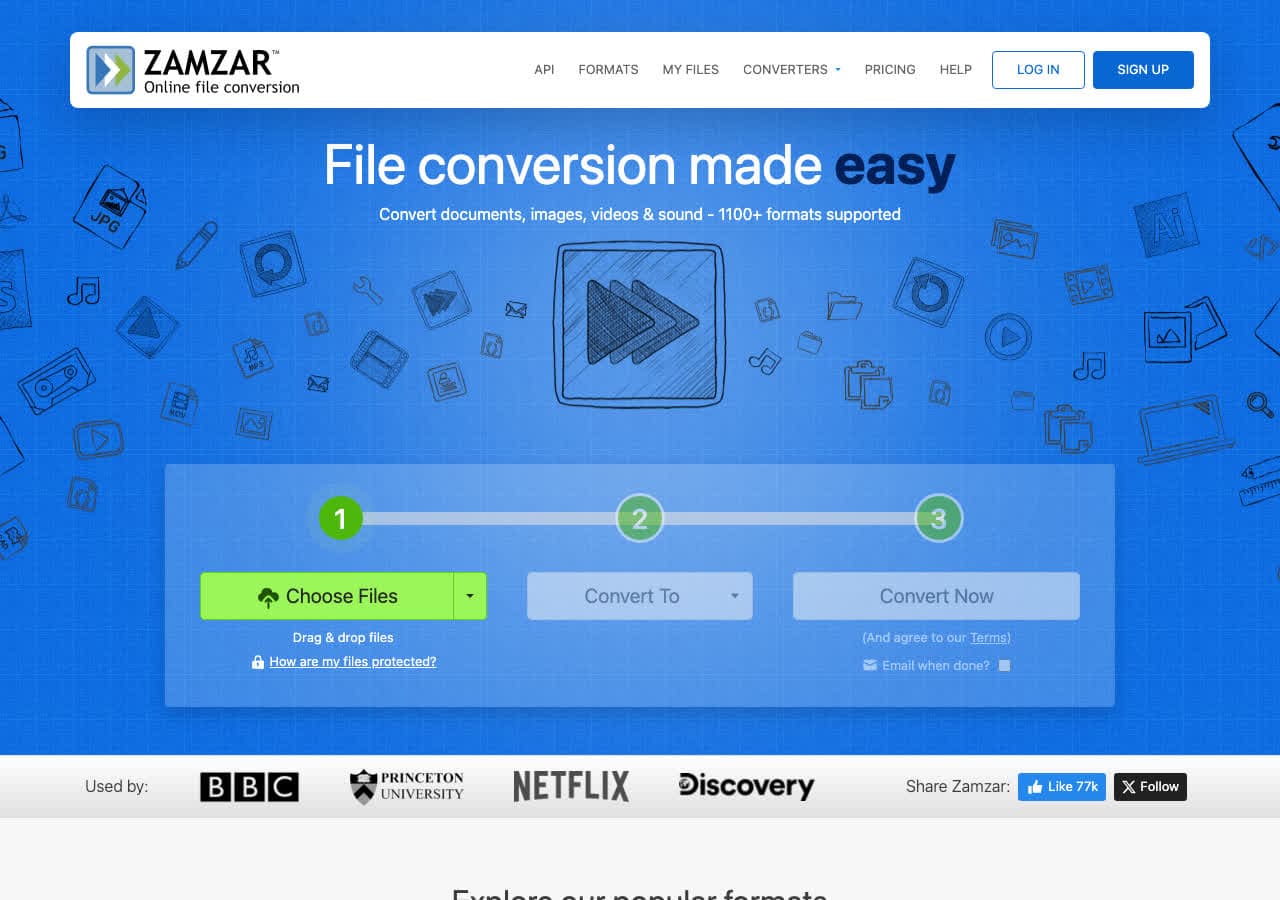
Zamzar has been a reliable online converter since 2006. The free tier lets you convert files up to 50 MB with two free conversions per day. Zamzar supports over 1,200 format pairs across documents, images, video, audio, and ebooks. The interface is dead simple: upload, choose format, convert, download.
Zamzar is best for quick, one-off conversions when you do not want to install software. Need to convert a single HEIC photo to JPG, or a Word document to PDF? Zamzar handles it in seconds. The free tier is limited, but for occasional use it works perfectly. Paid plans increase the file size limit and remove the daily conversion cap.
Pros
- Simple, no-nonsense interface.
- 1,200+ format pairs supported.
- No software installation required.
- Reliable service running since 2006.
Cons
- Free tier limited to 50 MB and 2 conversions per day.
- Files uploaded to Zamzar servers.
Pricing
- Free: 50 MB limit, 2 conversions per day.
- Basic: From $18/month for larger files and more conversions.
18. Convertio - Best Free Online Converter with Google Drive Integration
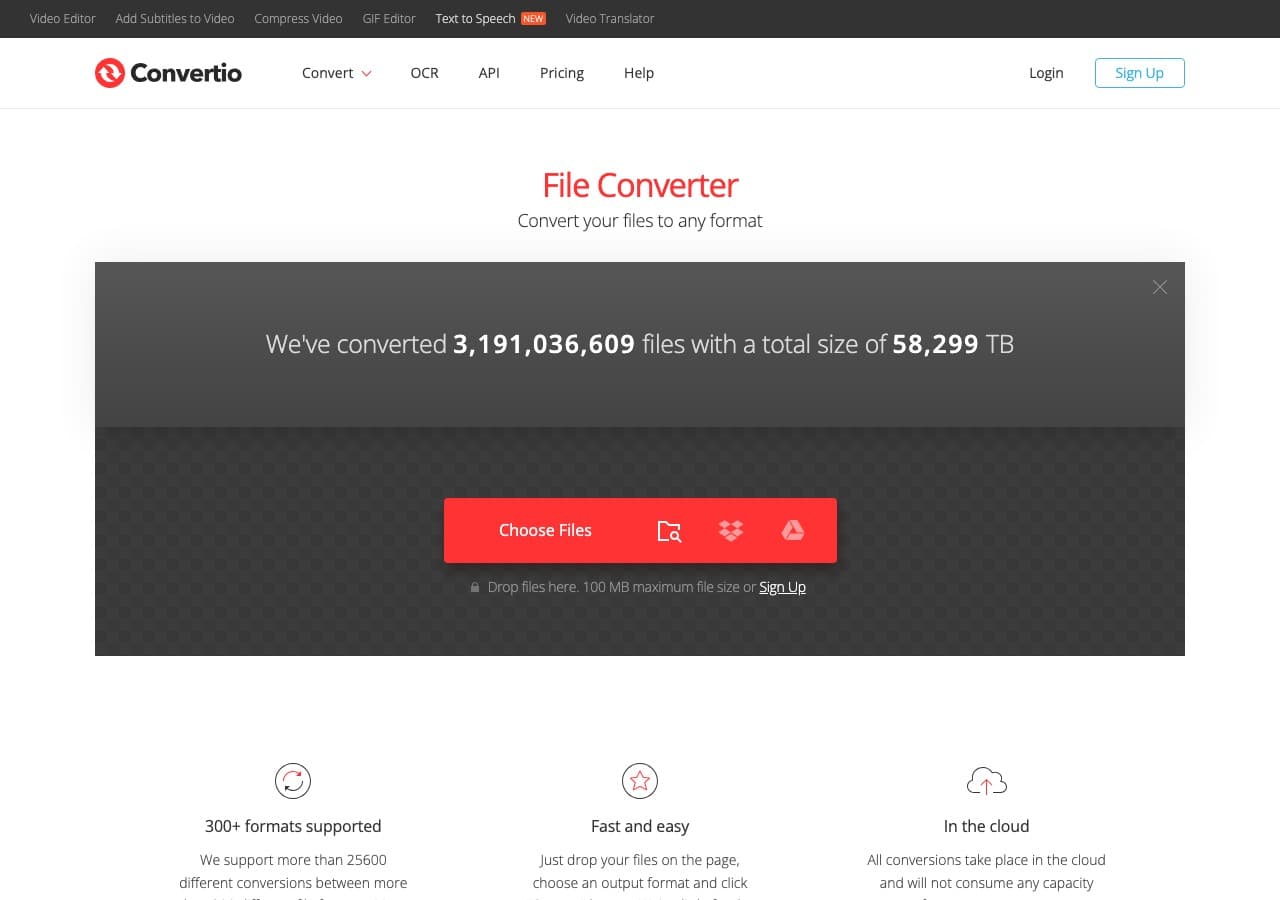
Convertio is an online converter that supports 300+ formats and integrates directly with Google Drive and Dropbox. The free tier allows files up to 100 MB with 10 conversion minutes per day. Upload from your computer, paste a URL, or pull files directly from your cloud storage. Converted files can be saved back to Google Drive or Dropbox.
Convertio handles video, audio, image, document, ebook, and archive conversions. The cloud storage integration is its standout feature. If your files are already in Google Drive, you can convert them without downloading and re-uploading. The interface is clean and straightforward, with optional advanced settings for power users.
Pros
- Google Drive and Dropbox integration.
- 300+ formats supported.
- 100 MB free file size limit.
- Clean, ad-light interface.
Cons
- Free tier limited to 10 conversion minutes per day.
- Files processed on Convertio servers.
Pricing
- Free: 100 MB limit, 10 minutes per day.
- Light: From $9.99/month for larger files.
Frequently Asked Questions
What is the best completely free file converter?
For video, HandBrake is the best free option with no restrictions. For images, XnConvert handles batch conversion for free. For documents, LibreOffice converts between all major formats. For audio, fre:ac is a dedicated free converter. For ebooks, Calibre is unmatched. If you want to test a supported one-off conversion locally in the browser, How to Convert offers a free web demo for single-file conversions.
Are free file converters safe to use?
Open source tools like HandBrake, VLC, FFmpeg, GIMP, and LibreOffice are safe because their code is publicly auditable. Download them from their official websites only. Online converters like CloudConvert and Zamzar are reputable services, but your files are uploaded to their servers. For sensitive files, use a desktop converter that processes everything locally.
Do free converters add watermarks?
The tools on this list do not add watermarks. Open source converters like HandBrake, FFmpeg, and LibreOffice never add watermarks. Some commercial tools have free tiers that add watermarks, but we excluded those from this list. Online converters like CloudConvert and Convertio do not watermark free conversions either.
Should I use an online converter or desktop software?
Use online converters for quick, one-off tasks with small files. Use desktop software for large files, batch conversions, sensitive documents, or regular use. Desktop converters are faster, have no file size limits, work offline, and keep your files private. Online converters are convenient when you cannot install software.
Final Thoughts
You do not need to pay for a file converter for most tasks. HandBrake handles video, fre:ac handles audio, XnConvert handles images, LibreOffice handles documents, and Calibre handles ebooks, all completely free. For command-line power, FFmpeg and ImageMagick cover nearly every format in existence. How to Convert offers a free web demo for single-file conversions plus a desktop app available as a one-time purchase for broader format support, batches, and offline use. Pick the tools that match your workflow and stop paying for subscriptions you do not need.
How to Convert
The offline file converter for Mac, Windows and Linux.
- Converts video, audio, images, documents, ebooks and more
- Everything runs locally. Your files never leave your device
- Pay once. Access forever
Get the app on Mac, Windows and Linux
