18 Best MOV to MP4 Converters in 2026 (Free and Paid)
The best MOV to MP4 converters for 2026. Convert QuickTime MOV videos to MP4 for better compatibility using these free and paid tools.
Posted by
 Jake Manger
MOV is Apple's QuickTime container format, and it is common for iPhone videos, screen recordings, and content exported from video editors on Mac. The problem is compatibility: MP4 is usually the safer choice for uploading, sharing, and playing on TVs, Android devices, Windows computers, and social platforms. Converting MOV to MP4 often fixes playback issues and can reduce file size when you choose modern codecs.
A “good” MOV to MP4 converter should do two things well: preserve quality (or at least give you control over quality) and preserve audio sync. If your MOV already uses H.264 or HEVC, some tools can remux (copy streams) to MP4 instantly without re-encoding. Other times, you will re-encode and you will want good presets.
1. How to Convert (I built this one) - Local-first MOV to MP4
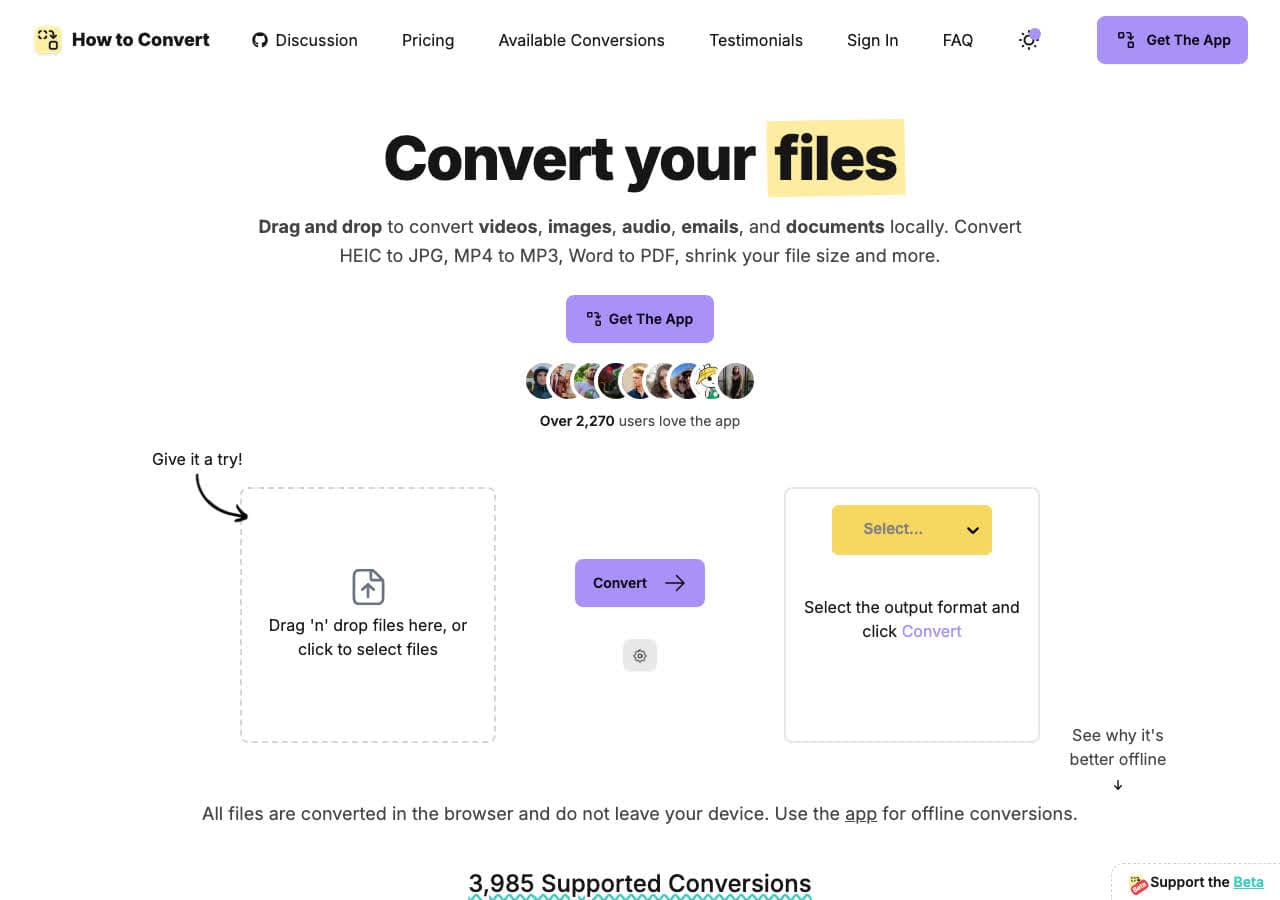
How to Convert is a straightforward file conversion app with a focus on privacy and simplicity. If your MOV files are personal (family videos, internal recordings, client work) local-first conversion is a big advantage. You can convert quickly without trusting an online converter with large video files.
For casual users, a clean UI matters. You should not need to learn codec jargon to get a compatible MP4 output.
Pros
- Local-first conversion (no upload required).
- Good for sensitive or private videos.
- Simple workflow for non-technical users.
- Avoids ad-heavy online converter sites.
Cons
- Not a full video editor.
- Power users may prefer advanced encoding settings in dedicated tools.
Pricing
- Free plan (varies by product).
- Paid plans available for higher limits and additional features.
2. HandBrake - Best free MOV to MP4 converter for most people
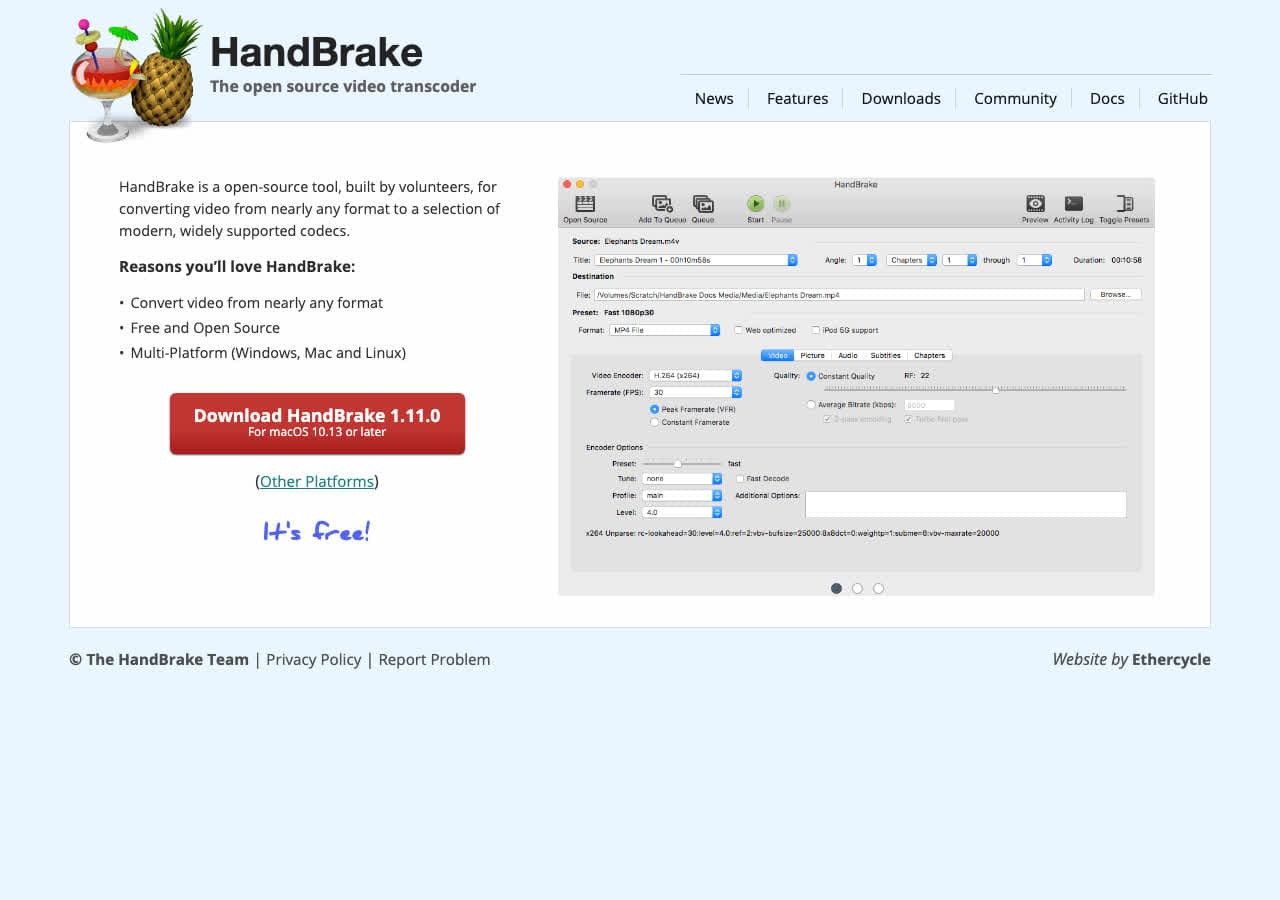
HandBrake is the default recommendation for many video conversion tasks. It is free, open source, and has excellent presets for MP4 outputs. If you want a safe, trusted tool to convert MOV to MP4 on Mac, Windows, or Linux, this is it.
HandBrake will re-encode in most cases, which takes time, but you get reliable results and quality controls (CRF) that make it easy to balance size vs quality.
Pros
- Free and trusted.
- Great presets for common devices and web uploads.
- Good quality controls (CRF).
- Cross-platform.
Cons
- Typically re-encodes (slower than remux).
- Interface has many options.
Pricing
- Free (open source).
3. FFmpeg - Best for fast remuxing and automation
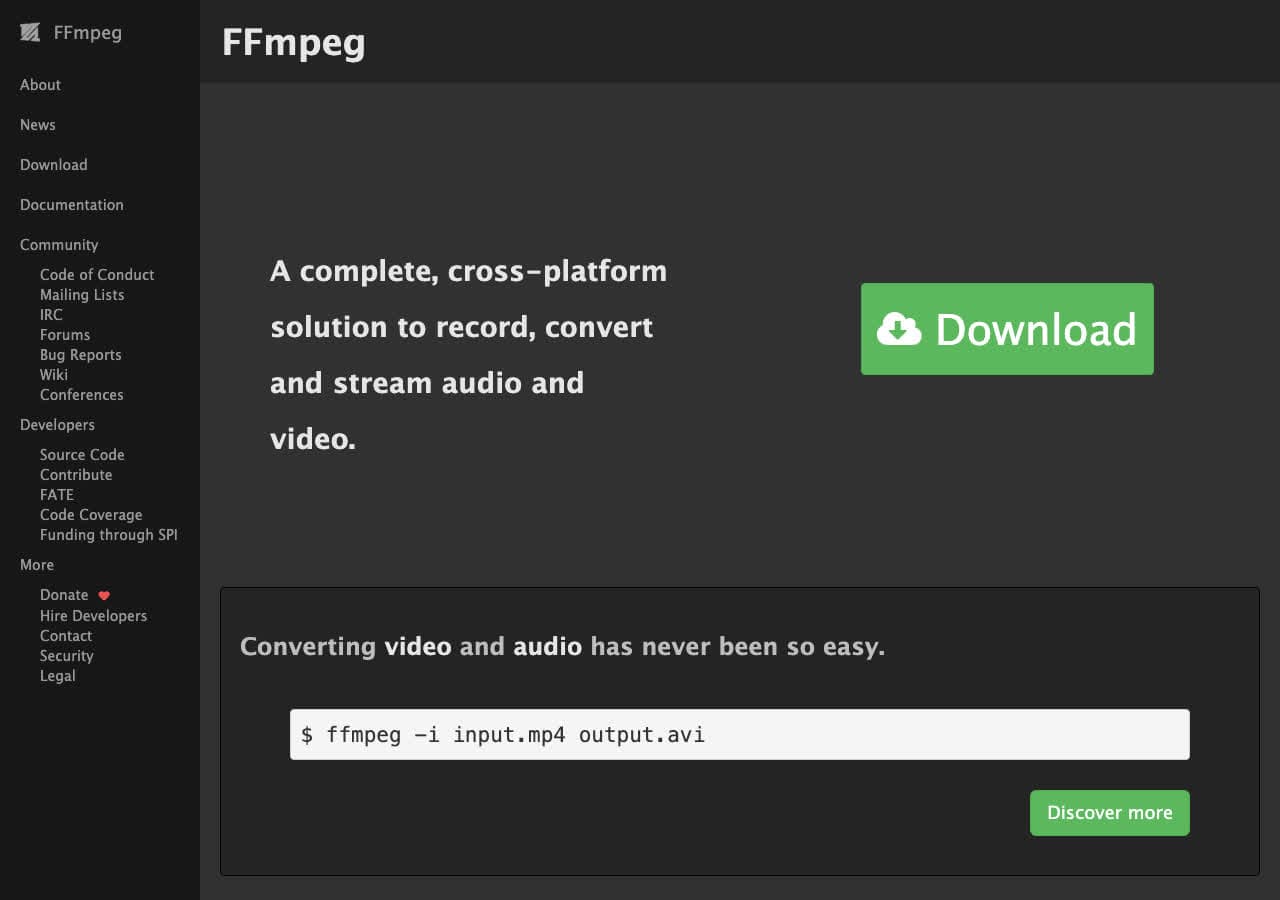
FFmpeg is the underlying engine behind a huge portion of video conversion software. If your MOV file already contains H.264 video and AAC audio, FFmpeg can often remux it into an MP4 container instantly without quality loss.
It is also the best choice for batch conversion and scripting. The trade-off is the command line.
Pros
- Can remux without re-encoding (very fast when possible).
- Best for batch jobs and automation.
- Supports basically every codec/container.
- Cross-platform.
Cons
- Command-line learning curve.
- Easy to choose confusing flags.
Pricing
- Free (open source).
4. VLC - Best “already installed” solution
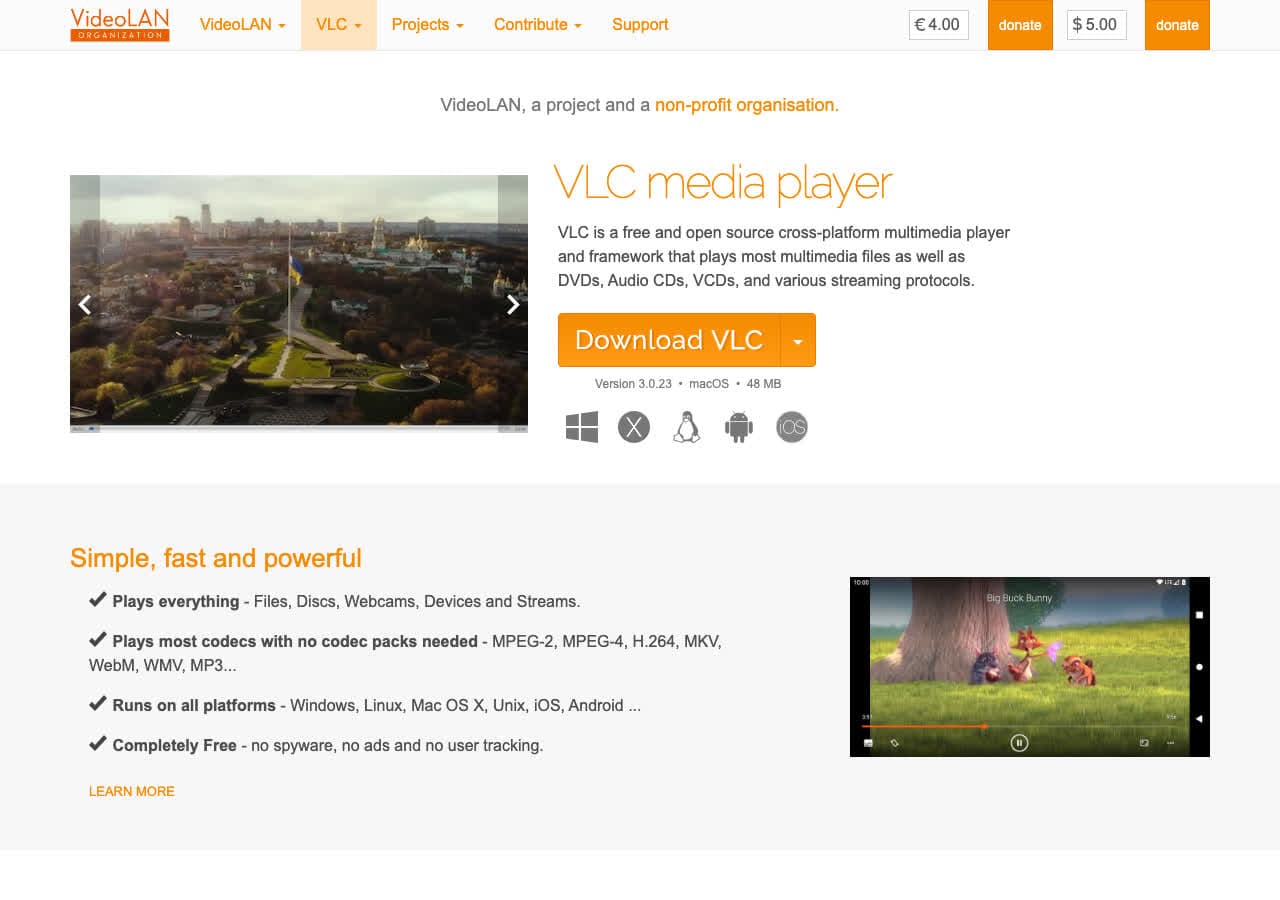
VLC can convert videos, not just play them. It is a handy choice when you need to quickly export an MP4 and you do not want to install anything else.
VLC's conversion UI is not as polished as dedicated tools, but it works and it is free.
Pros
- Free and commonly installed.
- Works offline.
- Can handle many weird files.
- Cross-platform.
Cons
- Conversion workflow is confusing.
- Fewer quality controls than HandBrake.
Pricing
- Free (open source).
5. Shutter Encoder - Best free FFmpeg GUI for power users
Shutter Encoder wraps FFmpeg in a very capable GUI aimed at people doing serious media work. It provides lots of export presets and detailed controls.
If you want more control than HandBrake (or different workflows like remuxing, trimming, and audio adjustments) Shutter Encoder is a great free option.
Pros
- Free and powerful.
- Lots of presets and advanced controls.
- Great for batch exports.
- Cross-platform.
Cons
- UI can feel overwhelming.
- Not as beginner-friendly as HandBrake.
Pricing
- Free (open source).
6. Wondershare UniConverter - Feature-rich consumer converter
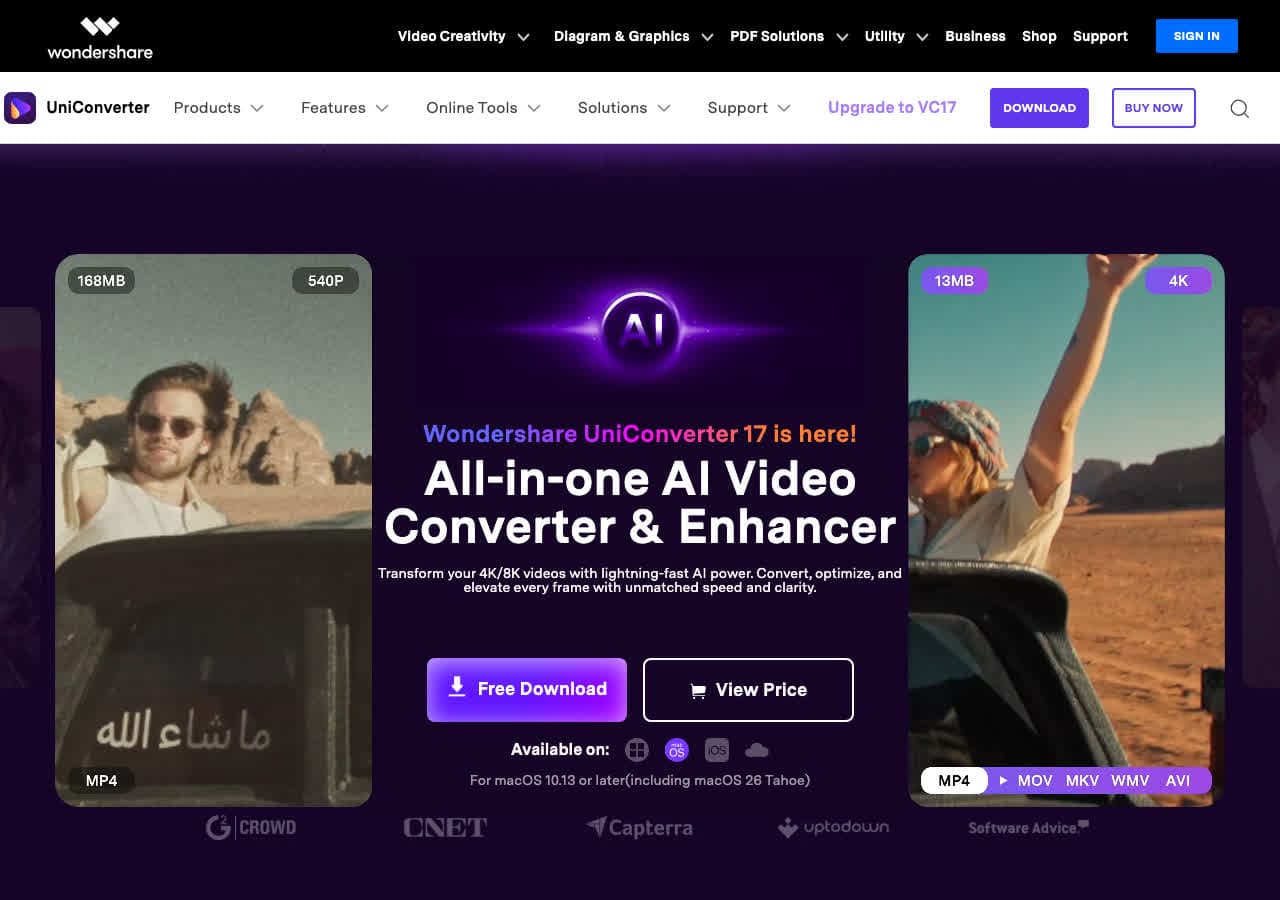
UniConverter is a commercial converter suite that includes compression, conversion, downloading, and some basic editing tools. It is popular with non-technical users who want a single toolbox.
For MOV to MP4, it is typically straightforward and fast, especially for batches.
Pros
- Easy UI with lots of presets.
- Batch conversion supported.
- Extra tools like compression and trimming.
- Good performance on modern machines.
Cons
- Paid software.
- Includes features you may not need.
Pricing
- Paid plans (varies).
- Free trial may be available.
7. Movavi Video Converter - Best polished desktop UI
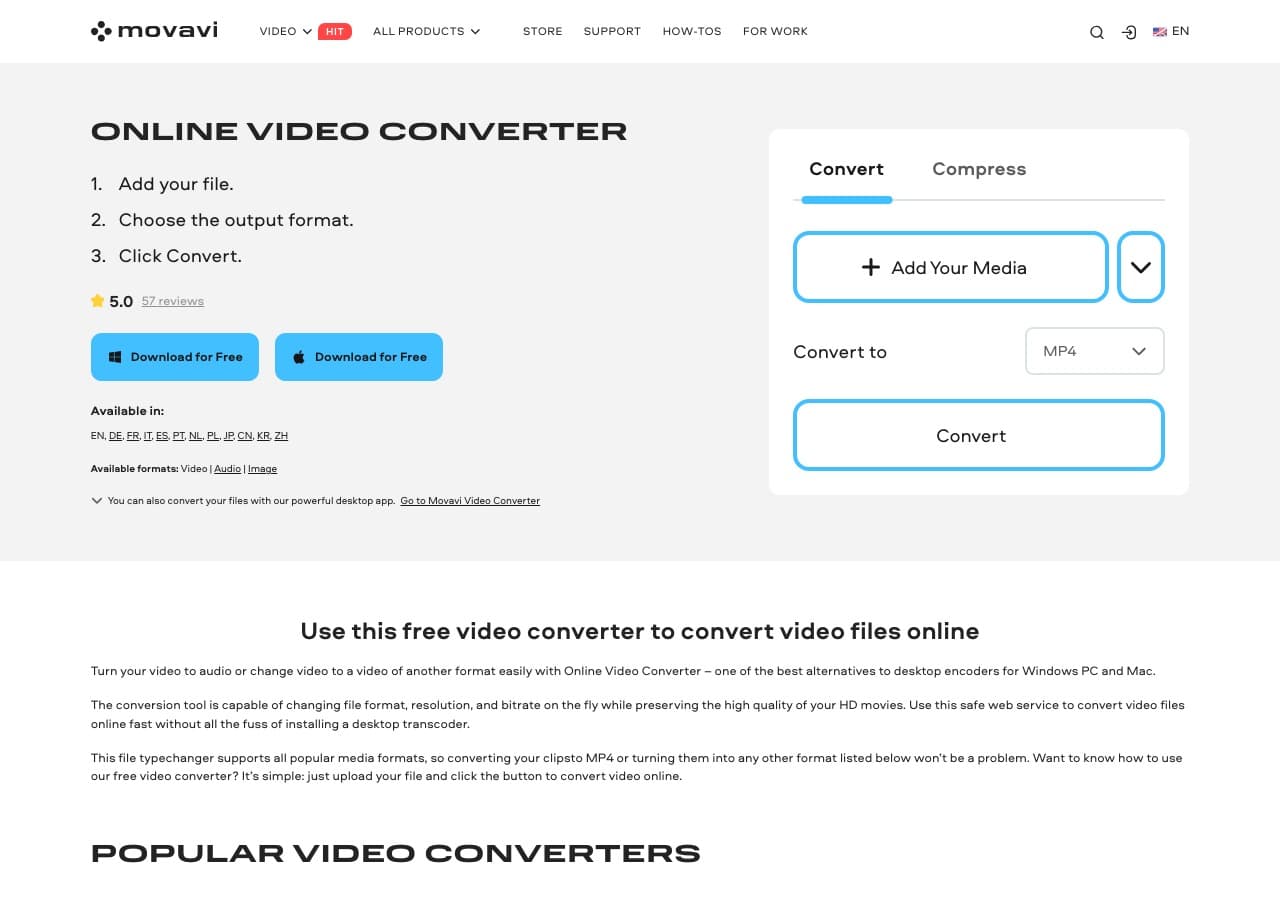
Movavi is a consumer-friendly converter with a clean interface. It is a nice choice when you want an easy desktop app but do not want to deal with VLC or HandBrake settings.
It is especially good for people converting camera footage and iPhone exports for sharing.
Pros
- Very beginner-friendly.
- Good presets and device profiles.
- Batch conversions supported.
- Works offline.
Cons
- Paid software.
- Upsells and upgrade prompts.
Pricing
- Paid license/subscription (varies).
- Free trial available.
8. Any Video Converter - Good presets and broad format support
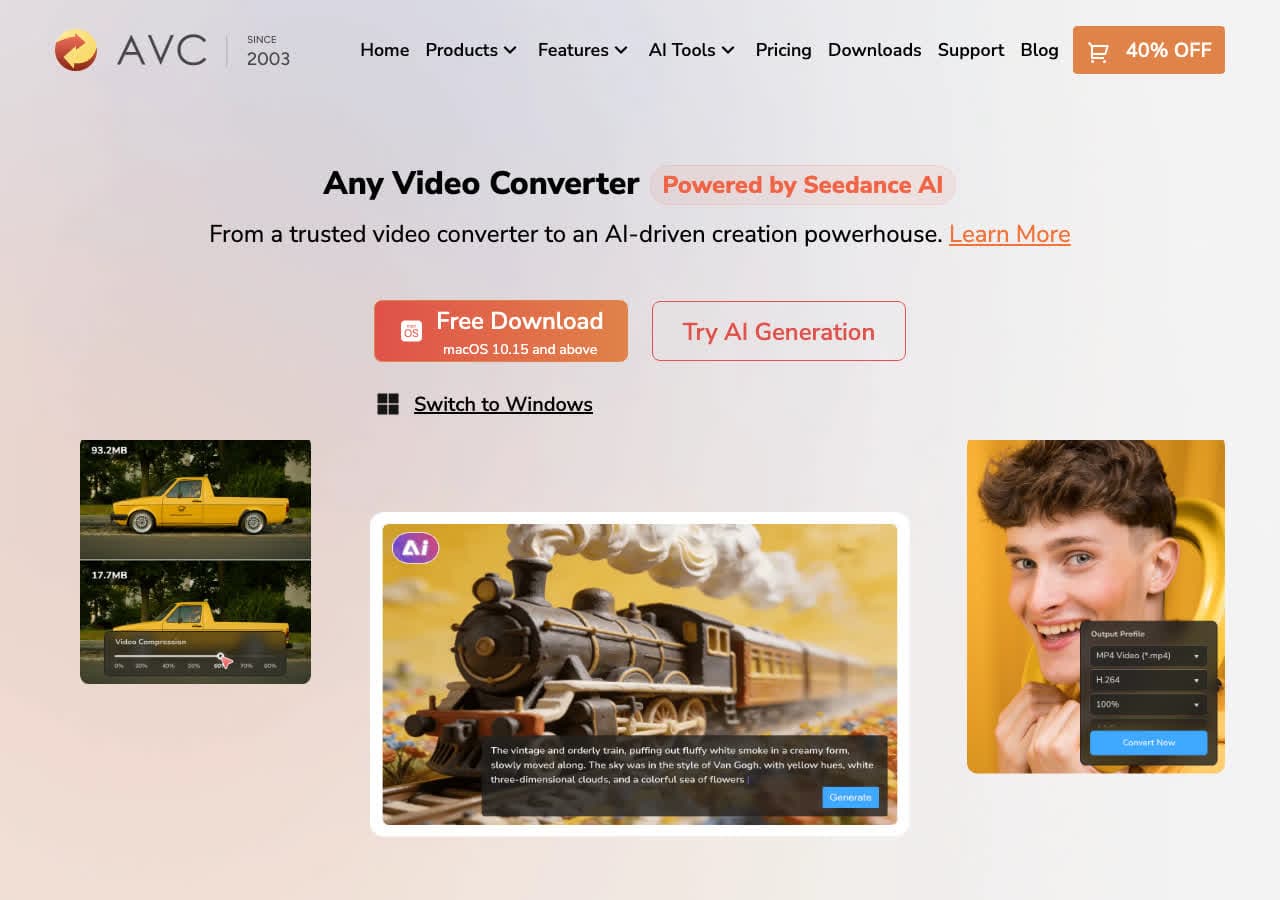
Any Video Converter is a long-running desktop converter with lots of presets. It works well for common formats like MOV to MP4 and can handle batches.
It is a practical pick if you want a GUI and do not mind a slightly older-looking interface.
Pros
- Lots of presets and outputs.
- Batch conversion supported.
- Works offline.
- Good for general media conversions.
Cons
- Some versions include optional bundled offers.
- Not as polished as newer tools.
Pricing
- Free version available.
- Paid upgrades may exist.
9. Freemake Video Converter - Familiar Windows converter (legacy)
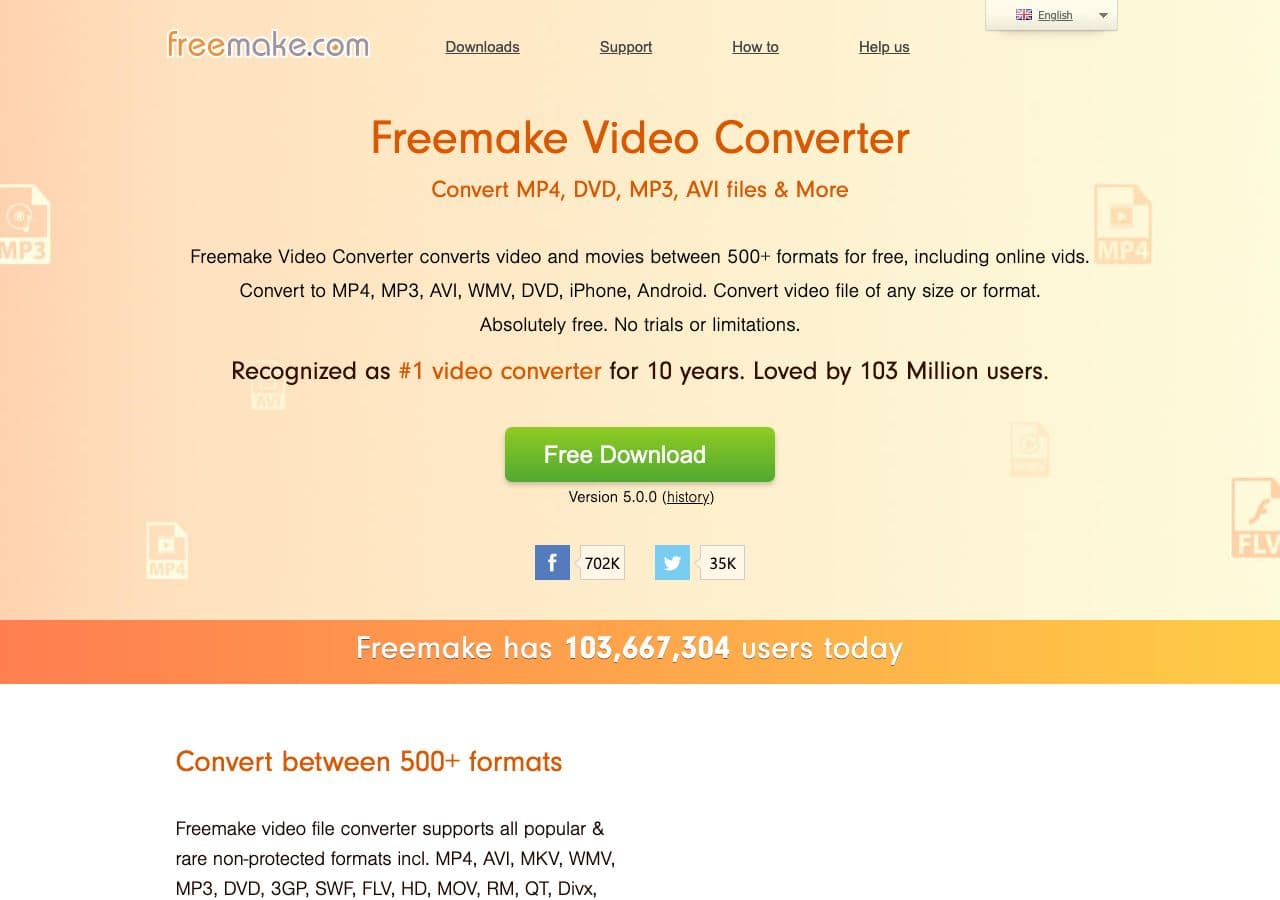
Freemake is a legacy Windows converter a lot of people remember. It supports MOV to MP4 and many other conversions.
Be careful about download sources and limitations (watermarks, nags) depending on version.
Pros
- Many presets and format support.
- Beginner-friendly.
- Can handle batches.
- Works offline on Windows.
Cons
- Legacy product with potential nags/watermarks.
- Bundling risk depending on installer.
Pricing
- Free tier may exist with limitations.
- Paid upgrades may exist.
10. Switch Video Converter - Straightforward batch conversion
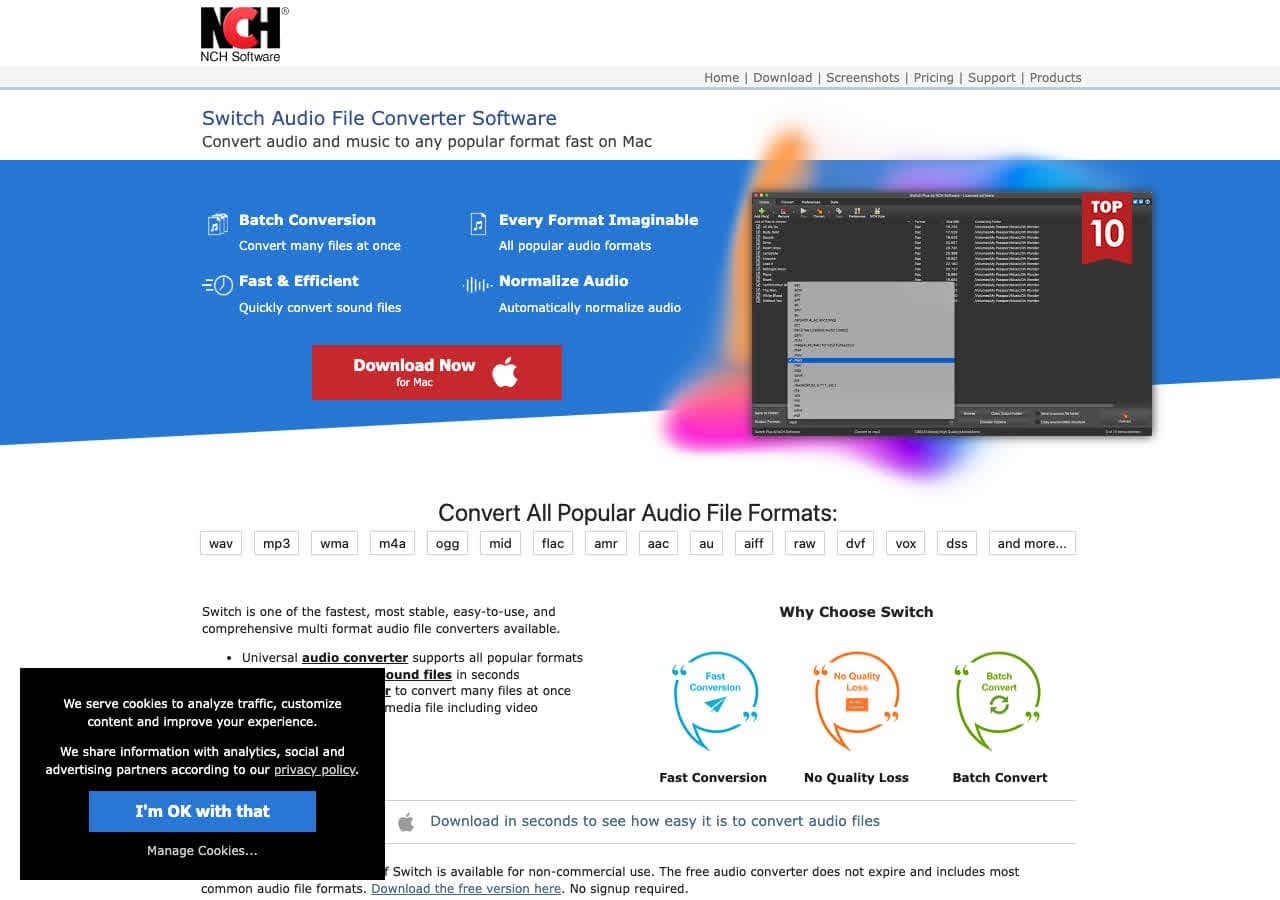
Switch is known for audio conversion, but it also has a video converter product line. It is useful when you want a straightforward batch conversion tool with a simple queue.
For MOV to MP4, it is typically easy: add files, choose MP4, convert.
Pros
- Batch conversion friendly.
- Simple UI.
- Works offline.
- Good for repetitive workflows.
Cons
- Commercial licensing can be confusing.
- UI feels dated.
Pricing
- Free trial may exist.
- Paid license (varies).
11. Prism Video Converter - Lightweight converter for older machines
Prism is a lightweight desktop converter that supports many formats and runs well on older computers. It is a reasonable choice if you want a simple tool to convert MOV to MP4 without heavy system requirements.
It is not the most modern UI, but it is functional and easy to learn.
Pros
- Lightweight and fast to launch.
- Good format support.
- Batch conversions supported.
- Works offline.
Cons
- Commercial product with upsells.
- Not as polished as Movavi or Wondershare.
Pricing
- Paid license (varies).
- Free trial available.
12. Permute - Great Mac-native converter for quick jobs
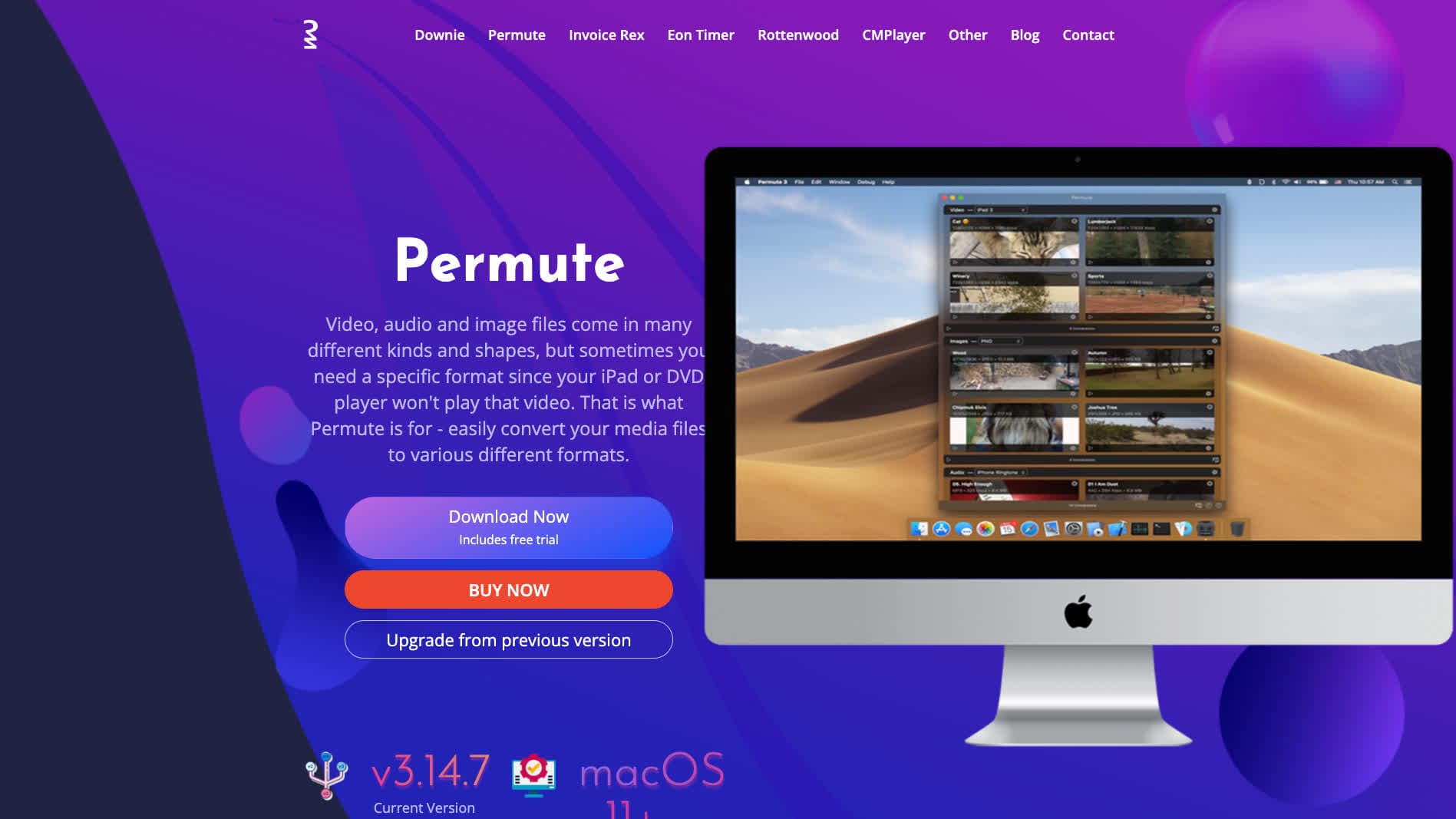
Permute is a Mac app known for being simple and fast. It focuses on common conversions with good presets and a drag-and-drop UI.
If you are on Mac and want a clean, no-drama tool to convert MOV to MP4, Permute is a nice choice.
Pros
- Very easy drag-and-drop workflow.
- Mac-native UX.
- Good presets for Apple devices and web.
- Fast for common conversions.
Cons
- Mac only.
- Paid app.
Pricing
- One-time purchase (varies).
- Free trial may be available.
13. CloudConvert - Best online option with strong quality
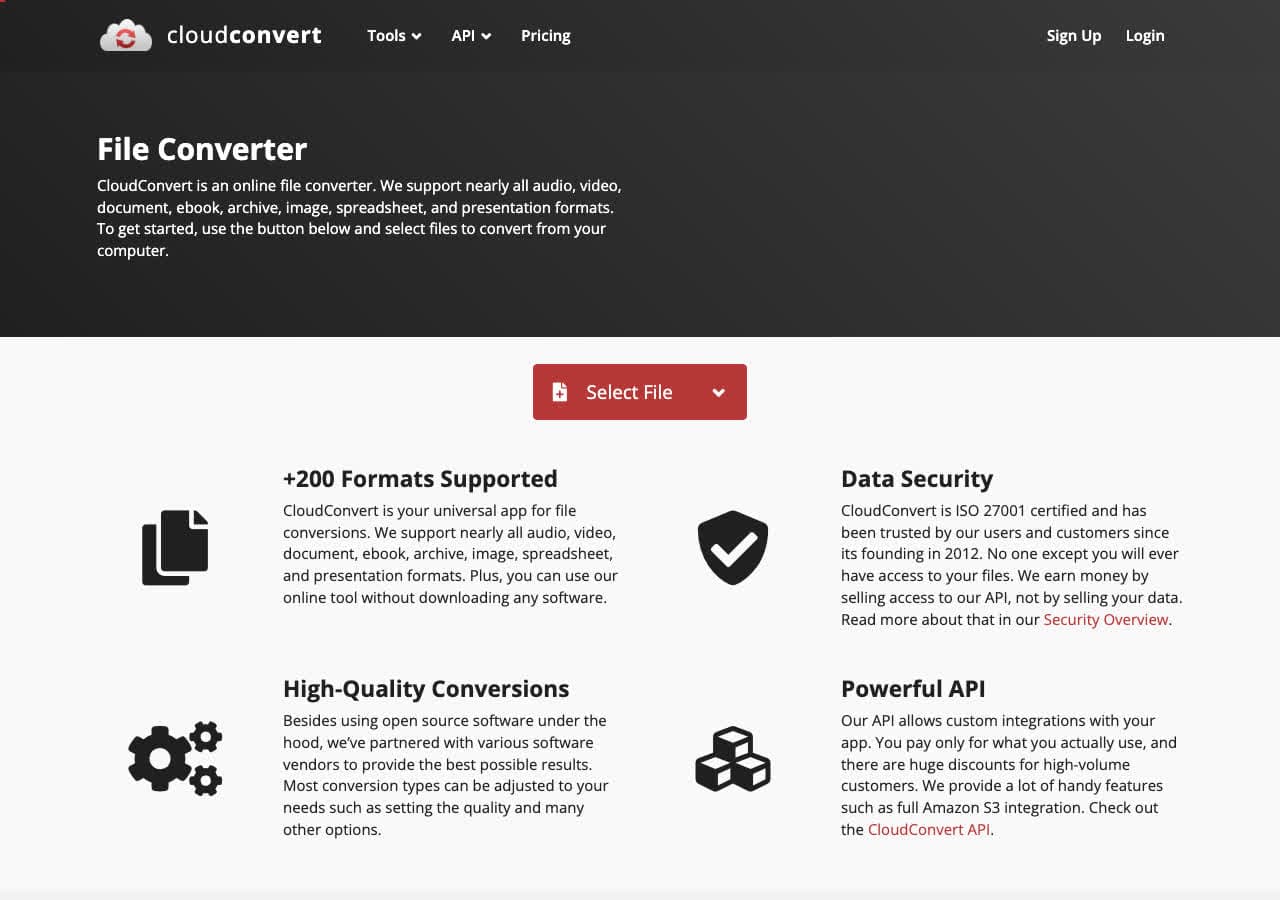
CloudConvert is a reliable online converter with good output quality and an API for automation. It is a good pick when you need to convert from a device where you cannot install software.
Keep privacy in mind: you are uploading the video. Use it for non-sensitive footage.
Pros
- Reliable conversions and good quality.
- API for automation.
- Supports many formats.
- Some advanced settings.
Cons
- Uploads required.
- Free tier limited by credits.
Pricing
- Free tier with limited credits.
- Paid credits/subscriptions (varies).
14. Convertio - Popular browser converter
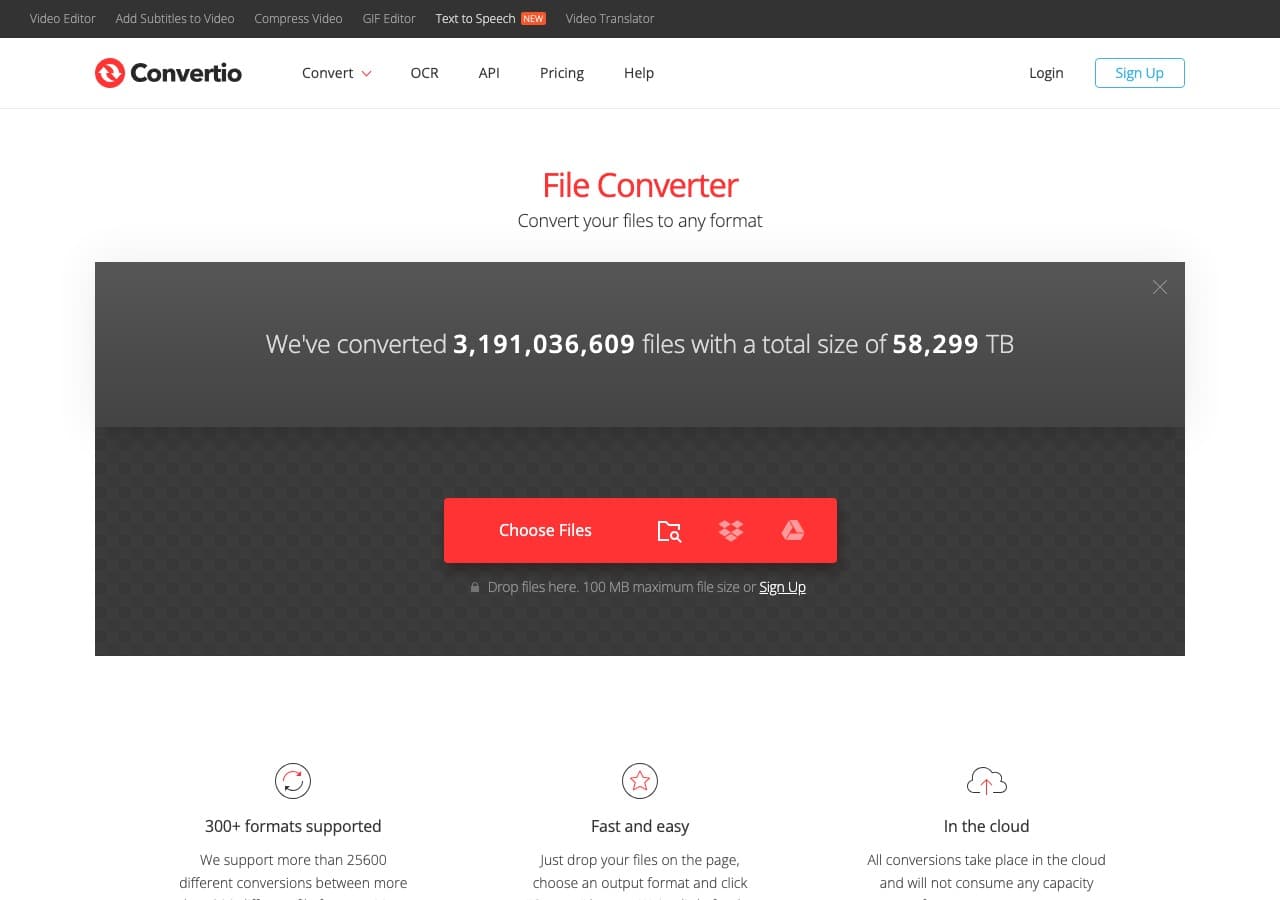
Convertio is a common choice for quick conversions in the browser. MOV to MP4 is one of its standard flows.
It is convenient, but be mindful of file size limits and uploads.
Pros
- Easy to use.
- Works on mobile.
- Supports many formats.
- Cloud integrations.
Cons
- Uploads required.
- Free tier has limits.
Pricing
- Free tier with limits.
- Paid plans (varies).
15. Zamzar - Beginner-friendly online converter
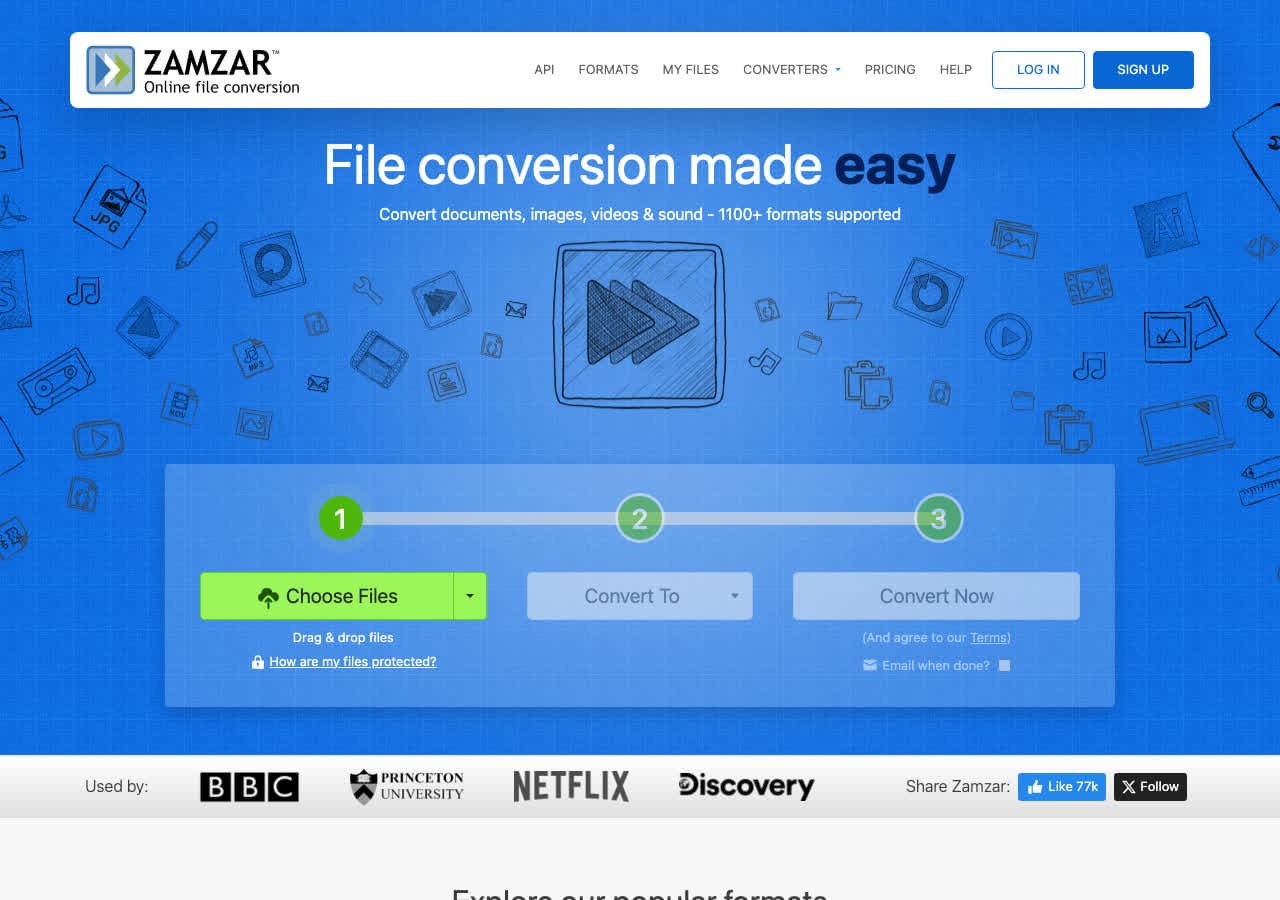
Zamzar has been around for a long time and is still a good option for simple conversions. Upload a MOV, choose MP4, download.
It is best for smaller files and non-sensitive videos.
Pros
- Simple step-by-step UI.
- Long-running service.
- Works across devices.
- Good for occasional users.
Cons
- Uploads required.
- Free tier limits apply.
Pricing
- Free tier with limits.
- Paid plans (varies).
16. FreeConvert - Clean online UI for quick conversions
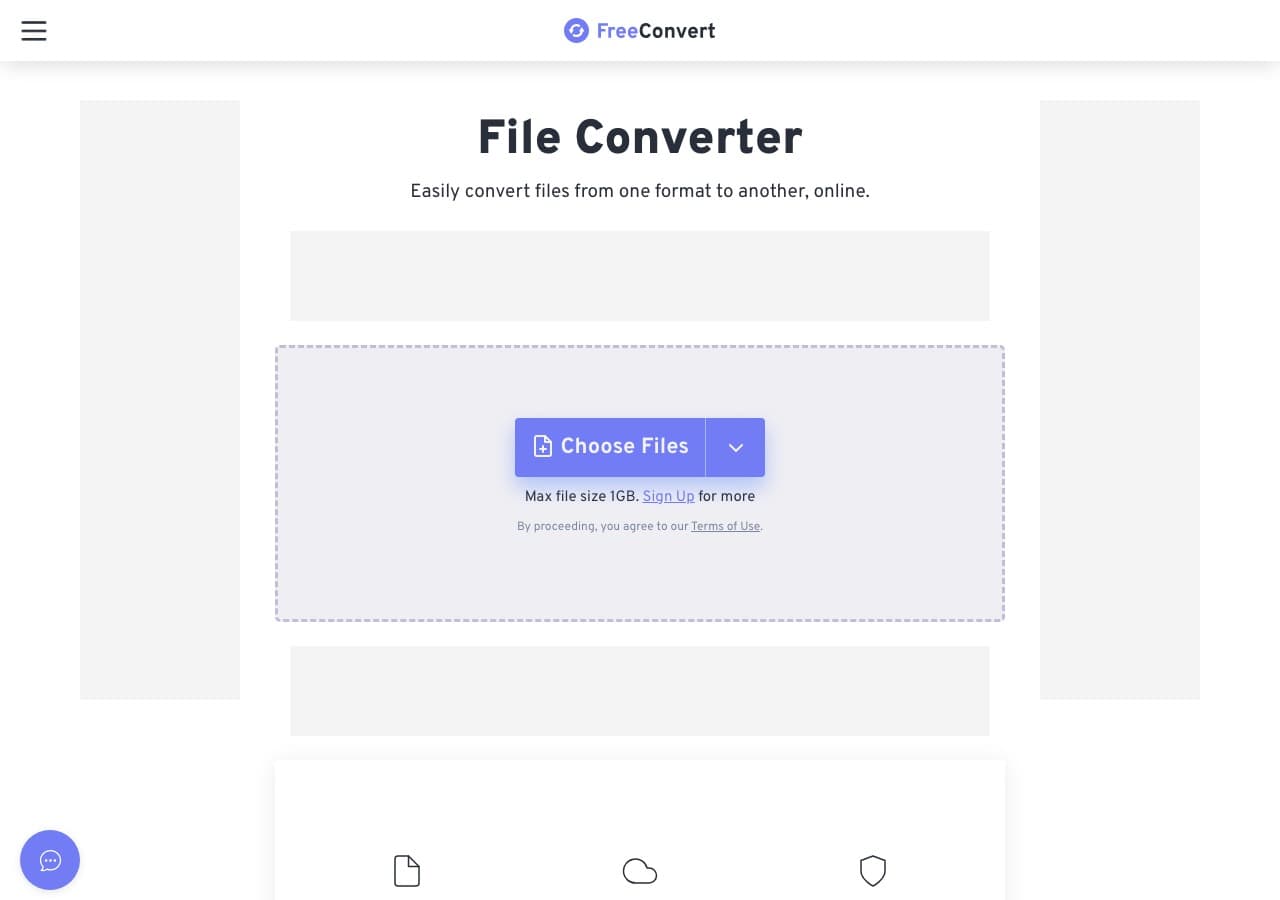
FreeConvert is a modern web converter with a clean interface and generally good results for common conversions like MOV to MP4.
It is a good choice when you want a web tool that feels less sketchy than random converter pages.
Pros
- Clean UI and easy workflow.
- Works on mobile.
- Good output quality for typical files.
- Supports lots of conversions.
Cons
- Uploads required.
- Free tier limited by file size/time.
Pricing
- Free tier with limits.
- Paid plans (varies).
17. Online-Convert.com - Classic converter site with some options
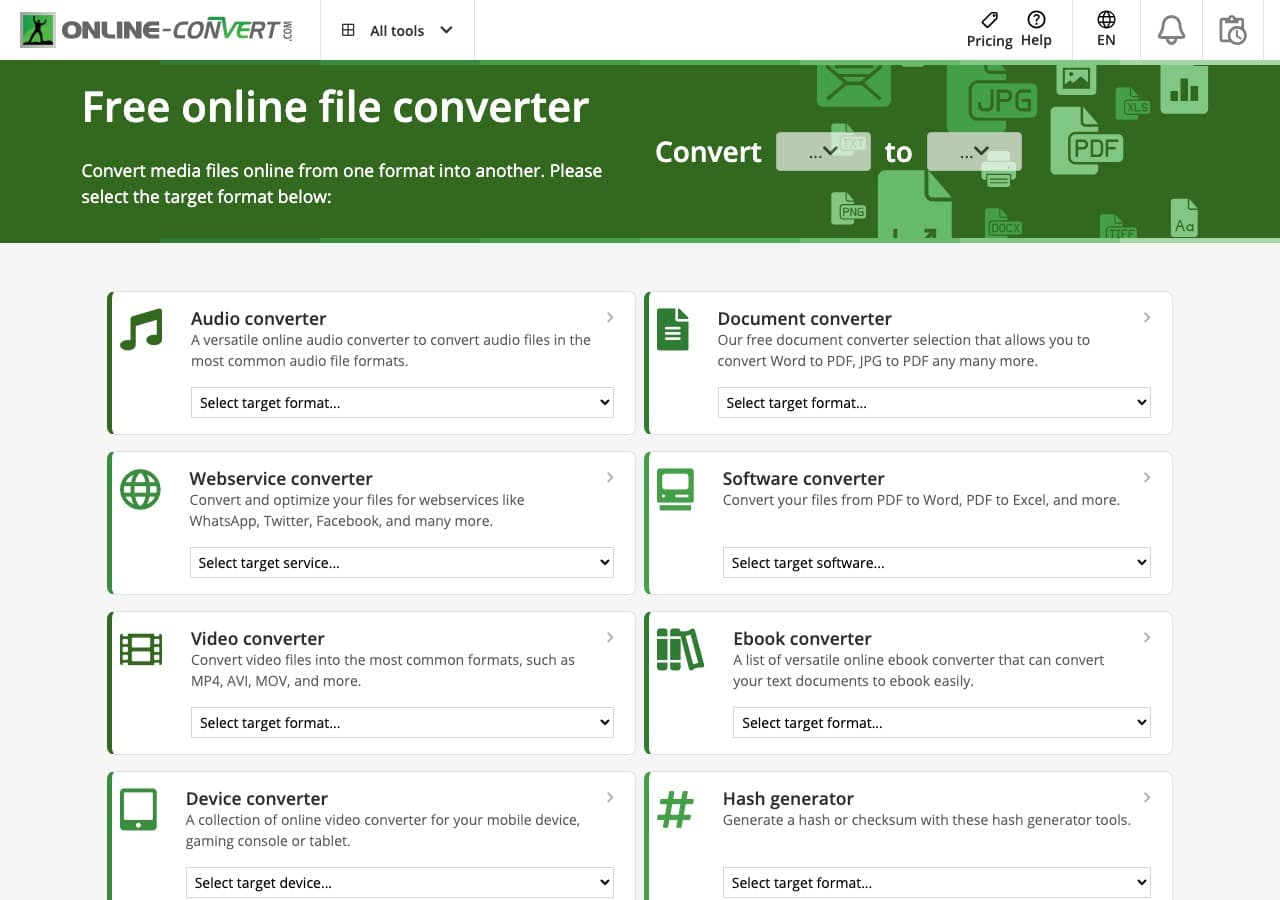
Online-Convert.com is an older converter site with lots of format-specific pages. It can convert MOV to MP4 and sometimes offers extra settings.
It is useful in a pinch, but expect ads.
Pros
- Many format pages and options.
- No install required.
- Sometimes offers bitrate/size options.
- Works on most devices.
Cons
- Ad-heavy.
- Uploads required.
Pricing
- Free tier with limits.
- Paid plans may exist.
18. Adapter - Simple converter with presets
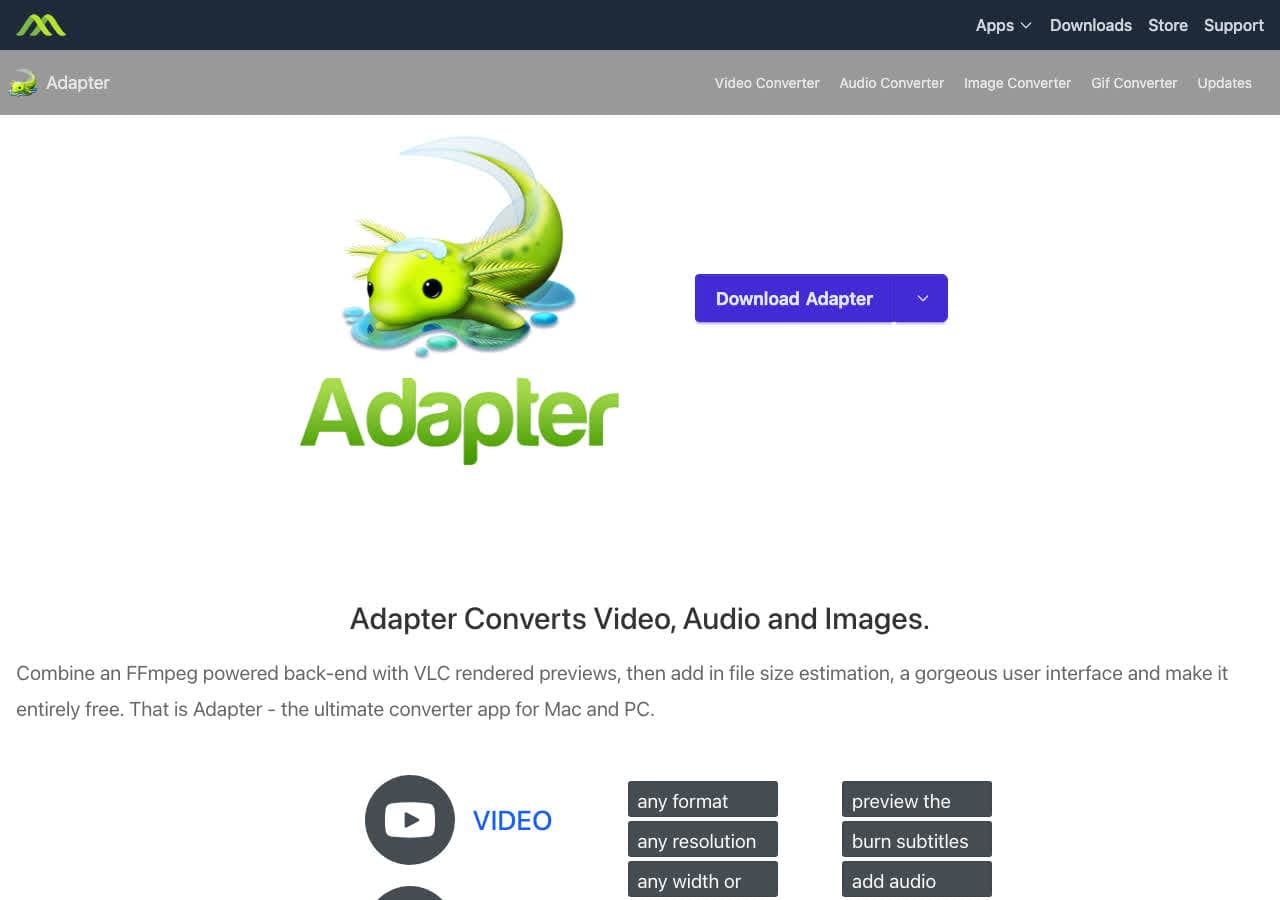
Adapter is a simple converter app that uses FFmpeg under the hood. It is a nice choice when you want a minimal UI and a few presets instead of a full suite.
It is not as commonly recommended today as HandBrake, but it is still useful for quick conversions.
Pros
- Simple UI with presets.
- Uses FFmpeg under the hood.
- Good for quick jobs.
- Works offline.
Cons
- Not as full-featured as bigger suites.
- May not be actively maintained depending on platform.
Pricing
- Free or low-cost depending on version/platform.
- Some paid versions exist.
Frequently Asked Questions
Can I convert MOV to MP4 without losing quality?
Sometimes. If your MOV already uses a codec that is compatible with MP4 (like H.264 video + AAC audio, or HEVC video + AAC audio), you can often remux into MP4 without re-encoding. Tools like FFmpeg can do this quickly. If you need to change codec or settings, you will re-encode and that can reduce quality unless you choose high-quality settings.
Why does my converted video look worse?
Quality loss usually comes from aggressive compression settings (low bitrate, low quality preset). Use a higher quality setting (like a lower CRF value in HandBrake) or choose a higher bitrate. Also avoid converting multiple times; each lossy encode compounds artifacts.
Is it safe to use online MOV to MP4 converters?
Online converters are fine for non-sensitive footage, but you are uploading video to a third party. For private videos (family, client work, internal recordings) convert locally with a desktop tool.
Final Thoughts
If you want the easiest free option, HandBrake is usually the best pick. If you want instant, no-quality-loss remuxing when possible, FFmpeg is unbeatable. And if you want a simple local workflow without ad-heavy converter sites, a local-first tool is a good default for day-to-day conversions.
 How to Convert
The offline file converter for Mac, Windows and Linux.
- Converts video, audio, images, documents, ebooks and more
- Everything runs locally. Your files never leave your device
- Pay once. Access forever
Get the app on Mac, Windows and Linux
