18 Best Offline File Converter Apps in 2026 (No Internet Required)
The best offline file converter apps that work without an internet connection. Convert files privately and securely on your own computer.
Posted by
 Jake Manger
Online file converters are convenient, but they come with serious trade-offs. You upload your files to someone else's server, hope they process and delete them, and depend on a stable internet connection the entire time. For confidential documents, personal photos, or large video files, uploading to the cloud is either a privacy risk, painfully slow, or both. If you work on planes, in remote areas, or just prefer to keep your data on your own machine, you need an offline converter.
We tested desktop file converters that work entirely offline, with no internet connection required after installation. These tools process everything locally on your computer, so your files never leave your device. This list covers video, audio, image, document, and ebook converters for Mac, Windows, and Linux. Whether you are protecting client data, working without Wi-Fi, or just want faster conversions, these offline tools have you covered.
1. How to Convert - Best All-in-One Offline File Converter
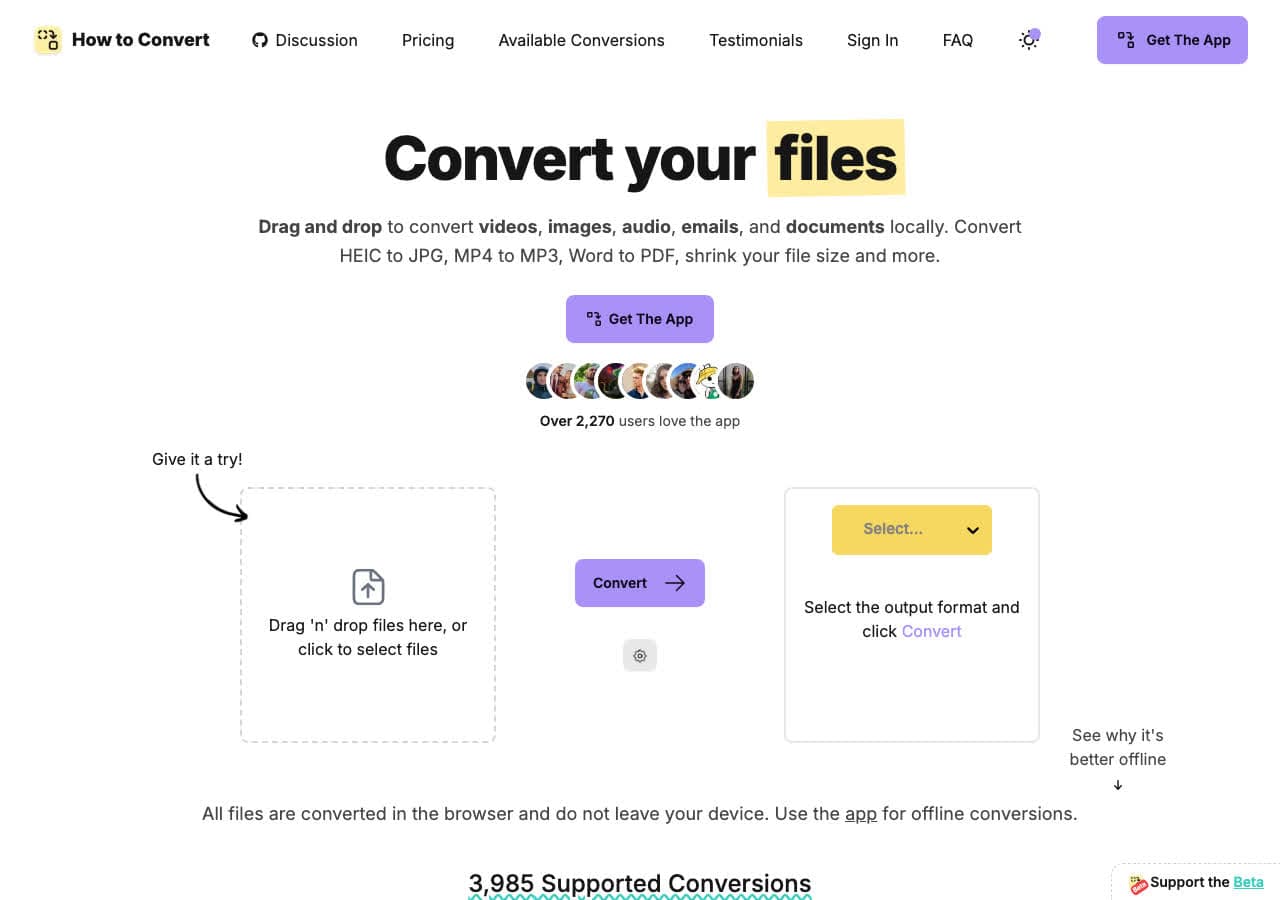
How to Convert is a desktop file converter that processes everything locally on your machine. No internet connection required after you install the app. Convert between hundreds of formats across video, audio, images, and documents without uploading a single file to the cloud. Your files stay on your computer from start to finish.
The privacy-first approach makes How to Convert ideal for sensitive files: contracts, medical records, personal photos, proprietary video. Drag files in, pick the output format, and the conversion happens on your CPU. The paid desktop app works on Mac, Windows, and Linux, with broader format support, batch conversion, and offline use. The free web demo processes one supported file at a time locally in the browser, without uploading it.
Pros
- All conversions happen locally. No internet required.
- Handles video, audio, images, and documents in one app.
- Batch conversion for multiple files.
- One-time purchase. No subscription.
- Works on Mac, Windows, and Linux.
Cons
- Desktop app is a paid one-time purchase.
- Free web demo is single-file; broader formats, batches, and offline use require the desktop app.
Pricing
- Free: Web demo for single-file conversions across supported formats.
- Desktop app: One-time purchase for Mac, Windows, and Linux.
 How to Convert
The offline file converter for Mac, Windows and Linux.
- Converts video, audio, images, documents, ebooks and more
- Everything runs locally. Your files never leave your device
- Pay once. Access forever
Get the app on Mac, Windows and Linux
2. HandBrake - Best Offline Open Source Video Converter
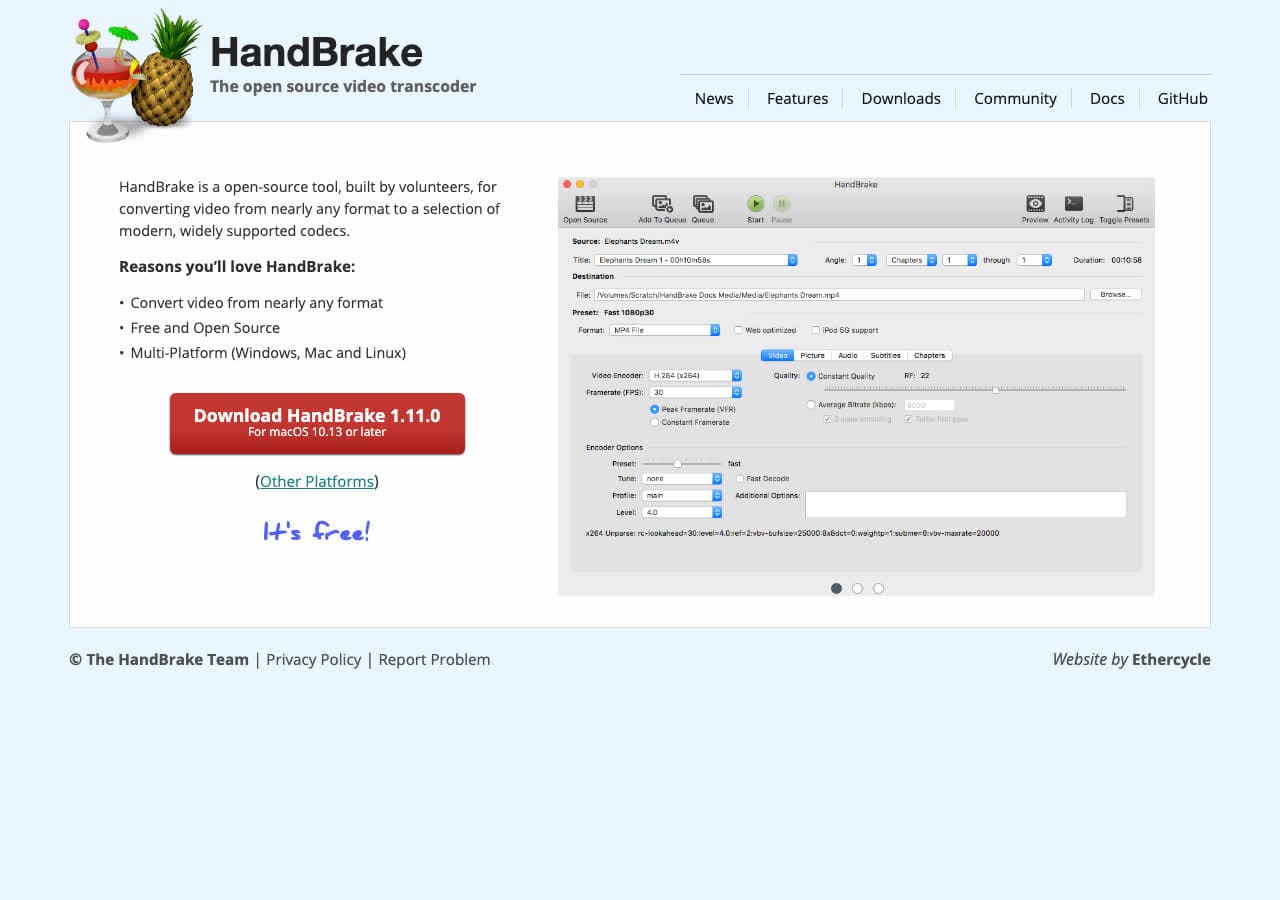
HandBrake is a free, open source video converter that works entirely offline. Once installed, it never needs an internet connection. HandBrake converts nearly any video format to MP4 or MKV with full control over codecs (H.264, H.265, VP9, AV1), quality, resolution, and audio tracks. Hardware-accelerated encoding uses your GPU for faster conversions.
HandBrake is the standard recommendation for offline video conversion. The queue system lets you line up multiple videos and walk away while they process. Device presets optimize output for Apple devices, Android phones, Roku, and gaming consoles. Everything runs locally with no telemetry or cloud dependencies. It works on Mac, Windows, and Linux.
Pros
- Completely free and open source.
- Works entirely offline after installation.
- Hardware-accelerated encoding.
- Batch queue for multiple files.
Cons
- Only outputs MP4 and MKV.
- Video only. No audio or image conversion.
Pricing
- Free (open source, GPL licensed).
3. VLC - Best Offline Media Player with File Conversion
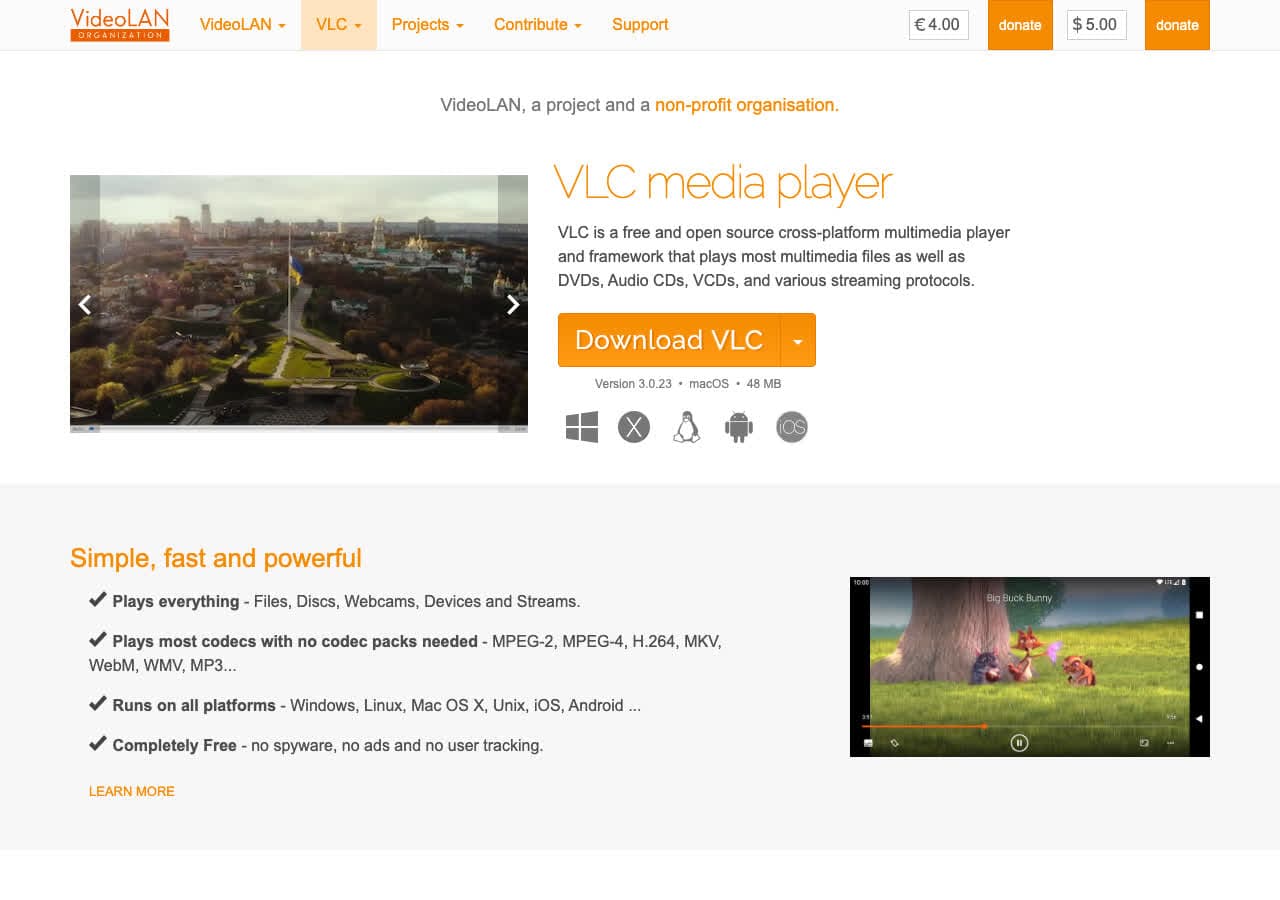
VLC is a media player that also converts between video and audio formats completely offline. The conversion feature under Media > Convert/Save handles MP4, MKV, AVI, MOV, MP3, FLAC, WAV, OGG, and many more formats. VLC is free, open source, and one of the most widely installed applications in the world.
VLC is not a dedicated converter, so its conversion interface is basic and there is no batch processing. But if you already have VLC installed for playing media, you can convert files without installing another tool. VLC works completely offline and never phones home. It runs on Mac, Windows, Linux, Android, and iOS.
Pros
- Free, open source, and fully offline.
- Handles both video and audio conversion.
- Already installed on most computers.
- No telemetry or cloud connections.
Cons
- Conversion interface is bare-bones.
- No batch processing.
Pricing
- Free (open source, GPL licensed).
4. FFmpeg - Best Offline Command-Line Conversion Engine
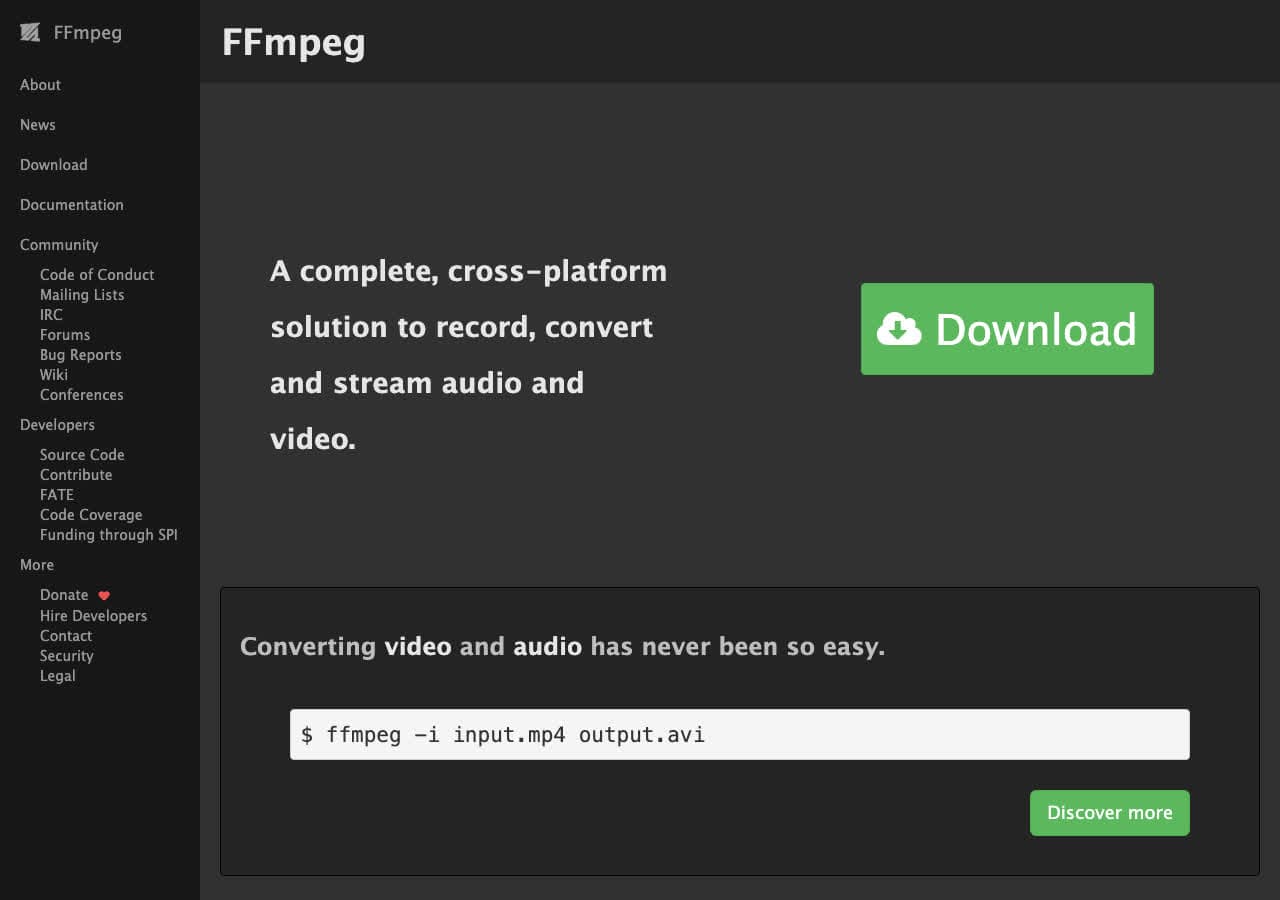
FFmpeg is the conversion engine behind most video and audio tools. As a standalone command-line tool, it converts between virtually every media format ever created. FFmpeg runs entirely offline. It has no internet dependencies, no accounts, no telemetry. Install it once and it works forever without needing updates or connectivity.
FFmpeg is the most powerful conversion tool on this list. It handles codec transcoding, container remuxing, resolution scaling, frame rate conversion, audio extraction, subtitle embedding, and hundreds of other operations. The trade-off is that it requires typing commands in a terminal. For developers and power users who want maximum control over offline conversion, FFmpeg is unmatched.
Pros
- Supports more formats than any other tool.
- Completely offline. Zero internet dependencies.
- Scriptable for automated batch workflows.
- Free and open source.
Cons
- Command-line only. No graphical interface.
- Steep learning curve.
Pricing
- Free (open source, LGPL/GPL licensed).
5. ImageMagick - Best Offline Command-Line Image Converter
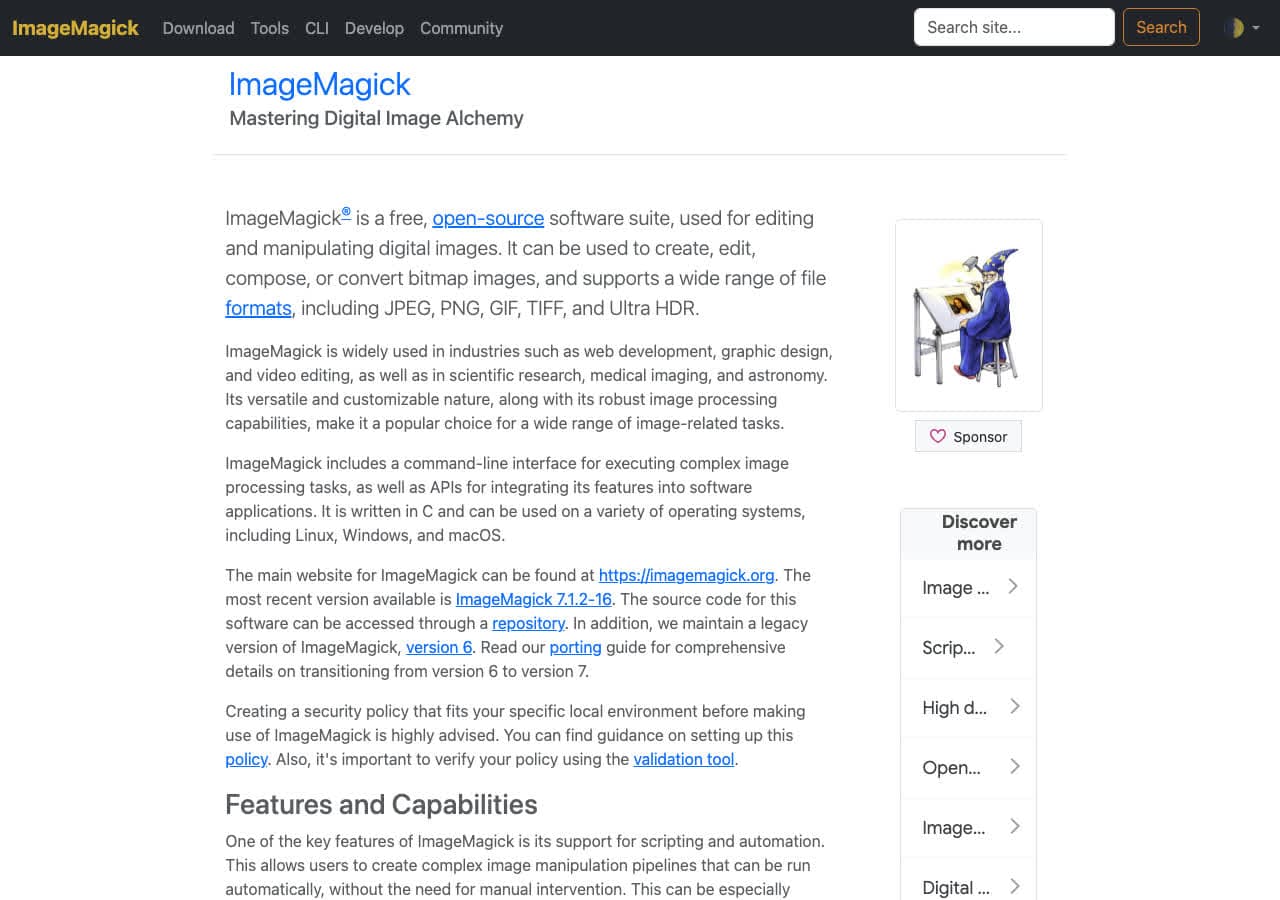
ImageMagick converts between over 200 image formats entirely offline. JPG, PNG, WebP, HEIC, TIFF, BMP, GIF, SVG, PDF, and RAW camera formats are all supported. ImageMagick also resizes, crops, rotates, applies filters, and composites images. It processes everything on your local machine with no internet connectivity needed.
ImageMagick is a command-line tool, so you write commands like magick convert input.png output.jpg. For batch processing, use wildcards: magick mogrify -format jpg *.png converts every PNG in a folder to JPG. It is free, open source, and runs on Mac, Windows, and Linux.
Pros
- 200+ image formats supported offline.
- Free and open source.
- Batch processing with shell commands.
- Extensive image manipulation features.
Cons
- Command-line only.
- Images only. No video or audio.
Pricing
- Free (open source, Apache 2.0 license).
6. XnConvert - Best Offline Batch Image Converter with GUI
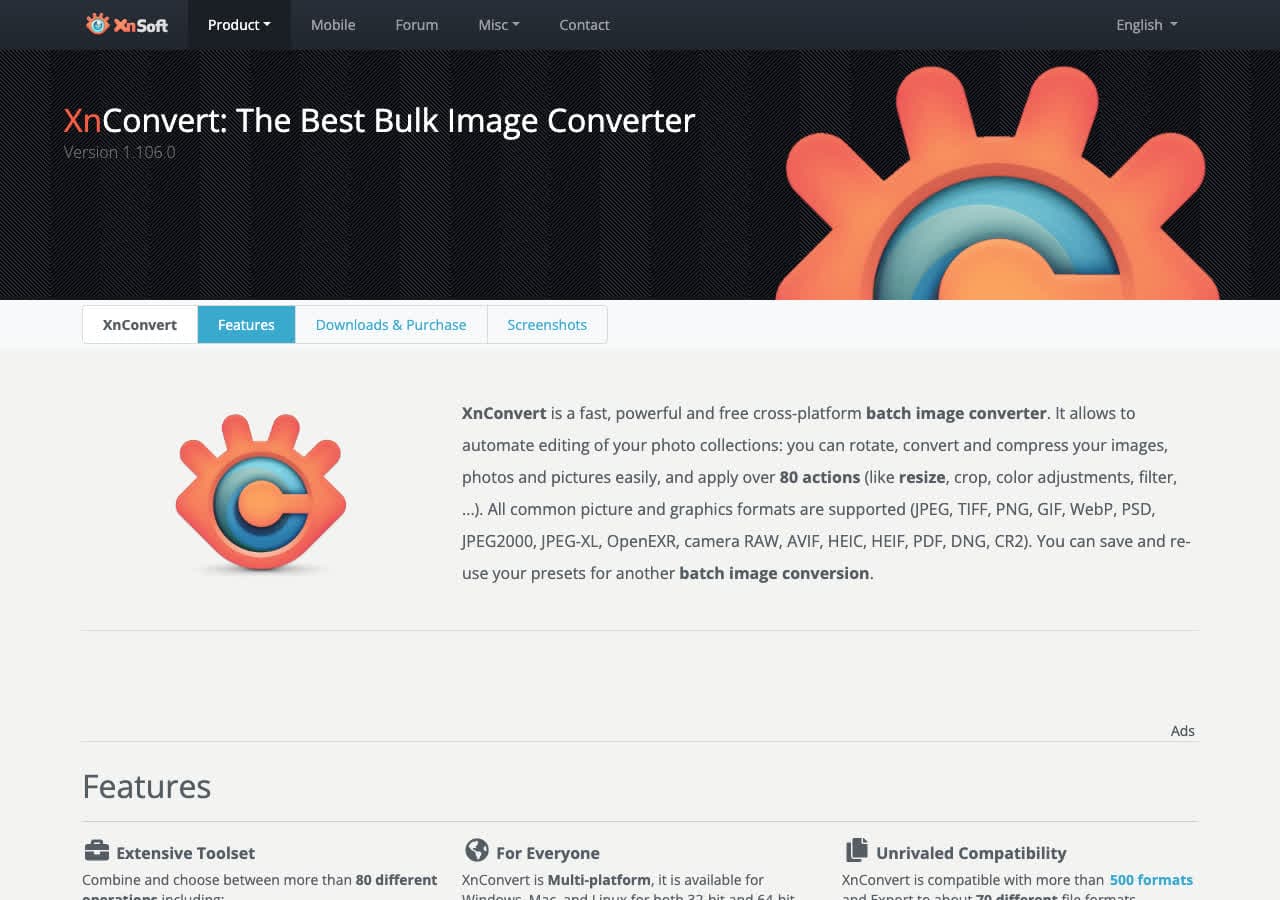
XnConvert is a batch image converter with a graphical interface that works completely offline. Drop hundreds of images, set the output format and processing actions (resize, rotate, watermark, color adjust), and convert everything at once. XnConvert supports 500+ image formats and runs entirely on your machine.
XnConvert is the best option for users who want ImageMagick-level batch image conversion without using the command line. The action pipeline chains multiple processing steps together, and profiles save your favorite settings for reuse. It is free for personal use and runs on Mac, Windows, and Linux.
Pros
- Fully offline. No internet needed.
- 500+ image formats supported.
- Graphical interface for batch conversion.
- Action pipeline for chained operations.
Cons
- Paid license required for commercial use.
- Images only.
Pricing
- Free for personal and educational use.
- Commercial license available.
How to Convert
The offline file converter for Mac, Windows and Linux.
- Converts video, audio, images, documents, ebooks and more
- Everything runs locally. Your files never leave your device
- Pay once. Access forever
Get the app on Mac, Windows and Linux
7. LibreOffice - Best Offline Document Converter
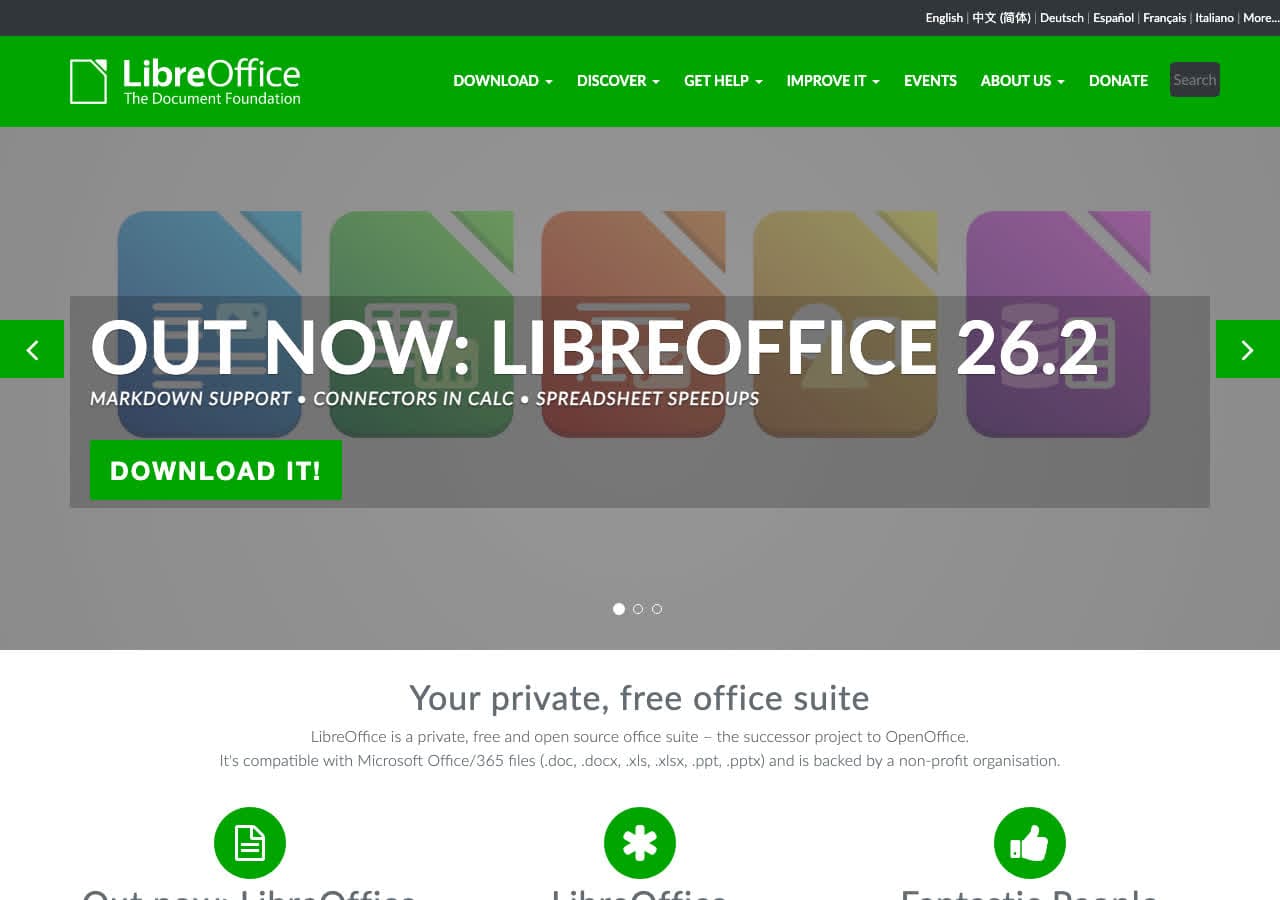
LibreOffice is a full office suite that converts between document formats entirely offline. Open DOCX, XLSX, PPTX, DOC, XLS, PPT, and export as PDF, ODF, RTF, HTML, or plain text. LibreOffice handles the conversion locally with no cloud dependencies. Your documents never leave your computer.
For organizations handling sensitive documents offline, LibreOffice is the standard tool. It reads and writes all Microsoft Office formats, supports command-line batch conversion for automated workflows, and produces reliable PDF output. It is free, open source, and runs on Mac, Windows, and Linux.
Pros
- Fully offline document conversion.
- Free and open source.
- Reads all Microsoft Office formats.
- Command-line batch conversion.
Cons
- Complex documents may lose formatting.
- Large application just for conversion.
Pricing
- Free (open source, MPL licensed).
8. Calibre - Best Offline Ebook Converter
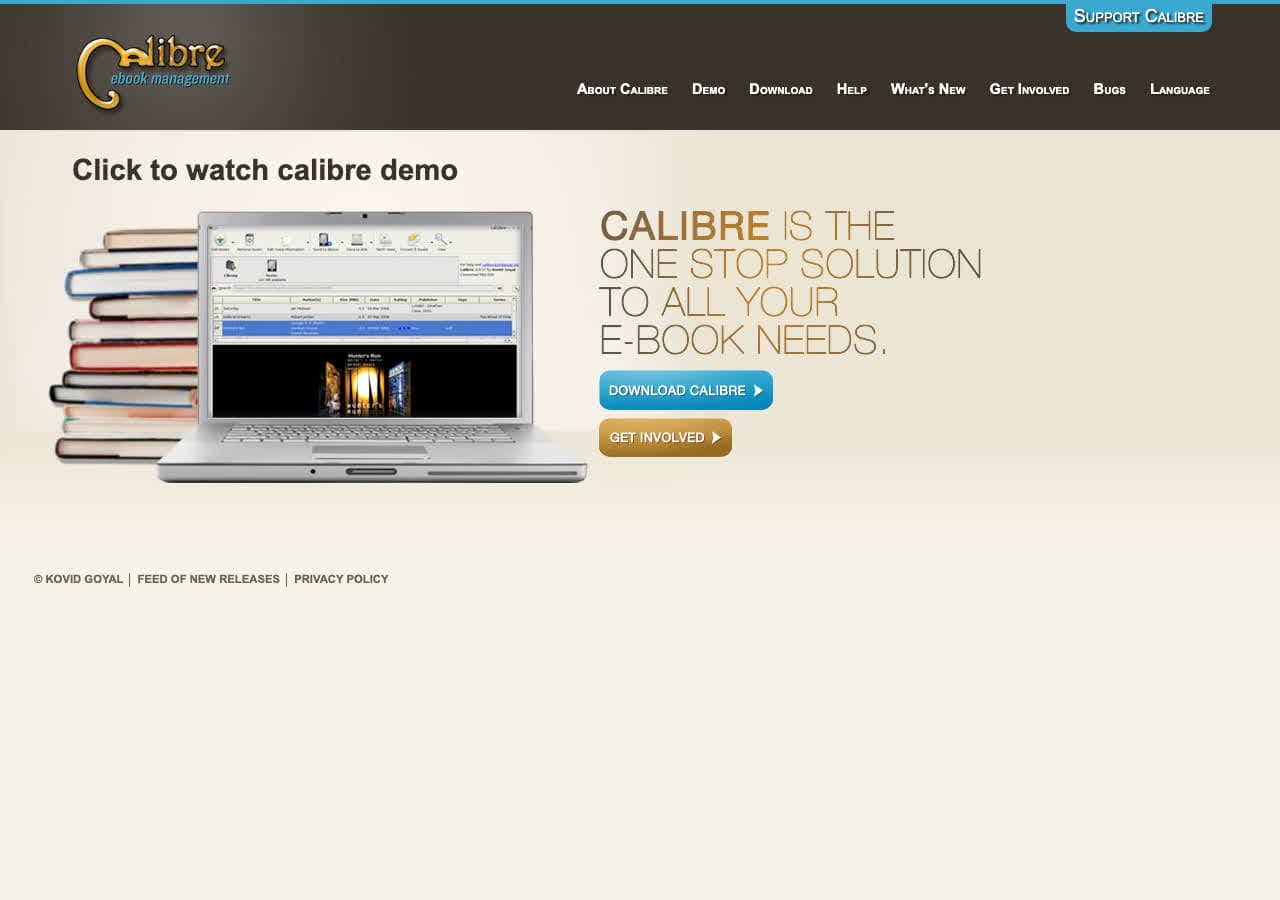
Calibre converts between ebook formats entirely offline. EPUB, MOBI, AZW3, PDF, DOCX, HTML, TXT, and many more formats are supported. Calibre processes everything locally, so your ebook collection stays on your machine. No cloud uploads, no accounts, no internet dependency for conversion.
Calibre is more than a converter. It manages your ebook library, syncs with e-readers over USB, and includes a built-in ebook viewer. The conversion engine offers extensive customization: fonts, margins, page breaks, table of contents, and metadata. It is free, open source, and runs on Mac, Windows, and Linux.
Pros
- Fully offline ebook conversion.
- Free and open source.
- Library management and e-reader sync.
- Extensive output customization.
Cons
- Cluttered interface for new users.
- PDF output quality is limited.
Pricing
- Free (open source, GPL licensed).
9. Pandoc - Best Offline Markup and Document Converter
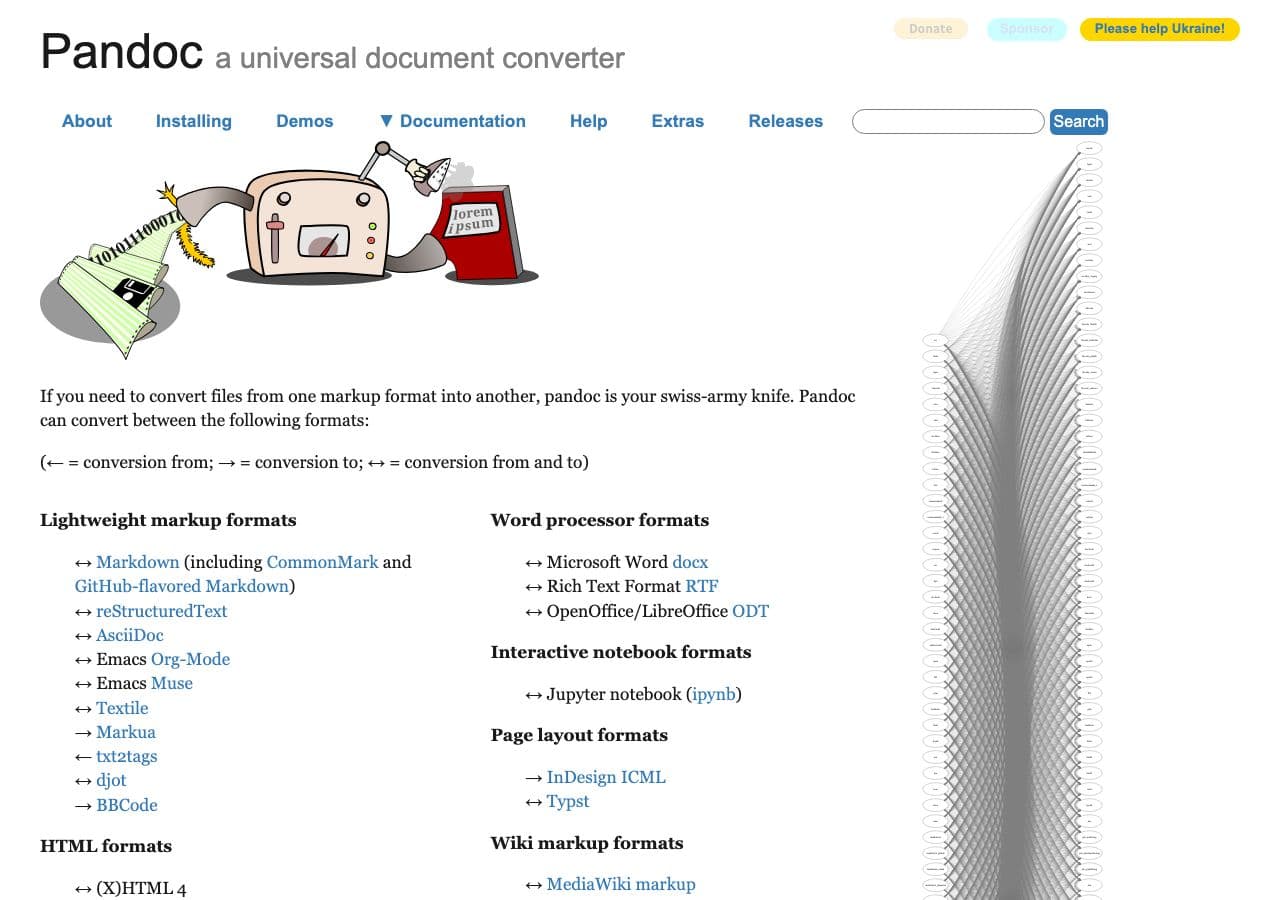
Pandoc converts between markup and document formats entirely on your local machine. Markdown to HTML, LaTeX to PDF, DOCX to EPUB, HTML to Word. Pandoc handles dozens of text-based formats and preserves document structure through conversion. No internet connection needed after installation.
Pandoc is a command-line tool popular with academics, writers, and developers who work with text. Write in Markdown offline, then generate PDF, HTML, DOCX, and EPUB output without ever connecting to the internet. Pandoc is free, open source, and cross-platform.
Pros
- Fully offline text and document conversion.
- Free and open source.
- Dozens of text-based formats supported.
- Preserves document structure precisely.
Cons
- Command-line only.
- Text-based formats only.
Pricing
- Free (open source, GPL licensed).
10. Audacity - Best Offline Audio Editor and Converter
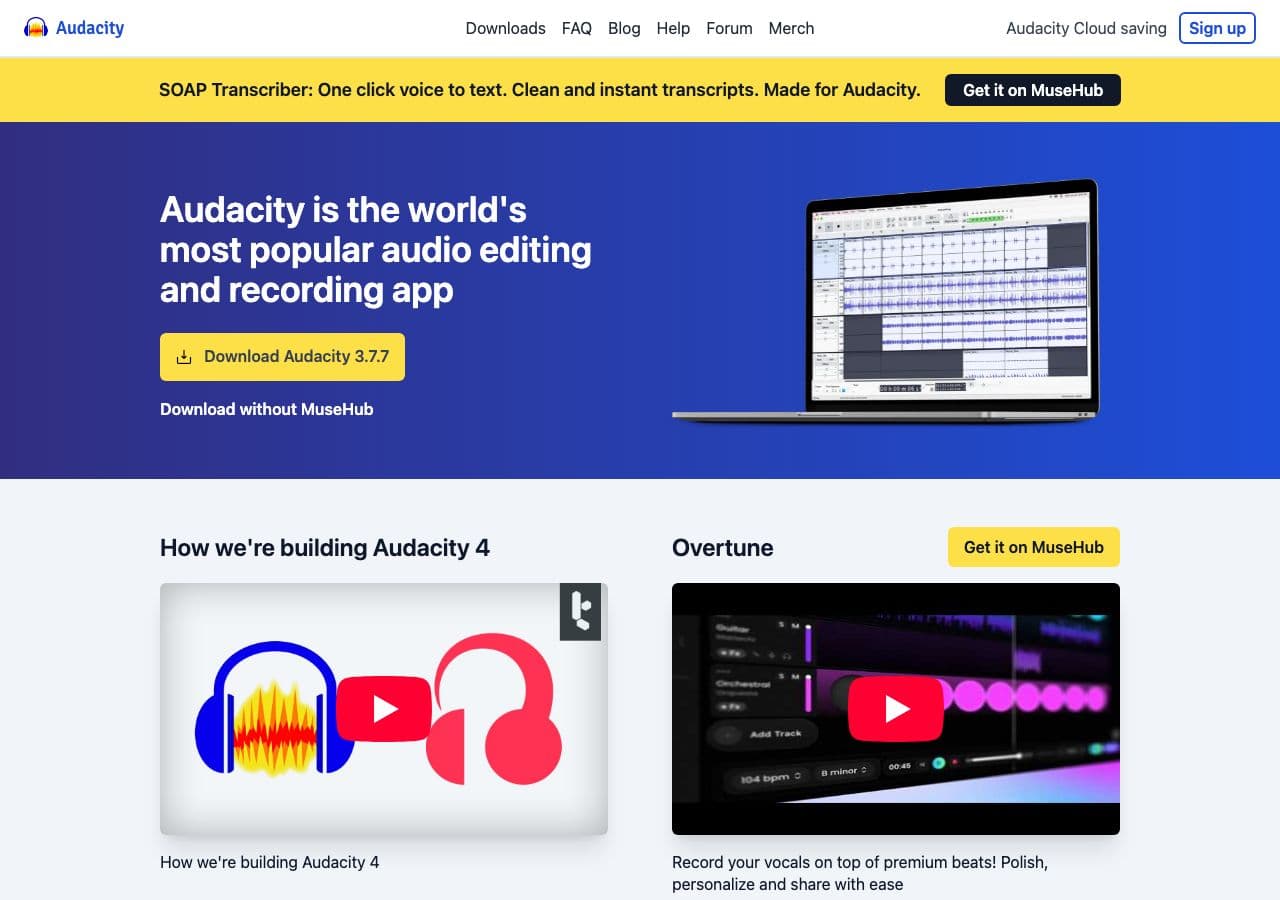
Audacity is a free, open source audio editor that converts between audio formats offline. Import WAV, MP3, FLAC, OGG, AIFF, and other formats, edit the audio if needed, then export in your target format. Everything happens on your computer without any internet requirement.
Audacity is ideal when you need to both edit and convert audio offline. Record a voice memo, trim silence, normalize levels, and export as MP3. For simple format conversion, it is more than you need, but the editing capabilities make it worth installing. Audacity runs on Mac, Windows, and Linux.
Pros
- Fully offline audio conversion.
- Free and open source.
- Full audio editing included.
- Cross-platform.
Cons
- No batch conversion.
- Overkill for simple format conversion.
Pricing
- Free (open source, GPL licensed).
11. GIMP - Best Offline Image Editor with Format Conversion
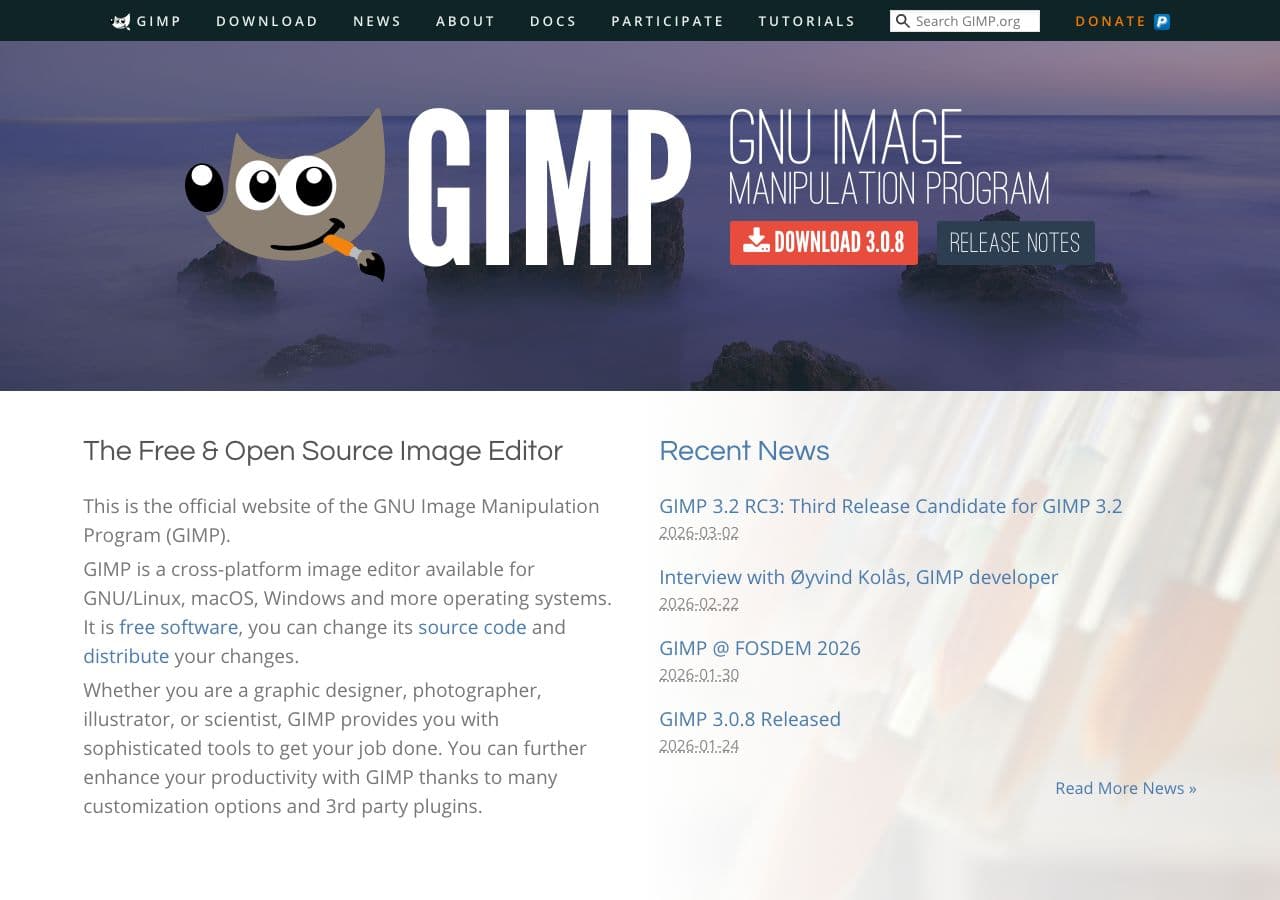
GIMP is a free, open source image editor that opens and exports images in many formats entirely offline. JPG, PNG, WebP, TIFF, BMP, GIF, PSD, and more. GIMP is a full Photoshop alternative that happens to also work as an image format converter when you need it.
For offline image conversion, GIMP is best when you also need to edit the image. Open a file, make adjustments, and export in a different format. For batch conversion of many images offline, pair GIMP with ImageMagick or XnConvert instead. GIMP runs on Mac, Windows, and Linux.
Pros
- Fully offline image conversion.
- Free and open source.
- Professional image editing included.
- Opens PSD files.
Cons
- No batch conversion without scripting.
- Steep learning curve.
Pricing
- Free (open source, GPL licensed).
12. Permute - Best Offline Mac Media Converter
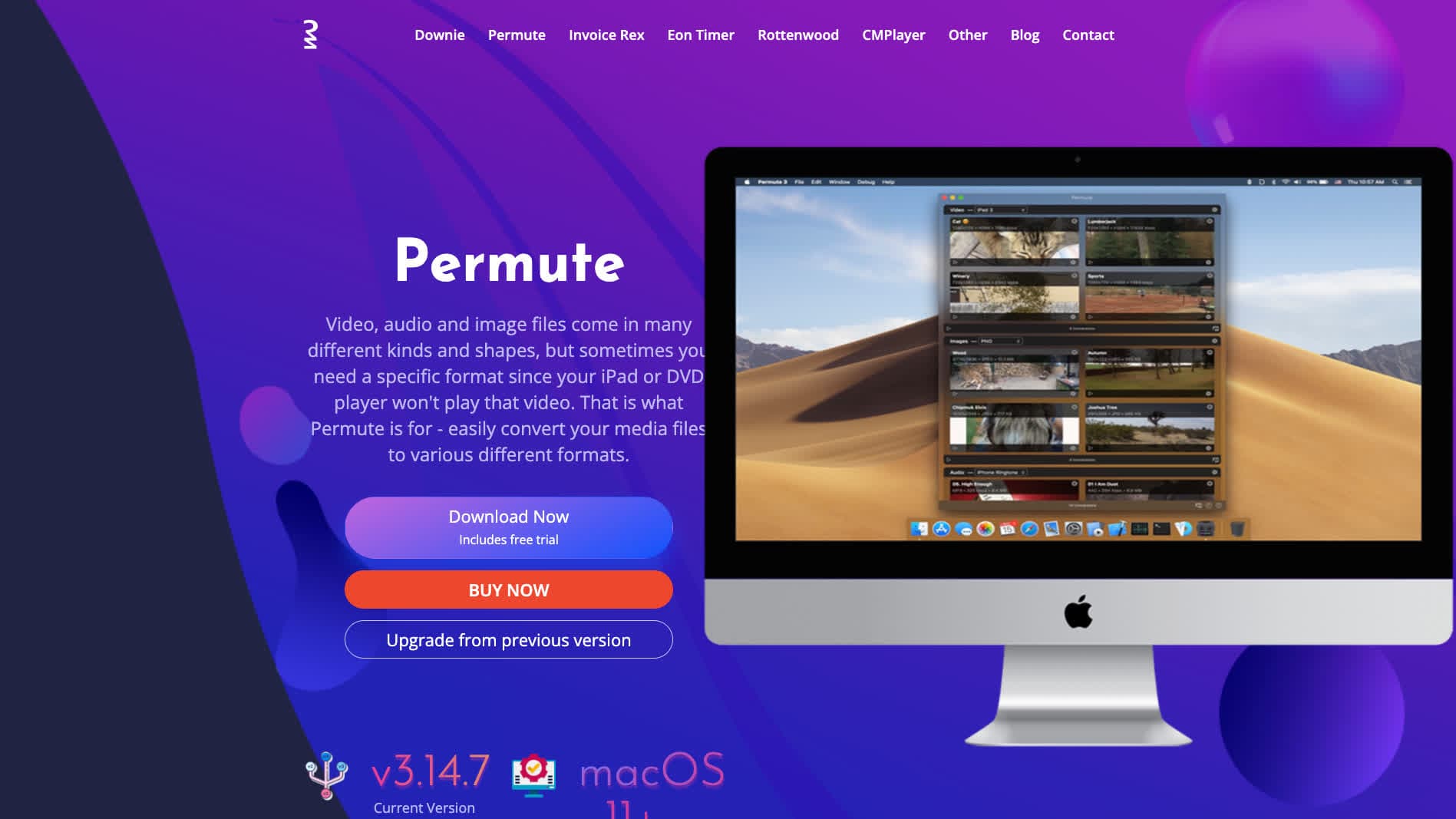
Permute is a Mac-only media converter that processes everything offline. Drag and drop video, audio, or image files, pick the output format, and Permute converts them on your machine. The interface is beautifully designed with a native Mac feel. It supports MP4, MKV, MOV, AVI, MP3, FLAC, WAV, JPG, PNG, HEIC, and many more formats.
Permute is the offline converter for Mac users who want something that looks and feels like a proper Mac app. It handles batch conversion, shows progress for each file, and integrates with macOS features like notifications. Everything processes locally with no internet required. It is available as a one-time purchase from the Mac App Store.
Pros
- Beautiful native Mac interface.
- Fully offline. No internet needed.
- Handles video, audio, and images.
- Batch conversion with drag and drop.
Cons
- Mac only.
- No document or ebook conversion.
Pricing
- One-time purchase via the Mac App Store.
How to Convert
The offline file converter for Mac, Windows and Linux.
- Converts video, audio, images, documents, ebooks and more
- Everything runs locally. Your files never leave your device
- Pay once. Access forever
Get the app on Mac, Windows and Linux
13. Adapter - Best Free Offline Mac Converter
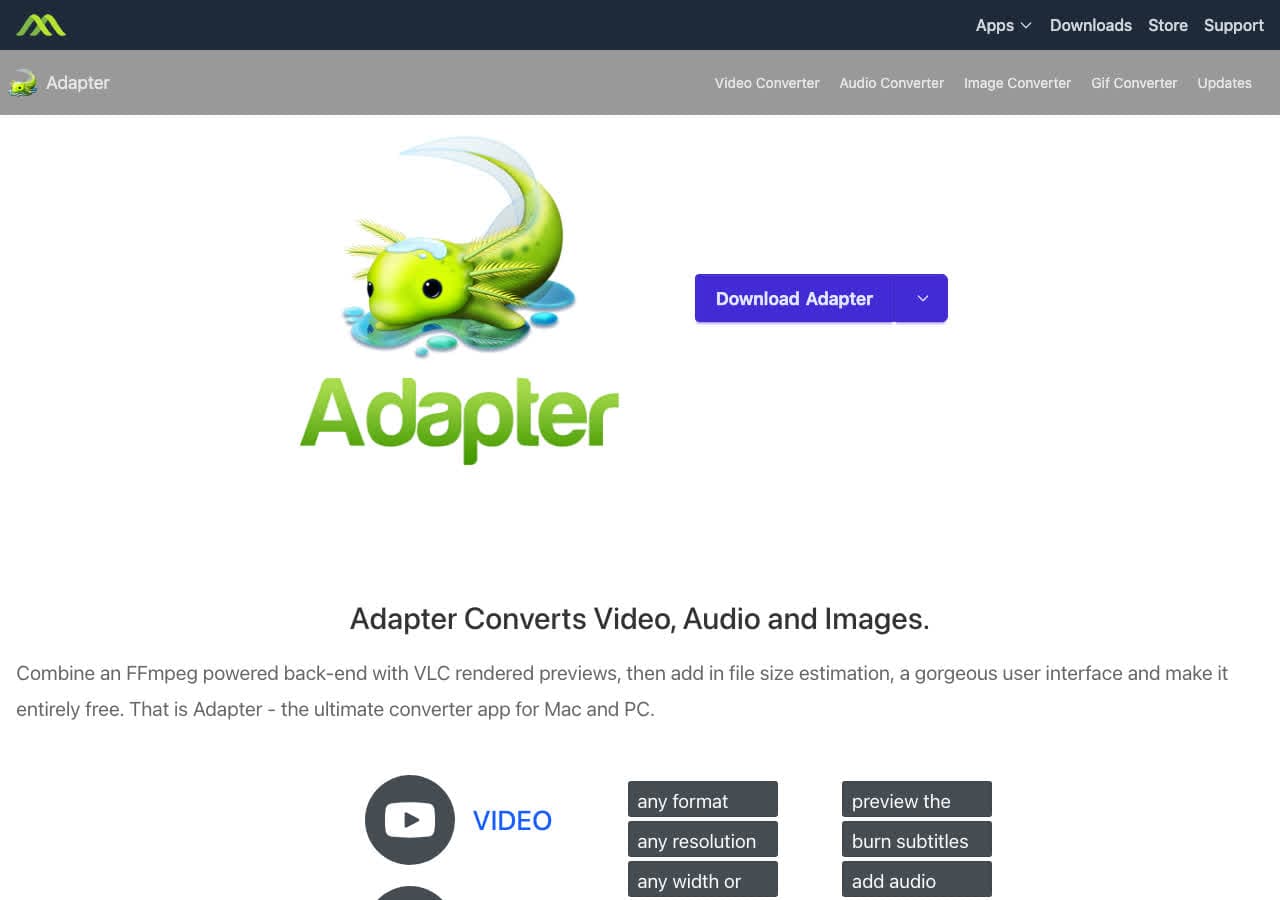
Adapter is a free media converter for Mac that works entirely offline. It converts video, audio, and image files using FFmpeg under the hood, wrapped in a clean graphical interface. Drop files in, choose the output format from presets or custom settings, and convert. No internet connection required.
Adapter is the best option for Mac users who want FFmpeg power without using the command line. It supports all the formats FFmpeg handles, including MP4, MOV, MKV, MP3, WAV, FLAC, JPG, PNG, and GIF. The app is lightweight, fast, and completely free with no watermarks or limits.
Pros
- Free with no restrictions.
- Fully offline. FFmpeg-powered.
- Handles video, audio, and images.
- Clean Mac interface.
Cons
- Mac only.
- No longer actively maintained.
Pricing
- Free (no restrictions).
14. Switch - Best Offline Audio Converter for Mac and Windows
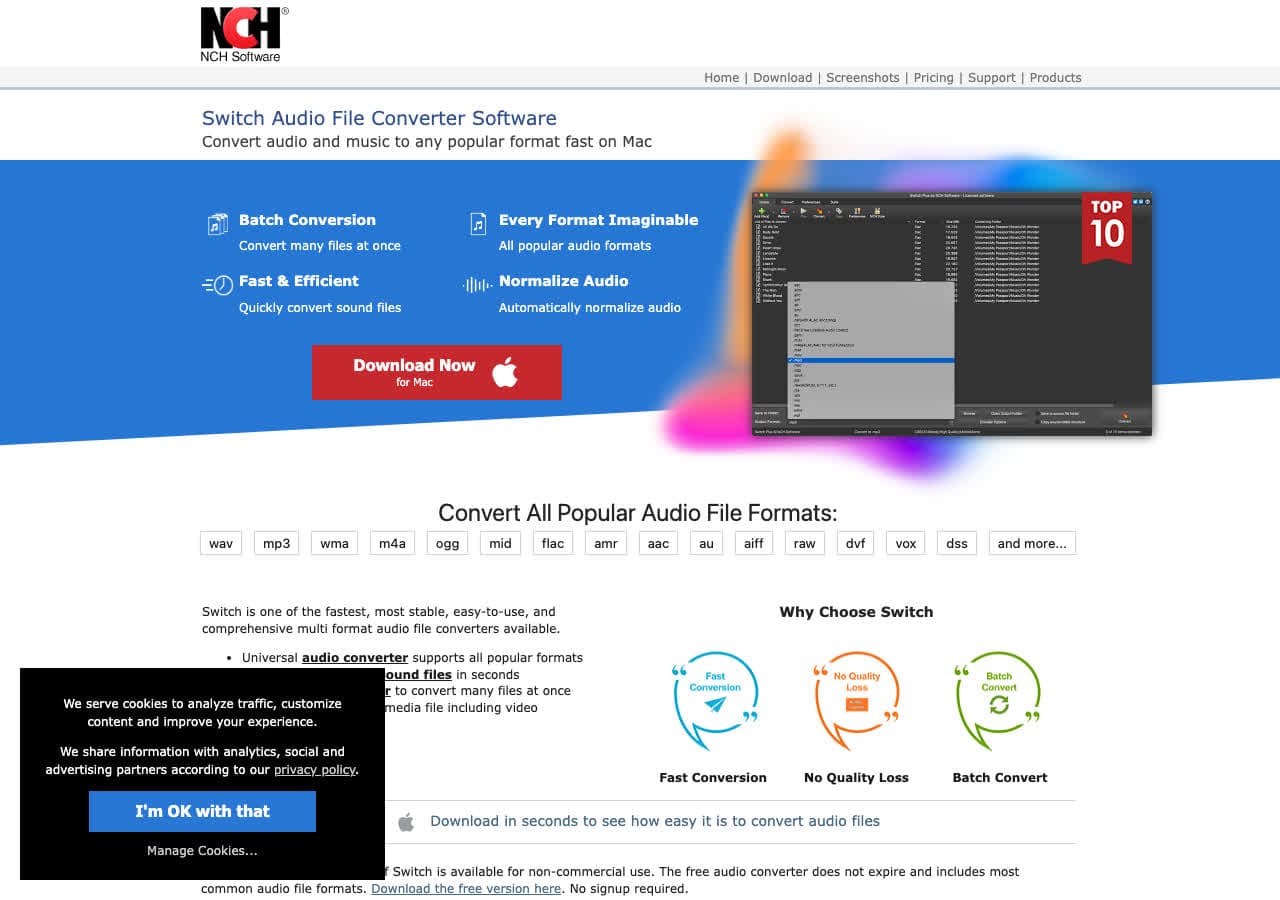
Switch by NCH Software is a dedicated audio converter that works entirely offline. It converts between MP3, WAV, FLAC, AAC, OGG, WMA, AIFF, and dozens of other audio formats. Switch supports batch conversion, so you can drop a folder of audio files and convert them all at once without any internet connection.
Switch is straightforward and focused. It does one thing well: convert audio files offline. The interface is simple, with clear format selection and quality settings. It also extracts audio from video files. Switch runs on Mac and Windows with a free version for non-commercial use.
Pros
- Fully offline audio conversion.
- Batch processing for multiple files.
- Simple, focused interface.
- Extracts audio from video files.
Cons
- Free version is limited to non-commercial use.
- Audio only. No video or image conversion.
Pricing
- Free for non-commercial use.
- Plus: One-time purchase for commercial use.
15. Wondershare UniConverter - Best Offline Premium Media Converter
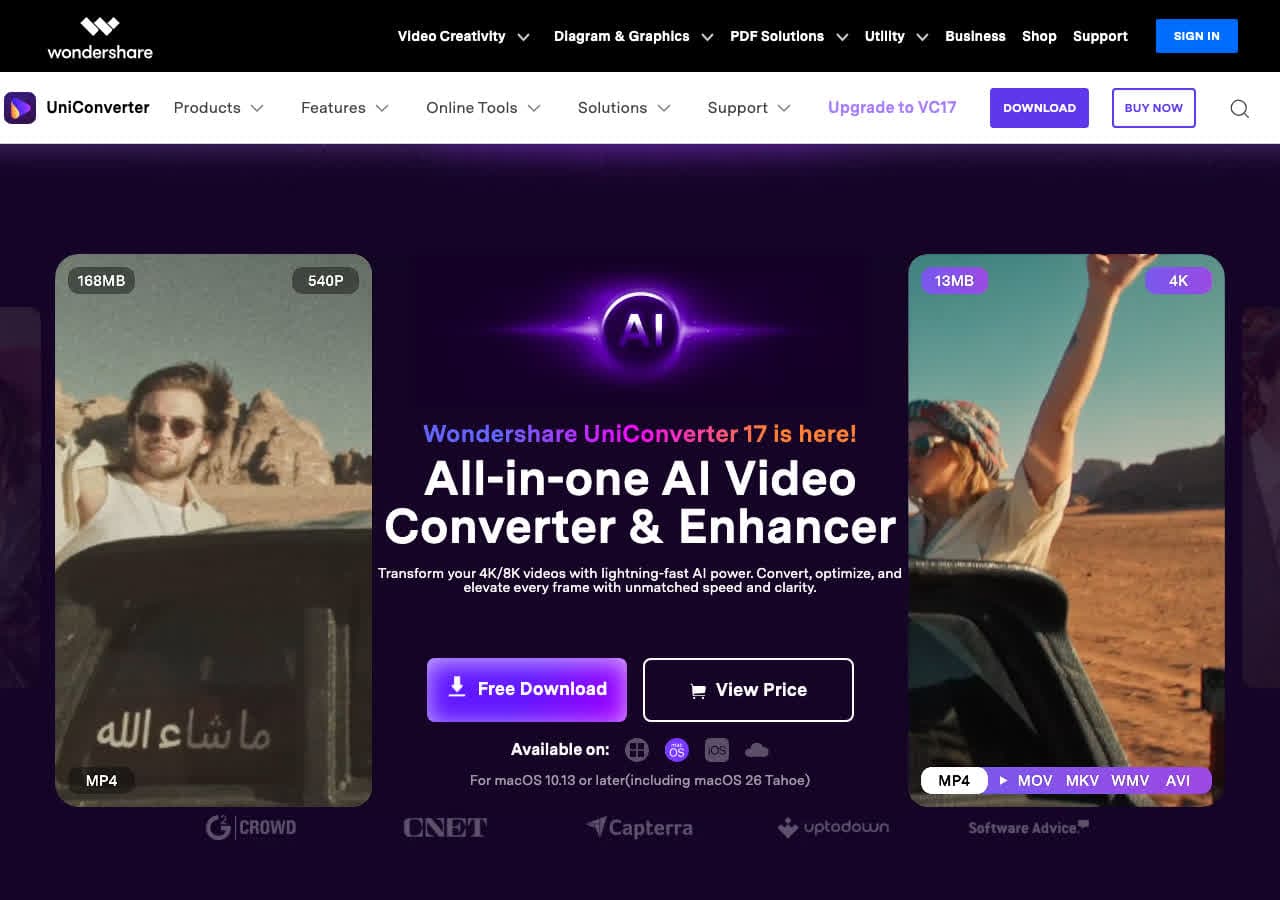
Wondershare UniConverter is a premium media converter that processes files locally on your computer. It handles video, audio, and image conversion with support for over 1,000 formats. Hardware-accelerated encoding uses your GPU for faster conversion speeds. The offline processing ensures your files stay private.
Wondershare goes beyond basic conversion with video compression, screen recording, DVD burning, and basic video editing. The batch converter processes multiple files simultaneously with multi-core optimization. It is a polished, all-in-one media tool. The downside is the subscription pricing, which makes it more expensive than most alternatives on this list.
Pros
- Offline conversion for all media types.
- 1,000+ formats supported.
- Hardware-accelerated encoding.
- Additional tools: compression, recording, DVD burning.
Cons
- Subscription pricing is expensive.
- Free trial has limited functionality.
Pricing
- Free trial: Limited features and watermarked output.
- Annual: ~$49.99/year.
- Perpetual: ~$79.99 one-time.
16. PDF Expert - Best Offline PDF Converter for Mac
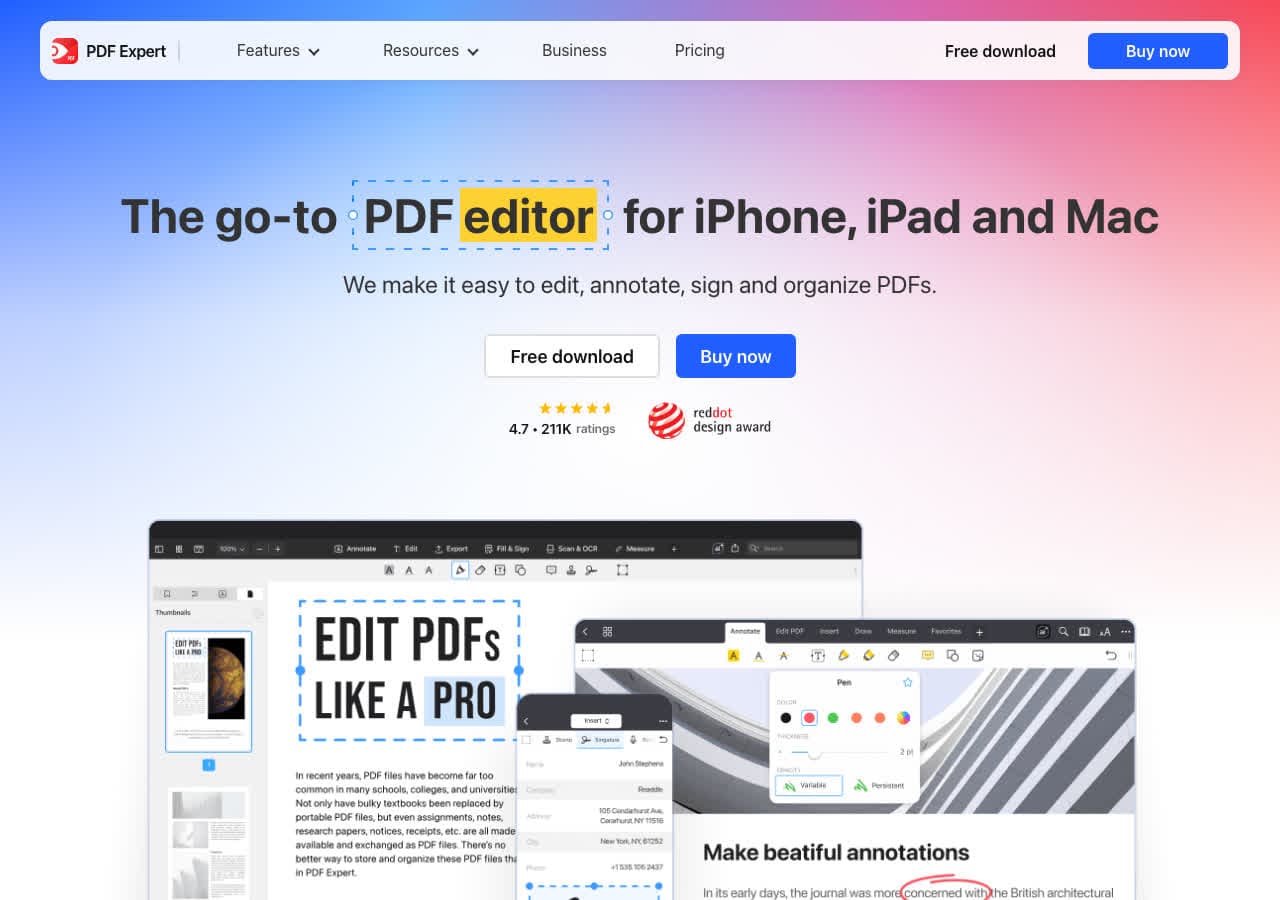
PDF Expert is a Mac PDF editor that converts PDF files to Word, Excel, PowerPoint, text, and image formats entirely offline. It also creates PDFs from other documents. PDF Expert processes everything on your Mac without uploading anything to the cloud, making it suitable for confidential legal, medical, and business documents.
Beyond conversion, PDF Expert lets you edit PDF text, annotate documents, fill forms, sign contracts, and merge or split PDFs. The conversion quality is excellent, preserving tables, images, and formatting when converting to Word. It is a polished Mac-native app with a clean interface.
Pros
- Fully offline PDF conversion.
- High-quality PDF to Word conversion.
- Full PDF editing and annotation.
- Beautiful Mac-native interface.
Cons
- Mac only (iOS also available).
- PDF formats only.
Pricing
- Subscription: ~$79.99/year.
- Lifetime: One-time purchase available.
17. Foxit PDF Editor - Best Offline PDF Converter for Windows
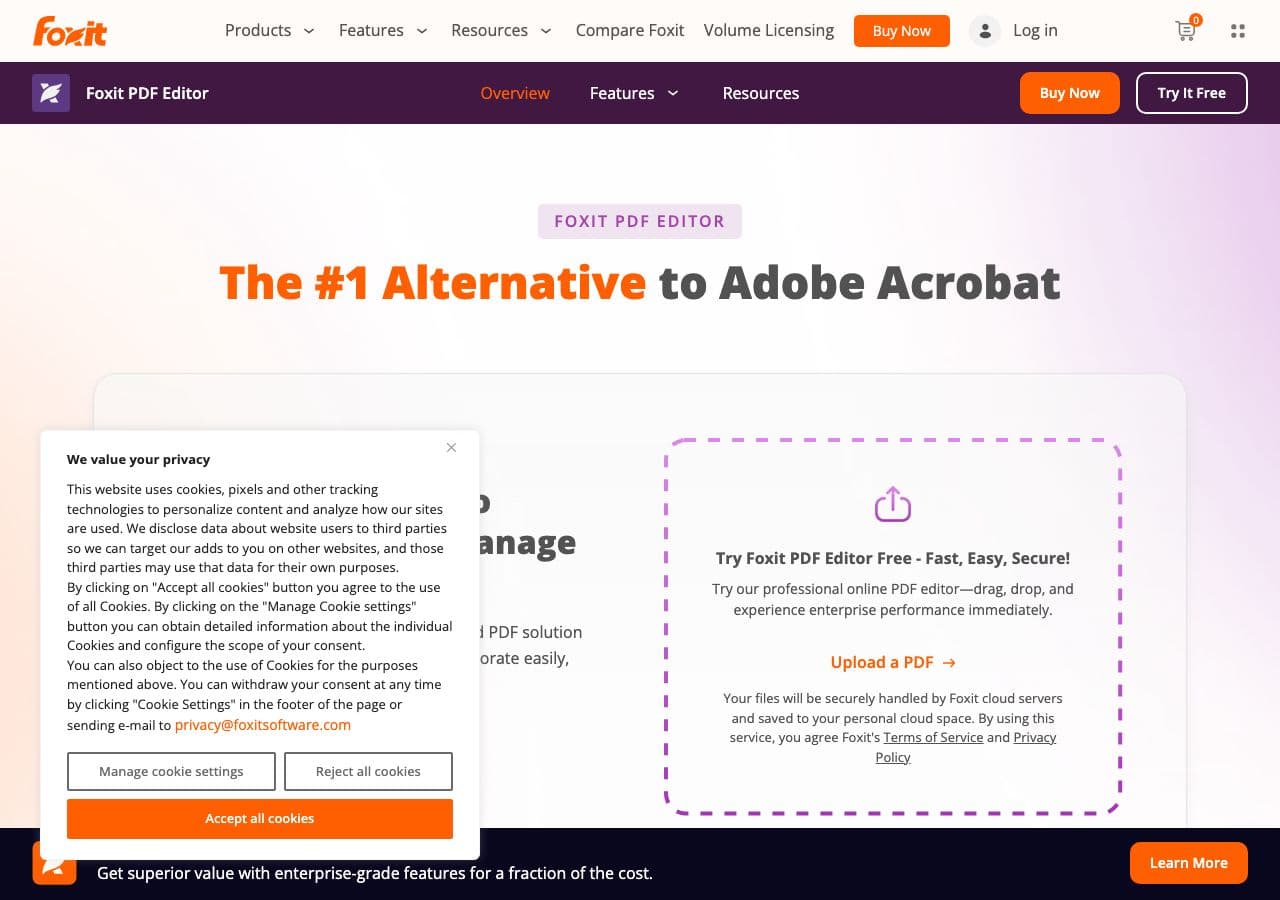
Foxit PDF Editor is a full-featured PDF editor that handles conversion offline on Windows (and Mac). Convert PDFs to Word, Excel, PowerPoint, HTML, text, and image formats. Create PDFs from any printable document using the virtual printer. All processing happens locally on your machine.
Foxit is a lighter alternative to Adobe Acrobat with faster startup times and lower resource usage. It includes PDF editing, form filling, digital signatures, OCR for scanned documents, and batch processing. For Windows users who need a professional offline PDF tool, Foxit is a strong option at a lower price than Adobe.
Pros
- Fully offline PDF conversion.
- Lighter and faster than Adobe Acrobat.
- OCR for scanned documents.
- Batch PDF processing.
Cons
- Subscription pricing.
- PDF only.
Pricing
- PDF Editor: ~$149.99/year.
- PDF Editor Pro: ~$179.99/year.
18. fre:ac - Best Free Offline Audio Converter
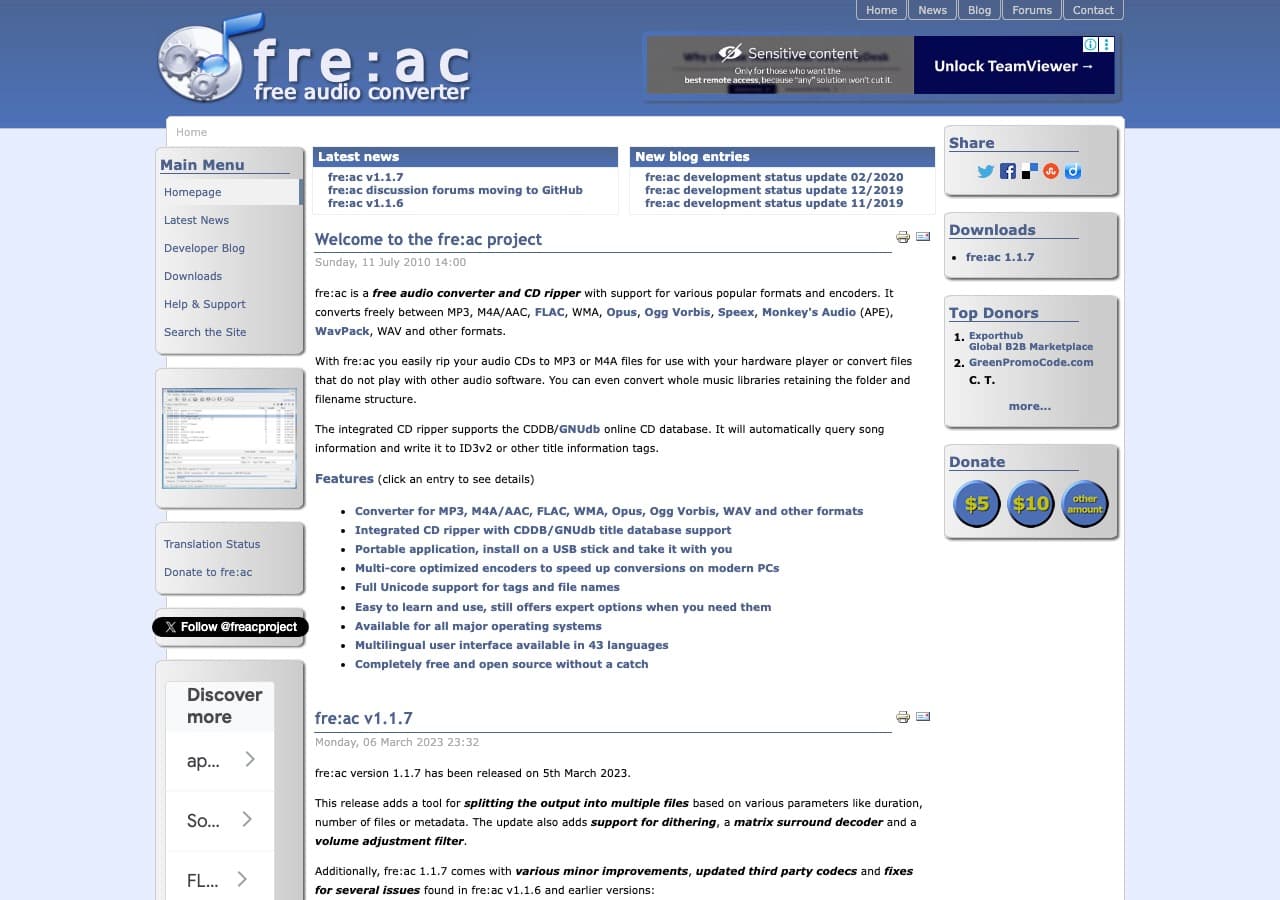
fre:ac is a free, open source audio converter that works entirely offline. Convert between MP3, FLAC, WAV, AAC, OGG, and other audio formats without any internet connection. fre:ac includes batch processing, CD ripping, and automatic track tagging. A portable version runs from a USB drive for true offline use anywhere.
fre:ac is lightweight, fast, and focused on audio. Multi-core processing speeds up batch conversions. The interface is simple: add files, pick the output format, and convert. No bloat, no upsells, no internet dependencies. It runs on Mac, Windows, and Linux.
Pros
- Free, open source, and fully offline.
- Portable version for USB drives.
- Fast batch conversion with multi-core support.
- CD ripping included.
Cons
- Audio only.
- Basic interface.
Pricing
- Free (open source, GPL licensed).
Frequently Asked Questions
Why should I use an offline file converter?
Offline converters keep your files private by processing everything on your computer. Nothing is uploaded to third-party servers. They also work without internet access, have no file size limits, handle batch processing faster than online tools, and do not require subscriptions or accounts. For sensitive files, large files, or regular conversion work, offline tools are the better choice.
Are offline converters faster than online converters?
Yes, significantly. Offline converters use your computer's CPU and GPU directly, eliminating upload and download time. A large video that takes 30 minutes to upload, convert, and download from an online service might convert in 2 minutes locally. The speed advantage grows with file size and the number of files you need to convert.
Do offline converters work without any internet at all?
Yes. Every tool on this list works without an internet connection after initial installation. Some tools may check for updates when connected, but the conversion functionality itself is fully offline. You can install these tools, disconnect from the internet, and convert files indefinitely.
What is the best all-in-one offline converter?
How to Convert handles video, audio, images, and documents in a single offline app with batch conversion. For free options, you would need to combine multiple tools: HandBrake for video, fre:ac for audio, XnConvert for images, and LibreOffice for documents. Each handles its file type well, but How to Convert consolidates everything into one app.
Final Thoughts
Offline file converters give you privacy, speed, and reliability that online tools cannot match. For an all-in-one solution, How to Convert handles every file type in a single desktop app with a one-time purchase. For free open source tools, HandBrake covers video, fre:ac covers audio, XnConvert covers images, LibreOffice covers documents, and Calibre covers ebooks. Install the tools that match your workflow and convert files securely on your own machine.
How to Convert
The offline file converter for Mac, Windows and Linux.
- Converts video, audio, images, documents, ebooks and more
- Everything runs locally. Your files never leave your device
- Pay once. Access forever
Get the app on Mac, Windows and Linux
