12 Best Online File Converters (Fast, Free, and Safe)
The 12 best online file converters in 2026, plus a quick safety checklist (privacy, retention, malware risks) so you can convert files online without getting burned.
Posted by
 Jake Manger
Online converters are convenient, but they are also where people accidentally upload sensitive documents, hit file-size paywalls, or get routed through aggressive ads. This list covers the best online file converters we actually trust in 2026, plus a simple safety checklist.
If you are converting anything sensitive (IDs, contracts, medical documents), consider using How to Convert instead. It runs locally so your files never leave your machine.
How to choose a safe online converter (quick checklist)
- Retention policy: Look for explicit auto-delete windows (e.g., 1 hour / 24 hours). Avoid sites that do not say.
- Encryption: Prefer HTTPS upload + encrypted storage. Bonus points for clear security docs.
- Malware/ads: Avoid download pages that push installers, popups, or “update your browser” banners.
- File size limits: Check free limits before you upload a 2GB video.
- Account requirements: If a site forces sign-up for basic conversions, have a backup.
1. How to Convert (Best privacy-first alternative to online tools)
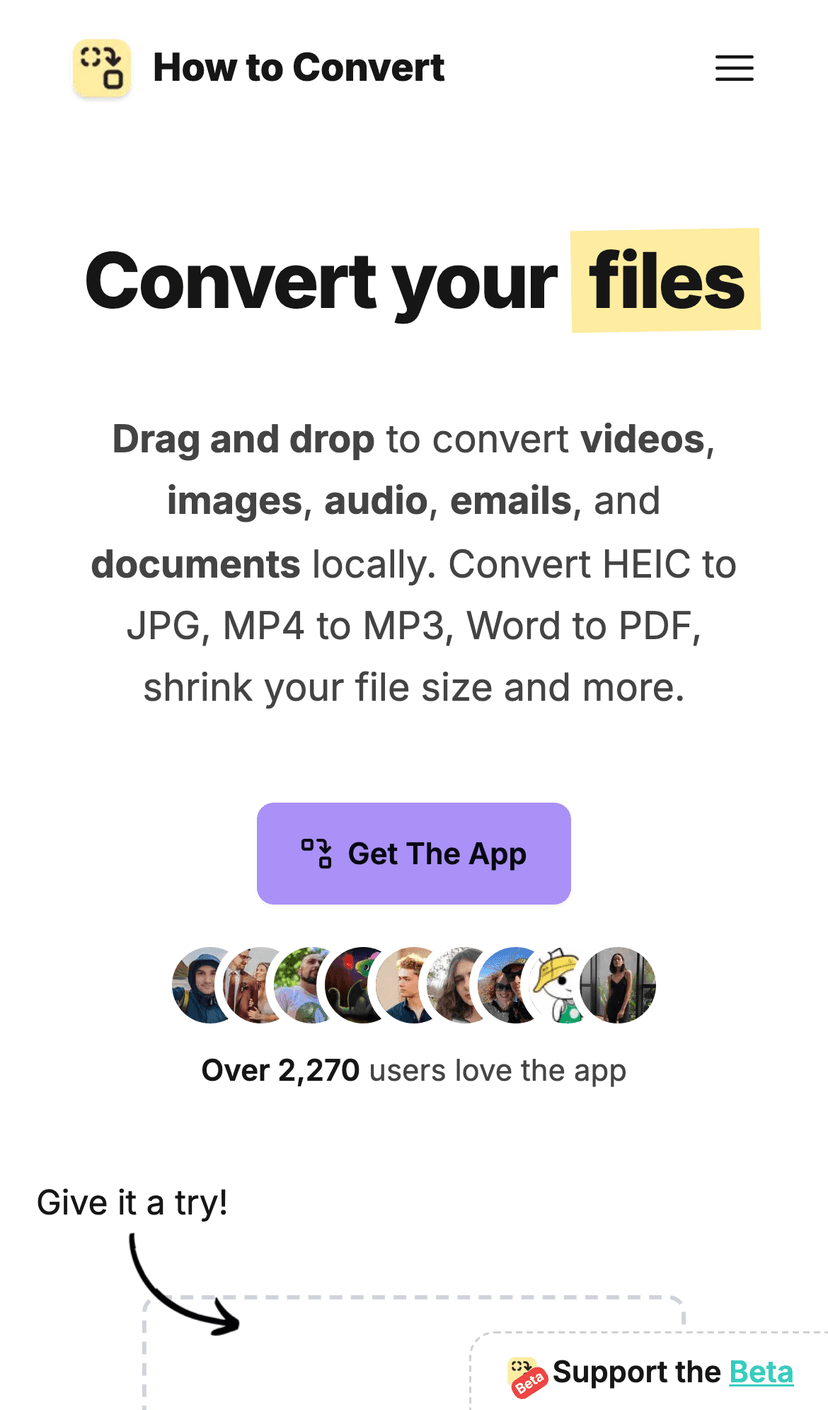
Not an online converter, but the best option when privacy matters. How to Convert runs locally, supports hundreds of formats, and avoids the biggest online risks (uploads, retention, unknown processing).
2. CloudConvert (Best for power users + format coverage)
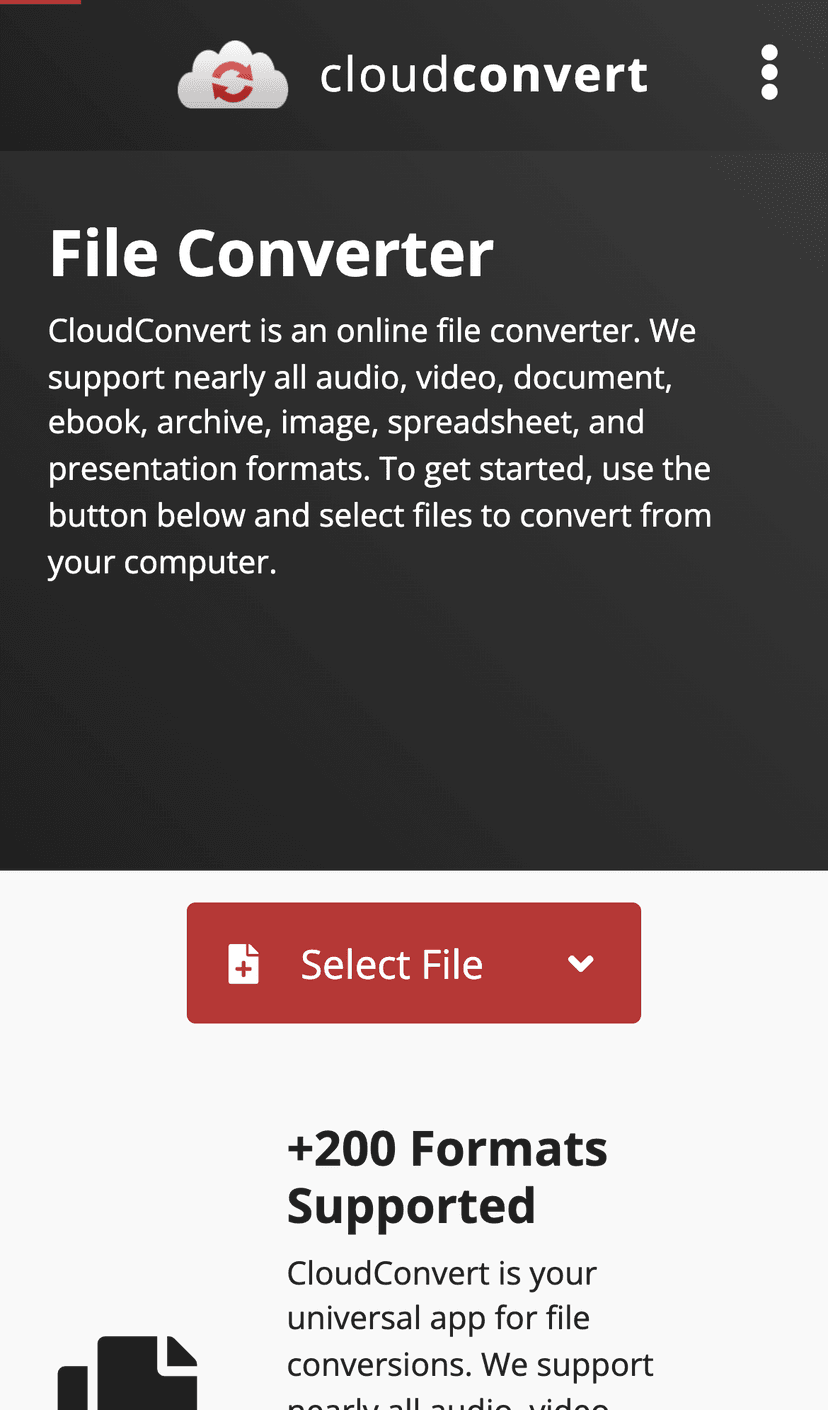
CloudConvert supports a huge range of formats and has a solid reputation. It is great for one-off conversions and more complex jobs, but pay attention to quotas/credits and avoid uploading sensitive files.
3. Convertio (Best for quick, simple conversions)
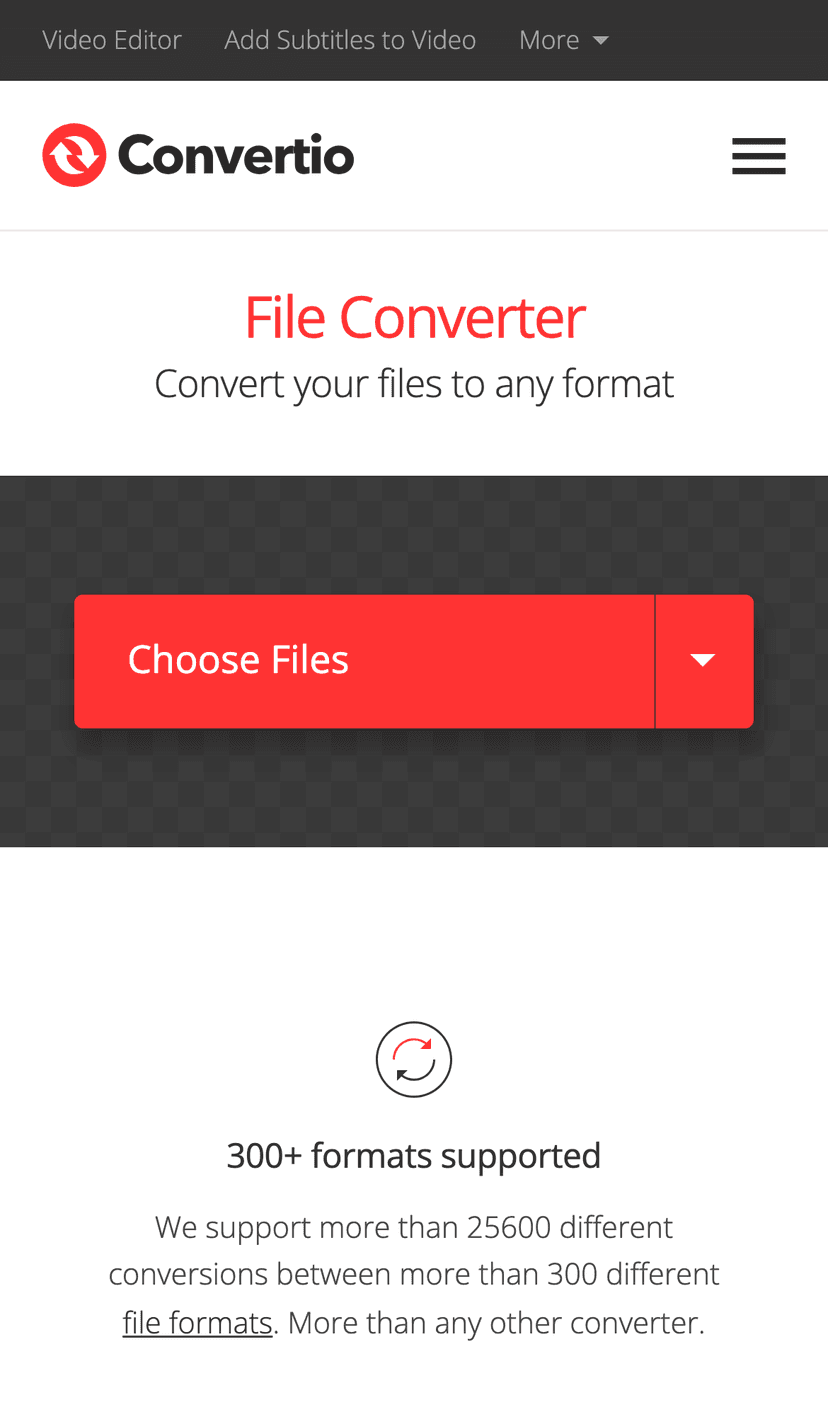
Convertio is a popular “pick a file, pick a format” converter that works well for common tasks. Watch the file-size limits on the free tier.
4. FreeConvert (Best for beginners)
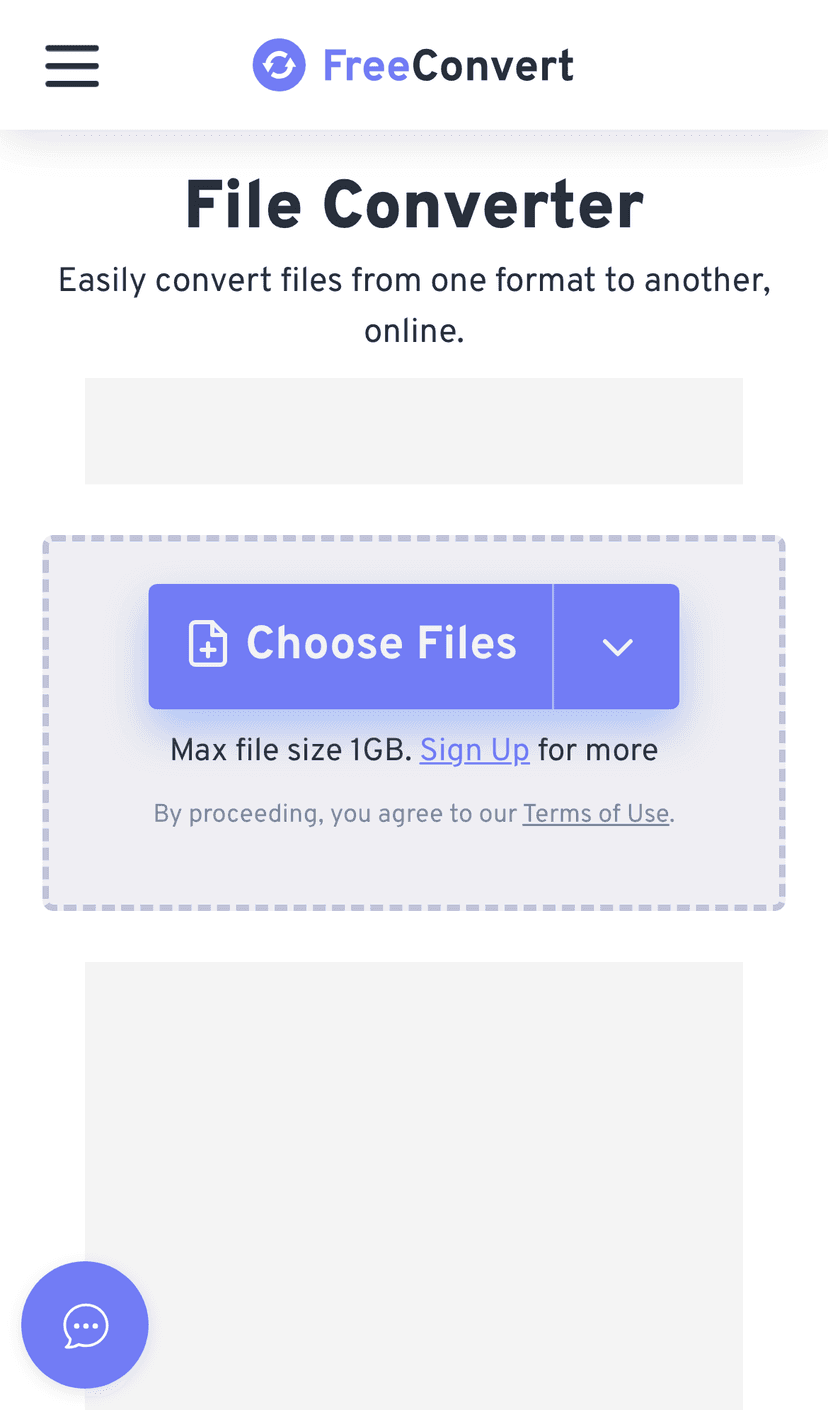
FreeConvert is straightforward and covers a wide range of conversions. As with any web tool, do not upload sensitive documents unless you are comfortable with the retention policy.
5. Zamzar (Best for legacy document conversions)
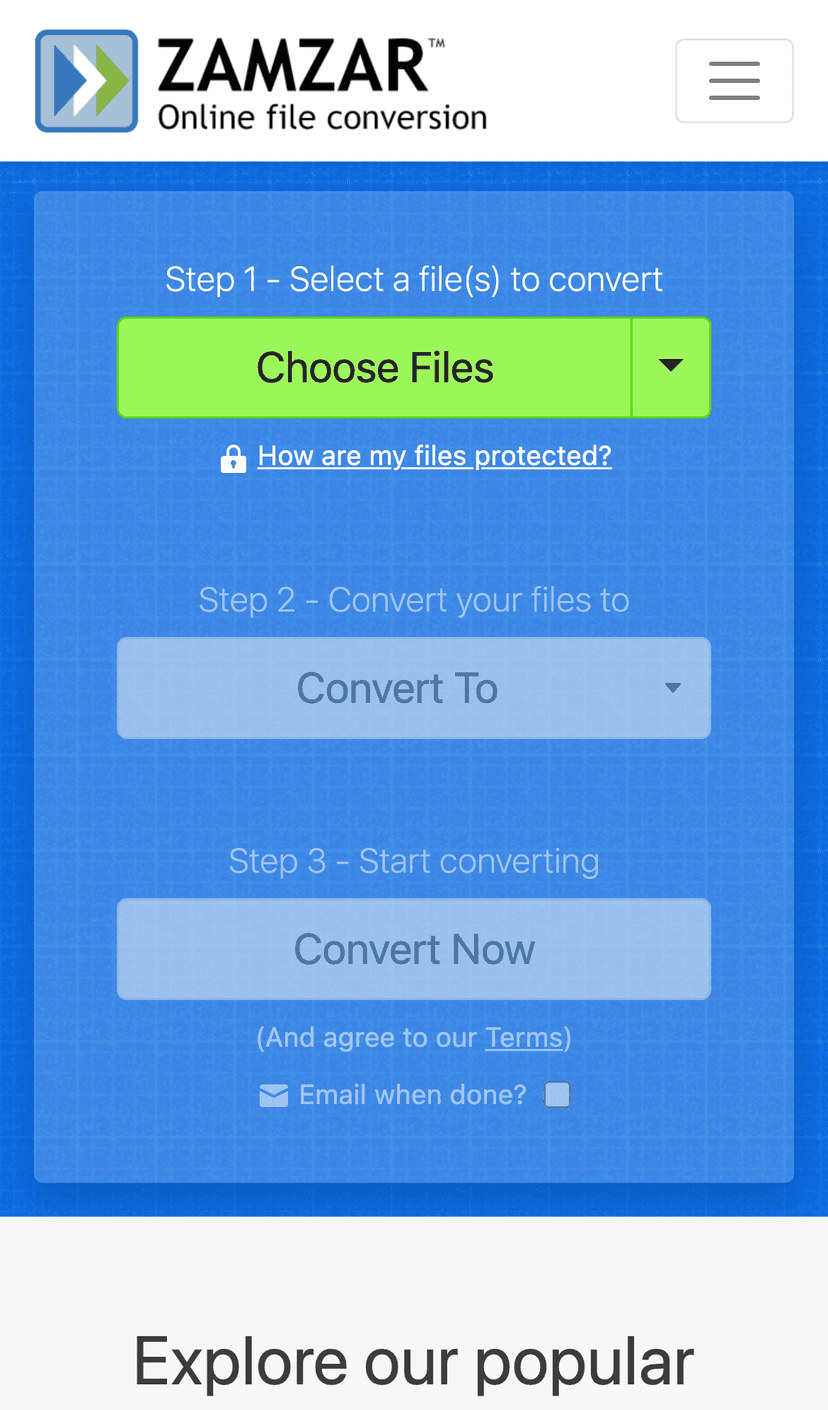
Zamzar has been around for years and is useful for older file types and simple document conversions. Expect limits on free usage.
6. Online-Convert (Good all-rounder)
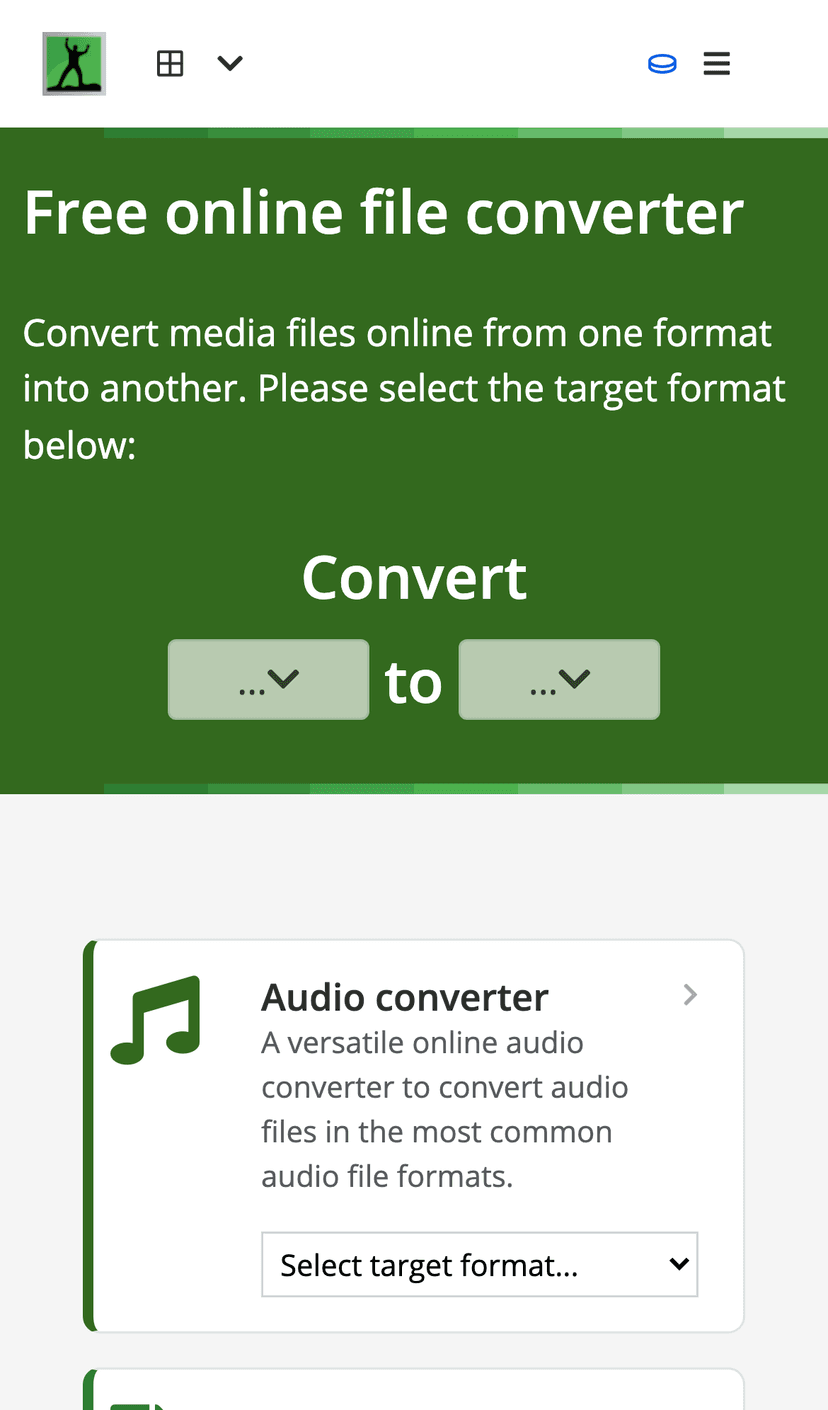
Online-Convert covers a wide range of file types (documents, images, audio, video) and usually includes a handful of advanced settings. It is handy when you need more control than a basic one-click converter.
The downside is the interface can feel cluttered and you may run into stricter limits depending on the conversion type. Use it for non-sensitive files unless you have verified the retention policy.
7. Adobe Acrobat Online (Best for PDF tasks)
Adobe's online Acrobat tools are excellent for common PDF workflows like converting PDF to Word, compressing PDFs, or exporting to images. Output quality is typically strong, especially for text-heavy PDFs.
Many features require sign-in, and availability can vary by region. If you cannot access the tool reliably, use CloudConvert or iLovePDF as alternatives.
8. iLovePDF (Best for quick PDF merges/splits)
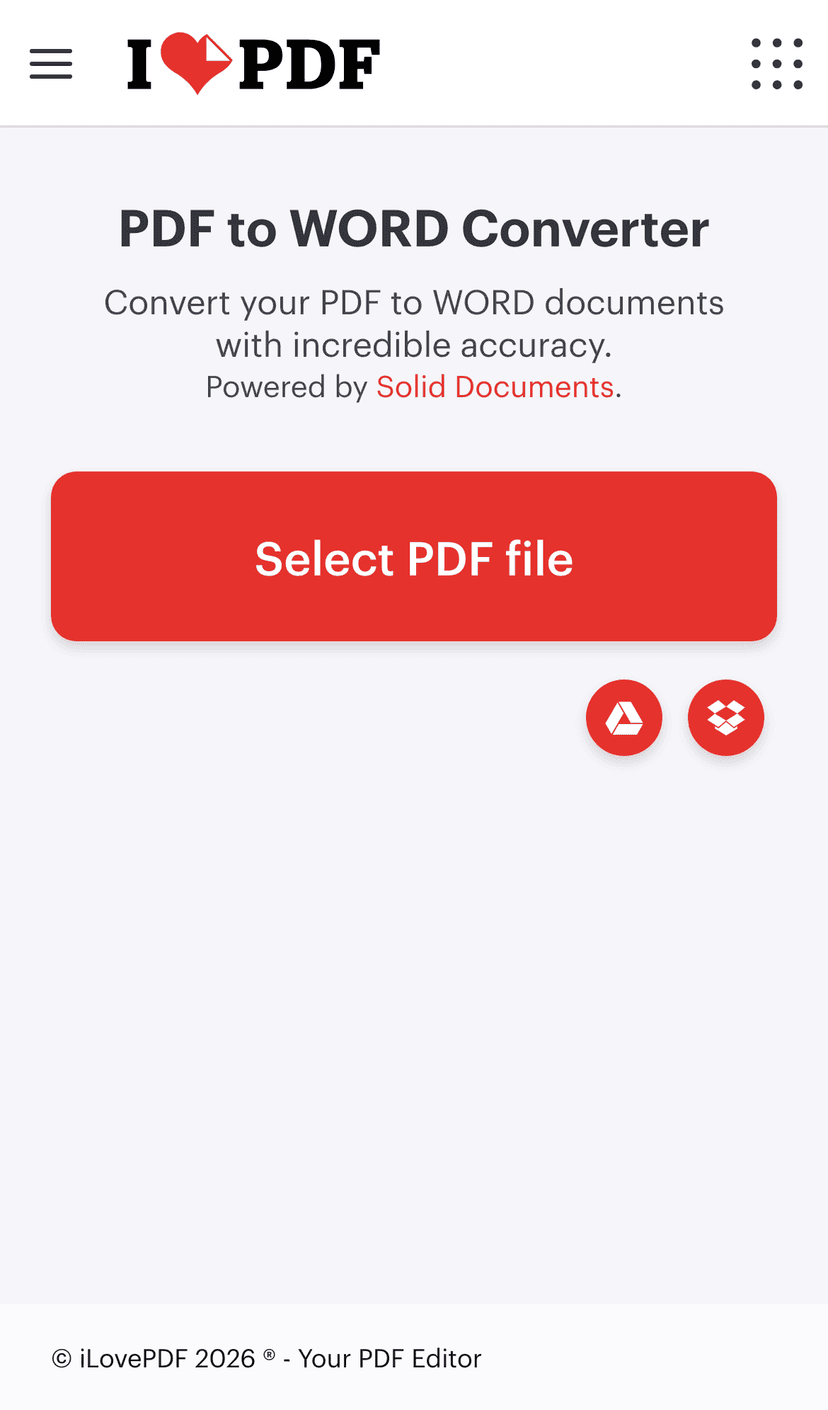
iLovePDF is one of the fastest ways to handle everyday PDF jobs: merge, split, compress, and convert PDF to Office formats. It is especially good when you need to do a couple of quick operations and move on.
Like all web PDF tools, treat uploads as sensitive by default. For confidential documents, use a local converter instead.
9. Smallpdf (Popular PDF suite)
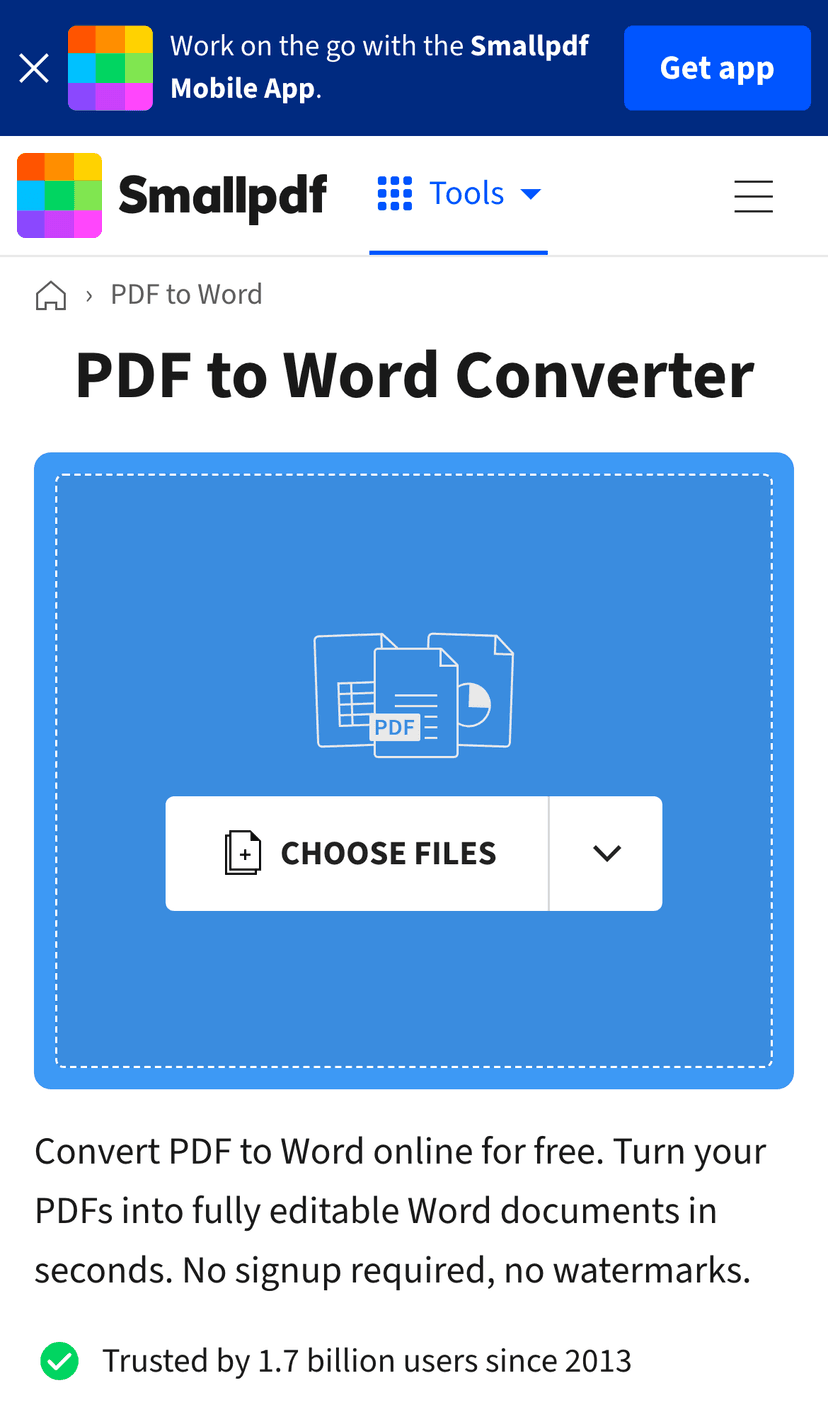
Smallpdf has a polished interface and covers most PDF conversions people actually need (PDF to Word, PDF to JPG, compress, merge, sign). It is a good “default” online PDF converter for non-sensitive files.
The free tier can be limited, and some tools may require sign-in. If you hit limits, CloudConvert is a strong backup.
10. EZGIF (Best for quick GIF edits)
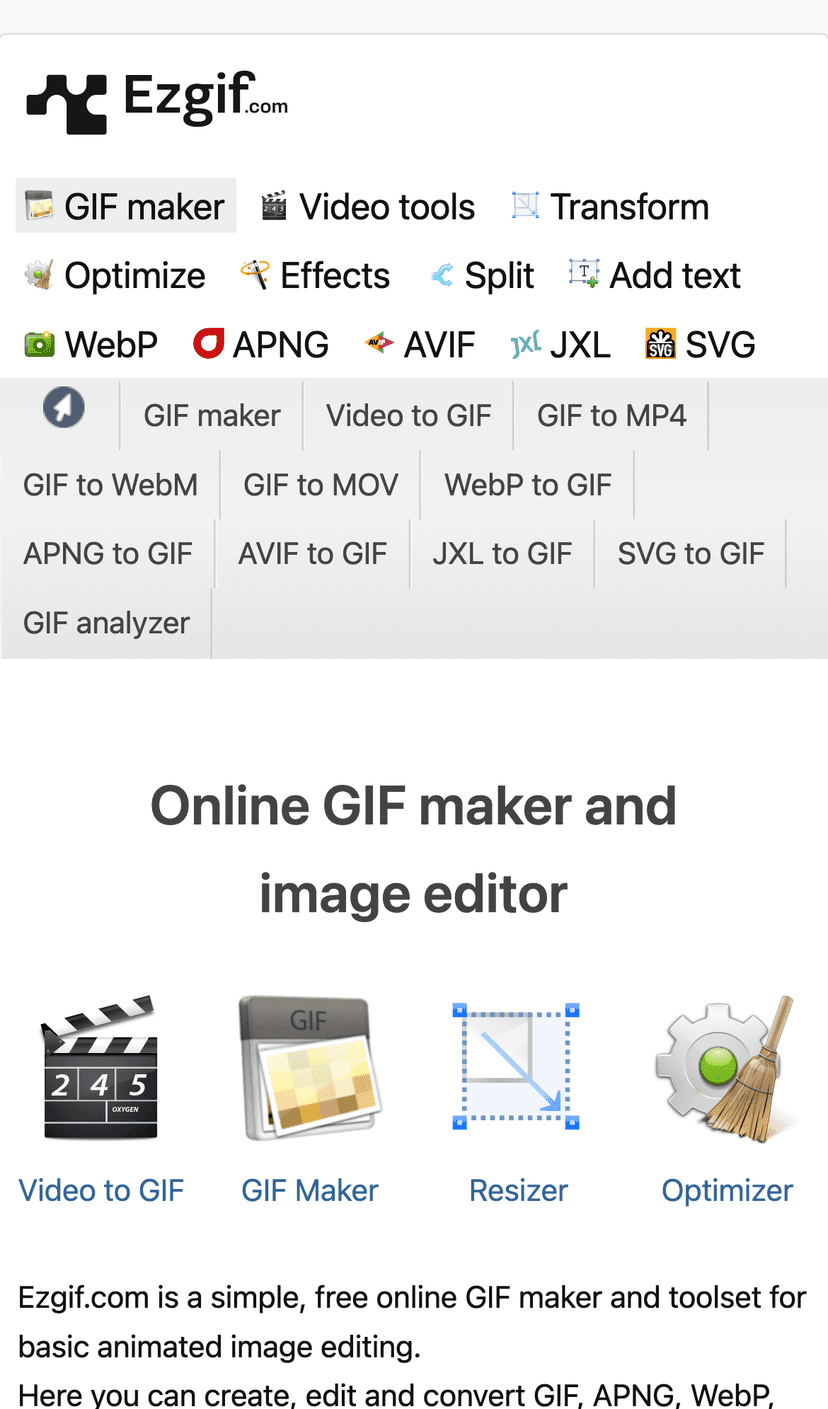
EZGIF is great when you need to quickly convert or edit a GIF: resize, crop, optimize, extract frames, or convert to MP4/WebP. It is simple and gets the job done.
The site can be ad-heavy. Be careful to click only the real download buttons.
11. ImageResizer.com (Quick image conversions)
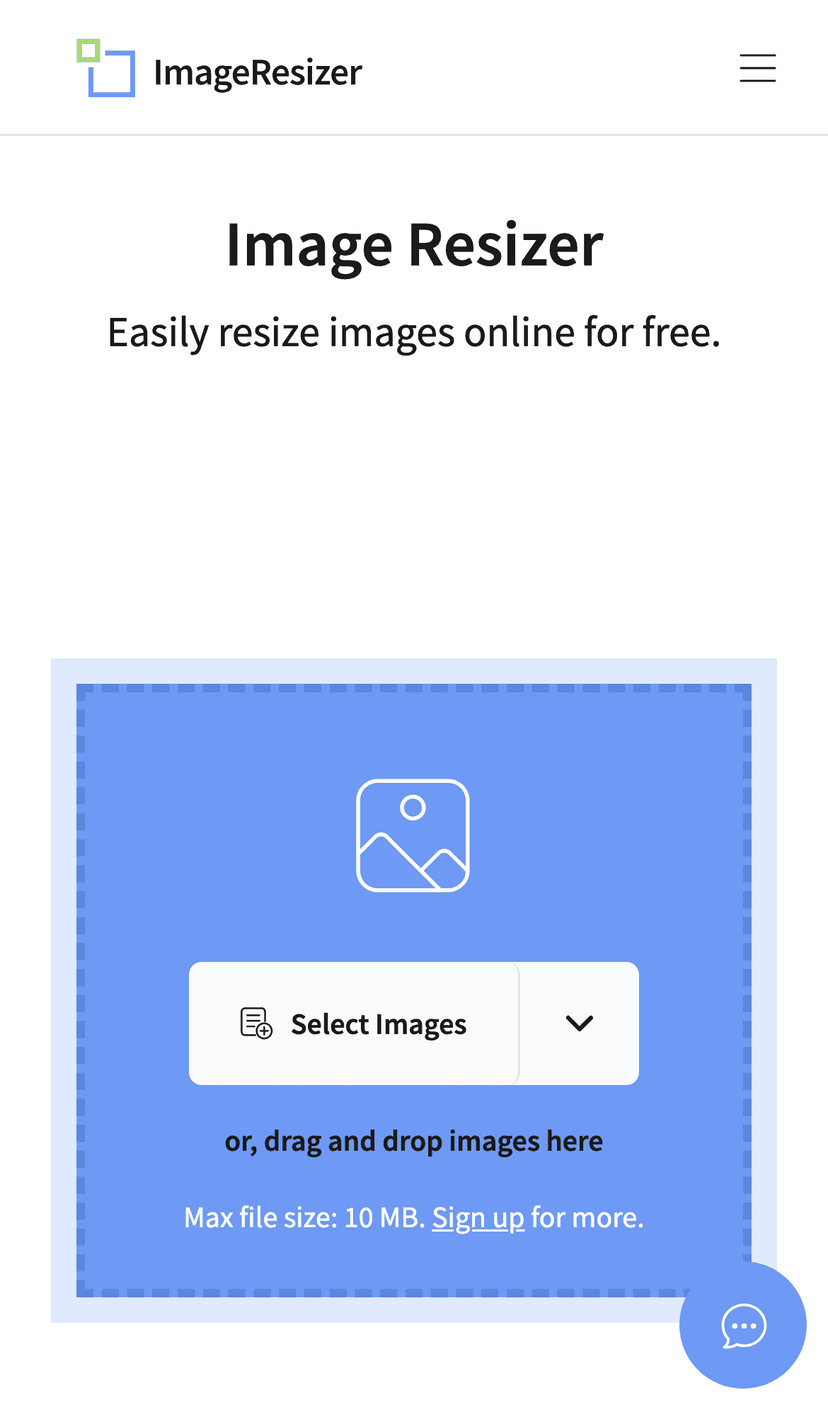
ImageResizer.com is useful for basic image tasks: resize, compress, and convert between common formats like JPG, PNG, and WebP. It is ideal when you do not need advanced controls.
For batches of images or anything private, consider doing the conversion locally.
12. Google Drive + Docs/Slides (Best “no extra tool” method)
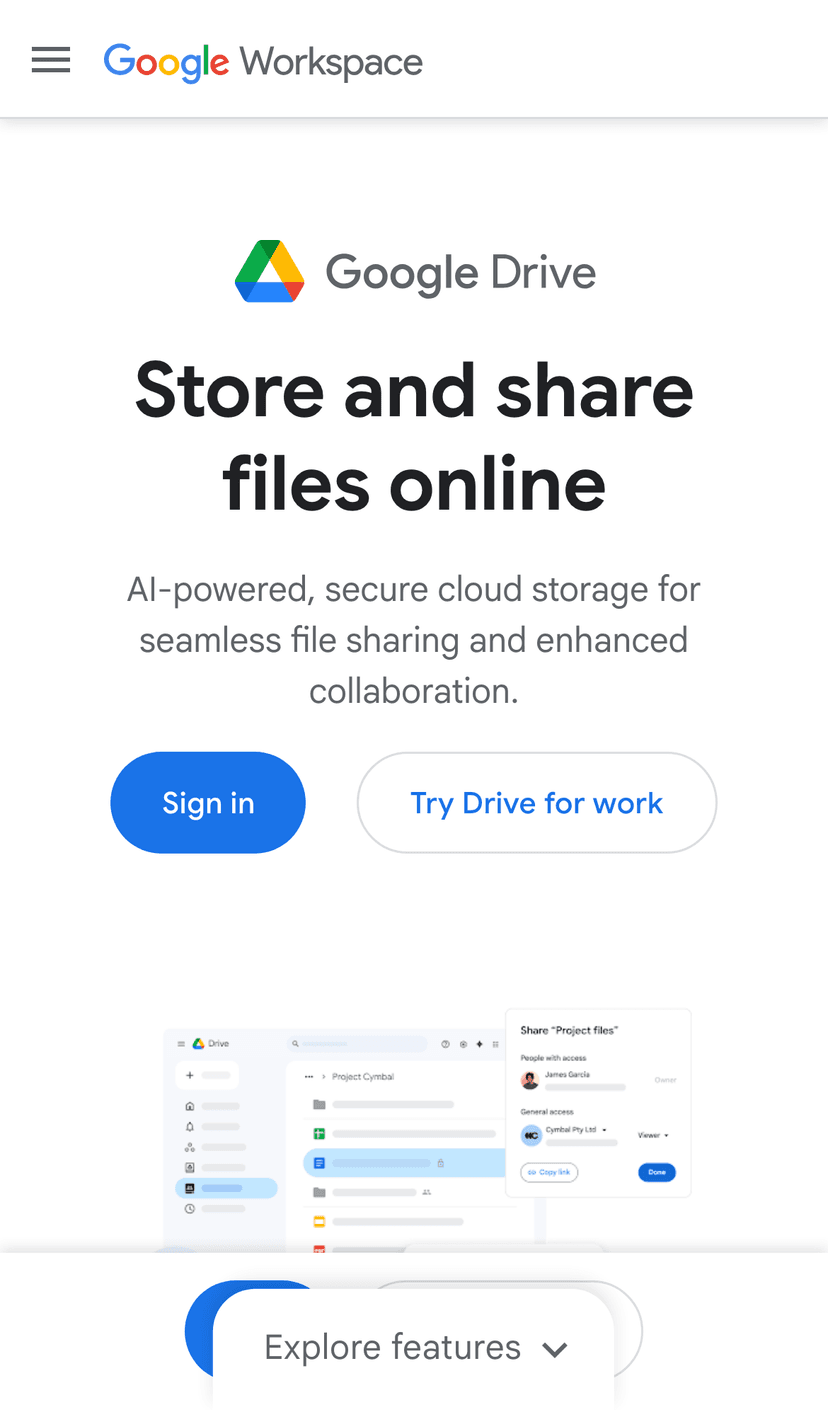
Sometimes the simplest “converter” is opening a file in Google Drive (Docs/Sheets/Slides) and exporting it. This works well for basic Office formats and quick PDF exports.
The trade-off is you are uploading the file to your Google account. If the file is confidential, do the conversion locally instead.
 How to Convert
The offline file converter for Mac, Windows and Linux.
- Converts video, audio, images, documents, ebooks and more
- Everything runs locally. Your files never leave your device
- Pay once. Access forever
Get the app on Mac, Windows and Linux
