6 Best Video Converters for Windows in 2026

If a video won’t play on the device you’re sending it to, a conversion can help. Here are six Windows options I found, including free tools and my own app, with steps for each.
1. How to Convert
Mac, Windows, Linux · $29 once
This is the one I made. How to Convert handles almost any file, so the same app works for video, music, photos and documents. You choose the output and click Convert; it finds and runs the tools for you.
1. Add your files. Drag your videos into How to Convert.
2. Choose the output and convert. Choose MP4 from the output menu and click Convert.
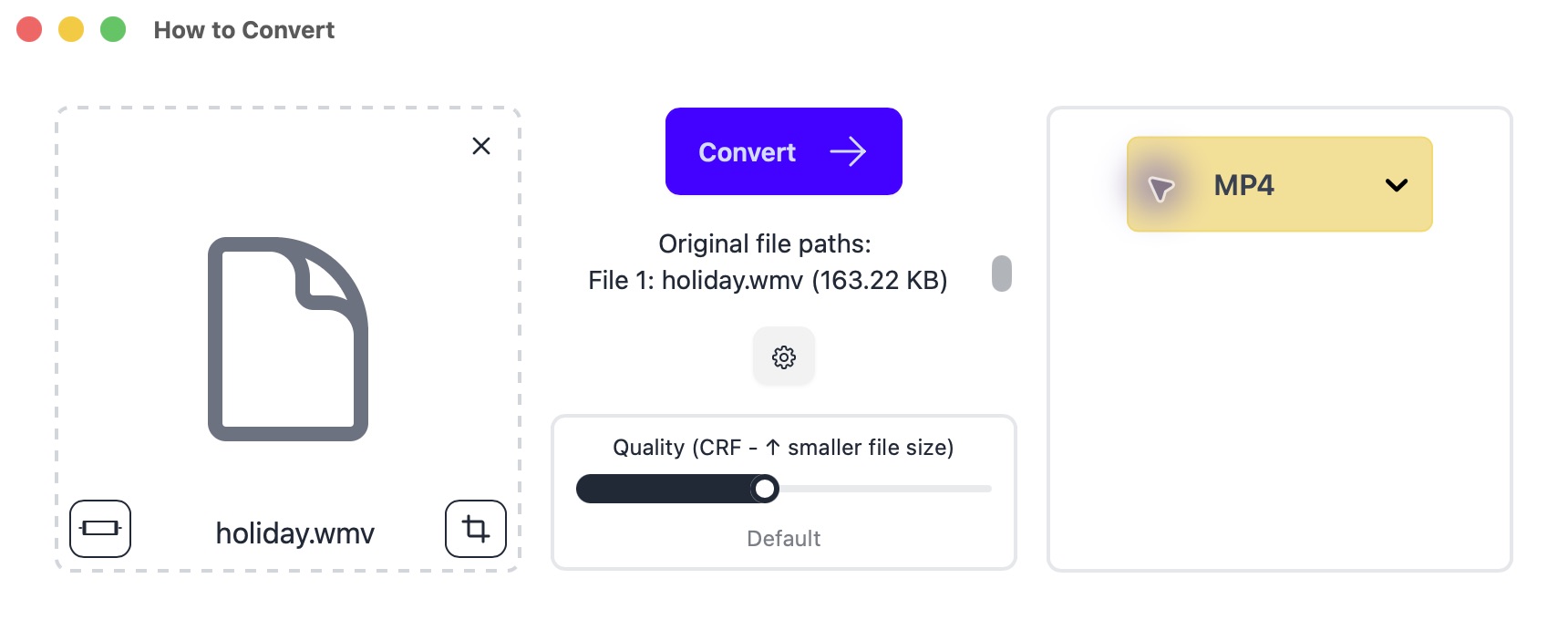
Drop in your file on the left; choose MP4 on the right. Mac app shown.
This makes a new MP4 by re-encoding the video.
Other options
2. HandBrake
Mac, Windows, Linux · Free
Free video conversion with presets and a queue. It re-encodes the picture rather than copying existing video unchanged.
- Click Open Source and select your video.
- Select General → Fast 1080p30 in Presets and check that Format is MP4. This is a useful starting point for an ordinary sharing copy.
- Choose a filename and destination, then click Start or Start Encode. Play the finished MP4 on the device that needs it.
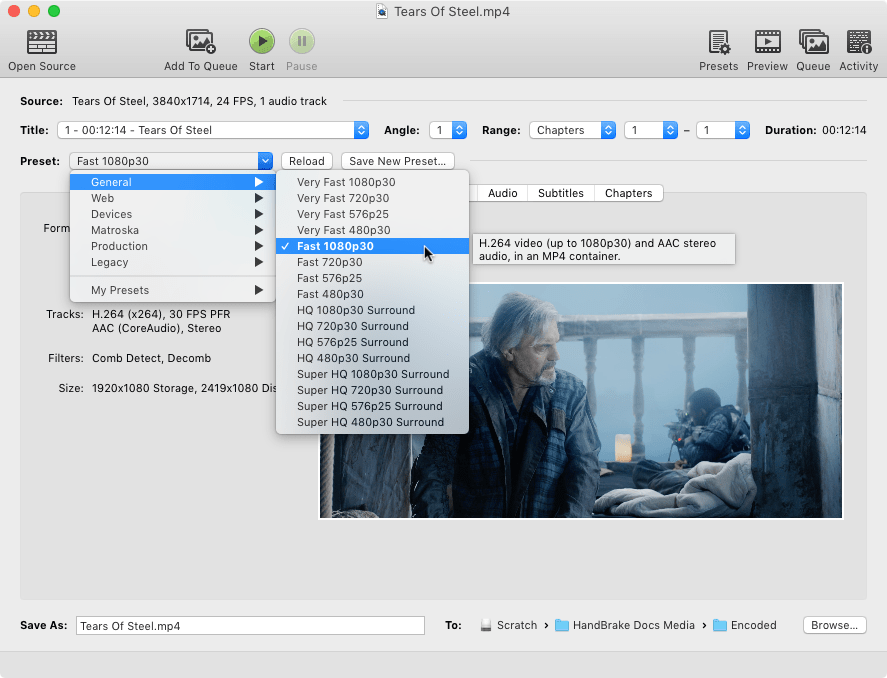
Fast 1080p30 can reduce 4K or 60 fps footage. Choose a suitable higher-resolution preset if you need to keep those details.
3. Movavi Video Converter
Mac, Windows · Paid; limited trial
A paid option with trimming tools. Trial exports have restrictions.
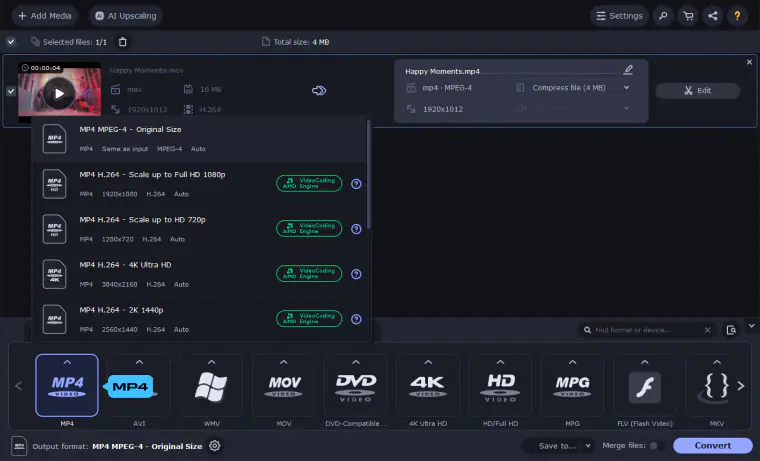
- Add your video files, choose MP4 in the output formats and pick a preset matching your resolution.
- Choose the save folder and click Convert.
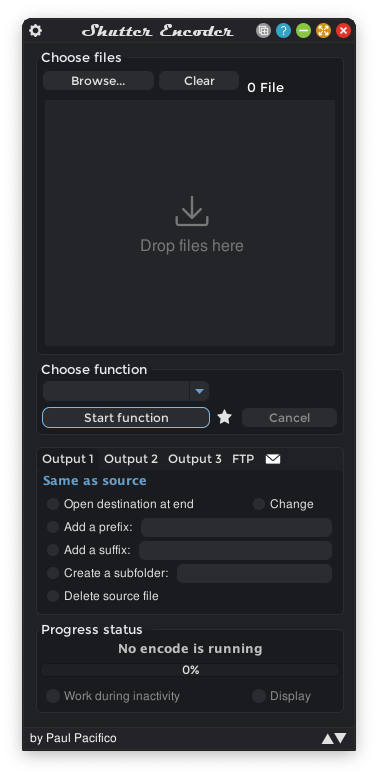
4. Shutter Encoder
Mac, Windows, Linux · Free; donations welcome
Its Rewrap option can make an MP4 without changing the video, when the video and audio formats are compatible.
- Add your files, choose Rewrap and set the extension to .mp4.
- Choose an output folder and click Start function. If the result will not play, use H.264 conversion instead.
5. XMedia Recode
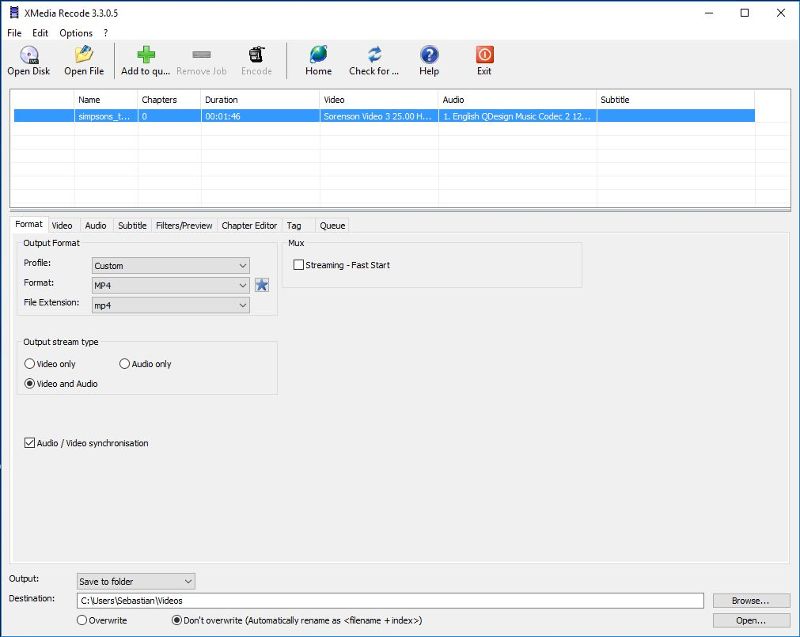
Windows · Free
A free Windows choice for people who want more control over video settings.
- Open your videos and set Format to MP4 in the Format tab.
- Choose the destination, select the files, click Add to queue, then Encode.
6. CloudConvert
Browser · Limited free tier; paid plans
An occasional conversion without installing an app. Files upload to its servers; free limits apply.
- Click Select File and choose your video.
- Set the output to MP4, click Convert, then download the result.