How to Extract Audio From MKV Without Uploading the Video
Take the soundtrack out of an MKV video and save it as MP3, WAV or FLAC without uploading the video.

If you only need the sound from an MKV video, you can turn it into an MP3 in a few clicks. You do not need to open a video editor or record the audio while the video plays.
Drag the MKV into How to Convert, choose MP3 and click Convert. The result is an ordinary audio file you can play, edit or send without the video.
What is being extracted
An MKV file is a container that can hold video, one or more audio tracks and subtitles. Extracting the audio means taking the soundtrack you want and saving it as its own file.
MP3 is the safest choice for everyday listening. Choose WAV or FLAC instead when the audio is going into an editor and you want to avoid another lossy step.
How to turn the MKV into an audio file
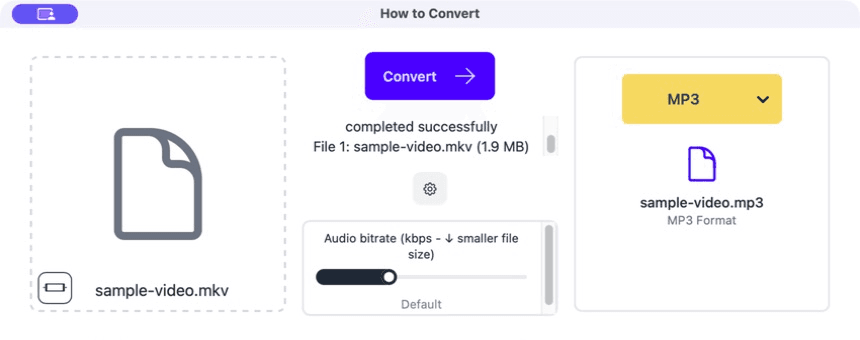
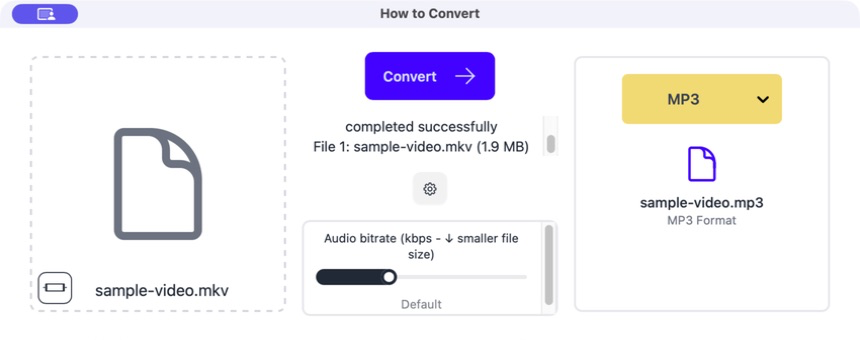
Drag the MKV into How to Convert
The video appears on the left. You can use the whole video or trim it first if you only need one section.
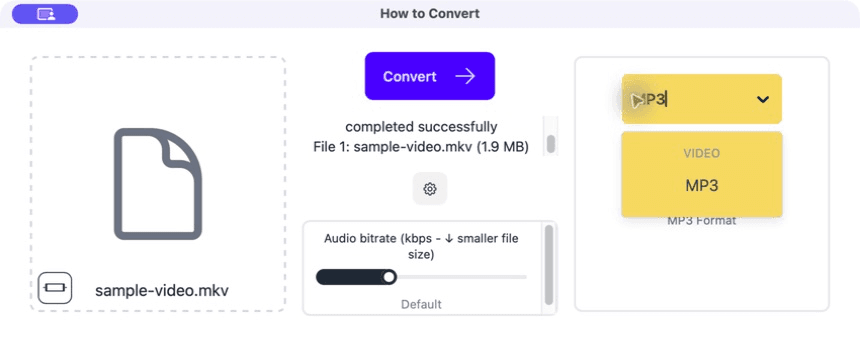
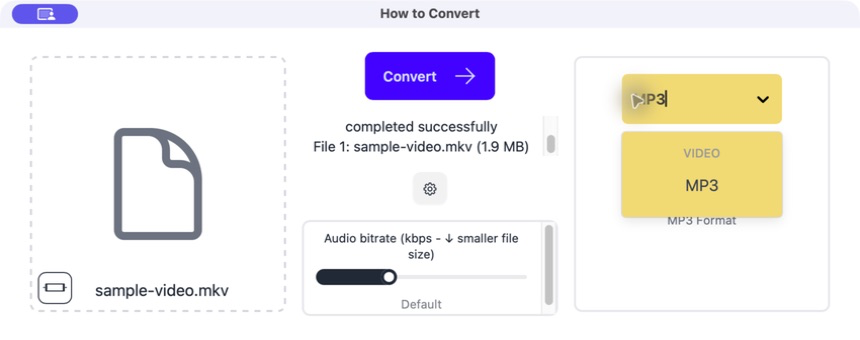
Choose MP3
Select MP3 for a small, widely compatible result. Choose WAV or FLAC if this is a production or editing file.
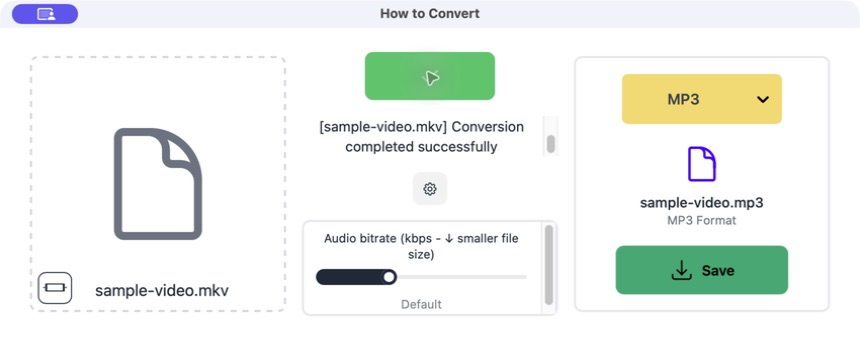
Click Convert
The app reads the audio track and makes a separate audio file. The video is not included in the output.
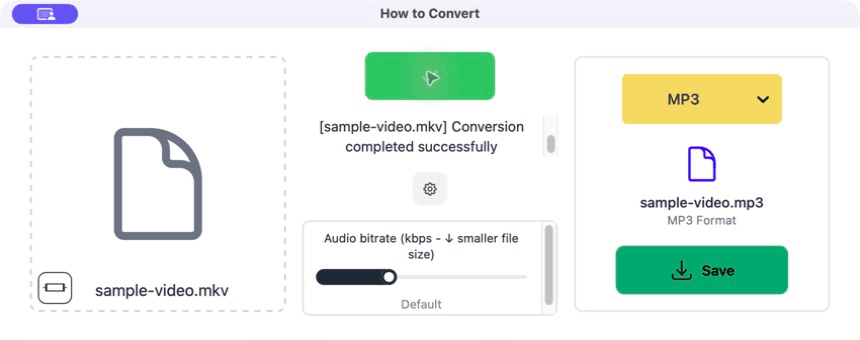
Save and check it
Listen near the start and end. Confirm that the duration is right and that you got the correct language or track.
Common problems
The audio is in the wrong language
The MKV has several tracks and the default one was used.
Select the required audio track in a tool that exposes the track list.
The MP3 is silent
The chosen track is empty, unsupported or not the main soundtrack.
Inspect the MKV in a player, note the working track and convert that one.
The audio stops early
The source has a damaged timestamp or the conversion was trimmed.
Check the MKV duration and remove any trim setting before trying again.
Frequently asked questions
Does this remove the audio from the MKV?
No. It creates a separate audio file and leaves the video unchanged.
Which output should I choose?
MP3 for normal listening, WAV or FLAC for editing and preservation.
Can I extract only part of the video?
Yes. Set the start and end before converting if the app exposes trim controls.
Will MP3 sound exactly the same?
It is a lossy format, so it changes the audio slightly to save space. Use WAV or FLAC if that is a concern.
Extra: Multiple audio tracks and direct copying
Films and recordings can contain several audio tracks: different languages, a commentary and perhaps a surround mix. A media inspector will show which one is marked as the default.
If the audio is already in a format you want, an advanced tool can copy that track without encoding it again. That is faster and avoids quality loss. Converting to MP3 is still the easiest answer when compatibility is the priority.
