18 Best File Converter Apps for Linux (Free and Paid)
The best file converter apps for Linux in 2026. Open-source and paid tools for video, audio, image, and document conversion on your Linux machine.
Posted by
 Jake Manger
Linux users tend to be comfortable with the command line, but that doesn't mean every conversion needs a terminal. Whether you want a GUI tool or a CLI powerhouse, here are 18 of the best file converters available on Linux in 2026.
1. How to Convert

How to Convert runs natively on Linux (AppImage/deb). Drag-and-drop interface, local conversion, hundreds of formats. No uploads, no subscriptions.
Pros
- Local conversion. Files never leave your machine.
- Hundreds of formats (video, audio, image, document, ebook).
- GUI drag-and-drop. No terminal needed.
- One-time purchase.
Cons
- Desktop app is paid.
Pricing
- Free: Browser converter.
- Desktop app: One-time purchase.
 How to Convert
The offline file converter for Mac, Windows and Linux.
- Converts video, audio, images, documents, ebooks and more
- Everything runs locally. Your files never leave your device
- Pay once. Access forever
Get the app on Mac, Windows and Linux
2. FFmpeg

FFmpeg is the backbone of media conversion on Linux. Almost every GUI converter wraps FFmpeg. If you know the flags, nothing beats it for power and flexibility.
Pros
- Free and open source.
- Supports virtually every media format.
- Available in every distro's package manager.
Cons
- CLI only.
- Steep learning curve.
Pricing
- Free (open source).
3. HandBrake

HandBrake provides a GUI frontend for video transcoding on Linux. Flatpak, AppImage, and distro packages available. Great presets for quick conversions.
Pros
- Free and open source.
- Hardware-accelerated encoding on supported GPUs.
- Batch queue.
Cons
- Video only.
- Limited output formats.
Pricing
- Free (open source).
4. VLC Media Player
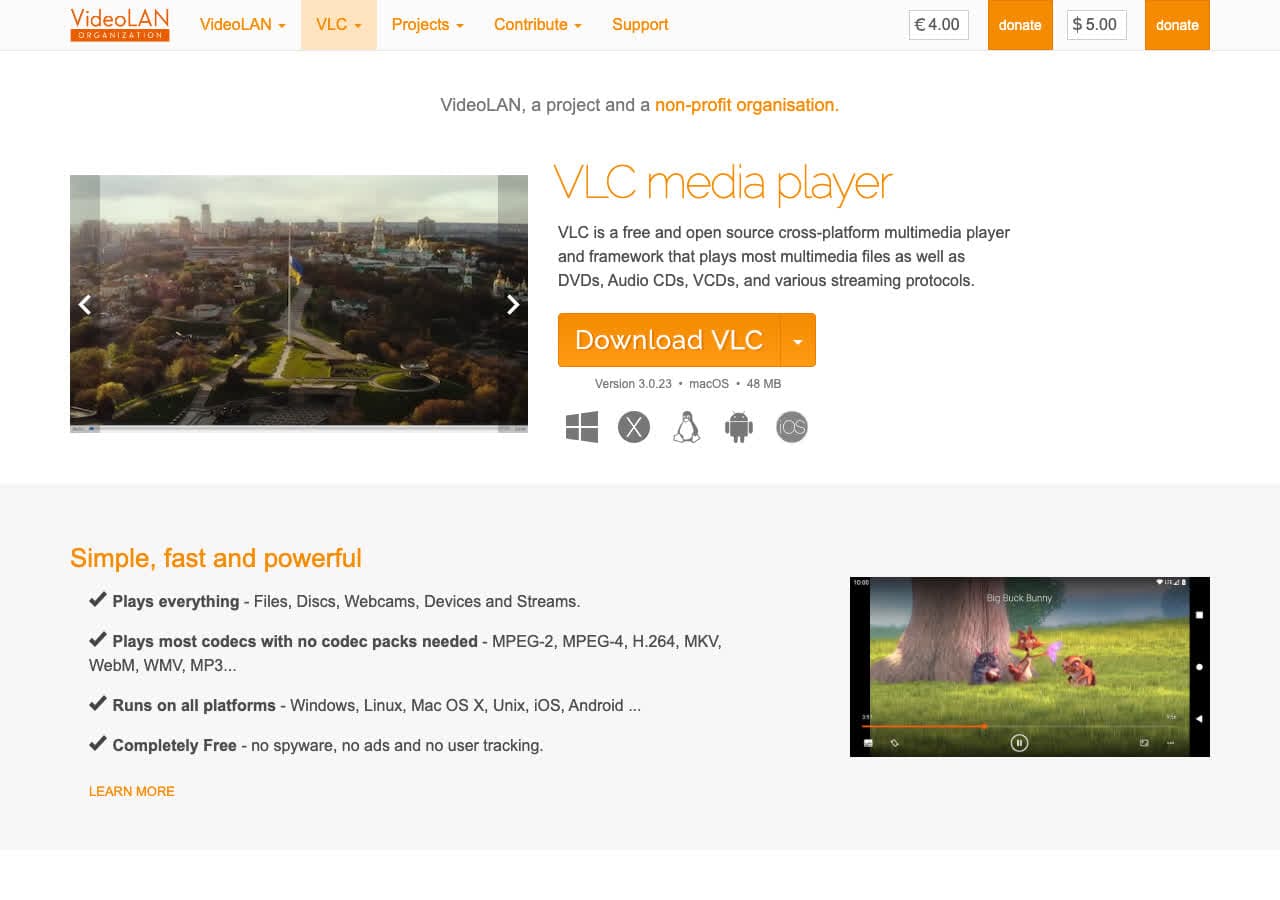
VLC plays everything and converts too. The Convert/Save feature handles audio and video format changes. Already installed on many Linux desktops.
Pros
- Free and open source.
- Huge codec support.
- Probably already installed.
Cons
- Conversion UI is buried.
- No image or document conversion.
Pricing
- Free (open source).
5. ImageMagick
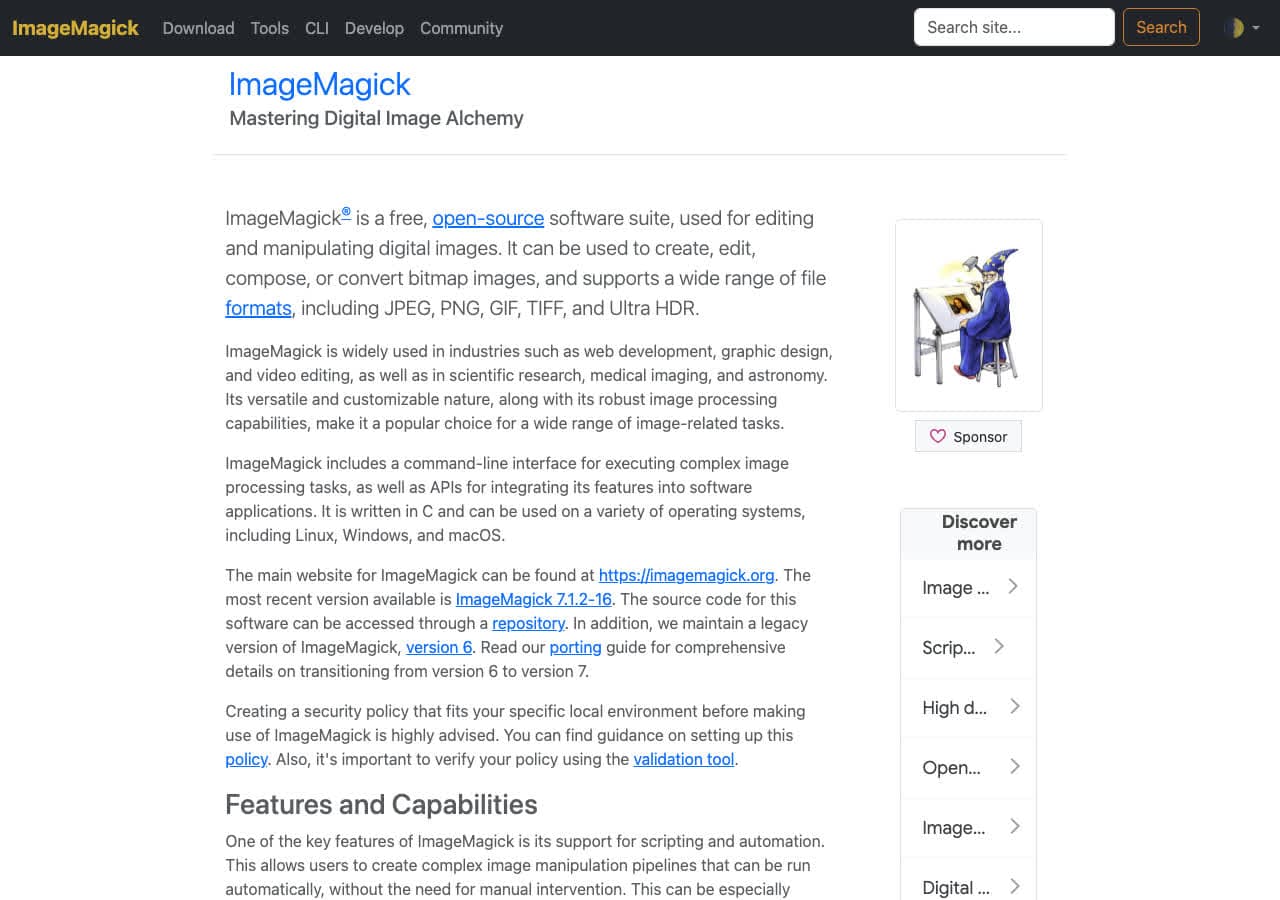
ImageMagick is the CLI standard for image conversion on Linux. 200+ formats, scriptable, and available via every package manager.
Pros
- Free and open source.
- 200+ image formats.
- Perfect for scripting and automation.
Cons
- CLI only.
- Images only.
Pricing
- Free (open source).
6. GIMP

GIMP is the free Photoshop alternative that also works as an image converter. Export to JPEG, PNG, TIFF, WebP, PSD, and more. Open a file, Export As, done.
Pros
- Free and open source.
- Professional image editing plus conversion.
- Script-Fu for batch automation.
Cons
- Overkill if you only need format conversion.
- No batch conversion UI built-in.
Pricing
- Free (open source).
7. Inkscape

Inkscape is a vector graphics editor that doubles as a converter between SVG, PDF, EPS, PNG, and other formats. Essential for anyone working with vector files on Linux.
Pros
- Free and open source.
- SVG, PDF, EPS, PNG conversion.
- CLI mode for batch conversion.
Cons
- Vector/image formats only.
- Heavy app for just format conversion.
Pricing
- Free (open source).
8. LibreOffice

LibreOffice is the default office suite on most Linux distros. Converts between DOCX, ODT, RTF, PDF, and more. The CLI mode is great for scripted batch document conversion.
Pros
- Free and open source.
- Pre-installed on many distros.
- CLI batch conversion.
Cons
- Documents only.
- Some formatting loss from Microsoft Office files.
Pricing
- Free (open source).
9. Pandoc

Pandoc is the Swiss army knife of document conversion. Markdown, HTML, LaTeX, DOCX, EPUB, PDF, RST, and dozens more. A must-have for writers and developers on Linux.
Pros
- Free and open source.
- Dozens of document/markup formats.
- Perfect for Markdown to PDF/DOCX workflows.
Cons
- CLI only.
- Text/document formats only.
Pricing
- Free (open source).
10. Calibre

Calibre is the best ebook converter on any platform. EPUB, MOBI, AZW3, PDF, and dozens more. Also a full ebook library manager. Free and open source.
Pros
- Free and open source.
- Dozens of ebook formats.
- Full library management.
Cons
- Ebooks only.
Pricing
- Free (open source).
11. XnConvert

XnConvert provides a GUI for batch image conversion on Linux. 500+ formats, chainable actions (resize, watermark, rotate).
Pros
- Free for personal use.
- 500+ image formats.
- GUI batch processing.
Cons
- Images only.
- Paid for commercial use.
Pricing
- Free (personal).
- $27 commercial.
12. Kdenlive

Kdenlive is a professional video editor for Linux, but its render/export feature doubles as a powerful video converter. Choose any codec, container, and bitrate.
Pros
- Free and open source.
- Full video editing plus export/conversion.
- Uses FFmpeg/MLT under the hood.
Cons
- Overkill for simple conversion.
- Video only.
Pricing
- Free (open source).
13. Audacity

Audacity is the most popular open-source audio editor. Import audio in almost any format, then export as WAV, MP3, OGG, FLAC, and more. Great for quick audio format changes.
Pros
- Free and open source.
- Wide audio format support.
- Full audio editing.
Cons
- Audio only.
- No batch conversion UI.
Pricing
- Free (open source).
14. SoX

SoX (Sound eXchange) is the command-line Swiss army knife for audio. Convert between dozens of audio formats, apply effects, resample, and normalize. A Linux staple since 1991.
Pros
- Free and open source.
- Dozens of audio formats.
- Built-in effects and processing.
Cons
- CLI only.
- Audio only.
Pricing
- Free (open source).
15. Ghostscript

Ghostscript is the standard tool for PDF and PostScript processing on Linux. Convert PDFs to images, merge/split PDFs, compress them, and more. Powers most Linux PDF tools under the hood.
Pros
- Free and open source.
- PDF to image, PDF merge/split, compression.
- Industry-standard PostScript interpreter.
Cons
- CLI only.
- PDF/PostScript only.
Pricing
- Free (open source, AGPL).
16. CloudConvert

CloudConvert is browser-based, so it works on any Linux distro. 200+ formats, no install. Files are uploaded to their servers.
Pros
- 200+ formats.
- No install needed.
Cons
- Files uploaded to their servers.
- Free tier limited.
Pricing
- Free: 25 conversions/day.
- From $9/month.
17. Zamzar

Zamzar is another browser-based option. 1,200+ format conversions, works on any distro. Files are uploaded to their servers.
Pros
- 1,200+ conversions.
- No install.
Cons
- Files uploaded to their servers.
- 25 MB free limit.
Pricing
- Free: 25 MB limit.
- From $18/month.
18. PDF Expert

PDF Expert by Readdle offers a web-based PDF editor that works on Linux via the browser. Convert PDFs to Word, Excel, PowerPoint, and images.
Pros
- PDF editing and conversion.
- Web version works on Linux.
Cons
- PDF only.
- Subscription pricing.
Pricing
- $79.99/year.
Final Thoughts
Linux has the richest ecosystem of free, open-source converters on any platform. For an all-in-one GUI solution, How to Convert covers the most formats with the least friction. For CLI power, FFmpeg, ImageMagick, Pandoc, and SoX are unbeatable. And for document work, LibreOffice and Pandoc have you covered.
How to Convert
The offline file converter for Mac, Windows and Linux.
- Converts video, audio, images, documents, ebooks and more
- Everything runs locally. Your files never leave your device
- Pay once. Access forever
Get the app on Mac, Windows and Linux
