18 Best MP4 to MPEG Converters in 2026 (Free and Paid)
The best MP4 to MPEG converters for 2026. Convert MP4 video to MPEG-1 or MPEG-2 for DVD authoring, legacy hardware, and broadcast workflows with these free and paid tools.
Posted by
 Jake Manger
Want to convert your MP4 to MPEG right now?
Use our free single-file MP4 to MPEG web demo. It runs locally on your device, so your file never leaves your computer. No uploads, no signup, no waiting in a queue.
Or read on for the 18 best MP4 to MPEG converters compared.
MP4 has been the default video container for over a decade, but MPEG (specifically MPEG-1 and MPEG-2) is still alive and important. Anyone burning a DVD, feeding video into older broadcast hardware, sending files to a karaoke machine, an in-car DVD player, or a legacy projector eventually runs into the same problem: the device wants MPEG, not MP4. Converting MP4 to MPEG produces a file that those older systems will actually play.
The tricky part is that not every "video converter" can output MPEG-1 or MPEG-2. Many modern apps focus on MP4, MKV, and WebM only. We tested 18 tools across Mac, Windows, Linux, and the web to find the ones that genuinely handle MP4 to MPEG conversion well, with proper codec settings, bitrate control, and audio sync. Whether you need a one-off conversion or a batch of files for DVD authoring, one of these will get the job done.
1. How to Convert (I built this one) - Best Local-First MP4 to MPEG Converter
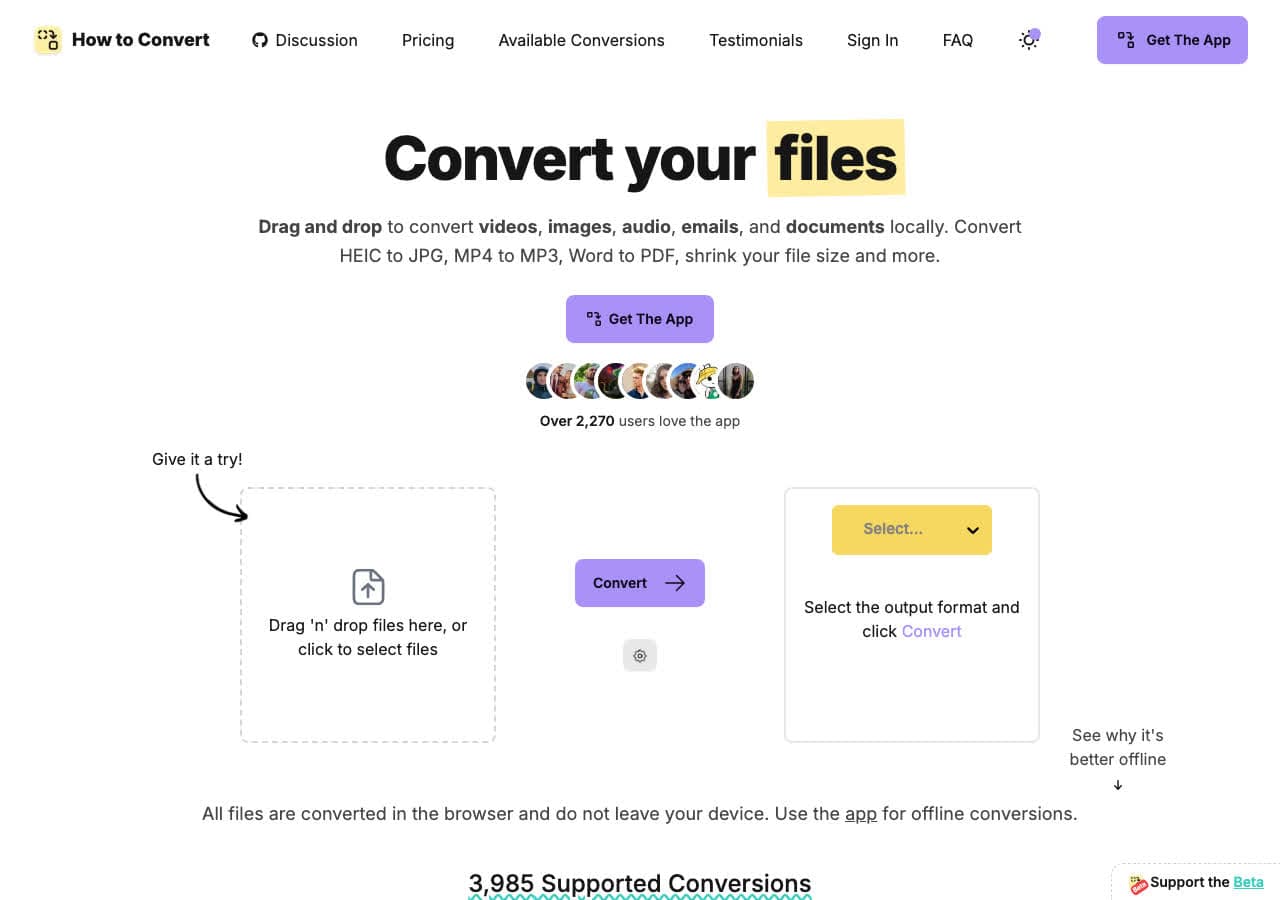
How to Convert converts MP4 to MPEG locally on your computer. Drop the MP4 file into the app, choose MPEG as the output, and convert. Nothing is uploaded. The desktop app handles batch conversion, so you can select as many MP4 files as you like, drag them in, and convert them all to MPEG in one pass. There is also a free browser-based MP4 to MPEG converter for one-off conversions.
For DVD authoring or feeding files into older hardware, local-first conversion matters. You avoid waiting on uploads, you avoid file size limits, and you keep private recordings off random web converters. How to Convert also handles MP4 to MKV, MP4 to MOV, and dozens of other format combinations from the same app, so it doubles as your general file converter.
Pros
- Local conversion. Files never leave your device.
- Batch convert entire folders of MP4 to MPEG.
- Handles video, audio, image, and document formats from one app.
- One-time purchase. No subscription.
- Works on Mac, Windows, and Linux.
Cons
- Desktop app is a paid one-time purchase.
- Web demo handles one file at a time; batches require the desktop app.
Pricing
- Free: Browser converter for common formats.
- Desktop app: One-time purchase, all platforms.
 How to Convert
The offline file converter for Mac, Windows and Linux.
- Converts video, audio, images, documents, ebooks and more
- Everything runs locally. Your files never leave your device
- Pay once. Access forever
Get the app on Mac, Windows and Linux
2. FFmpeg - Best Command-Line MP4 to MPEG Converter
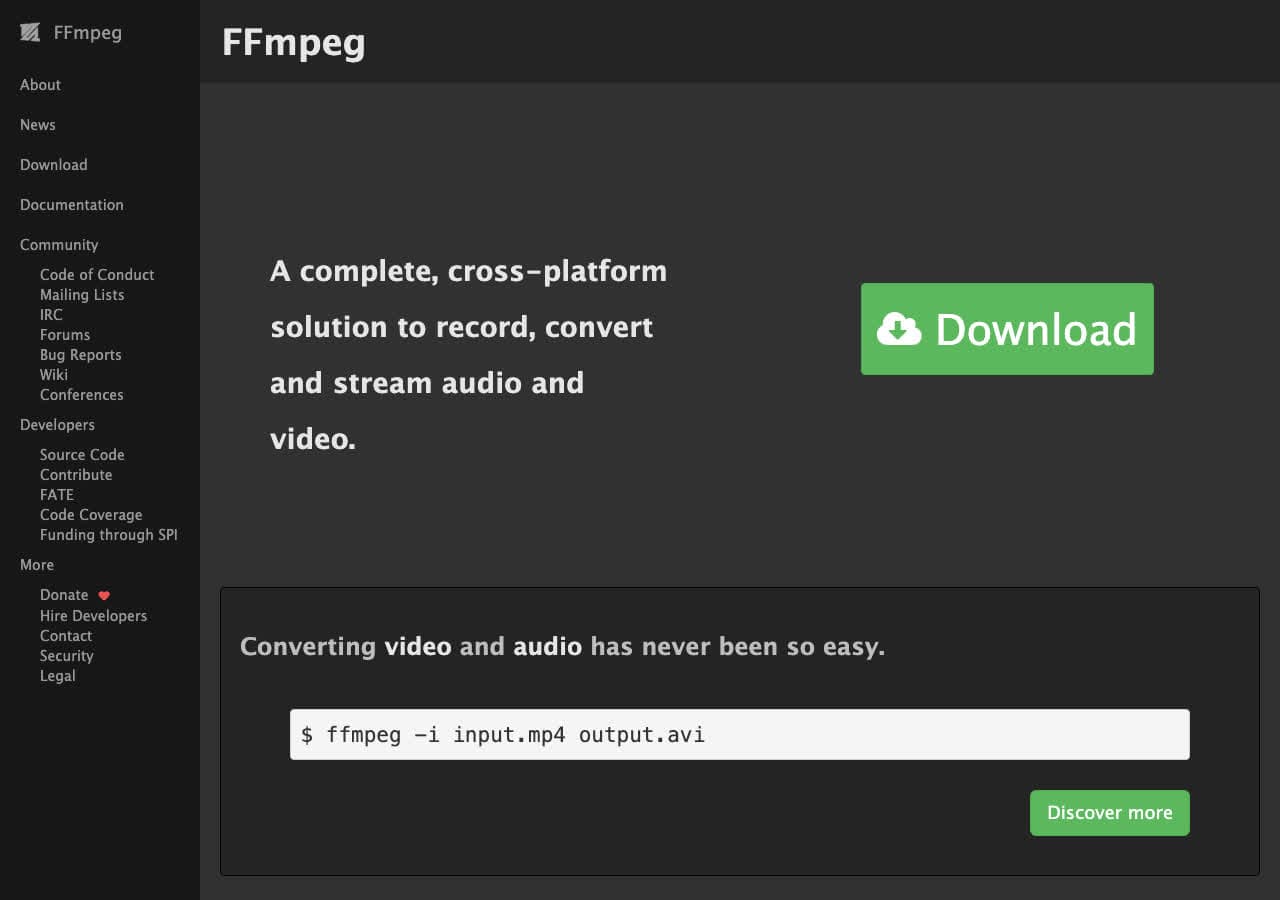
FFmpeg is the engine behind almost every MP4 to MPEG conversion that happens on the planet. A single command does the job: ffmpeg -i input.mp4 -c:v mpeg2video -q:v 5 -c:a mp2 output.mpg. That gives you a DVD-compatible MPEG-2 file with reasonable quality. For a stricter DVD-Video target, add -target ntsc-dvd or -target pal-dvd.
FFmpeg is the right pick if you care about codec settings, bitrate control, GOP structure, or audio sync. It is also the best choice for batch jobs since you can wrap it in a shell script. The downside is the learning curve, but for MP4 to MPEG specifically, two or three flags are usually enough.
Pros
- Full control over MPEG-1 and MPEG-2 settings.
- Built-in DVD presets (
-target ntsc-dvd). - Scriptable for batch MP4 to MPEG conversion.
- Free, open source, runs everywhere.
Cons
- Command-line only.
- Easy to pick the wrong flags if you do not know the format.
Pricing
- Free (open source, LGPL/GPL).
3. VLC - Best Already-Installed MP4 to MPEG Converter
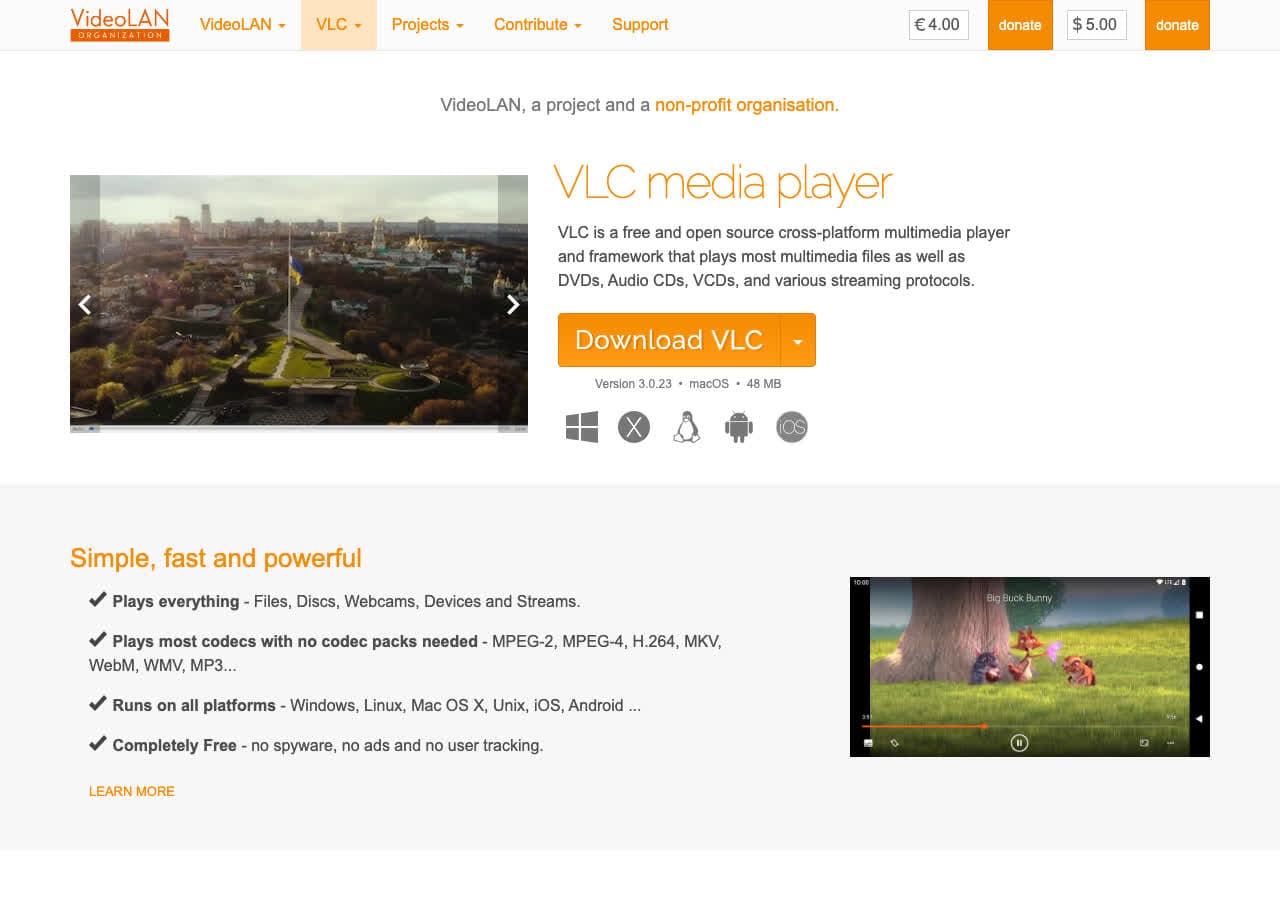
VLC is more than a media player. Open Media > Convert/Save, add your MP4, and pick a profile. VLC ships with MPEG-2 and MPEG-PS profiles that work for DVD authoring and legacy hardware playback. Save the output with a .mpg extension and you are done.
VLC is great when you only need an occasional MP4 to MPEG conversion and you already have it installed. The conversion UI is functional but not pretty, and you do not get the same level of bitrate control that FFmpeg or Shutter Encoder give you. For most one-off jobs that is fine.
Pros
- Free, open source, and probably already on your computer.
- Built-in MPEG-2 / MPEG-PS profiles.
- Works offline. No uploads.
- Cross-platform.
Cons
- Conversion UI is buried under Media > Convert/Save.
- Less control than dedicated encoders.
Pricing
- Free (open source, GPL).
4. Shutter Encoder - Best Free GUI for MPEG Output
Shutter Encoder wraps FFmpeg in a clean, professional GUI that is built for video work. It has dedicated MPEG-1, MPEG-2, and DVD presets, plus controls for bitrate, GOP size, interlacing, and aspect ratio. For anyone who wants FFmpeg power without writing commands, Shutter Encoder is the best free option.
The batch interface is excellent. Queue up 50 MP4 files, set the MPEG-2 preset, and walk away. Shutter Encoder also handles trimming, audio replacement, and subtitle burn-in if you need to clean up files before encoding. It runs on Mac, Windows, and Linux.
Pros
- Dedicated MPEG-1, MPEG-2, and DVD presets.
- Detailed bitrate and quality controls.
- Excellent batch processing.
- Free and open source. Cross-platform.
Cons
- UI has a lot of options. Not for casual users.
- Some presets assume video knowledge (GOP, interlacing).
Pricing
- Free (donations welcome).
5. HandBrake - Popular Video Converter (with a caveat for MPEG)
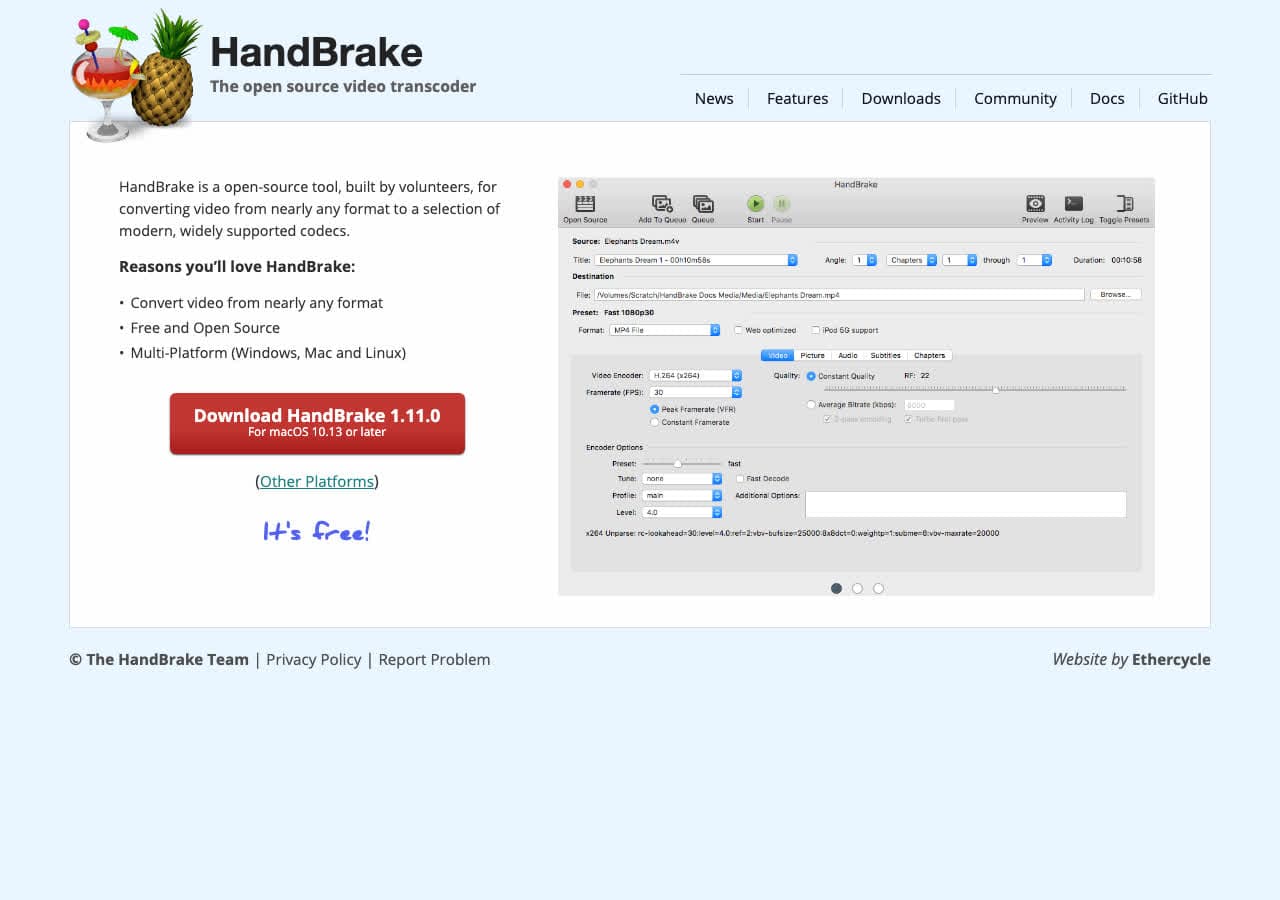
HandBrake is the most recommended free video converter on the internet, but worth being honest about: HandBrake outputs MP4, MKV, and WebM only. It does not encode MPEG-1 or MPEG-2 to a .mpgcontainer. If your goal is "an MP4 file with the MPEG-4 codec inside," HandBrake is perfect. If your goal is a true MPEG-2 file for a DVD, use FFmpeg, Shutter Encoder, or VLC instead.
We include HandBrake here because so many people search for "MP4 to MPEG" when they actually need MP4 with H.264 (which is technically MPEG-4 Part 10). For that use case, HandBrake is the gold standard: free, well-maintained, with excellent presets and a CRF-based quality slider.
Pros
- Best-in-class for MP4/MKV/WebM output.
- Excellent presets for devices and streaming.
- Free, open source, and cross-platform.
Cons
- Does not output MPEG-1 / MPEG-2 / .mpg.
- Wrong tool for DVD authoring.
Pricing
- Free (open source).
6. Wondershare UniConverter - Best Polished Paid MP4 to MPEG Converter
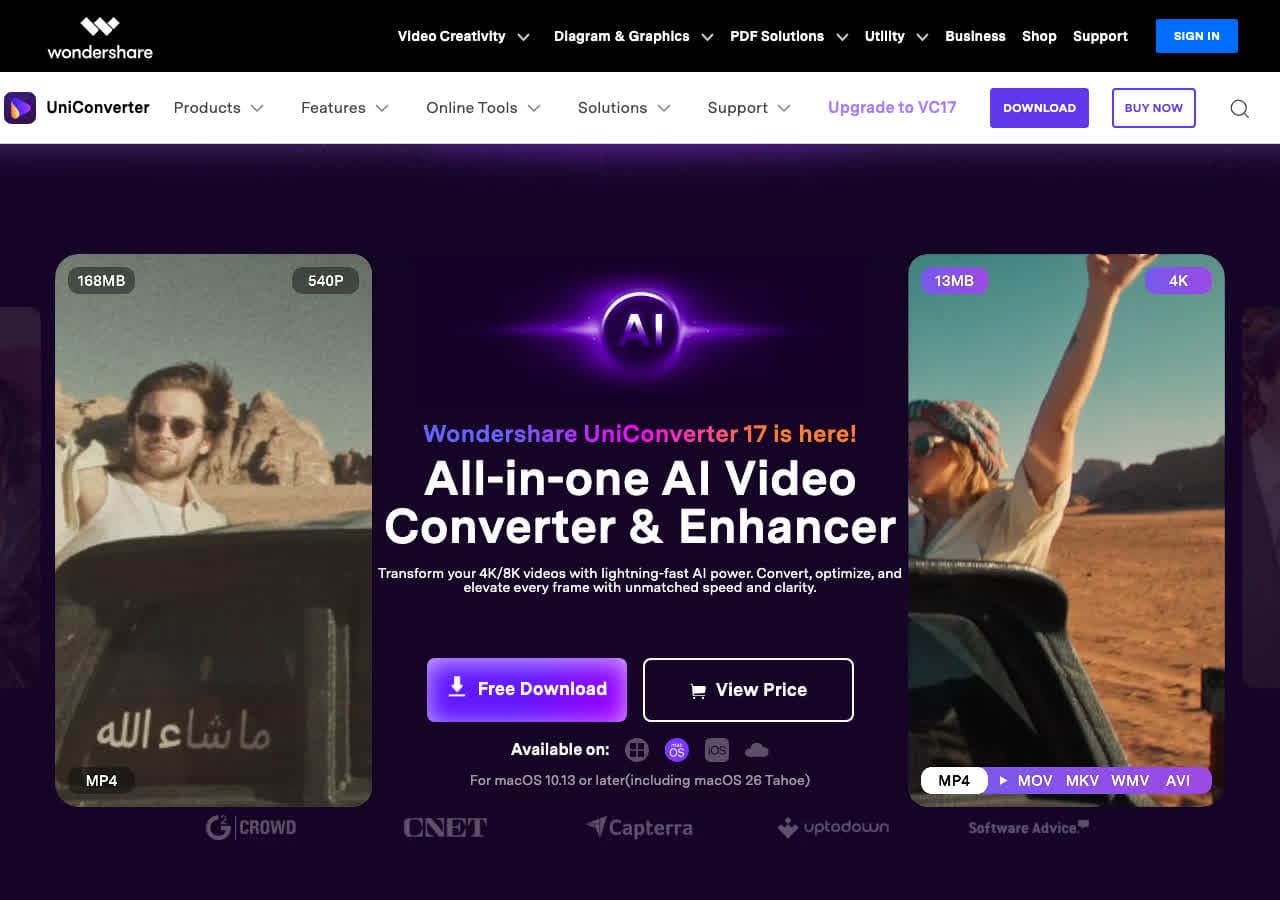
Wondershare UniConverter is a commercial converter suite with MPEG-1 and MPEG-2 output presets. Drop in MP4 files, pick the MPEG profile, and convert. The interface is friendly enough for non-technical users, with batch conversion, hardware acceleration, and a built-in DVD authoring module that uses MPEG-2 internally.
UniConverter is worth considering if you want one polished app that handles MP4 to MPEG, basic editing, video compression, and DVD burning. The downside is the price, and free trials usually limit the output length until you pay.
Pros
- Friendly UI with MPEG-1 and MPEG-2 presets.
- Batch conversion with hardware acceleration.
- Built-in DVD authoring.
- Cross-platform (Mac, Windows).
Cons
- Paid software, with subscription model.
- Free trial limits output length.
Pricing
- Subscription: From around $40/year.
- Lifetime: Around $80 one-time.
How to Convert
The offline file converter for Mac, Windows and Linux.
- Converts video, audio, images, documents, ebooks and more
- Everything runs locally. Your files never leave your device
- Pay once. Access forever
Get the app on Mac, Windows and Linux
7. Movavi Video Converter - Best Beginner-Friendly MP4 to MPEG Tool
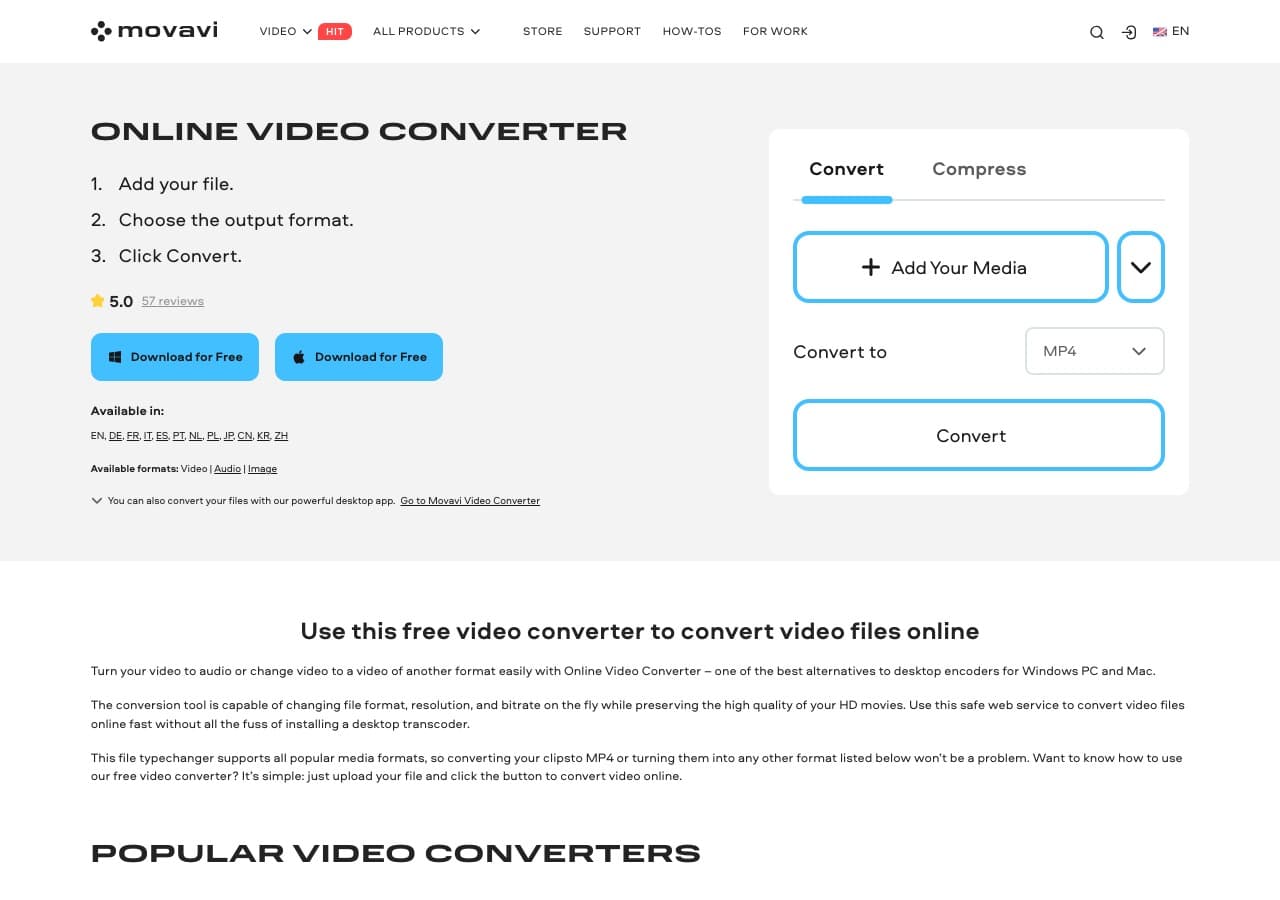
Movavi Video Converter has dedicated MPEG-1 and MPEG-2 output profiles. The UI is one of the cleanest in this category: drag in MP4 files, pick MPEG, hit convert. Movavi also includes basic trimming and merging, which is useful when you are preparing files for a DVD project and need to chop out unwanted sections.
Movavi is the right pick if you are non-technical, on a single computer (Mac or Windows), and want a no-fuss app for occasional MP4 to MPEG conversions. The trade-off is the same as Wondershare: it is paid software, with upsells inside the app.
Pros
- Very beginner-friendly drag-and-drop interface.
- MPEG-1 and MPEG-2 output presets.
- Built-in trim, merge, and rotate.
- Mac and Windows.
Cons
- Paid software.
- Persistent upsell prompts.
Pricing
- Subscription: Around $40/year.
- Lifetime: Around $50 one-time.
8. Any Video Converter - Free Windows MP4 to MPEG Converter
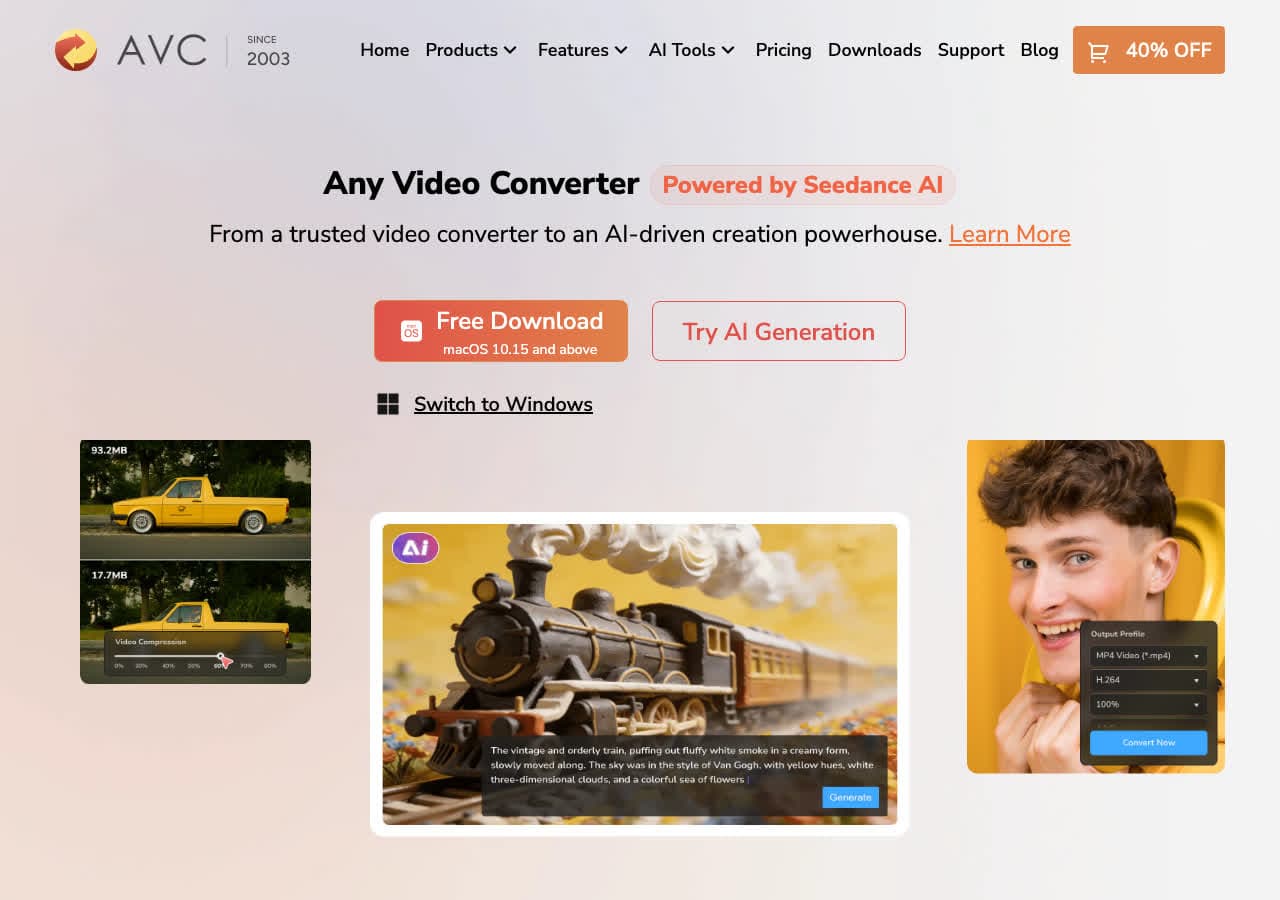
Any Video Converter (Free edition) supports MPEG-1 and MPEG-2 output and runs on Windows and Mac. It has a long history with this category and a no-frills batch UI: add MP4 files, pick MPEG, hit Convert Now. There is also a DVD-burning option that uses MPEG-2 internally.
The Free edition is genuinely free, but installers have historically bundled optional offers. Decline anything you do not want during install. Once installed, the app itself is straightforward and works well for everyday MP4 to MPEG batches.
Pros
- Free MPEG-1 and MPEG-2 output.
- Batch conversion friendly.
- Built-in DVD burning.
- Mac and Windows.
Cons
- Installer may include bundled offers.
- UI feels dated.
Pricing
- Free edition available.
- Pro: One-time around $50.
9. Freemake Video Converter - Familiar Windows MP4 to MPEG App
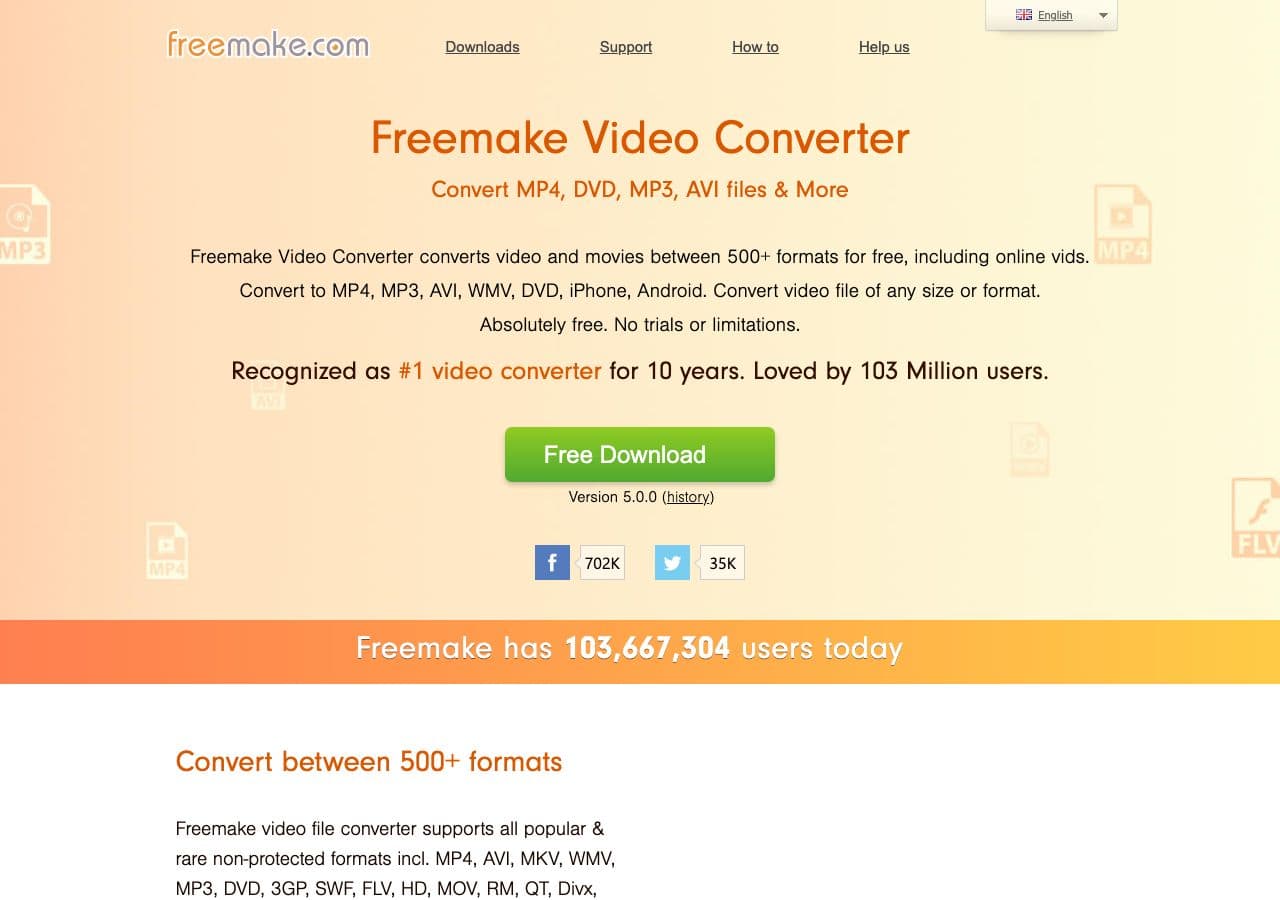
Freemake Video Converter is a long-running Windows app with MPEG-1 and MPEG-2 output. It has a friendly drag-and-drop UI and dedicated DVD output presets. Many people remember Freemake from years ago, and the modern version still does the job for MP4 to MPEG.
Be aware that Freemake adds watermarks on output unless you upgrade to the paid version, and the installer has historically included bundled offers. Use only the official download link, and decline bundled software during install.
Pros
- MPEG-1, MPEG-2, and DVD output.
- Drag-and-drop interface.
- Familiar to long-time Windows users.
Cons
- Free version adds a watermark.
- Installer can include bundled offers.
- Windows only.
Pricing
- Free with watermark.
- Gold Pack: Around $20 one-time to remove watermark.
10. Switch Video Converter - Simple Batch MP4 to MPEG Tool
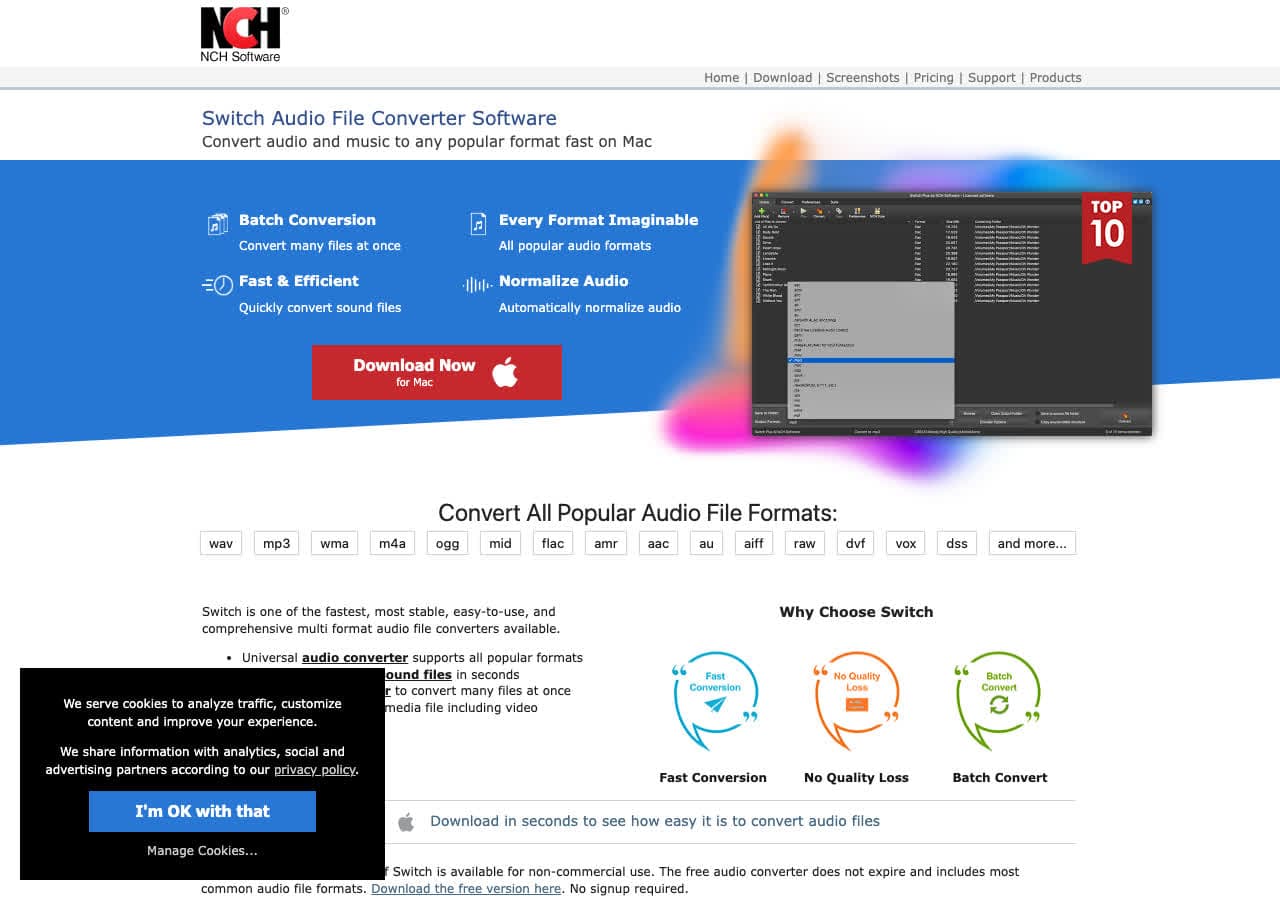
Switch by NCH and its companion Prism Video Converter target users who want a no-frills batch queue. Add MP4 files, pick the MPEG output format, set quality, hit Convert. NCH apps are widely used in offices for repetitive conversion tasks.
Switch is reliable for boring, repeatable MP4 to MPEG conversion. The UI is dated, the licensing is a bit confusing (free for personal use, paid for commercial), and the app pushes you toward the rest of the NCH suite. For pure conversion, it gets the job done.
Pros
- Simple batch queue.
- Reliable for repeatable jobs.
- Mac and Windows.
Cons
- Dated UI.
- Licensing model is confusing.
Pricing
- Free for non-commercial use.
- Plus: Around $35 one-time for commercial use.
11. Prism Video Converter - Lightweight MP4 to MPEG Converter
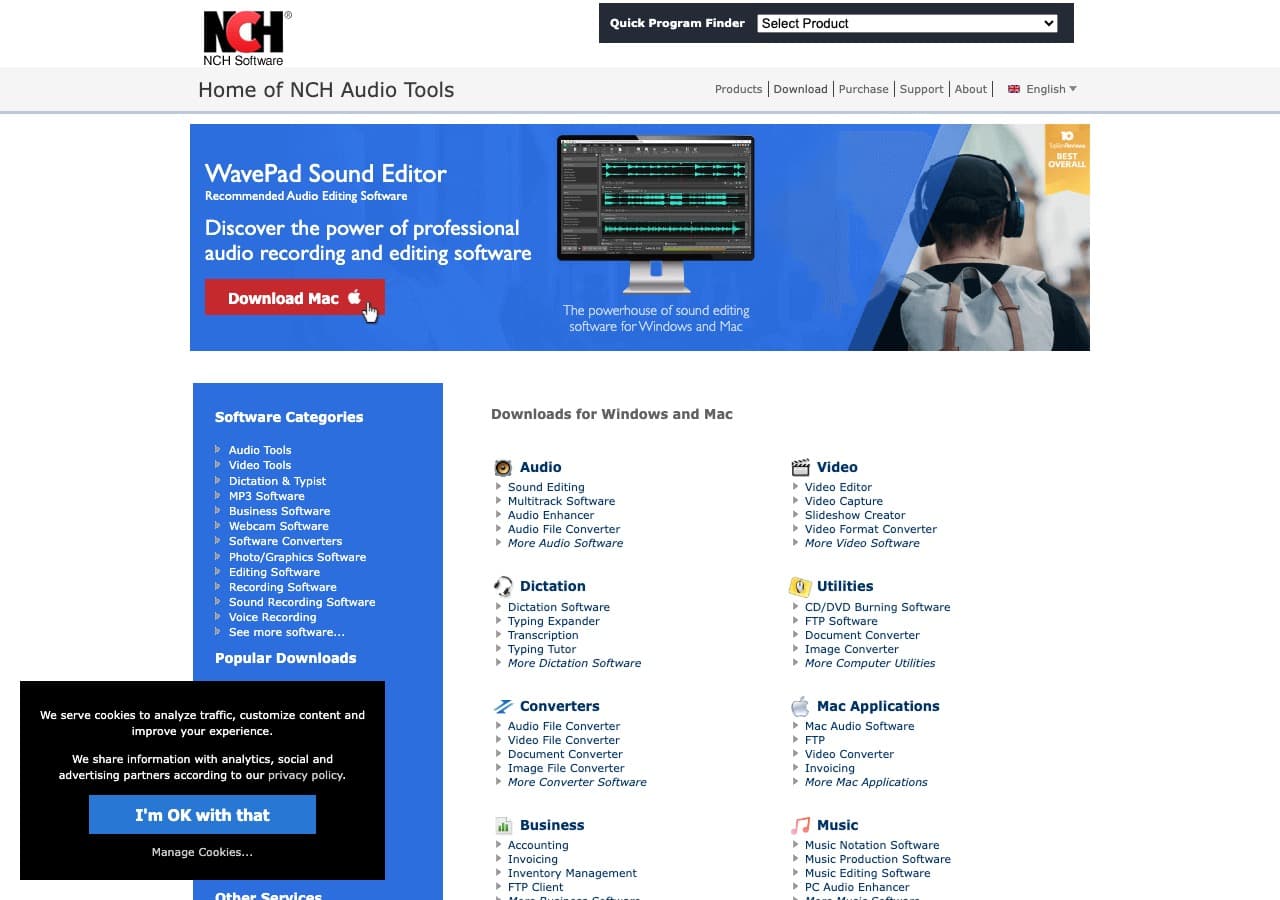
Prism Video Converter is the dedicated video converter from NCH Software. It supports MPEG-1 and MPEG-2 output and runs on Windows and Mac with low system requirements. If you have an older machine, Prism is one of the lighter options on this list.
The interface is straightforward: import MP4 files, pick the MPEG output format, set bitrate or quality, and convert. Prism also offers preview, encoding settings, and basic effects. As with Switch, the licensing terms differ for personal vs commercial use.
Pros
- Lightweight, runs well on older hardware.
- MPEG-1 and MPEG-2 output.
- Mac and Windows support.
Cons
- UI feels dated.
- Personal vs commercial license confusion.
Pricing
- Free for non-commercial use.
- Plus: Around $50 one-time for commercial use.
12. Permute - Best Mac-Native MP4 to MPEG Converter
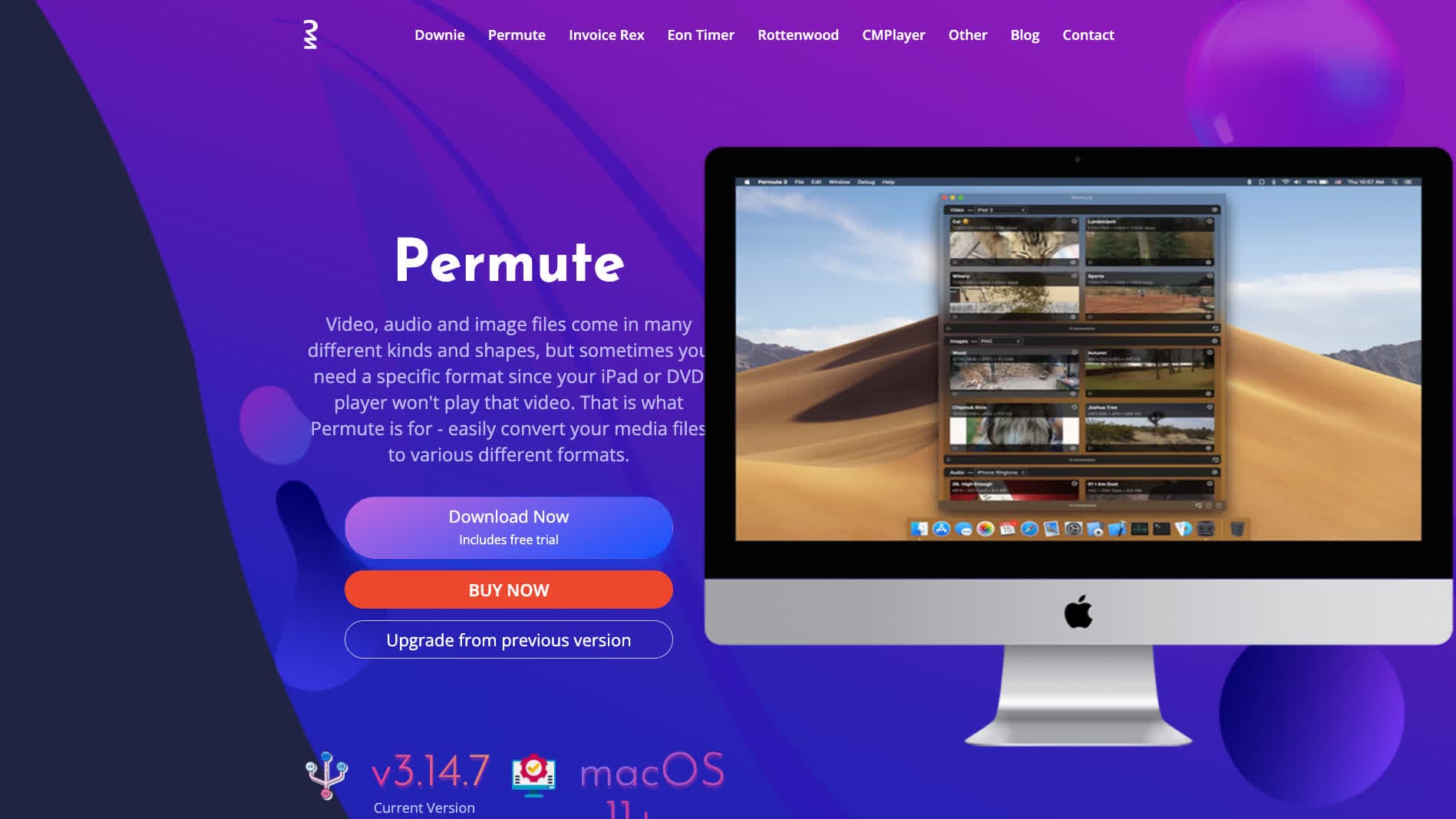
Permute is a beautifully designed Mac app that handles a wide range of conversions. It uses FFmpeg under the hood and supports MPEG output, although the UI puts MP4 and MOV front and center. For Mac users who want a clean drag-and-drop tool with native macOS feel, Permute is hard to beat.
Permute is best for occasional conversions. It is fast, looks great, and integrates well with macOS (drag from Finder, share sheet, etc.). For heavy batch work or precise MPEG-2 settings, fall back on FFmpeg or Shutter Encoder.
Pros
- Beautiful native Mac interface.
- Drag-and-drop simplicity.
- Uses FFmpeg under the hood.
Cons
- Mac only.
- Paid app.
- Less explicit MPEG-2 control than Shutter Encoder.
Pricing
- One-time purchase around $20.
- Setapp subscription includes Permute.
How to Convert
The offline file converter for Mac, Windows and Linux.
- Converts video, audio, images, documents, ebooks and more
- Everything runs locally. Your files never leave your device
- Pay once. Access forever
Get the app on Mac, Windows and Linux
13. CloudConvert - Best Online MP4 to MPEG Converter
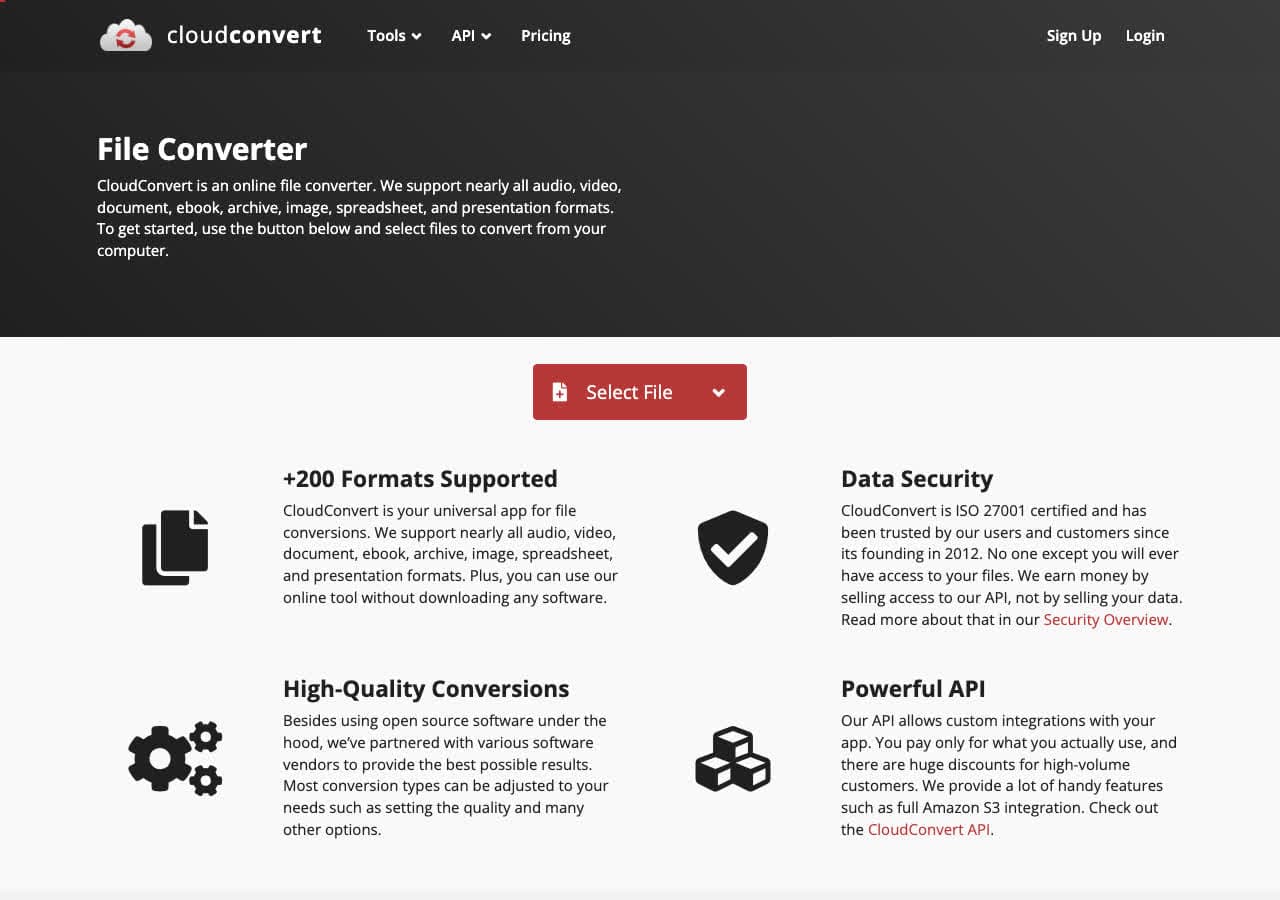
CloudConvert offers a dedicated MP4 to MPEG conversion page with strong output quality. Upload your MP4, pick MPEG, optionally tweak bitrate and resolution, and download the result. The free tier allows 25 minutes of conversion per day, which is enough for several normal-length videos.
CloudConvert is a solid pick if you cannot install software (work computer, school computer, Chromebook). The trade-off is privacy: your MP4 is uploaded to their servers. CloudConvert states files are deleted within 24 hours, but for sensitive recordings you should still convert locally.
Pros
- No installation required.
- Adjustable bitrate and resolution.
- API for automated workflows.
- 25 free minutes per day.
Cons
- Files are uploaded to the cloud.
- Free tier limited for large jobs.
Pricing
- Free: 25 conversion minutes per day.
- Paid: From $9 for 500 minutes.
14. Convertio - Simple Online MP4 to MPEG Tool
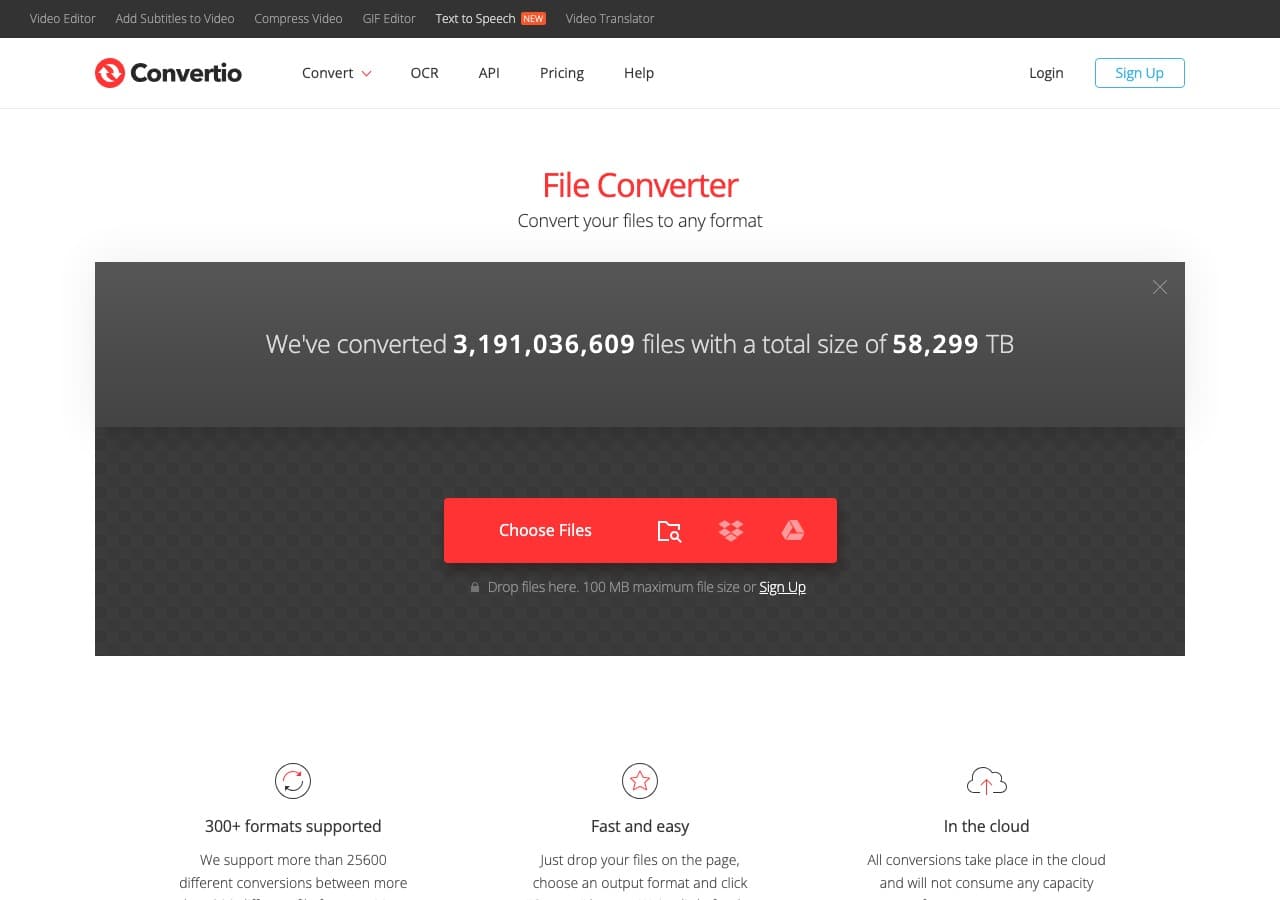
Convertio is a popular general-purpose online converter with an MP4 to MPEG flow. Drag in your MP4, pick MPEG, and convert. The interface is clean, the conversion is reasonably fast, and there is Google Drive and Dropbox integration if you want to pull a file directly from cloud storage.
Convertio is a good fallback when CloudConvert hits limits. The free tier is generous on file size (up to 100 MB) but limits total conversion minutes per day. As with any online converter, do not use it for sensitive or private footage.
Pros
- Clean, simple UI.
- Google Drive and Dropbox integration.
- 100 MB free file size limit.
- Works on any device with a browser.
Cons
- Files uploaded to the cloud.
- Free tier limited to about 10 minutes per day.
Pricing
- Free: 100 MB, 10 minutes per day.
- Light: From $9.99/month.
15. Zamzar - Easiest Online MP4 to MPEG Converter
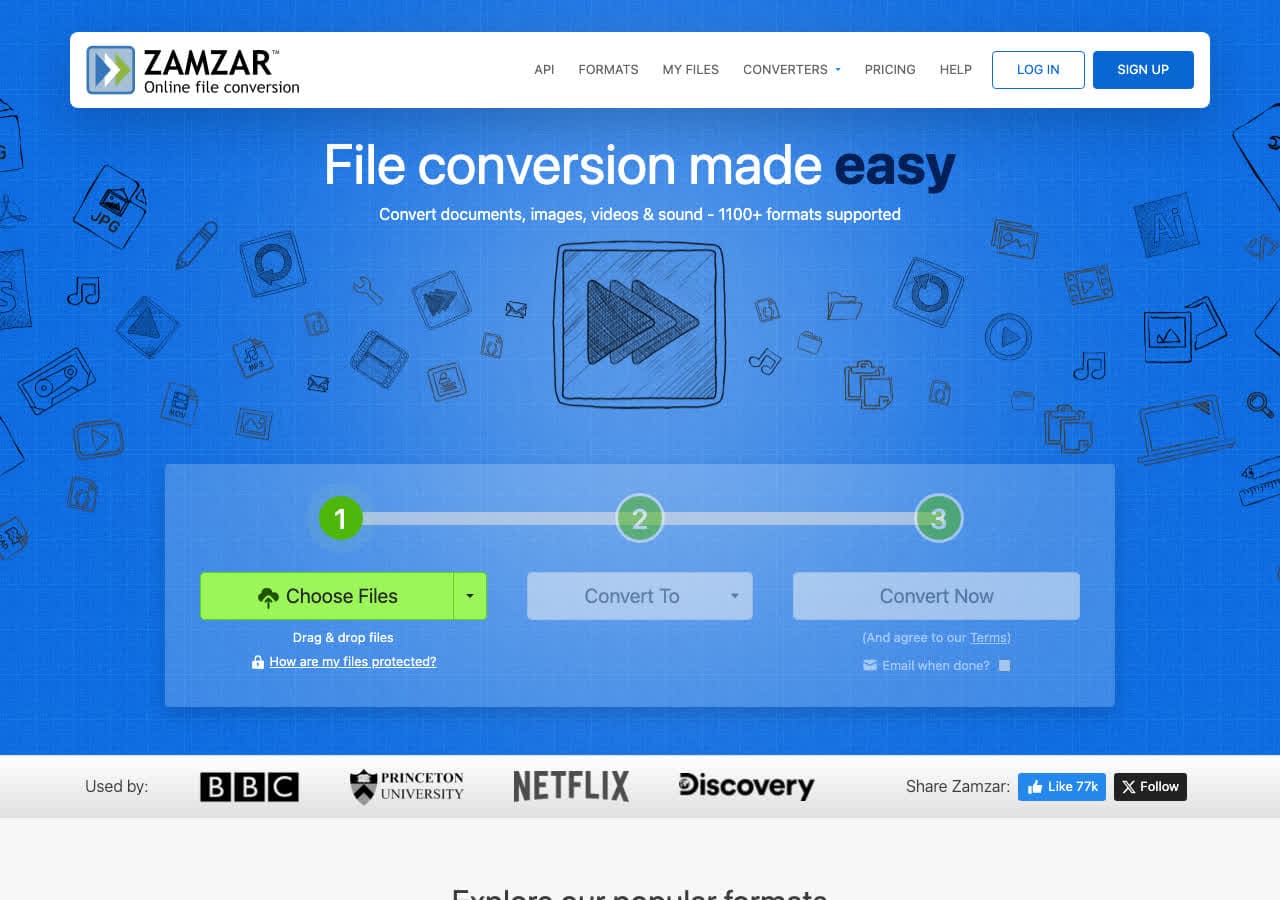
Zamzar has been around since 2006 and remains the simplest online MP4 to MPEG converter. Upload, pick MPEG, click Convert, download. There are no settings to configure, which is the point. For occasional conversions of small files, Zamzar is fast and frictionless.
The free tier allows two conversions per day with a 50 MB cap. That is fine for a single MP4 video, but not enough for batches. Zamzar also has long-running paid plans for businesses with API needs.
Pros
- Dead-simple workflow.
- No account required for free tier.
- Works on mobile.
- API available.
Cons
- 2 free conversions per day.
- 50 MB file cap on free tier.
Pricing
- Free: 2 conversions per day, 50 MB.
- Basic: From $18/month.
16. FreeConvert - Best Free Tier for Online MP4 to MPEG
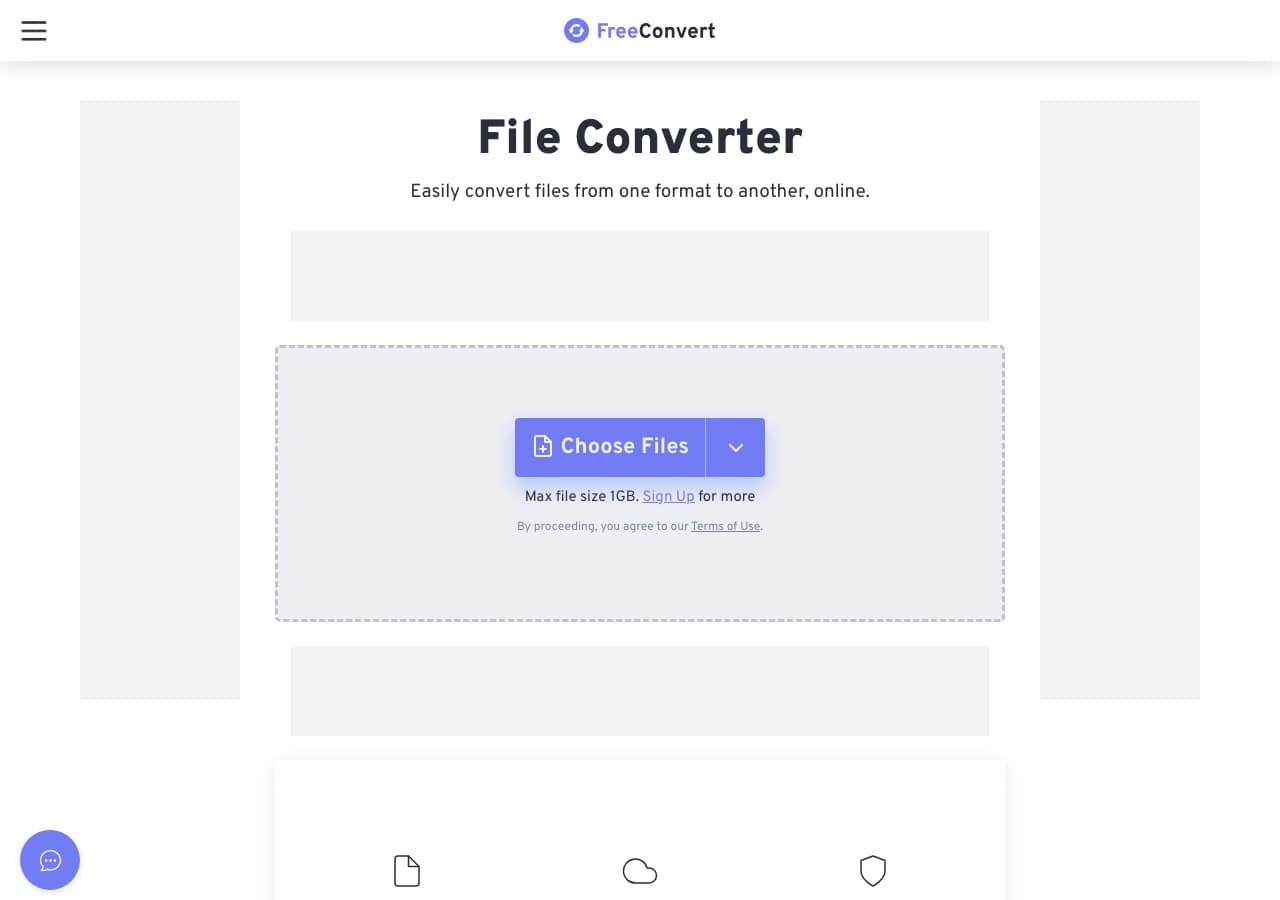
FreeConvert has a generous 1 GB free file size limit, which is the highest in this category. It also offers advanced settings for codec, bitrate, resolution, and aspect ratio, which is useful when you need to match a specific MPEG-2 target (DVD-NTSC, DVD-PAL).
FreeConvert is the right pick when CloudConvert and Convertio do not have enough quota for your file. The interface is clean and the output quality is consistently good. Free tier is supported by ads.
Pros
- 1 GB free file size limit.
- Advanced bitrate and codec settings.
- Clean, modern UI.
- Batch conversion supported.
Cons
- Files uploaded to servers.
- Daily usage limits on free tier.
Pricing
- Free: 1 GB file size limit.
- Pro: From $9.99/month.
17. Online-Convert - Most Detailed Online MPEG Settings
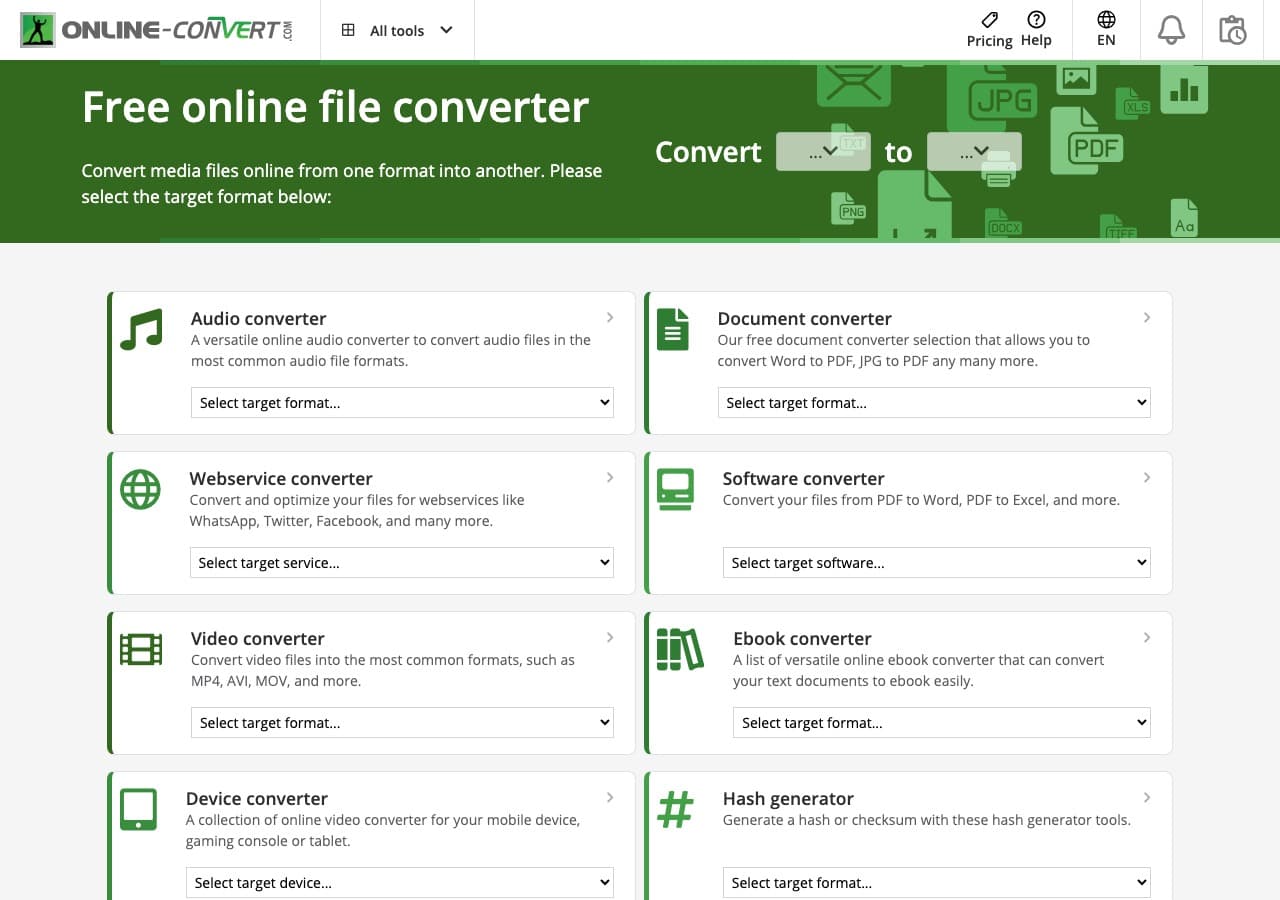
Online-Convert offers more output settings than any other online converter in this list. Choose codec (MPEG-1, MPEG-2), aspect ratio, bitrate, frame rate, audio bitrate, and even cropping or rotation, all in the browser. This is the go-to online tool when you need a precisely configured MPEG file.
The trade-off is that the interface is cluttered and the free tier is supported by ads. For a one-off conversion where you need DVD-spec output, the depth of settings here is genuinely useful.
Pros
- Most detailed MPEG settings of any web tool.
- MPEG-1 and MPEG-2 codec options.
- Crop, rotate, and resize during conversion.
Cons
- Cluttered UI with ads.
- 100 MB free file size limit.
Pricing
- Free with ads.
- Paid: From $7.99/month.
18. Adapter - Minimal Mac and Windows MP4 to MPEG Converter
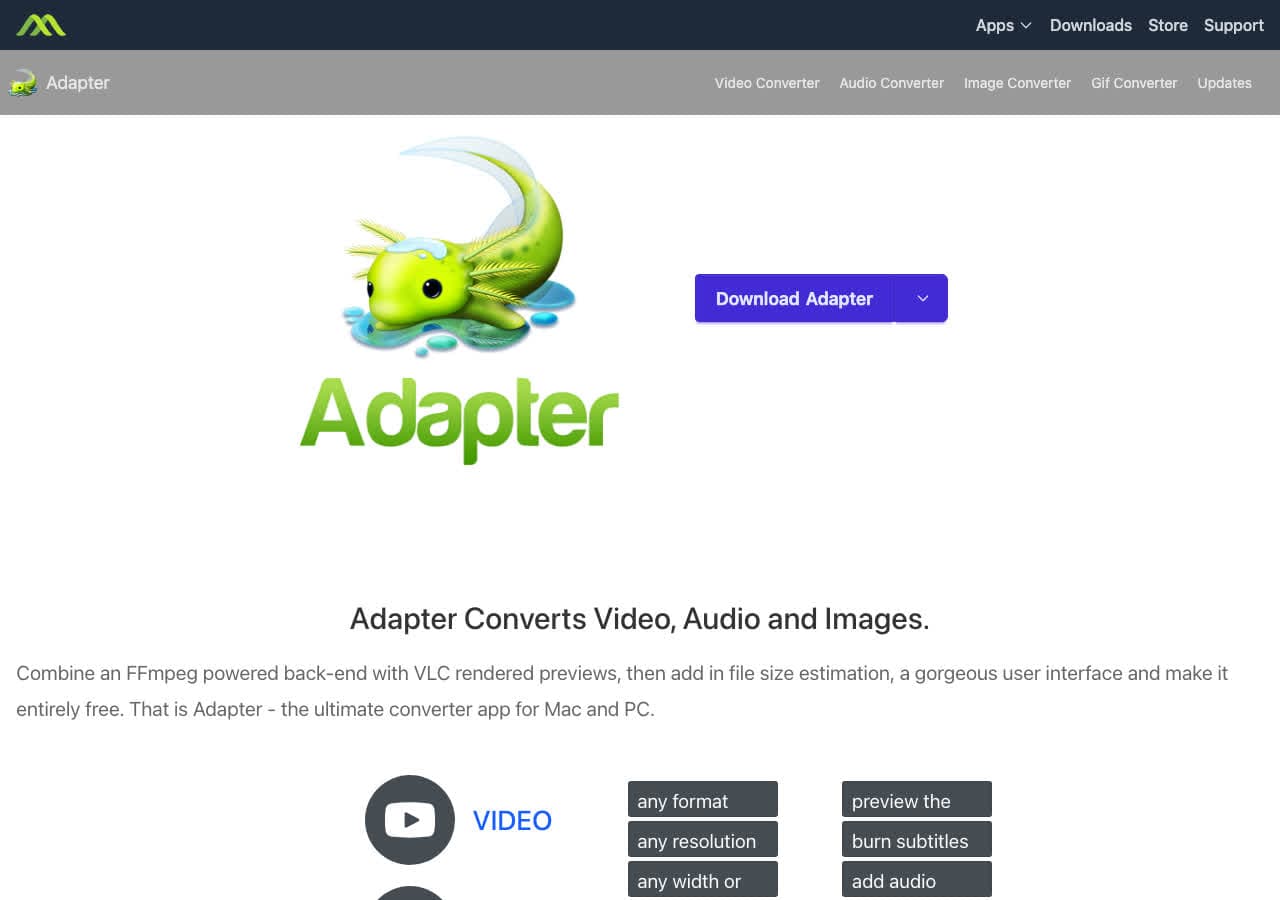
Adapter is a free MP4 to MPEG converter from Macroplant that uses FFmpeg internally. The UI is intentionally minimal: drag in MP4 files, pick MPEG, click Convert. There is also a preview window so you can sanity-check what you are about to convert.
Adapter is a nice middle ground between the bloat of UniConverter and the bare command line of FFmpeg. It is free, available on Mac and Windows, and gets out of your way. Development has slowed in recent years, but the existing app still works fine for MP4 to MPEG.
Pros
- Minimal, distraction-free UI.
- Built-in preview window.
- Free, FFmpeg-based.
Cons
- Development has slowed.
- Fewer settings than dedicated tools.
Pricing
- Free.
Frequently Asked Questions
What is the difference between MP4 and MPEG?
MP4 is a container format that usually holds H.264 (also known as MPEG-4 Part 10) or H.265 video, plus AAC audio. MPEG, when used as a file extension (.mpeg or .mpg), almost always refers to MPEG-1 or MPEG-2. MPEG-2 is the format used for DVDs, broadcast TV, and many older devices. So when someone asks to convert MP4 to MPEG, they usually mean MPEG-1 or MPEG-2 in a .mpg file.
Why would I want to convert MP4 to MPEG?
The most common reasons are DVD authoring (DVDs require MPEG-2), playback on older hardware (set-top boxes, in-car DVD players, karaoke machines, projectors), legacy broadcast workflows, and compatibility with older video editing software. If your target device or workflow specifically requests MPEG, you need real MPEG-1 or MPEG-2 output, not just a renamed MP4.
Will I lose quality converting MP4 to MPEG?
Yes, some quality loss is unavoidable because both MP4 (H.264/H.265) and MPEG-2 are lossy formats, and you are re-encoding. The loss is usually invisible at sensible bitrates: aim for 6-8 Mbps for MPEG-2 if you are targeting DVD quality. Avoid stacking multiple conversions, since each pass compounds artifacts.
What is the fastest way to batch convert MP4 to MPEG?
For large batches, FFmpeg in a shell script is the fastest path: it can chew through dozens of files in the background. Shutter Encoder is the best free GUI alternative for batch jobs. For local-first batch conversion with a friendly drag-and-drop interface, How to Convert handles entire folders at once. Online converters are not a good fit for large batches because of upload time and quota limits.
Final Thoughts
For one-off MP4 to MPEG conversion in the browser, our free MP4 to MPEG converter handles the file locally with no upload. For batch jobs, FFmpeg or Shutter Encoder give you the most control over the MPEG-2 output. If you want a polished local app that handles MP4 to MPEG alongside every other format you care about, How to Convert is the cross-platform option. Pick the tool that fits your scale and constraints, and stop fighting with format mismatches.
How to Convert
The offline file converter for Mac, Windows and Linux.
- Converts video, audio, images, documents, ebooks and more
- Everything runs locally. Your files never leave your device
- Pay once. Access forever
Get the app on Mac, Windows and Linux
