18 Best MP4 to MP3 Converters in 2026 (Free and Paid)
The best MP4 to MP3 converters for 2026. Extract audio from MP4 videos and save high-quality MP3 files with these free and paid tools.
Posted by
 Jake Manger
MP4 is a video container, but a huge number of MP4 files are really just “audio you happen to have in a video.” Think podcast clips, meeting recordings, lectures, music videos, or screen recordings where you only need the sound. Converting MP4 to MP3 (more accurately, extracting the audio track and encoding it as MP3) makes the file smaller and easier to play in any music app or upload as an audio-only file.
The best MP4 to MP3 converter depends on your workflow. If you care about privacy, convert locally so you do not upload recordings to a website. If you care about speed and convenience, an online converter is fine for non-sensitive files. And if you care about quality control, look for tools that let you pick bitrate, sample rate, and whether to copy the audio stream when possible.
1. How to Convert (I built this one) - Local-first MP4 to MP3 extraction
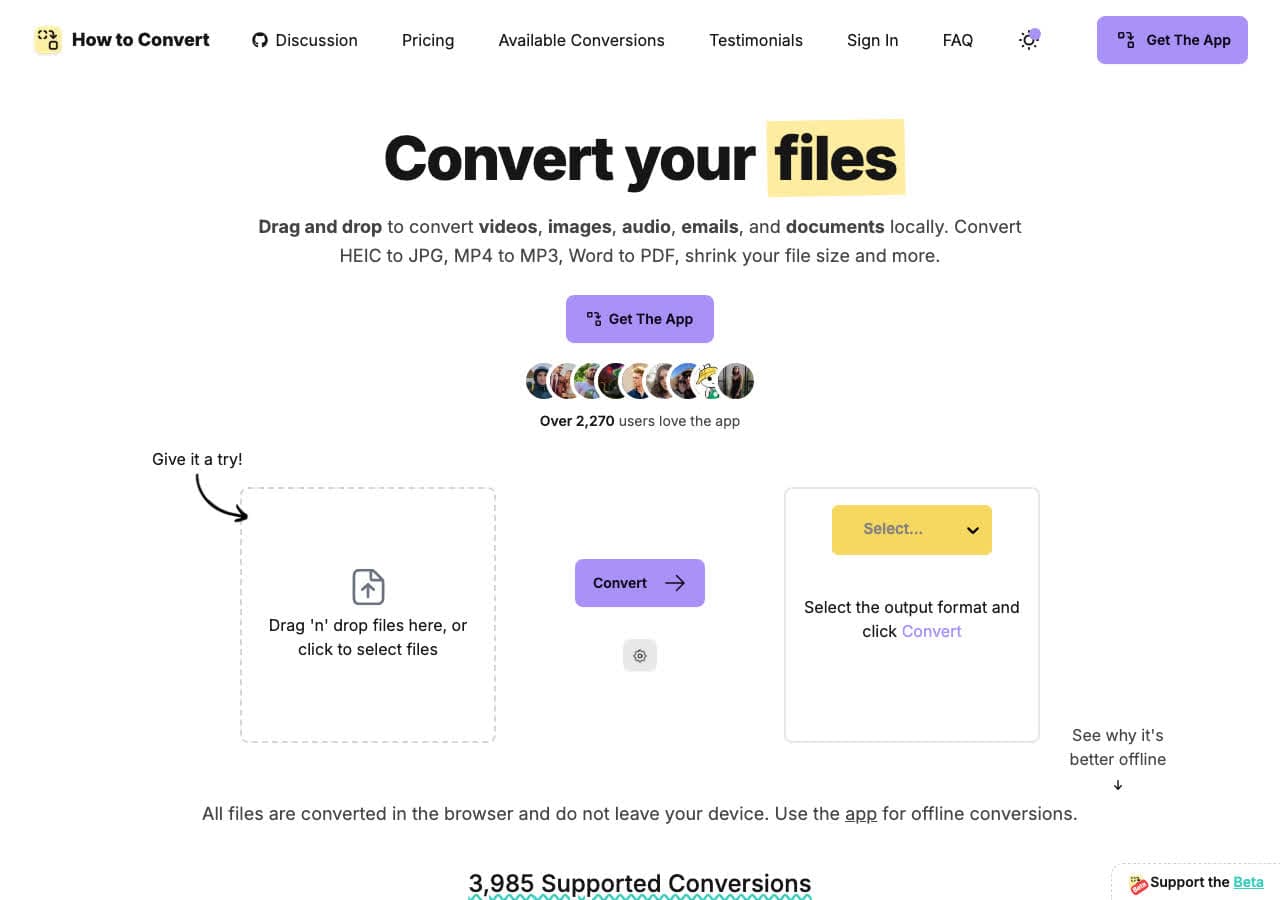
How to Convert is designed for fast, straightforward conversions with privacy in mind. For MP4 to MP3, it is ideal when you are extracting audio from personal recordings (meetings, interviews, client calls) where uploading is risky. You get a clean interface and you can keep the entire process local.
It is also a good pick if you frequently convert files and want one place to handle common tasks instead of juggling multiple web tools.
Pros
- Local-first conversion for privacy (no upload required).
- Simple workflow for non-technical users.
- Good for repeat conversions and day-to-day use.
- Avoids ad-heavy converter websites.
Cons
- Not a full audio editor (no noise reduction, trimming, etc.).
- If you only convert once, a free tool might be enough.
Pricing
- Free plan (varies by product).
- Paid plans available for higher limits and additional features.
2. FFmpeg - Best overall for quality and control
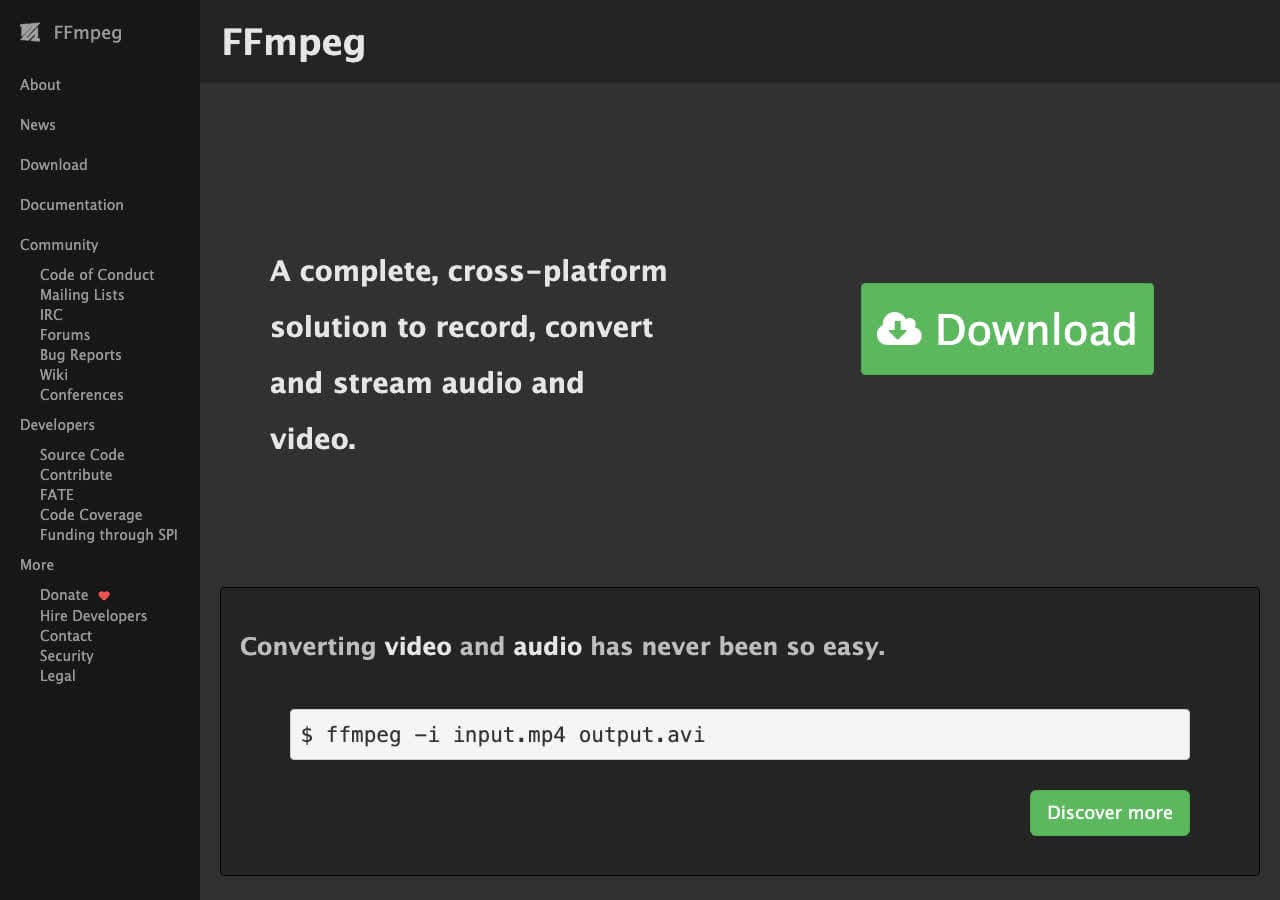
FFmpeg is the engine behind countless media apps. If you want maximum control, it is unbeatable. You can extract audio, choose encoding settings, and even copy the audio stream when the MP4 already contains MP3 (rare, but possible).
The downside is the command line. But if you do conversions in bulk or want reproducible results, FFmpeg is the best long-term option.
Pros
- Best-in-class control over codecs and bitrates.
- Very fast and works on huge files.
- Great for batch jobs and automation.
- Cross-platform.
Cons
- Command-line learning curve.
- Easy to pick confusing flags if you are new.
Pricing
- Free (open source).
3. HandBrake - Best free GUI for extracting audio
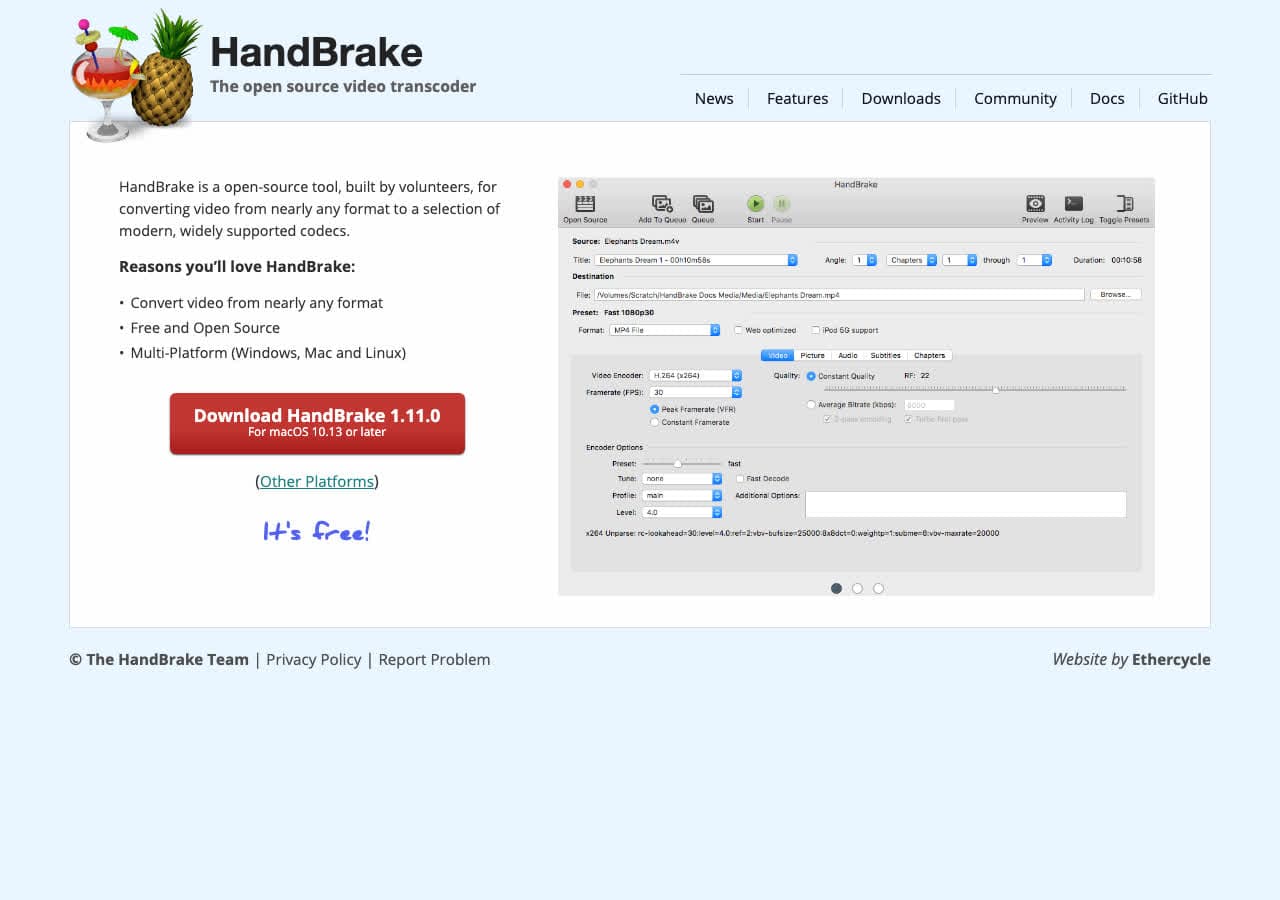
HandBrake is best known as a video transcoder, but it is also useful for audio extraction. You can load an MP4, choose an audio format, and export. It is a good option when you do not want to touch FFmpeg.
Keep in mind that HandBrake is optimized for video workflows, so the UI has more settings than you need for a simple MP4 to MP3 job.
Pros
- Free and widely trusted.
- Cross-platform (Mac/Windows/Linux).
- Good presets and encoding quality.
- Works offline.
Cons
- Not focused on audio-only workflows.
- Can be overkill for one-off extraction.
Pricing
- Free (open source).
4. VLC - Best “already installed” converter
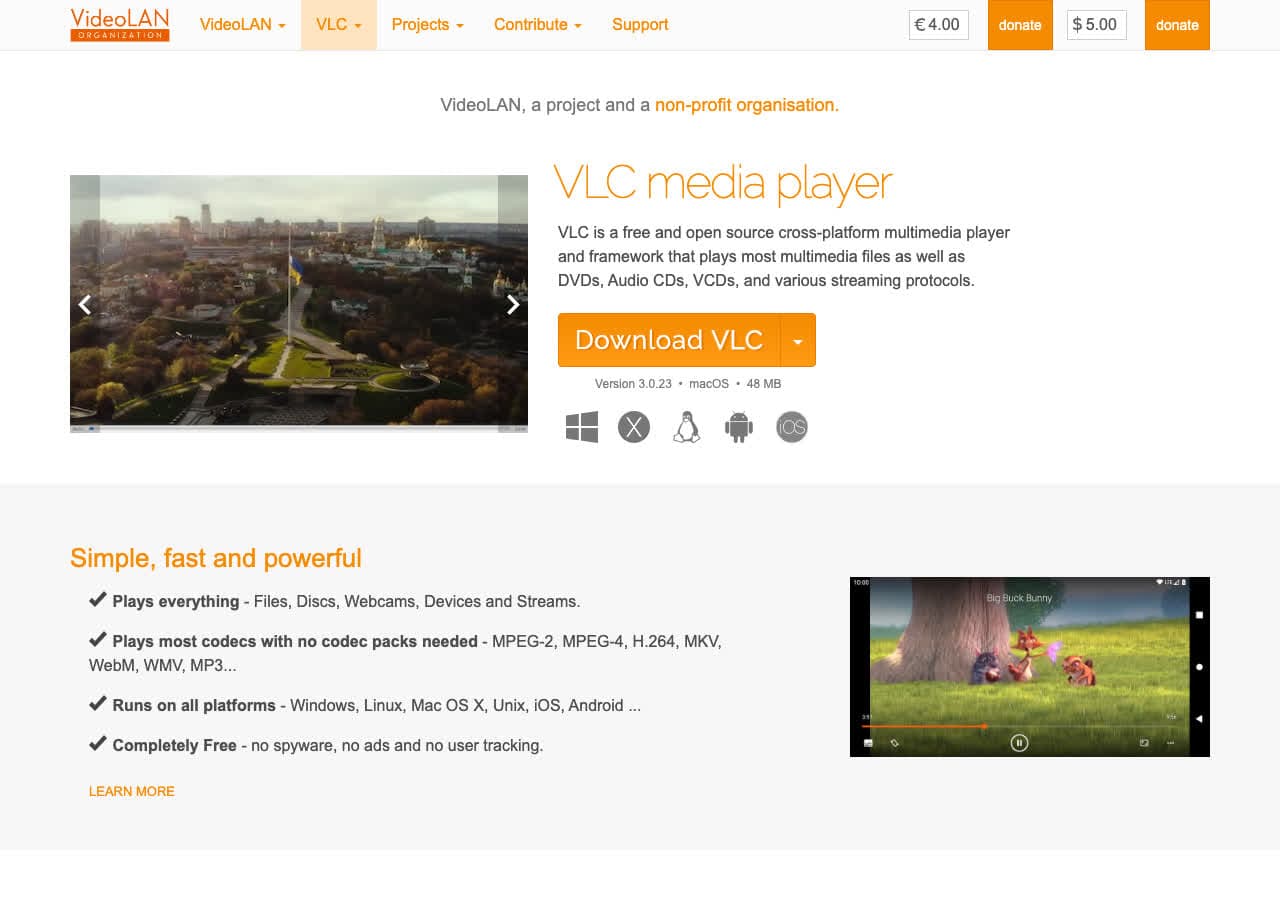
VLC is primarily a media player, but it can also convert files. If you already have VLC, it is a handy fallback to extract audio from a video without installing anything else.
The conversion UI is not as beginner-friendly as dedicated converters, but once you learn where the “Convert/Save” option is, it gets the job done.
Pros
- Free and commonly installed.
- Works offline.
- Cross-platform.
- Can handle many weird media files.
Cons
- UI is confusing for conversions.
- Fewer quality controls than FFmpeg.
Pricing
- Free (open source).
5. Audacity - Best when you need editing too
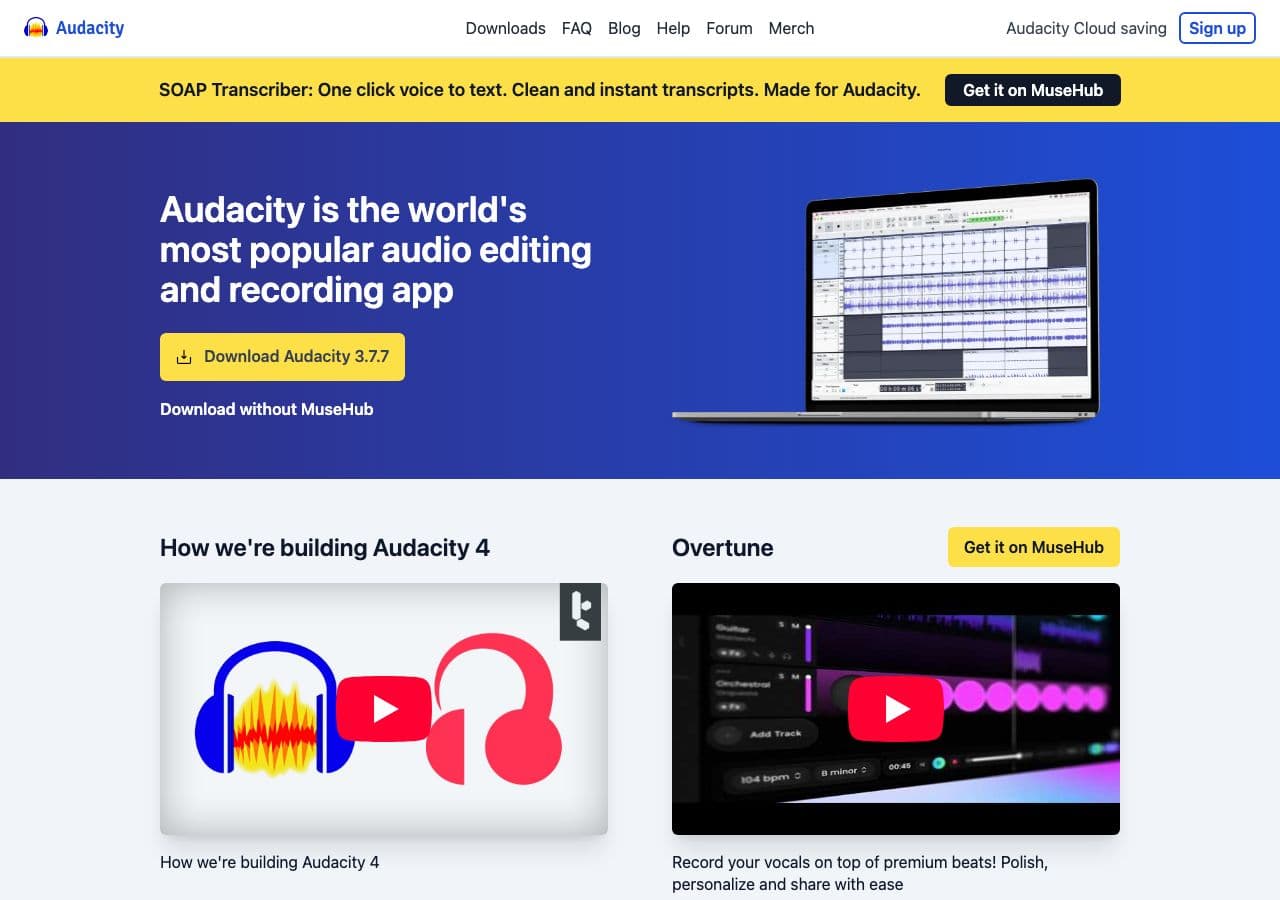
Audacity is not a converter first; it is an audio editor. But it can import audio from many video formats (depending on your FFmpeg integration) and export to MP3. This is perfect when you need to trim, normalize, remove noise, or otherwise clean up the audio.
If your goal is purely extraction with no edits, a simpler converter is faster. But for podcasts and recordings, Audacity is a classic.
Pros
- Powerful free audio editing tools.
- Great for trimming and cleanup before export.
- Works offline.
- Huge community and tutorials.
Cons
- Not a one-click converter.
- Importing MP4 audio may require FFmpeg support.
Pricing
- Free (open source).
6. Adobe Media Encoder - Best for creative professionals
If you work in Adobe Premiere Pro or After Effects, Adobe Media Encoder is the natural place to handle conversions and exports. It is reliable, supports presets, and fits into pro video workflows.
For simple MP4 to MP3 extraction, it is expensive overkill. But for people already paying for Creative Cloud, it is an easy, high-quality option.
Pros
- Professional-grade export reliability.
- Great preset system.
- Integrates with Premiere/After Effects.
- Handles queues and batch exports well.
Cons
- Requires Adobe subscription.
- Overkill for simple audio extraction.
Pricing
- Included with Adobe Creative Cloud plans (varies).
- Enterprise licensing available.
7. MediaHuman Audio Converter - Best simple desktop audio tool
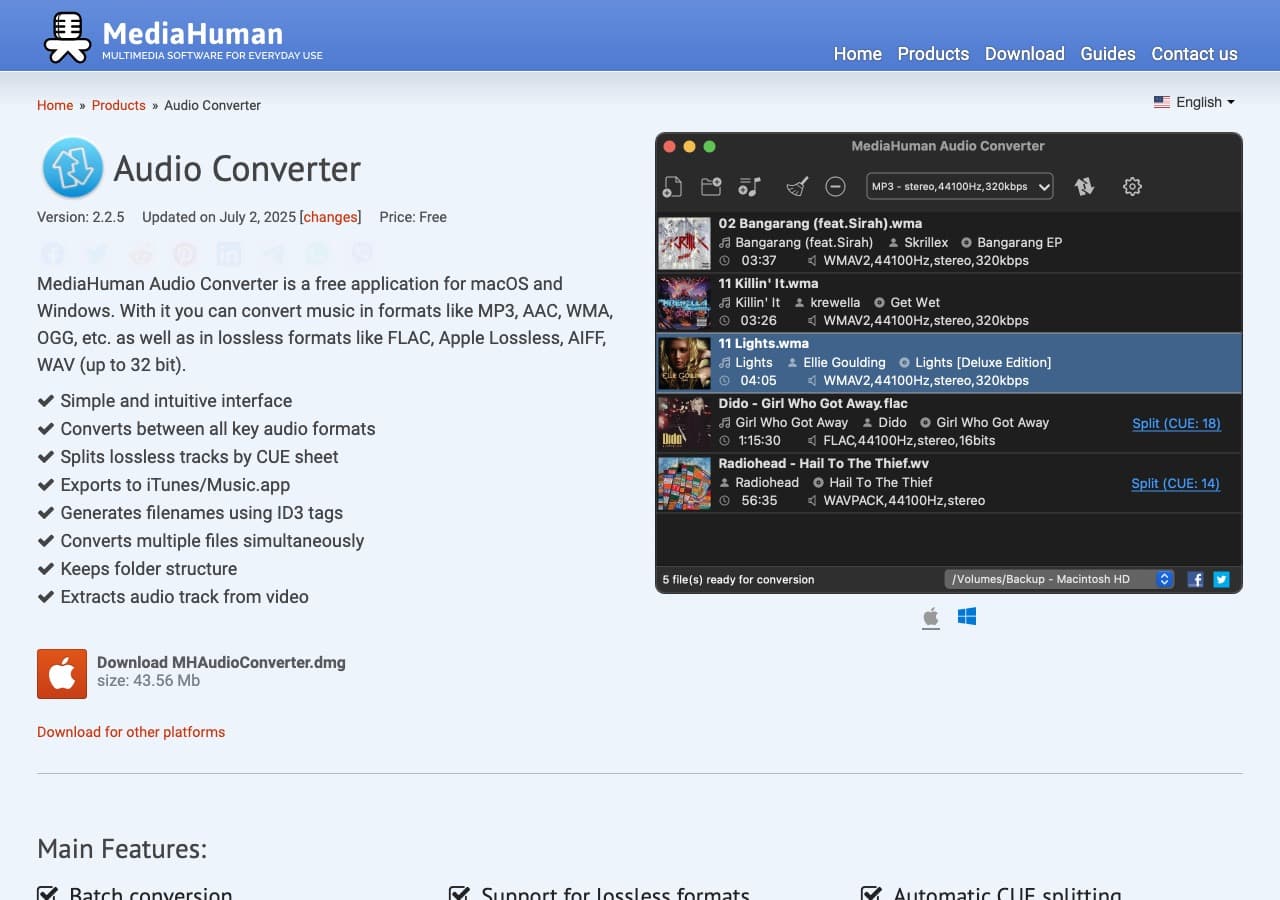
MediaHuman is a lightweight desktop converter focused on audio. It is excellent when your job is repeatedly extracting or converting audio files and you want a clean UI.
It supports common formats, batch conversion, and tagging options. For MP4 to MP3, it is one of the easiest desktop picks.
Pros
- Great UI for audio-only work.
- Batch conversions supported.
- Works offline.
- Good for managing output quality settings.
Cons
- Not as configurable as FFmpeg.
- Not a full editor.
Pricing
- Free (donationware) or low-cost licenses depending on version.
- Commercial use may require a license.
8. Freemake Video Converter - Familiar Windows converter (legacy)
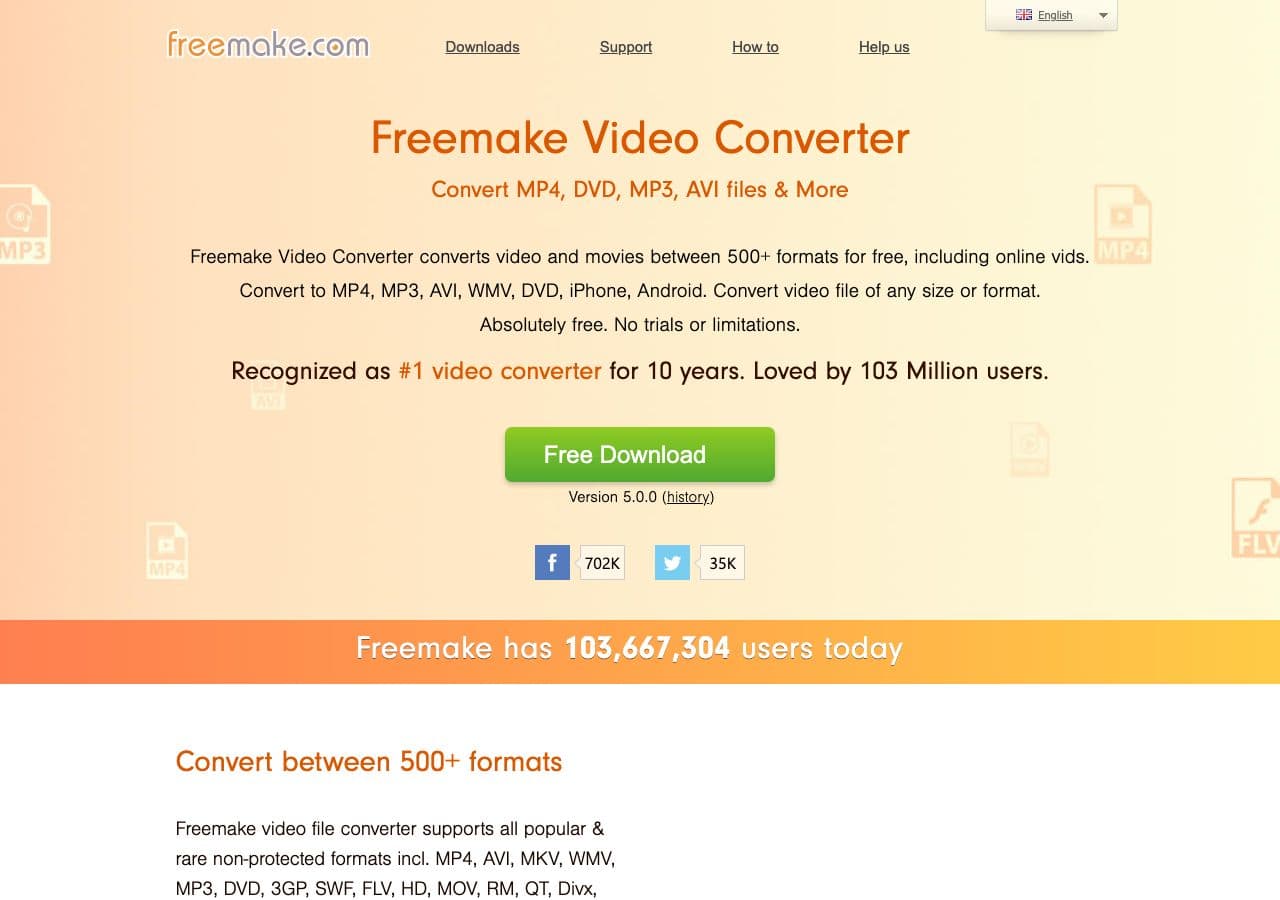
Freemake has been around for years and many Windows users recognize it as a “do everything” converter. It supports MP4 to MP3 and many other output formats.
Be mindful of installers, bundling, and limitations. For many users, a cleaner tool (VLC, HandBrake, MediaHuman) is a better modern pick.
Pros
- Many presets and format support.
- Easy for beginners.
- Supports some batch workflows.
- Works offline.
Cons
- Legacy product; some versions include nags/watermarks.
- Installer bundling risk depending on download source.
Pricing
- Free tier may include limitations.
- Paid upgrades may exist.
9. Any Video Converter - Good balance of presets and controls
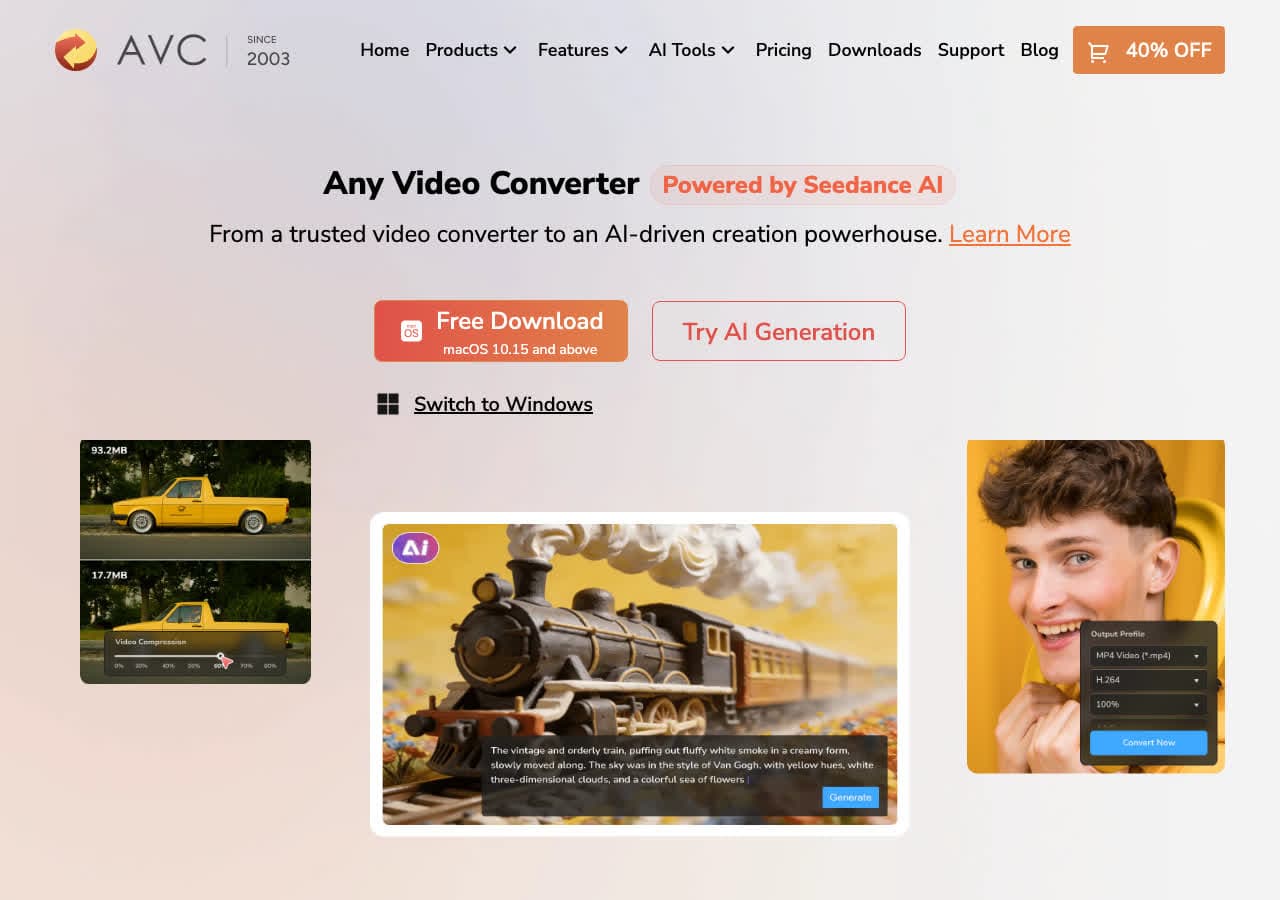
Any Video Converter is a popular desktop converter with a lot of presets. It can extract MP3 from MP4 and supports plenty of output profiles.
For users who want a GUI with more options than VLC, it is a practical middle ground.
Pros
- Lots of presets and format support.
- Simple UI for basic conversions.
- Can handle batch conversions.
- Works offline.
Cons
- Some versions include optional bundled offers.
- Not as clean as minimalist tools.
Pricing
- Free version available.
- Paid versions with extra features (varies).
10. Movavi Video Converter - Best polished consumer desktop option
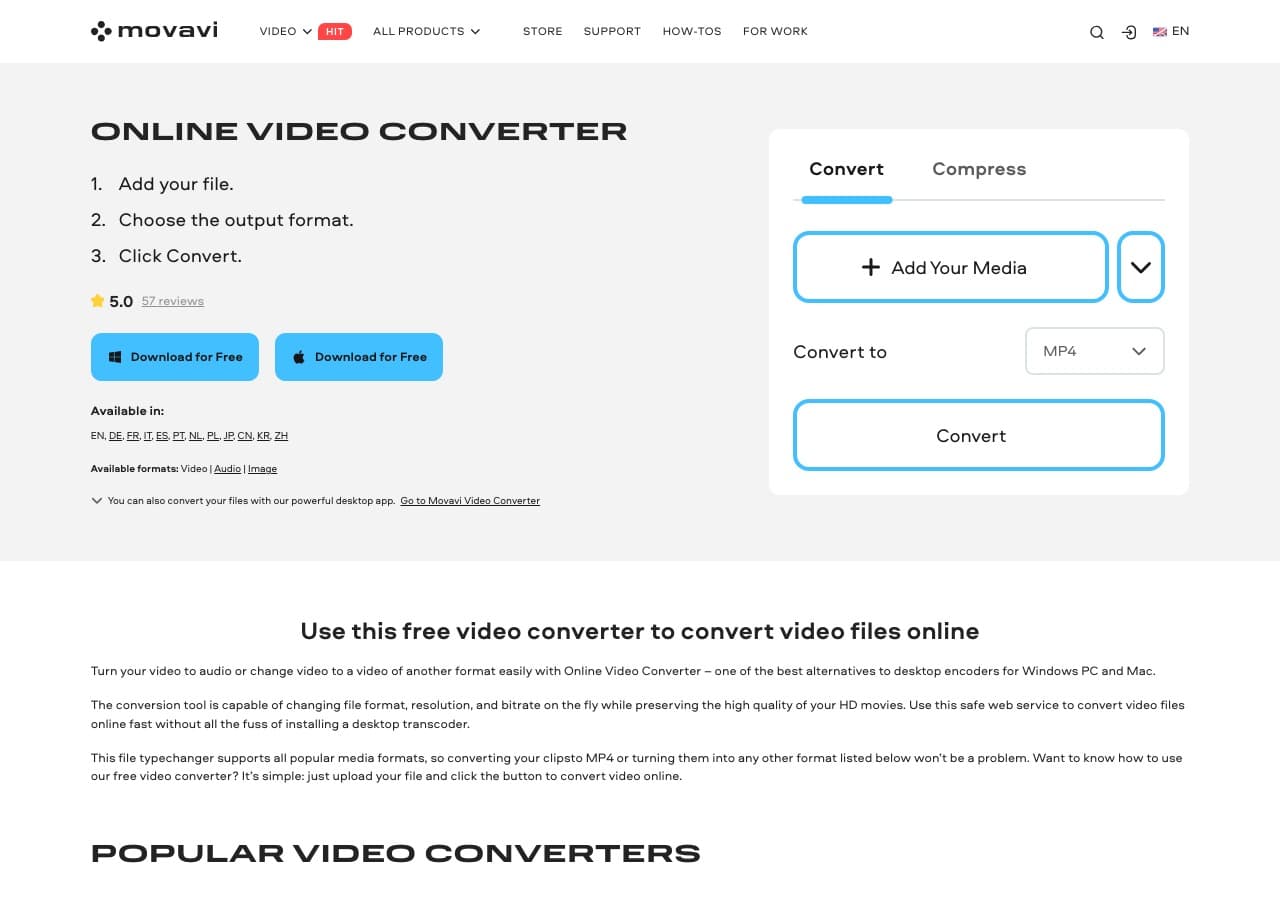
Movavi offers a polished UI and good presets. If you want a friendly desktop app for occasional conversions, it is one of the easier commercial options.
It is especially good if you also do other video conversions, not just audio extraction.
Pros
- Very user-friendly UI.
- Good presets and device profiles.
- Fast on modern machines.
- Works offline.
Cons
- Paid software.
- Upsells and upgrade prompts.
Pricing
- Paid license/subscription (varies).
- Free trial may be available.
11. Wondershare UniConverter - Feature-rich “do everything” converter
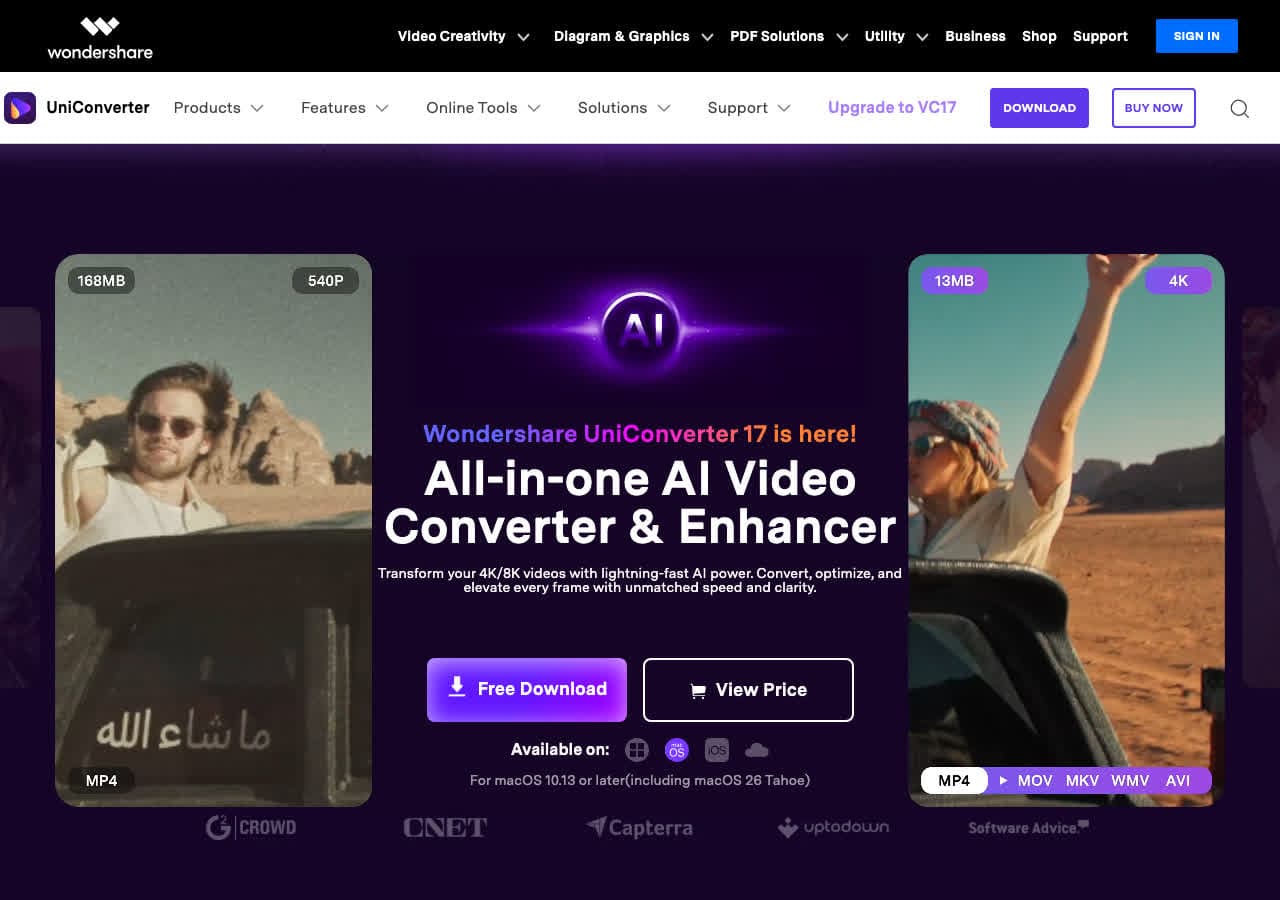
Wondershare UniConverter is a commercial media toolbox that includes conversion, compression, downloading, basic editing, and more. For users who want one program that can handle many media tasks, it is appealing.
For MP4 to MP3, it is easy and reliable. Just keep in mind you are paying for a wide toolbox, not just extraction.
Pros
- Lots of features beyond conversion.
- Easy UI and good presets.
- Batch processing supported.
- Good for non-technical users.
Cons
- Commercial pricing.
- May include features you do not need.
Pricing
- Paid plans (varies).
- Free trial available.
12. CloudConvert - Best online converter for power users + API
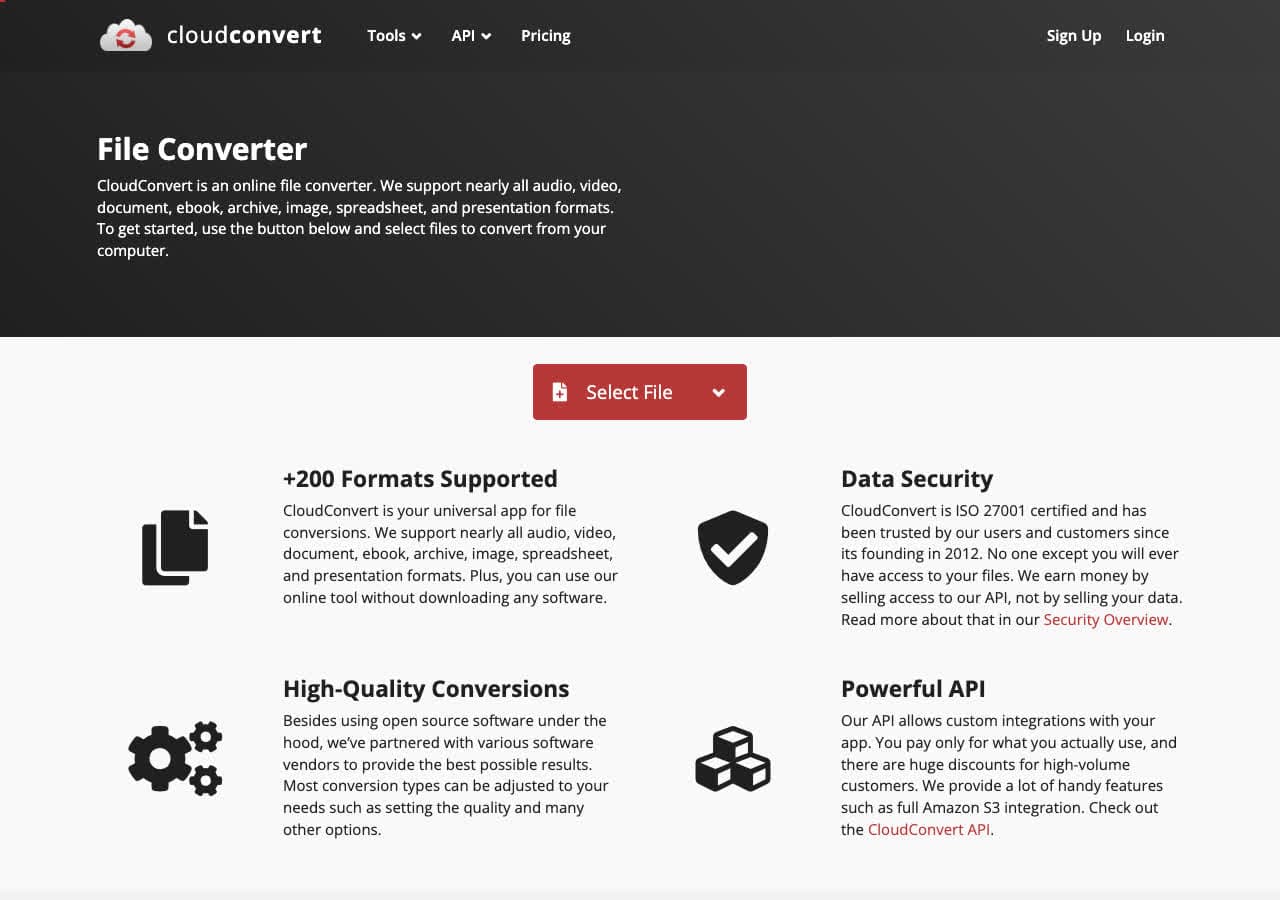
CloudConvert stands out because it offers good output quality and more settings than most free converters. It is also developer-friendly with an API.
Use it when you need an online option that is predictable. As always, avoid uploading anything sensitive.
Pros
- High-quality conversions.
- Some advanced settings and good reliability.
- API for automation.
- Supports many formats beyond MP4/MP3.
Cons
- Upload required.
- Free tier is limited by credits.
Pricing
- Free tier with limited credits.
- Paid credits/subscriptions (varies).
13. Convertio - Popular web converter with lots of formats
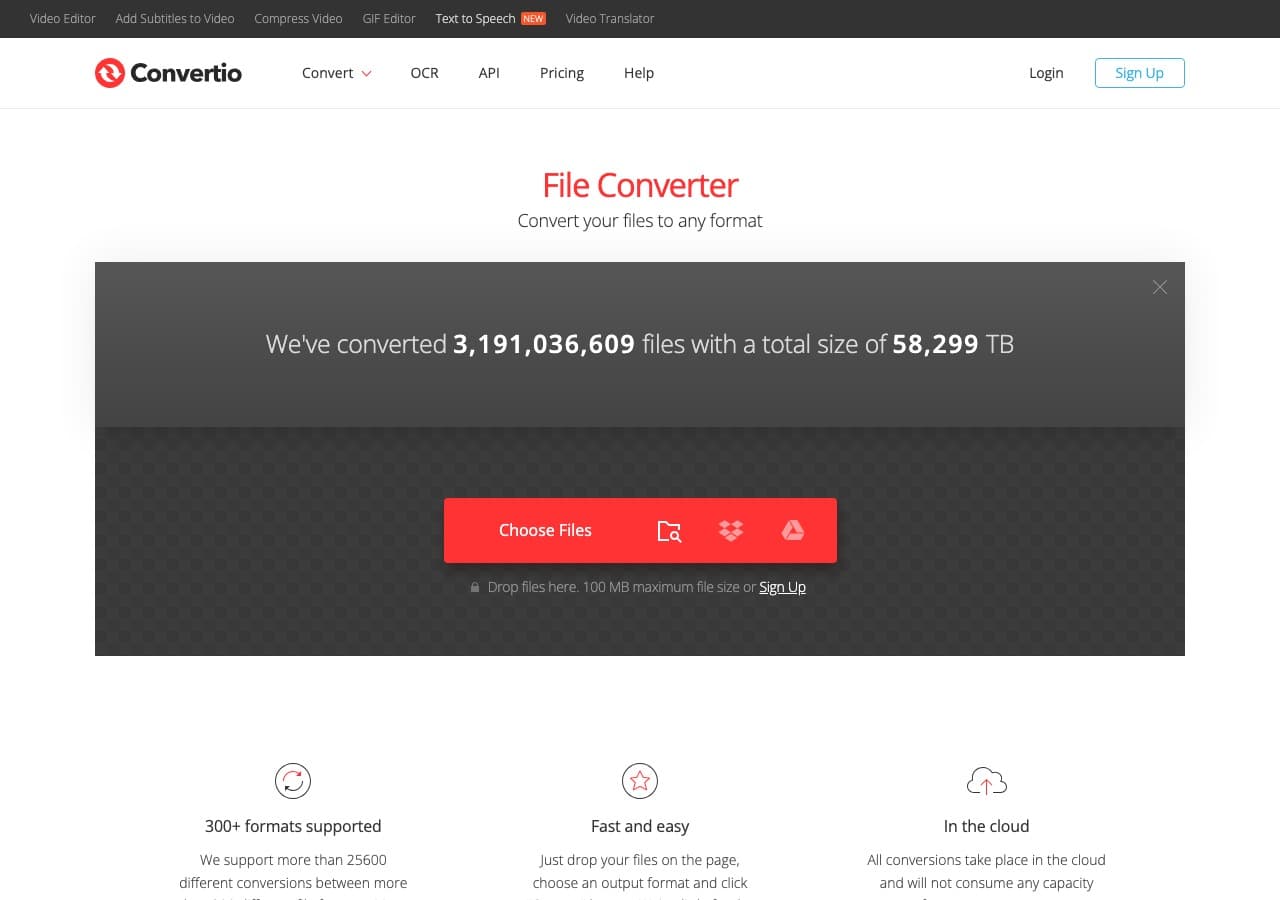
Convertio is widely used for quick browser conversions and it supports a huge number of formats. MP4 to MP3 is a common use case and usually works well.
Pay attention to file size limits on the free tier. Also remember you are uploading files.
Pros
- Very broad format support.
- Simple UI that works on mobile.
- Cloud storage integrations.
- Good for one-off conversions.
Cons
- Uploads required.
- Limits on free tier.
Pricing
- Free tier with limits.
- Paid plans (varies).
14. Zamzar - Best simple online flow
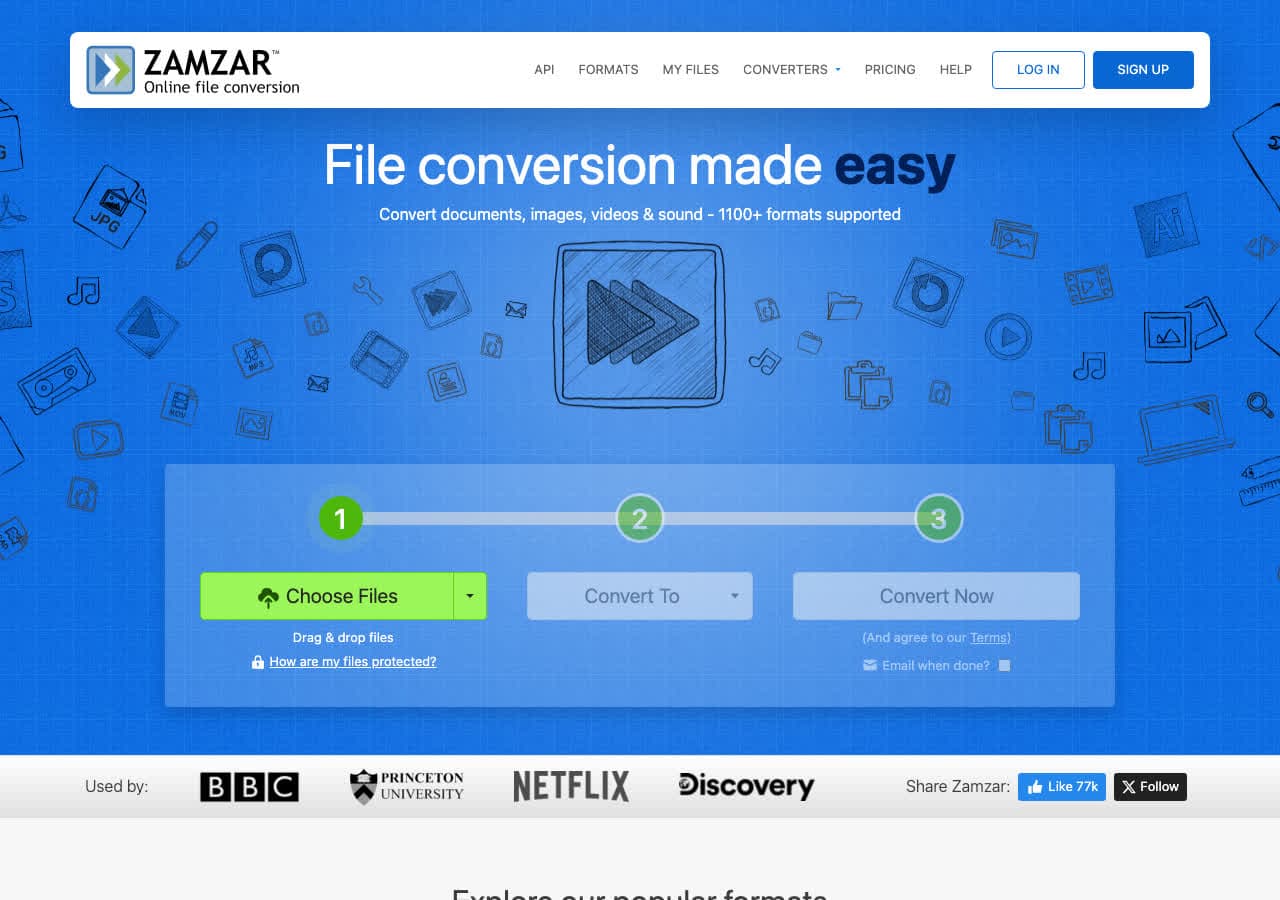
Zamzar is a long-running online conversion service with a beginner-friendly flow. For smaller MP4 files, it is a quick way to extract audio.
It is best for non-sensitive files and occasional conversions.
Pros
- Very simple step-by-step UI.
- Stable, long-running service.
- Works on mobile.
- Good fallback when other sites are busy.
Cons
- Uploads required.
- Free tier is limited.
Pricing
- Free tier with limits.
- Paid plans (varies).
15. Online-Convert.com - Classic web converter option
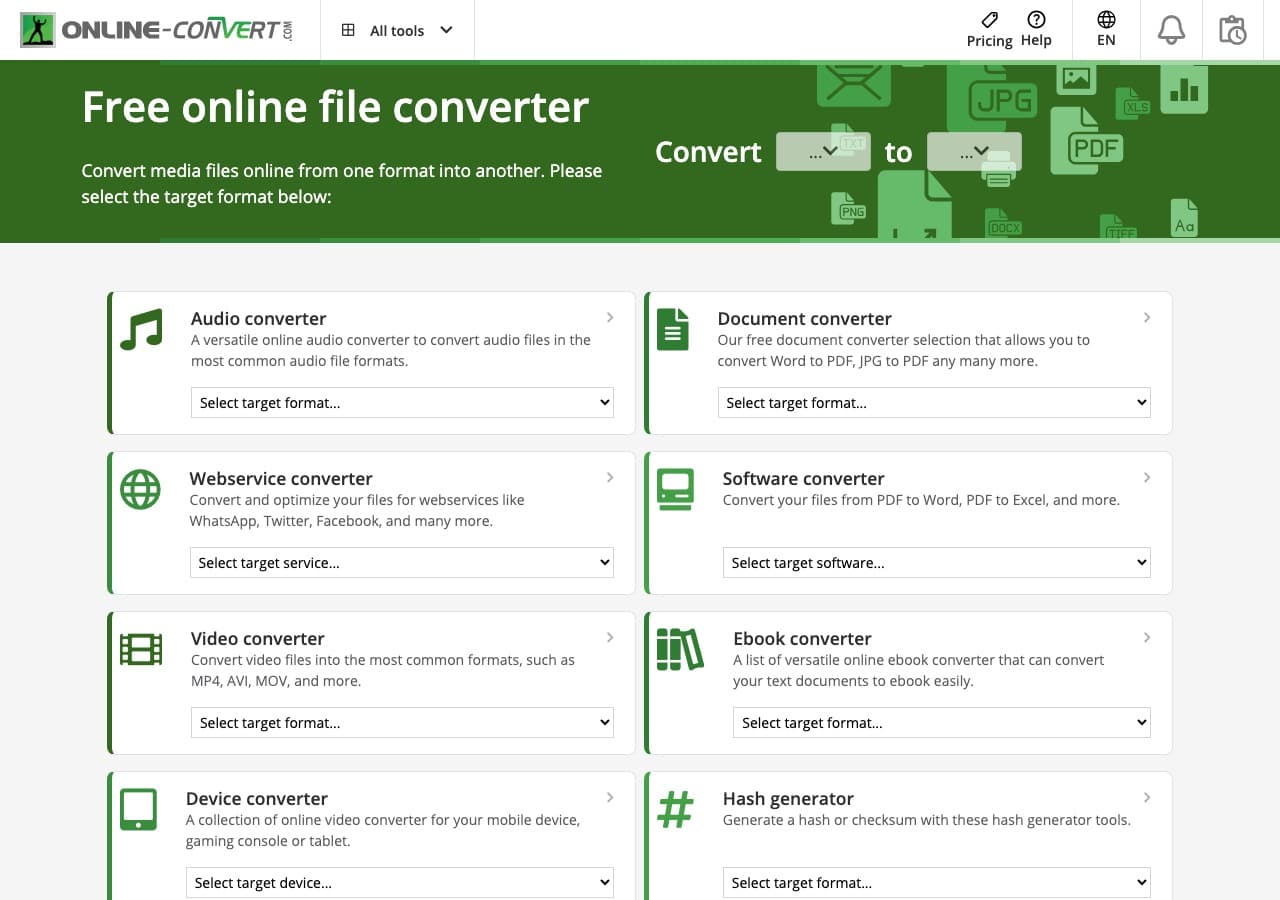
Online-Convert.com is an older, familiar converter site with many format pages. It can extract MP3 from MP4, and it sometimes exposes useful settings like bitrate.
As with other free converter sites, watch out for ads and avoid uploading private files.
Pros
- Many formats and conversion pages.
- Sometimes offers bitrate options.
- No install required.
- Works on most devices.
Cons
- Ad-heavy pages.
- Uploads required.
Pricing
- Free tier with limits.
- Paid plans exist (varies).
16. FreeConvert - Easy MP4 to MP3 conversions with a clean UI
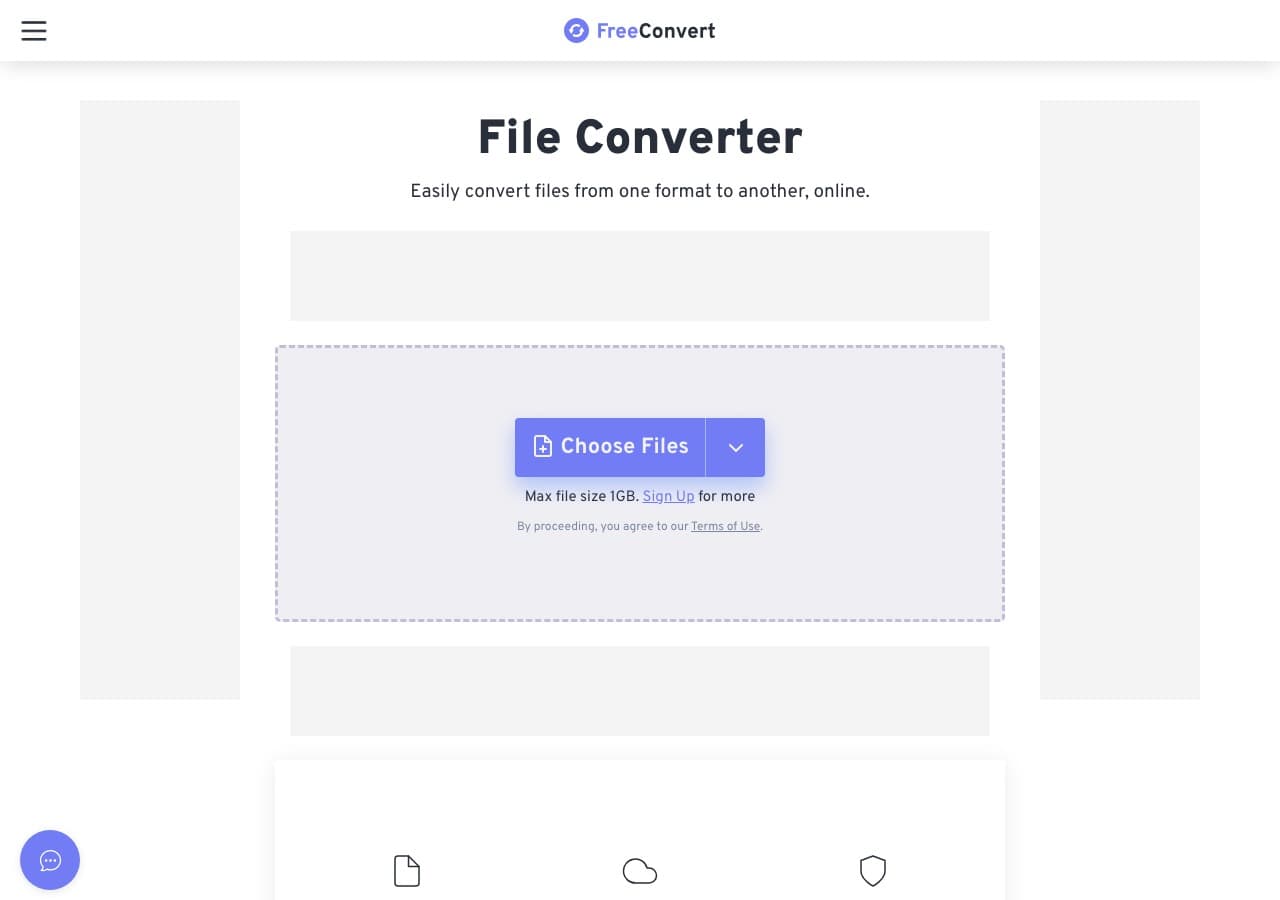
FreeConvert is a newer web converter with a clean UI and straightforward steps. It generally produces good results for typical MP4 to MP3 jobs.
It is a good choice when you want an online converter that feels less sketchy than random ad farms.
Pros
- Clean UI and easy workflow.
- Works on mobile.
- Reasonable output quality.
- Supports many other conversions.
Cons
- Uploads required.
- Limits on free tier.
Pricing
- Free tier with limits.
- Paid plans (varies).
17. Switch Audio Converter - Great for batch audio conversion
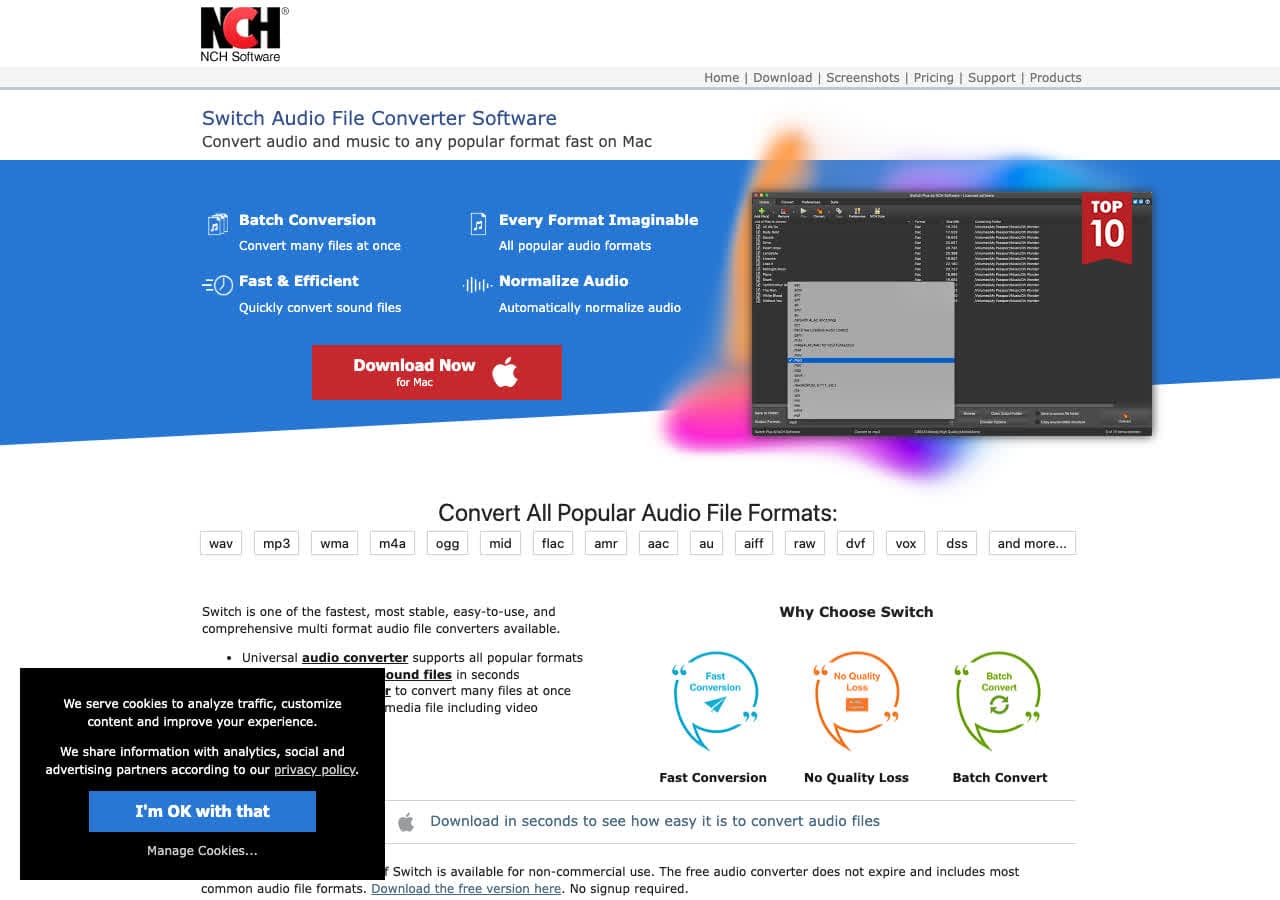
Switch (by NCH Software) is an audio converter focused on batch jobs. If you regularly convert many files and want consistent settings, it is worth considering.
It is especially useful after you extract audio from video and want to normalize everything to consistent bitrate or format.
Pros
- Strong batch conversion workflows.
- Lots of audio formats supported.
- Good control over bitrate/sample rate.
- Works offline.
Cons
- Commercial licensing can be confusing.
- UI feels dated.
Pricing
- Free tier may exist for non-commercial use.
- Paid license (varies by edition).
18. fre:ac - Free audio converter (good for MP3 encoding)
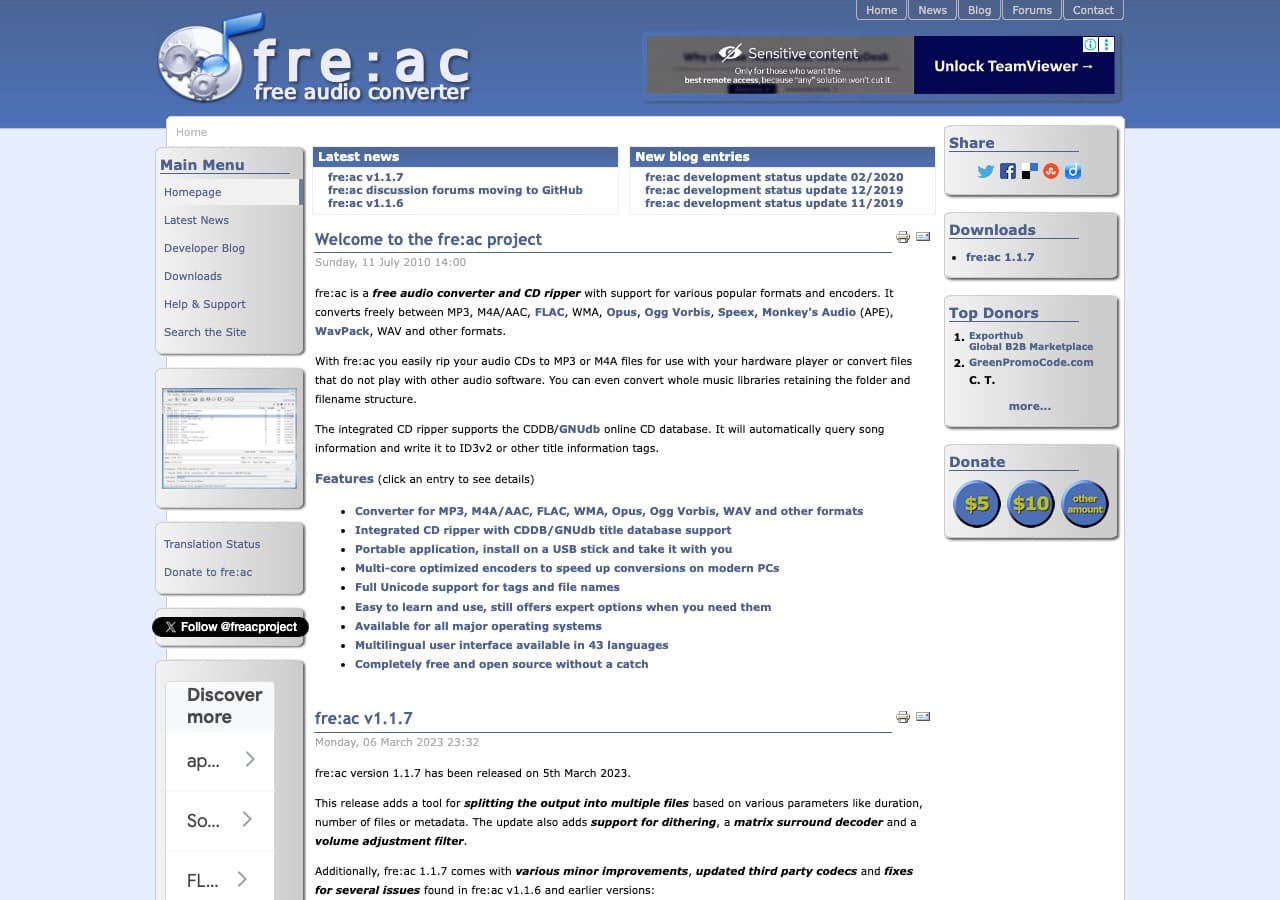
fre:ac is a free audio converter that supports MP3 encoding and batch jobs. If you want an open-source GUI tool for audio conversion, it is a good complement to extraction tools.
For MP4 to MP3, you may still use VLC/HandBrake/FFmpeg to extract, but fre:ac is great when you want to standardize audio settings across many files.
Pros
- Free and open source.
- Good batch workflows.
- Simple UI for audio conversion.
- Cross-platform.
Cons
- Not a video-focused tool.
- UI is utilitarian.
Pricing
- Free (open source).
- Optional donations.
Frequently Asked Questions
Will converting MP4 to MP3 reduce audio quality?
It can. MP3 is a lossy format, so re-encoding always loses some quality. If the MP4 already contains AAC audio, you are converting from one lossy codec to another. For best results, use a high bitrate (like 192 kbps or 256 kbps) or consider extracting to a lossless format (WAV/FLAC) if you will edit heavily.
Can I extract audio without re-encoding?
Sometimes. If the MP4 contains an MP3 audio track (uncommon) you can copy it directly with FFmpeg. More commonly, MP4 contains AAC audio, so you can extract AAC to M4A without re-encoding. If you specifically need MP3, you will usually re-encode.
Is it safe to use online MP4 to MP3 converters?
Use online converters only for non-sensitive files. Uploading meeting audio, interviews, or client recordings to a random converter website is risky. For private files, convert locally using a desktop tool.
Final Thoughts
For privacy and reliability, convert locally with a desktop tool (especially for personal recordings). For maximum control and batch automation, FFmpeg is the gold standard. For an easy GUI, HandBrake and VLC cover most needs. And for quick one-off jobs on non-sensitive videos, online converters like CloudConvert and Convertio are convenient.
 How to Convert
The offline file converter for Mac, Windows and Linux.
- Converts video, audio, images, documents, ebooks and more
- Everything runs locally. Your files never leave your device
- Pay once. Access forever
Get the app on Mac, Windows and Linux
