18 Best Word to PDF Converters in 2026 (Free and Paid)
The best Word to PDF converters for 2026. Convert DOC/DOCX to PDF with clean formatting using these free and paid tools.
Posted by
 Jake Manger
Word documents (DOC and DOCX) are perfect when you need to edit text, collaborate with comments, or keep a living document up to date. But when it is time to send a final version to a client, upload a file to a portal, or print something that must look exactly the same on every device, PDF is the safer format. A good Word to PDF converter preserves margins, page breaks, fonts, images, and clickable links.
The best converter for you depends on what you care about most: privacy (convert locally), speed (one click online), or fidelity (professional PDF editors). This list covers 18 solid options for 2026, from built-in export methods in Microsoft Word and Google Docs to dedicated PDF suites and online converters with advanced settings.
1. How to Convert (I built this one) - Private, local-first Word to PDF
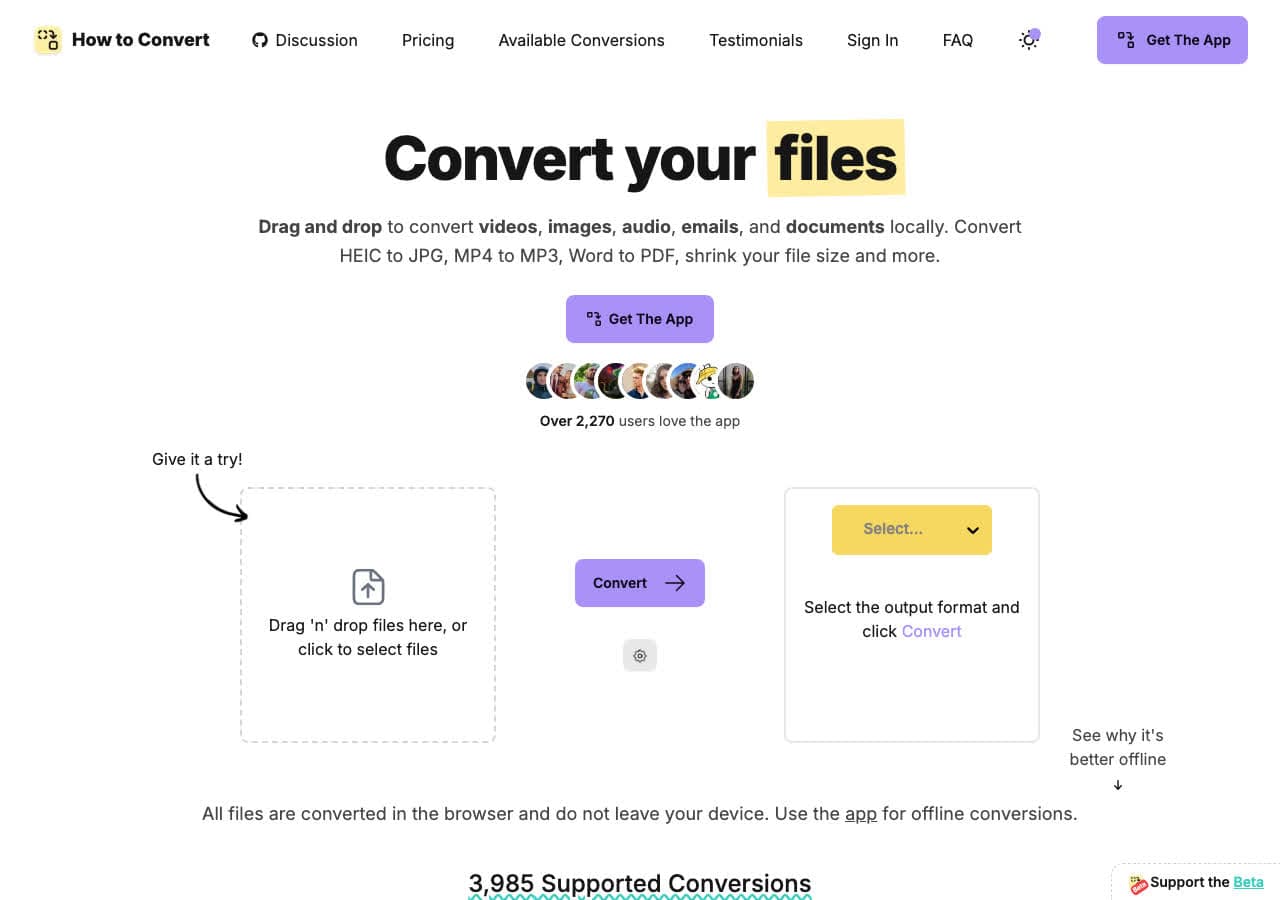
How to Convert focuses on straightforward conversions with a clean interface. For Word to PDF specifically, the biggest advantage is privacy: you can convert locally so sensitive contracts, invoices, and resumes do not leave your computer. It is also nice for repeat work because you can keep a consistent process instead of hunting for a different online converter each time.
If you only convert once in a blue moon, built-in export from Word or Google Docs may be enough. But if you convert regularly and you care about reliability and avoiding upload risks, a dedicated tool like How to Convert (or LibreOffice offline) is worth keeping around.
Pros
- Local-first conversion for privacy (no upload required).
- Simple workflow for non-technical users.
- Good for repeat conversions and batchy day-to-day tasks.
- Avoids the ads and misleading buttons common on free converter sites.
Cons
- Not as feature-rich as full PDF editors (advanced editing/OCR).
- If you already have Microsoft Word, you may not need another app.
Pricing
- Free plan (varies by product).
- Paid plans available for higher limits and additional features.
2. Microsoft Word - Best built-in “Save as PDF” option
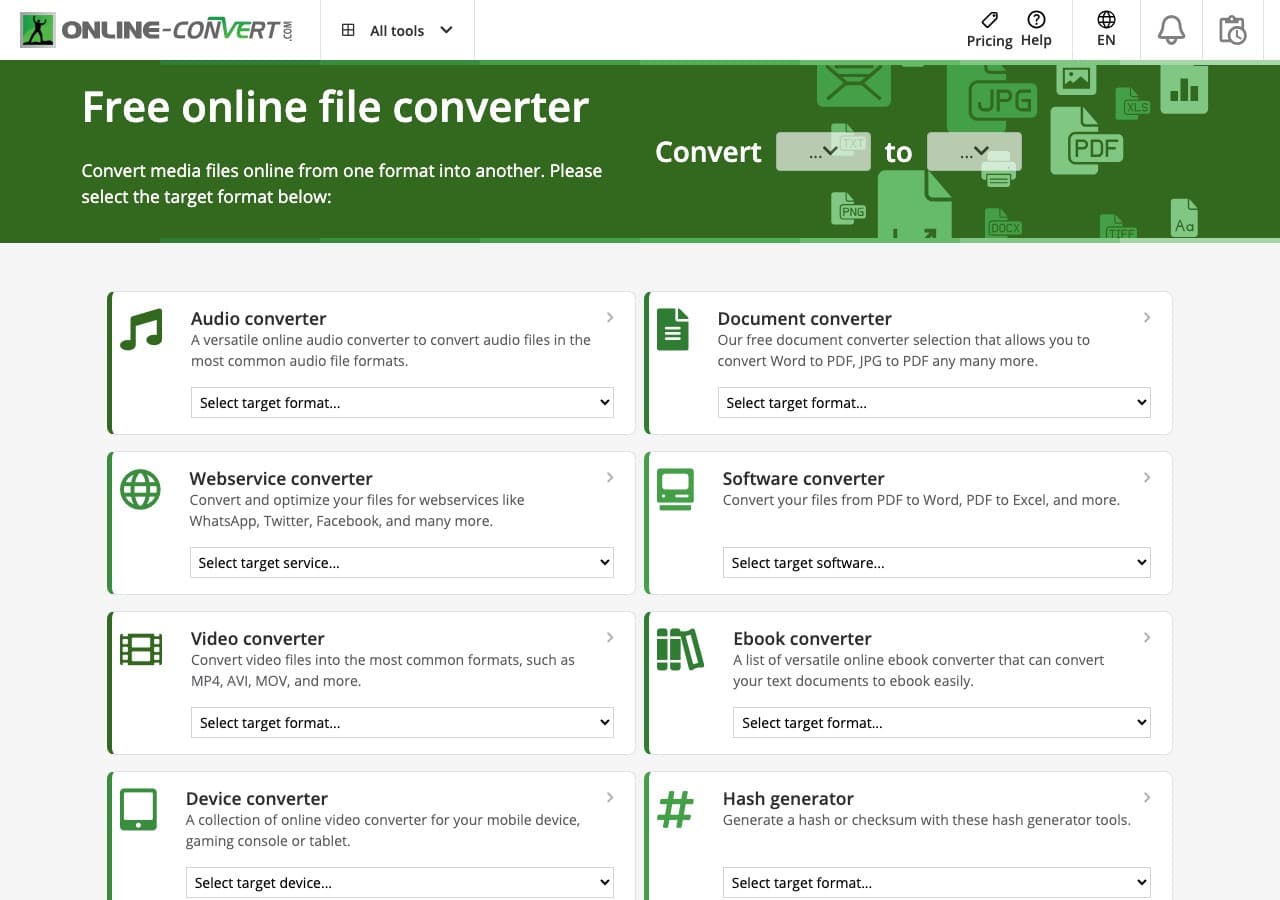
The most reliable Word to PDF converter is often the one you already use to create the document: Microsoft Word. Exporting from Word usually preserves layout, fonts, and page breaks because Word is rendering the file natively.
If the document uses custom fonts or complex tables, exporting from Word tends to beat most online converters. The downside is obvious: you need Word installed (or a Microsoft 365 subscription) and you do not get PDF editing tools beyond basic export.
Pros
- Very accurate layout because Word renders the DOCX.
- Works offline.
- Supports options like optimize for printing vs online.
- No third-party upload required.
Cons
- Requires Microsoft Word.
- Not a PDF editing suite.
Pricing
- Included with Microsoft 365 subscription (varies by plan).
- Standalone licenses may be available in some regions.
3. Google Docs - Best free cloud export
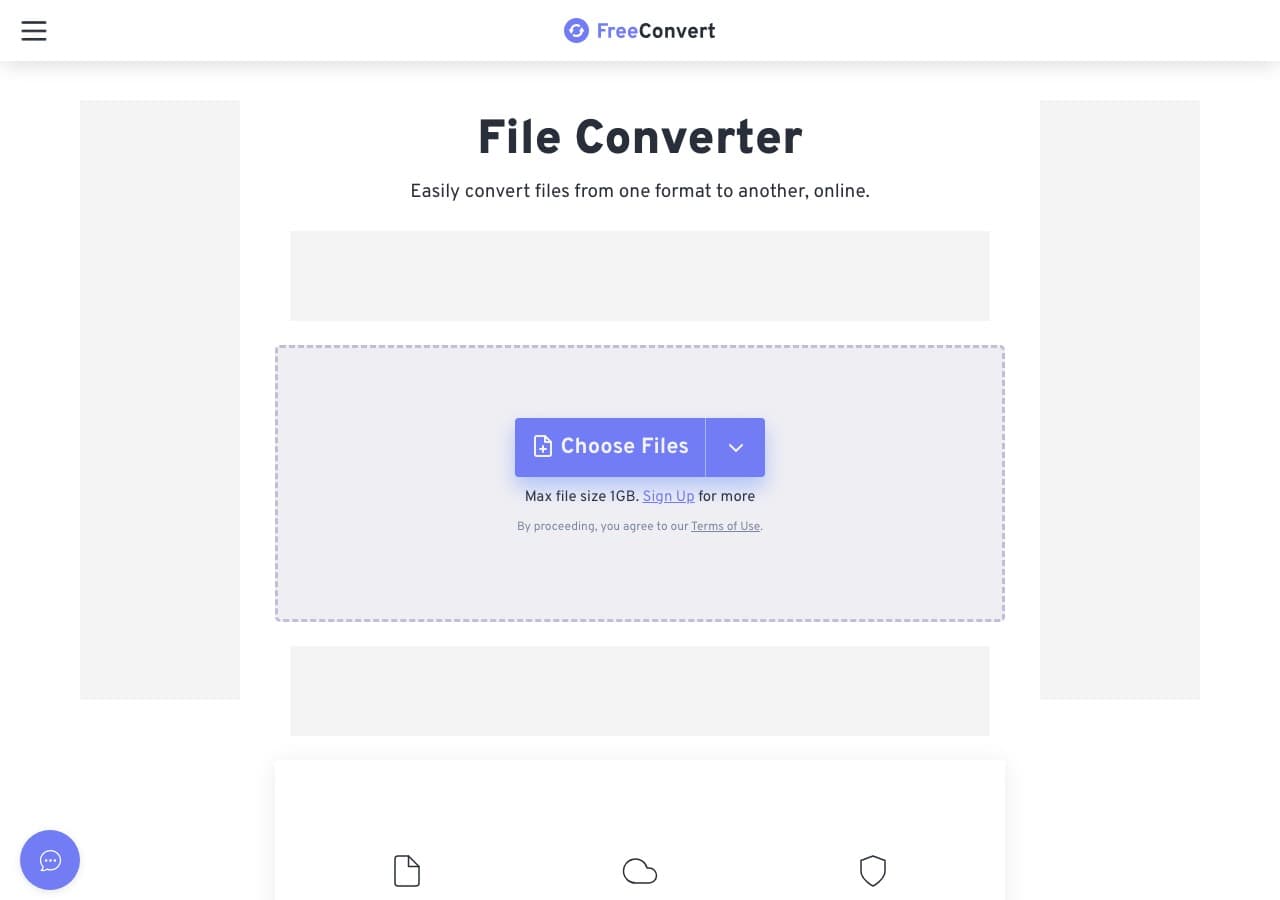
Google Docs can open DOCX files and export them as PDF in a couple clicks. It is a great option when you are already working in Google Drive and you want a fast conversion without installing anything.
The trade-off is privacy: you are uploading the file to your Google account. For non-sensitive documents, that is fine. For confidential documents, a local converter (Word, LibreOffice, or How to Convert) is a better choice.
Pros
- Free and easy if you already use Google Drive.
- Works on any device with a browser.
- Great for collaboration workflows.
- No extra software install required.
Cons
- Requires uploading documents to the cloud.
- Complex layouts can shift slightly when imported.
Pricing
- Free for personal Google accounts.
- Google Workspace plans for teams (varies by plan).
4. Adobe Acrobat - Best overall for professional PDF workflows
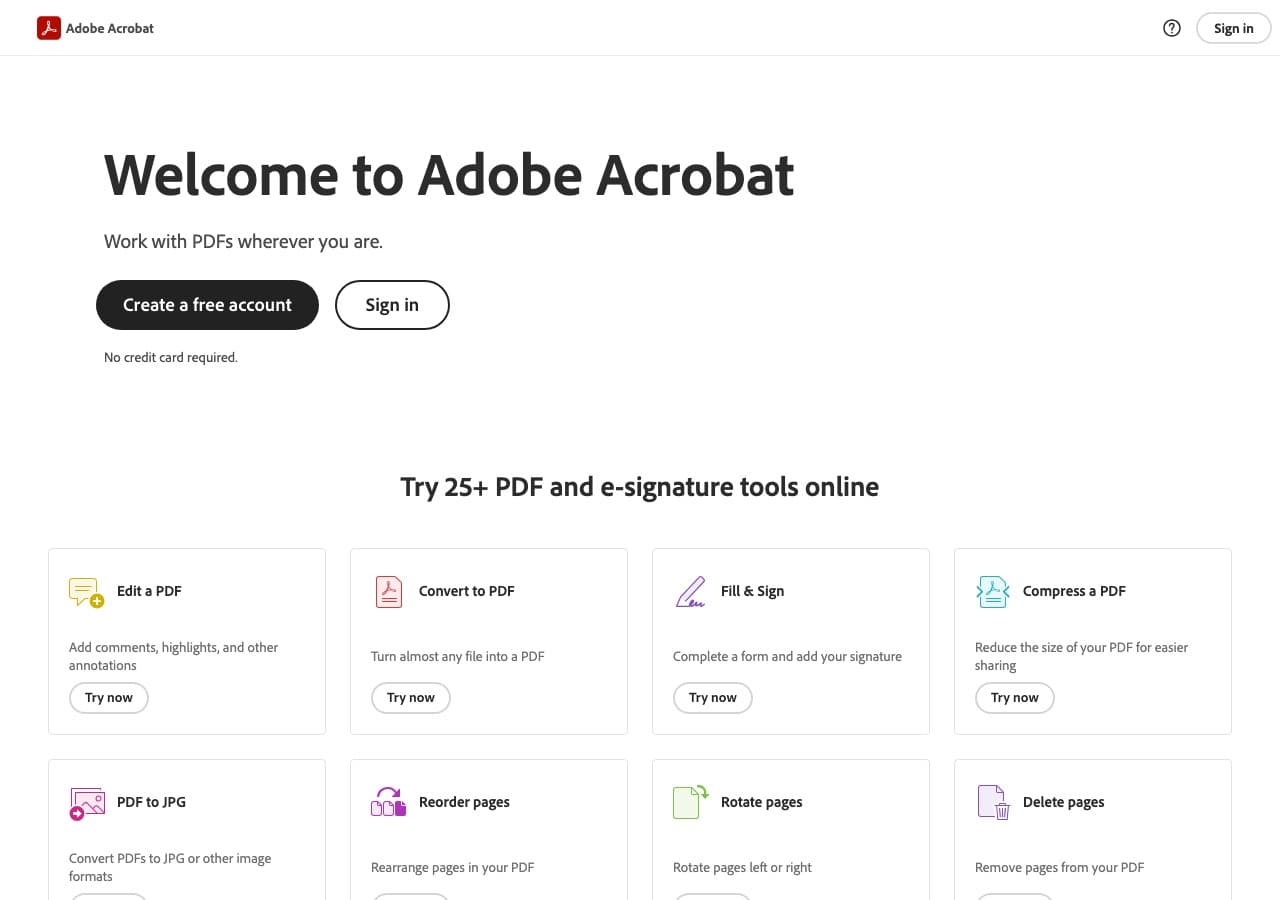
If your goal is not just making a PDF, but producing a PDF that is ready for serious business use (review, redaction, signing, accessibility, and long-term archiving), Adobe Acrobat is the benchmark. It exports PDFs that play nicely with forms, embedded fonts, bookmarks, and compliance requirements.
Acrobat is overkill for casual conversions, but it is hard to beat for teams that work in PDF all day. If you already pay for Adobe, it is the most predictable path from DOCX to a polished PDF.
Pros
- Industry-standard PDF output and compatibility.
- Excellent for business workflows (review, signatures, security).
- Adds editing and optimization tools beyond conversion.
- Strong support resources and enterprise features.
Cons
- Subscription pricing can be expensive.
- More features than most people need for simple exports.
Pricing
- Subscription plans (varies by region and plan).
- Enterprise licensing available.
5. Nitro PDF - Best Acrobat alternative for businesses
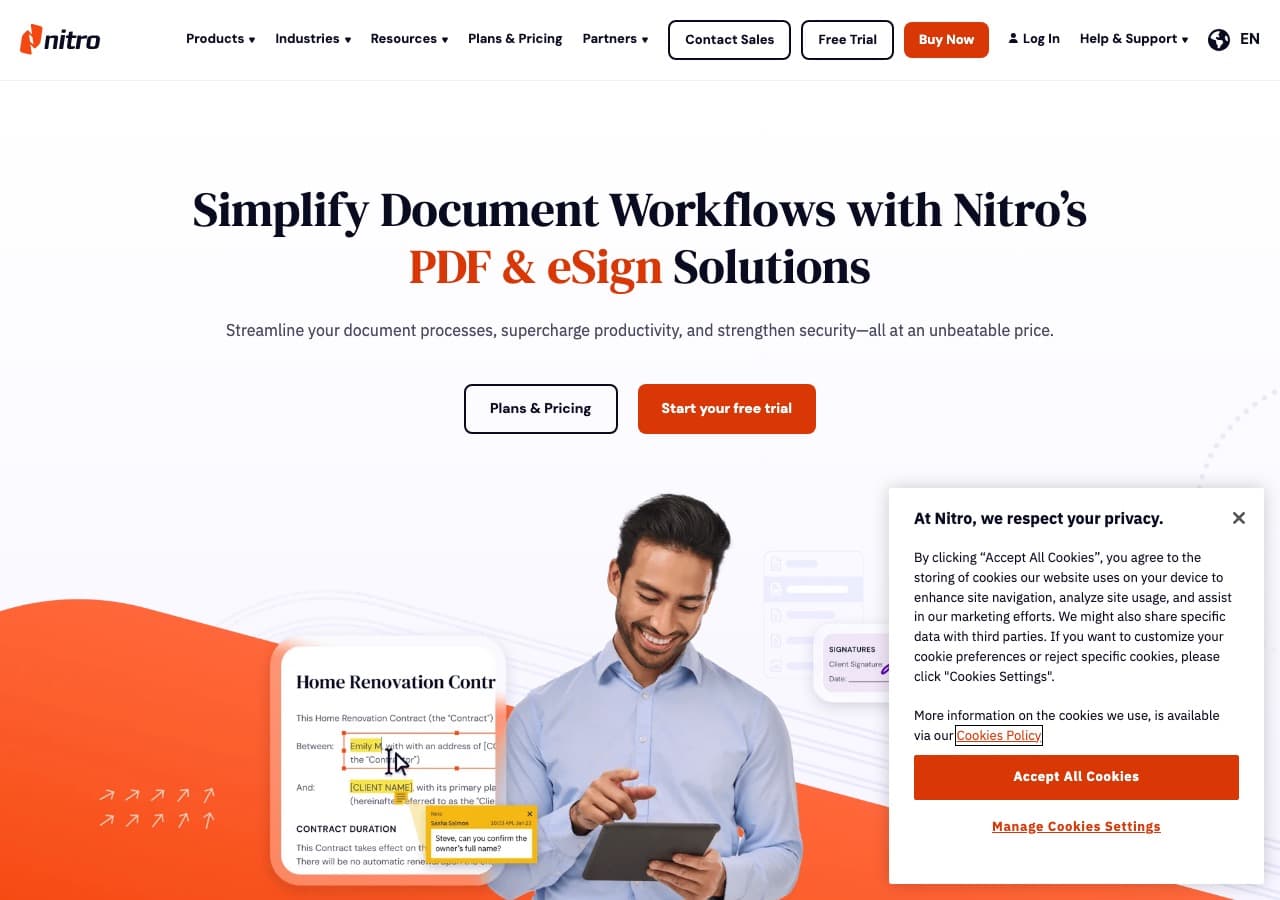
Nitro is a popular Acrobat alternative in business environments. It covers conversion, editing, signing, and collaboration features with a UI that feels familiar to Office users.
For Word to PDF specifically, Nitro tends to preserve layout well and provides extra PDF features if you need to compress, merge, protect, or annotate the result.
Pros
- Strong business-focused PDF suite.
- Good compatibility with Office workflows.
- Includes editing and e-sign features.
- Often cheaper than Acrobat for teams.
Cons
- Commercial pricing.
- Can be heavy if you only need conversion.
Pricing
- Paid plans (varies).
- Business licensing available.
6. Foxit PDF Editor - Fast, full-featured PDF suite
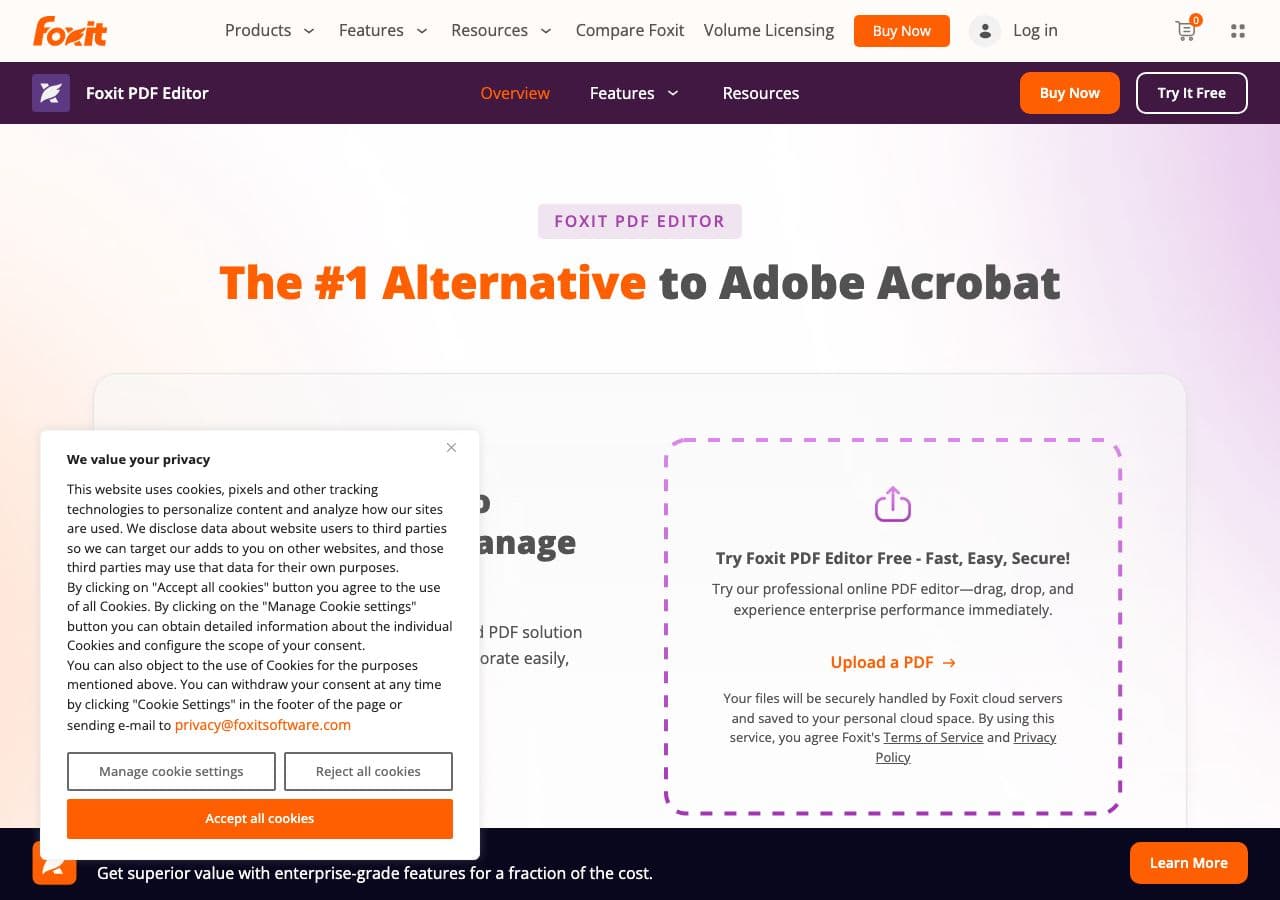
Foxit is known for being faster and lighter than Acrobat while still covering the core needs of many businesses. It includes Word to PDF conversion along with editing, annotations, form tools, and security features.
If you do not want to lock into Adobe pricing, Foxit is a practical alternative that still produces high-quality PDFs.
Pros
- Good balance of speed and features.
- Strong PDF editing + conversion tools.
- Business-friendly security options.
- Often cheaper than Acrobat.
Cons
- Interface can feel dense.
- Some features are Windows-first.
Pricing
- Paid license/subscription (varies).
- Business/enterprise plans available.
7. Smallpdf - Best simple online converter
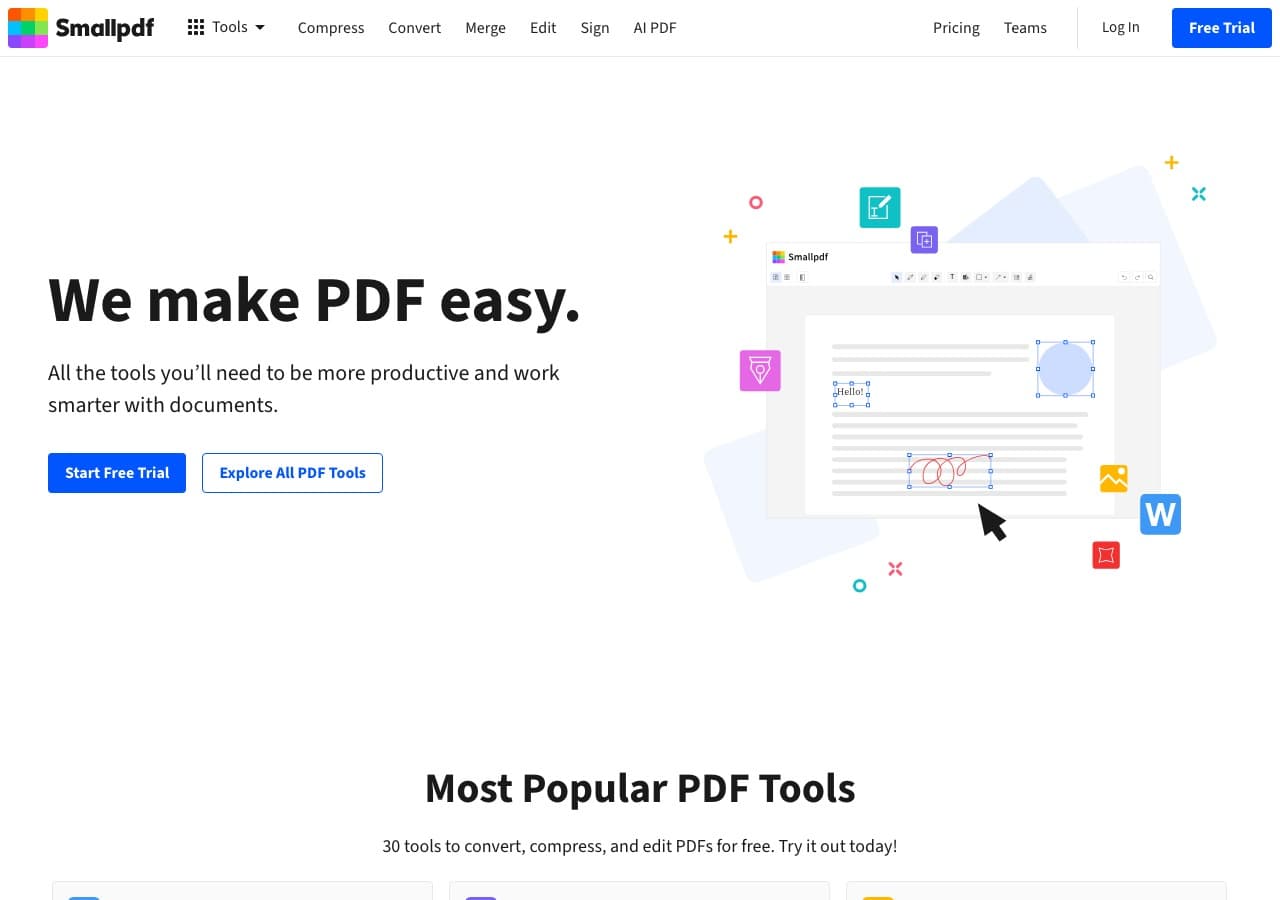
Smallpdf is one of the most popular web-based PDF toolboxes. The Word to PDF tool is straightforward: upload a DOCX and download a PDF. It is great when you need a conversion from a phone or a locked-down work computer.
Like all online converters, use caution with private documents. For sensitive files, convert offline instead.
Pros
- Very easy to use.
- Works on any device.
- Good output quality for typical documents.
- Includes many other PDF tools.
Cons
- Uploads your document to a third-party service.
- Free tier can be limited.
Pricing
- Free tier with limits.
- Paid subscription (varies).
8. iLovePDF - Best all-in-one PDF toolbox
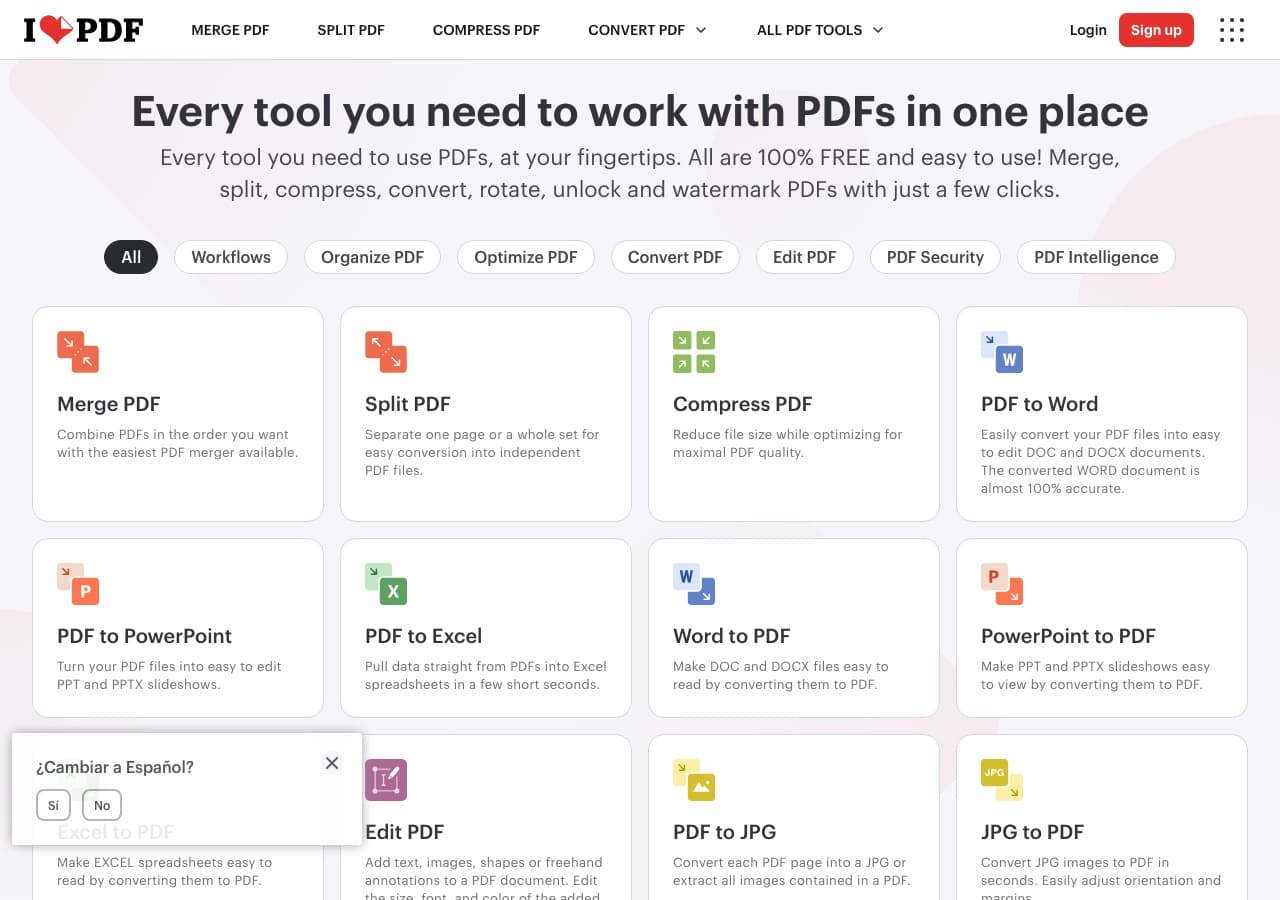
iLovePDF offers a full set of PDF tools and a reliable Word to PDF converter. If you often do tasks like merging PDFs, splitting pages, compressing files, and converting formats, iLovePDF is convenient.
It is easy enough for quick conversions but also has batch features if you pay for the premium plan.
Pros
- Good balance of simplicity and features.
- Many PDF tools beyond conversion.
- Often supports batch processing.
- Available as web + desktop apps.
Cons
- Online use means uploading files.
- Ads and limits on the free tier.
Pricing
- Free tier with limits.
- Premium subscription (varies).
9. PDF24 Tools - Best free offline converter on Windows
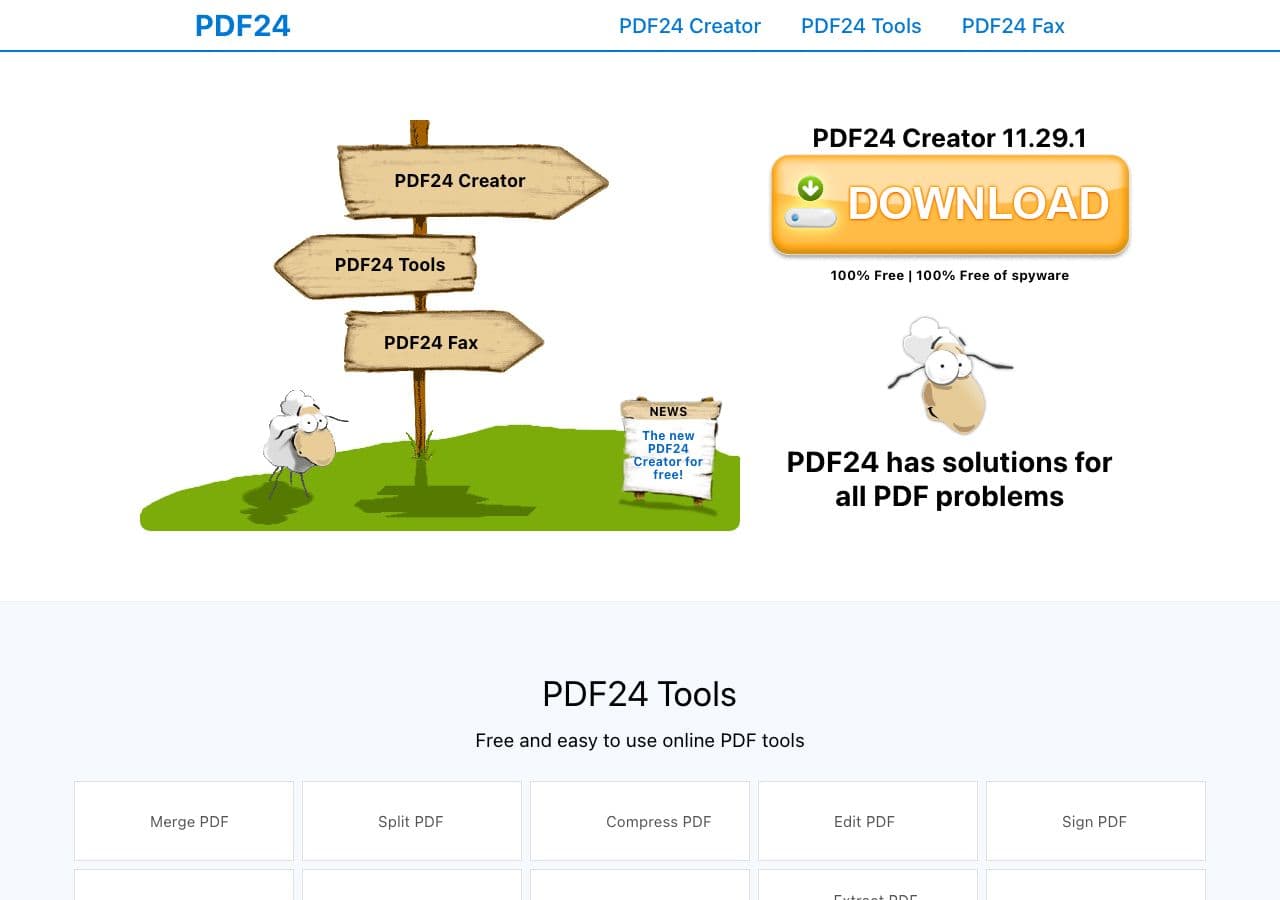
PDF24 is a well-loved free suite on Windows that includes a “PDF Printer” and conversion utilities. If you are on Windows and want a local, no-subscription way to produce PDFs from Word files, it is a strong pick.
It is especially handy for batch workflows and basic PDF utilities like merge, split, compress, and rotate.
Pros
- Free and works offline on Windows.
- Includes many PDF utilities.
- Good for printing to PDF and batch tasks.
- No account required.
Cons
- Windows-focused.
- Interface looks dated.
Pricing
- Free.
- Donations supported.
10. LibreOffice - Best free, open-source offline export
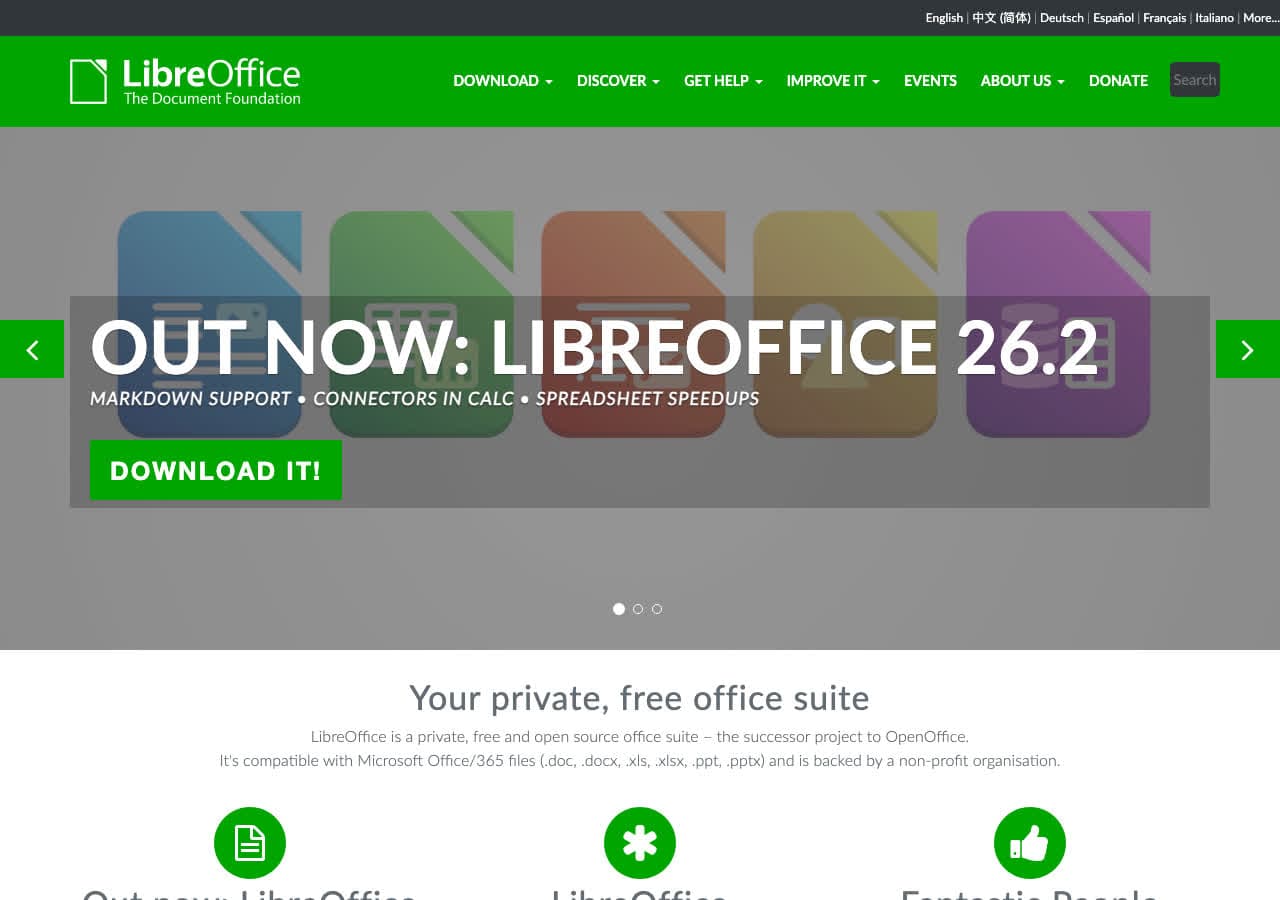
LibreOffice Writer opens DOCX files and can export to PDF with plenty of control. It is a good option when you want an offline converter but do not want to pay for Word.
The main limitation is that very complex Word documents may not render exactly the same as Microsoft Word, especially if the file uses uncommon fonts or advanced layout features. Still, for most documents, LibreOffice exports perfectly usable PDFs.
Pros
- Free and open source.
- Works offline on Mac/Windows/Linux.
- Export options (quality, tags, etc.).
- Good for privacy and repeat workflows.
Cons
- DOCX rendering can differ from Microsoft Word.
- Interface is less polished than commercial Office suites.
Pricing
- Free.
- Optional donations.
11. WPS Office - Best lightweight Office suite export

WPS Office is a popular alternative Office suite with strong DOCX compatibility and an easy export-to-PDF flow. It is useful if you want something closer to Word than LibreOffice but do not want to pay for Microsoft 365.
Note that some features are tied to the premium version, and the free version may show prompts or ads. Still, the export quality is usually solid for typical documents.
Pros
- Good DOCX compatibility.
- Easy export workflow.
- Available on many platforms.
- Often lighter than Microsoft Office.
Cons
- Free tier may include ads/prompts.
- Some export options may require premium.
Pricing
- Free tier available.
- Premium subscription (varies).
12. CloudConvert - Best for advanced online settings + API
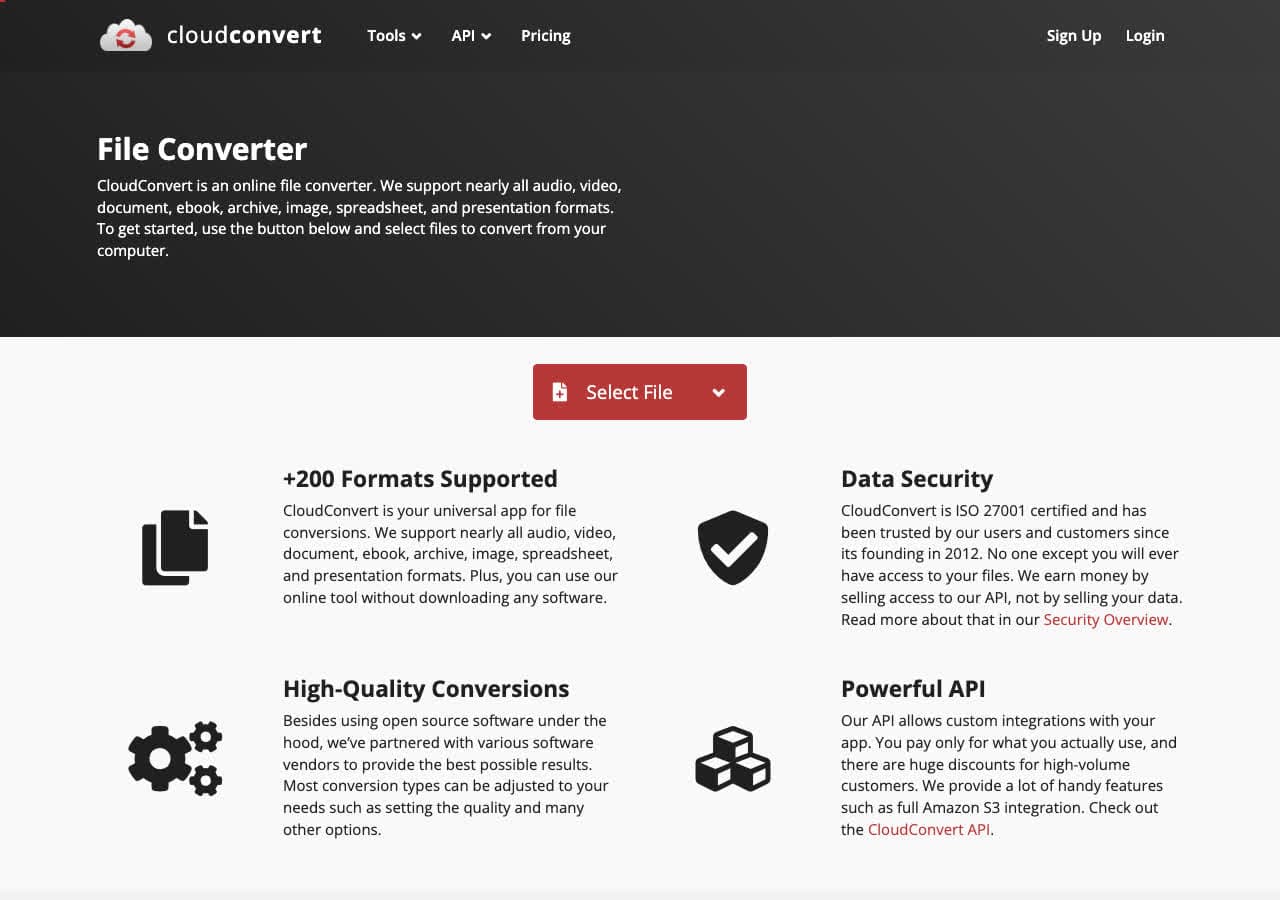
CloudConvert is a favorite among developers and power users because it provides detailed conversion settings, good output quality, and an API for automations. If you need to convert Word to PDF at scale or integrate it into a workflow, CloudConvert is one of the best options.
For one-off conversions, it still works well, but remember you are uploading documents. Use it for non-sensitive files or when you need a specific setting that desktop tools do not offer.
Pros
- Great output quality with advanced controls.
- API access for automation.
- Supports many formats beyond Word/PDF.
- Good for power users and developers.
Cons
- Online conversion requires upload.
- Free tier is limited by minutes/credits.
Pricing
- Free tier with limited credits.
- Paid credits/subscription (varies).
13. Convertio - Best for quick multi-format conversions
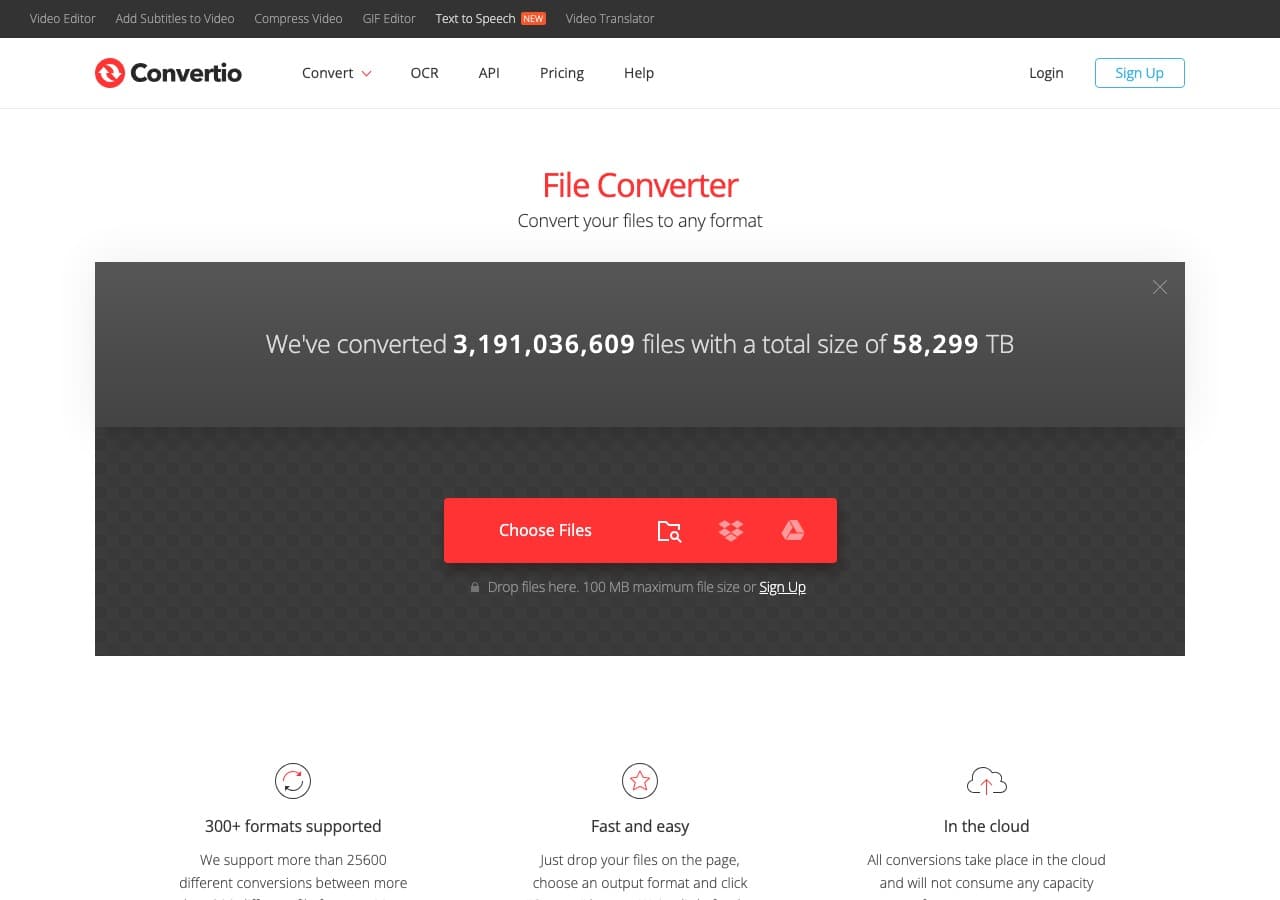
Convertio is a common choice when you need a quick conversion in the browser and you might be bouncing between different file types. Its Word to PDF conversion is straightforward and the site supports a large number of formats.
It is convenient, but like most free converter sites, you should pay attention to file limits and privacy. Avoid uploading anything confidential.
Pros
- Supports many formats.
- Simple web interface.
- Works on mobile.
- Often integrates with cloud storage.
Cons
- Uploads files to a third party.
- Limits on file size and daily conversions on free tier.
Pricing
- Free tier with limits.
- Paid subscription (varies).
14. Zamzar - Best for email-style simplicity
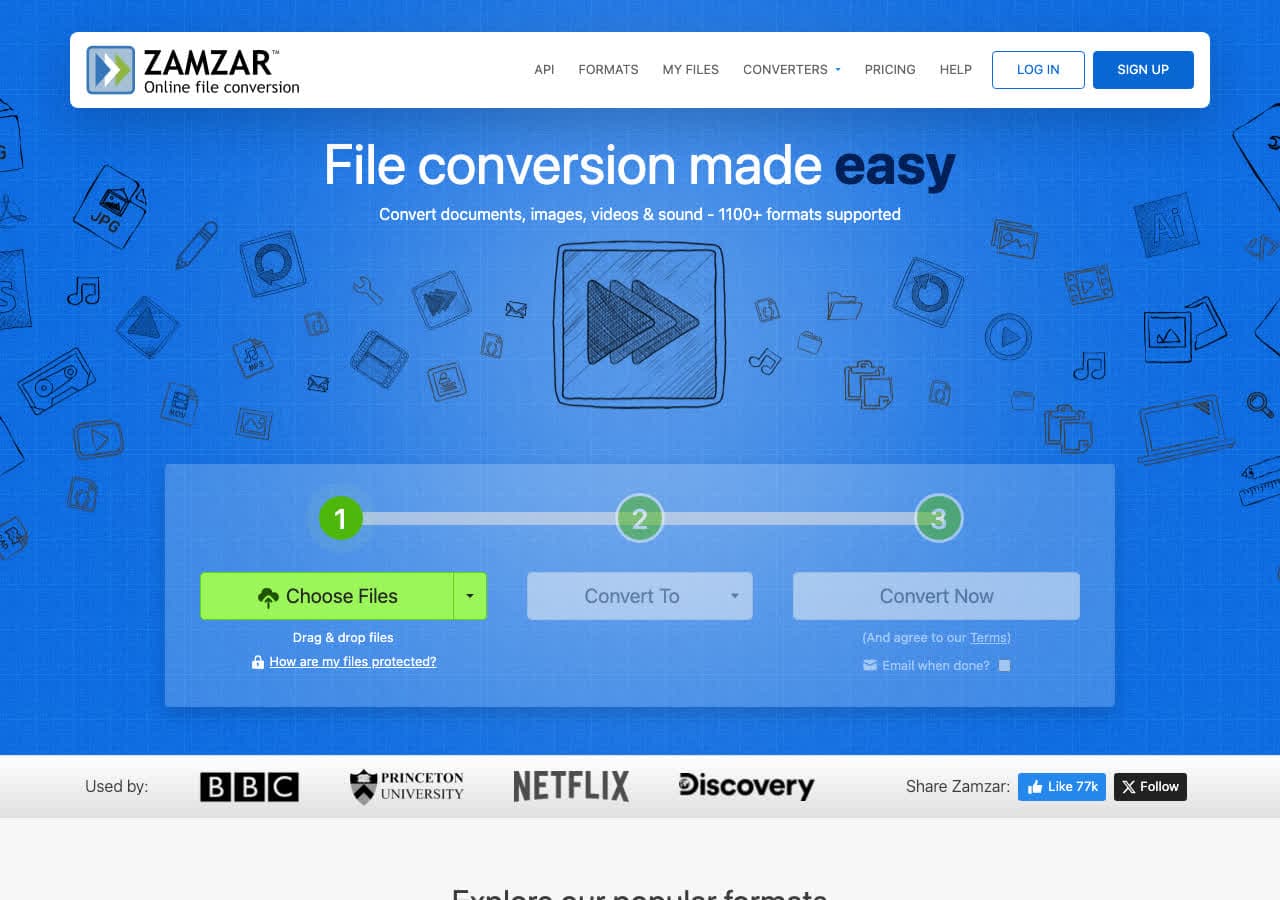
Zamzar has been around forever and still does a good job for simple conversions. Upload a DOCX, choose PDF, and download the result. The UI is beginner-friendly and it often works even when other free sites are overloaded.
It is best for non-sensitive files or quick work when you do not have access to your normal computer.
Pros
- Very simple step-by-step flow.
- Long-running, stable service.
- Works on most browsers and devices.
- Good for occasional users.
Cons
- Upload required.
- Free tier can be slow or limited.
Pricing
- Free tier with limits.
- Paid plans (varies).
15. PDF Expert - Best for Mac users who want a polished PDF app
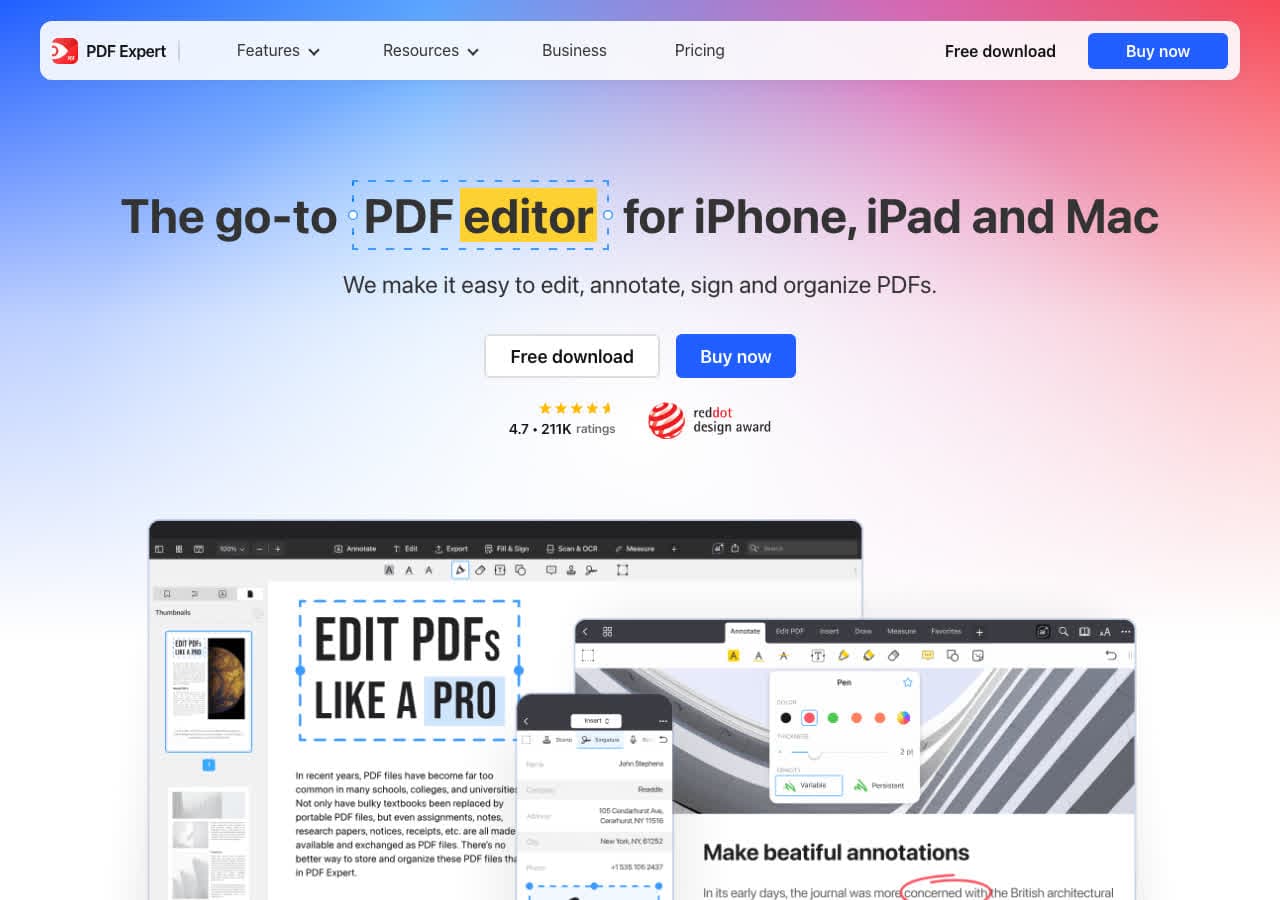
PDF Expert is a popular Mac PDF editor known for a clean UI and great performance. While it is not primarily a converter, it is useful if your Word-to-PDF workflow ends with reviewing, annotating, and organizing PDFs.
If you are on Mac and you want a modern PDF app for daily use, PDF Expert is worth considering alongside conversion tools.
Pros
- Excellent Mac UI and performance.
- Great for annotation and review workflows.
- Strong file organization features.
- Polished experience.
Cons
- Not a full PDF suite for Windows/Linux.
- Paid app.
Pricing
- Paid license/subscription (varies).
- Free trial may be available.
16. Pandoc - Best CLI for clean, reproducible conversions
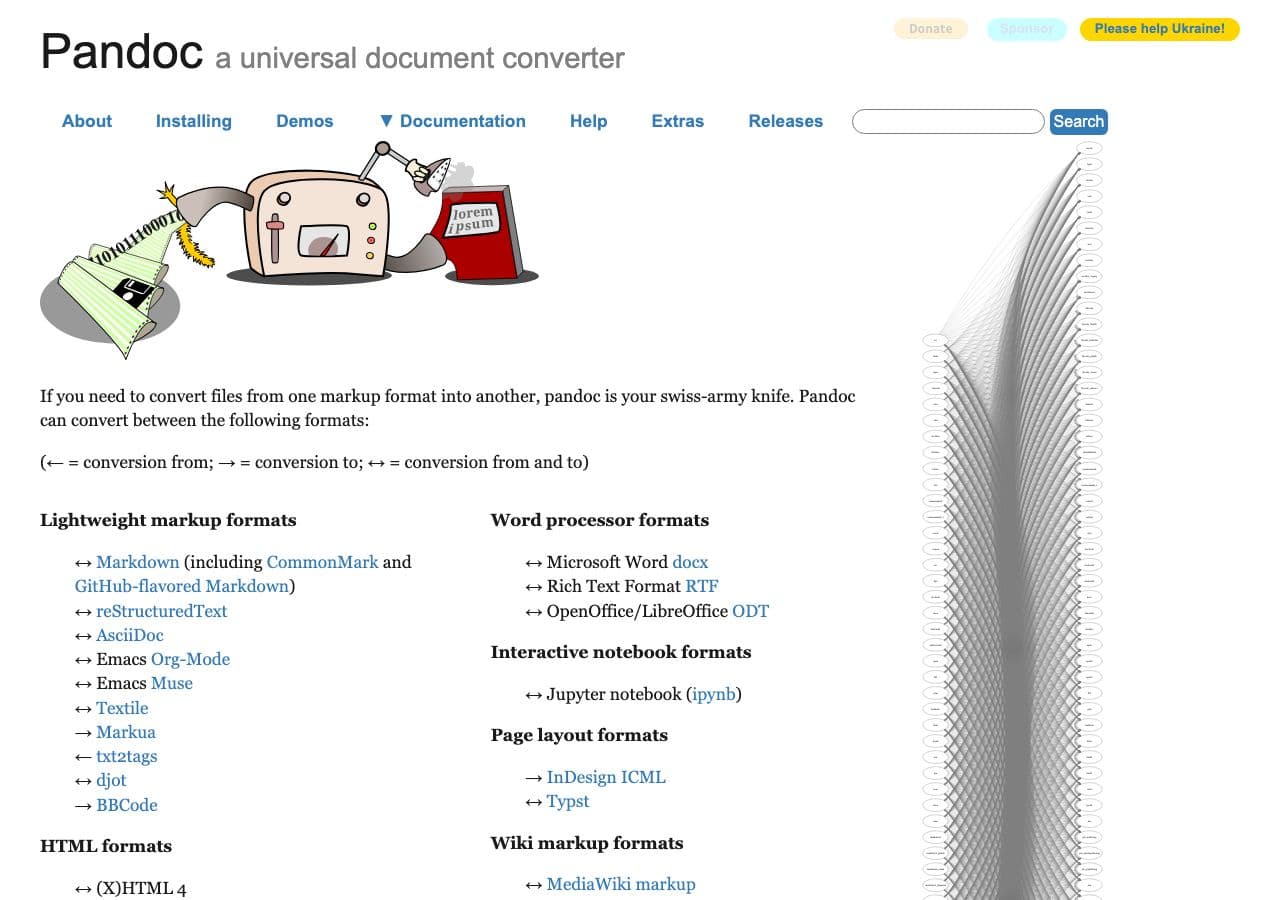
Pandoc is a developer favorite for document conversions, especially when you want the conversion to be scriptable and consistent. Word to PDF can be done via intermediate formats (like Markdown/LaTeX) depending on your setup.
This is not the easiest option for beginners, but it is excellent for teams that want a reproducible conversion pipeline (for example, generating PDFs from templated docs in CI).
Pros
- Scriptable, reproducible conversions.
- Powerful for technical workflows.
- Supports many formats.
- Great for automation.
Cons
- Command-line oriented.
- Setup can be complex for perfect DOCX fidelity.
Pricing
- Free (open source).
- Optional paid support via third parties.
17. Ghostscript - Best for post-processing and print pipelines
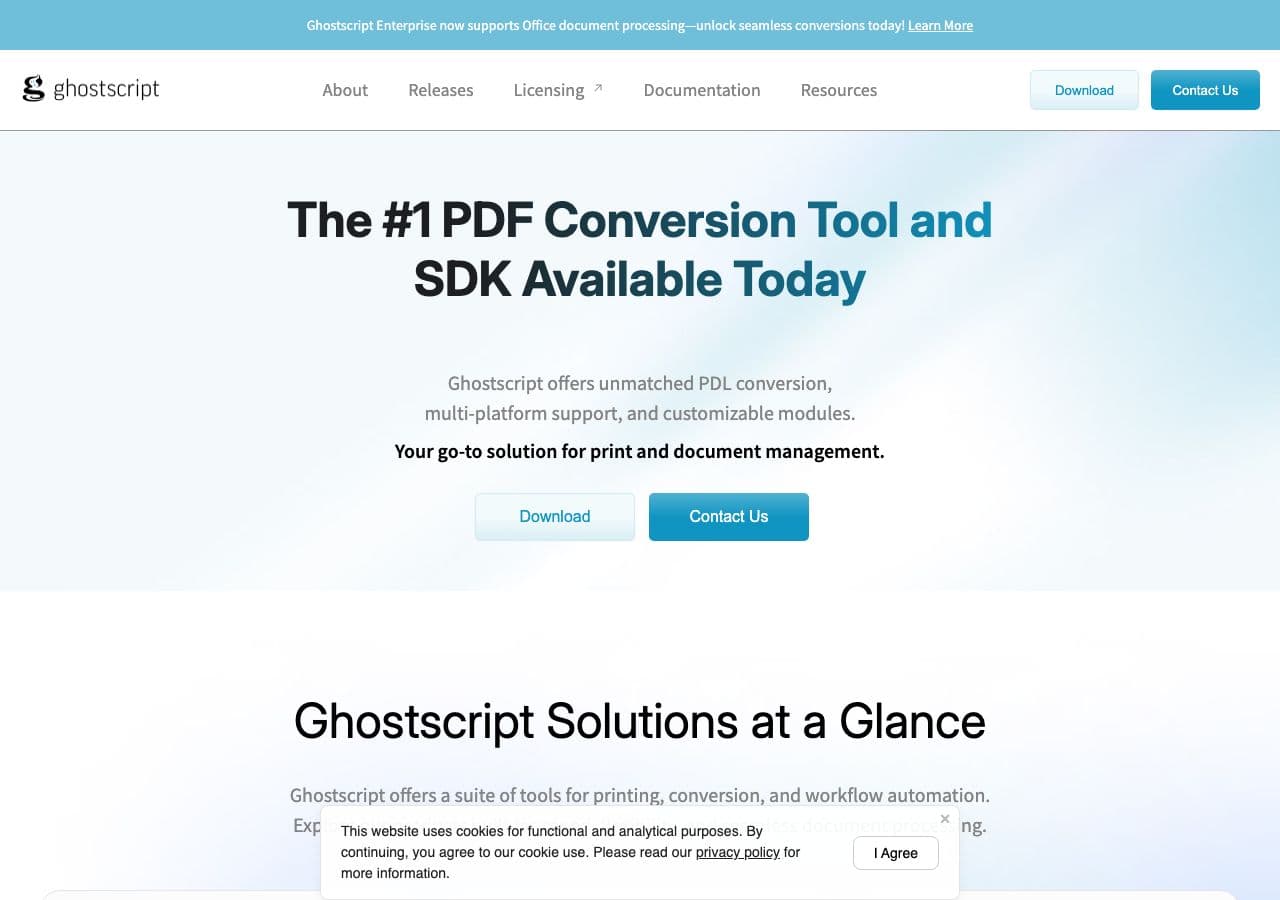
Ghostscript is not a typical “Word to PDF converter,” but it is a core tool used to process and optimize PDFs. If your workflow includes compressing, fixing, or standardizing PDFs after export, Ghostscript is a powerhouse.
It is most relevant for IT teams, print shops, and anyone building automated pipelines. For casual users, it is not necessary.
Pros
- Excellent for PDF standardization and optimization.
- Widely used in print and enterprise workflows.
- Scriptable for automation.
- Open source core.
Cons
- Not a beginner-friendly converter.
- You still need a way to render DOCX to PDF first.
Pricing
- Free (open source). Commercial licensing available.
- Support contracts available.
18. Calibre - Surprisingly useful for DOCX-to-PDF in ebook-style workflows
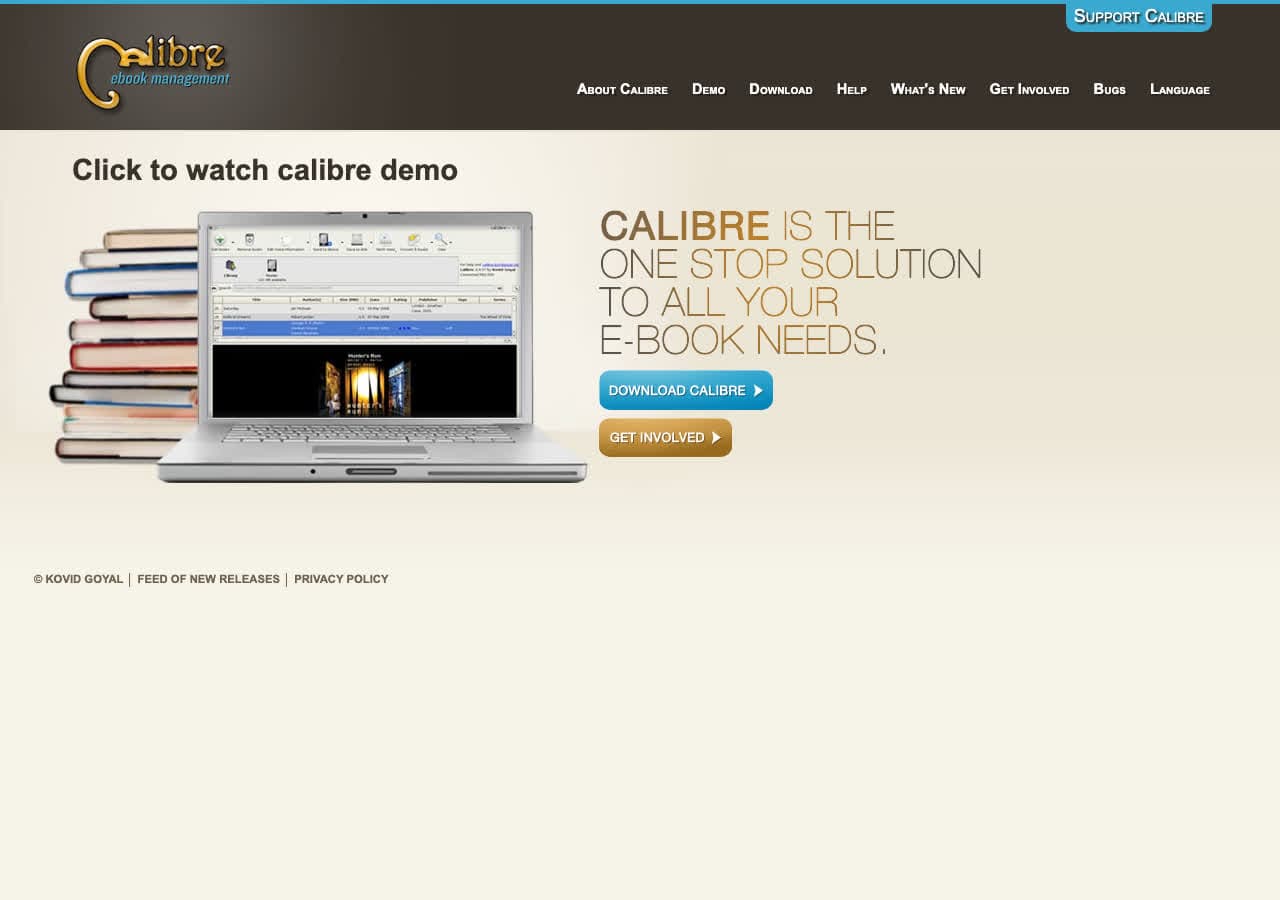
Calibre is primarily an ebook manager, but it includes a powerful conversion engine. If your “Word to PDF” workflow is actually about producing a document for reading (manuals, guides, or longform content) Calibre can sometimes help, especially when you are already converting between formats.
For general business documents, Calibre is not the first tool to reach for. But it is a nice wildcard option to know about if you already use it.
Pros
- Free and open source.
- Powerful conversion engine.
- Useful for longform/reading-oriented outputs.
- Cross-platform.
Cons
- Not optimized for office-style layout fidelity.
- Interface is geared toward ebooks, not PDFs.
Pricing
- Free (open source).
- Optional donations.
Frequently Asked Questions
What is the most accurate way to convert Word to PDF?
For maximum accuracy, export to PDF from the original authoring app (Microsoft Word) or from a professional PDF suite (Acrobat, Nitro, Foxit). That approach preserves fonts, spacing, and page breaks best.
Is it safe to use online Word to PDF converters?
It depends on the document. If the file is sensitive (legal, medical, financial, or internal business docs), avoid uploading it to free converter sites. Convert locally using Word, LibreOffice, or a local-first tool. If you do use an online converter, read the service's privacy policy and delete uploaded files when possible.
Why do fonts change when I convert DOCX to PDF?
If the converter cannot embed the original fonts (or the fonts are not available), it substitutes similar fonts and the layout can shift. Exporting from Word and embedding fonts usually prevents this. If you rely on specific typography, verify the PDF before sending it.
Final Thoughts
If you want the safest path for sensitive documents, convert locally using Microsoft Word, LibreOffice, or a local-first converter. If you want a professional PDF workflow for editing, compliance, and signing, a full PDF suite like Acrobat (or a strong alternative) is worth the cost. And if you just need a quick one-off conversion from anywhere, online tools like Smallpdf, iLovePDF, and CloudConvert are convenient as long as you trust the upload.
 How to Convert
The offline file converter for Mac, Windows and Linux.
- Converts video, audio, images, documents, ebooks and more
- Everything runs locally. Your files never leave your device
- Pay once. Access forever
Get the app on Mac, Windows and Linux
