18 Best JPG to PDF Converters in 2026 (Free and Paid)
The best JPG to PDF converters in 2026. Compare offline desktop apps, open-source tools, and online converters for combining photos, scans, receipts, and forms into portable PDF documents.
Posted by
 Jake Manger
JPG to PDF is the conversion you reach for when you have a stack of photos — receipts, scanned forms, ID copies, real-estate listing shots, contract pages — and need to send them as one document. PDF gives you a single file, a fixed page size, a print-ready layout, and (with the right tool) searchable text via OCR. The conversion sounds trivial, but the difference between a good JPG → PDF tool and a bad one shows up in three places: the way it handles multiple images, the page sizing, and whether it can compress without destroying the source. This guide compares 18 JPG to PDF converters in 2026.
JPG → PDF also has a privacy angle that gets overlooked: receipts, IDs, and signed forms are some of the most sensitive content people convert. The web converters at the bottom of this list are fine for a single non-sensitive photo and a poor idea for a passport scan.
What to Look For in a JPG → PDF Tool
- Multi-image combining. The whole point of converting to PDF is usually putting many photos in one document. A tool that handles “one PDF per image” only is the wrong tool.
- Page size + orientation. A 4032×3024 iPhone photo on an “auto” page size produces a 14-inch-tall page. You probably want A4 or US Letter with the image scaled to fit.
- Image compression in the PDF. Many tools embed the JPG as-is — fine, no extra loss. Some re-encode at low quality. A few offer to compress with a quality slider, which is useful if your photos are 5 MB each and the result needs to be under the 25 MB email limit.
- Margins, page numbers, headers/footers. Mostly irrelevant for receipts; sometimes critical for business documents.
- OCR option. If the JPG is a photo of a printed document, OCR makes the PDF searchable. Not every tool offers it.
Quick Picks for JPG → PDF
- One quick PDF on a Mac: select photos in Finder, right-click → Quick Actions → Create PDF. Free, built in, multi-image.
- One quick PDF on Windows: Photos app → Print → “Microsoft Print to PDF.” Yes, really.
- You want a real layout with multiple photos: How to Convert, PDF24, or a free desktop PDF editor.
- You need OCR (searchable text): Adobe Acrobat, PDF24, or LibreOffice with Tesseract.
- Sensitive content (IDs, contracts): stay local. Skip all the web converters.
One-shot: JPG to PDF converter.
1. How to Convert (I built this one)

Drag JPGs in, drag them into order, pick page size, hit convert. One PDF out, with images embedded losslessly so you do not lose quality. Local — files never leave your machine, which is the right behavior for receipts and IDs.
Pricing
- One-time purchase; free web demo for single-file conversions.
 How to Convert
The offline file converter for Mac, Windows and Linux.
- Converts video, audio, images, documents, ebooks and more
- Everything runs locally. Your files never leave your device
- Pay once. Access forever
Get the app on Mac, Windows and Linux
2. macOS Finder Quick Action — best free Mac option
Select JPGs in Finder → right-click → Quick Actions → Create PDF. Order matches the alphabetical order of filenames; rename first if you want a specific page order. Result is a single PDF with each image as one page. No install, no upload.
For more control (page sizes, margins), open the images in Preview, drag to reorder pages in the sidebar, then File → Export as PDF.
Pricing
- Free with macOS.
3. Windows Photos → Print to PDF
Open the JPGs in Photos, select them, click Print, choose “Microsoft Print to PDF” as the printer, choose a paper size, hit Print. You get a single PDF.
For better control of order and layout, the Photos app is weak. PDF24 (also free, also Windows) is the next step up.
Pricing
- Free with Windows.
4. PDF24
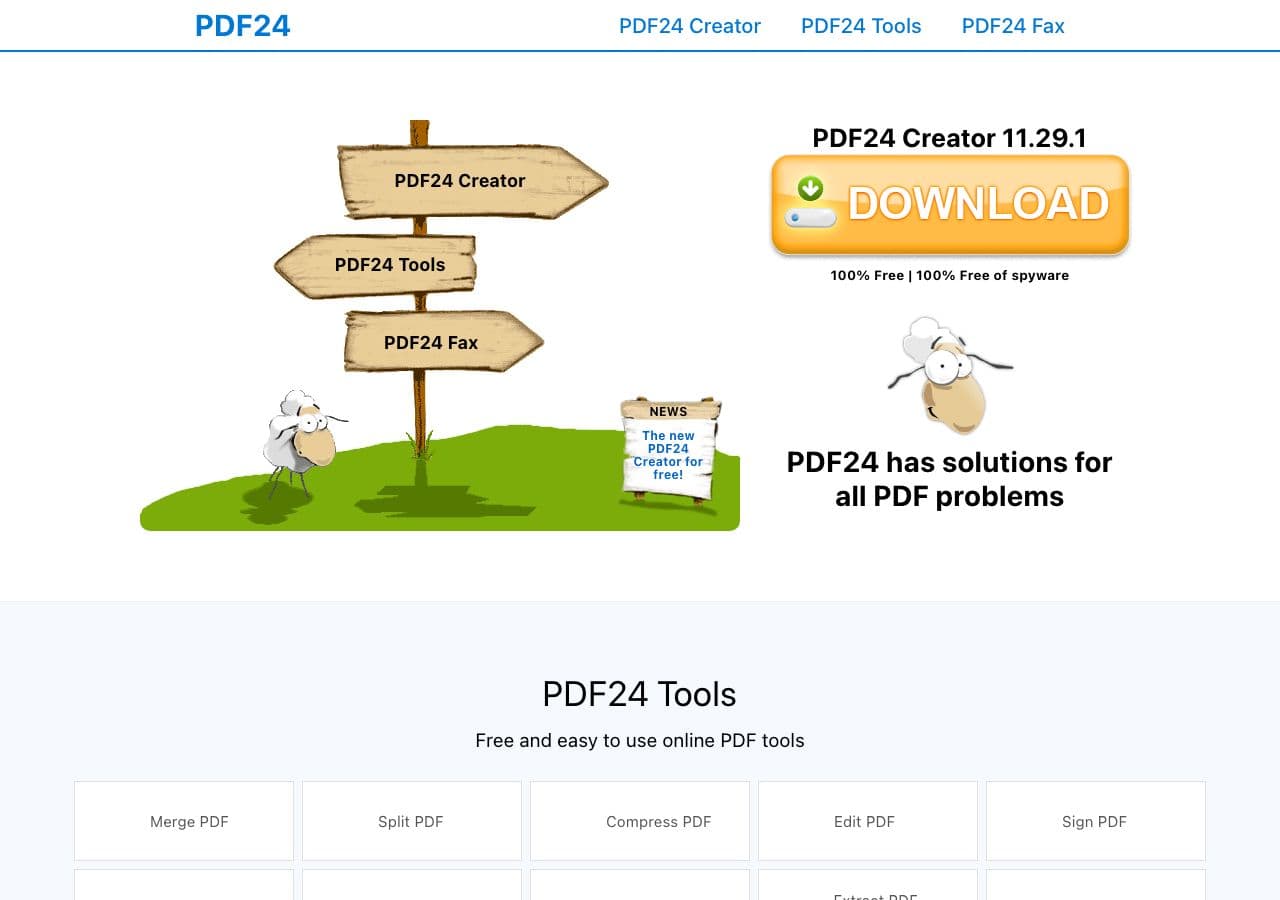
Free Windows PDF toolkit with a JPG-to-PDF tool that handles multi-image combining, page sizing, margins, and basic OCR. Best free desktop option on Windows.
Pricing
- Free for personal and small-business use.
5. ImageMagick
Combine all JPGs in a folder into one PDF, in alphabetical order:
magick *.jpg output.pdf
With explicit US Letter page size and centered scaling:
magick *.jpg -page Letter -gravity center output.pdf
With JPG re-compression to shrink the output (each image gets re-encoded at quality 75):
magick *.jpg -quality 75 -compress jpeg output.pdf
ImageMagick embeds JPGs losslessly by default, so the output PDF is roughly the sum of the JPG file sizes plus a small overhead.
Pricing
- Free, open source.
6. img2pdf
A small Python CLI tool dedicated to image-to-PDF. Unlike ImageMagick, it embeds JPGs without re-encoding by default, so the output PDF is byte-for-byte the source images plus PDF wrapping. Often produces noticeably smaller PDFs than ImageMagick.
img2pdf photo1.jpg photo2.jpg photo3.jpg -o output.pdf
With explicit A4 page size:
img2pdf --pagesize A4 *.jpg -o output.pdf
Pricing
- Free, open source.
7. Adobe Acrobat
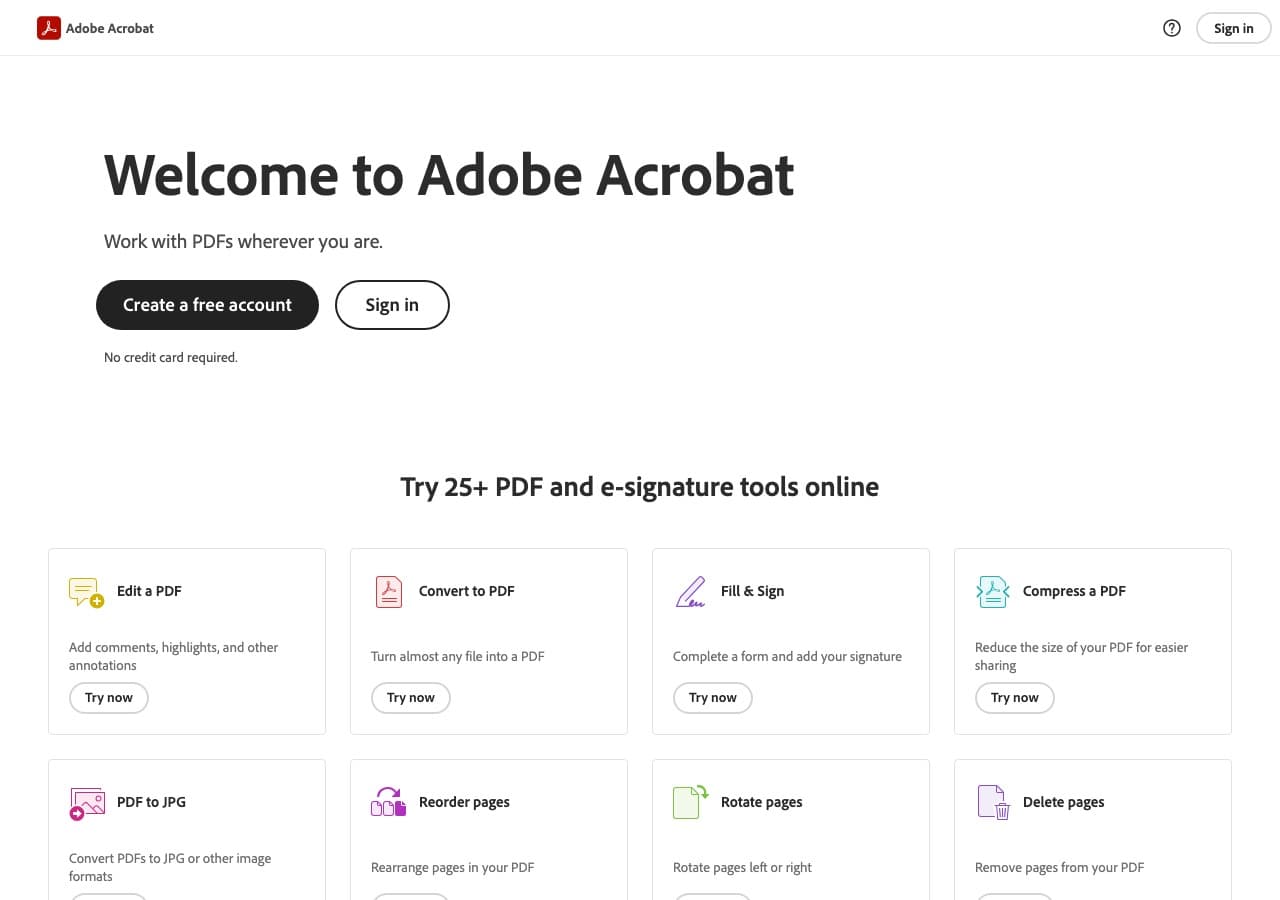
File → Create → Combine Files into PDF, drag JPGs in, reorder, click Combine. Good multi-image handling, optional OCR pass that makes a photo of a printed document searchable. The right pick if you also need to edit, sign, or redact in the PDF afterwards.
Pricing
- Subscription.
8. PDF Expert (Mac)
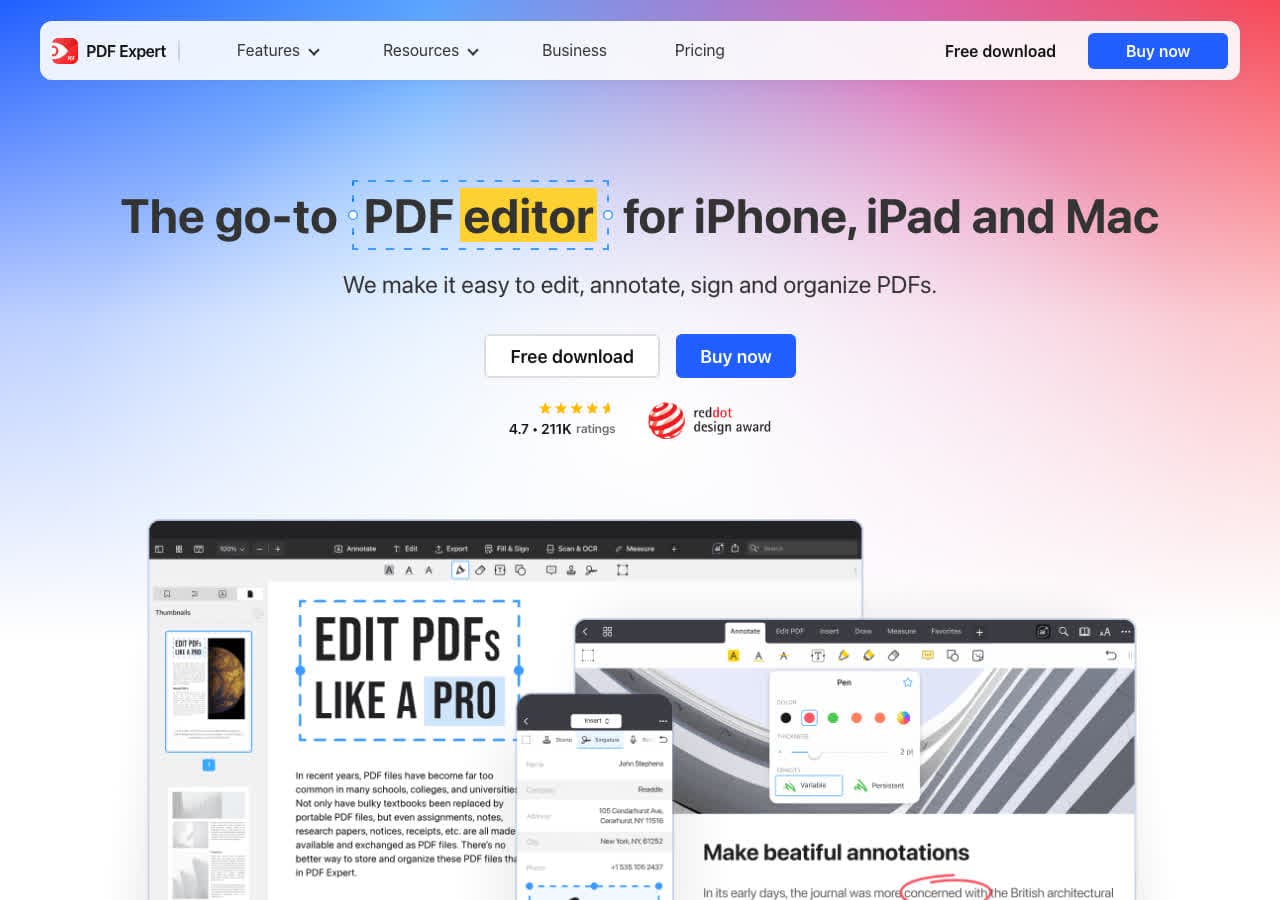
Mac-native PDF editor. Drag JPGs into a new document, save. Best polish of any Mac PDF tool. Good for everyday business PDFs.
Pricing
- Subscription or one-time depending on tier.
9. LibreOffice Draw
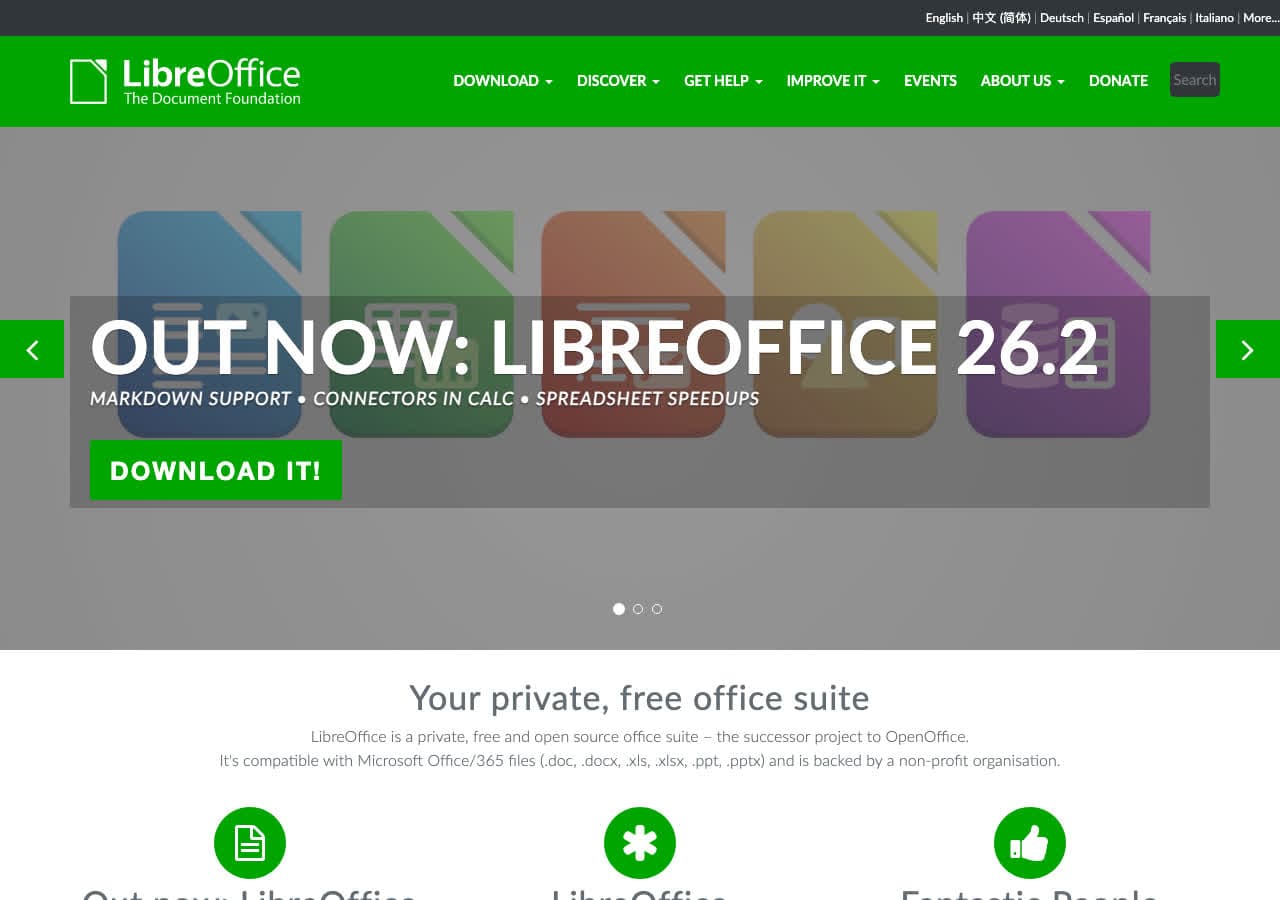
Insert → Image, drag JPGs onto blank pages, File → Export as PDF. More fiddly than dedicated tools, but free and cross-platform. Useful if you want a custom layout (multiple photos per page, captions, headers).
Pricing
- Free, open source.
10. Microsoft Word
Insert → Pictures, one per page, File → Save As → PDF. Slow but familiar. Useful when you also want to add captions, page numbers, or company branding around the images.
Pricing
- Subscription (Microsoft 365) or one-time (Office).
11. Smallpdf
Web converter with a clean JPG → PDF UI. Drop images, reorder, set page size, download. Web upload — fine for non-sensitive images.
Pricing
- Free with daily limits; paid removes them.
12. iLovePDF
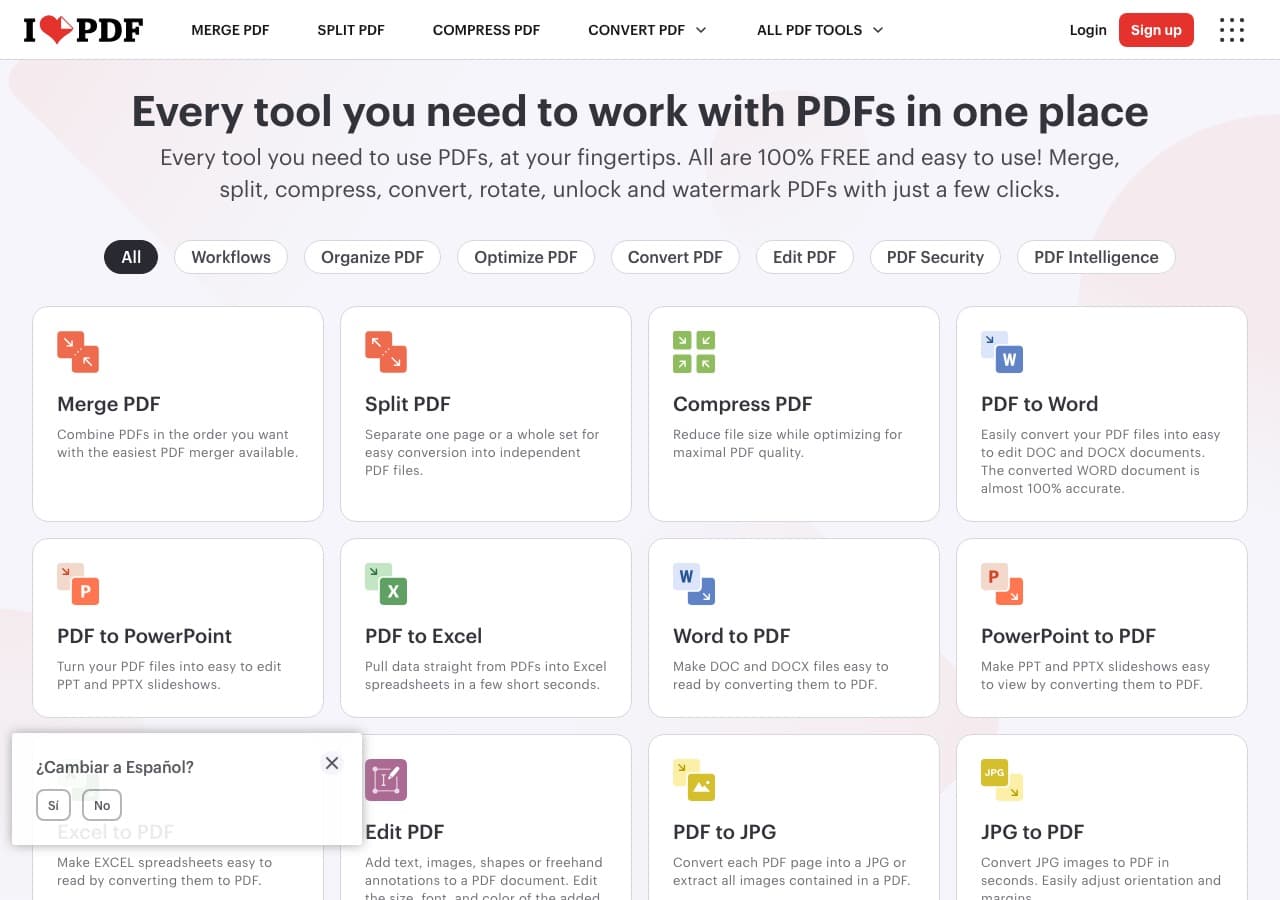
Browser JPG → PDF with multi-file upload, drag-to-reorder, page size selection. Generous free tier. Same web upload caveat.
Pricing
- Free with limits; paid removes them.
13. CloudConvert
Reputable web converter with API. JPG → PDF with options for orientation, page size, and image fit. Good for scripted workflows.
Pricing
- Free tier; paid for higher volume.
14. Convertio
Web converter, JPG → PDF in batch with order control.
Pricing
- Free with caps; paid above.
15. FreeConvert
Clean web UI for JPG → PDF with merge option. Useful for occasional single-document combining.
Pricing
- Free with caps; paid above.
16. Foxit PDF Editor
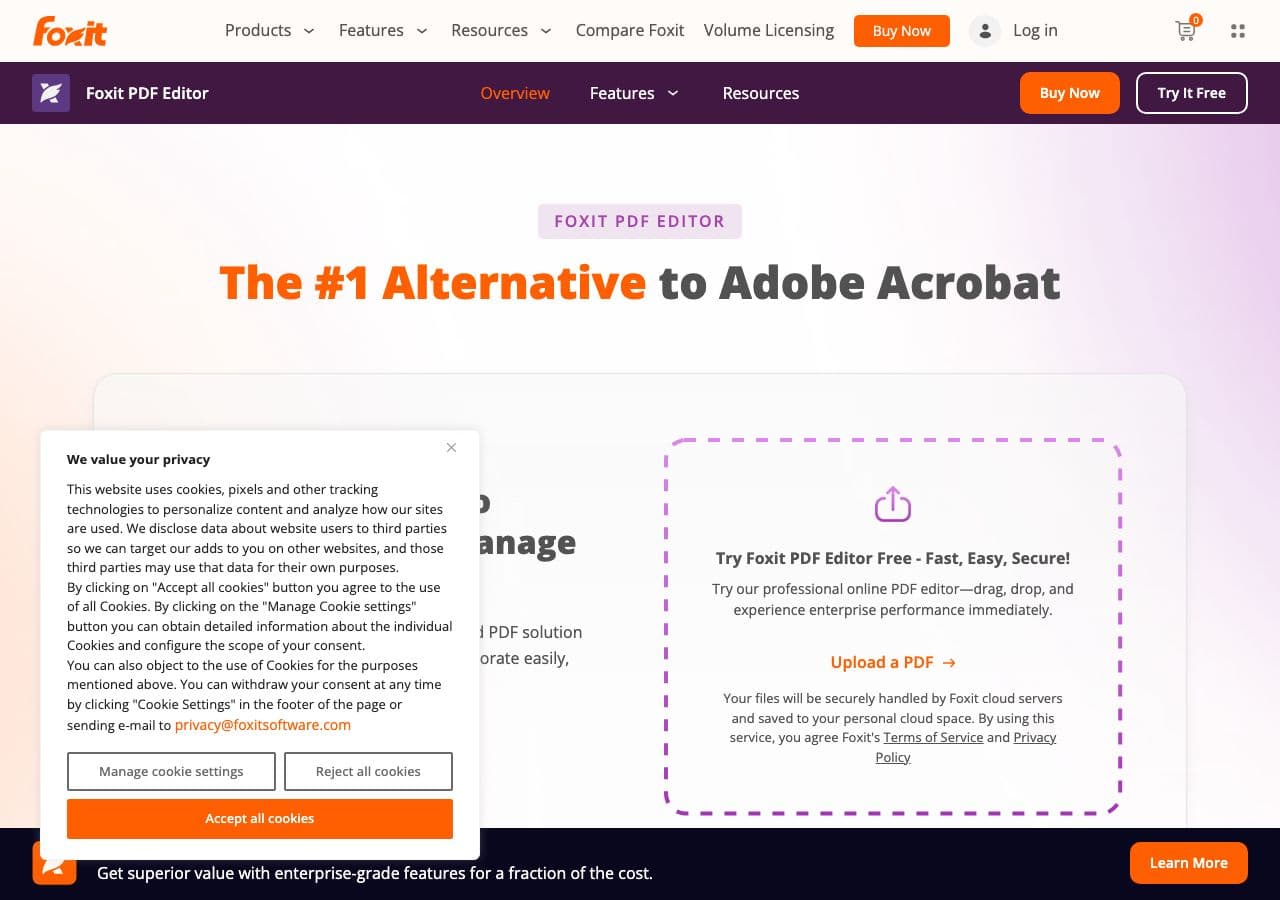
Lighter Acrobat alternative. JPG → PDF via Create → From File, with OCR option. Strong on Windows; available on Mac too.
Pricing
- Subscription or perpetual depending on tier.
17. Nitro PDF
Adobe alternative aimed at teams. JPG → PDF with collaboration and signature features in the same product.
Pricing
- Subscription.
18. Mobile apps (CamScanner, Adobe Scan, Apple Notes)
If the JPGs started life on your phone, the fastest path is usually a phone-side scan app. Adobe Scan, Microsoft Lens, and Apple Notes (use the built-in document scanner) all do auto edge detection, perspective correction, and JPG → PDF combining in one flow. CamScanner is the long-running classic but has had privacy complaints in the past — Adobe Scan and Apple Notes are safer defaults.
Pricing
- Free or freemium depending on the app.
How to Choose
- Quick, one-time: the OS built-in. Mac Quick Action or Windows Print to PDF.
- Many images, real layout: How to Convert, PDF24, Acrobat, or PDF Expert.
- Smallest output file: img2pdf — embeds JPGs without re-encoding overhead.
- Need OCR: Acrobat, PDF24, or Foxit.
- Sensitive content: stay local. Never upload IDs, contracts, or medical scans.
- Scripted / batch: ImageMagick or img2pdf in a shell loop.
Final Thoughts
JPG → PDF feels trivial until you have 30 receipts to combine into a single tax-filing document. The OS built-ins handle the basic case for free. Dedicated tools earn their keep on multi-image ordering, page sizing, OCR, and especially privacy. For any documents that contain personal information — and most JPGs people convert to PDF do — stay local. The web converters are convenient for vacation-photo PDFs and the wrong choice for anything else.
How to Convert
The offline file converter for Mac, Windows and Linux.
- Converts video, audio, images, documents, ebooks and more
- Everything runs locally. Your files never leave your device
- Pay once. Access forever
Get the app on Mac, Windows and Linux
