18 Best JPG to PNG Converters in 2026 (Free and Paid)
The best JPG to PNG converters in 2026. Compare offline desktop apps, open-source tools, and online converters for editing workflows, screenshots, transparent assets, and apps that expect PNG.
Posted by
 Jake Manger
JPG to PNG is the conversion most people misuse. The intuition is “PNG is lossless, so converting to PNG must improve the file.” It does not. JPEG compression is destructive on save — the moment a JPG existed, the high-frequency detail was discarded forever. Wrapping that result in a PNG container just preserves the artifacts in a much bigger file. So before this guide lists the 18 best JPG to PNG converters in 2026, it covers when the conversion is the right call, and when you should not bother.
None of the tools listed can add transparency to a JPG — only the alpha channel format is added; the image content is still opaque. If you want a cut-out subject on a transparent background, you need an editor that can mask the subject (Photoshop, Pixelmator, Photopea, GIMP, plus a handful of AI cutout tools). Conversion alone will not do it.
When JPG → PNG Actually Helps
The conversion is worth doing in three specific cases:
1. You are about to edit the image and need a lossless intermediate. Every time you re-save a JPG after editing, you re-encode it and lose a little more quality. Convert to PNG first, edit, save as PNG, and only re-encode to JPG at the very end if you need to. This is what professional photo and design workflows do.
2. The destination system requires PNG. A surprising number of older systems demand PNG specifically: some scientific imaging pipelines, certain icon and asset packaging tools (Xcode asset catalogs in some configurations, Android resource folders), screenshot tooling that expects PNG, OCR tools that want lossless input, and some embedded display drivers.
3. You want a layer or asset you can later composite with transparency. The conversion adds the alpha channel format. You still need to edit the image to make any pixels transparent — but you cannot add transparency to a format that does not support it, so the format swap has to come first.
When JPG → PNG Does Not Help
- You think it “upgrades” the quality. It does not. The compression artifacts in the JPG are baked into the pixel values; PNG just stores them losslessly.
- You think it removes the JPG's lossy compression. It does not. There is no “undo” for JPEG encoding short of an AI restoration tool, and even those are guessing.
- You want a smaller file. PNG is larger than JPG for photos — typically 3–10x larger for the same image. You are about to triple your storage cost for no quality gain.
- You want to upload it somewhere “safer.” Both formats are equally safe for distribution. PNG is not more secure or private than JPG.
Quick Picks for JPG → PNG
- One file, on a Mac: Preview. File → Export → PNG.
- One file, on Windows: Paint. File → Save As → PNG.
- A whole folder: ImageMagick, XnConvert, IrfanView, or How to Convert.
- An editing workflow with transparency: open in GIMP, Photoshop, or Pixelmator and export as PNG. The conversion happens for free during export.
- You want maximum PNG compression to keep file size down: use
pngcrush,oxipng, orpngquantafter the conversion. PNG output from most tools is not optimally compressed.
One-shot via the website: JPG to PNG converter.
The 18 Converters
1. How to Convert (I built this one) — best private JPG-to-PNG converter

Drag in JPGs, output PNG, hit convert. Nothing leaves your machine. Particular to JPG → PNG: How to Convert applies a real PNG compression level by default rather than writing the largest possible file, so your output is not 5x bigger than it needs to be. It also runs ImageMagick under the hood so the conversion preserves bit depth and color profile correctly.
Pros
- Local, private.
- Proper PNG compression — not the bloated default most tools produce.
- Batch folder support in the paid desktop app.
Cons
- Paid desktop app; the free web demo handles one file at a time.
Pricing
- One-time purchase.
 How to Convert
The offline file converter for Mac, Windows and Linux.
- Converts video, audio, images, documents, ebooks and more
- Everything runs locally. Your files never leave your device
- Pay once. Access forever
Get the app on Mac, Windows and Linux
2. ImageMagick — best command-line JPG-to-PNG
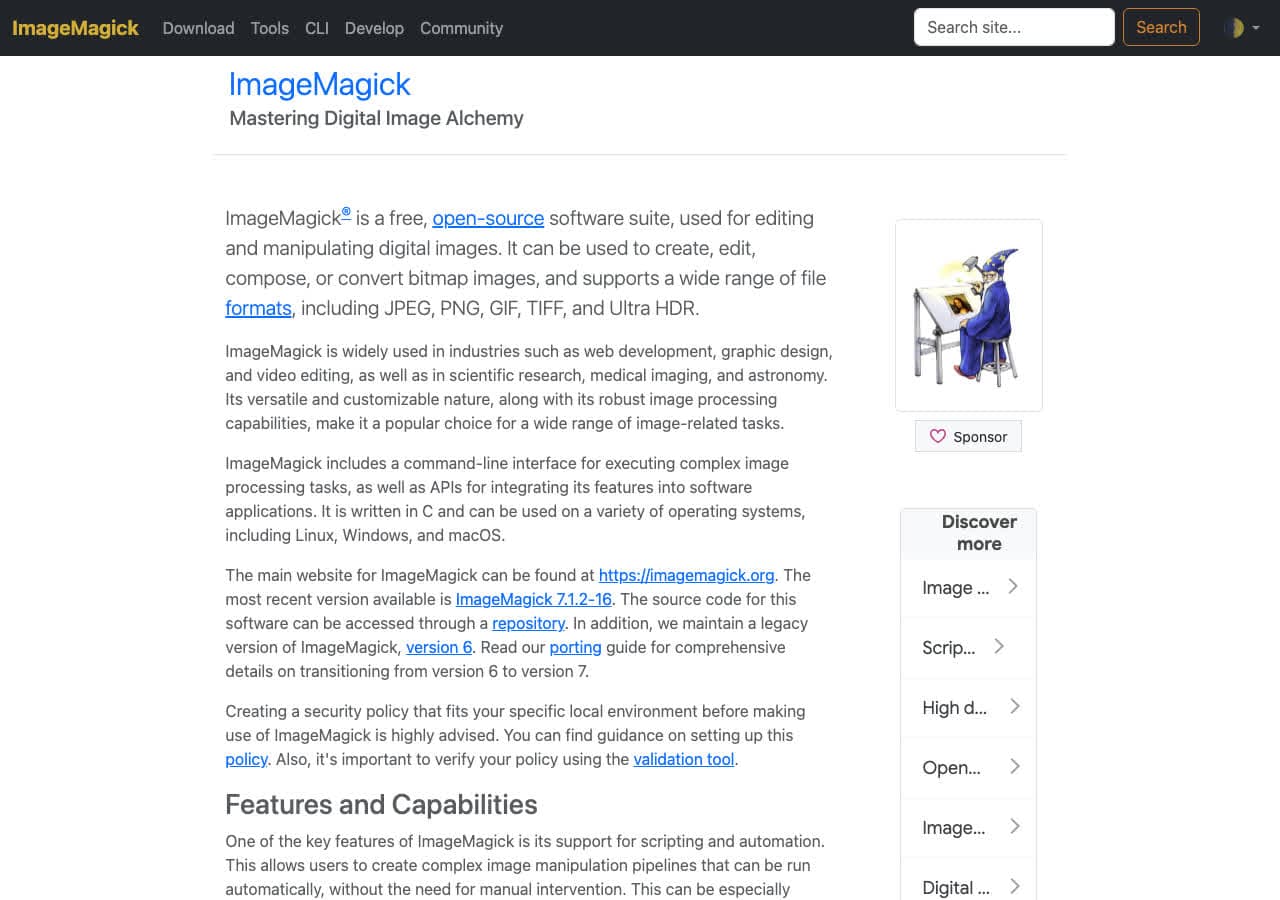
The minimal command:
magick input.jpg output.png
For better-compressed PNGs (level 9, the most aggressive):
magick input.jpg -define png:compression-level=9 output.png
Whole folder:
for f in *.jpg; do magick "$f" -define png:compression-level=9 "${f%.jpg}.png"; doneIf you want to also resize during the conversion (rare for this direction, but useful for icon assets):
magick input.jpg -resize 512x512 output.png
Pros
- Scriptable, exact, fast.
- PNG compression level exposed.
- Preserves color profile and bit depth.
Cons
- CLI only.
Pricing
- Free, open source.
3. macOS Preview + sips
GUI: open JPG in Preview, File → Export → PNG. No options needed.
CLI:
sips -s format png input.jpg --out output.png
Whole folder:
for f in *.jpg; do sips -s format png "$f" --out "${f%.jpg}.png"; donePros
- Free, built in.
- Both GUI and CLI options.
Cons
- Mac only.
- No PNG compression level control — output is on the larger side.
Pricing
- Free with macOS.
4. Windows Paint and Photos
Paint: File → Save As → PNG. Photos: Save as PNG. Both work for a single file. Neither does batch. Use IrfanView or XnConvert for that.
Pros
- Built in.
- Zero learning curve.
Cons
- No batch.
- Large output files (no compression control).
Pricing
- Free with Windows.
5. XnConvert — best free batch tool
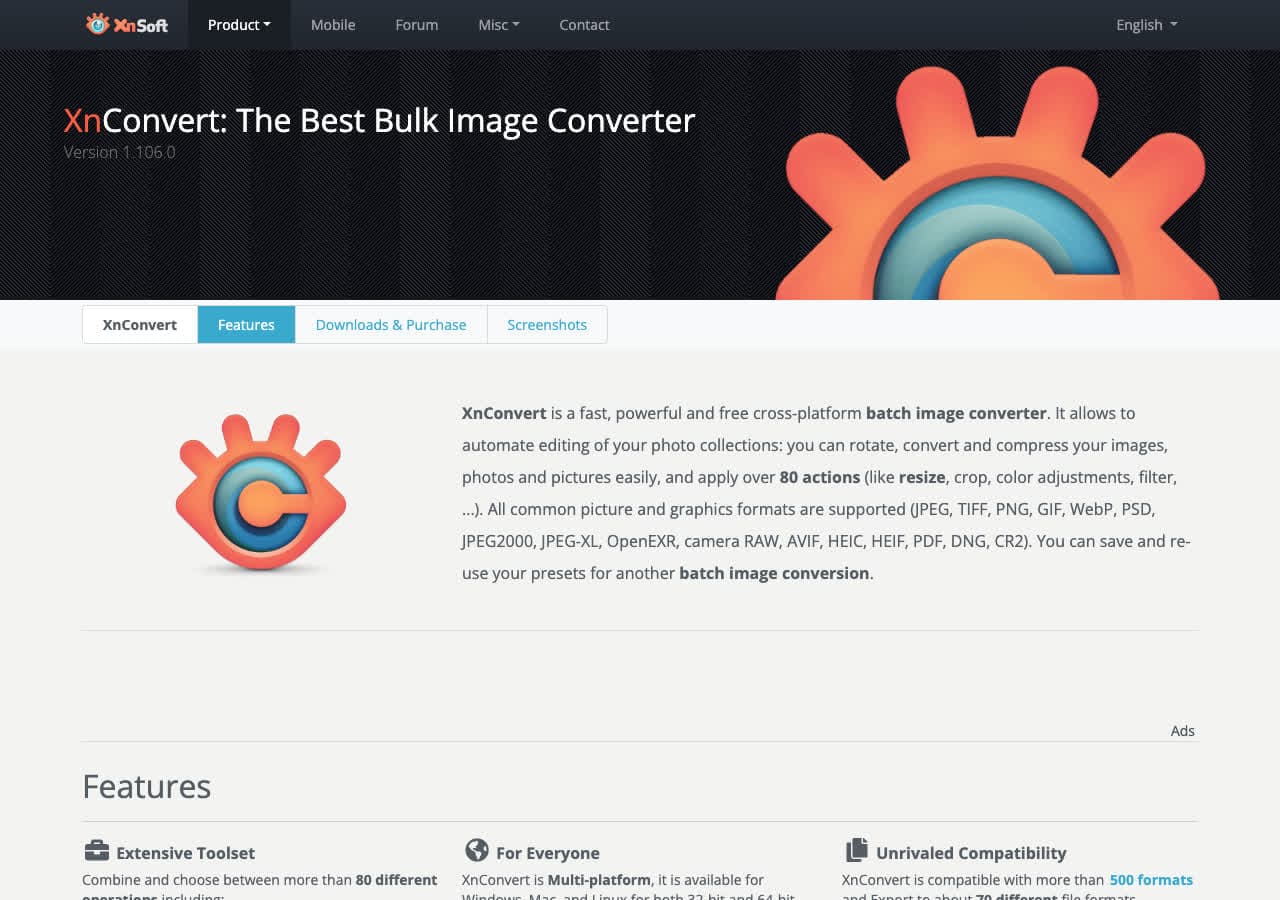
Drag in a folder of JPGs, set output to PNG, choose compression level (0–9), hit Convert. XnConvert also lets you chain a resize and an EXIF strip in the same job — useful if you are producing PNG assets at a specific size for icons or app resources.
Pros
- Best free batch UI.
- PNG compression level control.
- Cross-platform.
Cons
- Dated UI.
- Commercial license required for commercial use.
Pricing
- Free for personal use.
6. IrfanView — fastest Windows batch tool
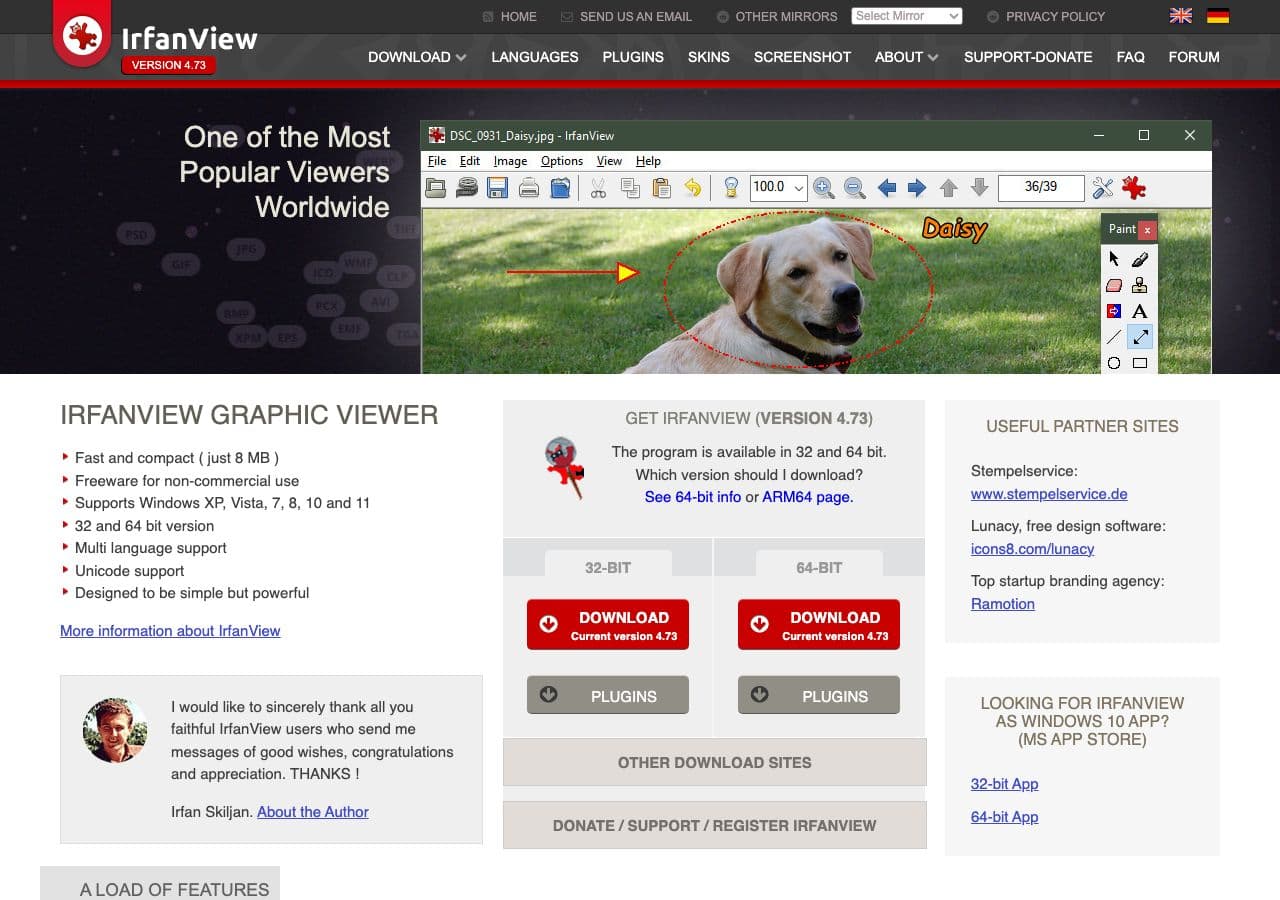
File → Batch Conversion/Rename → output PNG. PNG advanced options let you set compression level and interlacing. Very fast on large batches.
Pricing
- Free for personal use.
7. GIMP — best for editing-during-conversion
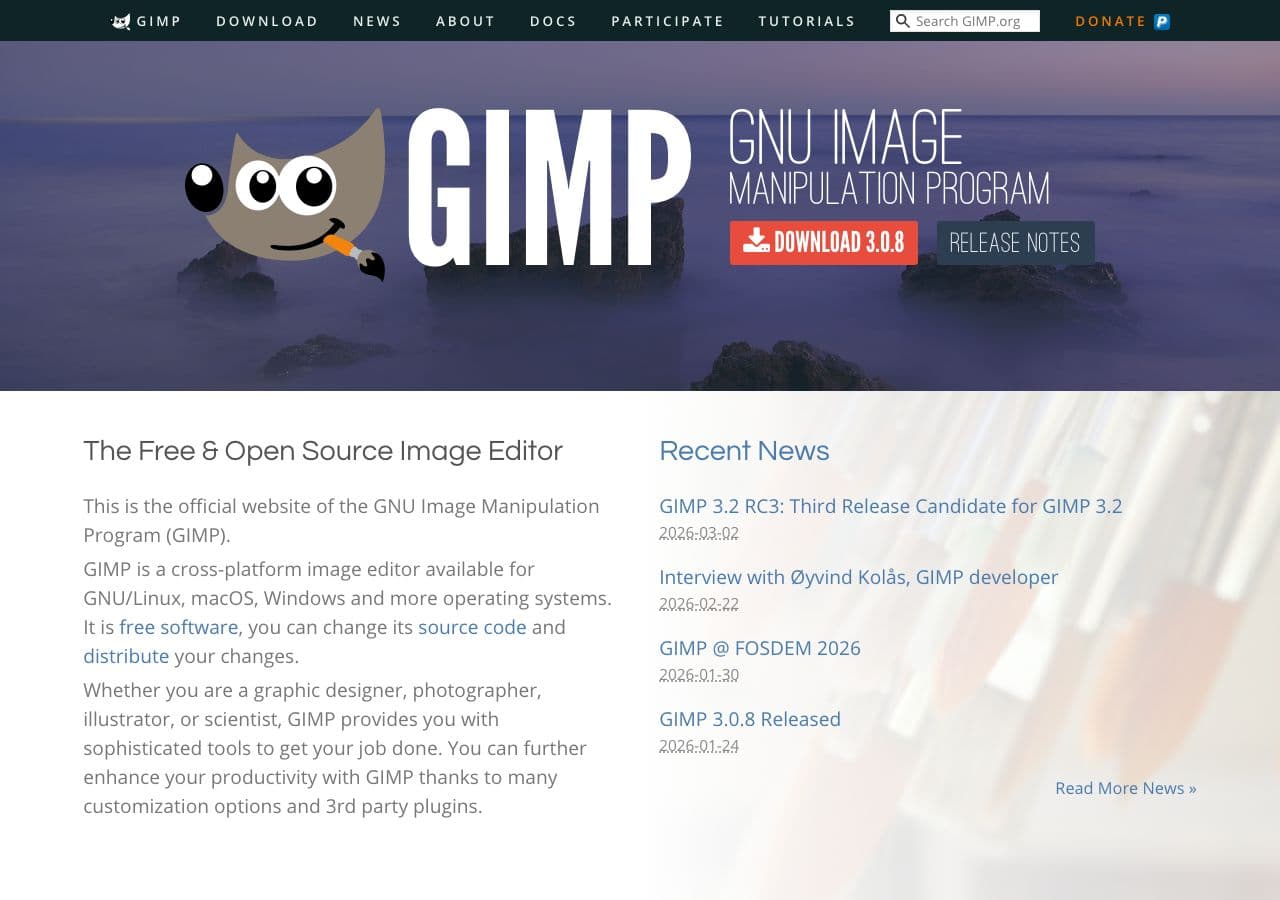
File → Open the JPG, do whatever editing you need (crop, color correction, retouch, add transparency via a mask), File → Export As → name with .png. GIMP's PNG export dialog includes compression level, interlacing, and metadata preservation toggles.
The killer use case: you want to convert AND make the background transparent. GIMP's Select by Color or fuzzy-select tool gives you a workable cutout, and the PNG export preserves the alpha.
Pricing
- Free, open source.
8. Adobe Photoshop
File → Save As / Export → PNG. The Save for Web (Legacy) dialog gives more control. The cutout tools (Select Subject, Object Selection) are best-in-class for making the PNG actually transparent rather than just changing format.
Pricing
- Subscription.
9. Pixelmator Pro

Mac-native editor with a clean PNG export. The ML background removal is the standout feature for this conversion — drop in a JPG, click Remove Background, export PNG with the transparency baked in.
Pricing
- One-time purchase, Mac App Store.
10. Affinity Photo
Cross-platform Photoshop alternative with one-time pricing. Export Persona gives PNG output with compression and metadata control.
Pricing
- One-time purchase.
11. Photopea — best in-browser editor
Photoshop-clone running entirely in the browser. Opens JPGs, exports PNG, files stay client-side. Includes a Magic Cut tool for transparency-cutouts during the conversion.
Pricing
- Free with ads; premium removes them.
12. Squoosh
The Chrome team's converter. Reads JPG, writes PNG (or OxiPNG-optimized PNG). Client-side. Useful for one-off conversions when you want maximum PNG compression — the OxiPNG path produces smaller PNGs than most other tools.
Pricing
- Free.
13. FFmpeg
One-liner:
ffmpeg -i input.jpg output.png
Useful in scripted pipelines. No PNG compression-level control — for that, use ImageMagick or run oxipng on the output.
Pricing
- Free, open source.
14. FastStone Image Viewer
Free Windows viewer with a clean batch converter. Tools → Batch Convert → output PNG. Less intimidating than IrfanView.
Pricing
- Free for personal use.
15. CloudConvert
Drop a JPG, output PNG, download. API for scripted use. Uploads to their servers — fine for non-sensitive files. Has an “optimize” toggle that runs an additional PNG compression pass.
Pricing
- Free tier; paid above.
16. Convertio
Web converter, similar shape to CloudConvert. Clean UI. Smaller free file-size cap. Useful for a single non-sensitive file.
Pricing
- Free with daily caps; paid above.
17. iLoveIMG
The image side of the iLovePDF family. Browser-based batch JPG → PNG. Generous free tier. Web upload privacy caveat applies.
Pricing
- Free with limits; paid removes them.
18. FreeConvert
Clean web converter with a quality preview. Reliable, same upload-and-go model. Fine for occasional use.
Pricing
- Free with caps; paid above.
A Note on Smaller PNG Files
PNG output from most conversion tools is not optimally compressed. If file size matters, run the output through a PNG optimizer afterwards:
oxipng -o 4 input.png— fast, lossless, typically shaves 10–30%.pngquant input.png— lossy color-table quantization, can shave 50–70% but does change pixels.pngcrush -brute input.png output.png— slow but thorough.
Or convert to WebP instead of PNG — for a photo you would otherwise PNG-wrap, WebP is typically 2–4x smaller at visually identical quality.
How to Choose
- One file, casual: the OS built-in. Preview, sips, Paint, Photos.
- Folder of files: ImageMagick, XnConvert, IrfanView, or How to Convert.
- You also need to cut out the subject for transparency: Photoshop, Pixelmator Pro, Photopea, or GIMP.
- You care about output file size: use ImageMagick or Squoosh, and optionally run
oxipngafter. - You think this will fix the JPG quality: it will not. Look at the section above.
Final Thoughts
JPG → PNG is the rare conversion where the question is “do I really need this?” more often than “which tool?” For editing workflows and systems that require PNG, any of the tools above does it cleanly. For anything else — especially if the goal was a quality bump or a smaller file — you almost certainly want WebP, a re-saved JPG at quality 95+, or simply to leave the JPG alone. Convert with intent.
How to Convert
The offline file converter for Mac, Windows and Linux.
- Converts video, audio, images, documents, ebooks and more
- Everything runs locally. Your files never leave your device
- Pay once. Access forever
Get the app on Mac, Windows and Linux
