18 Best PDF Converter Apps in 2026 (Free and Paid)
The best PDF converter apps for 2026. Convert to and from PDF with these free and paid tools for every platform.
Posted by
 Jake Manger
PDF is the universal document format, but working with PDFs often means converting them to something else or creating them from other files. You need to edit a PDF in Word. A client wants your report as PDF. A scanned contract needs to become searchable text. Your form needs to be a fillable PDF instead of a Word doc. Without a good PDF converter, you are stuck taking screenshots, retyping content, or paying for expensive software you barely use.
We tested PDF converters across Mac, Windows, and Linux to find the 18 best options in 2026. This list includes premium editors with the best conversion quality, free tools that handle everyday tasks, command-line utilities for automation, and online converters for quick jobs. Whether you need to convert a single PDF or process thousands, one of these tools will fit.
1. How to Convert - Best All-in-One Desktop PDF Converter
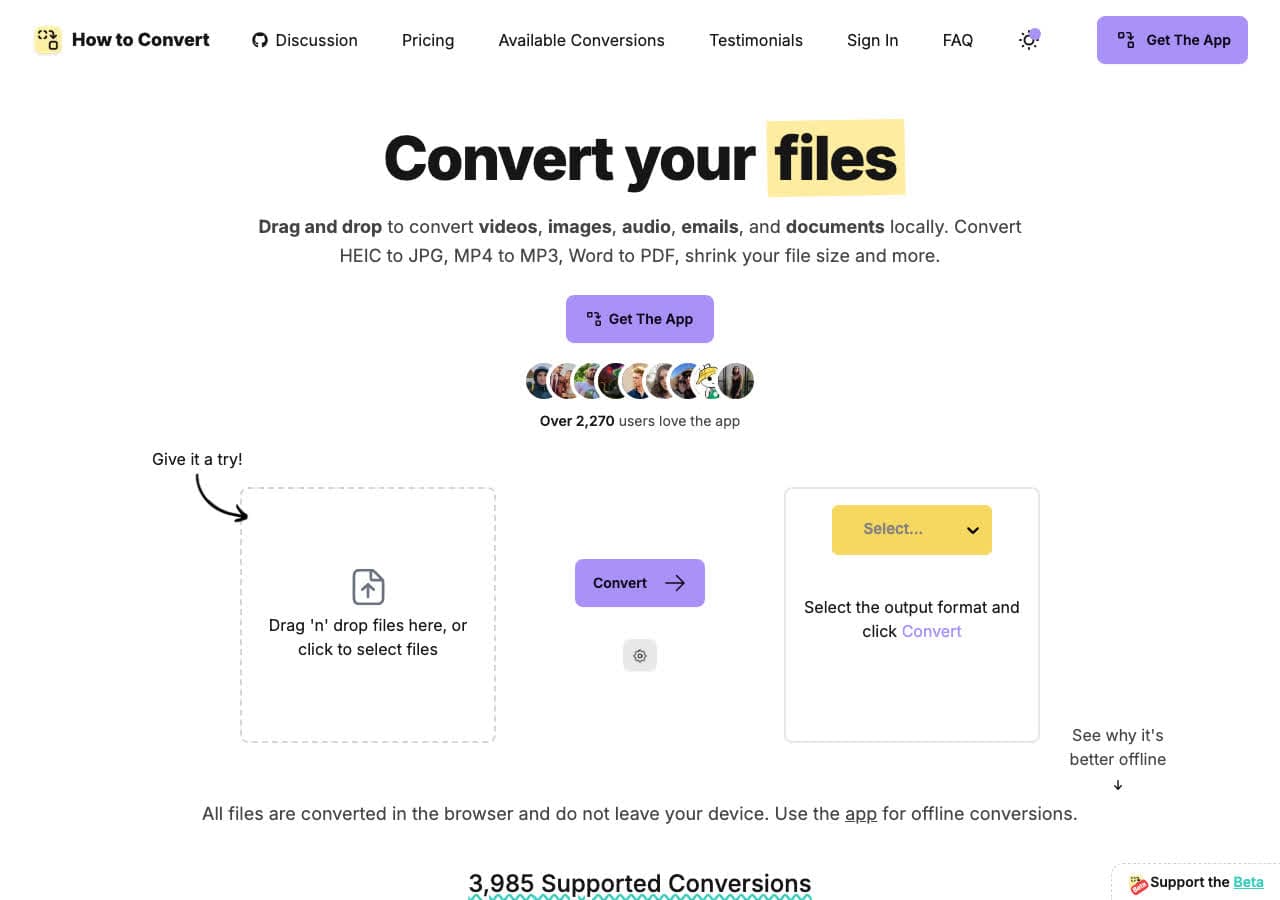
How to Convert is a privacy-first file converter that handles PDF conversion entirely on your machine. Convert documents, images, and other files to PDF, or convert PDFs to other formats, without uploading anything to the cloud. It processes everything locally, making it ideal for sensitive documents like contracts, financial reports, and legal files.
How to Convert supports hundreds of formats across PDF, documents, images, video, audio, and ebooks. The paid desktop app works on Mac, Windows, and Linux, while the free web demo handles single-file conversions for supported formats. For users who need PDF conversion alongside other file types in a single offline app, the desktop app covers the broader workflow.
Pros
- All conversions happen locally. Documents never leave your device.
- Handles PDF alongside hundreds of other formats.
- One-time purchase. No subscription.
- Free web demo for single-file conversions.
- Works on Mac, Windows, and Linux.
Cons
- One-time purchase; the free web demo handles one file at a time.
- No OCR for scanned PDFs.
Pricing
- Free: Browser converter for common formats.
- Desktop app: One-time purchase, all platforms.
 How to Convert
The offline file converter for Mac, Windows and Linux.
- Converts video, audio, images, documents, ebooks and more
- Everything runs locally. Your files never leave your device
- Pay once. Access forever
Get the app on Mac, Windows and Linux
2. Adobe Acrobat - Best Premium PDF Editor and Converter
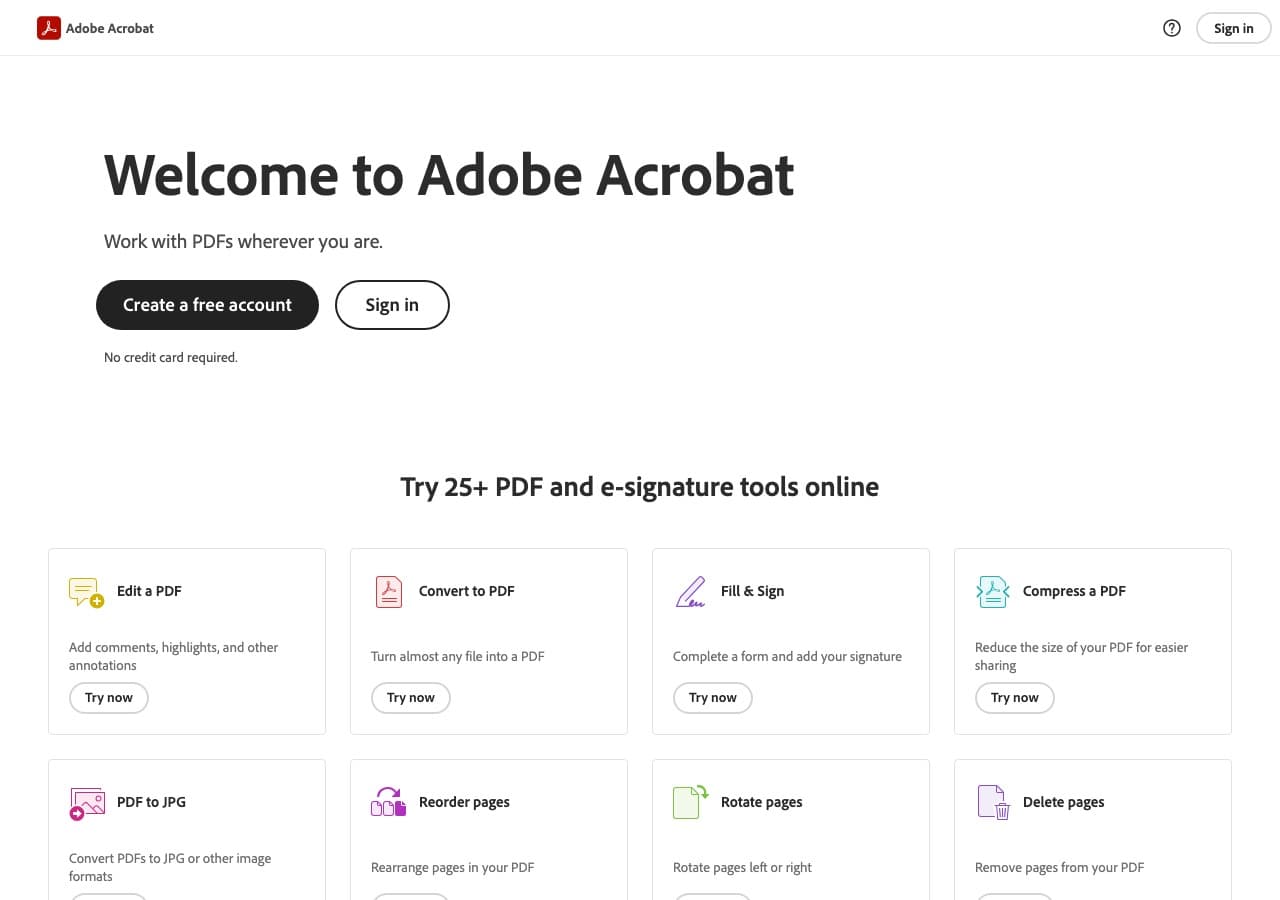
Adobe Acrobat is the gold standard for PDF work. Adobe created the PDF format, and Acrobat remains the most capable tool for converting to and from PDF. It converts PDF to Word, Excel, PowerPoint, and images with the best formatting retention available. The OCR engine accurately converts scanned documents into searchable, editable text.
Acrobat Pro includes advanced features like PDF/A compliance for archiving, form creation, digital signatures, redaction, and comparison tools. The online version at acrobat.adobe.com handles basic conversions without installing the desktop app. The main barrier is the subscription price, which is steep for occasional use.
Pros
- Best PDF conversion quality in the industry.
- Excellent OCR for scanned documents.
- PDF/A, forms, signatures, and redaction.
- Online tools for quick conversions.
Cons
- Expensive subscription ($22.99/month for Pro).
- Heavy application, slow to launch.
Pricing
- Free: Online tools with limited features.
- $22.99/month: Acrobat Pro.
3. PDF Expert - Best Mac PDF Editor With Conversion
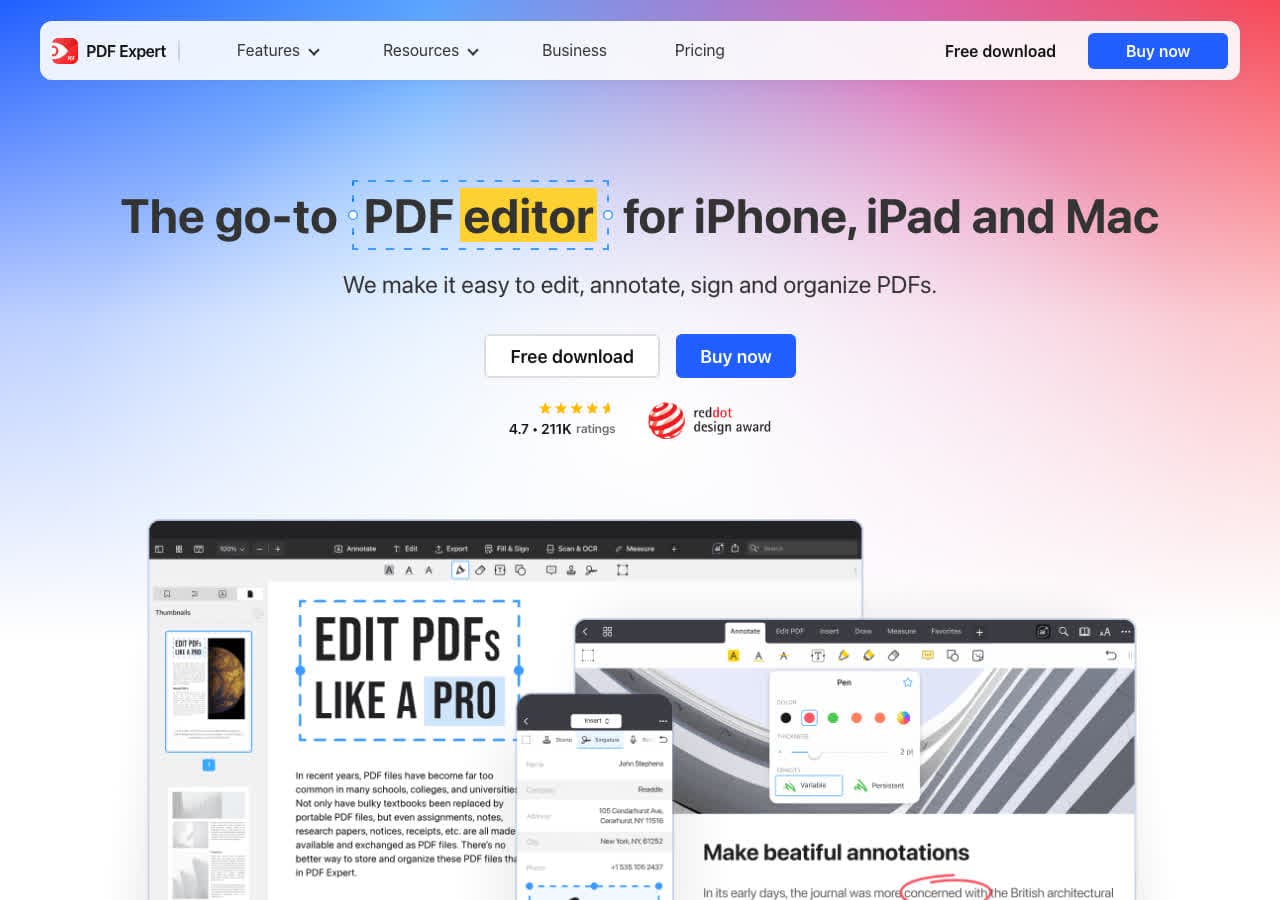
PDF Expert is a beautifully designed PDF editor built exclusively for Apple platforms. It converts PDF to Word, Excel, PowerPoint, images, and text with good formatting retention. The native macOS interface is fast and responsive, handling large PDFs smoothly.
PDF Expert is the best Mac alternative to Adobe Acrobat for PDF conversion. It includes editing, annotation, form filling, and digital signatures alongside conversion. The one-time purchase option makes it more affordable than Acrobat's subscription for Mac users who need solid PDF conversion.
Pros
- Beautiful native Mac interface.
- Good PDF to Word conversion quality.
- Fast performance on Apple Silicon.
- One-time purchase available.
Cons
- Apple platforms only (Mac and iOS).
- OCR less accurate than Acrobat.
Pricing
- $79.99: One-time purchase.
- $79.99/year: Subscription with updates.
4. Foxit PDF Editor - Best Lightweight PDF Editor and Converter
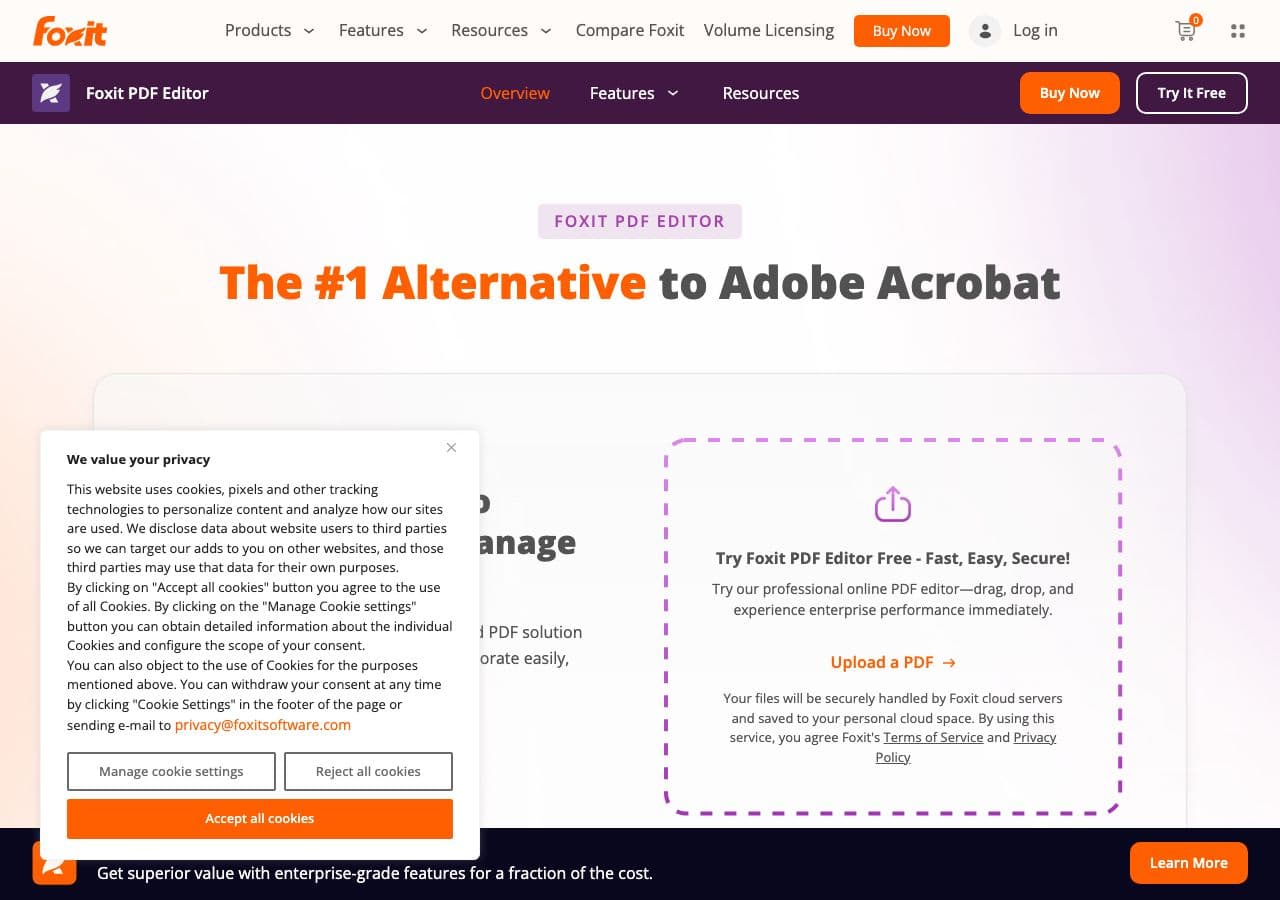
Foxit PDF Editor is a fast alternative to Adobe Acrobat that opens quickly and handles PDFs efficiently. It converts PDF to Word, Excel, PowerPoint, HTML, images, and text with reliable formatting preservation. Foxit creates PDFs from any printable document via its virtual printer driver.
Foxit is popular in enterprise environments for its security features, cross-platform support (Windows, Mac, Linux), and lower cost compared to Acrobat. It includes OCR, form creation, digital signatures, and collaboration tools. For businesses that need a full PDF solution at a better price point, Foxit is the strongest Acrobat competitor.
Pros
- Fast and lightweight compared to Acrobat.
- Cross-platform (Windows, Mac, Linux).
- Enterprise security features.
- OCR and form creation.
Cons
- Subscription pricing.
- Some advanced features are Windows-only.
Pricing
- Free: Foxit Reader (view and basic annotation).
- $149.99/year: PDF Editor Pro.
5. Smallpdf - Best Online PDF Converter Suite
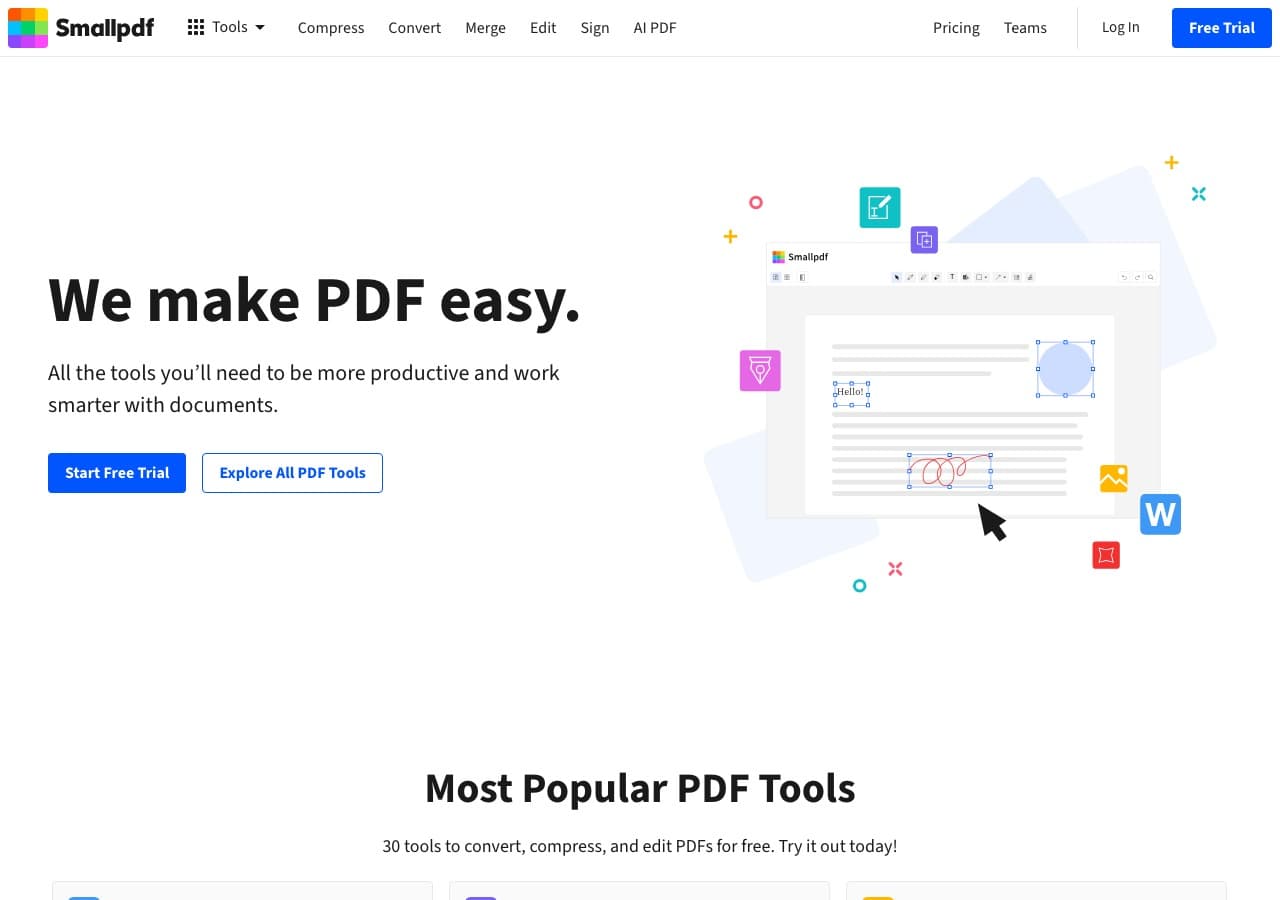
Smallpdf is the most polished online PDF platform available. It offers dedicated tools for PDF to Word, PDF to Excel, PDF to PowerPoint, PDF to JPG, and the reverse conversions. Each tool does one thing well with a clean, intuitive interface. Over a billion files have been processed through the platform.
Smallpdf is the best online option when you need reliable PDF conversion without installing software. The free tier allows 2 tasks per day, which covers occasional use. A desktop app is available for offline processing. For regular PDF conversion, the Pro plan removes limits and adds batch processing.
Pros
- Clean, dedicated tools for each conversion type.
- Reliable conversion quality.
- Desktop app for offline use.
- No software installation needed for online tools.
Cons
- Free tier: 2 tasks/day.
- Files uploaded to servers for online conversion.
Pricing
- Free: 2 tasks/day.
- $12/month: Pro (unlimited).
6. iLovePDF - Best Free Online PDF Tool Suite
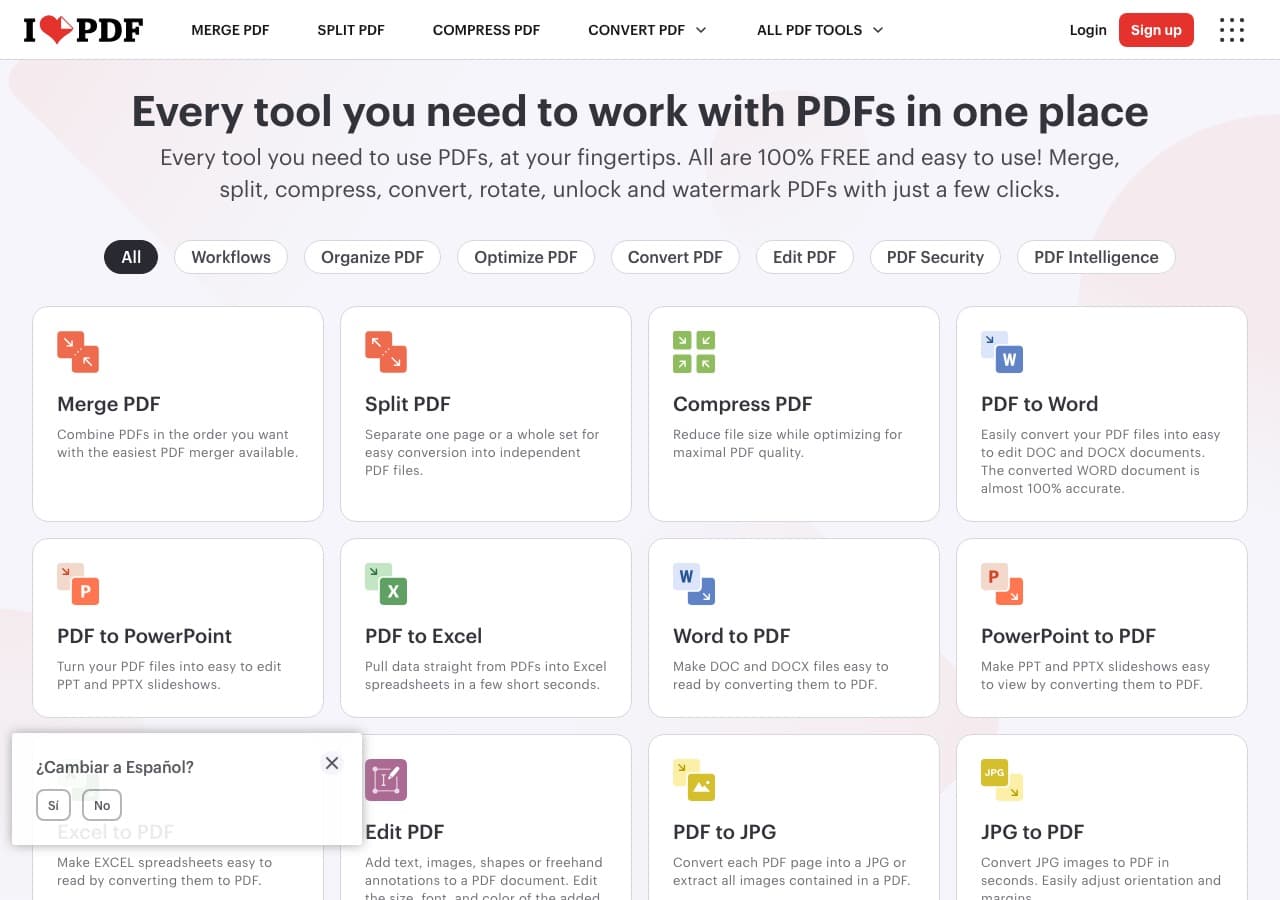
iLovePDF is a comprehensive online PDF platform with tools for converting, merging, splitting, compressing, rotating, and watermarking PDFs. The conversion tools cover PDF to Word, PDF to Excel, PDF to PowerPoint, PDF to JPG, and all the reverse conversions. The free tier is more generous than Smallpdf.
iLovePDF has grown into a reliable name in PDF tools, processing millions of files daily. Desktop and mobile apps are available for offline use. The conversion quality handles standard documents well, though complex layouts with custom fonts may lose formatting. For free online PDF conversion, iLovePDF is the most generous option.
Pros
- Generous free tier.
- Comprehensive tool suite beyond just conversion.
- Desktop and mobile apps.
Cons
- Files uploaded to servers.
- Complex formatting may not survive conversion.
Pricing
- Free: Multiple daily conversions.
- $7/month: Premium (unlimited).
How to Convert
The offline file converter for Mac, Windows and Linux.
- Converts video, audio, images, documents, ebooks and more
- Everything runs locally. Your files never leave your device
- Pay once. Access forever
Get the app on Mac, Windows and Linux
7. PDF24 - Best Free Windows PDF Converter
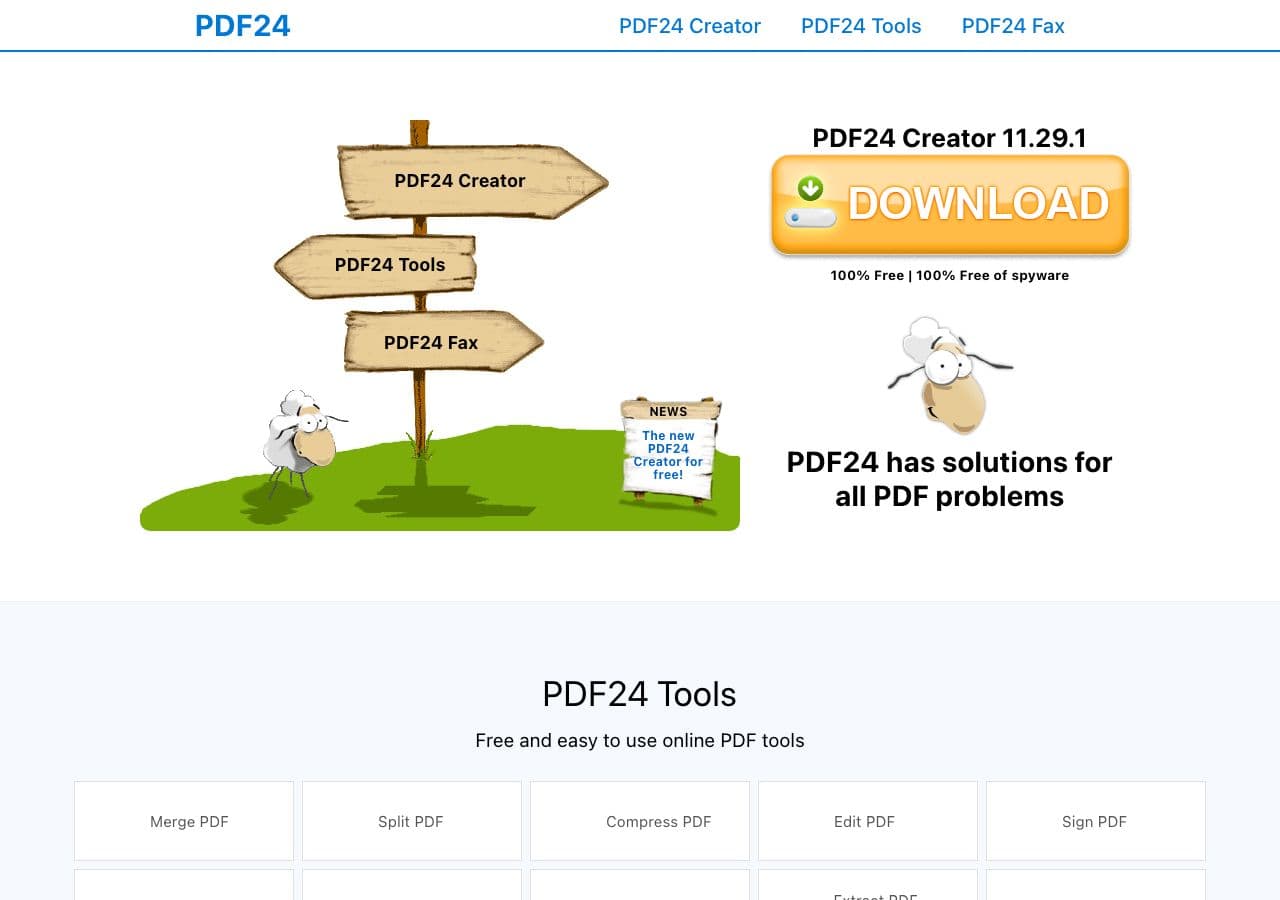
PDF24 is a completely free PDF toolkit for Windows with no watermarks, no file limits, and no premium tier. It includes PDF creation via virtual printer, conversion to and from Word and images, OCR, merging, splitting, compression, and more. The online version works on any platform.
PDF24 is genuinely, unconditionally free. The company makes money through business solutions, not by restricting its free tools. For Windows users who need comprehensive PDF conversion without paying anything, PDF24 is unmatched. The virtual printer creates PDFs from any application that can print.
Pros
- Completely free, no limits, no watermarks.
- Virtual printer for PDF creation from any app.
- OCR, merge, split, compress included.
- Online tools for cross-platform use.
Cons
- Desktop app is Windows only.
- Conversion quality not as precise as Acrobat.
Pricing
- Free (no restrictions).
8. Nitro PDF - Best Windows PDF Editor With Conversion
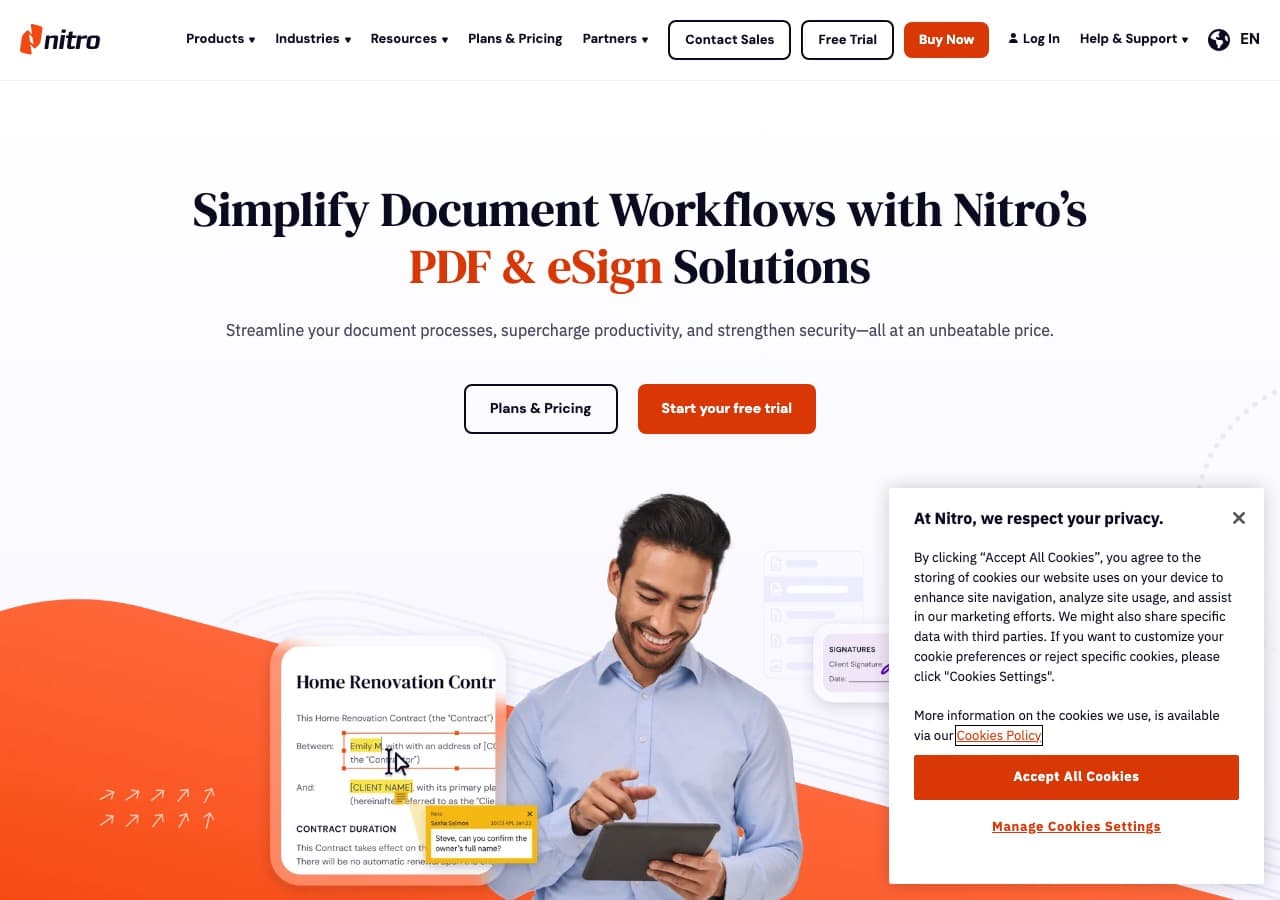
Nitro PDF is a Windows PDF editor built for business users. It converts PDF to Word, Excel, and PowerPoint with strong formatting retention and includes OCR for scanned documents. The batch conversion feature processes entire folders of PDFs at once, which is valuable for high-volume workflows.
Nitro's conversion quality is competitive with Adobe Acrobat, especially for standard business documents. It includes digital signatures, form creation, and collaboration features. For Windows businesses that need a full-featured PDF solution at a lower price than Acrobat, Nitro is a strong choice.
Pros
- Strong PDF to Word conversion quality.
- Batch conversion for multiple files.
- OCR for scanned documents.
- Business-focused features.
Cons
- Windows only.
- Subscription pricing ($179.99/year).
Pricing
- Free: Online tools with limited features.
- $179.99/year: Nitro PDF Pro.
9. LibreOffice - Best Free Office Suite for PDF Export
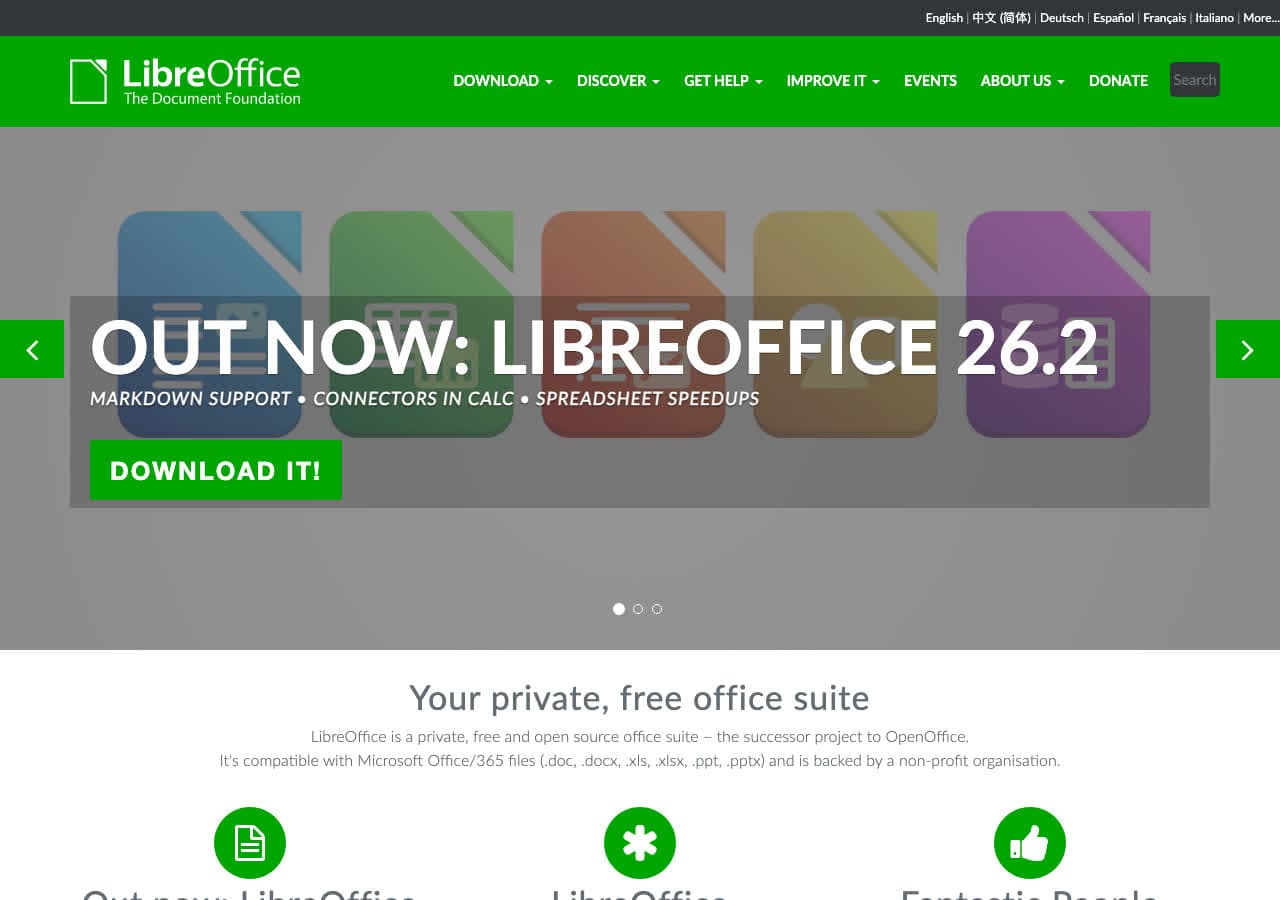
LibreOffice is the best free tool for creating PDFs from documents. It opens Word, Excel, PowerPoint, ODT, and many other formats, then exports them as PDF with control over quality, encryption, and PDF/A compliance. The command-line mode enables batch PDF creation from hundreds of documents.
LibreOffice Draw also opens and edits existing PDF files, though with some limitations on complex layouts. For free, offline PDF creation from office documents, LibreOffice is the most capable option available. It runs on Mac, Windows, and Linux.
Pros
- Free and open source.
- Creates PDFs from all office document formats.
- Command-line batch PDF creation.
- PDF/A compliance for archiving.
Cons
- PDF editing capabilities are limited.
- Cannot convert PDF to editable Word well.
Pricing
- Free (open source).
10. Ghostscript - Best Open Source PDF Processing Engine
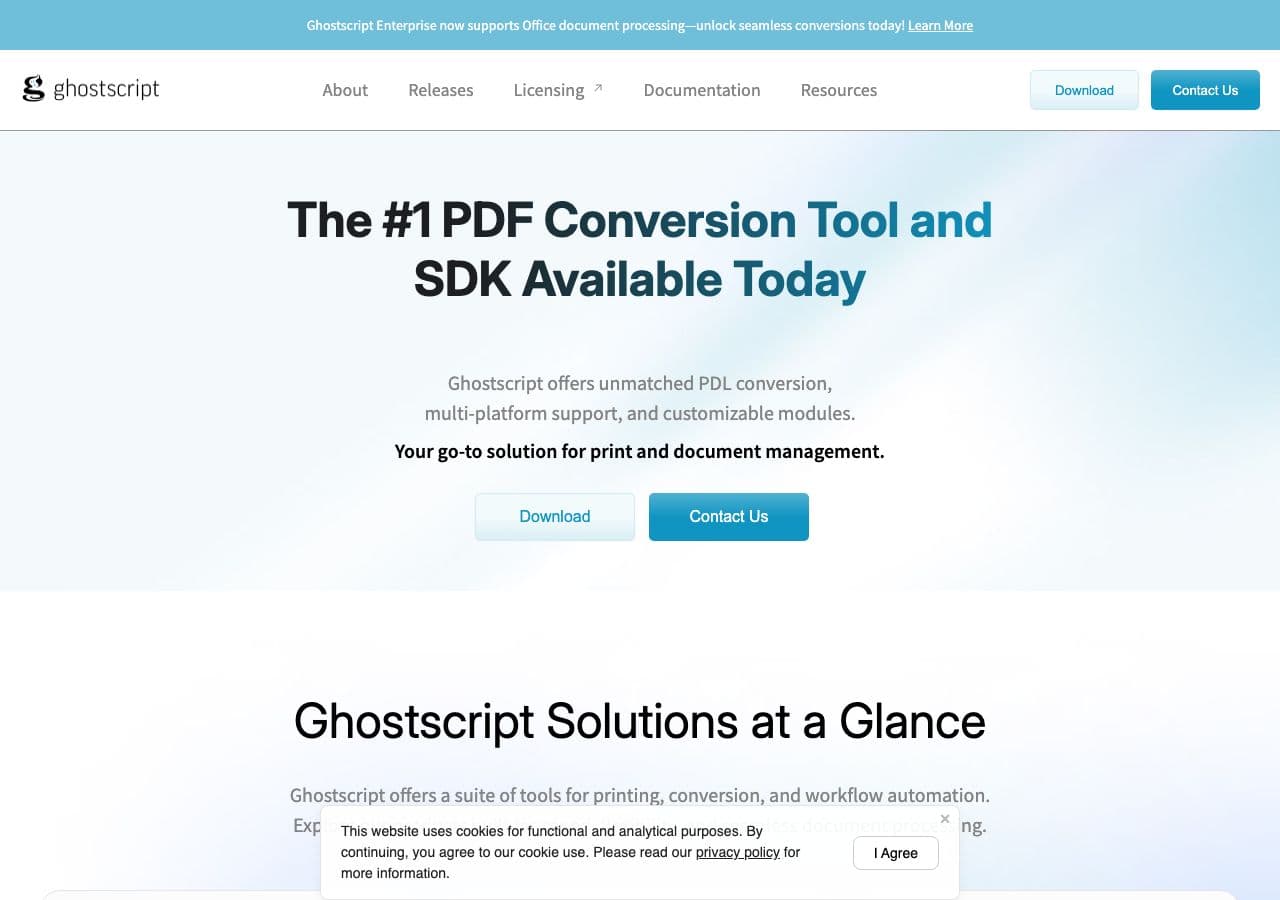
Ghostscript is the open-source engine that many PDF tools use under the hood. It processes, converts, optimizes, and renders PDF and PostScript files. Common uses include converting PostScript to PDF, compressing PDF files, extracting pages, and rasterizing PDFs to images.
Ghostscript is a command-line tool for developers and system administrators. It handles PDF optimization (reducing file sizes), PDF/A conversion for archiving, and batch processing of large PDF collections. While not user-friendly for beginners, it is the most reliable open-source PDF processing engine available.
Pros
- Free and open source.
- PDF optimization and compression.
- Reliable PostScript to PDF conversion.
- Cross-platform.
Cons
- Command-line only.
- Cannot convert PDF to editable documents.
Pricing
- Free (open source, AGPL licensed).
11. Pandoc - Best for Markdown to PDF Conversion
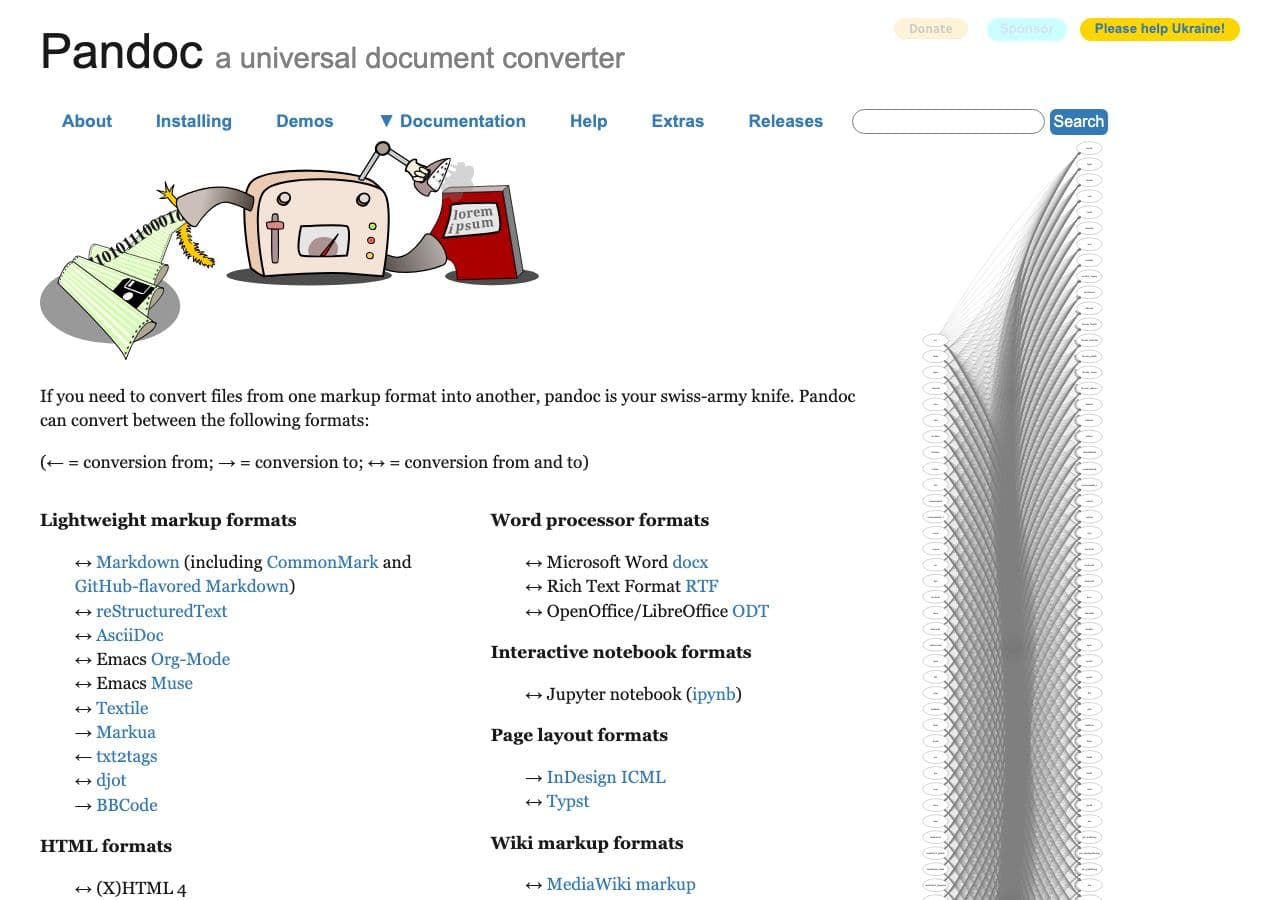
Pandoc converts Markdown, HTML, LaTeX, DOCX, and dozens of other text formats to PDF. For developers and technical writers who write in Markdown, Pandoc is the standard tool for generating professional PDFs. It uses LaTeX or wkhtmltopdf as its PDF engine, producing high-quality typeset output.
Pandoc's PDF output is highly customizable through templates. You can control fonts, margins, headers, footers, and page layout. For documentation pipelines that generate PDFs from source files, Pandoc is the most flexible option. It also converts PDF to other formats, though with limited fidelity compared to dedicated PDF tools.
Pros
- Best Markdown to PDF conversion available.
- Highly customizable templates.
- Free and open source.
- Professional typeset output via LaTeX.
Cons
- Command-line only.
- Requires LaTeX for PDF output.
- Not designed for converting existing PDFs.
Pricing
- Free (open source).
12. ImageMagick - Best for Image to PDF Batch Conversion
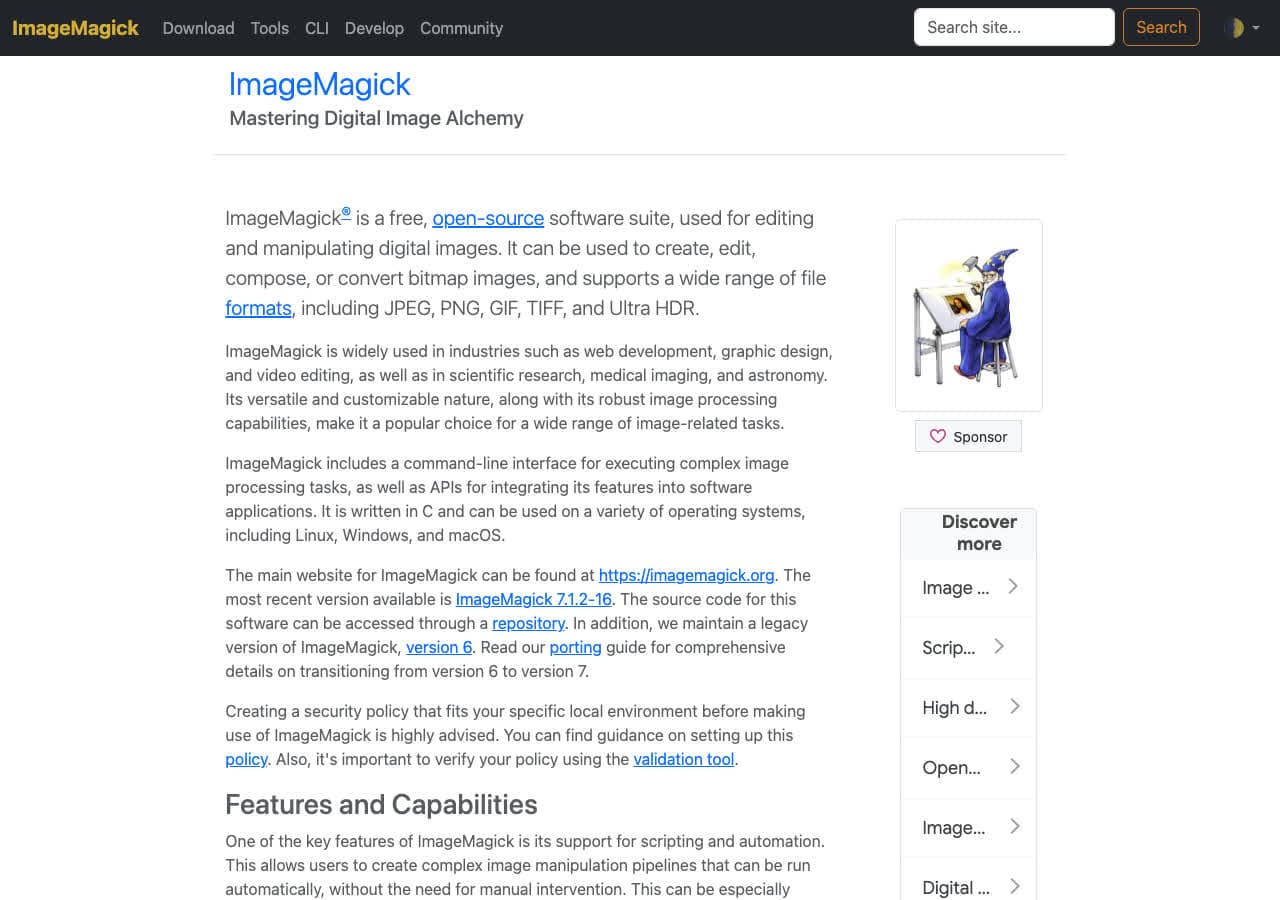
ImageMagick converts images to PDF and PDFs to images with a command like magick *.jpg output.pdf. It combines multiple images into a single PDF, extracts pages from PDFs as images, and handles batch processing of large collections. For workflows that bridge images and PDFs, ImageMagick is the best command-line option.
ImageMagick is particularly useful for creating PDF documents from scanned images, combining photographs into PDF portfolios, or extracting individual pages from PDFs as high-resolution images. It supports over 200 image formats and produces clean PDF output with control over quality and compression.
Pros
- Free and open source.
- Combines multiple images into PDF.
- Extracts PDF pages as images.
- Scriptable batch processing.
Cons
- Command-line only.
- Cannot convert PDF to editable text.
Pricing
- Free (open source).
How to Convert
The offline file converter for Mac, Windows and Linux.
- Converts video, audio, images, documents, ebooks and more
- Everything runs locally. Your files never leave your device
- Pay once. Access forever
Get the app on Mac, Windows and Linux
13. Calibre - Best for Ebook to PDF Conversion
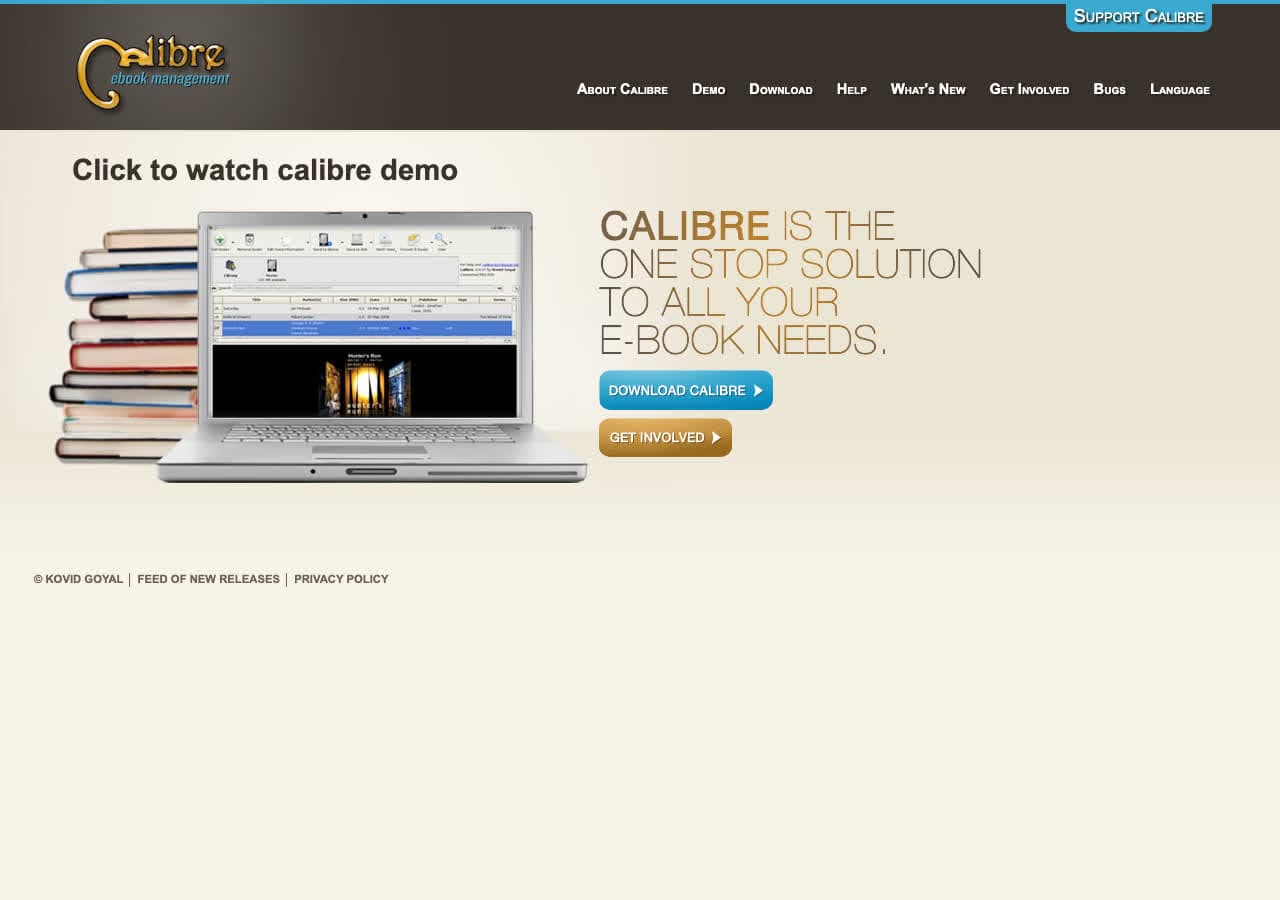
Calibre converts EPUB, MOBI, AZW3, HTML, and other ebook formats to PDF with extensive control over the output. You can set page size, margins, fonts, headers, footers, and table of contents. For converting ebooks to printable PDFs, Calibre offers more customization than any other free tool.
Calibre also converts PDFs to ebook formats like EPUB and MOBI, though the quality depends heavily on the source PDF's structure. Reflowable text PDFs convert better than fixed-layout or scanned PDFs. For ebook management and conversion workflows that involve PDF, Calibre is indispensable.
Pros
- Free and open source.
- Extensive PDF output customization.
- Converts between ebook formats and PDF.
- Cross-platform.
Cons
- PDF to ebook conversion quality varies.
- Interface is not beginner-friendly.
Pricing
- Free (open source).
14. CloudConvert - Best Online PDF Converter
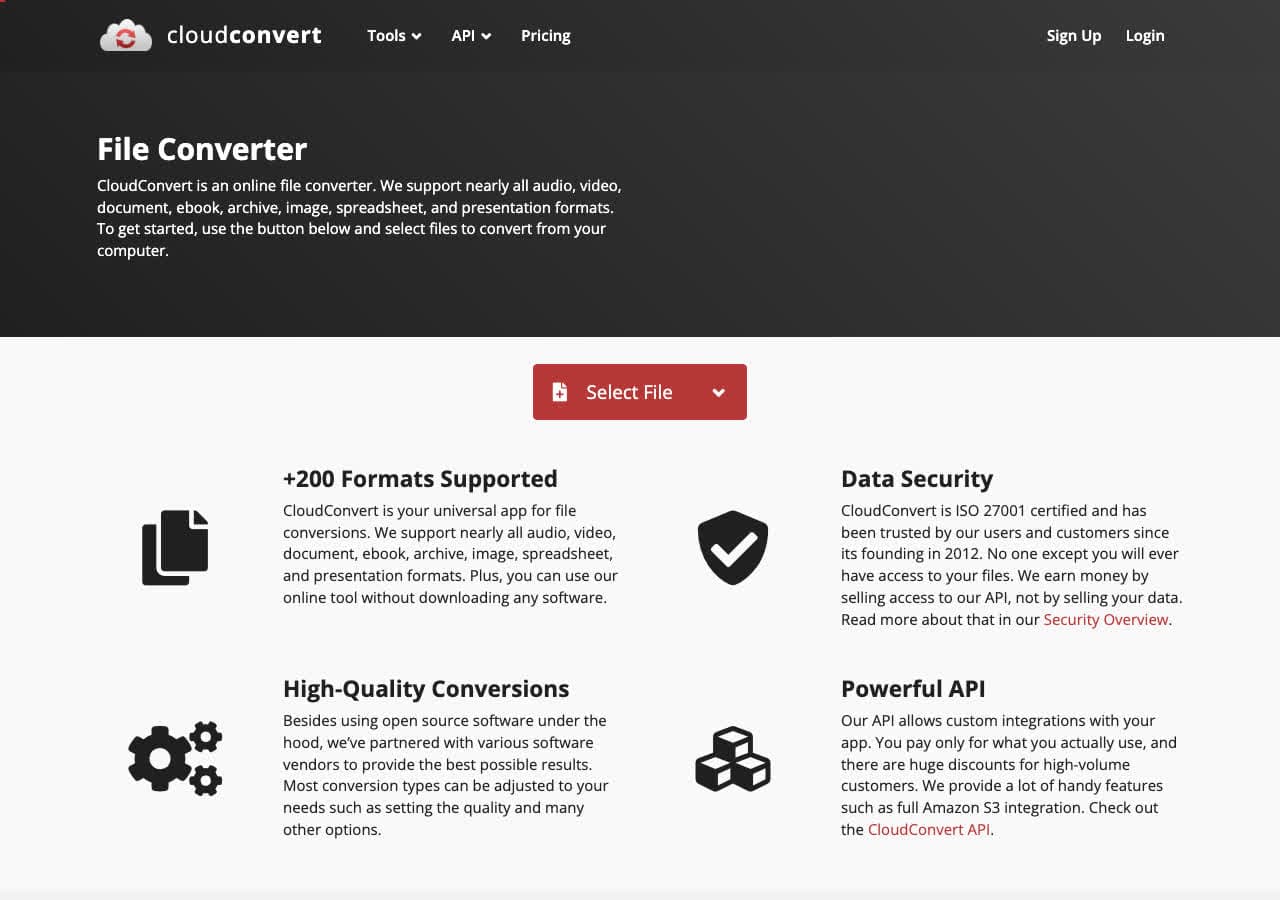
CloudConvert handles PDF conversion online with support for converting to and from Word, Excel, PowerPoint, images, HTML, and many other formats. It offers 25 free conversions per day with advanced output settings that most online tools lack.
CloudConvert's PDF conversion quality is among the best of any online service. The developer API allows integration into custom workflows. For reliable online PDF conversion without installing software, CloudConvert is the top choice.
Pros
- High conversion quality.
- 25 free conversions/day.
- Advanced output settings.
- Developer API.
Cons
- Files uploaded to servers.
- 1GB file size limit on free tier.
Pricing
- Free: 25 conversions/day.
- From $8/month: Higher limits.
15. Zamzar - Best for Quick No-Install PDF Conversions
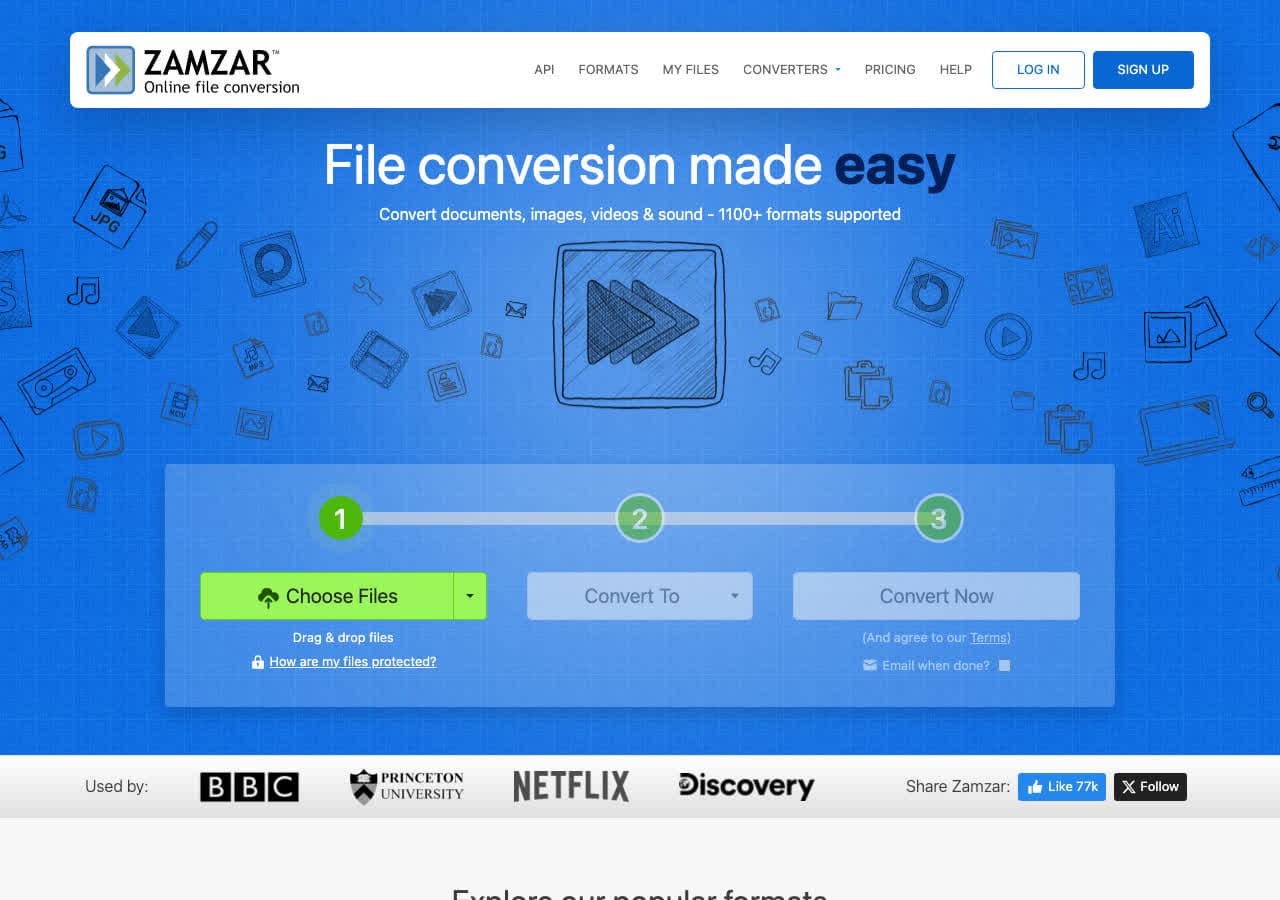
Zamzar converts PDFs online with the simplest workflow available: upload, choose format, download. No account needed. It converts PDF to Word, Excel, images, and other formats, and creates PDFs from most document types.
The free tier is limited to 2 files per day with a 50MB cap, which is usually enough for standard PDFs. Zamzar has been trusted since 2006 and handles most PDF conversions reliably. For quick, one-off conversions, it is hard to beat the simplicity.
Pros
- Dead-simple workflow.
- No account needed.
- Trusted since 2006.
Cons
- 2 files/day, 50MB limit on free tier.
- Files uploaded to servers.
Pricing
- Free: 2 files/day, 50MB.
- From $18/month: Higher limits.
16. Convertio - Best Online PDF Converter for Format Variety
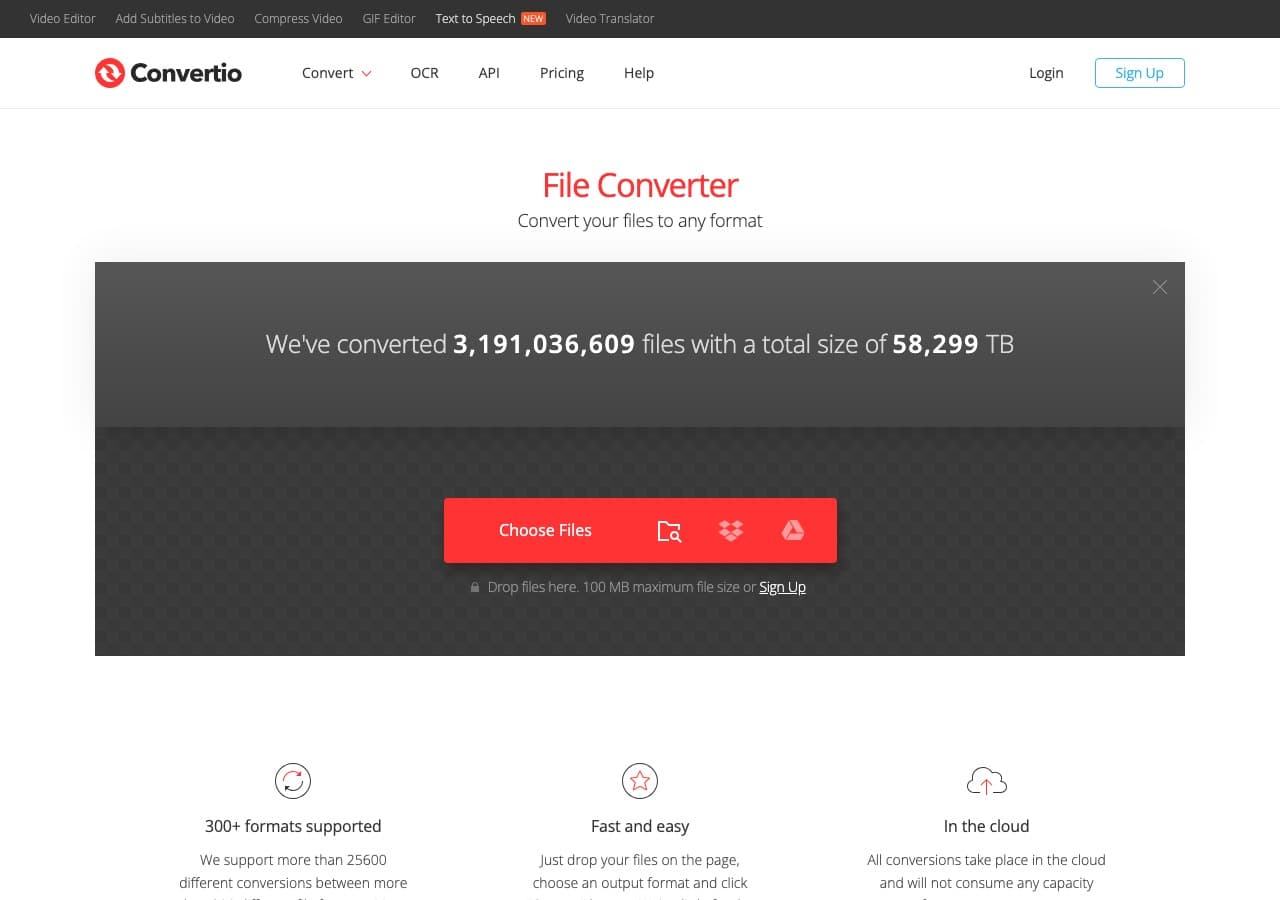
Convertio supports over 300 formats and handles PDF conversion to and from Word, Excel, PowerPoint, images, HTML, EPUB, and many other types. The clean interface and Google Drive/Dropbox integration make it convenient for cloud-based workflows.
The 100MB free limit handles most PDFs comfortably. Convertio offers 10 free conversions per day. Paid plans add batch processing and remove size limits. For online PDF conversion with the widest format variety, Convertio is a strong choice.
Pros
- 300+ format support.
- Cloud storage integration.
- Clean interface.
Cons
- 10 free conversions/day.
- Files uploaded to servers.
Pricing
- Free: 100MB, 10 conversions/day.
- From $9.99/month: More conversions.
17. FreeConvert - Best Free Online PDF Converter for Large Files
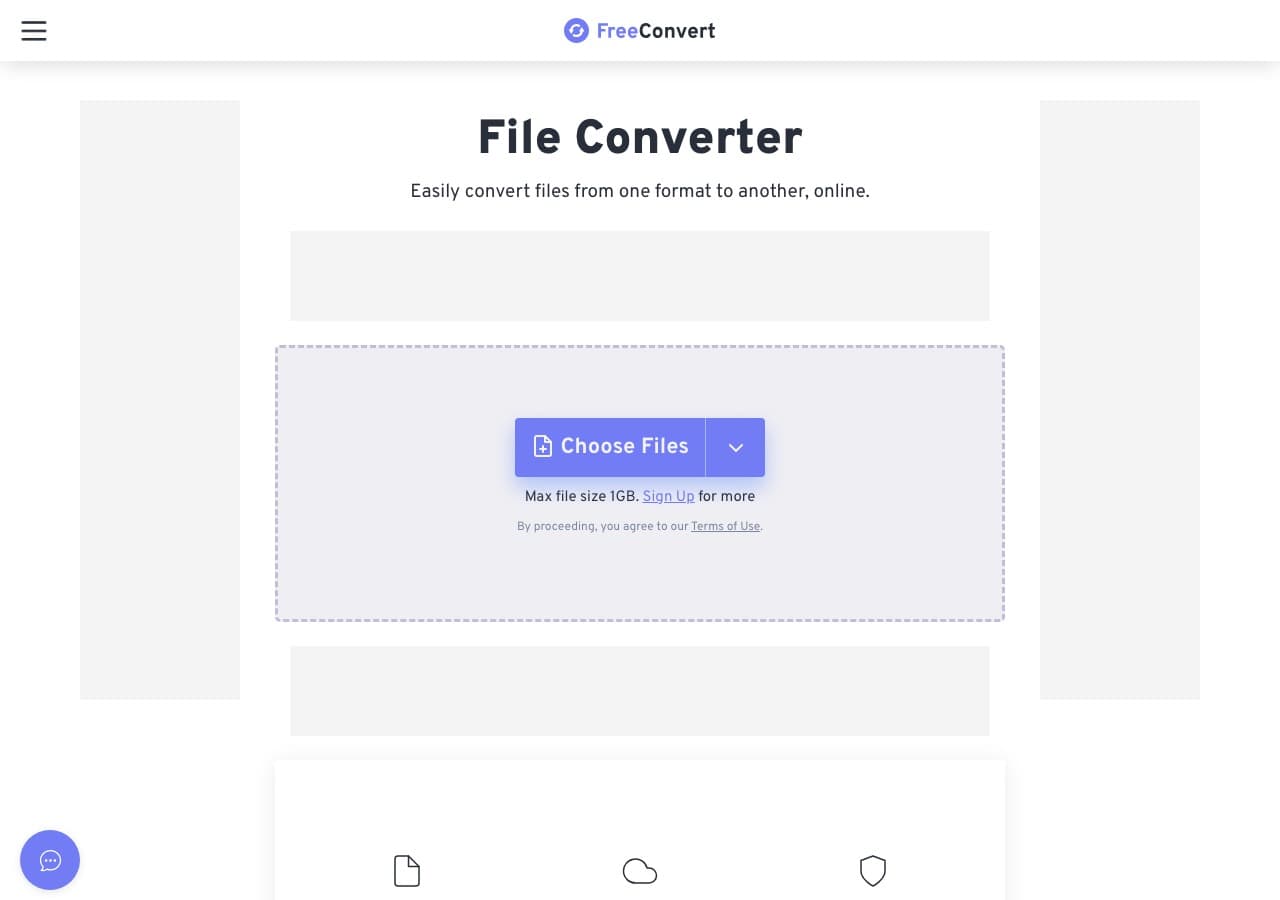
FreeConvert offers a 1GB free file size limit, the most generous of any online PDF converter. This is valuable for large PDFs with many pages, high-resolution images, or embedded media. Free users get 25 conversions per day with no account required.
FreeConvert handles PDF to Word, images, and other formats, and creates PDFs from various document types. The interface includes some advanced settings. For large PDFs that exceed other services' limits, FreeConvert is the go-to online option.
Pros
- 1GB free file size limit.
- 25 free conversions/day.
- No account required.
Cons
- Free conversions are slower.
- Files uploaded to servers.
Pricing
- Free: 1GB, 25 conversions/day.
- From $9.99/month: Faster and larger.
18. Online-Convert - Best Online PDF Converter With Advanced Settings
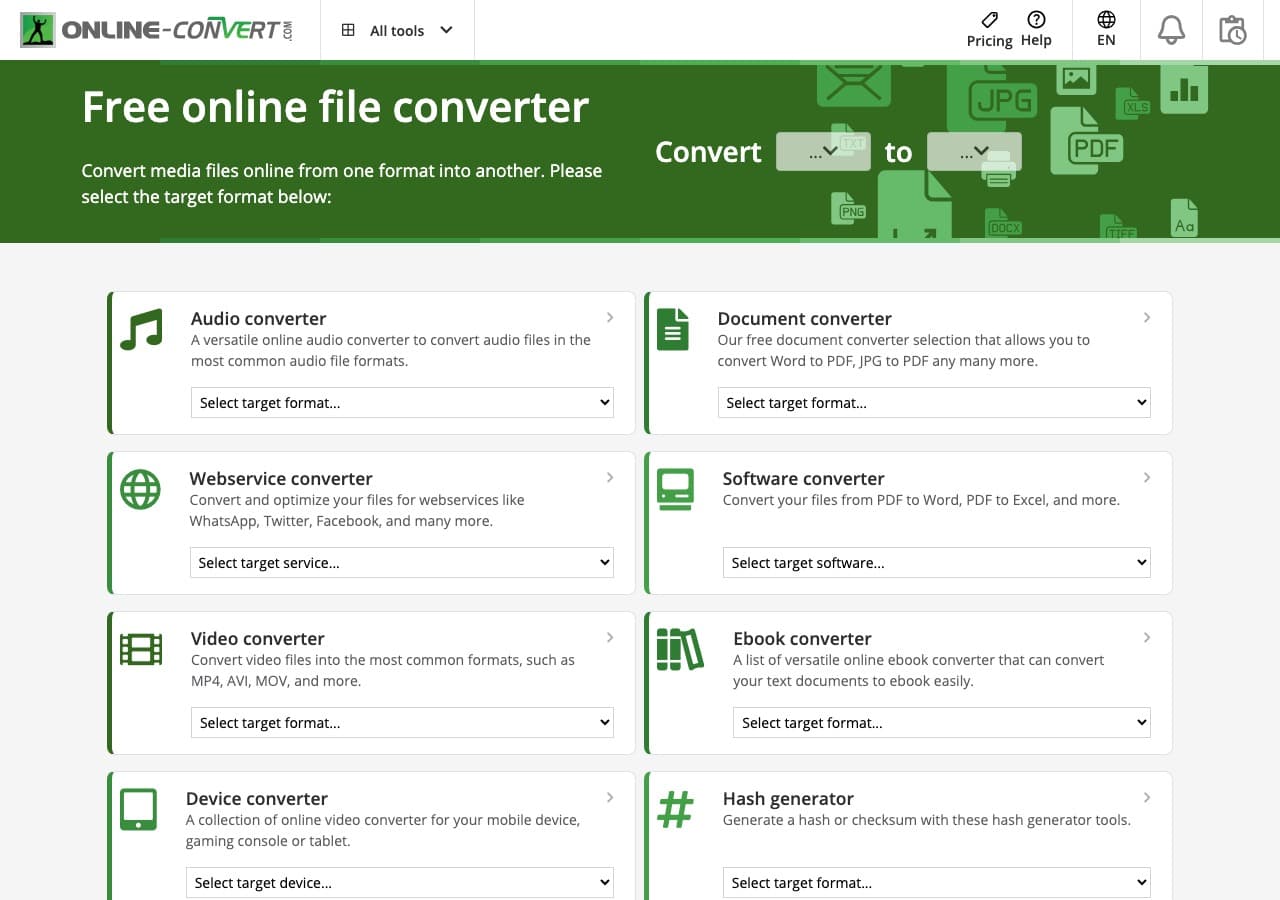
Online-Convert provides the most detailed output controls of any online PDF converter. When creating a PDF, you can set page size, margins, orientation, DPI, and compression. When converting from PDF, you can control output quality, resolution, and format-specific settings.
Online-Convert accepts files from your computer, URL, Google Drive, or Dropbox. The free tier has size and daily limits. For occasional PDF conversions where you need specific output settings, Online-Convert offers more control than any other browser-based tool.
Pros
- Detailed output controls.
- Multiple input sources.
- OCR option for scanned PDFs.
Cons
- Free tier has limits.
- Ads on free tier.
Pricing
- Free: Limited conversions and file size.
- From $6.99/month: Higher limits and no ads.
How to Convert
The offline file converter for Mac, Windows and Linux.
- Converts video, audio, images, documents, ebooks and more
- Everything runs locally. Your files never leave your device
- Pay once. Access forever
Get the app on Mac, Windows and Linux
Frequently Asked Questions
What is the best free PDF converter?
PDF24 is the best completely free PDF converter for Windows, with no limits or watermarks. For Mac users, LibreOffice creates PDFs from office documents for free. For online use, iLovePDF offers the most generous free tier. How to Convert has a free web demo for single-file PDF conversions across supported formats, with no installation required.
How do I convert PDF to Word without losing formatting?
Adobe Acrobat provides the best PDF to Word conversion with the most accurate formatting retention. For free alternatives, Smallpdf and iLovePDF handle simple documents well online. Keep in mind that complex PDFs with custom fonts, tables, and multi-column layouts will always lose some formatting during conversion, regardless of the tool.
Is it safe to convert PDFs online?
Reputable online converters like Smallpdf, CloudConvert, and Zamzar are safe, but your documents are uploaded to their servers during processing. Most services delete files after 1-24 hours. For confidential documents, use an offline converter like How to Convert, LibreOffice, or Adobe Acrobat that processes files locally on your device.
Can I convert a scanned PDF to editable text?
Yes, using OCR (optical character recognition). Adobe Acrobat has the best OCR engine. Free alternatives include PDF24 (Windows) and various online tools. The accuracy depends on the scan quality, font, and language. Clean, high-resolution scans of standard fonts convert best.
Final Thoughts
The right PDF converter depends on your volume, platform, and privacy needs. For offline conversion across every file type, How to Convert handles PDFs alongside everything else for a one-time purchase. Adobe Acrobat remains the gold standard for PDF quality, especially with OCR. On Windows, PDF24 is genuinely free with no restrictions. For quick online conversions, Smallpdf and iLovePDF are the most polished options. And for developers and automation, Ghostscript and Pandoc provide the most flexibility.
How to Convert
The offline file converter for Mac, Windows and Linux.
- Converts video, audio, images, documents, ebooks and more
- Everything runs locally. Your files never leave your device
- Pay once. Access forever
Get the app on Mac, Windows and Linux
