18 Best PNG to JPG Converters in 2026 (Free and Paid)
The best PNG to JPG converters in 2026. Compare offline desktop apps, open-source tools, and online converters for smaller image files, web uploads, email attachments, and photo sharing.
Posted by
 Jake Manger
PNG to JPG is the most-requested image conversion on the internet, and most of the time people do it for the wrong reason: “the file is too big.” That is a real problem, but converting to JPG is a one-way trip — you cannot get the PNG quality back later. So before listing the 18 best PNG to JPG converters, this guide spends two minutes on whether you should be converting at all, and then jumps into the tools that do it cleanly when you do.
PNG → JPG is also one of the few conversions where the macOS and Windows built-ins are good enough for casual use, so do not pay for software you do not need. And every web converter on this list uploads your file to a third-party server; if the image is private, stick to the local options.
Before You Convert — Should You Actually Do This?
PNG is lossless. JPG is lossy. Converting PNG → JPG is a quality cliff, and you only want to jump it on purpose.
Good reasons to convert:
- The PNG is a photo (or photo-like content) and it is 8–10x bigger than it needs to be. JPG was designed for photos; it will shrink the file to a fraction of the size with no visible quality loss at quality 90+.
- You are uploading to a system that genuinely refuses PNG — print services, some old CMS plugins, certain e-filing portals, and a surprising number of HR portals.
- You need a smaller email attachment and the PNG is way over the 25 MB cap.
Bad reasons:
- The image is a screenshot with text. JPG butchers crisp edges; text gets ringy and gray-fringed. Compress the PNG instead (try TinyPNG or
pngcrush) or convert to WebP. - The image is a chart, diagram, logo, or line art. Same reason — JPG was built for continuous-tone photos, not flat regions with sharp boundaries.
- You think JPG is “the standard” format. It is not anymore. Every modern platform handles PNG natively.
If you fall into the “bad reasons” category, this is the wrong guide — go compress the PNG instead. If you are still here, on to the tools.
Quick Picks for PNG → JPG
- Already on your Mac: Preview, or
sipsfrom the terminal. Both built-in, both free. - Already on your Windows PC: Paint (yes, the simple one) or the Photos app.
- You have a folder to convert: ImageMagick, XnConvert, IrfanView (Windows), or How to Convert.
- The PNG has transparency you care about: use a tool that lets you pick the background color (ImageMagick, GIMP, XnConvert). Default white is rarely what you want.
- You want to see exactly what quality you are giving up: Squoosh — best side-by-side preview of any tool.
One-shot via the website: PNG to JPG converter.
The Transparency Problem
PNG supports alpha transparency. JPG does not, at all. When you convert a PNG with a transparent area to JPG, the converter has to fill it with something. Almost every tool defaults to white. That is fine for a logo that was going to sit on a white page anyway. It is wrong if your image was supposed to sit on a dark background, or any other color.
Tools that let you pick the background color before flattening: ImageMagick (-background '#000000' -flatten), GIMP, XnConvert, Photoshop, Affinity Photo, How to Convert. Tools that silently flatten to white: macOS Preview, Windows Photos, Paint, most online converters.
If you do not know whether your PNG has transparency, look at it on a colored background — if you see a halo of white pixels around the subject, that is the transparency edge. Convert with a matching background color, or stick with PNG.
The 18 Converters
1. How to Convert (I built this one) — best private PNG-to-JPG converter

Drag the PNG in, pick JPG, choose your quality, hit convert. Nothing leaves your machine. The quality slider is exposed, the paid desktop app supports batch conversion, and transparent PNGs prompt for a background color rather than defaulting to a surprise white.
The reason it is the right pick specifically for PNG → JPG: most online converters strip EXIF and lock you into white-background flattening with no warning. How to Convert preserves EXIF, gives you the alpha background choice, and lets you process a whole folder at a real quality level (default 92, not 75).
Pros
- Local, private, no upload.
- Folder batches in the paid desktop app, with no watermark.
- Configurable background color for transparent PNGs.
Cons
- Paid desktop app; the free web demo handles one file at a time.
- Not the right tool if you live in a terminal — see ImageMagick.
Pricing
- One-time purchase; free web demo for single-file conversions.
 How to Convert
The offline file converter for Mac, Windows and Linux.
- Converts video, audio, images, documents, ebooks and more
- Everything runs locally. Your files never leave your device
- Pay once. Access forever
Get the app on Mac, Windows and Linux
2. ImageMagick — best command-line PNG-to-JPG
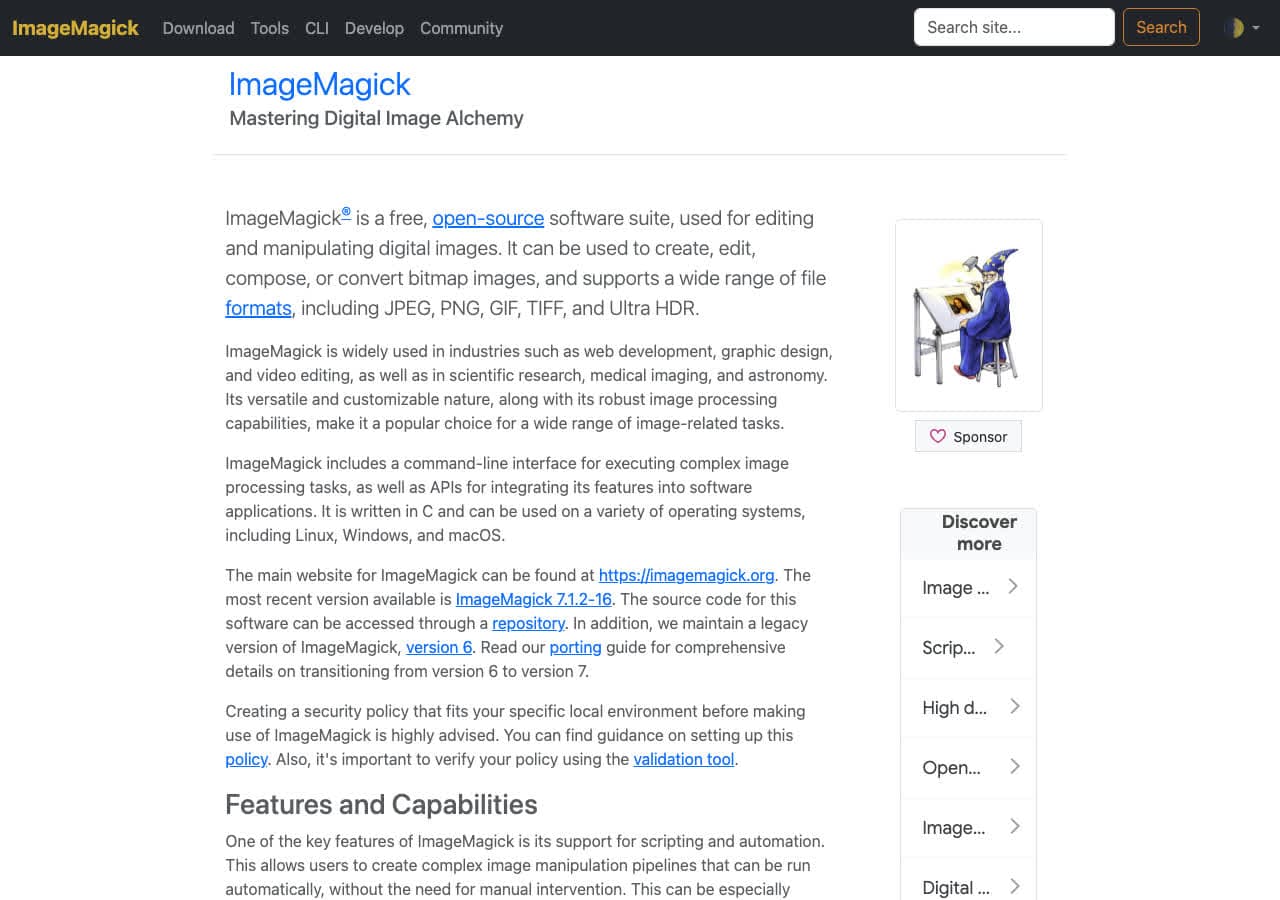
The classic. The minimal command:
magick input.png -quality 92 output.jpg
With a deliberate background color for transparent PNGs (white in this example — change white to any hex code or color name):
magick input.png -background white -alpha remove -alpha off -quality 92 output.jpg
Convert a whole folder, preserving the source filename:
for f in *.png; do magick "$f" -quality 92 "${f%.png}.jpg"; doneIf you also want to resize during conversion — common when the PNG is bigger than the target use case needs:
magick input.png -resize 1600x -quality 92 output.jpg
Pros
- Scriptable, exact, fast.
- Best background-color handling for transparency.
- One pass for resize + EXIF strip + quality.
Cons
- Command line only.
- The default quality of 75 on older builds is too aggressive — always pass an explicit quality.
Pricing
- Free, open source.
3. macOS Preview + sips — best Mac built-ins
Preview opens the PNG, File → Export → JPEG, set quality with the slider, save. Done. For a folder of files, the Finder Quick Action “Convert Image” (right-click a selection) does the same thing in batch.
If you prefer a one-liner from the terminal, every Mac ships with sips:
sips -s format jpeg -s formatOptions 92 input.png --out output.jpg
Or a whole folder:
for f in *.png; do sips -s format jpeg -s formatOptions 92 "$f" --out "${f%.png}.jpg"; doneThe catch: sips silently flattens transparency to white with no option to change it. For transparent PNGs use ImageMagick instead.
Pros
- Free, installed.
- Both GUI and CLI options.
- Quick Action handles batches.
Cons
- Mac only.
- No background-color choice for transparency.
Pricing
- Free with macOS.
4. Windows Paint and Photos — best Windows built-ins
Yes, Paint. Open the PNG, File → Save As → JPEG. Quality is fixed at a reasonable default; you do not get a slider. Same for the Photos app — Save As JPEG is right there.
For a folder, neither built-in handles batch. Use IrfanView or XnConvert.
Pros
- Already installed on every Windows PC.
- Zero learning curve.
Cons
- No quality control.
- No batch.
- Silent white background for transparency.
Pricing
- Free with Windows.
5. XnConvert — best free batch tool
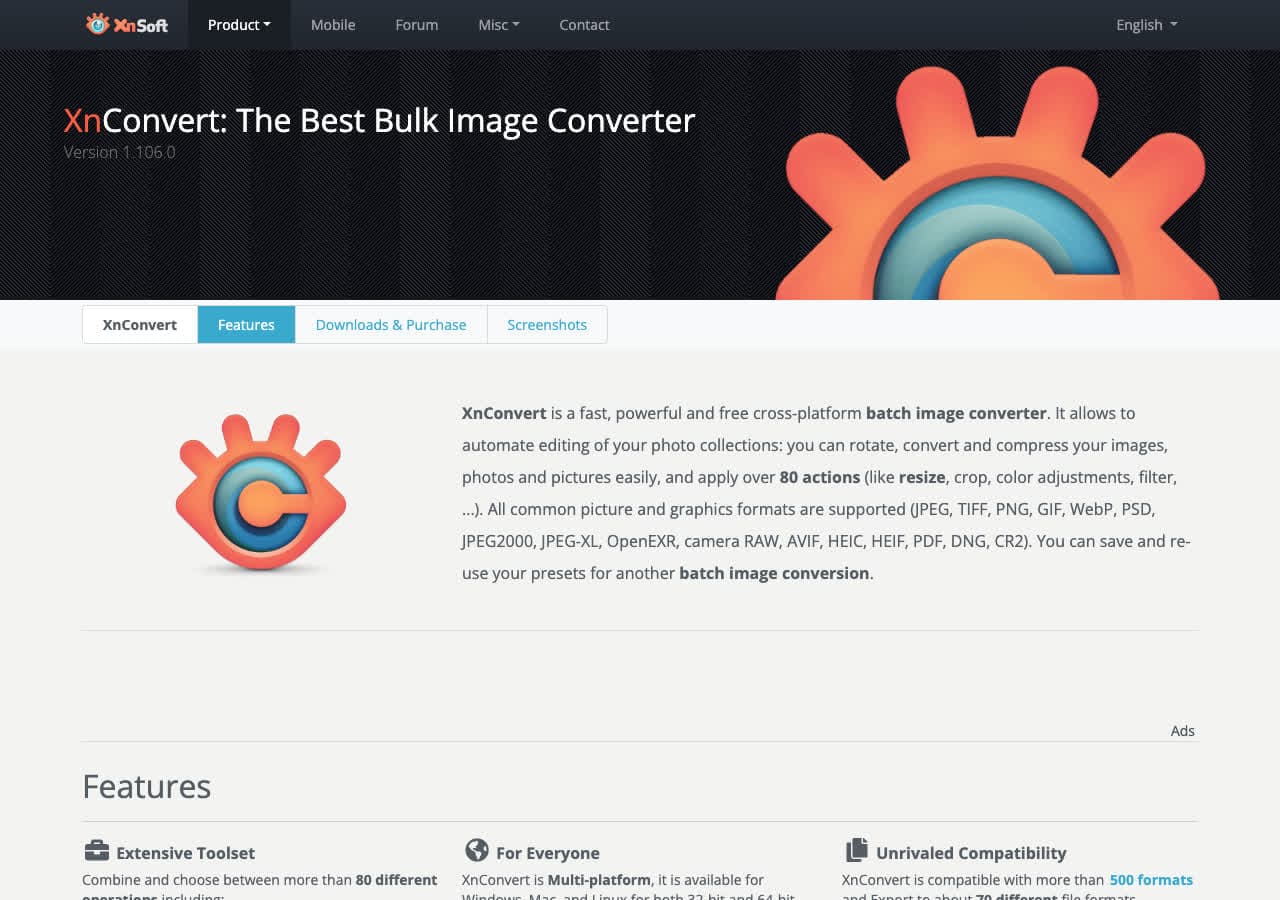
Cross-platform batch image converter. For PNG → JPG specifically: it exposes numeric quality (1–100), chroma subsampling, EXIF-strip, progressive JPEG, and — crucially — a background-color picker for flattening alpha. Queue up a thousand files, set output to JPG, set background, hit Convert.
Pros
- Real batch UI with preview.
- Background-color choice for transparency.
- Cross-platform.
Cons
- UI looks old.
- Commercial use needs a paid license.
Pricing
- Free for personal use.
6. IrfanView — best Windows batch tool
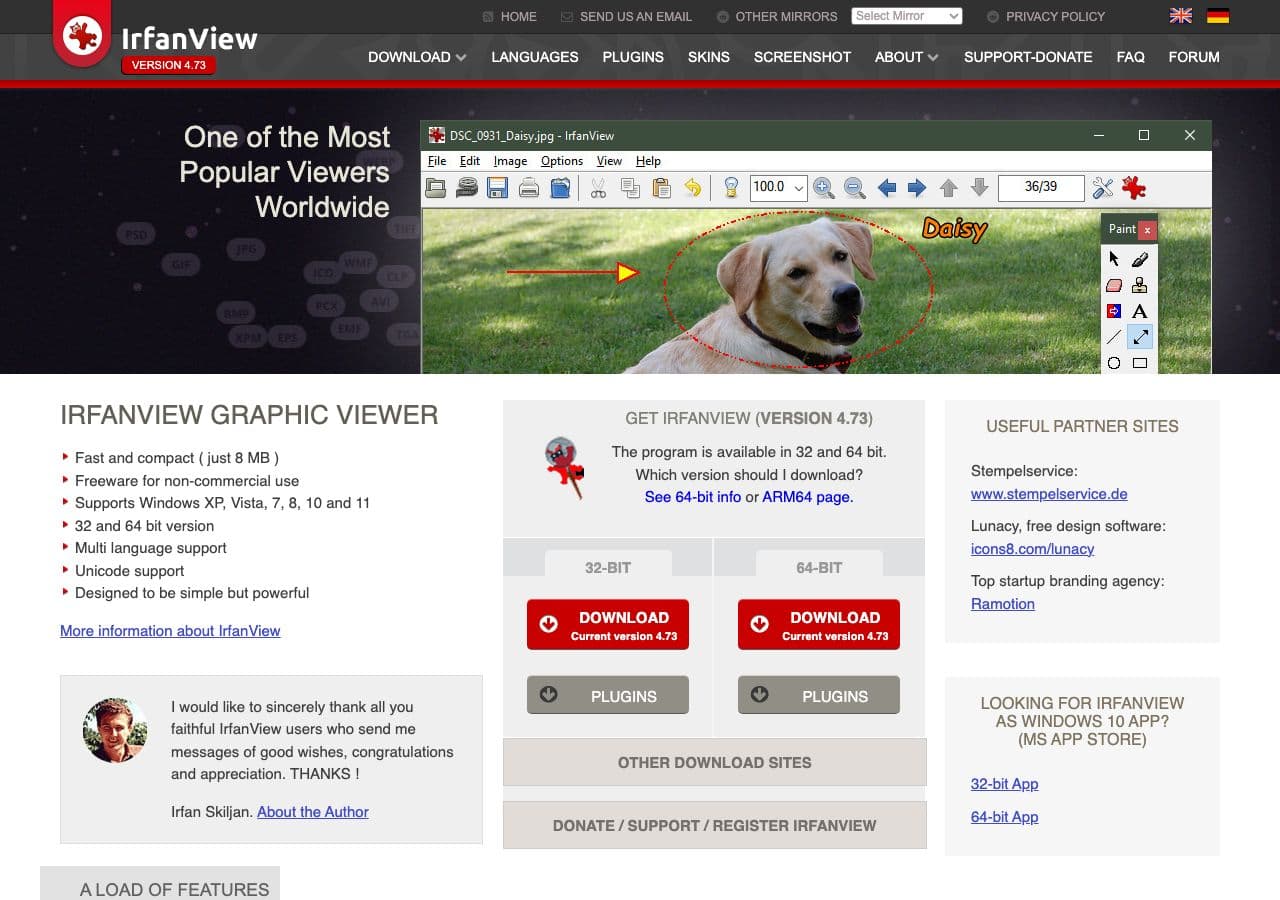
The fastest Windows batch JPEG encoder you can run for free. File → Batch Conversion/Rename, add folder, output JPEG, set quality, go. With the (free) JPG options checked, it can also strip metadata and apply progressive encoding in the same pass.
Pros
- Very fast on big batches.
- Tiny footprint.
- Detailed JPG output settings.
Cons
- Windows only.
- Dated UI.
Pricing
- Free for personal use.
7. Squoosh — best quality preview
The Chrome team's open-source image converter. Runs in the browser via WebAssembly; no upload. The side-by-side preview slider is the genuinely best way to see, with your eyes, what you are giving up at any specific JPG quality level for a specific PNG. Useful when you need to find the exact “good enough” quality before batch-converting the rest with a CLI.
Pros
- Client-side — files do not leave your device.
- Side-by-side preview is unmatched.
- MozJPEG output and progressive encoding.
Cons
- One file at a time.
- Big images can lock the tab.
Pricing
- Free.
8. GIMP — best free editor that also exports JPG
File → Export As → name it .jpg → quality slider with a detailed advanced section (subsampling, smoothing, restart markers). If your PNG has transparency, GIMP prompts you to flatten and lets you choose the fill color before doing it. That single dialog is more honest about the conversion than half the tools on this list.
Pros
- Most detailed JPG export options in any free GUI.
- Forces a conscious flatten-color choice for transparent PNGs.
- Cross-platform.
Cons
- Heavy for a one-off conversion.
- No native batch.
Pricing
- Free, open source.
9. Pixelmator Pro — best Mac editor for export

File → Export → JPEG, live file-size preview, quality slider. The Mac-native feel is the appeal — Pixelmator's export persona feels modern in a way most cross-platform tools do not. Use it when you are already editing in Pixelmator.
Pros
- Live file-size preview during export.
- Native macOS feel.
Cons
- Mac only.
- Paid.
Pricing
- One-time purchase, Mac App Store.
10. Adobe Photoshop
File → Save As → JPEG, or File → Export → Save for Web (Legacy) for the most detailed export dialog. If you are already paying for Creative Cloud, this is fine. Do not buy Photoshop for PNG → JPG.
Pricing
- Subscription.
11. Affinity Photo
Photoshop alternative with a one-time price. Reads PNG, exports JPG via the Export Persona with a quality preview. Good middle ground if you want a real editor without a Creative Cloud subscription.
Pricing
- One-time purchase.
12. Photopea — best in-browser editor
A Photoshop clone running in the browser. Opens PNGs, exports as JPG with full editing in between. Files stay client-side. The right pick when you need to crop or retouch the PNG before saving as JPG and cannot install software.
Pricing
- Free with ads; premium removes them.
13. FFmpeg
Not the obvious pick, but it works:
ffmpeg -i input.png -q:v 2 output.jpg
Quality is on FFmpeg's inverted 2–31 scale (lower = better). Useful if you are already in an FFmpeg pipeline. Overkill otherwise.
Pricing
- Free, open source.
14. FastStone Image Viewer — best free Windows photo utility
Windows-only viewer with a built-in batch converter. Tools → Batch Convert Selected Images, add PNGs, output JPG, set quality. Sits in a sweet spot between Photos (too simple) and IrfanView (intimidating).
Pricing
- Free for personal use.
15. CloudConvert
Reliable web converter. Drop a PNG, pick JPG, set quality, download. Has an API for scripted workflows. Files are uploaded to their servers — fine for non-sensitive images, wrong for private ones.
Pricing
- Free tier; paid for higher volume.
16. Convertio
Same shape as CloudConvert with a slightly cleaner UI and tighter free-tier file-size caps. Fine for a single non-sensitive PNG.
Pricing
- Free with daily caps; paid above.
17. iLovePDF / iLoveIMG
The image side of iLovePDF (iLoveIMG) does batch PNG → JPG via a clean upload-and-go web UI. Generous free tier. Same privacy caveat — files are uploaded.
Pricing
- Free with limits; paid removes them.
18. Zamzar
The senior citizen of online converters. Slower than CloudConvert, conservative defaults, but it has been around forever and the URL still works. Useful for occasional non-sensitive jobs.
Pricing
- Free with daily limits; paid above.
How to Choose
- One quick file: the OS built-in. Preview on Mac, Paint or Photos on Windows.
- A folder of files: ImageMagick, XnConvert, IrfanView, or How to Convert.
- Private image: stay local — any of the above except the web converters.
- Has transparency that matters: ImageMagick, GIMP, XnConvert, How to Convert, or Photoshop — pick a background color explicitly.
- Want to see the quality tradeoff visually before committing: Squoosh.
- It is a screenshot / chart / logo: reconsider. Compress the PNG instead, or use WebP.
Final Thoughts
PNG → JPG is rarely the right answer for screenshots, charts, logos, or anything with sharp edges. For photos, it is one of the safest conversions on the web — JPEG was designed for exactly this case, and at quality 90+ you will not see the difference. The mistake most people make is over-shrinking: anything below quality 85 starts showing visible degradation on a photo, and below 70 it is obvious. Pick 90 by default; drop to 80 only if file size is truly the constraint.
How to Convert
The offline file converter for Mac, Windows and Linux.
- Converts video, audio, images, documents, ebooks and more
- Everything runs locally. Your files never leave your device
- Pay once. Access forever
Get the app on Mac, Windows and Linux
