18 Best PNG to SVG Converters in 2026 (Free and Paid)
The best PNG to SVG converters in 2026. Compare offline desktop apps, open-source tools, and online converters for vectorizing logos, icons, and simple graphics for design workflows.
Posted by
 Jake Manger
PNG to SVG is the trickiest conversion in this whole series — it is the only one that involves inventing data. PNG is pixels; SVG is paths, curves, and shapes. You cannot just rewrap the file; you have to recreate the image as vectors. The technical term is “vectorization” or “tracing,” and the quality of the result depends almost entirely on the input. A simple two-color logo vectorizes beautifully. A detailed photograph vectorizes into a meaningless blob that is bigger than the source PNG. This guide compares 18 PNG to SVG converters in 2026, with frank guidance about which kinds of PNGs are good candidates and which are not.
We use real vectorization (the VisionCortex engine) rather than the lazy “embed the PNG inside an SVG wrapper” trick that some online tools do. The next section explains why that distinction matters.
Real Vectorization vs Fake Vectorization
Many web tools and even some apps do one of two things when you ask for PNG → SVG:
- Real vectorization — analyze the image, identify regions of similar color, fit Bézier curves to the boundaries, output an SVG made of
<path>elements. The result is scalable, editable, and small for simple inputs. This is what Inkscape's Trace Bitmap, Adobe Illustrator's Image Trace, and VisionCortex (and How to Convert) do. - Fake vectorization — wrap the PNG inside an SVG
<image>tag and rename the file. The result is bigger than the PNG, not actually scalable (zooming just shows the original pixels), and not editable. Some web tools do this silently. Check the output: if it is the same size or larger than the input PNG, you got fake vectorization.
Tip: open the output SVG in a text editor. Real vectorization shows paths like <path d="M10,20 C30,40..."/>. Fake vectorization shows <image xlink:href="data:image/png;base64,..."/>.
Which PNGs Vectorize Well
- Logos — usually two to four colors, hard edges. The ideal case.
- Icons — same shape as logos. Often the source was already a vector, exported to PNG by accident.
- Line art and ink drawings — single color, clear lines. Usually convert well.
- Comic-style illustrations — flat colors, hard outlines. OK.
- Text in a logo — vectorizes as paths, not editable text, but visually correct.
And which do not:
- Photographs — vectorizing produces thousands of tiny path fragments that decode into something close to the original but is 5–20x bigger than the PNG. Pointless.
- Screenshots — too much detail, too many colors. The output SVG is usually unusable.
- Anti-aliased text on a complex background — the partial-transparency pixels at the edges confuse most tracers.
Quick Picks for PNG → SVG
- Best free GUI: Inkscape's Trace Bitmap. Detailed options, free, cross-platform.
- Best paid tool: Adobe Illustrator's Image Trace — the most refined tracer.
- Best CLI: potrace (single-color tracing) or VTracer (multi-color).
- Best one-shot, no install: How to Convert or a real vectorization web tool like Vector Magic. Avoid fake-vectorization sites.
- Best for an app icon you accidentally rasterized: often you can find the original SVG. If not, Illustrator or Inkscape.
One-shot: PNG to SVG converter.
1. How to Convert (I built this one)

Real vectorization via the VisionCortex tracer. Drop a logo or icon PNG in, pick SVG, adjust color and detail settings, hit convert. Local, no upload. The output is real paths, not an embedded PNG.
Pricing
- One-time purchase; free web demo for single-file conversions.
 How to Convert
The offline file converter for Mac, Windows and Linux.
- Converts video, audio, images, documents, ebooks and more
- Everything runs locally. Your files never leave your device
- Pay once. Access forever
Get the app on Mac, Windows and Linux
2. Inkscape — best free GUI tracer
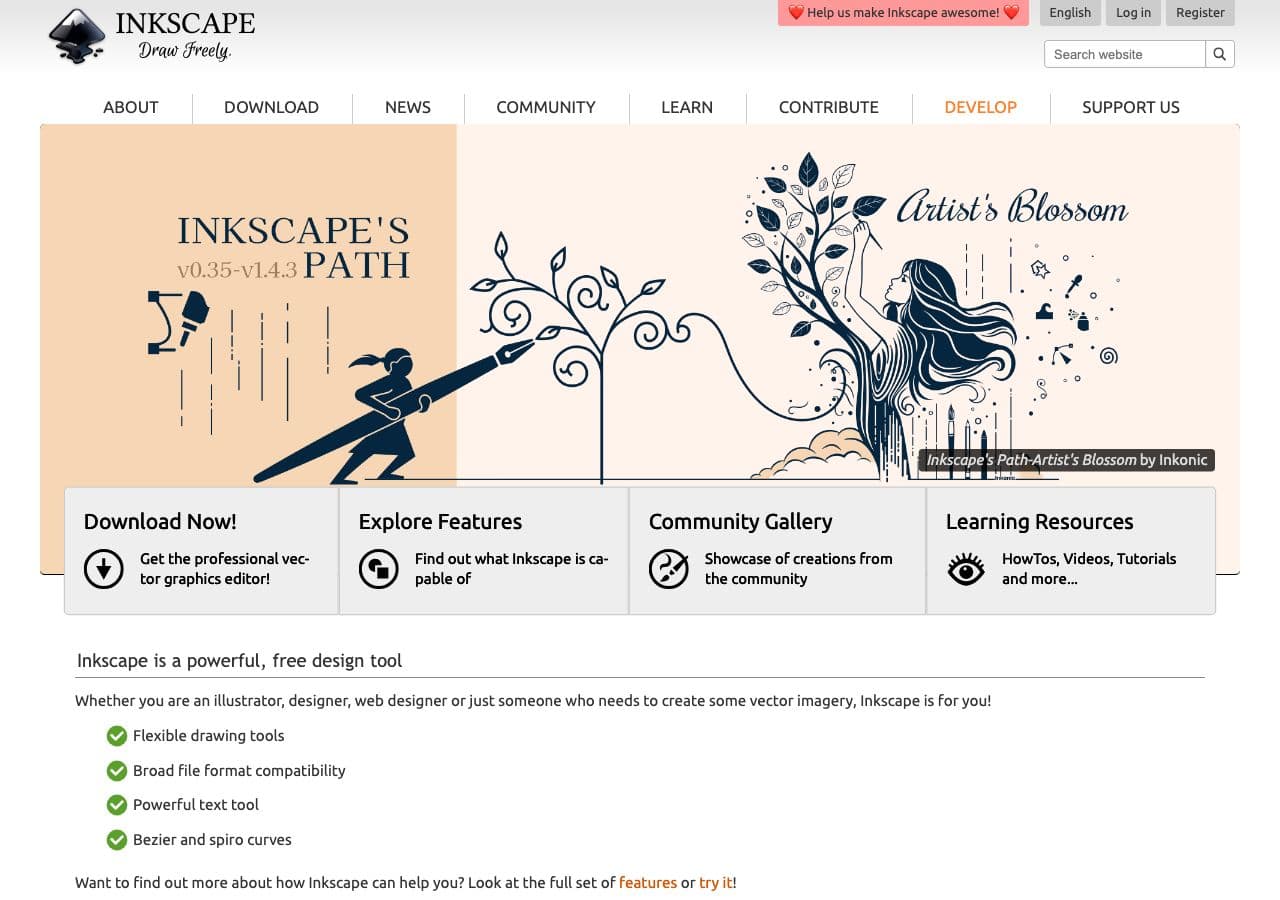
Open Inkscape, File → Import the PNG, select it, Path → Trace Bitmap. The dialog gives you:
- Brightness cutoff (single-color tracing, best for line art)
- Edge detection (preserves outlines)
- Color quantization (multi-color, best for logos)
- Smoothing, corner threshold, optimization sliders
Spend two minutes on the sliders — small changes make a big quality difference. Then File → Save As → Plain SVG.
Pricing
- Free, open source.
3. Adobe Illustrator
The reference tracer. File → Open the PNG, Object → Image Trace → Make and Expand. The Image Trace panel has preset modes (Logo, Sketch, Black and White, etc.) and detailed sliders. Output as SVG via File → Export → SVG.
The best result of any tool, by a small margin. Worth it if you already have Creative Cloud or you have a logo that absolutely has to look right.
Pricing
- Subscription.
4. potrace — best command-line single-color tracer
The original open-source bitmap tracer. Works on black-and-white or single-color PNGs. Usage:
# Convert PNG to PBM first if it isn't already 1-bit
magick input.png -monochrome input.pbm
potrace input.pbm -s -o output.svg
Best for line art and ink drawings. The output is clean and minimal.
Pricing
- Free, open source.
5. VTracer — best CLI multi-color tracer
A Rust-based color-aware tracer (the engine behind several of the better web converters). Good for multi-color logos:
vtracer --input logo.png --output logo.svg --color_mode color --filter_speckle 4
Faster than Inkscape's tracer; comparable quality.
Pricing
- Free, open source.
6. Vector Magic
A long-running web (and desktop) tracer. Good results, friendly UI, paid for full output. The web tool uploads your image; the desktop app is local.
Pricing
- Subscription (web) or one-time (desktop).
7. Vectornator / Linearity Curve
Free vector editor for Mac, iPad, and iPhone. Includes an Auto Trace feature for PNG → SVG. Polished UI, good results for typical logos.
Pricing
- Free; paid Pro tier.
8. Affinity Designer
One-time-purchase Illustrator alternative. Does not have a built-in raster tracer as polished as Illustrator's, but you can use external tracers and edit the result in Affinity. Good as the final-edit tool.
Pricing
- One-time purchase.
9. Boxy SVG
Browser and Mac SVG editor. Includes a built-in tracer. Lighter than Inkscape.
Pricing
- One-time purchase.
10. GIMP (with G'MIC or external tracer)
GIMP itself does not vectorize, but with the G'MIC plugin or by exporting to a tracer you can chain it in. Best when you want to clean up the PNG first (remove background, threshold, denoise) before tracing.
Pricing
- Free, open source.
11. Vectorizer.AI
AI-based web tracer. Produces noticeably better results than traditional tracers on complex inputs. Paid. Web upload — fine for non-sensitive logos.
Pricing
- Subscription.
12. Recraft.ai / Other AI vectorizers
A growing category of AI-powered PNG → SVG tools. Better results than 2018-era tracers but variable quality and unclear about whether the “vectorization” is a real trace or a generative redraw.
Pricing
- Freemium.
13. Convertio
Web converter. Uses potrace under the hood for PNG → SVG, so results are decent for line art and weak for color logos.
Pricing
- Free with caps; paid above.
14. CloudConvert
Web PNG → SVG. Real vectorization, multiple engine options.
Pricing
- Free tier; paid above.
15. svgtrace / online single-purpose tools
Several free PNG-to-SVG sites. Quality varies wildly. Some do fake vectorization (PNG wrapped in SVG). Always check the output.
Pricing
- Free.
16. Picsvg
Single-purpose web vectorizer with adjustable color count. Decent results for simple logos.
Pricing
- Free.
17. CorelDRAW
Long-running Windows vector editor with PowerTRACE for raster → vector. Strong on Windows specifically.
Pricing
- Subscription or one-time.
18. Manual redraw in Figma / Inkscape
Not a converter, but: for a critical logo where automated tracing is not good enough, sometimes the best path is to open the PNG as a reference and manually redraw it as paths in Figma or Inkscape. Takes 30–60 minutes for a moderately complex logo. Produces the cleanest result.
Pricing
- Free (Figma has a generous free tier; Inkscape is free).
How to Choose
- Logo or icon: Illustrator, Inkscape, How to Convert, or Vectorizer.AI.
- Line art / ink drawing: potrace or Inkscape's brightness cutoff.
- Photo or screenshot: do not. Vectorization is the wrong tool. Use the original PNG.
- Critical brand asset: manual redraw in Figma or Inkscape produces the best result.
- Need it scriptable: potrace or VTracer.
- Sensitive image: stay local — How to Convert, Inkscape, Illustrator.
Final Thoughts
PNG → SVG is the only conversion in this whole series where the tool can produce a result that is mathematically wrong. Real vectorization is harder than file-format conversion, the results vary, and the wrong inputs (photos, screenshots) produce useless output. For logos and icons, Inkscape and Illustrator are reliable; for line art, potrace is the cleanest CLI tool; for difficult inputs, manual redraw is sometimes the only path. Always check the output by opening it in a text editor — real path data is what you want, not an embedded PNG.
How to Convert
The offline file converter for Mac, Windows and Linux.
- Converts video, audio, images, documents, ebooks and more
- Everything runs locally. Your files never leave your device
- Pay once. Access forever
Get the app on Mac, Windows and Linux
