18 Best TIFF to JPG Converters in 2026 (Free and Paid)
The best TIFF to JPG converters in 2026. Compare offline desktop apps, open-source tools, and online converters for sharing scans and print files with people who need a common photo format.
Posted by
 Jake Manger
TIFF is the format you get from scanners, archival workflows, professional photographers, medical imaging, and government document portals. It is lossless, supports 16-bit color, can hold multiple pages, and routinely produces files of 50–500 MB. Every one of those features makes TIFF the wrong format for sharing — your email client rejects it, your client's Windows machine displays a generic icon, and your phone's gallery silently skips it. So you end up converting to JPG, and you want to do it without destroying the quality of the scan or losing pages in a multi-page document. This guide compares 18 TIFF to JPG converters in 2026 with a focus on what each handles well — and where the common gotchas live.
TIFF is also a format where the wrong tool can quietly do the wrong thing — pick the first page of a multi-page TIFF and discard the rest, or downconvert a 16-bit scan to 8-bit and lose subtle tonal range. Worth knowing before you batch-convert a folder of scans.
The TIFF Gotchas That Trip People Up
- Multi-page TIFFs. Scanners save multi-page documents as a single TIFF with one frame per page. Naive converters output only the first page. Use a tool that emits a numbered JPG per page (e.g.,
page-001.jpg,page-002.jpg) — or convert to PDF instead. - 16-bit color depth. Professional photo scans and medical TIFFs use 16 bits per channel. JPG is 8-bit only. Most tools downconvert correctly; a few clamp incorrectly and produce blown highlights. Spot-check the first output.
- CMYK color. Print-workflow TIFFs are often CMYK. JPG technically supports CMYK but most viewers do not. Convert to RGB during the conversion (most tools do this automatically; ImageMagick needs
-colorspace sRGB). - LZW or Deflate compression in the source. Slows decompression. Not a quality issue, just a speed one.
- Embedded ICC profiles. Especially in scans for archival use. Stripping them shifts colors. Preserve the profile or explicitly convert to sRGB.
Quick Picks for TIFF → JPG
- Single-page TIFF: Preview (Mac), Paint or Photos (Windows), or any tool below.
- Multi-page TIFF (scanned documents): ImageMagick, IrfanView, or How to Convert. The CLI handles the page split cleanly.
- 16-bit scans where color matters: Photoshop, Affinity Photo, or ImageMagick with explicit profile handling.
- Large batch of scans: ImageMagick, XnConvert, IrfanView.
- Private documents (medical, legal): stay local. TIFF scans almost always contain sensitive content.
One-shot: TIFF to JPG converter.
1. How to Convert (I built this one)

Drag TIFFs in, pick JPG, set quality (default 92, sensible for scans), hit convert. Multi-page TIFFs are detected and split into numbered JPGs automatically. Local — TIFF scans never leave the machine. The right pick for medical, legal, or archival scans.
Pricing
- One-time purchase; free web demo for single-file conversions.
 How to Convert
The offline file converter for Mac, Windows and Linux.
- Converts video, audio, images, documents, ebooks and more
- Everything runs locally. Your files never leave your device
- Pay once. Access forever
Get the app on Mac, Windows and Linux
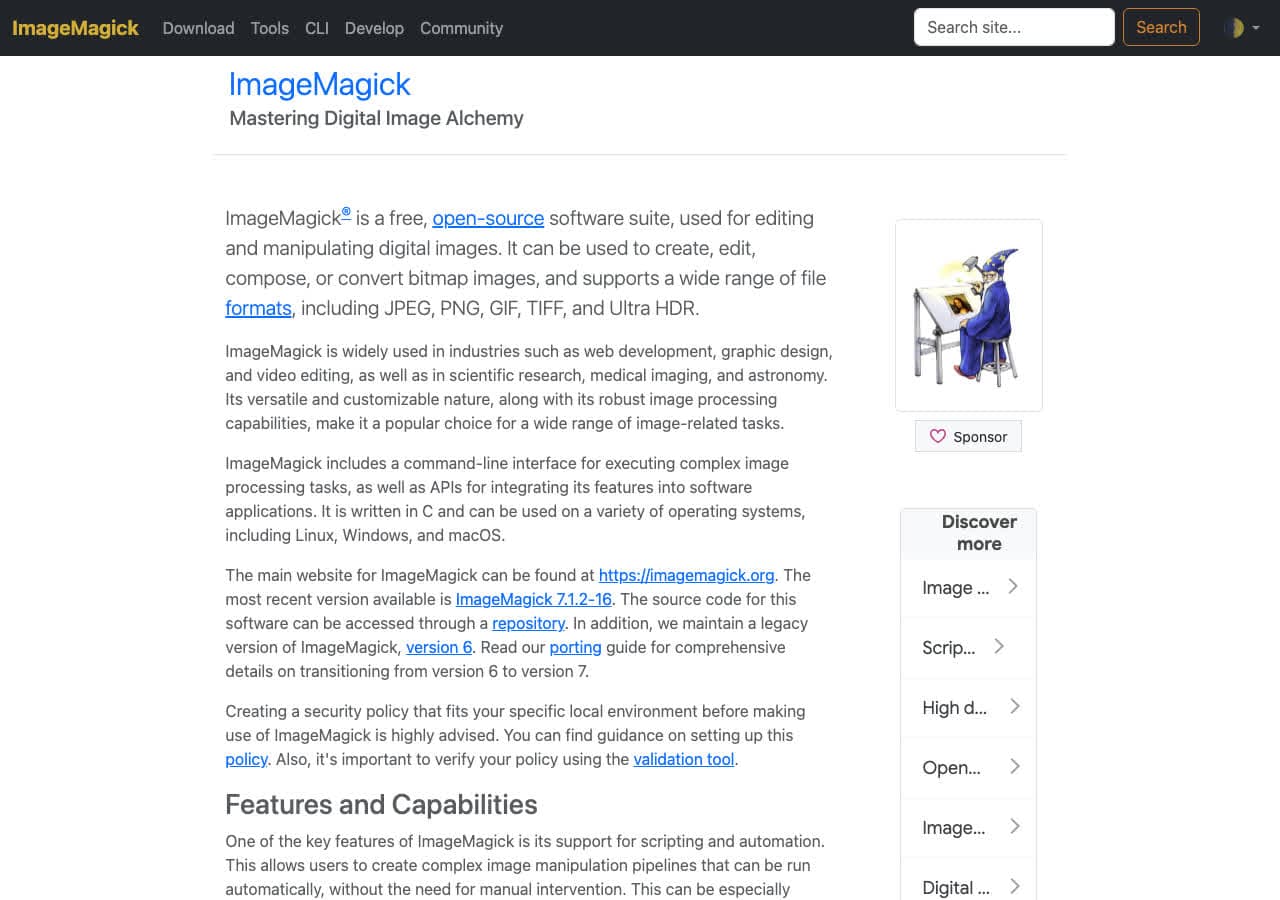
2. ImageMagick
Single-page TIFF:
magick input.tiff -quality 92 output.jpg
Multi-page TIFF — emit numbered JPGs, one per page:
magick input.tiff -quality 92 page-%03d.jpg
16-bit scan with explicit sRGB conversion (avoids color drift):
magick input.tiff -depth 8 -colorspace sRGB -quality 92 output.jpg
CMYK TIFF (print scans) — convert to RGB first:
magick input.tiff -colorspace sRGB -quality 92 output.jpg
Whole folder:
for f in *.tif*; do magick "$f" -quality 92 -colorspace sRGB "${f%.*}.jpg"; donePricing
- Free, open source.
3. macOS Preview + sips
Preview opens TIFF natively. For single-page: File → Export → JPEG. For multi-page: Preview shows pages in the sidebar; right-click → Export selected pages.
CLI:
sips -s format jpeg -s formatOptions 92 input.tiff --out output.jpg
Note: sips silently uses only the first page of a multi-page TIFF. For multi-page, use ImageMagick or extract pages in Preview.
Pricing
- Free with macOS.
4. IrfanView
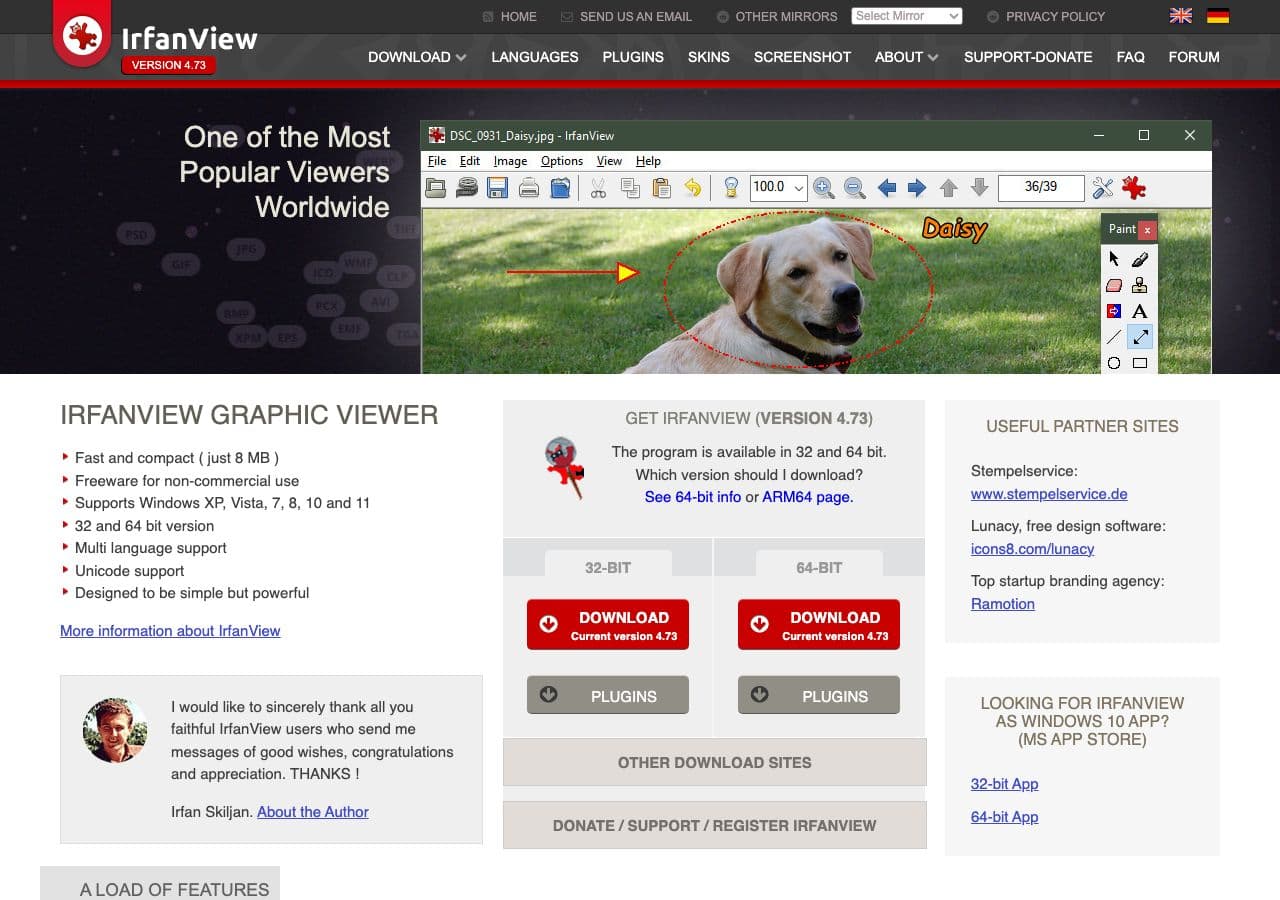
Windows-only. Best free Windows TIFF batch tool. File → Batch Conversion handles multi-page TIFFs with a “split multipage TIFFs” option that does what you want. Fast on large scan folders.
Pricing
- Free for personal use.
5. XnConvert
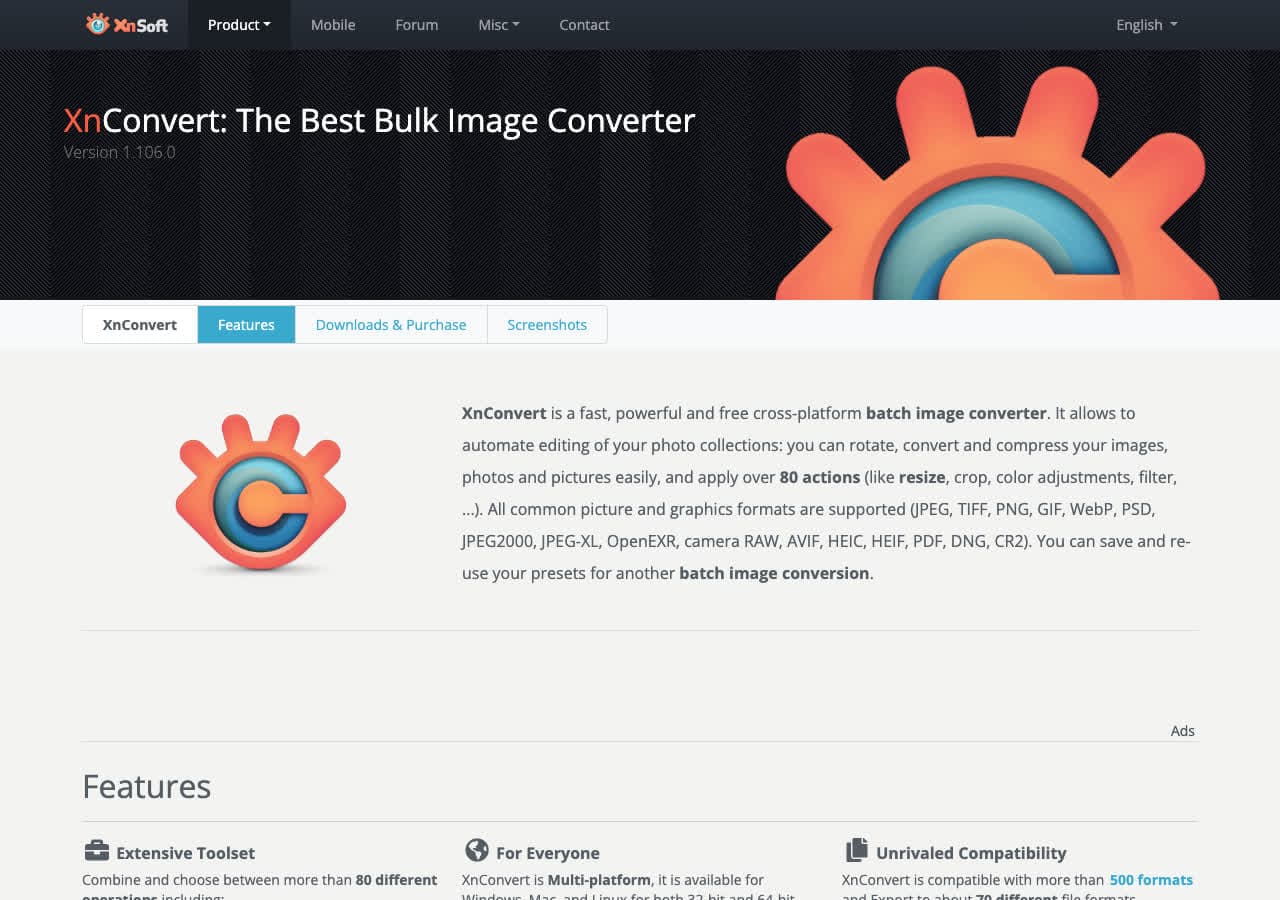
Cross-platform. Handles TIFF input with explicit page-split options. Good for “turn this entire folder of scans into JPGs at quality 92” workflows.
Pricing
- Free for personal use.
6. Adobe Photoshop
Best 16-bit handling of any tool. Opens 16-bit / CMYK TIFFs, lets you adjust before exporting JPG. File → Save As → JPEG, with proper color management dialogs.
For batches, File → Scripts → Image Processor handles a folder with output presets.
Pricing
- Subscription.
7. Affinity Photo
Photoshop alternative with strong TIFF handling including 16-bit and CMYK. One-time price. Use the Export Persona for JPG output.
Pricing
- One-time purchase.
8. GIMP
File → Open the TIFF, File → Export As → .jpg. GIMP's JPG export dialog includes detailed quality, subsampling, and color profile settings. Good for one-off TIFF conversions where you want explicit control over color.
Multi-page TIFF support is limited — GIMP opens each page as a layer and you export them one at a time.
Pricing
- Free, open source.
9. Pixelmator Pro

Mac-native editor with native TIFF support. Quick JPG export with a live size preview.
Pricing
- One-time purchase, Mac App Store.
10. FastStone Image Viewer
Free Windows viewer with multi-page TIFF support and a batch converter. Less intimidating than IrfanView.
Pricing
- Free for personal use.
11. Windows Photos / Paint
Open TIFF, File → Save As → JPEG. Single-page only; ignores additional pages in multi-page TIFFs without warning.
Pricing
- Free with Windows.
12. FFmpeg
One-liner:
ffmpeg -i input.tiff -q:v 2 output.jpg
Useful in pipelines. No multi-page TIFF support — only handles the first frame.
Pricing
- Free, open source.
13. tiff2pdf / tiffsplit
Single-purpose CLI tools from libtiff. tiffsplit breaks a multi-page TIFF into individual TIFF files; then pipe each through ImageMagick or cjpeg to get JPGs:
tiffsplit input.tiff page-
for f in page-*.tif; do magick "$f" -quality 92 "${f%.tif}.jpg"; done
Pricing
- Free, open source.
14. CloudConvert
Web converter with TIFF support including multi-page (outputs a ZIP of JPGs). Privacy caveat — scans often contain sensitive content. Stay local for medical or legal.
Pricing
- Free tier; paid above.
15. Convertio
Web converter with TIFF → JPG. Clean UI. Same upload caveat.
Pricing
- Free with caps; paid above.
16. Zamzar
Long-running web converter. Handles TIFF reliably but slowly. Useful for occasional non-sensitive scans.
Pricing
- Free with daily limits; paid above.
17. Online-Convert
Web converter with detailed TIFF input options (DPI, page selection). Useful for fine-grained one-off conversions.
Pricing
- Free with limits; paid above.
18. FreeConvert
Web converter with quality slider. Same upload model.
Pricing
- Free with caps; paid above.
How to Choose
- Single-page, casual: Preview, Paint, or Photos.
- Multi-page scan: ImageMagick or IrfanView. Both split pages cleanly.
- 16-bit or CMYK source: Photoshop or Affinity Photo for proper color handling.
- Batch scan folder: ImageMagick or IrfanView.
- Sensitive scan: stay local. Never upload medical, legal, or financial scans to a web converter.
- Better alternative for multi-page documents: consider converting to PDF instead of JPG — preserves the document feel and is a single file.
Final Thoughts
TIFF → JPG is a useful conversion for sharing scans and archived photos, but the tool you pick matters more than people realize. Multi-page TIFFs need a tool that splits cleanly. 16-bit and CMYK TIFFs need color-aware handling or you will get color shifts. And anything that came out of a scanner is usually private — keep it local. Quality 92 is the sensible default for scans (higher than the 85 default most tools use); the file size impact is negligible and the quality preservation is meaningful.
How to Convert
The offline file converter for Mac, Windows and Linux.
- Converts video, audio, images, documents, ebooks and more
- Everything runs locally. Your files never leave your device
- Pay once. Access forever
Get the app on Mac, Windows and Linux
