18 Best WebP to JPG Converters in 2026 (Free and Paid)
The best WebP to JPG converters in 2026. Compare offline desktop apps, open-source tools, and online converters for older apps, upload forms, print workflows, and clients who still expect JPEG.
Posted by
 Jake Manger
WebP is great for the web — Google designed it to ship smaller images at a quality JPEG cannot match. The problem is that almost everywhere else, WebP is still treated like an exotic format. Adobe Stock, most print shops, half of the CMS plugins out there, Outlook's desktop renderer, court e-filing portals, university submission systems, your school's yearbook software, and most older Windows apps either refuse it outright or display it as a broken icon. So you end up here: you need a WebP to JPG converter, and you need one that does it without quietly destroying your image quality in the process.
This guide compares 18 WebP-to-JPG converters in 2026, including offline desktop apps, free open-source CLIs, the macOS and Windows built-ins, and a handful of web tools.
Quick Picks for WebP → JPG
- Already on your Mac: Preview. Open the WebP, File → Export, choose JPEG. Free, no install, hits a fine quality slider.
- Already on your Windows PC: the Photos app (or Paint) can save WebP as JPG with one keystroke. Quality is fine for casual use.
- If you have to convert a whole folder: ImageMagick (one command), XnConvert (free GUI), or How to Convert for drag-and-drop batches without uploading anything.
- If the file is sensitive: avoid the web converters and use anything local. WebPs from a phone or work share often carry private subject matter.
- If you want a single browser tab: Squoosh, by the Chrome team — best quality-vs-size sliders of any web tool.
If you just want the conversion done right now without reading the rest, try the WebP to JPG converter directly.
What You Lose When You Convert WebP to JPG
Three things, and it is worth understanding them before you batch-convert your whole photo library and notice the result looks worse than the originals.
Transparency disappears. WebP supports alpha; JPEG does not. If your WebP has a transparent background — common for logos, screenshots with rounded corners, product cutouts — converting to JPG flattens it onto whatever background color the converter picks. Most tools default to white. Some pick black. A few let you choose. If transparency matters, either keep WebP, convert to PNG instead, or composite onto an explicit background in the converter (ImageMagick's -background flag, for example).
You add a second round of lossy compression.Most WebPs you find in the wild are already lossy — they came out of WebP's lossy mode, which throws away high-frequency detail to shrink the file. Re-encoding to JPEG throws away more. The total quality loss is “lossy of a lossy.” You will not notice it on a typical photo, but on text, logos, screenshots, or sharp-edged artwork you will see ringing artifacts and blockiness. Save at quality 90+ for anything where text or edges matter.
Animated WebPs become a single frame. WebP can hold animation, like a GIF. JPEG cannot. Animated WebPs converted to JPG either become the first frame (most tools), the last frame (a few), or fail (some). If you want the motion, convert to GIF or MP4 instead, not JPG.
The 18 Converters
1. How to Convert (I built this one) — best private WebP-to-JPG converter

Drag the WebP file in, pick JPG as the output, hit convert. Files never leave your computer — everything runs locally using FFmpeg and ImageMagick under the hood. That makes it the right pick for anything sensitive: phone screenshots, work materials, contracts saved as image, photos you would not put on a stranger's server.
Useful for WebP specifically because: the quality slider is exposed, you can batch a whole folder at once, transparent WebPs get a configurable background color rather than a surprise, and animated WebPs are detected so you can pick a target frame instead of getting a black square.
Pros
- Runs offline. Files never get uploaded.
- Handles batch folders in the paid desktop app without a watermark.
- One app for WebP, HEIC, AVIF, RAW, GIF, MP4, MP3, PDF, DOCX, and more — useful if you convert a lot of formats.
Cons
- Paid desktop app; the free web demo handles one file at a time.
- Not the right tool if you live in the terminal — use ImageMagick for that.
Pricing
- One-time purchase; free web demo for single-file conversions.
 How to Convert
The offline file converter for Mac, Windows and Linux.
- Converts video, audio, images, documents, ebooks and more
- Everything runs locally. Your files never leave your device
- Pay once. Access forever
Get the app on Mac, Windows and Linux
2. ImageMagick — best command-line WebP-to-JPG converter
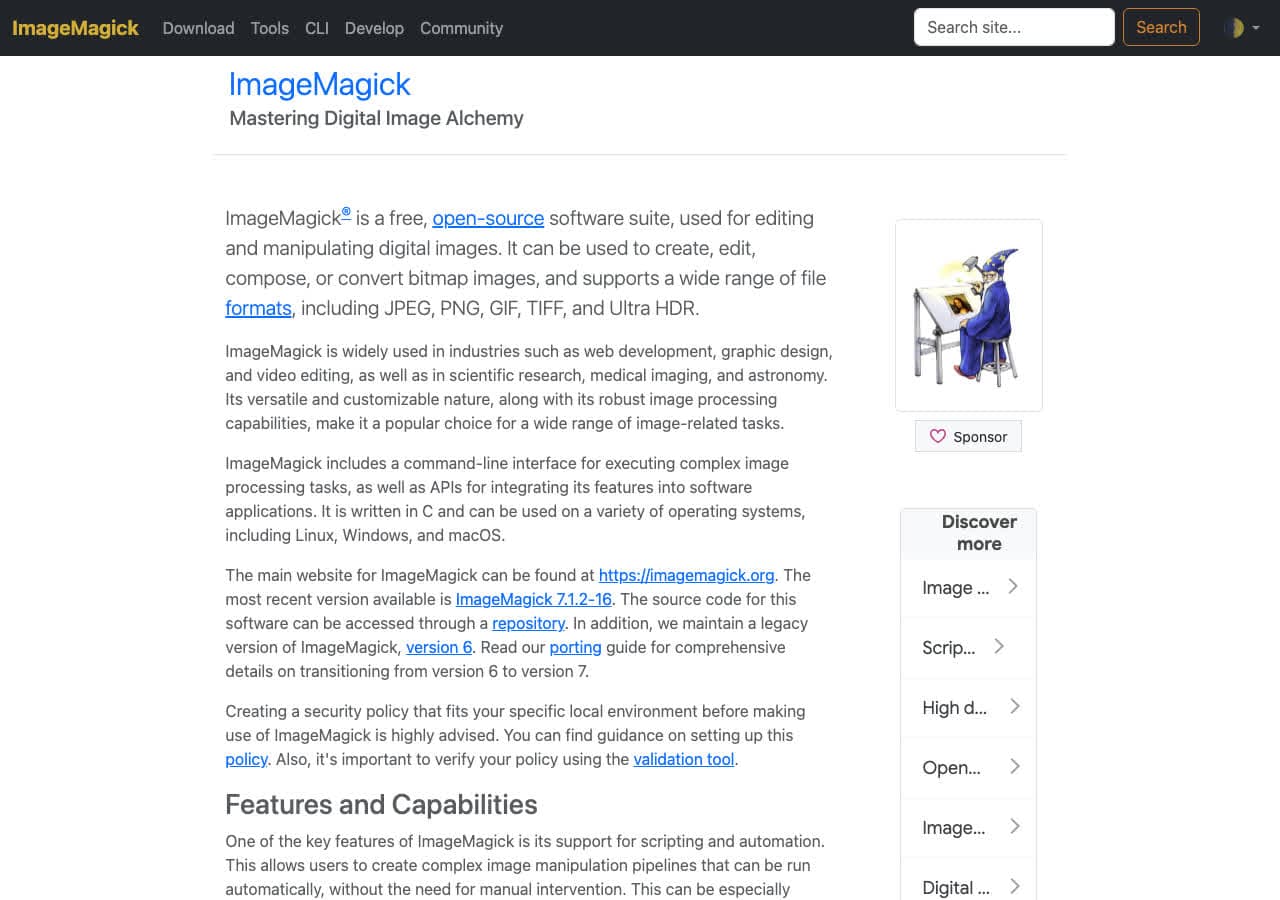
ImageMagick is the boring, reliable answer for anyone comfortable in a terminal. It has handled WebP since 2014, supports the alpha-flattening dance, and runs as fast as your disk can read.
The single-file command:
magick input.webp -quality 92 output.jpg
The version that handles transparency cleanly (composites onto white, which is what most people actually want):
magick input.webp -background white -alpha remove -alpha off -quality 92 output.jpg
For a whole folder:
for f in *.webp; do magick "$f" -quality 92 "${f%.webp}.jpg"; donePros
- Fully scriptable — drop the loop into a cron or a build step.
- Exact control over quality, background color, EXIF stripping, resizing in the same pass.
- Available via Homebrew, apt, Chocolatey, or as a portable binary.
Cons
- Command-line only. The flags are searchable, but not friendly.
- Default quality on older builds was 75; always pass
-quality 90or higher for anything you care about.
Pricing
- Free, open source.
3. macOS Preview — best built-in option on a Mac
You almost certainly already have Preview. Since macOS Monterey it has read WebP natively, and exporting to JPEG is a four-click job: Open WebP → File → Export → choose JPEG, drag the quality slider, save. No install, no upload, no subscription.
Preview's quality slider goes from “Least” to “Best.” For anything you might want to print or share, leave it on Best — the file is still small. Preview does not let you batch multiple WebPs in the UI, but if you select a folder of them in Finder, right-click → Quick Actions → Convert Image, you get the same engine with batch support and a quality dropdown.
Pros
- Already installed on every Mac.
- Quick Actions handles folder batches without any third-party tool.
- Quality is solid — Preview uses the same imageio library as Photos.
Cons
- No background color choice when flattening transparency.
- Quality slider is approximate — no numeric quality input.
- Mac only.
Pricing
- Free with macOS.
4. Windows Photos — best built-in option on Windows
Windows 11's Photos app added WebP read support in 2021 and JPG export shortly after. Right-click a WebP, Open with → Photos, then File → Save as → JPEG. Done. Quality is fixed at a sensible default; you do not get a slider.
For batches, Photos is weak — there is no folder-convert. Use Paint instead, or jump straight to IrfanView or XnConvert.
Pros
- Already installed.
- Works on every modern Windows version.
Cons
- No batch mode.
- No quality control.
- No transparency handling — flattens to white silently.
Pricing
- Free with Windows.
5. XnConvert — best free batch GUI
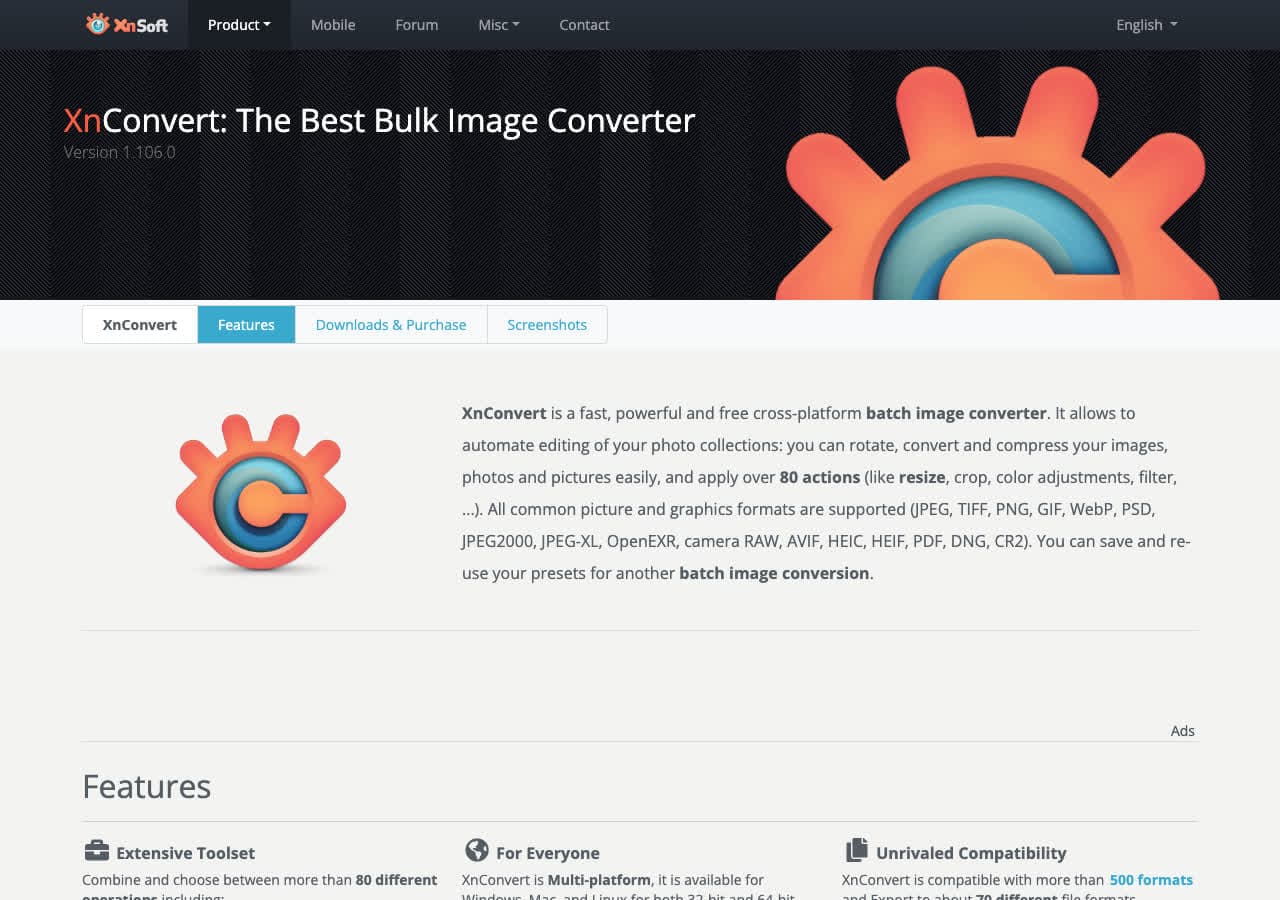
XnConvert is the most under-rated batch image converter on Mac, Windows, and Linux. It reads WebP (including animated WebPs — picks the first frame), writes JPG with a real numeric quality slider, can flatten alpha to any color you choose, and processes thousands of files in one queue without breaking a sweat.
For WebP specifically: you can chain in a resize, an EXIF strip, and an output rename in the same job. So if you have 400 WebPs from a product shoot and need them all as 1600px-wide JPGs with the source filenames preserved, XnConvert does it in one click. Free for personal use.
Pros
- Real batch UI with preview, rename templates, and per-output settings.
- Numeric quality, chroma subsampling, and progressive JPEG options.
- Cross-platform.
Cons
- UI is dated — looks like a tool from 2010.
- Free for personal use only; commercial use needs a small license.
Pricing
- Free for personal use; paid for commercial.
6. Squoosh — best in-browser WebP-to-JPG converter
Made by the Chrome team, Squoosh runs the actual JPEG encoders (MozJPEG, libjpeg) in the browser via WebAssembly. The file never gets uploaded — conversion happens client-side. The side-by-side quality preview slider is genuinely the best in the category; you can dial in exactly how much quality you are trading for file size.
Use it for one-off conversions when you want a fast result and to see exactly what you are getting. Skip it for batches (one file at a time) and for anything requiring an alpha background color (it picks white).
Pros
- Files stay on your device — Squoosh runs in the browser, no upload.
- The best quality preview slider of any web converter.
- MozJPEG and progressive options exposed.
Cons
- Single file at a time. No batch mode.
- Large files can lock up the tab.
Pricing
- Free.
7. IrfanView — best lightweight Windows option
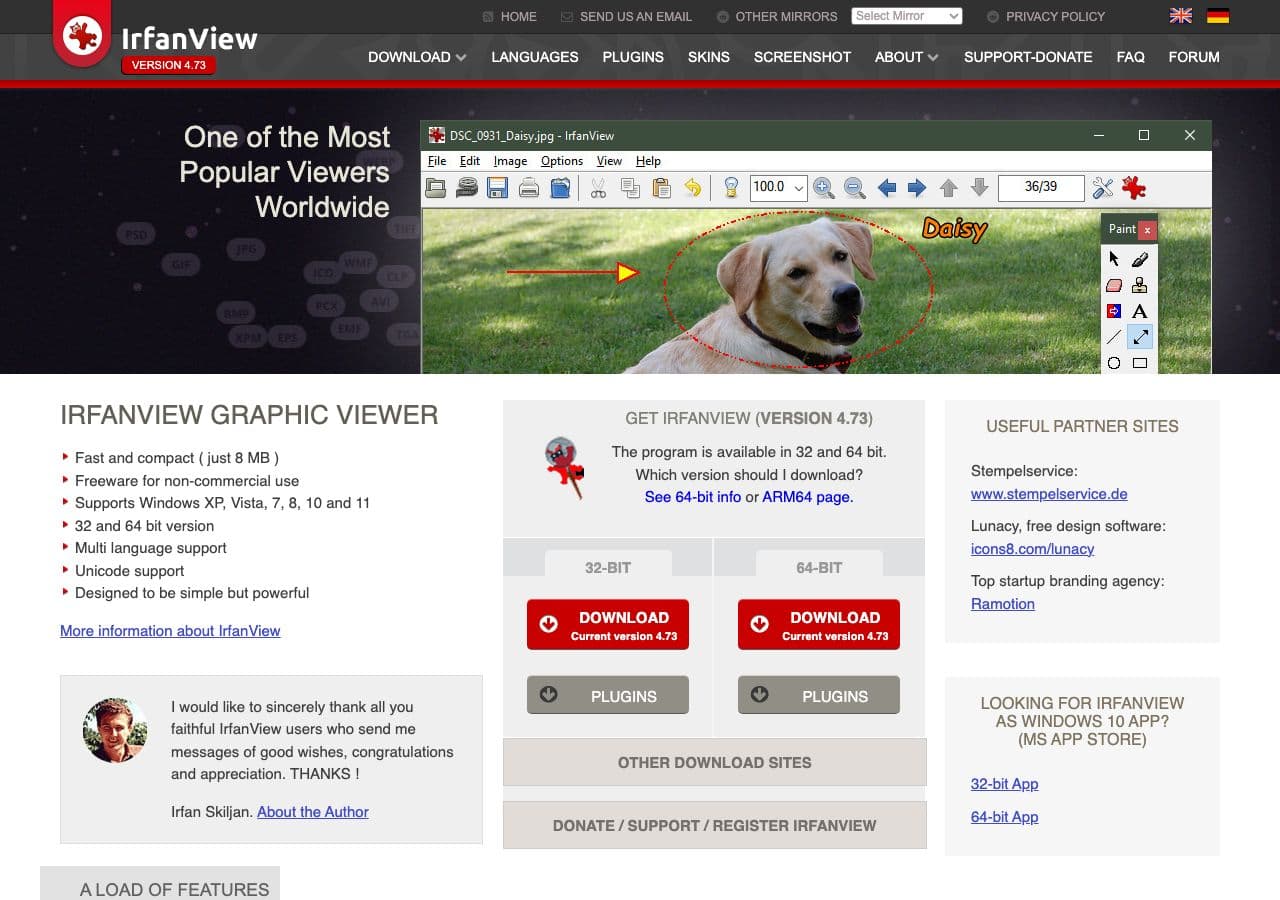
IrfanView has been the workhorse Windows image viewer for over 25 years. With the (free) plugin pack installed, it reads WebP and writes JPG with full control over quality, subsampling, EXIF, and Huffman-table optimization. Its batch dialog is one of the fastest available — point it at a folder, set quality, hit go, and a thousand WebPs become JPGs in under a minute.
Pros
- Very fast batch conversion.
- Numeric quality, progressive, and EXIF options.
- Tiny install footprint.
Cons
- Windows only.
- The UI is straight out of 2004 — many people bounce off it before learning where the batch dialog lives (File → Batch Conversion/Rename).
Pricing
- Free for personal use.
8. GIMP — best free editor that also exports JPG
If you already have GIMP open for editing, you do not need a separate converter. Open the WebP, File → Export As, type a .jpg extension, set quality. GIMP's JPEG export dialog is the most detailed of any GUI tool — you can adjust chroma subsampling, smoothing, DCT method, restart markers, and quality independently.
The catch: GIMP is overkill if you are not also editing. Loading the app, importing a WebP, and exporting takes longer than running an ImageMagick command. Use GIMP when you need a final crop, color tweak, or text addition in the same pass.
Pros
- Best JPEG export dialog of any GUI tool — every relevant flag is exposed.
- Free, open-source, cross-platform.
- You can edit the image in the same workflow.
Cons
- Slow for a quick single-file convert.
- No native batch — you need a Script-Fu macro for that.
Pricing
- Free, open source.
9. Pixelmator Pro — best Mac editor that exports JPG

Pixelmator Pro reads WebP and exports JPG with a real export dialog that previews file size and quality side-by-side. The ML-based resampling makes it a strong pick if you also need to resize during conversion — Pixelmator's super-resolution upscaler genuinely outperforms the bilinear / bicubic options in most other tools.
Pros
- Excellent export-with-preview dialog.
- ML-assisted resize is genuinely useful if you are resampling too.
- Mac-native, fast, low memory.
Cons
- Mac only.
- Paid app.
Pricing
- One-time purchase via the Mac App Store.
10. Photopea — best browser editor for JPG export
Photopea is a Photoshop clone that runs entirely in the browser. It opens WebP, lets you crop / retouch / add text, then exports as JPG with a live file-size preview. Useful when you need editing on a machine where you cannot install software (school computer, locked-down work laptop).
Like Squoosh, Photopea's conversion happens client-side — files are not uploaded. Unlike Squoosh, you get full image editing in the same tab.
Pros
- No install required.
- Files stay local.
- Full image editor in the same tab.
Cons
- Large files are slow.
- The free tier has display ads.
Pricing
- Free with ads; paid premium removes them.
11. FFmpeg — useful as part of a pipeline
FFmpeg is built for video but it also reads WebP (including animated WebPs) and writes JPG. Most people would not reach for it just for a still-image convert, but if you are already in an FFmpeg pipeline — for example pulling a frame from an animated WebP at a specific timestamp — it does the WebP-to-JPG step too:
ffmpeg -i input.webp -q:v 2 output.jpg
The -q:vflag is FFmpeg's JPEG quality on a 2–31 scale (2 = best, 31 = worst). 2–3 is the right range for most uses.
Pros
- Handles animated WebPs — you can pick a specific frame.
- Composes well with the rest of an FFmpeg pipeline.
Cons
- Overkill for a still image.
- Quality scale is the inverse of every other tool, which trips people up.
Pricing
- Free, open source.
12. CloudConvert
A reputable online converter with an API. Drop the WebP in, pick JPG, get a download link. Quality is decent and the JPG options (subsampling, EXIF, compression) are exposed in the advanced panel. Reasonable for non-sensitive files when you do not want to install anything.
Avoid for private images — your file gets uploaded, processed on their servers, and deleted after a window. Read their privacy policy if it matters.
Pricing
- Free tier covers small batches; paid tiers for higher volume + API.
13. Convertio
Same shape as CloudConvert — browser upload, server-side conversion, download. UI is slightly cleaner, the free file-size cap is smaller. Fine for a one-off non-sensitive file. Same privacy caveat applies.
Pricing
- Free up to a daily file-size cap; paid tiers above that.
14. Zamzar
The longest-running of the web converters. Reliable, conservative quality defaults, slower than CloudConvert. Useful when you want a tool that has been around long enough to trust the URL still working next year.
Pricing
- Free with a daily limit; subscription unlocks more.
15. FreeConvert
A web converter with a clean UI and a useful quality slider. Same upload/process/download flow as the others. Reasonable picks but no real advantage over CloudConvert if you already have an account there.
Pricing
- Free with size cap; paid tiers for more.
16. Online-Convert
Format-specific landing pages with detailed conversion options including resize, color depth, and EXIF stripping. Useful if you want a one-shot "convert and downscale" in the same tool without learning ImageMagick.
Pricing
- Free with limits; paid for more.
17. Adobe Photoshop
If you already have Photoshop open, File → Save As → JPEG is right there. WebP support was added natively in 2022; no plugin needed. The Save for Web dialog (File → Export → Save for Web Legacy) gives the most detailed JPG export controls in any commercial tool.
Use it when you are already editing. Do not buy Photoshop for the conversion.
Pricing
- Subscription (Adobe Creative Cloud).
18. Affinity Photo
One-time-purchase Photoshop alternative. Reads WebP and exports JPG with a clean export persona that includes a quality preview. The non-subscription pricing is the main draw if you do not want Creative Cloud but need a real editor.
Pricing
- One-time purchase.
How to Choose
A practical decision tree for WebP → JPG:
- Just want it converted, do not care about anything else: Preview (Mac) or Photos (Windows). Built in.
- The image is private or work-sensitive: stay local. How to Convert, ImageMagick, XnConvert, Preview, Photos, GIMP, or Photopea (which is in-browser but client-side).
- You have a folder of 50+ WebPs: ImageMagick, XnConvert, IrfanView, or How to Convert.
- You want to fine-tune quality vs file size: Squoosh, GIMP, or Photoshop's Save for Web.
- The WebP has transparency you care about: use a tool with explicit background-color control (ImageMagick's
-background, GIMP, XnConvert) — otherwise you will get white where the alpha used to be. - The WebP is animated: JPG cannot represent motion. Use FFmpeg to pick a frame, or convert to GIF / MP4 instead.
Final Thoughts
WebP to JPG is one of the easier converter categories because the format is well-understood and every modern tool handles it. The harder questions are about quality and transparency — both of which most online converters quietly ignore. If you only convert one or two files a year, your operating system's built-in tool is fine. If it is a regular part of your workflow, install a local converter that respects your settings, and stop uploading the same files to a stranger's server every time.
How to Convert
The offline file converter for Mac, Windows and Linux.
- Converts video, audio, images, documents, ebooks and more
- Everything runs locally. Your files never leave your device
- Pay once. Access forever
Get the app on Mac, Windows and Linux
