18 Best Video Converter Apps in 2026 (Free and Paid)
The best video converter apps for 2026. Convert MP4, MOV, MKV, AVI, and more with these free and paid tools for Mac, Windows, and Linux.
Posted by
 Jake Manger
Video formats are a compatibility nightmare. Your phone shoots in MOV or HEVC, your camera records MKV, your editor exports ProRes, and the platform you need to upload to only accepts MP4 under 500MB. Without a solid video converter, you are stuck re-exporting from your editor, uploading to a sketchy website, or telling your client to just deal with it.
We tested dozens of video converters across Mac, Windows, and Linux to find the 18 best options in 2026. This list includes free open-source tools for power users, polished paid apps for professionals, and online converters for quick one-off jobs. Whether you need to convert a single clip or batch-process an entire library, one of these tools will fit your workflow.
1. How to Convert (I built this one) - Best All-in-One Desktop Converter
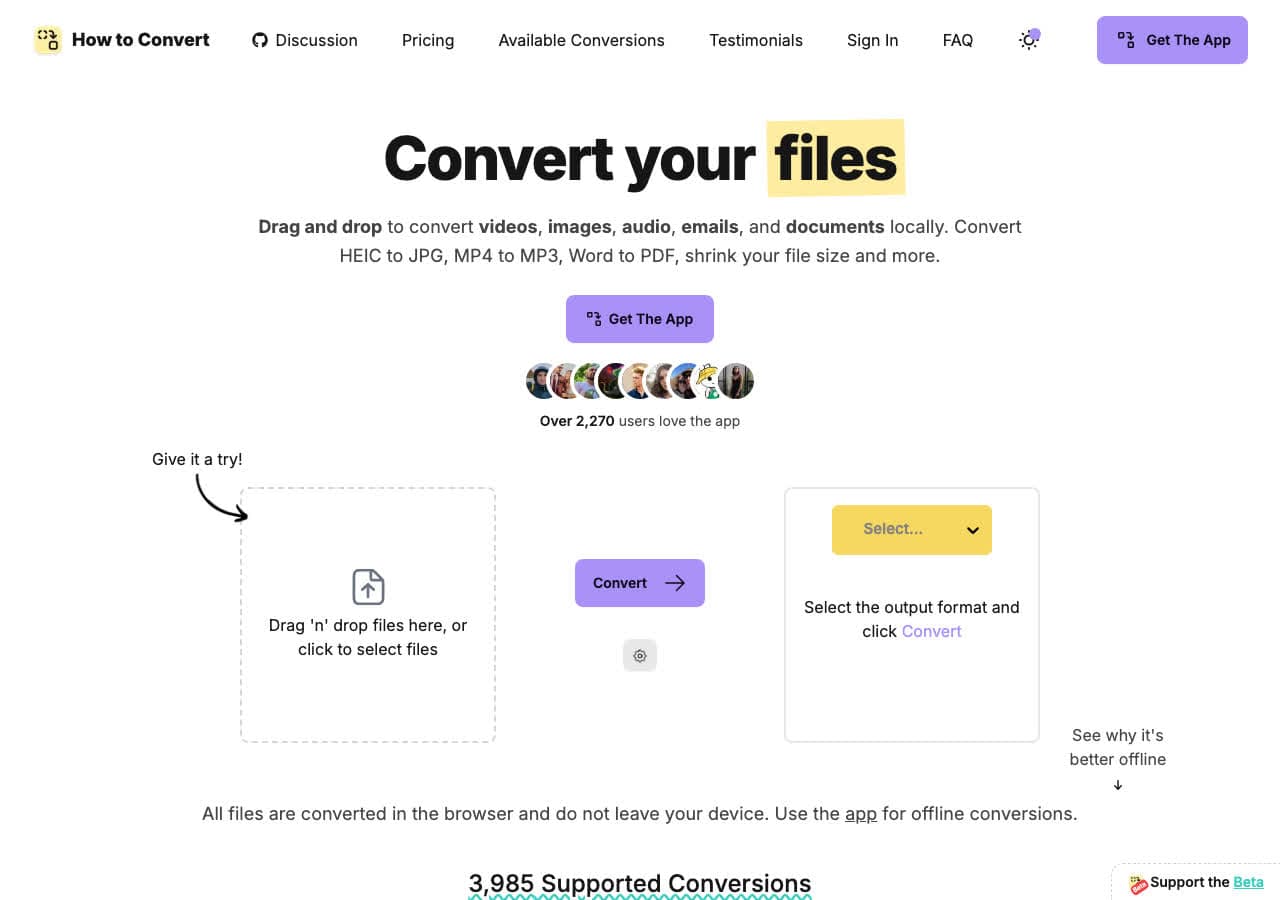
How to Convert is a privacy-first file converter that runs entirely on your machine. Drop any video file in, pick an output format, and it converts without uploading anything to the cloud. What sets it apart from other desktop converters is its breadth: it handles hundreds of video formats alongside audio, images, documents, and ebooks in a single app. You do not need five different tools for five different file types.
The app uses conversion tools built into your operating system (like sips and afconvert on Mac) alongside industry-standard tools like FFmpeg, ImageMagick, and LibreOffice, without requiring you to learn the command line. It works on Mac, Windows, and Linux, and there is also a free web demo for single-file conversions if you want to test a common format first.
Pros
- All conversions happen locally. Your files never leave your device.
- Supports hundreds of video formats plus audio, images, documents, and ebooks.
- One-time purchase. No subscription, no recurring fees.
- Free web demo for single-file conversions.
- Works on Mac, Windows, and Linux.
Cons
- The desktop app is a paid one-time purchase; the web demo converts one file at a time.
- No cloud sync or remote conversion features.
Pricing
- Free: Web demo for single-file conversions.
- Desktop app: One-time purchase, all platforms.
 How to Convert
The offline file converter for Mac, Windows and Linux.
- Converts video, audio, images, documents, ebooks and more
- Everything runs locally. Your files never leave your device
- Pay once. Access forever
Get the app on Mac, Windows and Linux
2. HandBrake - Best Free Open Source Video Transcoder
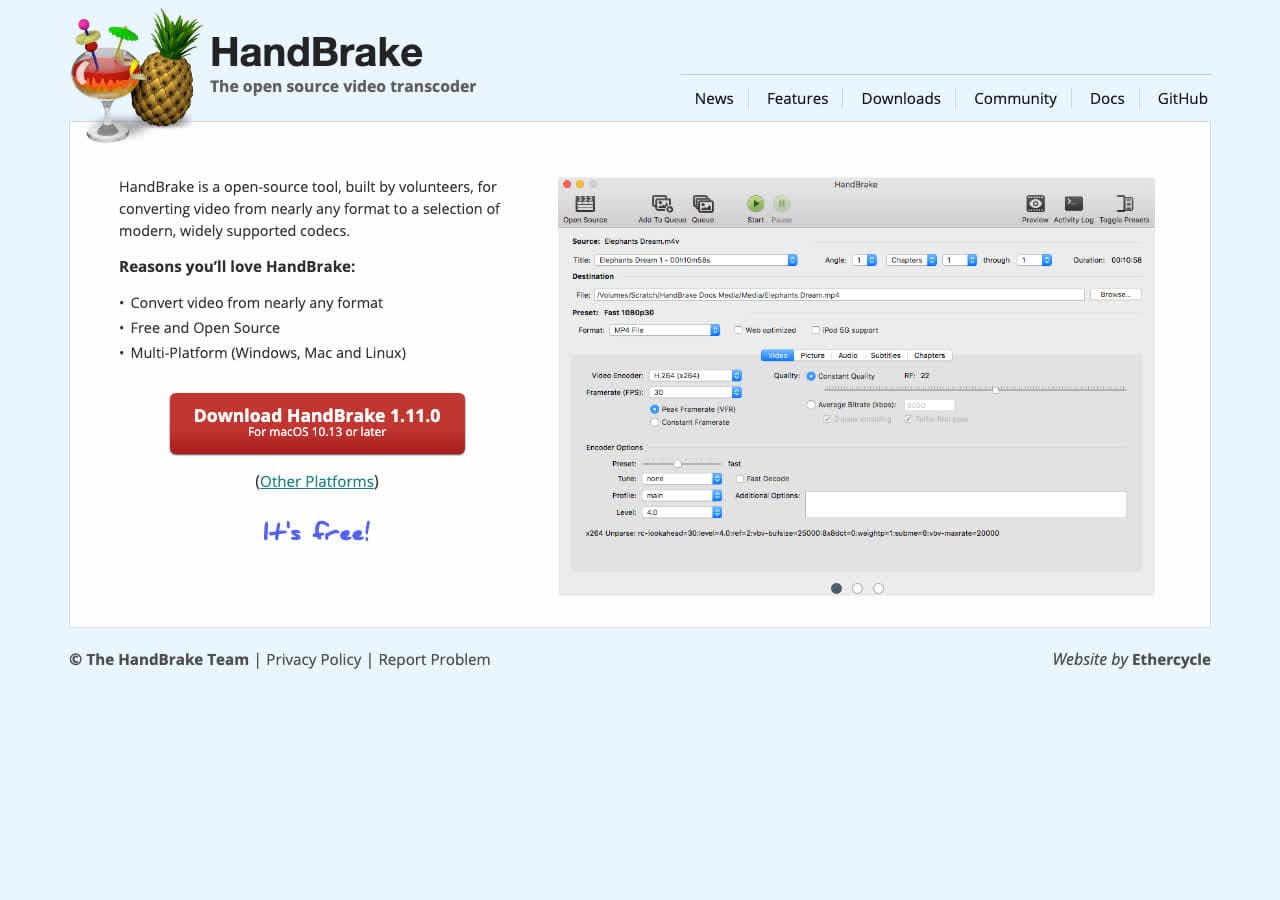
HandBrake has been the gold standard for free video conversion for over a decade, and for good reason. It takes virtually any video format as input and outputs MP4 or MKV with excellent compression quality. The 2024 release added support for AV1 encoding and improved hardware acceleration across Intel, AMD, and NVIDIA GPUs, making it faster than ever.
HandBrake is particularly strong for batch encoding. You can queue up dozens of files with different presets and let it churn through them overnight. The built-in presets for Apple devices, Android, Roku, Chromecast, and more mean you rarely need to fiddle with codec settings. For anyone who converts video regularly and does not want to pay a cent, HandBrake is the first tool to install.
Pros
- Completely free and open source with no watermarks or limits.
- Hardware-accelerated encoding via Intel QSV, NVIDIA NVENC, and Apple VideoToolbox.
- Dozens of built-in device presets for quick conversion.
- Batch queue for processing multiple files.
- Available on Mac, Windows, and Linux.
Cons
- Video only. Cannot convert audio files, images, or documents.
- The interface can overwhelm beginners with its many options.
- Outputs only MP4 and MKV containers.
Pricing
- Free (open source, GPL licensed).
3. VLC Media Player - Best Free Converter You Already Have
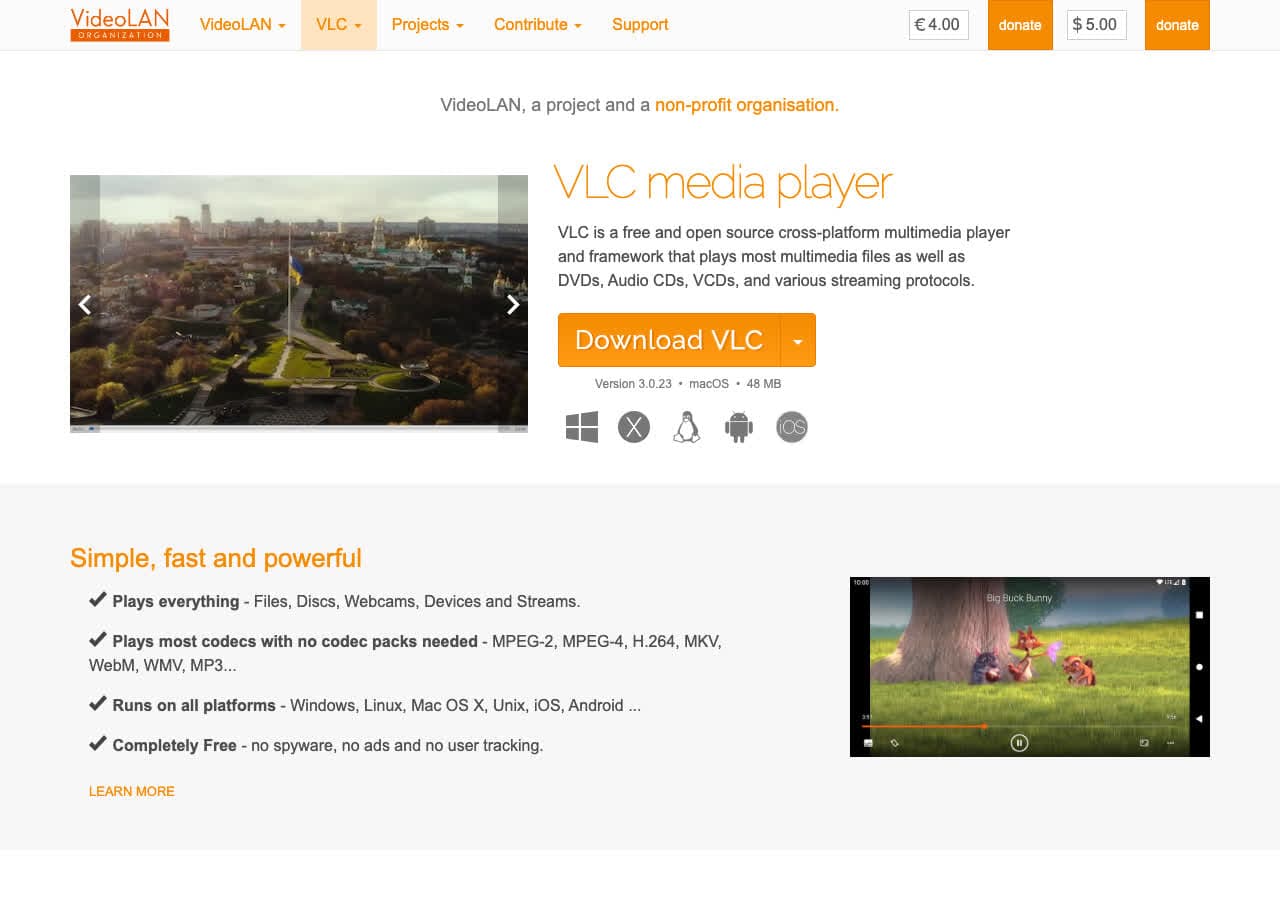
VLC is installed on millions of computers as a media player, but most people do not realize it has a built-in video converter. Under Media, then Convert/Save, you can transcode between dozens of video and audio formats with control over codecs, bitrates, and containers. It is not the most intuitive workflow, but it is completely free and already on your machine.
VLC is especially handy for quick, one-off conversions when you do not want to install another app. It supports virtually every format imaginable for playback and most of them for output. The conversion speed is reasonable, though it lacks the hardware acceleration options that HandBrake offers.
Pros
- Free and open source.
- Available on every platform including mobile.
- Plays and converts virtually any format.
- No additional software to install if you already use VLC.
Cons
- The conversion feature is buried in menus and not intuitive.
- No batch processing without command-line scripting.
- Limited output quality settings compared to dedicated converters.
Pricing
- Free (open source, GPL licensed).
4. FFmpeg - Best for Power Users and Automation
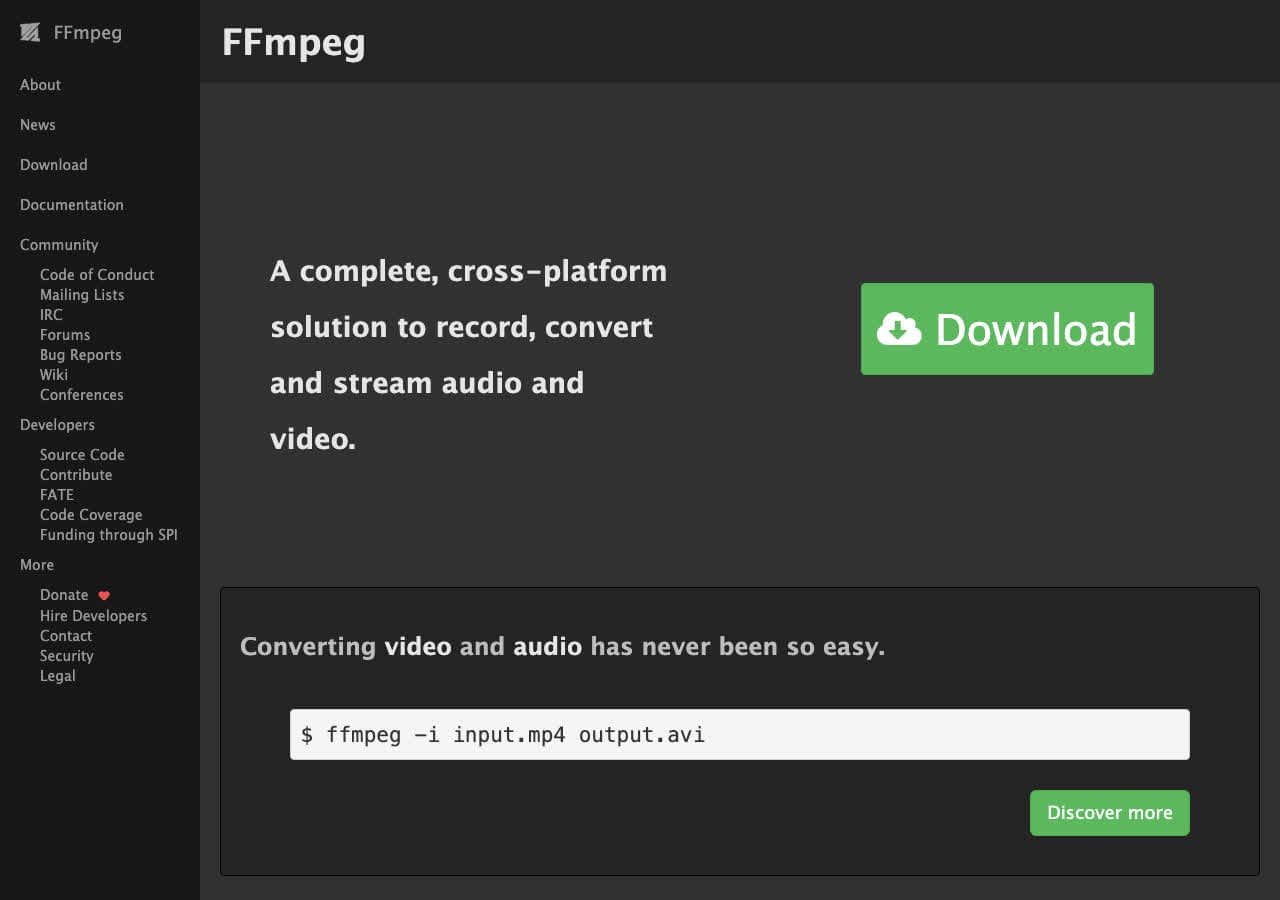
FFmpeg is the command-line engine behind many video converters, including HandBrake and Shutter Encoder. How to Convert (#1 on this list) handles many of the same formats through a drag-and-drop interface without requiring the terminal. If you are comfortable with the command line though, FFmpeg gives you unmatched control over every aspect of video conversion: codecs, bitrates, filters, subtitle embedding, stream mapping, and more.
The real power of FFmpeg is automation. A single command can convert an entire folder of files, and shell scripts can handle complex multi-step workflows. It supports virtually every codec and container format ever created, including obscure ones that no GUI tool will touch. For developers and professionals who need maximum flexibility, FFmpeg is irreplaceable.
Pros
- Supports nearly every video, audio, and image format in existence.
- Extremely fast with hardware acceleration support.
- Free and open source.
- Fully scriptable for batch processing and automation.
- The foundation that many other converters are built on.
Cons
- Command-line only. No graphical interface.
- Steep learning curve with complex syntax.
- Error messages can be cryptic.
Pricing
- Free (open source, LGPL/GPL licensed).
5. Shutter Encoder - Best Free GUI for FFmpeg
Shutter Encoder bridges the gap between FFmpeg's raw power and a user-friendly interface. It is a free, open-source media converter that wraps FFmpeg in a clean GUI with dozens of presets for common conversion tasks. You get all the format support of FFmpeg without memorizing command-line flags.
Beyond basic format conversion, Shutter Encoder handles video compression, audio extraction, subtitle burning, loudness analysis, and even timelapse creation. It is a genuine Swiss Army knife for media processing. The only catch is the interface packs a lot into one window, which can feel overwhelming at first.
Pros
- Free and open source.
- Full FFmpeg format support with a graphical interface.
- Handles video, audio, and image conversion plus extras like loudness analysis.
- Cross-platform (Mac, Windows, Linux).
Cons
- Interface can feel cluttered with so many options.
- Less well-known than HandBrake, so fewer community tutorials.
Pricing
- Free (open source).
6. Any Video Converter - Best Free Converter With Device Presets
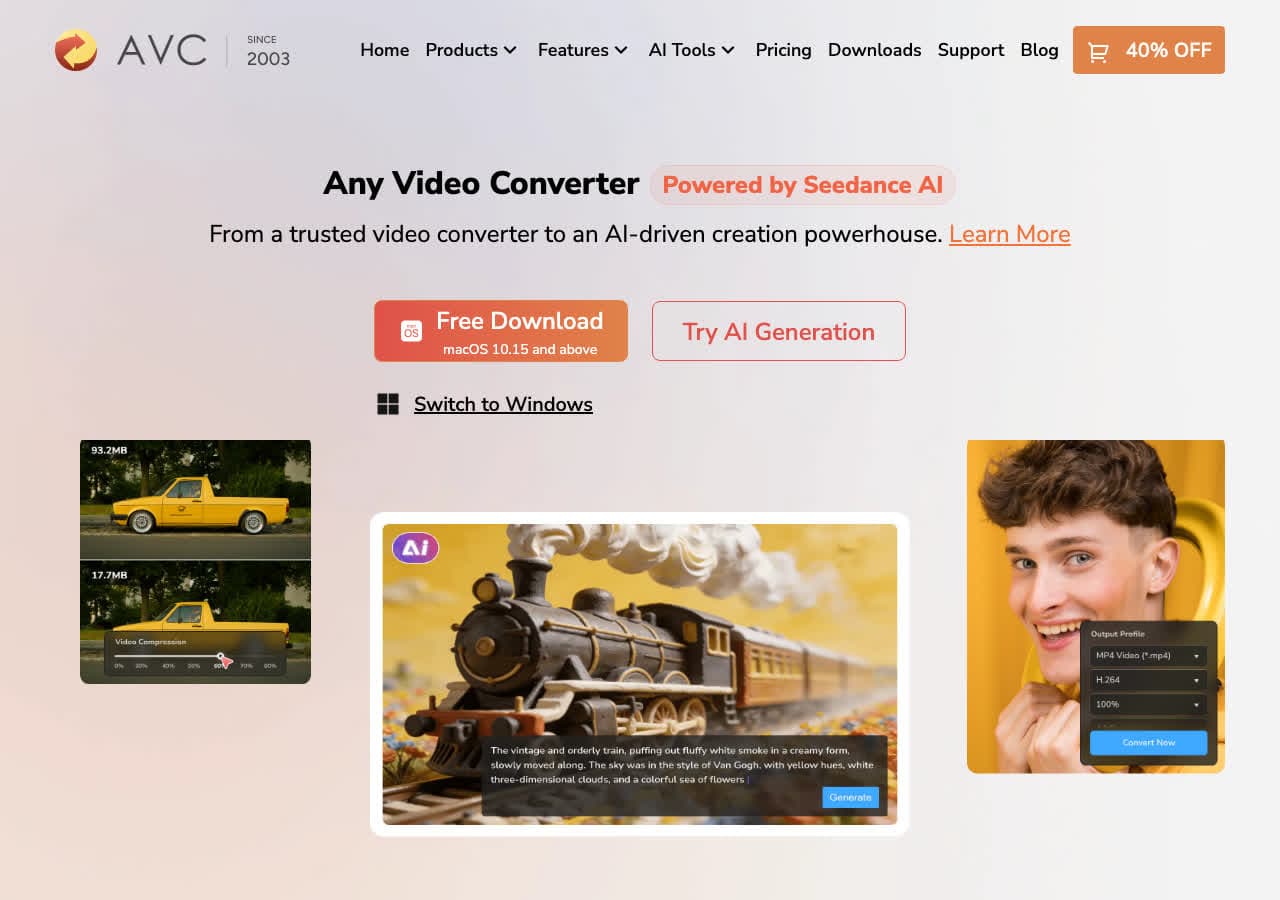
Any Video Converter consistently ranks among the best free video converters, and the 2026 version earned it. The free edition supports GPU-accelerated conversion at up to 130x speed with no file size limits, no daily caps, and no watermarks. That alone puts it ahead of most free competitors.
The interface is built around device presets. If you need to convert a video for an iPhone, Android phone, PlayStation, or smart TV, you just pick the device from a list and the app selects the right codec, resolution, and bitrate. The paid Ultimate version adds DVD ripping and screen recording, but the free version handles everyday conversion without restrictions.
Pros
- Free version is genuinely full-featured with no watermarks or limits.
- GPU-accelerated encoding for fast conversion.
- Extensive device-specific presets.
- Batch conversion support.
Cons
- The installer may offer optional bundled software. Watch the checkboxes.
- The interface feels a bit dated compared to newer tools.
Pricing
- Free: Full conversion with no limits.
- $49.95: Ultimate version with DVD ripping and screen recording.
How to Convert
The offline file converter for Mac, Windows and Linux.
- Converts video, audio, images, documents, ebooks and more
- Everything runs locally. Your files never leave your device
- Pay once. Access forever
Get the app on Mac, Windows and Linux
7. Wondershare UniConverter - Best Premium All-in-One Converter
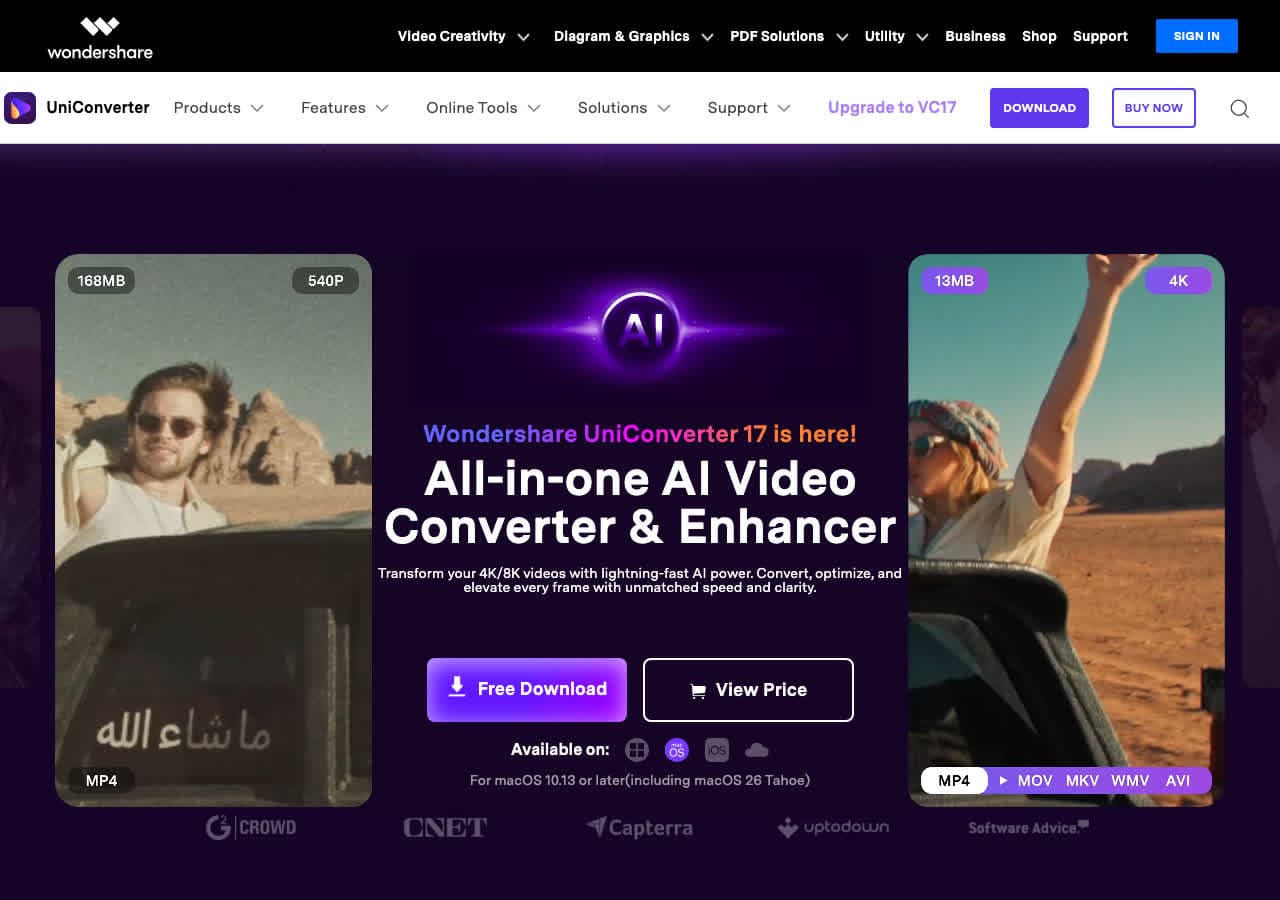
Wondershare UniConverter is the most polished paid video converter available. It supports over 1000 formats, converts at 130x speed with GPU acceleration, and includes extras like video compression, screen recording, DVD burning, and basic editing. If you process a lot of video and want everything in one app, this is the premium option.
The interface is clean and well-organized, with drag-and-drop import and one-click presets for popular devices and platforms. Batch conversion handles multiple files simultaneously. The main downside is the price: it is subscription-based, though there is a one-time lifetime option.
Pros
- Extremely fast GPU-accelerated conversion.
- 1000+ format support across video, audio, and images.
- Clean, modern interface with drag-and-drop.
- Includes compression, recording, editing, and DVD tools.
Cons
- Expensive subscription model ($49.99/year).
- Free trial adds watermarks to output.
- Some features feel like upsells rather than essentials.
Pricing
- $49.99/year subscription.
- $79.99: Lifetime license.
8. Movavi Video Converter - Best for Beginners
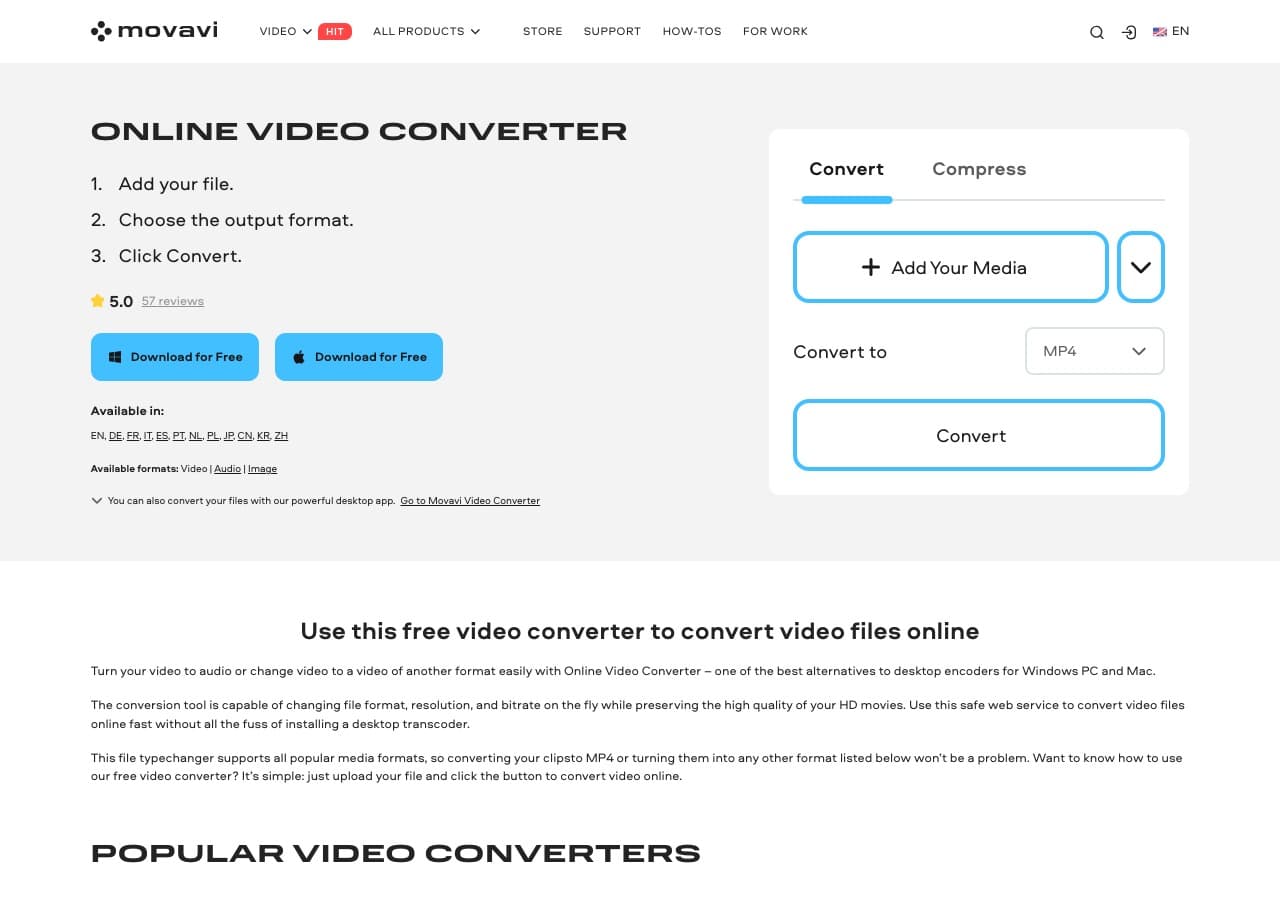
Movavi Video Converter is designed for people who do not want to think about codecs, containers, or bitrates. The interface organizes output options by device and format with large, visual icons. Drag a file in, click the format you want, and hit Convert. Its SuperSpeed mode skips re-encoding for supported format pairs, making some conversions nearly instant.
Beyond conversion, Movavi includes basic editing tools for trimming, cropping, rotating, and adding subtitles. It supports 180+ formats and handles 4K video well. The trade-off is price: there is no free tier, and the trial version adds watermarks.
Pros
- Extremely beginner-friendly interface.
- SuperSpeed mode for near-instant conversion between compatible formats.
- Built-in trim, crop, and subtitle tools.
- Supports 180+ formats including 4K.
Cons
- No free version. Trial adds watermarks.
- Advanced users may find settings limited.
Pricing
- $49.95: Lifetime license.
9. Permute - Best Mac-Native Video Converter
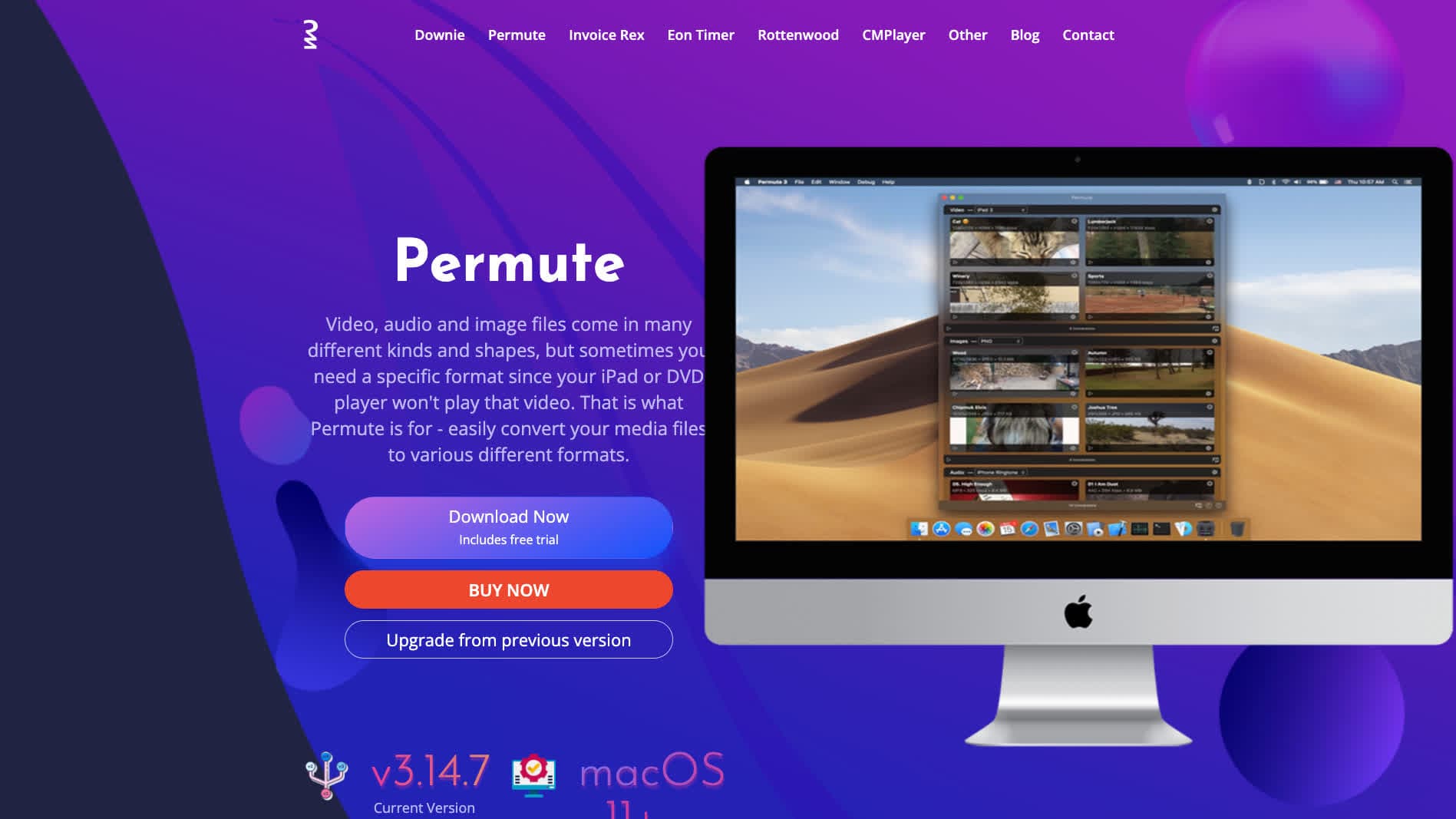
Permute is the video converter Mac users wish Apple made. It is a beautifully designed native macOS app that converts video, audio, and images through simple drag-and-drop. The interface is minimal and elegant, and conversion is fast thanks to Apple hardware acceleration through VideoToolbox.
Permute supports most common video formats and includes some nice touches like batch conversion, HEVC/H.265 support, and customizable presets. It is not the most format-rich converter, but for the everyday Mac user who needs to convert clips quickly, it is hard to beat the experience.
Pros
- Beautiful native macOS interface.
- Drag-and-drop simplicity.
- Fast conversion via Apple hardware acceleration.
- Handles video, audio, and images.
Cons
- Mac only. Not available on Windows or Linux.
- Fewer format options than FFmpeg-based tools.
Pricing
- One-time purchase (also available on Setapp).
10. Adapter - Best Free Lightweight Converter
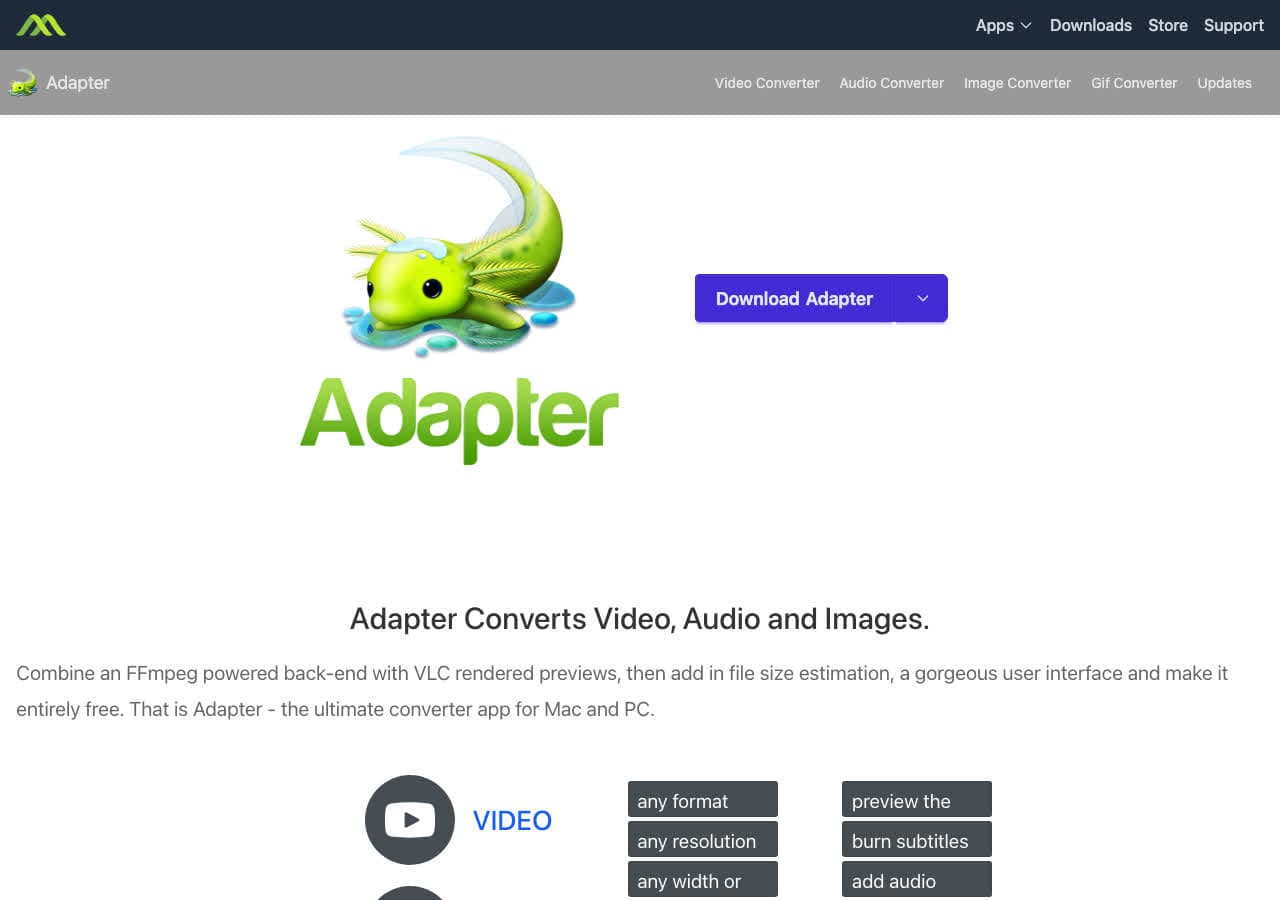
Adapter is a free converter for Mac and Windows that keeps things simple. It uses FFmpeg under the hood but hides the complexity behind a clean, minimal interface with a live output preview. Add files, pick a format, and go. It handles video, audio, and images without any fuss.
The standout feature is the live preview, which lets you see what your output will look like before committing to the conversion. It is not the most powerful tool on this list, but for free, lightweight, no-nonsense conversion, Adapter delivers exactly what it promises.
Pros
- Completely free with no watermarks.
- Live output preview before converting.
- Converts video, audio, and images.
- Clean, minimal interface.
Cons
- Not updated as frequently as other tools.
- Limited advanced encoding settings.
Pricing
- Free.
11. DaVinci Resolve - Best for Professionals Who Also Need Editing
DaVinci Resolve is a professional video editor first and a converter second, but its export capabilities rival any dedicated conversion tool. Import video in any format, and export as H.264, H.265, ProRes, DNxHR, or dozens of other codecs with granular control over every setting.
The free version of DaVinci Resolve is extraordinarily capable, including the full editing suite, color grading, Fusion visual effects, and Fairlight audio post-production. Using it purely for format conversion is like driving a Ferrari to the grocery store, but if you already edit in Resolve, there is no reason to install a separate converter.
Pros
- Professional-grade export with full codec control.
- Free version is remarkably full-featured.
- Includes editing, color grading, effects, and audio tools.
- Hardware-accelerated rendering.
Cons
- Massive overkill for simple format conversion.
- Resource-heavy, requires a decent GPU.
- Steep learning curve.
Pricing
- Free: Full editor with some codec limitations.
- $295: Studio version, one-time purchase.
12. Kdenlive - Best Free Video Editor With Conversion on Linux
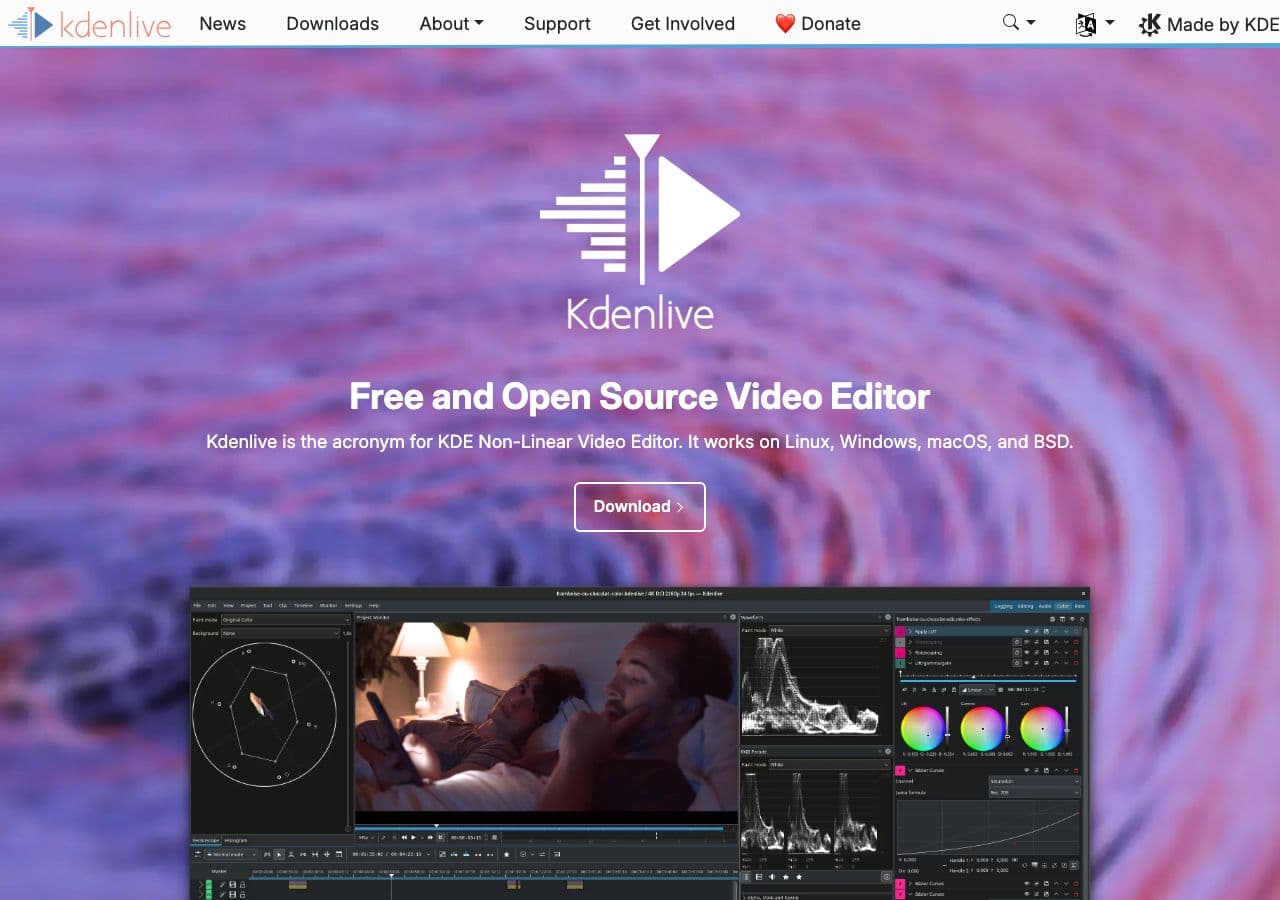
Kdenlive is a free, open-source video editor that runs on Linux, Mac, and Windows. Like DaVinci Resolve, it doubles as a converter: import your source video, configure your export settings (codec, resolution, bitrate), and render to a new format. It integrates with FFmpeg and MLT for broad format support.
Kdenlive shines on Linux where professional editing options are limited. It offers a timeline editor, effects, transitions, and multi-track audio alongside its export capabilities. For Linux users who need both editing and conversion in one free package, Kdenlive is an excellent choice.
Pros
- Free and open source.
- Flexible export settings powered by FFmpeg.
- Excellent native Linux support.
- Full video editing alongside conversion.
Cons
- Primarily a video editor, not a streamlined converter.
- Can crash on complex projects.
Pricing
- Free (open source, GPL licensed).
How to Convert
The offline file converter for Mac, Windows and Linux.
- Converts video, audio, images, documents, ebooks and more
- Everything runs locally. Your files never leave your device
- Pay once. Access forever
Get the app on Mac, Windows and Linux
13. Freemake Video Converter - Best for Windows Casual Users
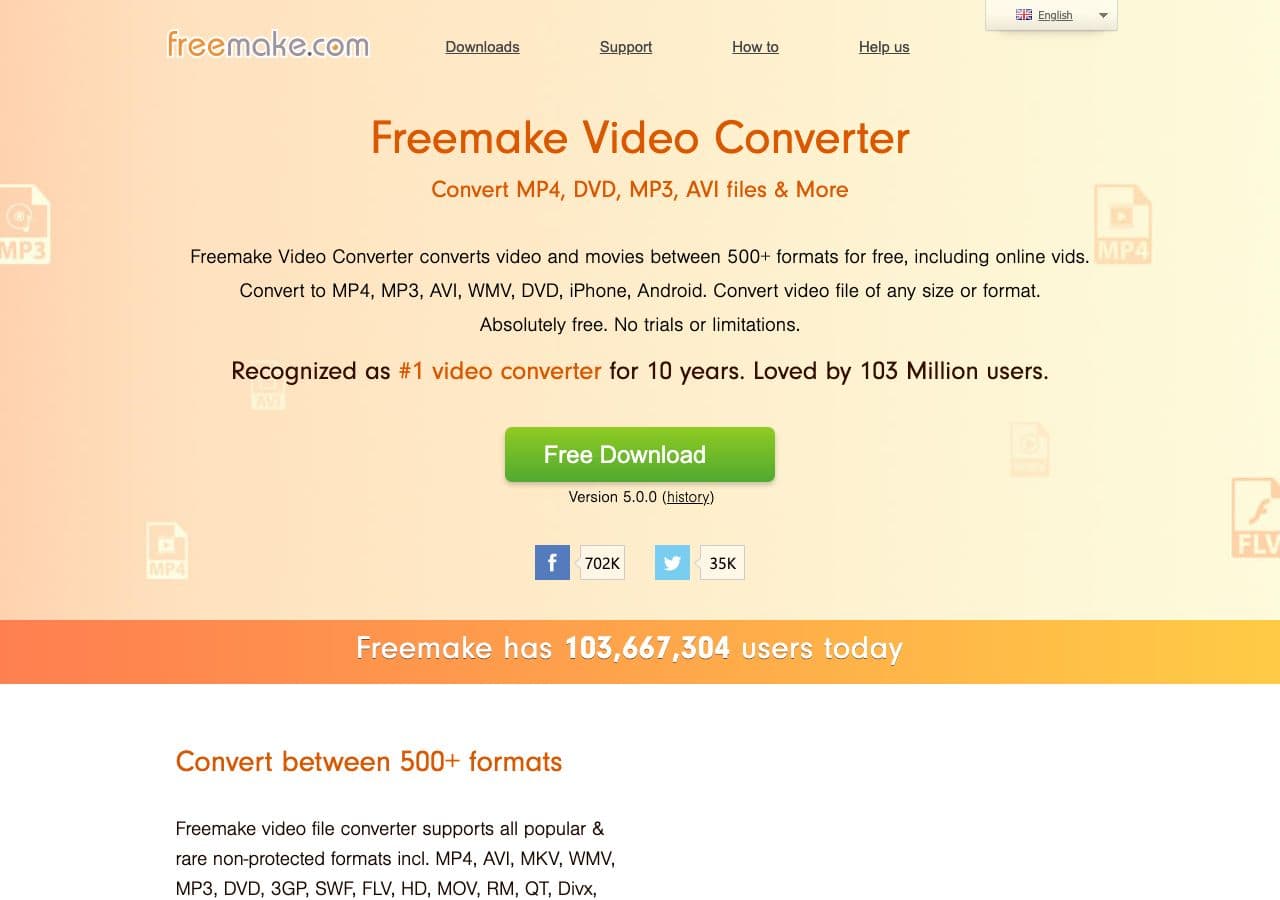
Freemake is a Windows video converter that has been around since 2010. It supports over 500 formats and includes useful extras like DVD ripping, disc burning, and basic video editing. The interface is straightforward, making it a solid choice for non-technical users on Windows.
The catch is the free version now adds a small Freemake branding watermark to converted videos. You can remove it with the Gold Pack ($29.95 one-time). Despite this, Freemake remains popular for its simplicity and broad format support on Windows.
Pros
- 500+ format support.
- Simple, approachable interface.
- Includes DVD ripping and burning.
Cons
- Free version adds a watermark to output.
- Windows only.
- Conversion speed is slower than GPU-accelerated competitors.
Pricing
- Free: With Freemake watermark.
- $29.95: Gold Pack to remove watermark (one-time).
14. Prism Video Converter - Best Simple Paid Converter
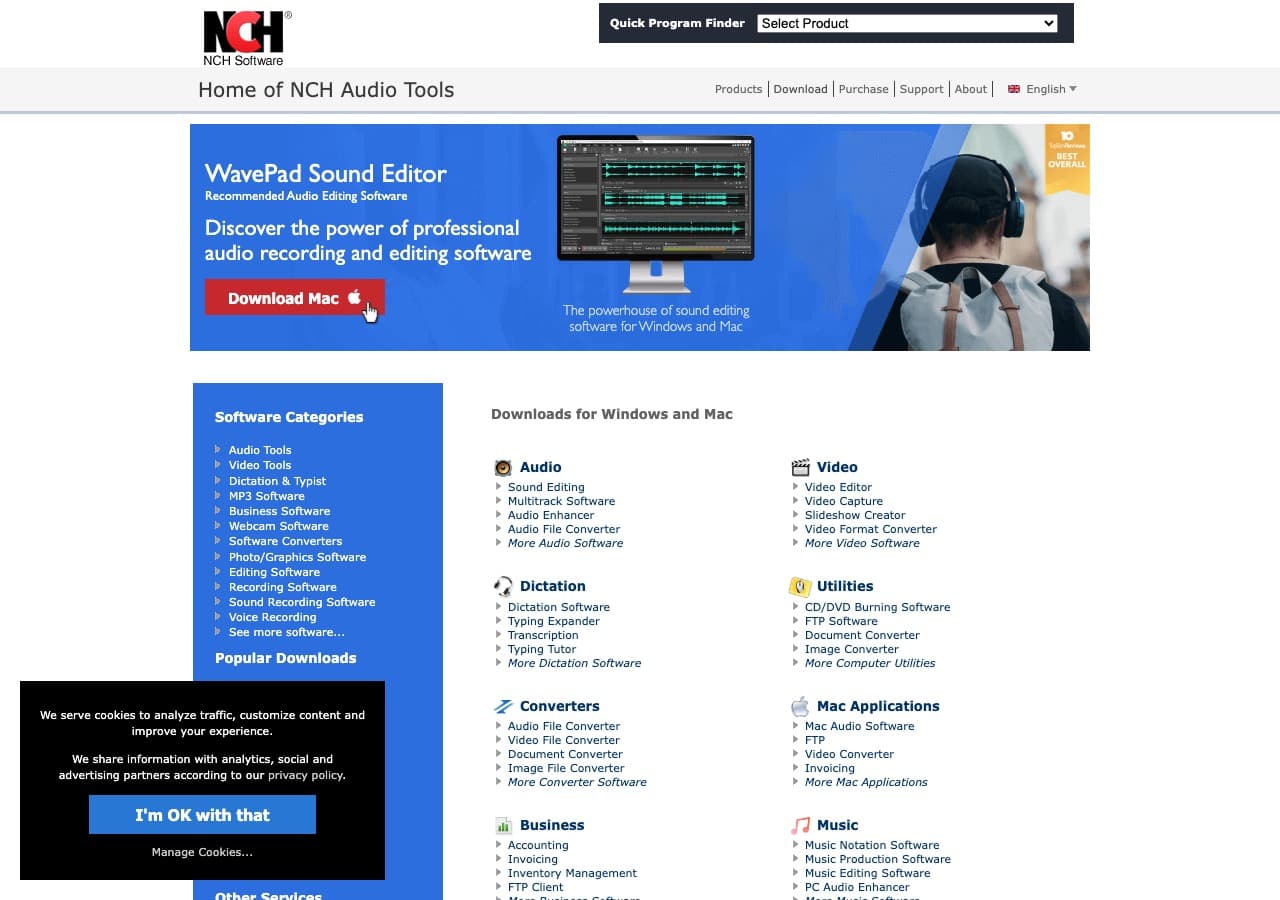
Prism from NCH Software is a no-frills video converter that focuses on simplicity. It supports common formats, offers batch conversion, and includes basic compression controls. The interface is dated but functional, and it is free for non-commercial use.
Prism is a good fit if you want something dead simple and do not need advanced codec settings. It handles the basics well, with a straightforward three-step workflow: add files, select format, convert. The paid license is required for commercial use.
Pros
- Simple, no-frills interface.
- Free for non-commercial use.
- Batch conversion support.
Cons
- Dated interface.
- Limited format support compared to FFmpeg-based tools.
- Commercial license required for business use.
Pricing
- Free: Non-commercial use only.
- $60: Commercial license (one-time).
15. CloudConvert - Best Online Video Converter
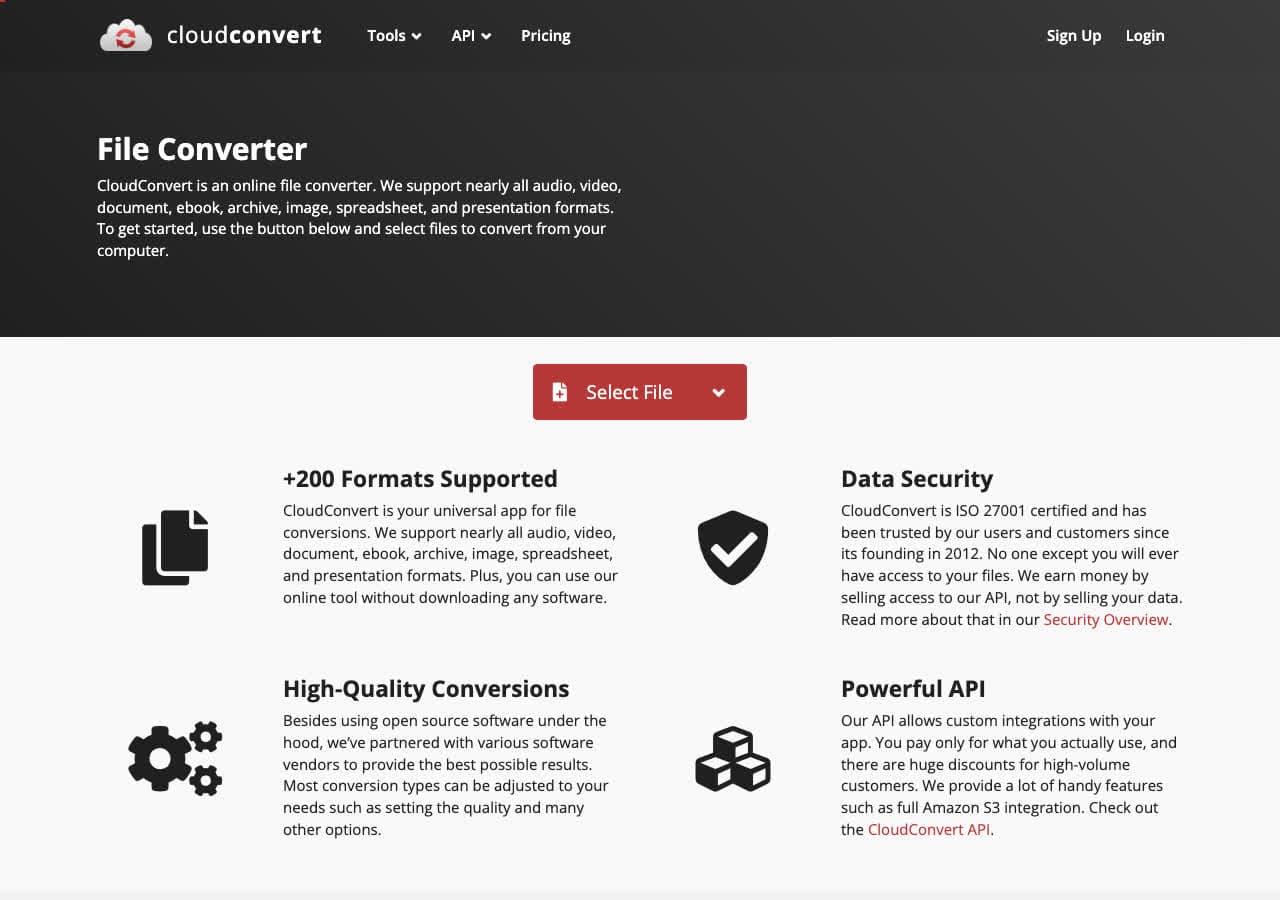
CloudConvert is an online converter that handles over 200 formats without any software installation. Upload a video, select your target format, tweak optional settings like resolution and codec, and download the result. It supports 25 free conversions per day, which is enough for occasional use.
What makes CloudConvert stand out among online tools is its quality. The conversion engine is robust, the output is clean, and you get advanced options like bitrate control that most online converters skip. It also offers an API for developers who want to integrate conversion into their own tools.
Pros
- No software to install. Works in any browser.
- 200+ format support with advanced output settings.
- Developer-friendly API.
- 25 free conversions per day.
Cons
- Files are uploaded to CloudConvert's servers (privacy concern for sensitive files).
- Free tier limited to 25 conversions/day and 1GB file size.
- Conversion speed depends on your internet connection.
Pricing
- Free: 25 conversions/day, 1GB limit.
- From $8/month: Higher limits and priority processing.
16. Zamzar - Best for Quick No-Install Conversions
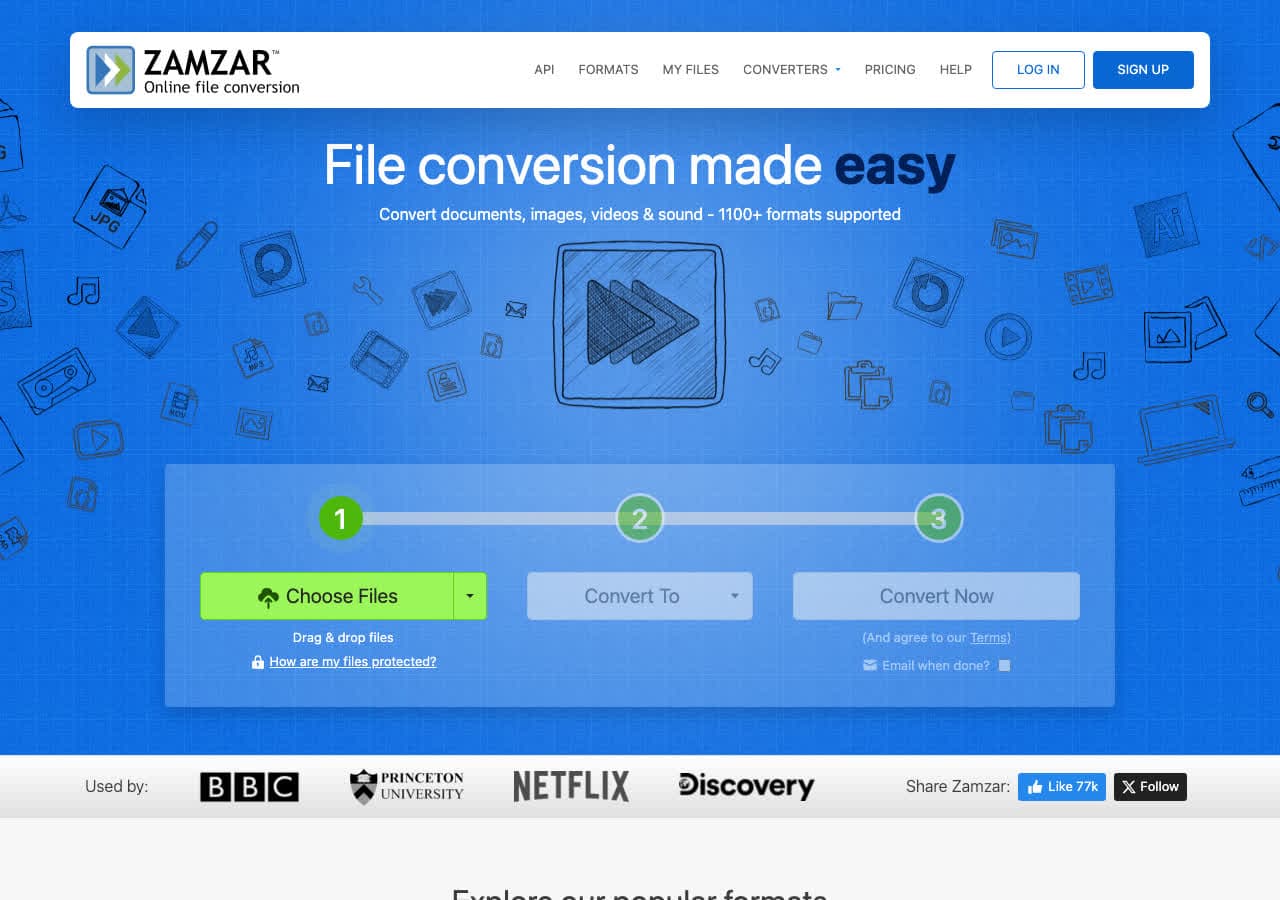
Zamzar has been one of the most recognizable online converters since 2006. It supports hundreds of file types and the workflow could not be simpler: upload, choose a format, download. No account needed for free conversions.
The free tier is limited to 2 files per day with a 50MB file size cap, which is tight for video. But for quick one-off conversions of smaller clips, Zamzar is fast and reliable. Paid plans raise the limits significantly and add email delivery of converted files.
Pros
- No software to install, no account required.
- Trusted service running since 2006.
- Supports hundreds of formats.
Cons
- Free tier: only 2 files/day and 50MB max. Tight for video.
- Files are uploaded to Zamzar's servers.
- Paid plans are relatively expensive.
Pricing
- Free: 2 files/day, 50MB limit.
- From $18/month: Higher limits and larger files.
17. Convertio - Best Online Converter for Format Variety
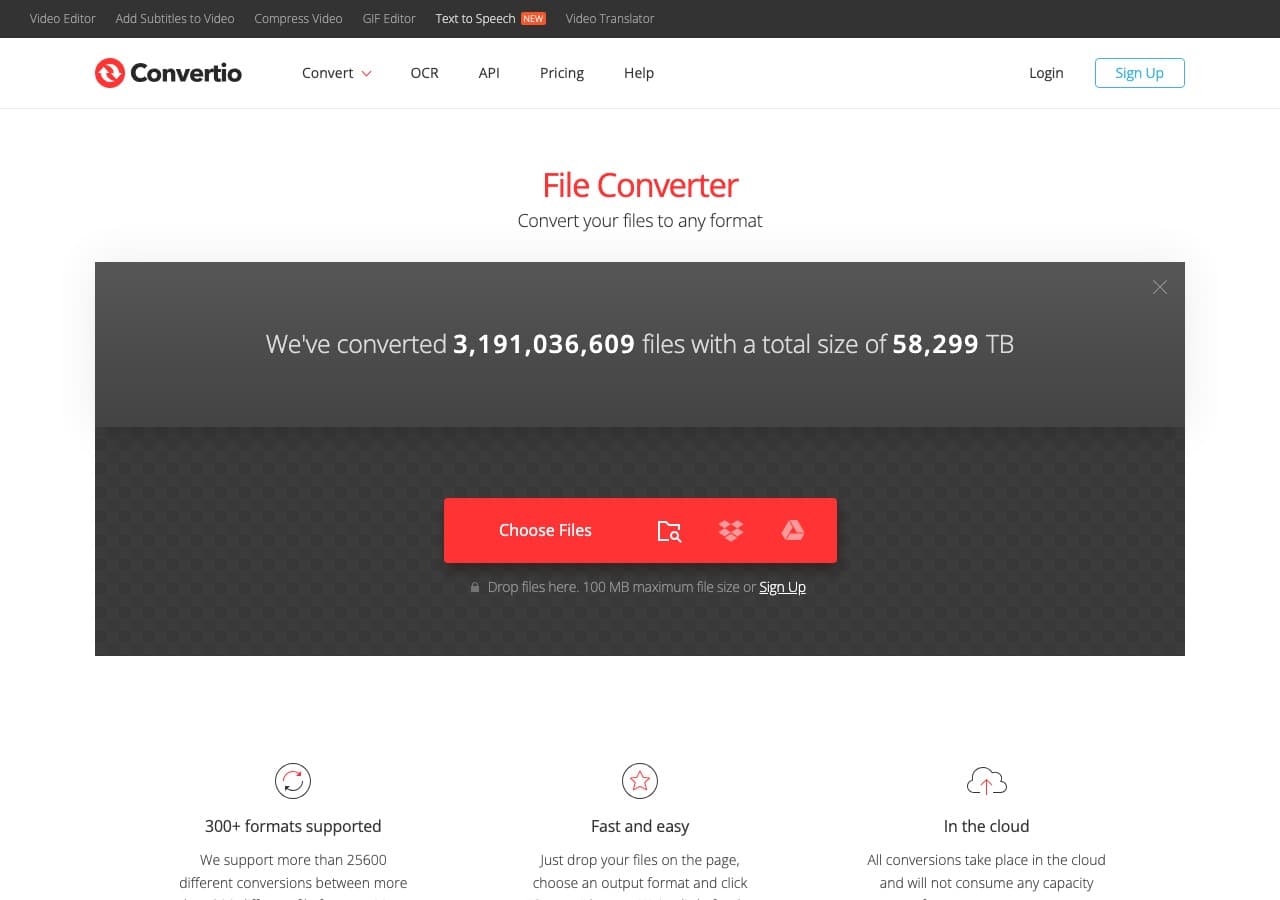
Convertio is a polished online converter supporting over 300 formats across video, audio, images, documents, and more. The interface is clean and modern, with a clear two-step workflow: upload your file, pick a format, and download. It also integrates with Google Drive and Dropbox for cloud-to-cloud conversion.
The free tier allows files up to 100MB with 10 conversions per day. For video files, the 100MB limit is the main bottleneck. Paid plans remove that restriction and add batch processing, making Convertio a viable option for regular use.
Pros
- 300+ format support.
- Clean, modern interface.
- Google Drive and Dropbox integration.
Cons
- 100MB file limit on free tier (small for video).
- 10 free conversions per day.
- Files uploaded to their servers.
Pricing
- Free: 100MB, 10 conversions/day.
- From $9.99/month: Larger files and more conversions.
18. FreeConvert - Best Free Online Converter for Large Files
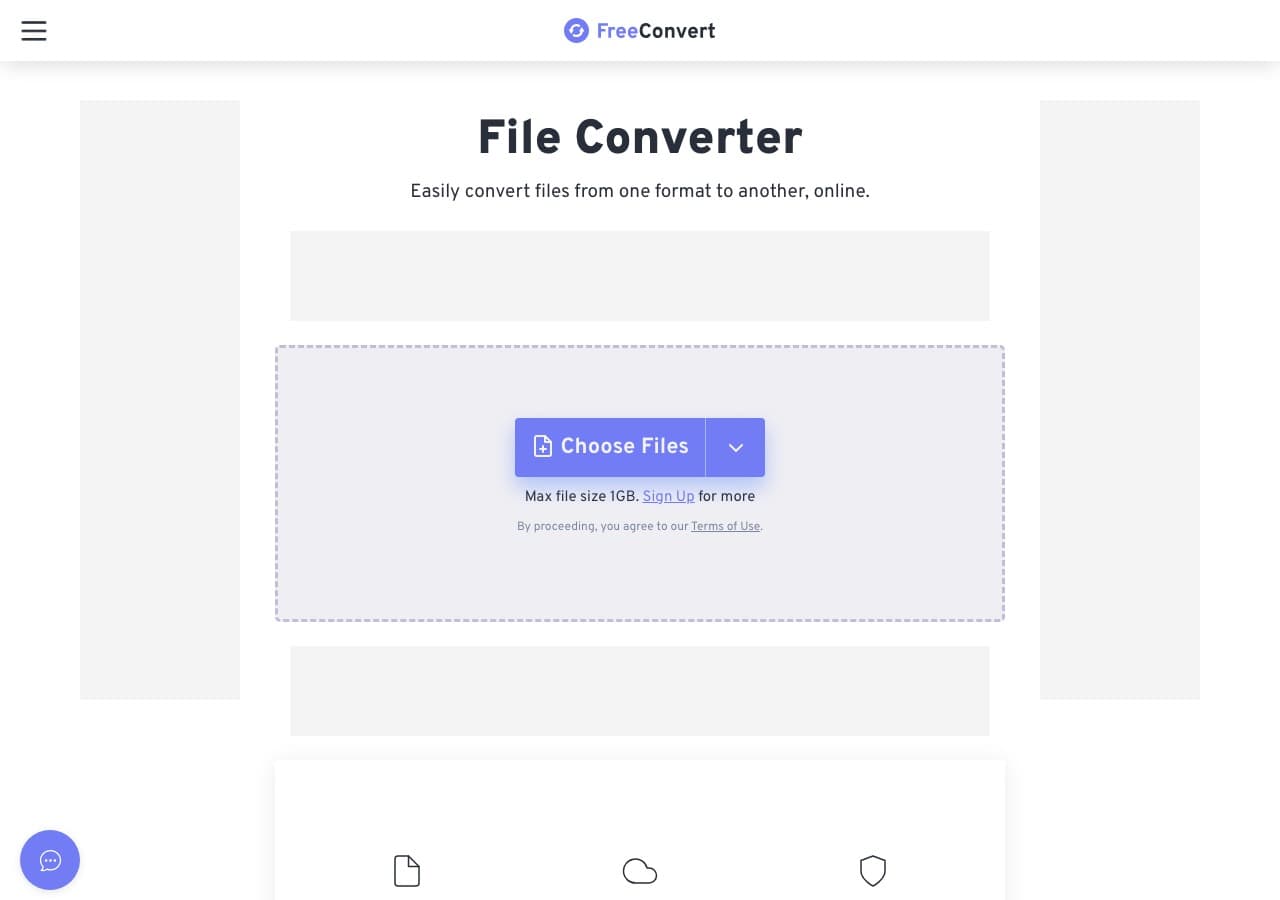
FreeConvert stands out among online converters with its generous 1GB free file size limit, the highest of any major online converter. That makes it one of the few online tools that can actually handle real video files, not just short clips.
The interface is straightforward and includes advanced settings like codec selection, resolution, and quality control that most online tools lack. Free users get 25 conversions per day. The main drawback is speed: free users are queued behind paying customers, so large files can take a while.
Pros
- 1GB free file size limit, the most generous of any online tool.
- Advanced output settings (codec, resolution, quality).
- 25 free conversions per day.
- No account required for free use.
Cons
- Free conversions are slower (queued behind paid users).
- Files are uploaded to their servers.
Pricing
- Free: 1GB limit, 25 conversions/day.
- From $9.99/month: Faster processing and larger files.
How to Convert
The offline file converter for Mac, Windows and Linux.
- Converts video, audio, images, documents, ebooks and more
- Everything runs locally. Your files never leave your device
- Pay once. Access forever
Get the app on Mac, Windows and Linux
Frequently Asked Questions
What is the best free video converter?
HandBrake is the best completely free video converter. It is open source, supports hardware acceleration, and handles most video formats with excellent output quality. How to Convert also has a free web demo for single-file conversions across common video, audio, image, and document formats.
Is it safe to use online video converters?
Online converters like CloudConvert and Zamzar are generally safe and reputable, but your files are uploaded to their servers during conversion. For sensitive or confidential video, use an offline converter like How to Convert, HandBrake, or FFmpeg that processes files locally on your device.
What is the fastest video converter?
Converters with GPU acceleration are the fastest. Wondershare UniConverter, Movavi, and Any Video Converter all use GPU encoding for speeds up to 130x faster than software-only conversion. Among free tools, HandBrake with hardware acceleration enabled is the fastest option.
Can I convert video without losing quality?
Yes, in some cases. If you are changing containers without changing codecs (for example, MKV to MP4 where the video stream is already H.264), tools like FFmpeg can remux the file without re-encoding, preserving perfect quality. If you need to change the codec, some quality loss is unavoidable, but using high bitrate settings minimizes it.
Final Thoughts
The right video converter depends on your workflow. For privacy and offline all-in-one conversion, How to Convert handles video alongside every other file type for a one-time purchase. For free video-specific conversion, HandBrake is the industry standard. Power users who want maximum control should learn FFmpeg. And for quick one-off conversions without installing anything, CloudConvert or FreeConvert will get the job done from your browser.
How to Convert
The offline file converter for Mac, Windows and Linux.
- Converts video, audio, images, documents, ebooks and more
- Everything runs locally. Your files never leave your device
- Pay once. Access forever
Get the app on Mac, Windows and Linux
